How to Fix Puppeteer Evaluation Errors for Undefined Selectors
Fix Puppeteer undefined selector errors with reliable waits, optional queries, iframe and shadow DOM handling, async evaluation, and runtime checks.
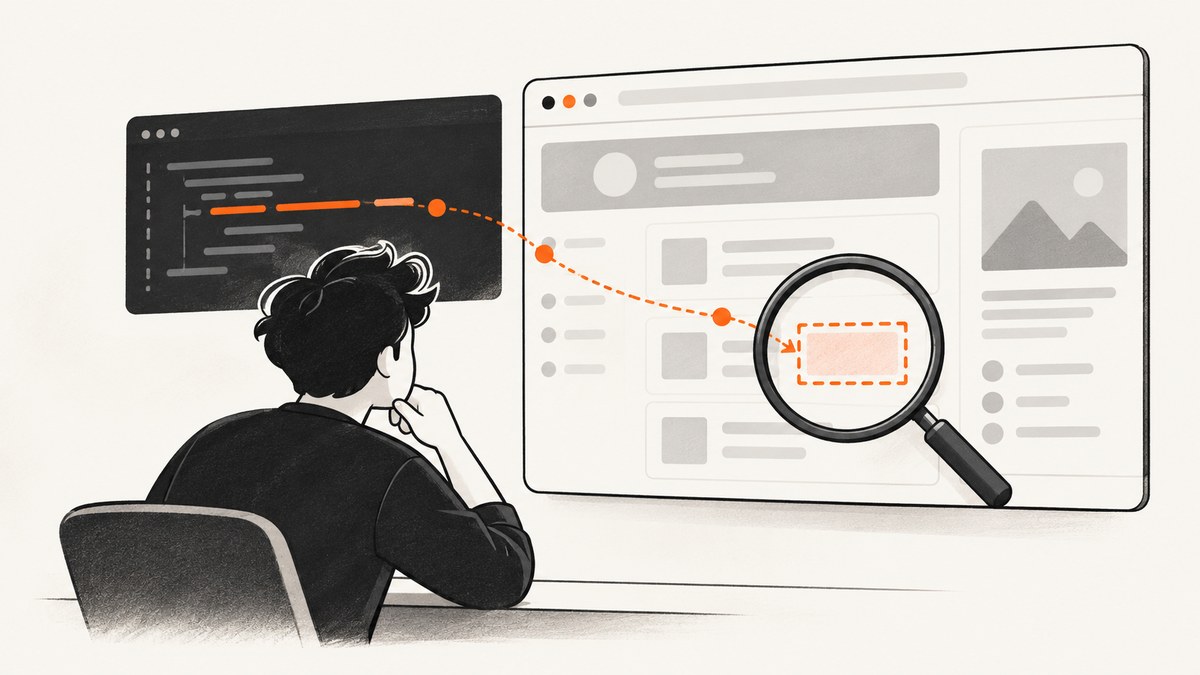
Most Puppeteer evaluation errors for “undefined selectors” have the same root cause: the selector does not match an element in the document context at the exact moment the code runs. Use page.$eval() only when the element is required and wait for it first. Use page.$() when the element is optional, because it returns null instead of throwing. Use page.$$() or page.$$eval() when zero, one, or many matches are valid.
The rest of the fix is systematic: prove whether the selector exists, wait for the page state that creates it, query the correct frame or shadow root, respect the browser-versus-Node execution boundary, and verify that your Puppeteer browser runtime is installed correctly.
What Puppeteer means by an undefined selector
Puppeteer does not normally report a JavaScript selector variable as “undefined” because CSS selectors are strings. In practice, developers use that phrase for one of these cases:
page.$eval(selector, callback)throws because no element matches.page.$(selector)returnsnull, and later code tries to use the missing handle.page.evaluate()receives an undefined value because the callback did not find an element or did not return a value.- The selector exists in DevTools, but in a different iframe, shadow root, route, or hydration state.
| Method | No-match result | Use it when |
|---|---|---|
page.$eval(selector, fn) |
Throws an error | Exactly one matching element is required |
page.$(selector) |
Resolves to null |
The element is optional or you need to branch |
page.$$eval(selector, fn) |
Callback receives an empty array | Zero or more matches are valid |
page.$$(selector) |
Resolves to an empty array | You need element handles for multiple matches |
These contracts are defined in the Puppeteer Page API reference. Choose the method whose no-match behavior matches your application instead of catching an exception after the fact.
Run a repeatable diagnosis
- Record the complete failure. Save the stack trace, URL, selector string, Puppeteer version, browser version, and whether the call follows navigation, a click, a redirect, or a client-side route change.
- Check the selector at the failure point. Query with
page.$()and count matches withpage.$$(). This separates “selector is absent” from “callback code failed.” - Wait for the state that creates the element. A selector may appear only after hydration, an API response, a click, or a redirect.
- Verify the document scope. Inspect whether DevTools places the node inside an iframe or shadow root. Query that context explicitly.
- Check the evaluation boundary. Values from Node.js must be passed as arguments to
evaluate(); asynchronous browser work must be returned or awaited. - Check transpilation and runtime setup. Incompatible Babel or TypeScript output, a missing Chrome binary, or a mismatched Puppeteer package can look like a selector problem.
Wait before evaluating dynamic content
Calling $eval immediately after goto() is fragile when a page renders content after JavaScript hydration. Wait for a specific selector whenever possible:

import puppeteer from 'puppeteer';

const browser = await puppeteer.launch();
const page = await browser.newPage();

await page.goto('https://example.com/dashboard', {
  waitUntil: 'domcontentloaded'
});

await page.waitForSelector('#results', { timeout: 15000 });
const text = await page.$eval('#results', el => el.textContent?.trim() ?? '');
console.log(text);

await browser.close();
waitForSelector() waits for presence by default. Add { visible: true } when the element must be rendered and visible, or { hidden: true } when you are waiting for a loading element to disappear. Use a timeout that reflects the site rather than an arbitrary long delay.
Wait for the real readiness condition
Network idle is useful for pages that finish rendering after several requests, but it is not a universal guarantee that application state is ready. Prefer the narrowest reliable condition:
await page.goto(url, { waitUntil: 'networkidle2' });
await page.waitForSelector('[data-testid="results"]', { visible: true });
For a click that triggers a navigation, wait for both operations together so a race cannot occur:
await Promise.all([
  page.waitForNavigation({ waitUntil: 'domcontentloaded' }),
  page.click('a.next-page')
]);
await page.waitForSelector('#results');
For a single-page application that changes the URL without a full navigation, wait for the post-click selector or a meaningful application marker instead of relying on waitForNavigation().
Use nullable queries for optional UI
Cookie notices, recommendation panels, and empty states are often optional. Do not force them through $eval:
const panel = await page.$('#optional-panel');
const panelText = panel
  ? await panel.evaluate(el => el.textContent?.trim() ?? '')
  : null;

if (panelText === null) {
  console.log('Optional panel is not present');
}
This pattern keeps the absence explicit. Remember to dispose of handles when you retain many of them during a long job; a one-off handle is released with the page, but large crawls should avoid accumulating references.
Check selector syntax and stability
Validate the exact selector in the same page and at the same time as the failing operation. Common mistakes include a missing escape for a special CSS character, case-sensitive attribute values, generated class names, and querying a class that changes on every build.
const selector = '[data-testid="account-name"]';
const matches = await page.$$(selector);
console.log({ selector, count: matches.length });
Prefer stable attributes such as data-testid, semantic elements, or accessible roles over positional selectors like div:nth-child(4). Puppeteer also supports additional selector syntax for text, accessibility roles, XPath, and shadow-DOM traversal; see the official selector guide before composing a complex query.
Query the correct iframe or frame
Elements inside an iframe do not belong to the top-level document. A successful query on page can still return no match. Find the child frame, then query it:
await page.goto('https://example.com/checkout');

const paymentFrame = page.frames().find(frame =>
  frame.url().includes('/payment-widget')
);

if (!paymentFrame) {
  throw new Error('Payment frame was not found');
}

await paymentFrame.waitForSelector('input[name="cardnumber"]');
await paymentFrame.type('input[name="cardnumber"]', '4242424242424242');
For a stable iframe element, you can also use contentFrame():
const iframeHandle = await page.waitForSelector('iframe#payment');
const frame = await iframeHandle.contentFrame();
if (!frame) throw new Error('Iframe has no content frame');
await frame.waitForSelector('input[name="cardnumber"]');
Cross-origin frames can be queried through their Puppeteer Frame object, but browser security still prevents directly reading data that the page itself cannot access. If a frame is created dynamically, wait for the frame or its URL before querying.
Handle shadow DOM deliberately
DevTools may show an element inside a component’s shadow root while a normal document query cannot see it. Use Puppeteer’s documented shadow-capable selector syntax where appropriate, or start from the host element and evaluate within its shadow root:
await page.waitForSelector('user-card');
const email = await page.$eval('user-card', host => {
  const input = host.shadowRoot?.querySelector('input[type="email"]');
  return input instanceof HTMLInputElement ? input.value : null;
});
When a component attaches its shadow root after hydration, wait for the host and then wait for a state that proves the root is populated. A host existing in the DOM does not guarantee that its internal controls already exist.
Understand the evaluate() execution boundary
page.evaluate() runs its function in the browser page, not in Node.js. The callback is serialized, so it cannot close over arbitrary Node variables, imported modules, or file handles. Pass values as arguments:
const selector = '[data-price]';
const currency = 'USD';

const price = await page.evaluate(
  (sel, wantedCurrency) => {
    const node = document.querySelector(sel);
    if (!node) return null;
    return {
      value: node.textContent?.trim() ?? '',
      currency: wantedCurrency
    };
  },
  selector,
  currency
);
If the callback starts asynchronous work, return or await its Promise. Puppeteer waits for a returned Promise to resolve, as described in the Page.evaluate() documentation:
const title = await page.evaluate(async () => {
  await new Promise(resolve => setTimeout(resolve, 100));
  return document.title;
});
A missing return produces undefined even when the selector was found. Check both the query and the callback’s return path.
Check Babel and TypeScript output
When a plain callback works but an async callback behaves strangely, inspect the generated JavaScript. Puppeteer’s troubleshooting guidance calls out transpiler failures around async evaluation and recommends targeting a recent ECMAScript version such as ES2018. Run a minimal untransformed reproduction, compare it with the compiled output, and ensure your build does not rewrite the browser callback into code that depends on Node-only helpers.
Verify Puppeteer and Chrome installation
The puppeteer package downloads a compatible Chrome build during installation. puppeteer-core does not download a browser and requires you to provide an executable path. Blocked install scripts, a missing cache, or an incorrect executable path can cause failures before selector logic is reached. Follow the official installation guide, pin a known Puppeteer version, and log the version in bug reports.
import puppeteer from 'puppeteer';

console.log('Puppeteer package:', puppeteer.version());
const browser = await puppeteer.launch({ headless: true });
console.log('Browser started');
await browser.close();
Pinning matters because selector behavior, locator APIs, and bundled browser revisions change over time. The retrieved $eval reference is for Puppeteer 25.12.0; verify the version your project actually runs instead of assuming the documentation and lockfile match.
Reliable patterns you can copy
Required single element
await page.waitForSelector('#results');
const text = await page.$eval('#results', el => el.textContent?.trim() ?? '');
Optional single element
const handle = await page.$('#optional-panel');
const text = handle ? await handle.evaluate(el => el.textContent) : null;
Many elements
const labels = await page.$$eval('[data-label]', els =>
  els.map(el => el.textContent?.trim() ?? '')
);
Selector supplied by a caller
function assertSelector(value) {
  if (typeof value !== 'string' || value.trim() === '') {
    throw new TypeError('selector must be a non-empty string');
  }
  return value;
}

const selector = assertSelector(inputSelector);
await page.waitForSelector(selector, { timeout: 10000 });
const result = await page.$eval(selector, el => el.textContent ?? '');
Validate untrusted selector input before sending it to the browser. A malformed selector should produce a clear input error rather than a misleading “undefined” result.
Performance, reliability, and cost considerations
- Prefer event-based waits. A selector wait normally finishes sooner than a fixed delay and reduces flaky timing windows.
- Keep selectors narrow. Querying a stable ID or test attribute is cheaper and more reliable than scanning a large subtree repeatedly.
- Reuse a browser process carefully. Reusing one browser and creating isolated pages reduces launch overhead, but close pages and clear listeners to prevent memory growth.
- Set bounded timeouts. A timeout turns a missing element into a diagnosable failure instead of hanging a worker forever. Record the URL and selector when it occurs.
- Retry only transient stages. A short retry can help with a slow network or delayed frame. Retrying a permanently wrong selector only increases load and hides the defect.
- Capture evidence. On failure, save a screenshot, current URL, HTML snippet, match count, and console messages when permitted. This shows whether the page was blank, blocked, redirected, or simply changed.
Common errors and fixes
| Symptom | Likely cause | Fix |
|---|---|---|
Error: failed to find element matching selector |
$eval ran before the element existed |
Use waitForSelector after the relevant navigation or UI event |
Cannot read properties of null |
page.$() returned null |
Branch on the handle before calling evaluate, click, or type |
| DevTools finds it, Puppeteer does not | Wrong iframe, shadow root, or page state | Query the child Frame, shadow root, or post-hydration state |
Callback returns undefined |
Missing return statement or missing element branch | Return a value on every path and explicitly return null for absence |
| Async callback returns too early | Promise was not returned or awaited | Make the callback async and return/await the asynchronous operation |
| Works in source, fails after build | Babel/TypeScript transformed the browser callback incompatibly | Target a recent ECMAScript version and inspect compiled output |
| Browser launch fails before querying | Missing Chrome, blocked install script, or puppeteer-core without an executable |
Install a compatible browser explicitly and verify the launch configuration |
| Intermittent failures after a click | Race between the click, navigation, and rendering | Use Promise.all for navigation plus click, then wait for the destination selector |

Or skip the browser setup
If your goal is a clean screenshot rather than browser automation itself, ScreenshotNeo provides a single HTTP request. It accepts cookie and consent banners as a visitor and removes more than 60 known consent platforms, newsletter popups, and chat widgets before capture. Bot checks, CAPTCHAs, blank pages, timeouts, failed loads, and cache hits are not billed, and response headers identify the page verdict and billing result.
See the ScreenshotNeo API documentation for all options, including full-page capture, element selectors, device presets, dark mode, custom CSS and JavaScript, waits, request blocking, headers, cookies, geolocation, PDF output, caching, signed links, asynchronous jobs, bulk capture, and usage reporting.
curl -G "https://api.screenshotneo.com/v1/shot" -d access_key=YOUR_API_KEY --data-urlencode url=https://stripe.com -o shot.webpimport requests
r = requests.get(
"https://api.screenshotneo.com/v1/shot",
params={"access_key": "YOUR_API_KEY", "url": "https://stripe.com"},
timeout=90,
)
r.raise_for_status()
open("shot.webp", "wb").write(r.content)const q = new URLSearchParams({ access_key: 'YOUR_API_KEY', url: 'https://stripe.com' });
const res = await fetch(`https://api.screenshotneo.com/v1/shot?${q}`);ScreenshotNeo also includes an MCP server with take_screenshot, get_page_info, and capture_pdf tools for Claude, Cursor, and other MCP clients. The Free plan includes 1,000 screenshots per month with no card; paid plans start at $5 for 3,000. Create a free ScreenshotNeo account.
FAQ
Should I catch the error from $eval?
Only when absence is an exceptional condition you want to report. For expected optional content, use $() and branch explicitly.
Is waitForTimeout enough?
It can mask timing problems but does not prove that the page is ready. Prefer a selector, frame, URL, response, or application state that represents readiness.
Why does the same selector work manually?
Manual DevTools inspection happens after the page has hydrated and may be inside a selected frame or shadow root. Reproduce that timing and context in Puppeteer.
When should I use a locator?
Use Puppeteer’s locator APIs when their built-in waiting and retry behavior fits your interaction. The same principles still apply: verify scope, choose a stable selector, and define what absence means.
Can a cache hit cause a selector error?
In a browser script, a cache hit normally affects response timing rather than selector semantics. Still log redirects, URLs, and the final document because a cached or redirected response may be different from the page you expected.


