How to Fix Errors While Waiting for Elements in Puppeteer
A Puppeteer element wait times out when its selector never reaches the requested state. Diagnose the page, selector, visibility, frame, navigation, and timeout in order.
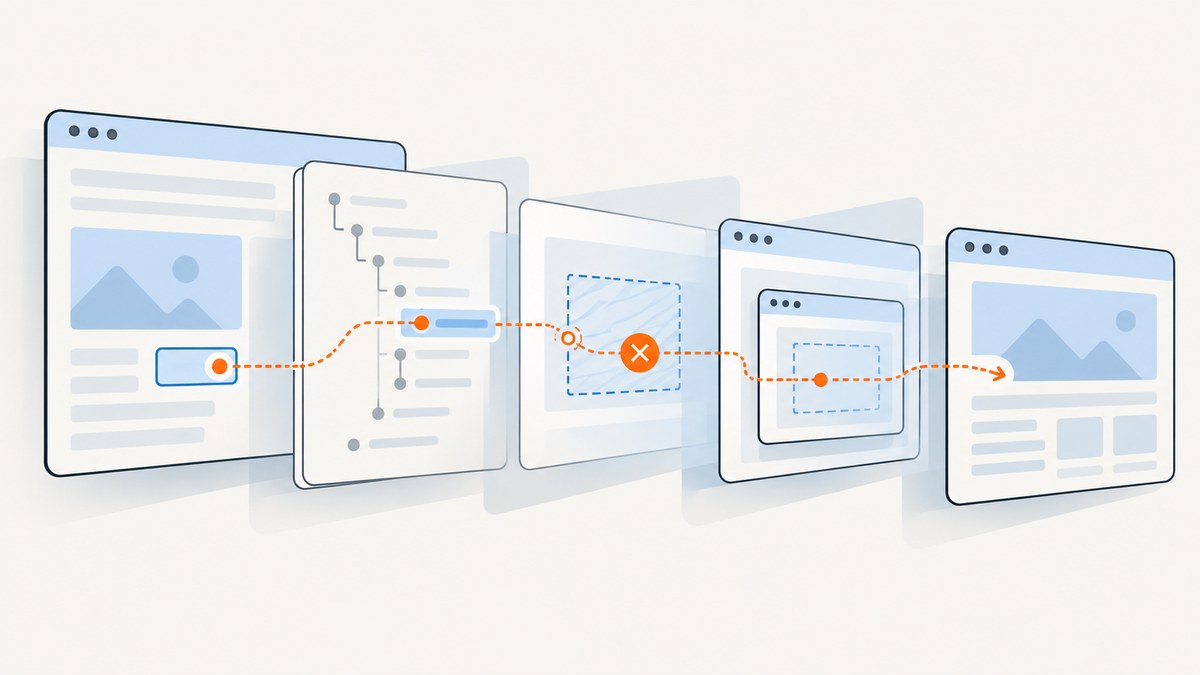
A Puppeteer element wait timeout means the requested selector did not reach the requested state before the configured limit. The fix is usually to verify the page and selector, decide whether you need DOM presence or visibility, check whether the element belongs to an iframe, and coordinate any navigation with the action that triggers it. Increasing the timeout helps only when the selector and condition are right and the page is legitimately slow.
page.waitForSelector() waits for a matching element in the page. By default it waits for the element to exist in the DOM; it does not require the element to be visible. Its documented default timeout is 30 seconds. If it expires, Puppeteer throws a timeout error. See the official waitForSelector API and options reference.
1. Identify which wait failed
Start with the exact error and the line that rejected. Puppeteer’s TimeoutError can come from more than an element wait; launch and navigation operations can time out too. Add a short label around waits while debugging so logs identify the operation. A selector timeout means the requested condition was not met in the queried document within the limit. It does not, by itself, tell you whether the selector is misspelled, the page is wrong, or the element is hidden.
try {
  await page.waitForSelector('[data-testid="results"]', { visible: true, timeout: 10_000 });
} catch (error) {
  console.error('Timed out waiting for visible results', {
    url: page.url(),
    message: error.message,
  });
  throw error;
}
Log the URL immediately before the wait, too. A redirect, failed login, consent screen, or unexpected error page can leave a perfectly valid selector looking for content that will never appear.
2. Verify the current page and selector
Check the URL and inspect the DOM at the time of the wait. Confirm spelling, capitalization in attribute values, quoting, escaping, and scope. Prefer stable attributes such as a test ID or semantic selector over a generated class that changes between builds. If several elements match, establish whether you need the first one, a particular container, or a more specific descendant.
console.log('Current URL:', page.url());
console.log('Matches:', await page.locator('[data-testid="results"]').count());
console.log('Title:', await page.title());
Puppeteer accepts CSS selectors and also offers selector syntax for text, accessibility role and name, XPath, and combinations that can cross open shadow roots. Use a selector form that matches the actual structure; do not assume a selector queried from the main page will pierce every component boundary. The Page interactions guide describes selector and locator behavior.
3. Choose the state you actually need
DOM presence, visibility, and action readiness are different conditions. Choose intentionally:
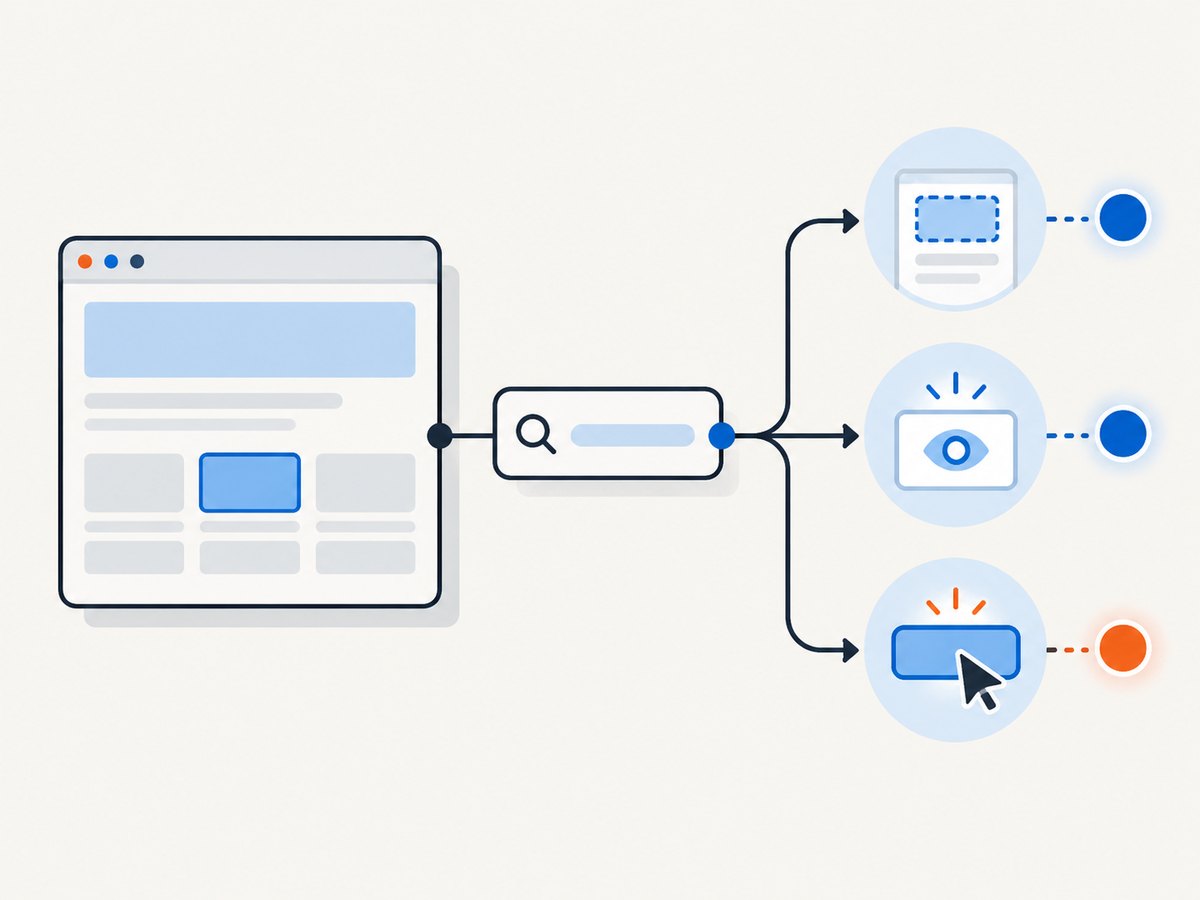
| Need | Use | What it means |
|---|---|---|
| Element is in the DOM | waitForSelector(selector) |
Default behavior; visibility is not required. |
| Element exists and is visible | waitForSelector(selector, { visible: true }) |
Waits for presence and Puppeteer’s visibility condition. |
| Element disappears or becomes hidden | waitForSelector(selector, { hidden: true }) |
Resolves when absent or hidden; may return null if absent. |
| Element can be interacted with | page.locator(selector).click() |
Locator waits for action preconditions such as visibility, enabled state, viewport position, and a stable bounding box. |
| Application-specific readiness | waitForFunction() |
Waits for a browser-context predicate to become truthy. |
Visibility is not the same as “ready for my workflow.” For example, a visible results container may still be empty. In that case, wait for a row, a non-empty value, or a documented application state rather than the outer container.
// Wait for DOM presence, then read text.
const result = await page.waitForSelector('[data-testid="result"]');
console.log(await result.evaluate(el => el.textContent));
await result.dispose();

// Wait for visibility when the next step requires a visible element.
await page.waitForSelector('button.submit', { visible: true });

// Wait for a loader to be gone. This can resolve with null if it is absent.
const loader = await page.waitForSelector('.loading', { hidden: true });
if (loader) await loader.dispose();
waitForSelector returns an ElementHandle when it finds an element. Dispose a handle when finished with it. For ordinary interactions, a locator is generally simpler and avoids managing a handle manually.
4. Check whether the element is inside an iframe
Each iframe has its own document. Querying page only searches the main frame; an element inside a child frame will not match there. Find the relevant frame and perform the wait in that frame’s context. Frame selector waits work across navigations.
const frame = page.frames().find(frame => frame.url().includes('/embedded-checkout/'));
if (!frame) {
  throw new Error('Embedded checkout frame was not found');
}

await frame.waitForSelector('button.confirm', { visible: true, timeout: 15_000 });
await frame.locator('button.confirm').click();
Frame URLs can change or be opaque, so identify the frame using a property that is stable for your application. If the frame is created asynchronously, wait for it to appear before querying within it. A selector timeout in the main frame is not fixed by adding time when the target belongs to another document. See the official Frame.waitForSelector API.
5. Pair navigation waits with the action
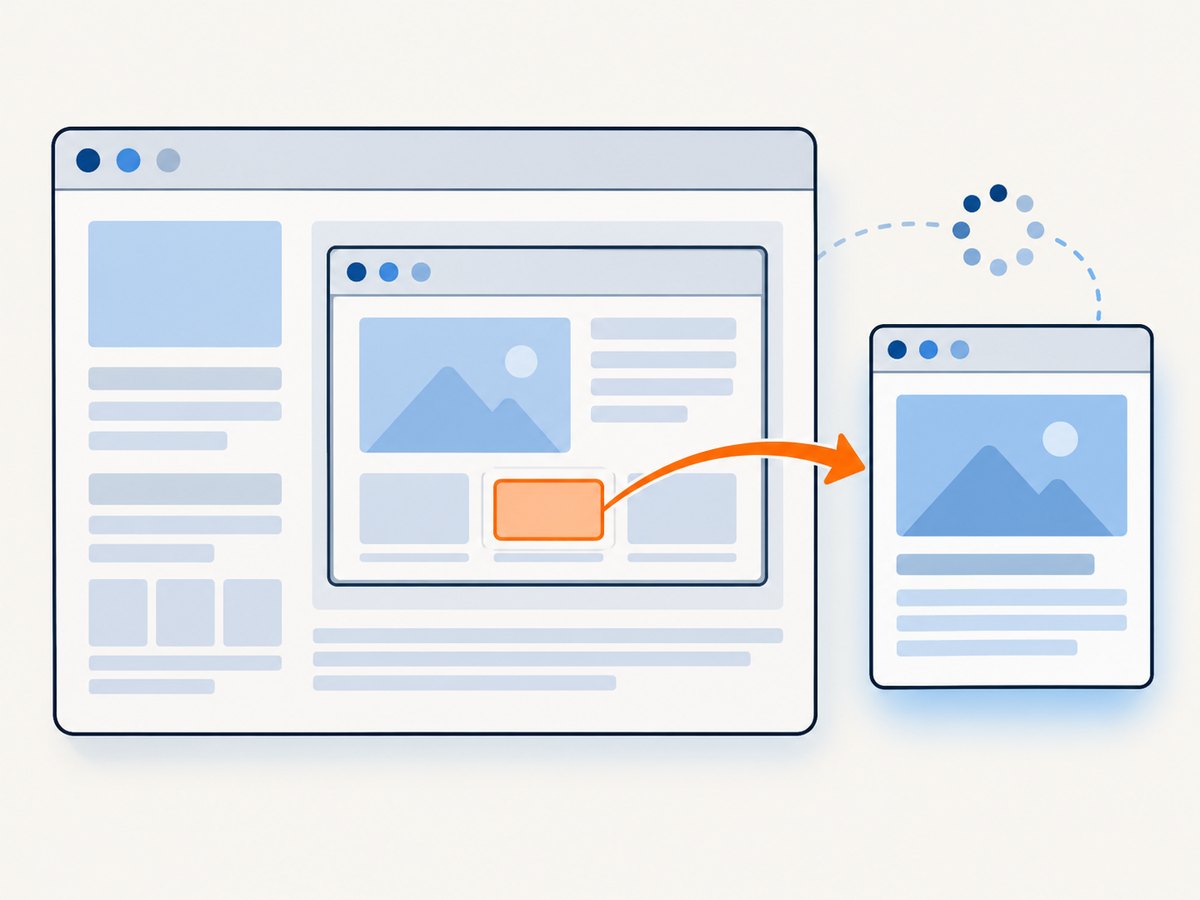
If a click causes navigation, register the navigation wait at the same time as the click. Awaiting the click first and only then calling waitForNavigation() can miss a fast navigation.
const [response] = await Promise.all([
  page.waitForNavigation(),
  page.locator('a.next-page').click(),
]);

console.log('Navigation response:', response?.status() ?? 'same-document navigation');
await page.waitForSelector('[data-testid="next-page-content"]', { visible: true });
Navigation completion does not guarantee that an application has finished rendering content asynchronously. Follow it with the selector or application condition that represents readiness. A History API URL change may also count as navigation and resolve without a network response. Read the waitForNavigation API for its return behavior.
6. Wait for a meaningful application condition
When no single selector expresses readiness, wait for a specific browser-side condition. This is more reliable than sleeping for a guessed duration, which may waste time on a fast run and still be too short on a slow one.
await page.waitForFunction(
  () => {
    const status = document.querySelector('[data-testid="load-status"]');
    const rows = document.querySelectorAll('[data-testid="result-row"]');
    return status?.textContent?.trim() === 'Ready' && rows.length > 0;
  },
  { timeout: 20_000, polling: 'mutation' },
);
The predicate runs in the browser context, so it must use values available there. Make the condition specific enough to avoid succeeding on stale or placeholder content. Puppeteer also supports waiting on locator functions; locators are the recommended way to select and interact with elements, and their action checks include visibility, enabled state, viewport position, and stable geometry.
7. Change timeouts only after checking the condition
The selector wait timeout can be set on an individual call, changed as the page default with page.setDefaultTimeout(), or disabled by passing 0. A per-call limit keeps an unusually slow step from changing every wait in the script.
// One slow but expected step
await page.waitForSelector('[data-testid="report"]', { visible: true, timeout: 45_000 });

// Set a page-wide default for subsequent timeout-aware operations
page.setDefaultTimeout(20_000);

// Disable this wait's timeout only when an indefinite wait is intentional
await page.waitForSelector('[data-testid="manual-trigger"]', { timeout: 0 });
Use a larger limit only after confirming the correct URL, selector, frame, and state. A longer timeout cannot fix a wrong selector or an element that never becomes visible. An unbounded wait can leave a worker stuck forever, so production automation should normally retain a finite limit and handle failure.
Runnable diagnostic example
This complete Node.js example launches Puppeteer, opens a page, waits for a visible heading, reports the page state on timeout, and closes the browser even if the wait fails. Install Puppeteer in your project with npm install puppeteer, then save this as an ES module file and run it with Node.js. It uses the stable example domain and a selector that exists in its document.
import puppeteer from 'puppeteer';

const browser = await puppeteer.launch({ headless: true });
try {
  const page = await browser.newPage();
  page.setDefaultTimeout(15_000);
  await page.goto('https://example.com', { waitUntil: 'domcontentloaded' });

  try {
    const heading = await page.waitForSelector('h1', { visible: true });
    console.log('URL:', page.url());
    console.log('Heading:', await heading.evaluate(el => el.textContent.trim()));
    await heading.dispose();
  } catch (error) {
    console.error('Element wait failed:', error.message);
    console.error('Current URL:', page.url());
    console.error('Page title:', await page.title());
    throw error;
  }
} finally {
  await browser.close();
}
Common errors and fixes
| Symptom | Likely cause | Fix |
|---|---|---|
TimeoutError at waitForSelector |
Selector never matched, or required state was not reached. | Log URL, inspect selector and DOM; check visibility and frame context. |
| Element exists in inspector but wait times out | Inspector is showing a different frame, route, or later page state. | Confirm the active URL and query the correct frame at the moment of the wait. |
| Wait resolves, click fails | Default wait found DOM presence, but element is hidden, disabled, moving, or off-screen. | Use a locator action, or explicitly wait for visibility and understand remaining action constraints. |
| Navigation sometimes hangs or is missed | Navigation wait was registered after the click, or the action does not navigate. | Use Promise.all for click plus navigation; for SPA updates, wait for the resulting content instead. |
Wait for hidden state returns null |
The selector was already absent. | Treat absence as success when that matches the desired condition; do not dereference the result. |
| Script hangs indefinitely | Timeout was set to zero or the default was changed globally. | Restore a finite timeout and ensure cleanup runs in finally. |
| Works locally, fails intermittently in CI | Variable rendering speed, different viewport, network, authentication, or environment state. | Wait for an application readiness condition, log page state, and keep the timeout finite but realistic. |
Performance and reliability
Waiting for a precise condition usually improves both speed and diagnosis. A fixed delay always consumes its full duration even when the page is ready sooner. Conversely, waiting for a broad network-idle condition can be a poor substitute when an app keeps background requests open; choose the signal that actually gates the next action.
Keep timeouts scoped: a slow report can have a longer local limit without making every unrelated selector wait slower. On failure, capture enough context to reproduce the issue: Puppeteer version, exact selector and options, current URL, frame URL, and the state of the relevant DOM. Do not retry every timeout blindly; retries can hide a real selector regression or authentication failure. If retrying a transient operation is appropriate, make retries bounded and log each attempt.
Puppeteer documentation versions can change. The API references reviewed for this guide identify the current Page API and interaction guide as version 25.12.0; check the documentation matching your installed package if a method or option differs.
Or skip the browser setup
If the goal is a screenshot rather than browser interaction, ScreenshotNeo is a website screenshot API and MCP server. A single GET request returns an image or PDF. Its capture process accepts cookie and consent banners like a visitor and removes more than 60 known consent platforms, newsletter popups, and chat widgets before the shot; each step can be turned off.
See the ScreenshotNeo documentation for API parameters. This cURL request saves a WebP screenshot:
curl -G "https://api.screenshotneo.com/v1/shot" \
  -d access_key=YOUR_API_KEY \
  --data-urlencode url=https://example.com \
  -o shot.webp
Python:
import requests

r = requests.get(
    "https://api.screenshotneo.com/v1/shot",
    params={"access_key": "YOUR_API_KEY", "url": "https://example.com"},
    timeout=90,
)
r.raise_for_status()
open("shot.webp", "wb").write(r.content)
Node.js:
const q = new URLSearchParams({
  access_key: 'YOUR_API_KEY',
  url: 'https://example.com',
});
const res = await fetch(`https://api.screenshotneo.com/v1/shot?${q}`);
if (!res.ok) throw new Error(`Screenshot request failed: ${res.status}`);
await import('node:fs/promises').then(fs => fs.writeFile('shot.webp', Buffer.from(await res.arrayBuffer())));
Bot checks and CAPTCHAs, blank pages, timeouts, failed loads, and cache hits are not billed; response headers report the page verdict and billing status. ScreenshotNeo also has an MCP server with take_screenshot, get_page_info, and capture_pdf tools for Claude, Cursor, and other MCP clients. The free plan includes 1,000 screenshots each month with no card; paid plans start at $5 for 3,000. Sign up for 1,000 free screenshots a month, with no card required.
FAQ
Does waitForSelector wait across page navigation?
Yes. Puppeteer documents that the selector wait works across navigations. Still confirm that the navigation reaches the intended document and that the selector belongs to the active frame.
Should I use waitForSelector or a locator?
Use a locator for selecting and interacting with an element in the normal flow. Use waitForSelector when you specifically need its lower-level handle or its DOM, visible, or hidden wait semantics.
Is a timeout always evidence of a slow site?
No. It only means the requested condition was not met before the limit. The selector, state, page, or frame can be wrong.
What details help diagnose a specific timeout?
Provide the exact error and code, installed Puppeteer version, target URL, selector and options, page state at failure, and whether the element is inside a frame.


