How to Fix Puppeteer waitForSelector() Inside a Loop
Fix Puppeteer waits in loops by awaiting each step, checking for new page state, and handling visibility, timeouts, frames, and stale results.
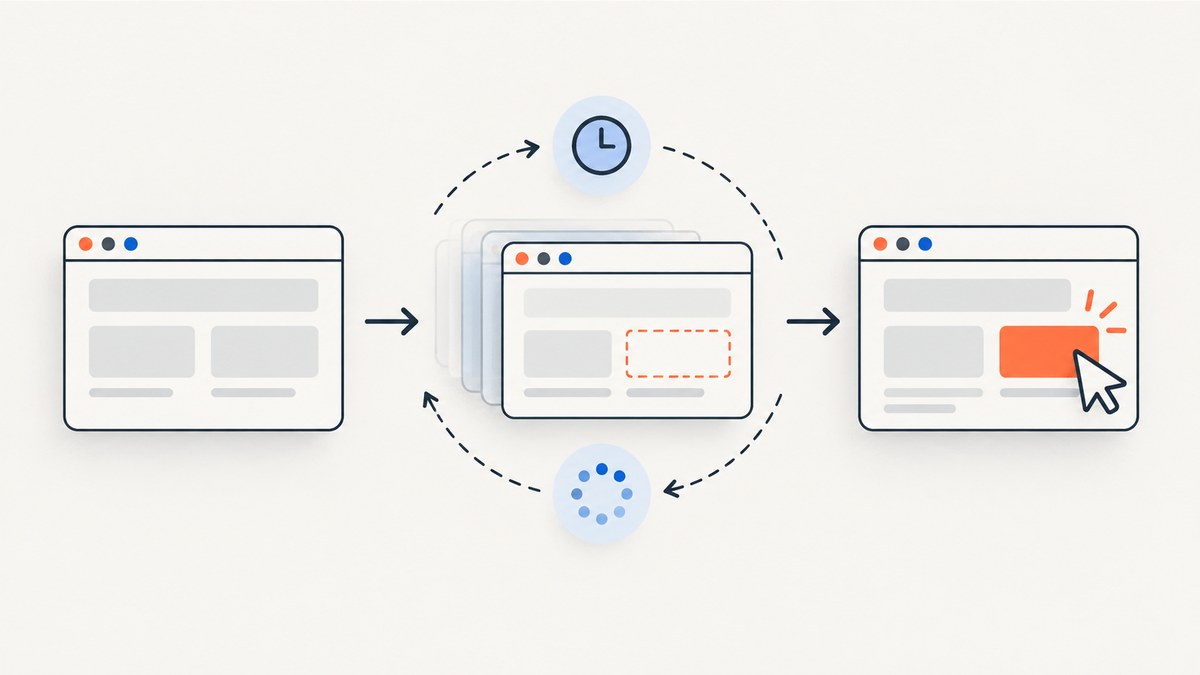
page.waitForSelector() works inside a loop when you await it in the loop body and the selector represents the state you actually need. The most common trap is waiting repeatedly for an element that already exists: Puppeteer resolves that wait immediately, so it does not prove that the next result has loaded.
Use an awaited for...of loop for sequential work, choose a selector or condition that distinguishes each iteration, and set a deliberate timeout. For actions such as clicking or typing, consider Puppeteer’s recommended locator API, which waits for action preconditions and retries actions when appropriate.
1. Use an awaited loop for sequential work
Each iteration should finish its wait and dependent action before the loop starts the next one. A for...of loop makes that ordering explicit:
for (const item of items) {
  await page.waitForSelector(item.selector, {
    visible: true,
    timeout: 10_000,
  });

  await processCurrentItem(page, item);
}
This assumes item.selector identifies the page state needed for that item. If the same selector remains present across iterations, the wait can resolve before new content arrives. Use a per-item selector, a changed value, or another state marker in that case.
A complete example that visits pages, waits for an article, reads its text, and disposes of the returned handle:
import puppeteer from 'puppeteer';

const urls = [
  'https://example.com/first',
  'https://example.com/second',
];

const browser = await puppeteer.launch({ headless: true });
try {
  const page = await browser.newPage();

  for (const url of urls) {
    await page.goto(url);
    const article = await page.waitForSelector('main article', {
      visible: true,
      timeout: 10_000,
    });

    if (!article) {
      throw new Error(`Article was hidden or absent at ${url}`);
    }

    try {
      const text = await article.evaluate(element => element.textContent ?? '');
      console.log(url, text.trim());
    } finally {
      await article.dispose();
    }
  }
} finally {
  await browser.close();
}
Replace the example URLs and selector with pages you are authorized to automate. The selector must be a reliable marker for the content on each page. goto() and waitForSelector() serve different purposes: navigation waits for a navigation condition, while the selector wait checks for a matching element.
2. Check whether the selector is already satisfied
Puppeteer’s documented behavior is that waitForSelector() returns immediately if the selector already exists when the call begins. That is useful for an element that is ready now, but it is not a “wait for a new matching element” operation.

For example, this pattern can read the same content each time if the application updates the existing result node after the click:
for (const query of queries) {
  await page.locator('button.search').click();
  await page.waitForSelector('.search-result');
  // The result container may have existed before the click.
  await readResult(page);
}
Capture a value that changes, trigger the update, and wait for a distinguishing condition. Here is a generic pattern using an ID in the DOM; adapt the selector and property to the target application:
const previousId = await page.$eval(
  '.search-result',
  element => element.getAttribute('data-result-id'),
);

await page.locator('button.search').click();

await page.waitForFunction(previous => {
  const result = document.querySelector('.search-result');
  return result?.getAttribute('data-result-id') !== previous;
}, { timeout: 10_000 }, previousId);
The condition is site-specific. A changed item ID, text value, URL, count, or loading state can be a better marker. If the app exposes a stable state signal, wait for that rather than adding an arbitrary delay.
3. Choose presence, visibility, or hidden state
By default, the wait checks that the selector exists in the DOM; that does not guarantee the element is visible. Set visible: true when the next operation requires a visible element. Use hidden: true to wait until the element is absent or hidden.
| Goal | Option | What it means |
|---|---|---|
| Element is in the DOM | Default | Resolve when a match exists, even if not visible. |
| Element can be seen | visible: true |
Wait for a matching element to be visible. |
| Spinner or overlay is gone | hidden: true |
Wait for the matching element to be hidden or absent; this can resolve with null. |
Do not set visible: true merely to make a wait “more reliable.” It changes the condition. For example, an element may be in the DOM but intentionally hidden until another action. Match the option to the next operation.
4. Configure timeouts and cancellation
The documented default timeout is 30 seconds. Set it per call for waits with different expectations, or set a page-wide default with page.setDefaultTimeout(). A timeout of 0 disables the timeout, which can leave a job waiting indefinitely if the expected state never arrives.
page.setDefaultTimeout(15_000);

await page.waitForSelector('.ready', {
  visible: true,
  timeout: 5_000,
});
The selector wait options also support an AbortSignal. This is useful when a higher-level task is cancelled, such as a worker job whose caller has disconnected:
const controller = new AbortController();
const timer = setTimeout(() => controller.abort(), 8_000);

try {
  await page.waitForSelector('.ready', {
    visible: true,
    signal: controller.signal,
  });
} finally {
  clearTimeout(timer);
}
Use a timeout that reflects the page and operation, and catch errors where a missing item is an expected outcome. Do not silently swallow every timeout: it can hide broken selectors, navigation failures, or changed markup.
5. Handle repeated items and errors deliberately
If a batch should continue when one page lacks an optional element, handle that expected miss at the iteration boundary and keep enough context to diagnose it:
for (const url of urls) {
  await page.goto(url);

  try {
    const element = await page.waitForSelector('.optional-card', {
      visible: true,
      timeout: 4_000,
    });
    if (!element) continue;

    try {
      console.log(url, await element.evaluate(el => el.textContent?.trim()));
    } finally {
      await element.dispose();
    }
  } catch (error) {
    console.warn(`No card at ${url}:`, error.message);
  }
}
If every page must contain the element, allow the error to fail the job or collect failures and report them at the end. A blanket catch that continues without recording the URL can produce incomplete output that looks successful.
6. Use the correct frame
A selector inside an iframe is not in the main page document. Get the matching Frame and wait there. Puppeteer’s frame API documents that frame waits operate in that frame and work across navigations.
const frame = page.frames().find(frame => frame.url().includes('/embedded/'));
if (!frame) throw new Error('Embedded frame was not found');

const control = await frame.waitForSelector('button.confirm', {
  visible: true,
  timeout: 10_000,
});
Use a stable frame identifier when possible; frame order can change as the page creates and removes frames. If the frame is cross-origin, browser automation can still address its frame context, but page-side JavaScript in the parent document cannot inspect the child document directly.
7. Prefer locators when the goal is an action
Puppeteer’s page-interactions guide recommends locators for selecting and interacting with elements. A locator waits for action preconditions and retries actions when appropriate. Use waitForSelector() when your code specifically needs to wait for DOM availability or obtain an ElementHandle; use a locator when the task is an interaction.
await page.locator('button.continue').click();
await page.locator('input[name="email"]').fill('dev@example.com');
With a handle, your code owns its lifetime. Dispose of it once finished, especially in long-running loops. A locator avoids carrying a handle between steps and is often simpler for an action that may need retrying.
8. Sequential versus concurrent loops
Use sequential awaits when each iteration depends on the prior page state, when sharing one page, or when you need predictable navigation order. Array.prototype.forEach() does not wait for promises returned by its callback, so this does not make the outer flow wait for every capture:
items.forEach(async item => {
  await page.waitForSelector(item.selector);
});
For independent work, create separate pages or browser contexts and deliberately await the tasks together:
const results = await Promise.all(urls.map(async url => {
  const page = await browser.newPage();
  try {
    await page.goto(url);
    await page.waitForSelector('main', { visible: true, timeout: 10_000 });
    return await page.title();
  } finally {
    await page.close();
  }
}));
Concurrency is not automatically faster: each page uses browser resources, and the target site or network may become the bottleneck. Bound concurrency for large batches rather than opening an unbounded number of pages. Do not concurrently drive the same page when its navigation and DOM state are shared.
9. Troubleshooting checklist
| Symptom | Likely cause | Fix |
|---|---|---|
| The loop does not wait for all iterations | Using forEach(async ...) without awaiting its promises. |
Use for...of for sequential work or await Promise.all(...) for deliberate concurrency. |
| The wait succeeds too early | A matching element already exists. | Wait for a changed value, item-specific selector, or state marker. |
| The wait times out despite visible content | Wrong selector, wrong frame, different page state, or visibility mismatch. | Inspect the actual DOM and frame; use presence or visibility to match the requirement. |
| The next action fails after the wait | The element changed or detached between the wait and action. | Use a locator for the action, or reacquire the handle and handle navigation or replacement. |
| Loop reads stale text | The app reuses a result node, so selector presence says nothing about refreshed data. | Wait for changed text, ID, count, or loading completion. |
| Wait never ends | timeout: 0 disabled the timeout, or a default was changed. |
Set an explicit finite timeout or abort signal and log the current URL and selector. |
| Handle memory grows in a long job | Returned ElementHandle objects are retained. |
Dispose each handle in a finally block after use. |
- Log the iteration index, current URL, selector, and elapsed time before each wait.
- Confirm the expected element is in the current document rather than an iframe.
- Check whether the selector existed before the event that should produce new content.
- Separate navigation, DOM availability, visibility, and application-specific readiness; they are different conditions.
- Keep timeout errors visible in logs, and include enough context to reproduce the failing iteration.
10. Or skip the browser setup
If your goal is a screenshot rather than browser interaction or DOM extraction, ScreenshotNeo provides a one-request screenshot API. See the API documentation for request options.
curl -G "https://api.screenshotneo.com/v1/shot" \
  -d access_key=YOUR_API_KEY \
  --data-urlencode url=https://stripe.com \
  -o shot.webp
import requests
r = requests.get(
"https://api.screenshotneo.com/v1/shot",
params={"access_key": "YOUR_API_KEY", "url": "https://stripe.com"},
timeout=90,
)
open("shot.webp", "wb").write(r.content)const q = new URLSearchParams({
access_key: 'YOUR_API_KEY',
url: 'https://stripe.com',
});
const res = await fetch(`https://api.screenshotneo.com/v1/shot?${q}`);
if (!res.ok) throw new Error(`Screenshot request failed: ${res.status}`);
await Bun.write('shot.webp', res);ScreenshotNeo accepts cookie and consent banners like a visitor and removes more than 60 known consent platforms, newsletter popups, and chat widgets before capture; each of those steps can be turned off. Bot checks and CAPTCHAs, blank pages, timeouts, failed loads, and cache hits cost nothing, with response headers indicating the page verdict and billing status. Its MCP server provides take_screenshot, get_page_info, and capture_pdf tools for Claude, Cursor, and other MCP clients. The Free plan includes 1,000 screenshots a month without a card; paid plans start at $5 for 3,000 shots. Every feature is on every plan.
Create a free ScreenshotNeo account to get 1,000 screenshots a month with no card.
11. Reliability, performance, and cost notes
A wait is a synchronization point, not a guarantee that the whole page is correct. Choose a condition tied to the content your script consumes, use finite timeouts, and make failures observable. If processing many pages, record successes and misses separately so retries do not duplicate completed work.
Sequential work is easier to reason about but can take longer for independent pages. Parallel pages can improve throughput until CPU, memory, network, or site limits dominate; keep concurrency bounded and close pages in finally. Avoid fixed sleeps as a general readiness strategy: they either waste time when the page is fast or remain too short when it is slow.
Puppeteer itself is open source, but running browser automation has operational costs: browser processes, compute, memory, and network. This dossier does not establish a universal cost or speed benchmark, so measure your own workload. For screenshot-only workflows, compare that browser maintenance with a screenshot API’s per-plan limits and billable request rules. ScreenshotNeo lists Free 1,000 monthly shots, Starter $5 for 3,000, Growth $15 for 15,000, Pro $39 for 60,000, Scale $99 for 250,000, and Business $249 for 1,000,000; yearly billing gives two months free. Only clean shots are billed, and its response headers report verdict and billing status.
12. Frequently asked questions
Does waitForSelector() wait for a selector to appear again?
No. If a match exists when called, it resolves immediately. Wait for an observable change if the page reuses the same element.
Is waitForSelector() deprecated?
The current guide recommends locators for selecting and interacting. The selector wait remains useful when you need a direct wait for DOM availability or an element handle.
Can I set the timeout to zero?
Yes; that disables the timeout. Use it only when an indefinite wait is intended and cancellation is handled elsewhere.
Why did the wait return null?
A hidden wait can resolve with null when the selector is absent. Check whether the code used hidden: true and handle that return value.
Should I use a fixed delay instead?
Usually not for readiness. Wait for the DOM or application condition the next step depends on. A delay is appropriate only when elapsed time itself is the requirement.


