How to Fix Puppeteer waitForSelector Hanging for 30 Seconds
Puppeteer’s 30-second waitForSelector timeout usually means the selector never matched in the page context. Diagnose the DOM, frames, navigation, interception, and timeout settings in order.
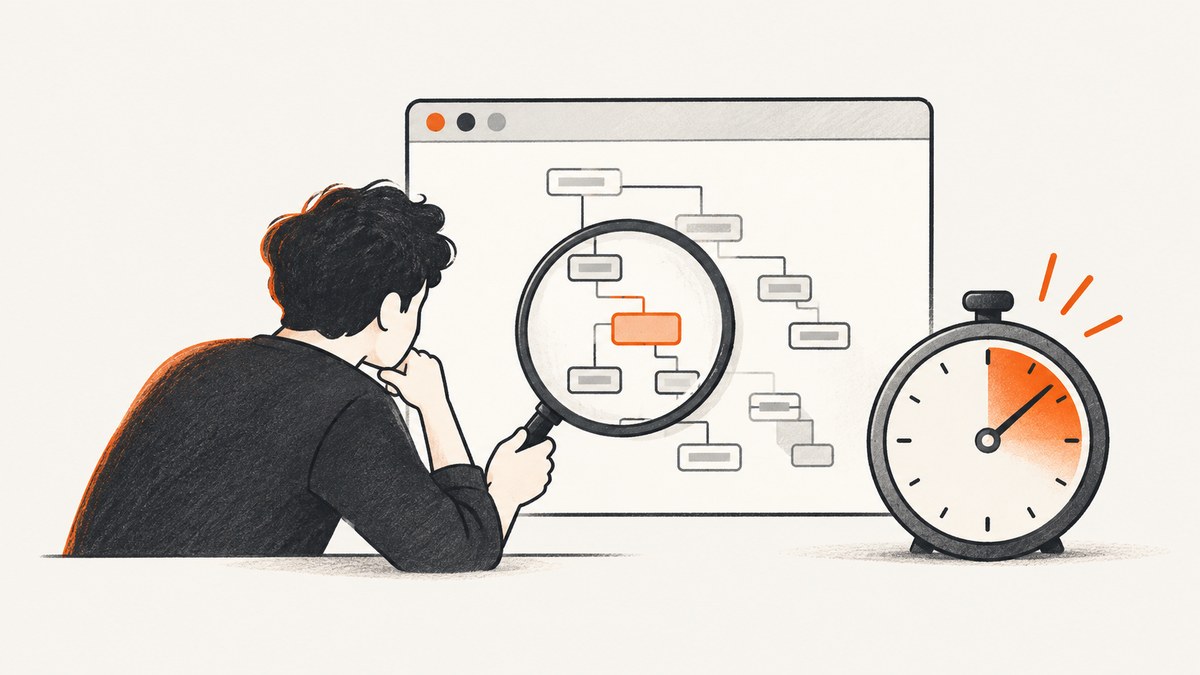
page.waitForSelector() waits up to 30,000 milliseconds by default for a matching element, then throws a timeout error. A long wait does not necessarily mean the page is slow: Puppeteer may be looking in the wrong frame, the selector may not match the rendered DOM, the element may be hidden when visibility is required, or requests may be stalled. First confirm what page Puppeteer actually received; only then adjust the timeout.
This guide gives a runnable Node.js diagnostic, explains timeout and visibility options, and covers navigation races, frames, shadow roots, request interception, and a known historical version issue. For the official method and option definitions, see the Puppeteer waitForSelector API reference and wait options.
1. What the 30-second wait means
The documented default timeout is 30000 ms. If the selector does not appear within that period, Puppeteer throws. Setting timeout: 0 disables this timeout; page.setDefaultTimeout(ms) changes the default used by page operations that accept a timeout. Disabling the timeout can leave a script waiting forever, so use a bounded timeout for normal automation and a short explicit timeout while diagnosing.
There are two common calls, with different semantics:
// Wait until a matching node is attached to the DOM.
await page.waitForSelector('#result', { timeout: 5000 });

// Wait until a matching node is attached and visible.
await page.waitForSelector('#result', { visible: true, timeout: 5000 });
Without visible: true, a hidden node can satisfy the wait. With it, the node must be visible under Puppeteer’s visibility rules. Conversely, waiting for hidden: true can resolve when the element is hidden or absent. Decide which state your next action actually needs: an attached button is not necessarily clickable, and a visible spinner is not proof that application data has loaded.
2. Run a focused diagnostic
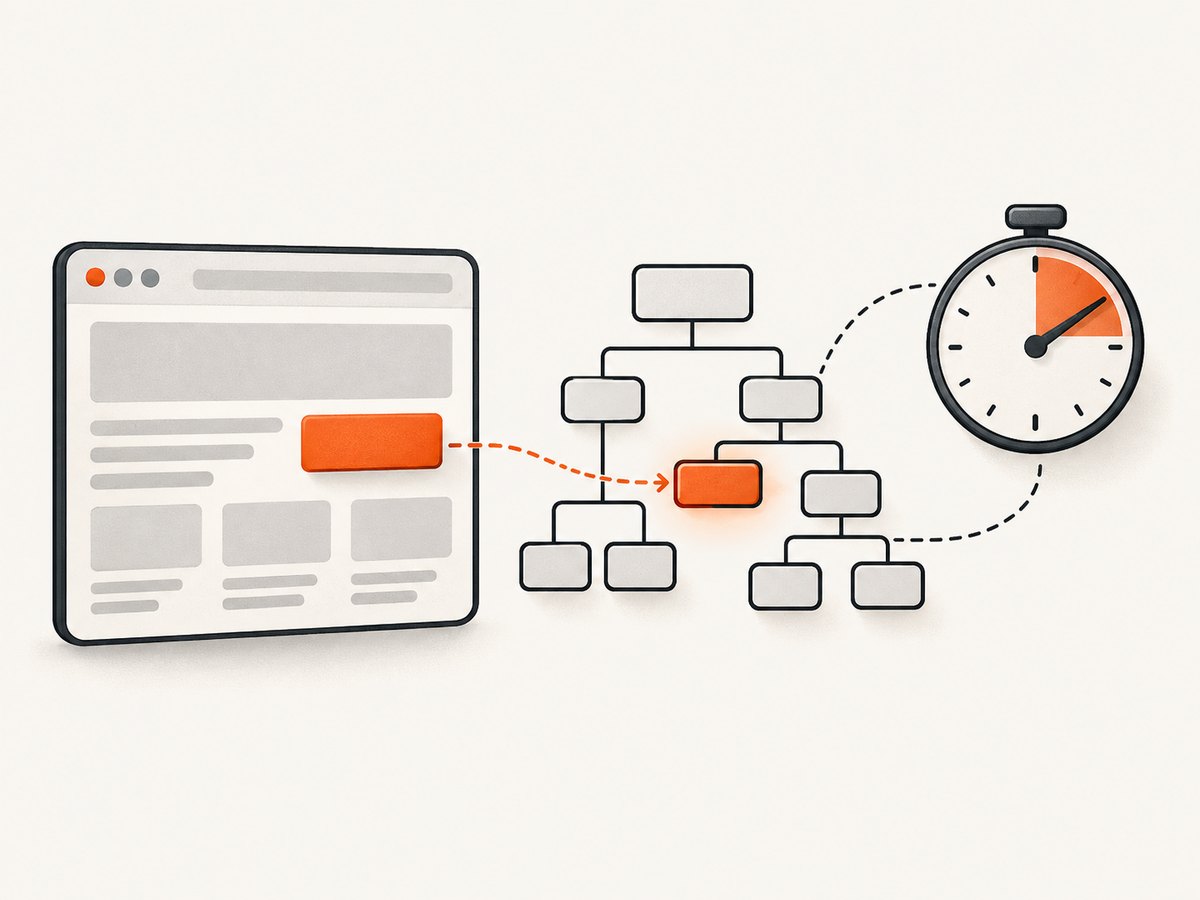
Install Puppeteer in a Node.js project with npm install puppeteer. Save the following as diagnose.js, replacing the URL and selector with the failing case. It records the URL, HTML, frames, and a screenshot when the wait fails, which makes the failure attributable to actual page state rather than guesswork.
const puppeteer = require('puppeteer');

(async () => {
  const browser = await puppeteer.launch({ headless: true });
  try {
    const page = await browser.newPage();
    const url = 'https://example.com';
    const selector = '#result';

    page.on('console', message => console.log('PAGE:', message.type(), message.text()));
    page.on('pageerror', error => console.error('PAGE ERROR:', error.message));
    page.on('requestfailed', request =>
      console.error('REQUEST FAILED:', request.url(), request.failure()?.errorText));

    const response = await page.goto(url, {
      waitUntil: 'domcontentloaded',
      timeout: 30000,
    });
    console.log('HTTP status:', response?.status());
    console.log('Current URL:', page.url());
    console.log('Puppeteer version:', require('puppeteer/package.json').version);

    try {
      await page.waitForSelector(selector, { visible: true, timeout: 5000 });
      console.log('Selector is visible');
    } catch (error) {
      console.error('WAIT FAILED:', error.message);
      console.log('Current URL:', page.url());
      console.log('Frames:', page.frames().map(frame => frame.url()));
      console.log((await page.content()).slice(0, 12000));
      await page.screenshot({ path: 'wait-failure.png', fullPage: true });
      throw error;
    }
  } finally {
    await browser.close();
  }
})().catch(error => {
  console.error(error);
  process.exitCode = 1;
});
Run node diagnose.js. If the failure happens only in a larger workflow, put the diagnostics immediately before the failing wait and after the action that should create the element. The page may have redirected, submitted a form, opened a consent prompt, or rendered a challenge page. The DOM and screenshot captured at the failure point are more useful than the DOM you see later in a normal browser session.
3. Check the selector against the rendered DOM
Copy the selector from the actual application state and verify it in the HTML from page.content(). Common mistakes include a stale class name, a missing parent relationship, escaping special characters incorrectly, assuming a result is present before a request completes, and selecting a template node that is not the rendered element.
Try the wait without visibility first. If this succeeds but the visible wait fails, inspect the node’s computed style, its ancestors, and overlays. For example, a node may have display: none, visibility: hidden, zero opacity, or be covered by a dialog. If neither wait succeeds, the selector may be wrong or the node may be outside the main document.
Puppeteer supports more than ordinary CSS selectors, including text selectors, accessibility role and name selectors, XPath, and selector combinations that cross shadow roots. Use the selector form that matches the contract your application exposes. A stable test ID or accessible role/name is often less coupled to layout classes than a long CSS path. Consult the page interactions guide for supported selector syntax.
4. Check frames and shadow roots
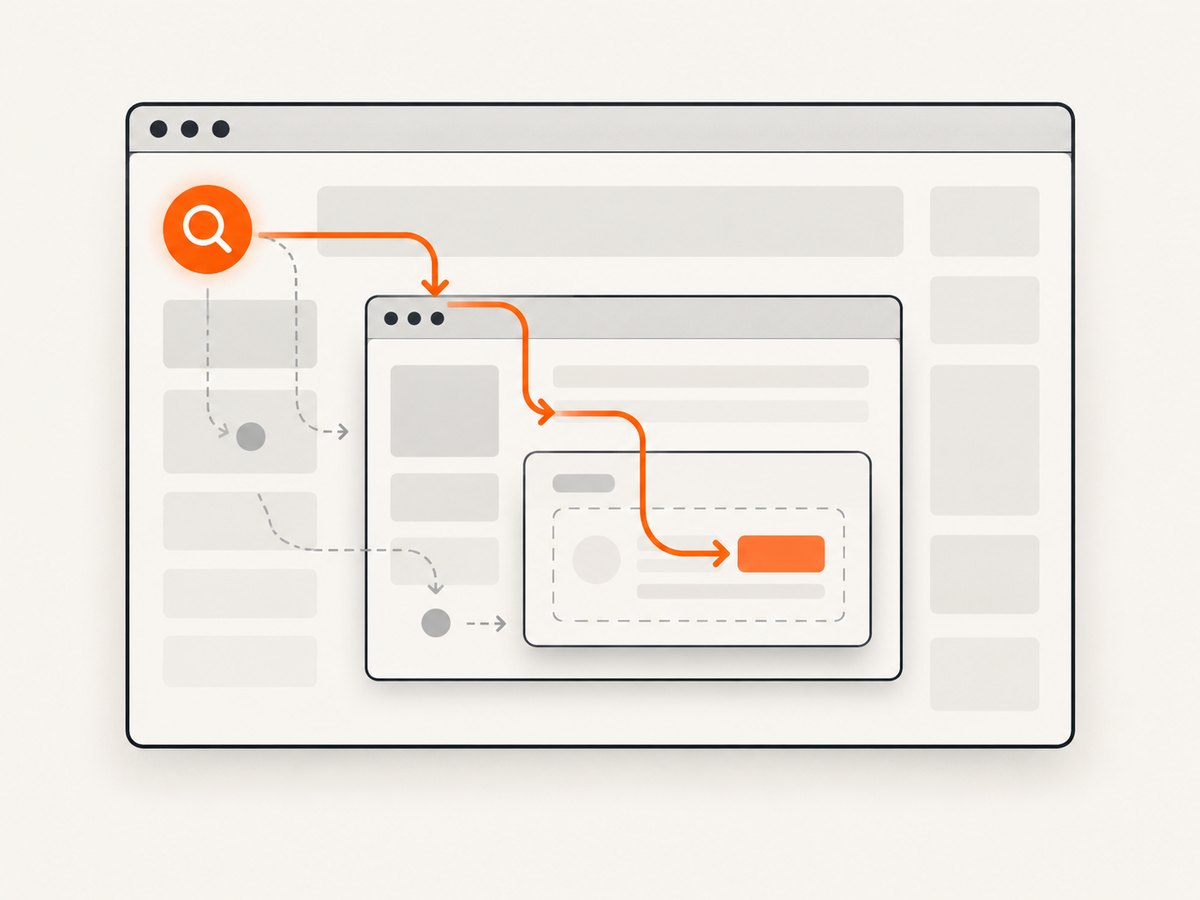
page.waitForSelector() searches the page’s main frame. Embedded content such as a payment widget or an iframe-hosted application has its own frame context. List the frames and wait on the frame that owns the element:
for (const frame of page.frames()) {
  console.log('Frame URL:', frame.url());
}

const targetFrame = page.frames().find(frame =>
  frame.url().includes('widget.example'));
if (!targetFrame) throw new Error('Widget frame not found');

await targetFrame.waitForSelector('[data-testid="ready"]', {
  visible: true,
  timeout: 10000,
});
Do not assume a selector can cross an iframe boundary. Identify the frame by a stable URL or other property and handle the case where it has not attached yet. For nested frames, inspect the frame tree and select the child that contains the target. If the element belongs to a shadow root, use Puppeteer’s documented shadow-root selector syntax rather than expecting a CSS query in the main document to pierce it automatically.
5. Synchronize actions with navigation
A frequent source of confusing waits is clicking a link or submitting a form and then waiting for a selector without correctly synchronizing the navigation. Start the navigation wait before clicking so both operations are active together:
const [response] = await Promise.all([
  page.waitForNavigation({ waitUntil: 'domcontentloaded' }),
  page.click('button.submit'),
]);
console.log('Navigated with status:', response?.status());
await page.waitForSelector('#result', { visible: true, timeout: 10000 });
Starting waitForNavigation() after the click can miss a fast navigation. Puppeteer’s Page API specifically cautions that a separate navigation wait can race with a click. If the interaction updates the page through client-side JavaScript without navigation, wait for the application’s resulting selector or response instead of waiting for a navigation that will never happen.
Choose the lifecycle event that fits the page. domcontentloaded waits for document parsing, while load also waits for load-event resources. Network-idle conditions can be unsuitable for pages with analytics, polling, or long-lived connections. A fixed sleep is usually a weaker synchronization signal: it is slow when the page is fast and still flaky when the page is slow.
6. Inspect request interception and page failures
When request interception is enabled, each intercepted request must be continued, answered, or aborted. A handler that forgets to resolve a request can stall the page and prevent application code from producing the target element. Temporarily disable interception during diagnosis, or log each request and ensure every branch resolves it.
page.on('request', request => {
  console.log('REQUEST:', request.method(), request.url());
});

page.on('requestfailed', request => {
  console.error('FAILED:', request.url(), request.failure()?.errorText);
});

// Example interception handler: every path must resolve the request.
await page.setRequestInterception(true);
page.on('request', request => {
  if (request.url().includes('/unwanted-resource')) {
    return request.abort();
  }
  return request.continue();
});
Register exactly one interception handler for the intended policy, and avoid adding a second handler that also tries to resolve the same request. Check the console for application errors, the main document response status, failed API requests, redirects, and whether the page is displaying a bot check or error document instead of the expected application.
7. Pick a timeout policy that matches the operation
Use a per-call timeout when one particular element is slower or has a different importance. Use a page default when a group of waits shares a deliberate policy:
// Set a page-wide default for supported operations.
page.setDefaultTimeout(15000);

// Override for one known slower operation.
await page.waitForSelector('[data-testid="report"]', {
  visible: true,
  timeout: 45000,
});

// Disable only when the surrounding job has its own hard deadline.
await page.waitForSelector('#optional-late-widget', { timeout: 0 });
A longer timeout is appropriate when the application is genuinely slow and the job has room for it. It does not fix a selector that can never match, a frame mismatch, or a navigation race. If you disable the wait timeout, enforce a higher-level deadline so a stuck job can be cancelled and reported. In test suites, shorter explicit timeouts often reduce wasted time and make failures easier to diagnose.
8. Check the Puppeteer version
Puppeteer issue #9927 documents a confirmed regression report for v19.8.0: waits could still time out at 30 seconds despite higher timeout settings. Check the version actually installed by the project, not only a globally installed command:
node -p "require('puppeteer/package.json').version"
npm ls puppeteer
If you are on the affected version and the observed behavior matches the report, upgrade to a current supported Puppeteer release, review the release notes for compatibility changes, reinstall the lockfile consistently in local and CI environments, and rerun the smallest reproducer. See Puppeteer issue #9927. The report is version-specific historical evidence; it does not mean every 30-second timeout is a library bug.
9. Troubleshooting: symptom, cause, and fix
| Symptom | Likely cause | What to do |
|---|---|---|
| Wait always ends at 30 seconds | Default timeout is active, the selector never matched, or a version-specific issue applies. | Set a short explicit timeout to reproduce, log the installed version, inspect the failure DOM, and check whether configuration is reaching this page. |
Wait succeeds without options but fails with visible: true |
The node exists but is hidden or not visible under Puppeteer’s rules. | Inspect computed styles, ancestors, dimensions, and overlays; wait for the visible state that the next action requires. |
| Element is visible in a regular browser but absent in Puppeteer | Different URL, authentication, consent state, bot challenge, delayed client rendering, or different viewport. | Log the current URL, status, screenshot, console, cookies, and viewport from the automation session. |
| Element is in an iframe | The wait is running in the main frame. | Find the owning frame in page.frames() and call frame.waitForSelector(). |
| Page seems frozen after enabling interception | An intercepted request was not continued, answered, or aborted. | Log requests, resolve every request path, or turn interception off to compare. |
| Click appears successful, then result wait hangs | Navigation wait started too late, or the action is a client-side update rather than navigation. | Use Promise.all with navigation wait before click, or wait on the resulting UI/API state. |
| DOM contains similar text but selector does not match | Selector syntax, case, escaping, or context is wrong; target may be in a shadow root. | Try a minimal selector, inspect exact markup, and use documented text, role/name, XPath, or shadow-root syntax. |
10. Performance and reliability practices
- Wait for a specific application condition instead of adding a large fixed delay. This reduces unnecessary idle time while preserving a meaningful readiness check.
- Give each wait a timeout suited to that operation, and put a total deadline around the whole job. A page-level timeout alone does not constrain every other step in a workflow.
- On failure, preserve enough evidence to reproduce it: URL, response status, installed version, selector, effective timeout, frame URLs, console errors, failed requests, and optionally a screenshot and HTML excerpt.
- Use selectors backed by stable application contracts. Layout-driven selectors often break when markup changes even though the user-visible feature still works.
- Keep navigation, selector, and network waits separate in logs. Knowing which promise timed out narrows the cause quickly.
- Close pages and browsers in
finallyblocks. In CI, avoid launching unbounded concurrent browsers; cap workers to the memory and CPU budget of the runner.
Longer waits increase worst-case job duration and tie up browser resources. They do not directly create a Puppeteer API charge, but they can increase compute time in hosted browser environments. For reliable pipelines, prefer bounded waits, explicit cancellation, and actionable timeout errors over an unbounded wait.
11. Or skip the browser setup
If your goal is to capture a webpage image rather than automate an interaction, ScreenshotNeo provides a one-request screenshot API. See the ScreenshotNeo API documentation for options and formats.
const q = new URLSearchParams({ access_key: 'YOUR_API_KEY', url: 'https://stripe.com' });
const res = await fetch(`https://api.screenshotneo.com/v1/shot?${q}`);
if (!res.ok) throw new Error(`Screenshot request failed: ${res.status}`);
await Bun.write('shot.webp', res);
With Node.js versions that do not provide Bun.write, use this runnable file-writing variant:
const fs = require('node:fs/promises');
const q = new URLSearchParams({ access_key: 'YOUR_API_KEY', url: 'https://stripe.com' });
const res = await fetch(`https://api.screenshotneo.com/v1/shot?${q}`);
if (!res.ok) throw new Error(`Screenshot request failed: ${res.status}`);
await fs.writeFile('shot.webp', Buffer.from(await res.arrayBuffer()));
ScreenshotNeo accepts cookie and consent banners as a visitor and removes more than 60 known consent platforms, newsletter popups, and chat widgets before capture; each step can be turned off. Bot checks, blank pages, timeouts, failed loads, and cache hits are not billed, and responses identify the page verdict and billing status in headers. Its MCP server provides take_screenshot, get_page_info, and capture_pdf for Claude, Cursor, and other MCP clients. The Free plan includes 1,000 shots per month with no card; paid plans start at $5 for 3,000 shots. That is useful for a page capture workflow, while Puppeteer remains the fit when you need browser interactions and application-specific control. Sign up for 1,000 free screenshots a month, with no card.
12. FAQ
Does waitForSelector wait for an element to be clickable?
No. It waits for a matching node, or for visibility when requested. If your next step depends on a successful interaction, verify the relevant state and handle overlays or disabled controls as part of that workflow.
Can I wait for an element to disappear?
Yes. Use hidden: true when the desired condition is that the matching element becomes hidden or is removed, with a finite timeout appropriate to the operation.
Why does a longer timeout not fix my failure?
A longer timeout helps only if the element eventually appears in the context being queried. It cannot make a wrong selector, wrong frame, stalled request, or missed navigation appear.
Should I use a fixed sleep?
Use one only when the application provides no observable readiness signal and the delay is a deliberate fallback. Prefer waiting for a selector, navigation, or response tied to the state your next action needs.


