How to Fix Puppeteer waitForSelector Timeouts in Headless Mode
Fix Puppeteer waitForSelector timeouts in headless mode by checking selectors, frames, visibility, navigation, browser mode, and timeout settings.
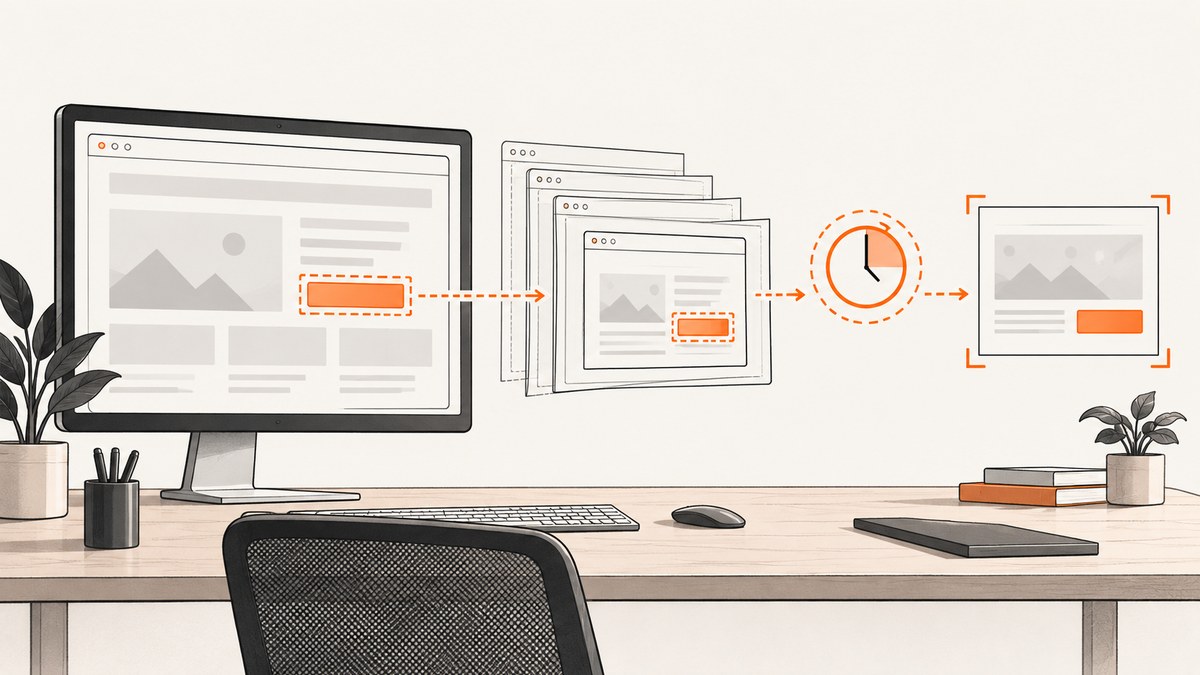
Direct answer: A waitForSelector timeout means Puppeteer did not find the requested selector in the page or frame, with the requested state, before the timeout expired. Start by proving that the selector is correct and queried in the correct context. Then check whether you need DOM presence, visibility, or disappearance; inspect navigation and iframe changes; compare headful mode with the current headless mode; and only then increase the timeout. A longer timeout cannot fix a selector that never matches.
Puppeteer’s documented default timeout is 30,000 milliseconds. You can set a per-call timeout, change the page default with page.setDefaultTimeout(), or pass timeout: 0 to disable the timeout. The API throws when the selector does not appear before the deadline. See the Page.waitForSelector documentation and WaitForSelectorOptions.
1. Reproduce the timeout with useful context
Before changing code, record the URL, Puppeteer version, headless setting, selector string, and the object on which you call the method: page, a Frame, or an ElementHandle. These APIs have different navigation and lifecycle behavior.
import puppeteer from 'puppeteer';

const browser = await puppeteer.launch({
  headless: true,
  dumpio: true
});
const page = await browser.newPage();

page.on('console', message => {
  console.log('[browser]', message.type(), message.text());
});
page.on('pageerror', error => {
  console.error('[page error]', error);
});

const url = 'https://example.com/app';
const selector = '#results';
console.log({
  puppeteer: puppeteer.version,
  headless: true,
  url,
  selector,
  context: 'page'
});

try {
  await page.goto(url, { waitUntil: 'domcontentloaded' });
  await page.waitForSelector(selector, { timeout: 30000 });
} finally {
  await browser.close();
}
Temporarily set headless: false and add slowMo: 100 if you need to see the page and actions. The Puppeteer debugging guide documents browser console forwarding and related diagnostics.
2. Confirm that the selector can match
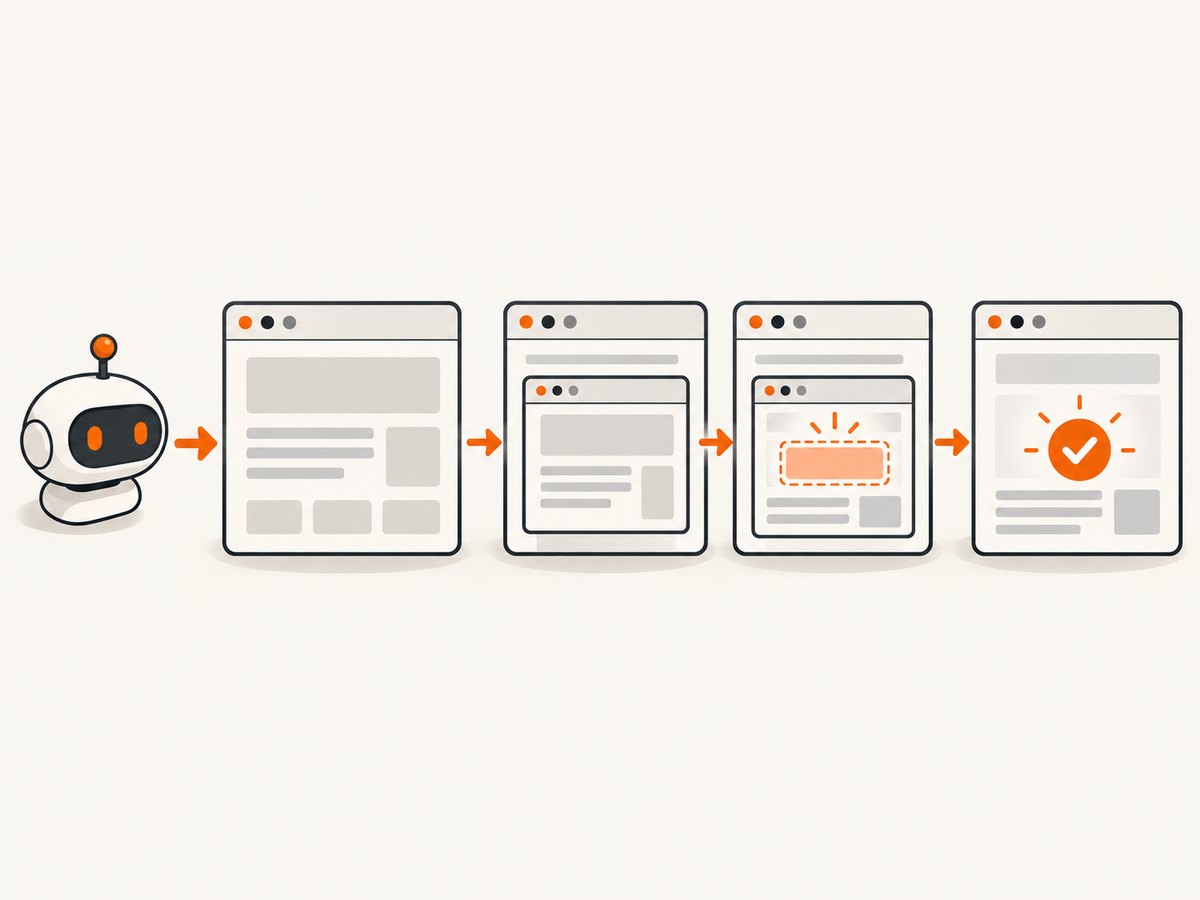
A timeout is often a selector problem rather than a timing problem. Check spelling, capitalization, escaping, and whether the application renders a different class or ID in production. Puppeteer accepts CSS selectors by default and also supports text, accessibility role/name, XPath, and combinations that cross shadow roots. Review the selector against the rendered DOM in the same URL and state your script reaches.
// CSS
await page.waitForSelector('button[data-testid="continue"]');

// Text selector
await page.waitForSelector('::-p-text(Continue)');

// Accessibility role and name
await page.waitForSelector('::-p-aria/[role="button"][name="Continue"]');

// XPath
await page.waitForSelector('::-p-xpath(//button[contains(., "Continue")])');
Prefer a stable test ID or semantic role over a generated class. If the page uses a shadow DOM, use Puppeteer’s supported selector syntax rather than assuming a normal CSS query can cross every shadow boundary.
3. Choose presence, visibility, or hidden state deliberately
The plain wait checks for a matching element in the DOM. It does not require that the element be visible. Use visible: true when the next operation needs a visible element. Puppeteer considers an element hidden when it has display: none or visibility: hidden. Use hidden: true when you are waiting for an element to become hidden or leave the DOM. These options are described in the wait options reference.
// DOM presence is enough
await page.waitForSelector('#results');

// Must be visible before continuing
await page.waitForSelector('#submit', { visible: true });

// Wait for a loading indicator to disappear
await page.waitForSelector('.loading-spinner', { hidden: true });
A common mistake is waiting for a container that exists immediately while its content is still loading. In that case, wait for the content that proves the operation completed, such as a result row or an enabled button.
4. Check iframe and frame context
If the target is inside an iframe, querying the top-level page will always time out. Find the frame and call frame.waitForSelector() there. A frame-level wait is designed to work across navigations. The Frame.waitForSelector documentation covers this behavior.
await page.goto('https://example.com/checkout', {
  waitUntil: 'domcontentloaded'
});

const checkoutFrame = page.frames().find(frame => {
  return frame.url().includes('/payment-widget');
});

if (!checkoutFrame) {
  throw new Error('Payment iframe was not found');
}

await checkoutFrame.waitForSelector('input[name="cardnumber"]', {
  visible: true,
  timeout: 30000
});
Do not cache a frame forever. Single-page applications can replace an iframe during navigation or route changes. Re-discover the current frame after the navigation that creates it.
5. Avoid stale ElementHandle waits across navigation
ElementHandle.waitForSelector() is tied to the current element context. It is not documented as working across navigation, and it is unsuitable after the element has been detached. If a click causes navigation, wait on the page or frame after navigation rather than continuing to use the old handle. See the ElementHandle.waitForSelector documentation.
const link = await page.waitForSelector('a.next', { visible: true });
await Promise.all([
  page.waitForNavigation({ waitUntil: 'domcontentloaded' }),
  link.click()
]);

// Query the new document; do not reuse a handle from the old one.
await page.waitForSelector('main article', { visible: true });
For modern interactions, Puppeteer recommends locators. The page interactions guide describes locators as the recommended way to select and interact with elements because they wait for presence and action preconditions such as visibility, enabled state, and a stable bounding box.
6. Understand headless mode differences
Current Puppeteer has a default modern headless mode and a separate headless: 'shell' mode that launches chrome-headless-shell. The shell does not completely match regular Chrome. The headless modes guide explains the distinction and notes that older Puppeteer versions used a different default.
// Modern headless Chrome
const browser = await puppeteer.launch({ headless: true });

// Headless shell (different browser binary and behavior)
const shellBrowser = await puppeteer.launch({ headless: 'shell' });

// Diagnostic comparison
const visibleBrowser = await puppeteer.launch({
  headless: false,
  slowMo: 100
});
Run the same URL and selector in headful mode, modern headless mode, and shell mode when behavior differs. If only one mode fails, inspect browser logs, viewport-dependent rendering, user-agent branches, permissions, and resource loading. Do not assume that “headless” alone explains the timeout.
7. Set timeouts intentionally
Use a per-call timeout when one operation has a known slower budget. Use setDefaultTimeout() for a consistent page policy. Setting 0 disables the timeout, but an unbounded wait can leave a worker stuck forever if a request, script, or selector is broken.
// Page-wide default for selectors and interactions
page.setDefaultTimeout(45000);

// One slow operation
await page.waitForSelector('.report-ready', {
  visible: true,
  timeout: 90000
});

// Disable only when an outer job timeout is guaranteed
await page.waitForSelector('.streaming-output', { timeout: 0 });
Choose the timeout from the expected page behavior and your job-level deadline. A 90-second wait is appropriate only when the application can legitimately take that long. It does not repair a wrong selector, wrong frame, or failed navigation.
8. Diagnose navigation, requests, and application state
Waiting immediately after page.goto() may race with client-side rendering. Conversely, waiting for networkidle can hang on pages that keep analytics or streaming connections open. Select a navigation milestone that matches the application and then wait for a concrete UI condition.
await page.goto('https://example.com/dashboard', {
  waitUntil: 'domcontentloaded',
  timeout: 60000
});

// Let the app render its route, then wait for a proof of readiness.
await page.waitForSelector('[data-testid="dashboard"]', {
  visible: true,
  timeout: 30000
});
Capture browser-side errors and inspect failed requests while diagnosing:
page.on('requestfailed', request => {
  console.error('request failed', request.url(), request.failure());
});
page.on('response', response => {
  if (response.status() >= 400) {
    console.error('HTTP', response.status(), response.url());
  }
});
Authentication redirects, consent gates, blocked API calls, JavaScript exceptions, and feature flags can all prevent the target node from being created. Fix that upstream state before increasing selector timeouts.
9. A complete resilient example
This example separates navigation, frame discovery, visibility, logging, and a bounded timeout. Adapt the URL and selector to your application.
import puppeteer from 'puppeteer';

const browser = await puppeteer.launch({
  headless: true,
  dumpio: true
});

try {
  const page = await browser.newPage();
  page.setDefaultTimeout(30000);

  page.on('console', msg => console.log(`[console:${msg.type()}]`, msg.text()));
  page.on('pageerror', err => console.error('page error', err));
  page.on('requestfailed', req => {
    console.error('request failed', req.url(), req.failure());
  });

  await page.goto('https://example.com/app', {
    waitUntil: 'domcontentloaded',
    timeout: 60000
  });

  const appFrame = page.frames().find(frame =>
    frame.url().includes('/embedded-app')
  );
  const context = appFrame ?? page;

  await context.waitForSelector('[data-testid="ready"]', {
    visible: true,
    timeout: 30000
  });

  console.log('Application is ready');
} finally {
  await browser.close();
}
10. Troubleshooting checklist
| Symptom | Likely cause | Fix |
|---|---|---|
| Works in DevTools, times out in automation | Different URL state, authentication, viewport, user agent, or browser mode | Log the final URL, compare headful and headless runs, and capture console and request errors. |
| Selector exists in page source but not at runtime | Client-side rendering has not completed, or the route failed | Wait for a readiness element after navigation and inspect page errors. |
| Top-level wait never finds the element | Element is inside an iframe | Locate the frame and call frame.waitForSelector(). |
| Visible wait times out but plain wait succeeds | Element is hidden by CSS, covered, or rendered off state | Inspect computed style and application state; use visible: true only when visibility is required. |
| Wait fails after clicking a link | Old ElementHandle became detached during navigation |
Await navigation and query the new document. |
| Increasing timeout changes nothing | Wrong selector, frame, or failed application state | Prove the selector and context before changing the deadline. |
Only headless: 'shell' fails |
Shell browser behavior differs from regular Chrome | Compare with modern headless and headful modes; verify your Puppeteer version and browser binary. |
| Worker hangs indefinitely | Timeout set to zero without an outer deadline | Restore a bounded selector timeout and enforce a job-level timeout. |
11. Performance, reliability, and cost considerations
Keep waits specific. A selector for a result row usually finishes sooner and fails more clearly than a broad network-idle condition. Reuse a browser process when your workload allows it, but create a fresh page for isolated jobs and close pages in a finally block. Bound navigation, selector, and overall job time separately so one broken page cannot consume a worker indefinitely.
Headless mode can expose timing and rendering differences, so make the browser version and launch mode explicit in CI. Store the selector, URL, mode, timeout, final URL, and relevant console or request errors with failed jobs. This turns an intermittent timeout into a reproducible diagnosis.
Longer waits also have a cost in hosted automation: they occupy browser capacity while no useful result is produced. Prefer a deterministic readiness signal, abort work that cannot recover, and retry only failures that are plausibly transient. Do not blindly retry a selector that is invalid on every run.
12. Or skip the browser setup
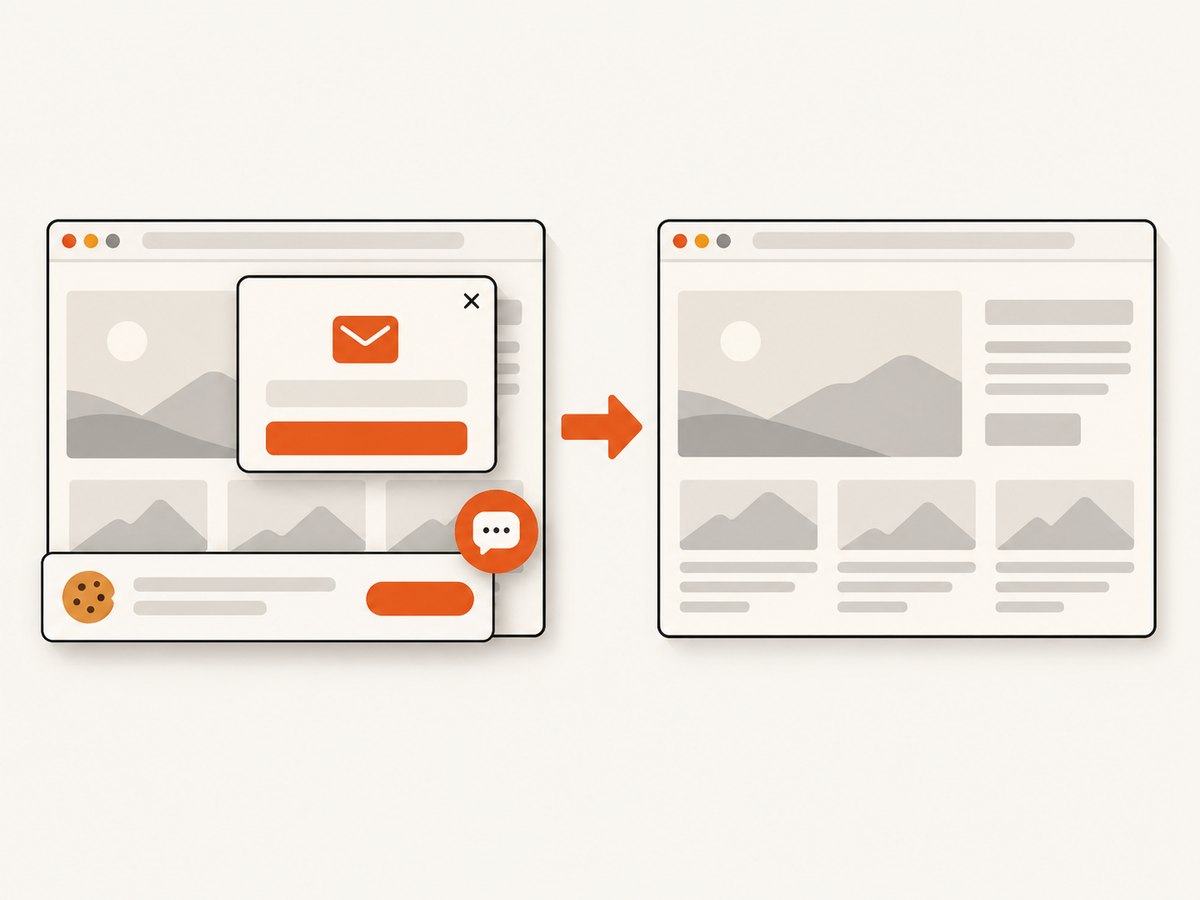
If your goal is a clean screenshot rather than maintaining Puppeteer infrastructure, ScreenshotNeo provides a website screenshot API and MCP server. One GET request returns PNG, JPEG, WebP, or PDF. Cookie and consent banners, newsletter popups, and chat widgets are removed before capture. Bot checks, blank pages, timeouts, failed loads, and cache hits are not billed, and response headers identify the page verdict and billing status.
See the ScreenshotNeo documentation for all options, including full-page capture with lazy images loaded, CSS element capture, dark mode, device presets, retina scale, PDF settings, custom CSS and JavaScript, clicks, selector or network-idle waits, blocked resources, headers, cookies, user agents, authorization, timezone, geolocation, transparent backgrounds, resizing, caching, signed links, asynchronous jobs, bulk capture, usage, and the OpenAPI specification.
cURL
curl -G "https://api.screenshotneo.com/v1/shot" \
  -d access_key=YOUR_API_KEY \
  --data-urlencode url=https://stripe.com \
  -o shot.webp
Python
import requests

r = requests.get(
    "https://api.screenshotneo.com/v1/shot",
    params={"access_key": "YOUR_API_KEY", "url": "https://stripe.com"},
    timeout=90,
)
r.raise_for_status()
open("shot.webp", "wb").write(r.content)
Node.js
const q = new URLSearchParams({
  access_key: 'YOUR_API_KEY',
  url: 'https://stripe.com'
});
const res = await fetch(`https://api.screenshotneo.com/v1/shot?${q}`);
if (!res.ok) throw new Error(`Screenshot failed: ${res.status}`);
const buffer = Buffer.from(await res.arrayBuffer());
await Bun.write('shot.webp', buffer);
ScreenshotNeo includes an MCP server with take_screenshot, get_page_info, and capture_pdf tools for Claude, Cursor, and other MCP clients. The Free plan includes 1,000 screenshots per month with no card; paid plans start at $5 for 3,000 shots. Create a free ScreenshotNeo account.
13. FAQ
Should I always use visible: true?
No. Use it when the next operation needs a visible target. For DOM inspection or existence checks, the default presence wait is sufficient.
Is networkidle0 a replacement for waitForSelector?
No. Network-idle describes request activity, not whether the application rendered the element you need. Use a concrete readiness selector for UI state.
When should I use a locator?
Use a locator for user-like interaction when you want Puppeteer to wait for action preconditions. Keep waitForSelector for lower-level DOM waits.
Can headless mode change CSS selectors?
The selector syntax does not change, but viewport, browser binary, user agent, permissions, and application feature detection can change what the page renders. Compare modes and inspect the resulting DOM.
Is disabling the timeout safe?
Only when an outer job deadline and cleanup path are guaranteed. Otherwise a missing selector can hold a worker forever.


