How to Fix Puppeteer waitForSelector When It Stops Working
Diagnose Puppeteer waitForSelector timeouts, early returns, frames, navigation, visibility and failed clicks with runnable fixes.

Short answer: Puppeteer’s page.waitForSelector() usually has not stopped working. A timeout means the selector or required state did not appear in the page or frame you searched before the timeout. An immediate return is expected when a matching element already exists. A successful wait only proves the wait condition; it does not guarantee that a later click will be possible.
Start by identifying the exact symptom, then check the selector, browsing context, required state, timeout, navigation, and the action that follows. The current Page API reference documents a 30,000 ms default timeout and the visible, hidden, timeout, and signal options in Puppeteer 25.12.0. See the official waitForSelector reference.
What does stopped working mean?
Most reports fall into one of five categories:
- Timeout: no qualifying match arrived before the deadline.
- Immediate resolution: the method returned at once because a match already existed.
- Wrong state: the node exists but is hidden, disabled, covered, or still moving.
- Wrong scope: the target is inside an iframe, shadow root, or a different page after navigation.
- Later action failure: the wait succeeds, but
click(), typing, or extraction fails because the handle detached or the element is not actionable.
Do not begin with an arbitrary sleep. A fixed delay cannot prove that the selector is correct, that the target is in the expected frame, or that the element has reached the state your action needs.
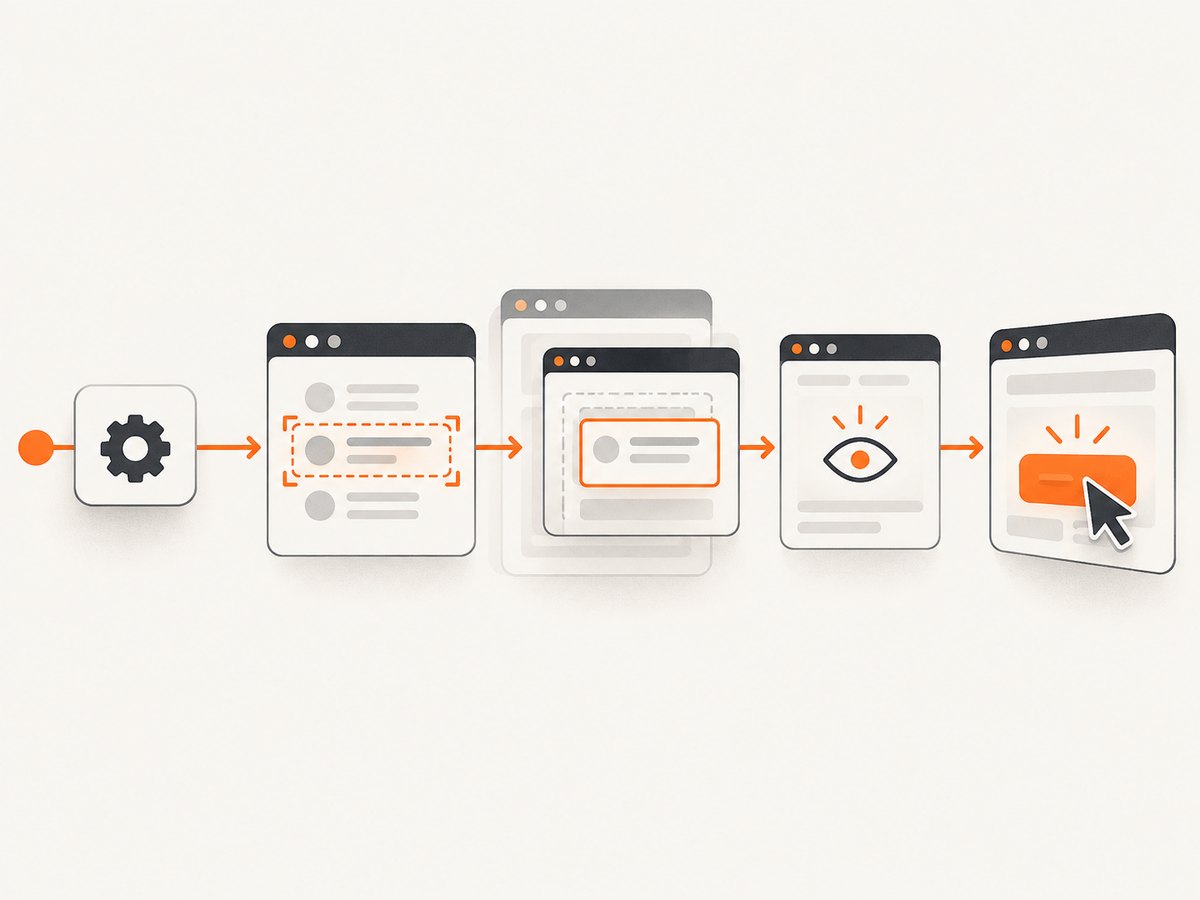
Five-minute triage checklist
- Log the exact selector string and the URL at the time of the wait.
- Confirm whether you need DOM presence, visibility, disappearance, or interaction readiness.
- Check whether the target is in the main document, a child frame, or a shadow root.
- Inspect the rendered DOM when the wait fails, rather than only the original HTML response.
- Look for navigation, redirects, client-side rerenders, and element replacement.
- Check the per-call timeout and any value set by
page.setDefaultTimeout(). - If the next operation is a click or type, use a locator or wait for the action’s real preconditions.
A useful minimal reproducer contains the browser launch, one goto, the selector, the wait options, and the failing action. Include your Puppeteer version and exact error text when asking for help.
Understand waitForSelector semantics
The basic call waits for a matching element to appear in the DOM:
import puppeteer from 'puppeteer';

const browser = await puppeteer.launch({ headless: true });
const page = await browser.newPage();
await page.goto('https://example.com', { waitUntil: 'domcontentloaded' });

const result = await page.waitForSelector('h1');
console.log(await result.evaluate(el => el.textContent));

await browser.close();
Presence is the default condition. If h1 already exists when the call starts, the promise resolves immediately. If no qualifying element appears within 30 seconds, Puppeteer throws a timeout error. The default can be changed per call or for subsequent waits with page.setDefaultTimeout().
Wait for visibility
const visible = await page.waitForSelector('.result', {
  visible: true,
  timeout: 10_000
});

if (!visible) {
  throw new Error('The result was not visible');
}
visible: true adds a visibility requirement. It does not promise that the element is enabled, unobscured, stable, or ready for a particular user action.
Wait for hidden or removed content
const maybeGone = await page.waitForSelector('.loading', {
  hidden: true,
  timeout: 15_000
});

// A hidden wait can resolve to null when no matching node exists.
if (maybeGone === null) {
  console.log('The loading element was absent or already gone');
}
Handle the nullable result before calling methods on it. A hidden wait is useful for spinners and overlays, but it is not the same as waiting for the final content to appear. Often you should wait for both: the loading indicator to disappear and the result selector to become present.
Use an AbortSignal when a larger operation is cancelled
const controller = new AbortController();
const timer = setTimeout(() => controller.abort(), 5_000);

try {
  await page.waitForSelector('.result', { signal: controller.signal });
} finally {
  clearTimeout(timer);
}
The documented options are visible, hidden, timeout, and signal. Setting timeout: 0 disables the timeout; do this only when an intentionally unbounded wait is appropriate, because a broken selector can then hang the job indefinitely.
Fix selector and state mismatches
A timeout commonly comes from a selector that does not describe the rendered page. Verify spelling, quoting, escaping, case, and whether a class name is generated dynamically. Save a diagnostic snapshot at the failure point:
console.log('URL:', page.url());
console.log('Title:', await page.title());
console.log('Matches:', await page.locator('.result').count());
console.log((await page.content()).slice(0, 5000));
await page.screenshot({ path: 'timeout-state.png', fullPage: true });
Use the selector syntax Puppeteer supports. CSS selectors work, and Puppeteer also supports text, accessibility role and name, XPath, and selectors that cross shadow roots. A bare text phrase is not automatically a CSS text selector. Consult the Page API and the current selector documentation for the supported forms.
Decide which condition you actually need:
| Requirement | Use | What it proves |
|---|---|---|
| Node exists | page.waitForSelector(selector) |
DOM presence |
| Node is visible | page.waitForSelector(selector, { visible: true }) |
Documented visibility condition |
| Node is hidden or gone | page.waitForSelector(selector, { hidden: true }) |
Hidden or absent state; result may be null |
| Custom application state | page.waitForFunction(fn) |
Your function returns a truthy value |
| Ready for a user action | page.locator(selector).click() |
Locator checks action-related preconditions |
For a custom state, wait for the state itself instead of sleeping:
await page.waitForFunction(() => {
  const node = document.querySelector('[data-status]');
  return node?.getAttribute('data-status') === 'complete';
}, { timeout: 20_000 });
Frames, shadow roots, and element handles
If the target is inside an iframe, a page-level wait searches the wrong document. Find the frame and wait there:
await page.goto('https://example.com/widget');

const frame = page.frames().find(f => f.url().includes('/checkout'));
if (!frame) throw new Error('Checkout frame was not found');

const button = await frame.waitForSelector('button.submit', {
  visible: true
});
await button.click();
Frame.waitForSelector() is documented to work across navigations in that frame. An element-handle-scoped wait has a different lifetime: elementHandle.waitForSelector() does not survive navigation or detachment of the element represented by the handle. Prefer a page or frame-level wait when navigation or rerendering is expected, then reacquire the element.
const panel = await page.waitForSelector('#panel');
await page.click('a.reload');
await page.waitForNavigation({ waitUntil: 'domcontentloaded' });

// Reacquire after navigation; the old handle may be detached.
const newButton = await page.waitForSelector('#panel button', {
  visible: true
});
await newButton.click();
For shadow DOM, use a supported Puppeteer selector that crosses the relevant shadow roots, or locate the host first and evaluate inside the shadow root. Confirm the component has actually been upgraded before waiting for a descendant.
When the wait passes but click fails
A presence wait returns an ElementHandle; it does not automatically retry the next operation. The target may be disabled, covered by an overlay, outside the viewport, moving because of layout shifts, or replaced between the wait and the click. Puppeteer’s interaction guide describes locators as the higher-level interface that checks visibility, enabled state, and stable geometry. See Page interactions.
await page.locator('button.submit').click();If you must use a handle, verify the actual condition immediately before acting:
const button = await page.waitForSelector('button.submit', {
  visible: true
});

await page.waitForFunction(el => {
  const rect = el.getBoundingClientRect();
  const style = getComputedStyle(el);
  return !el.disabled &&
    style.pointerEvents !== 'none' &&
    rect.width > 0 && rect.height > 0;
}, {}, button);

await button.click();
Do not keep a handle across a known rerender. Re-select after the operation that replaces the component.
Navigation and ordering patterns
Race navigation with the action that triggers it. Waiting after the click can miss a fast navigation:
await Promise.all([
  page.waitForNavigation({ waitUntil: 'networkidle2' }),
  page.click('a.next')
]);

await page.waitForSelector('main article', { visible: true });
For single-page applications, a URL change may not occur. Wait for a route-specific selector or application state instead. If a page redirects, log page.url() after goto and before the selector wait so you know which document you are diagnosing.
Troubleshooting common errors
| Symptom | Likely cause | Fix |
|---|---|---|
Waiting for selector failed: timeout |
Wrong selector, frame, URL, or impossible state | Inspect rendered DOM, URL, frames, and state; use a finite deliberate timeout |
| Returns immediately | A match already exists | Expected for presence; add visible: true or wait for the real condition |
Hidden wait returns null |
No matching node exists | Handle null; treat absence as success when that is the intended state |
| Click says node is detached | Rerender replaced the element | Discard the handle and reacquire it after the rerender |
| Works locally, fails in CI | Different URL, credentials, viewport, timing, or bot challenge | Log environment details, wait for application state, and capture failure artifacts |
| Wait takes longer than expected | Per-call timeout differs from page default | Check timeout and page.setDefaultTimeout() |
| Selector works in DevTools but not Puppeteer | DevTools inspected a different frame or a later state | Inspect the same frame and capture DOM at failure time |
Performance, reliability, and cost
Use the narrowest selector that expresses the state, and wait for one meaningful milestone rather than chaining many long sleeps. Keep a finite timeout at each boundary, collect a screenshot and console or network diagnostics on failure, and avoid disabling timeouts globally. For repeated workflows, centralize timeout policy and make retries explicit: retry navigation or a transient request, but do not blindly retry a selector that is misspelled.

Locators reduce race windows because the action and readiness checks are one operation. Frame-level waits reduce failures caused by stale handles. Waiting for network idle can be useful, but it is not proof that a client-side application has finished rendering; pair it with a page-specific selector or state.
Browser automation also has operational cost: every launch consumes CPU and memory, and long waits occupy workers. Reuse a browser where safe, create isolated pages per job, close pages and browsers in finally blocks, and set concurrency limits based on your runtime. Treat screenshots and HTML captured during failures as potentially sensitive data.
Or skip the browser setup
If your goal is a clean screenshot rather than browser automation itself, ScreenshotNeo provides a website screenshot API. It accepts one GET request and returns PNG, JPEG, WebP, or PDF. Cookie and consent banners are accepted and 60+ known consent platforms, newsletter popups, and chat widgets are removed before capture; each step can be turned off.
Only clean shots are billed. Bot checks and CAPTCHAs, blank pages, timeouts, failed loads, and cache hits cost nothing, and the response identifies the result with X-Page-Verdict and X-Billed headers. An MCP server provides take_screenshot, get_page_info, and capture_pdf tools for Claude, Cursor, and other MCP clients.
See the ScreenshotNeo API documentation for all options. A minimal request:
curl -G 'https://api.screenshotneo.com/v1/shot' \
  -d access_key=YOUR_API_KEY \
  --data-urlencode url=https://stripe.com \
  -o shot.webp
import requests
r = requests.get(
'https://api.screenshotneo.com/v1/shot',
params={'access_key': 'YOUR_API_KEY', 'url': 'https://stripe.com'},
timeout=90,
)
r.raise_for_status()
open('shot.webp', 'wb').write(r.content)const q = new URLSearchParams({
access_key: 'YOUR_API_KEY',
url: 'https://stripe.com'
});
const res = await fetch(`https://api.screenshotneo.com/v1/shot?${q}`);
if (!res.ok) throw new Error(`Screenshot failed: ${res.status}`);
const data = Buffer.from(await res.arrayBuffer());
await import('node:fs/promises').then(fs => fs.writeFile('shot.webp', data));For production captures you can choose full-page mode with lazy images loaded, an element CSS selector, dark mode, 12 device presets or any viewport, retina scale, PDF paper size and margins, custom CSS and JavaScript, clicks, selector or network-idle waits, blocked ads and resource types, custom headers and cookies, user agent, Authorization, timezone, geolocation, transparent backgrounds, resizing, cache TTL, signed image links, asynchronous jobs with signed webhooks, bulk capture for 100 URLs per call, and usage and OpenAPI endpoints. The parameter names used by other screenshot APIs also work, which can simplify migration.
Plans include 1,000 screenshots per month free with no card. Paid plans start at $5 for 3,000 shots; yearly billing gives two months free, and every feature is available on every plan. Create a free ScreenshotNeo account and try the API without a card.
FAQ
Does waitForSelector wait for text to appear?
Only if your selector describes that text using a supported Puppeteer selector form. A plain text string is not automatically interpreted as a CSS text selector.
Should I set timeout to zero?
Only for a deliberately unbounded policy. A zero timeout can leave a job waiting forever when the selector or state is wrong.
Is networkidle2 enough?
No. Network idle describes network activity, not application readiness. Follow it with a selector or custom state that represents the rendered result.
Why does a frame wait work while a saved handle fails?
Frame-level waits can continue across navigations. An element handle becomes invalid when its element detaches or its document navigates, so reacquire it.
What should I include in a bug report?
Provide the Puppeteer version, exact error, URL pattern, selector, wait options, frame details, navigation sequence, and the smallest runnable code sample. A failure screenshot and DOM excerpt usually reveal the mismatch quickly.


