How to Fix Puppeteer Browser Launch Failures in Windows Services
Puppeteer works in your terminal but Chrome fails as a Windows service? Diagnose the service account, browser path, sandbox permissions, and Chrome output in order.
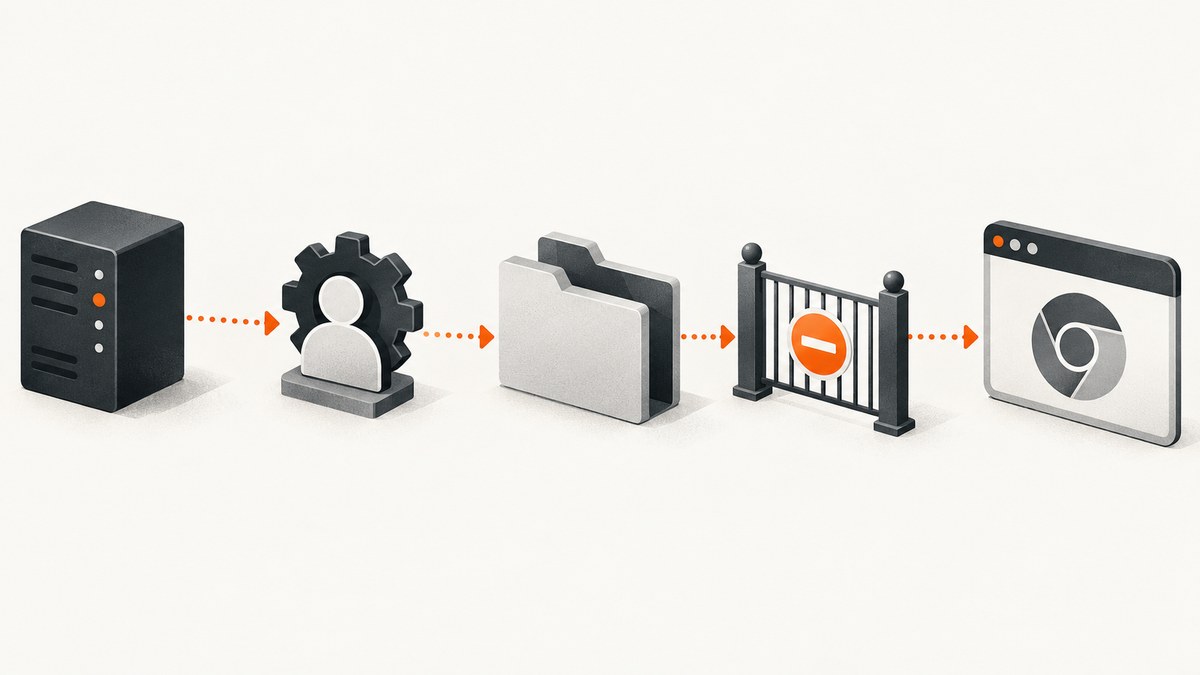
Puppeteer browser launch fails in a Windows service most often because the service runs in a different security and desktop context from the terminal where the script works. Start by capturing Chrome’s output, then verify the service identity, browser executable and cache paths, runtime versions, and the specific sandbox or policy error. A Windows service normally runs unattended in session 0, so a browser window should not be expected to appear on the logged-in desktop.
This guide walks through a log-first diagnosis, a minimal service-compatible launch, targeted fixes for common errors, and operational practices for reliability. It applies to Puppeteer-managed Chrome as well as setups that specify a separate executable.
1. Capture the real failure before changing launch flags
Do not begin by adding a collection of Chrome flags. The exception from puppeteer.launch() and Chrome’s own stderr often identify whether the failure concerns permissions, an incompatible executable, a profile lock, a missing runtime dependency, or a policy. Enable Puppeteer’s dumpio option so the browser process output is forwarded to Node’s stdout and stderr. Route those streams to the service’s normal protected logs.
const puppeteer = require('puppeteer');

async function main() {
  let browser;
  try {
    browser = await puppeteer.launch({
      headless: true,
      dumpio: true,
      timeout: 30_000,
    });
    const page = await browser.newPage();
    await page.goto('https://example.com', { waitUntil: 'domcontentloaded' });
    console.log('Browser started and page loaded');
  } catch (error) {
    console.error('Puppeteer launch or capture failed:', error);
    process.exitCode = 1;
  } finally {
    if (browser) await browser.close();
  }
}

main();
Keep a record of the full exception, Chrome stderr, exact launch options, Node and Puppeteer versions, resolved executable path, service account, and service working directory. Logs can contain URLs, headers, or other operational details, so protect and retain them according to your service’s logging policy. See Puppeteer’s debugging guide and LaunchOptions.
2. Reproduce under the service identity
A successful run in your own terminal only proves that your interactive account can launch that browser with your environment and files. It does not show that the service account can read the same cache, profile, executable, certificate store, or temporary directory.
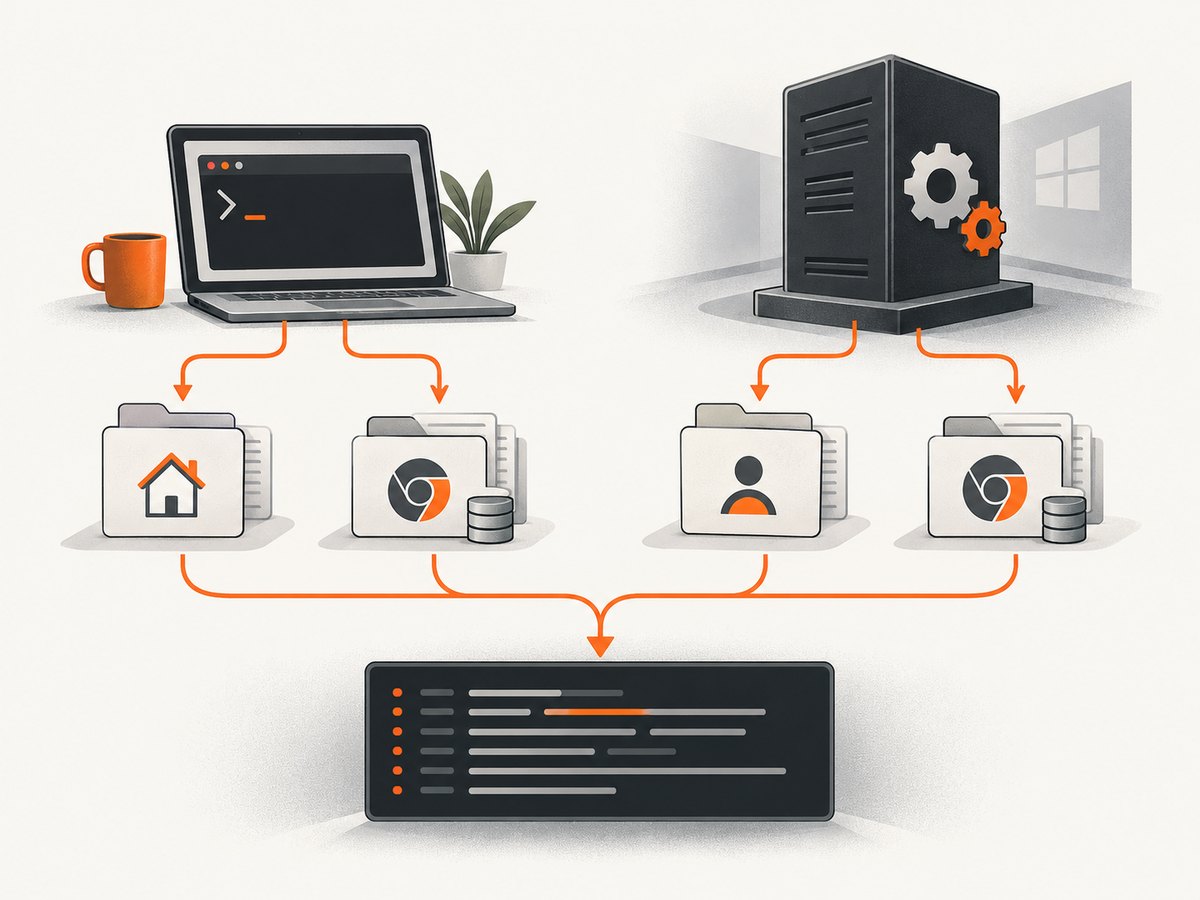
- Open the service configuration and identify the configured “Log On As” account. Do not assume it is your own user.
- Record the service’s configured working directory and environment variables, especially
PATH,TEMP, andUSERPROFILE. - Where permitted by your operations policy, run the same entry point as that identity with the same Node installation and environment. If direct interactive sign-in is not available, log the effective identity and resolved paths from the service process.
- Check that the identity can read and execute the browser binary and can write to the browser profile and temporary directories.
Windows services are designed to run unattended. On modern Windows, they cannot directly interact with users and run in session 0; a headful Chrome window will not appear on the currently logged-in desktop as an ordinary application window. Use headful mode only when the application has an intentional desktop-session design. Review Microsoft’s documentation on service user accounts and interactive services.
3. Verify which Chrome Puppeteer is launching
Puppeteer’s default installation downloads a browser build intended to pair with that Puppeteer release. Its browser cache is home-directory-based by default, which means the service account may resolve a different cache directory from your terminal account. Log the actual path instead of guessing.
const puppeteer = require('puppeteer');
const os = require('node:os');
const path = require('node:path');

console.log({
  node: process.version,
  platform: process.platform,
  arch: process.arch,
  userHome: os.homedir(),
  cwd: process.cwd(),
  puppeteerExecutable: puppeteer.executablePath(),
  tempDirectory: process.env.TEMP || process.env.TMP || os.tmpdir(),
  profileOverride: process.env.PUPPETEER_CACHE_DIR || null,
});
Confirm the resolved executable exists and is readable/executable by the service identity. If deployment intentionally uses an external Chrome, record its version and path. Puppeteer warns that using a custom executablePath is not guaranteed to work with every Puppeteer release; check its supported browser version mapping and prefer the expected bundled browser when possible.
Puppeteer’s current system requirements list Node 22.12 or newer and Windows x64 for Chrome for Testing. Requirements and supported browser builds are version-specific, so compare the documentation for the installed Puppeteer release rather than copying a version number from an unrelated environment. See system requirements.
4. Use the right headless mode and isolated profile
launch() uses headless mode by default. A service that only needs page rendering or screenshots should generally remain headless. headless: false requests headful Chrome and does not make the browser visible in the interactive user’s desktop session. headless: 'shell' uses the separate chrome-headless-shell binary; its behavior does not completely match regular Chrome. Choose based on the behavior your application requires, then test that exact mode under the service identity. See Puppeteer’s headless modes guide.
For a long-running service, avoid sharing one manually chosen user-data directory across simultaneous browser processes. A profile can be locked or left in a bad state after an abrupt stop. Let Puppeteer create a temporary profile, or assign a unique writable profile directory per worker and manage its lifecycle deliberately.
const puppeteer = require('puppeteer');

async function startBrowser() {
  return puppeteer.launch({
    headless: true,
    dumpio: true,
    timeout: 45_000,
    // Set executablePath only when deployment intentionally supplies Chrome.
    // executablePath: 'C:\\Program Files\\Google\\Chrome\\Application\\chrome.exe',
    // Set userDataDir only to a writable, isolated directory.
    // userDataDir: 'D:\\ServiceData\\browser-profile-worker-1',
  });
}
The default launch timeout is 30 seconds. Increasing it can help when a constrained machine needs more startup time, but it will not repair access denied, a nonexistent path, an unsupported browser pairing, or a blocked policy. Avoid making the timeout unlimited: a stuck launch should be observable and recoverable.
5. Fix the documented Windows sandbox permission error
If Chrome stderr explicitly reports that the sandbox cannot access an executable or a sandbox permission setup failed, treat it as a file-permission problem first. Puppeteer documents a Windows-specific sandbox permission issue for its downloaded Chrome. Starting with Puppeteer v22.14.0, installation attempts to configure the needed permissions. For older versions, or when the problem persists, follow the current Puppeteer troubleshooting guidance.
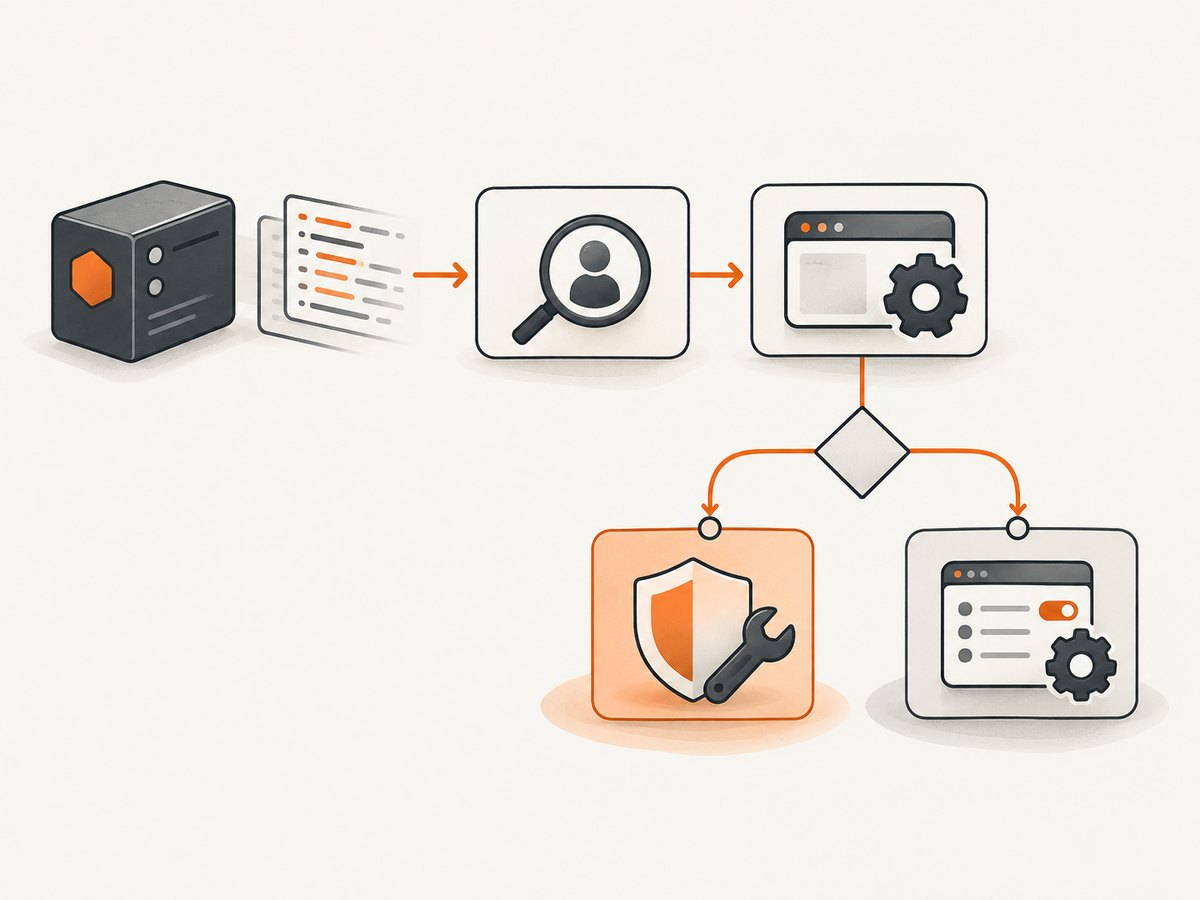
The guide gives a targeted icacls approach for granting the required access to the relevant browser files. Apply it only after identifying the actual service identity and exact installed browser directory. Scope the ACL to that directory and account according to your security policy; do not grant broad access to an entire drive or weaken Chrome’s sandbox globally.
REM First inspect the actual browser directory and the intended service account.
REM Use the exact, current Puppeteer troubleshooting instructions for the ACL
REM syntax and target paths; do not copy a broad permission grant blindly.
icacls "C:\path\to\puppeteer\browser\directory"
After correcting the permission, restart the service and capture fresh logs. If the same error remains, confirm that the service is launching the directory you changed, rather than another account’s cache or an external executablePath.
6. Handle Chrome policy conflicts only when the logs point there
Some managed Windows environments enforce Chrome policies that conflict with Puppeteer’s default disabled-extensions behavior. Puppeteer documents enableExtensions as the remedy for that specific policy issue. Use it only when the reported failure matches the policy problem; it is not a general-purpose launch repair.
const browser = await puppeteer.launch({
  headless: true,
  dumpio: true,
  enableExtensions: true,
});
Retest under the service context and confirm the applicable machine or user policy with your administrator. See the Windows policy note in Puppeteer’s troubleshooting page and the LaunchOptions documentation.
7. A complete minimal Windows service entry point
The following CommonJS example is suitable as the browser-work portion of a service process. A separate Windows service wrapper or service host is responsible for starting and stopping the Node process. Keep browser startup in a function so errors reach the service logger, close the browser in a finally block, and handle shutdown signals where the service host allows them.
const puppeteer = require('puppeteer');

let browser;
let stopping = false;

async function runJob() {
  browser = await puppeteer.launch({
    headless: true,
    dumpio: true,
    timeout: 45_000,
    // Add executablePath only if the service intentionally uses external Chrome.
    // Add enableExtensions: true only for the documented policy conflict.
  });

  const page = await browser.newPage();
  await page.setViewport({ width: 1365, height: 900 });
  await page.goto('https://example.com', {
    waitUntil: 'domcontentloaded',
    timeout: 30_000,
  });
  const title = await page.title();
  console.log({ event: 'capture-complete', title });
}

async function shutdown(signal) {
  if (stopping) return;
  stopping = true;
  console.log({ event: 'shutdown', signal });
  if (browser) {
    try { await browser.close(); }
    catch (error) { console.error('Browser close failed:', error); }
  }
}

process.on('SIGINT', () => void shutdown('SIGINT'));
process.on('SIGTERM', () => void shutdown('SIGTERM'));

runJob()
  .catch((error) => {
    console.error('Service browser job failed:', error);
    process.exitCode = 1;
  })
  .finally(async () => {
    if (browser) await browser.close().catch((error) => {
      console.error('Browser cleanup failed:', error);
    });
  });
Adapt signal handling to the service wrapper in use: Windows service managers may communicate stop requests through the wrapper rather than delivering the signals shown above directly. The important operational behavior is to stop accepting work, allow active work a bounded shutdown period, and close Chrome cleanly.
8. Troubleshooting by symptom
| Symptom | Likely cause | What to check and change |
|---|---|---|
| Works in terminal; service reports executable missing | Different account, home directory, cache, working directory, or environment | Log os.homedir(), process.cwd(), puppeteer.executablePath(), and the configured service identity. Install or configure the browser where that identity can read it. |
| “Access is denied” or sandbox executable permission error | Service identity lacks required access to downloaded Chrome files | Check Puppeteer version and the exact browser path. Apply the narrow, current Puppeteer icacls guidance to the relevant files and identity. |
| Browser exits immediately with a policy or extension error | Managed Chrome policy conflicts with Puppeteer’s default extension setting | Verify the policy diagnosis, then try enableExtensions: true and reproduce as the service account. |
| Custom Chrome launches locally but fails in service | Different executable path, permissions, or Puppeteer/browser incompatibility | Log the actual executable and version; verify service access and Puppeteer’s supported browser mapping. Prefer the paired bundled browser if practical. |
| Launch times out without useful detail | Slow startup, blocked process, inaccessible profile, or missing diagnostic output | Enable dumpio; verify the profile and temp directory are writable; raise the finite timeout only if startup is simply slow. |
| Chrome starts but no window appears on the desktop | Expected service/session behavior, especially in headless mode | Use headless mode for unattended rendering. If visible UI is a requirement, design a separate interactive desktop-session application. |
| Second job fails while first browser is active | Shared profile directory or resource pressure | Use separate profile directories or Puppeteer-managed temporary profiles; cap concurrency and close each browser after use. |
| Works on one server, fails after deployment | Node, Puppeteer, OS architecture, browser cache, or policy differs | Record and compare versions, architecture, executable path, service account, environment, and policy across hosts. |
9. Reliability, performance, and cost considerations
Chrome is a separate process with startup, memory, and temporary-storage costs. Reuse a browser for a bounded batch of jobs when that fits your failure isolation needs, but create and close pages per job. If one browser becomes unhealthy, recycle it under a controlled policy. For parallel work, set a concurrency limit based on available memory and CPU; unconstrained launches can turn a transient slowdown into repeated timeouts.
Use explicit navigation conditions appropriate to the target. domcontentloaded often returns sooner than waiting for every network request, while pages with client-rendered content may need a selector wait or a bounded additional delay. Set navigation and launch timeouts intentionally and report which phase timed out. Keep profiles and temporary files on storage the service account can write, and monitor free disk space.
For reliability, log a correlation ID, browser version, launch duration, navigation duration, and failure category without recording secrets. Retry only failures that may be transient, with a bounded attempt count and backoff; permission and compatibility failures need correction, not repeated launches. Pin Puppeteer in deployment and install its expected browser as part of a repeatable release process. Check the installed version’s requirements when upgrading.
The DIY cost is primarily your infrastructure and engineering time: each capture consumes browser CPU, memory, and runtime, and the service needs monitoring and maintenance. Avoid a cost estimate unsupported by measurements on your own pages and host sizes.
10. Or skip the browser setup
If the job is simply to turn a public URL into an image or PDF, ScreenshotNeo provides a website screenshot API and MCP server. A single GET request returns PNG, JPEG, WebP, or PDF. Its service handles the browser launch and capture; your code does not need to install Chrome or keep a Windows browser process running.
curl -G "https://api.screenshotneo.com/v1/shot" -d access_key=YOUR_API_KEY --data-urlencode url=https://example.com -o shot.webpPython:
import requests

r = requests.get(
    "https://api.screenshotneo.com/v1/shot",
    params={"access_key": "YOUR_API_KEY", "url": "https://example.com"},
    timeout=90,
)
open("shot.webp", "wb").write(r.content)
Node.js:
const q = new URLSearchParams({
  access_key: 'YOUR_API_KEY',
  url: 'https://example.com',
});
const res = await fetch(`https://api.screenshotneo.com/v1/shot?${q}`);
if (!res.ok) throw new Error(`ScreenshotNeo returned ${res.status}`);
await require('node:fs/promises').writeFile('shot.webp', Buffer.from(await res.arrayBuffer()));
See the ScreenshotNeo API documentation for request options and response details. Cookie and consent banners, newsletter popups, and chat widgets are removed before capture; each cleanup step can be turned off. Bot checks, blank pages, timeouts, failed loads, and cache hits are not billed, and response headers report the page verdict and billing status. For AI workflows, its MCP server offers take_screenshot, get_page_info, and capture_pdf to Claude, Cursor, and other MCP clients.
The free plan includes 1,000 screenshots per month with no card. Paid plans start at $5 for 3,000 screenshots; every feature is on every plan. Sign up free and try 1,000 screenshots a month with no card.
11. Frequently asked questions
Does a Puppeteer service need a logged-in desktop?
No. Headless Chrome is the standard fit for unattended work. A Windows service runs in its own session and should not depend on displaying a browser window to an interactive user.
Should I add --no-sandbox to fix a launch failure?
Do not use it as a generic fix. First capture Chrome output and identify the exact error. For the documented Windows sandbox permission issue, follow Puppeteer’s targeted version and ACL guidance rather than globally weakening browser security.
Why does changing the service account change the browser path?
Puppeteer’s default cache is based on the user’s home directory. A different service identity can therefore resolve a different cache and browser executable. Log the resolved path from the actual service process.
Is headless: 'shell' interchangeable with regular headless Chrome?
No. It uses a separate headless-shell binary and does not fully match regular Chrome behavior. Use it only when its differences are acceptable for the pages and output you need.
What is the first thing to collect for a support ticket?
Include the full Puppeteer error, Chrome stderr from dumpio, Node and Puppeteer versions, Windows architecture, service identity, resolved browser path, and launch options. Remove secrets and sensitive page data first.


