How to Fix PyAutoGUI Screenshot Functions That Do Not Work
Find whether PyAutoGUI fails during import, desktop capture, image loading, or matching, then fix the exact layer with runnable diagnostics.
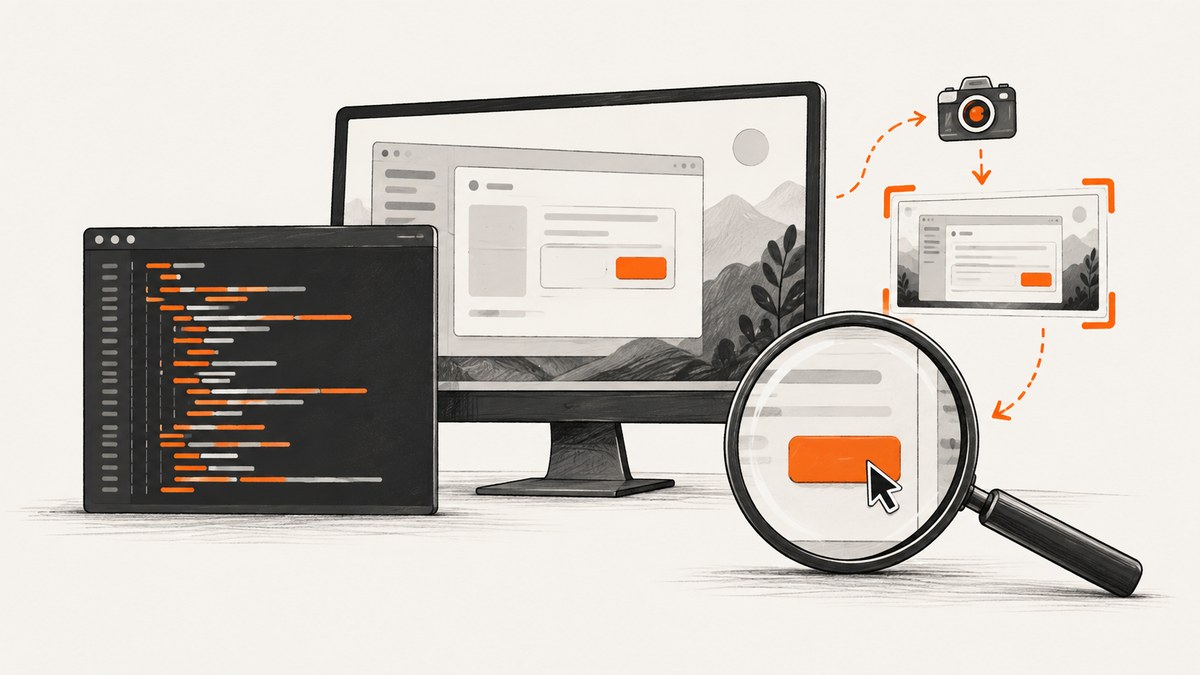
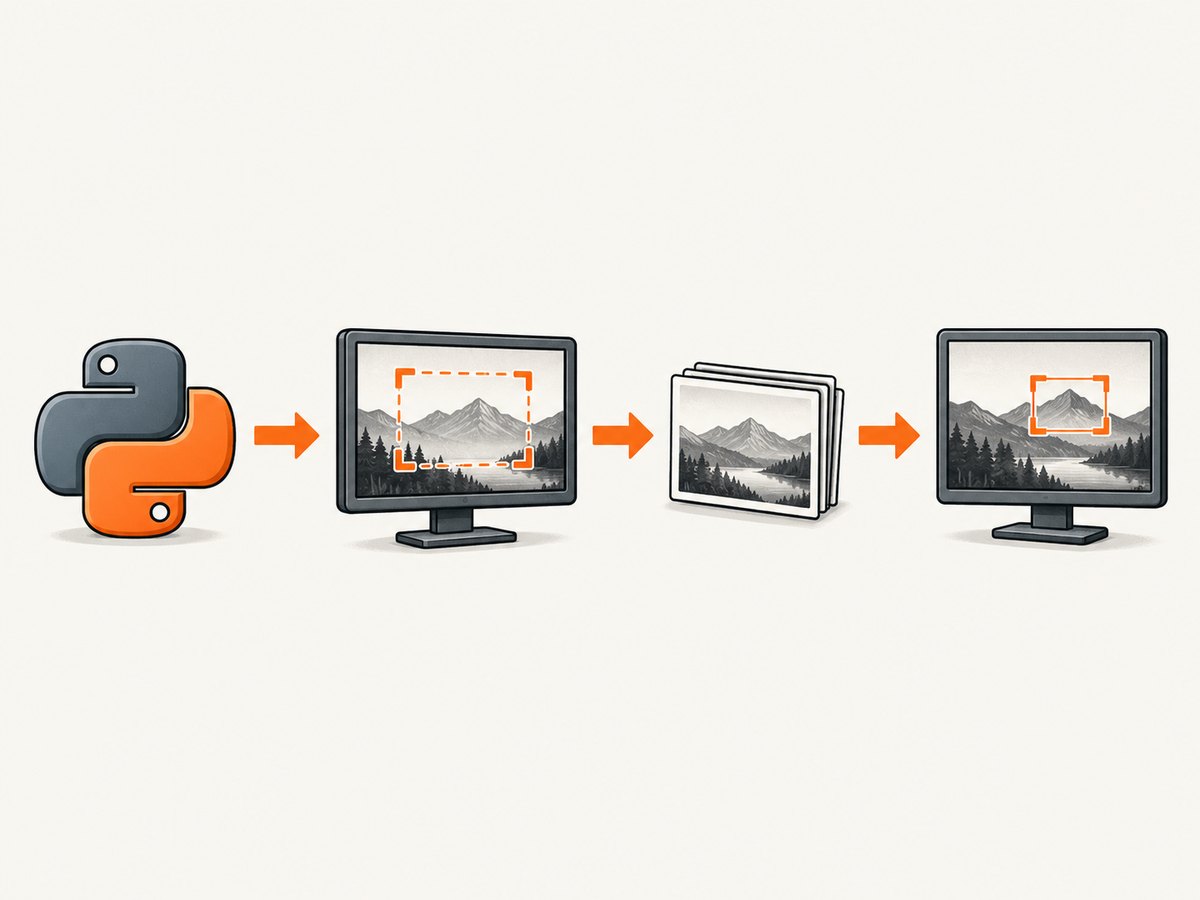
PyAutoGUI screenshot problems usually come from one of four layers: a dependency import, the operating system’s desktop-capture backend, the reference image file, or the on-screen matching step. Test those layers in that order. A successful import does not prove that your session can capture the desktop, and a successful screenshot does not prove that locateOnScreen() can find the image.
1. Capture the exact failure context
Keep the complete traceback. Also run this diagnostic with the same interpreter that starts your automation script:
import sys
import pyautogui
import pyscreeze
from PIL import Image

print('Python:', sys.executable)
print('PyAutoGUI:', pyautogui.__file__)
print('PyScreeze:', pyscreeze.__file__)
print('Pillow:', Image.__file__)
If an import fails, compare sys.executable with the interpreter where you installed the packages. Use an interpreter-qualified install command so that pip cannot silently target a different Python environment:
# Windows
py -m pip install --upgrade pyautogui pillow pyscreeze

# macOS or Linux
python3 -m pip install --upgrade pyautogui pillow pyscreeze
PyAutoGUI’s screenshot documentation says screenshot functionality requires Pillow. PyAutoGUI delegates screenshot and locate operations to PyScreeze, so a broken or missing PyScreeze installation can affect both operations.
2. Test screenshot capture before image matching
Run this minimal capture test before changing confidence values or replacing your reference image:
import pyautogui

im = pyautogui.screenshot()
print('Captured size:', im.size)
im.save('debug_screenshot.png')
print('Saved debug_screenshot.png')
Open debug_screenshot.png. If this call raises an exception, the failure is in imports, the desktop session, permissions, or the platform backend. If it succeeds and the image is correct, capture is working; continue with the reference image and matching checks.
The screenshot function returns a Pillow image and can save directly when given a filename:
import pyautogui

im = pyautogui.screenshot('debug_screenshot.png')
print(im.size)
3. Verify the reference image and locate behavior
Make sure the image path is real and readable, and compare it visually with the current screen. The target must be visible, unobstructed, and rendered at the same scale as the reference. A screenshot taken on a Retina or high-DPI display may not match an image captured at another scale.
from pathlib import Path
import pyautogui

needle = Path('button.png')
if not needle.is_file():
    raise FileNotFoundError(f'Missing reference image: {needle.resolve()}')

try:
    box = pyautogui.locateOnScreen(str(needle))
except pyautogui.ImageNotFoundException:
    box = None

if box is None:
    print('No match')
else:
    print('Match:', box)
    print('Center:', pyautogui.center(box))
Current documentation describes ImageNotFoundException when no image is found. Older PyAutoGUI/PyScreeze versions or configuration can return None instead, so robust code handles both.
Use confidence only when it solves a pixel-difference problem
confidence= requires OpenCV. Install it in the active interpreter, then choose a threshold deliberately:
python3 -m pip install opencv-pythonimport pyautogui
try:
box = pyautogui.locateOnScreen('button.png', confidence=0.90)
except pyautogui.ImageNotFoundException:
box = None
print(box)Lowering confidence cannot repair a failed desktop capture, a hidden window, a wrong image path, or a scale mismatch. Start around 0.9 and lower it only after confirming that the target is present and visually similar.
Restrict the search region
If the target can only appear in a known area, pass region=(left, top, width, height):
import pyautogui

region = (0, 0, 1200, 800)
try:
    box = pyautogui.locateOnScreen('button.png', region=region)
except pyautogui.ImageNotFoundException:
    box = None
print(box)
A region reduces false matches and search time. It does not change whether the operating system can take a screenshot.
4. Check the operating-system capture backend
Windows
Start with the direct screenshot() test and the interpreter check. If imports work but capture fails, record the complete backend exception, confirm that the script runs inside an active interactive desktop session, and test with the target window visible and unlocked. Avoid debugging locateOnScreen() until a saved screenshot opens correctly.
macOS
PyAutoGUI documentation describes the system screencapture utility, while PyScreeze can also use Pillow’s ImageGrab path depending on the Pillow version. If capture itself fails, inspect the exact macOS session or permission error and verify that the process is running in the logged-in graphical session. A remote, headless, or locked session may not expose capturable pixels.
Linux: establish X11 or Wayland first
The official installation guide lists scrot, Tkinter, and Python development headers for Linux. Current PyScreeze source also describes a Pillow ImageGrab path, an X11 scrot fallback, and conditions that differ under Wayland. Therefore, do not treat installing scrot as a universal fix.
echo "$XDG_SESSION_TYPE"
echo "$DISPLAY"
echo "$WAYLAND_DISPLAY"
command -v scrot || true
For X11, install the packages required by your distribution and verify that scrot can capture the same display. For Wayland, use the backend and desktop portal supported by your environment, or run the automation in an X11 session when your application requires X11 capture. The exact remedy depends on the compositor, desktop, and PyScreeze/Pillow versions.
5. A complete diagnostic script
This script separates import, capture, file, and matching failures while preserving the traceback:
from pathlib import Path
import sys

print('Python:', sys.executable)

try:
    import pyautogui
    print('PyAutoGUI import: OK')
except Exception as exc:
    print('PyAutoGUI import failed:', repr(exc))
    raise

try:
    import pyscreeze
    from PIL import Image
    print('PyScreeze:', pyscreeze.__file__)
    print('Pillow:', Image.__file__)
except Exception as exc:
    print('Screenshot dependencies failed:', repr(exc))
    raise

try:
    shot = pyautogui.screenshot('debug_screenshot.png')
    print('Capture: OK', shot.size)
except Exception as exc:
    print('Capture failed:', repr(exc))
    raise

needle = Path('button.png')
print('Reference:', needle.resolve())
if not needle.is_file():
    raise FileNotFoundError(needle)

try:
    match = pyautogui.locateOnScreen(str(needle))
except pyautogui.ImageNotFoundException:
    match = None

if match is None:
    print('Matching: no result')
else:
    print('Matching: OK', match)
    print('Click point:', pyautogui.center(match))
6. Common errors and fixes
| Symptom | Likely layer | Fix |
|---|---|---|
ModuleNotFoundError: pyautogui, pyscreeze, or PIL |
Interpreter or dependency | Run python -m pip or py -m pip with the same interpreter shown by sys.executable; reinstall PyAutoGUI, PyScreeze, and Pillow. |
Import succeeds, screenshot() fails |
Desktop backend/session | Test in an unlocked graphical session, check the OS-specific backend, and read the complete traceback before changing matching settings. |
| Saved screenshot is blank or wrong display | Session, display, or remote desktop | Confirm DISPLAY/WAYLAND_DISPLAY, active monitor selection, and that the process can see the interactive desktop. |
ImageNotFoundException or None |
Reference or matching | Show the target, verify the path, recapture the reference at the same scale, and check for overlays or changed UI state. |
confidence is rejected |
Missing OpenCV | Install opencv-python in the active interpreter. Do not use confidence as a capture fix. |
| Match works on one machine but not another | Scale, theme, font, or rendering | Use a machine-specific reference, normalize display scaling, or target a larger stable region. Dark mode and browser zoom can change pixels. |
| Matching is too slow | Search area or image size | Pass region, use a smaller reference, and avoid repeated full-screen searches in tight loops. |
| Linux fix works under X11 but not Wayland | Backend mismatch | Identify the session type and use a compatible capture path or an X11 session; package installation alone may not provide Wayland capture. |
7. Performance and reliability
PyAutoGUI documentation gives an approximate screenshot time of 100 milliseconds for a 1920×1080 screen and roughly one or two seconds for locate calls. These are documentation estimates, not guarantees; hardware, OS, screen size, image dimensions, and package versions change the result.
- Capture once and reuse the Pillow image when several checks can share it.
- Use
regionwhenever the target location is bounded. - Use explicit waits and bounded retries instead of an unbounded polling loop.
- Log the interpreter, package versions, display session, screenshot dimensions, and reference path with each failure.
- Keep reference images close to the production scale and theme, and recapture them after UI redesigns.
import time
import pyautogui

region = (0, 0, 1200, 800)
deadline = time.monotonic() + 10
match = None
while time.monotonic() < deadline:
    try:
        match = pyautogui.locateOnScreen('button.png', region=region)
    except pyautogui.ImageNotFoundException:
        match = None
    if match:
        break
    time.sleep(0.25)

if not match:
    raise TimeoutError('button.png did not appear within 10 seconds')
pyautogui.click(pyautogui.center(match))
8. Or skip the browser setup
If your goal is a clean image of a web page rather than interaction with your local desktop, ScreenshotNeo removes the browser and OS capture layer. It accepts one GET request and returns PNG, JPEG, WebP, or PDF. Before capture it accepts cookie or consent banners and removes more than 60 known consent platforms, newsletter popups, and chat widgets; each cleanup step can be turned off.

Only clean shots are billed. Bot checks, CAPTCHAs, blank pages, timeouts, failed loads, and cache hits cost nothing, and the response reports the result through X-Page-Verdict and X-Billed headers. It also provides an MCP server for Claude, Cursor, and other MCP clients.
See the ScreenshotNeo API documentation for all options, including full-page capture, element selectors, device presets, retina scale, custom CSS and JavaScript, waits, blocked resources, cookies, headers, geolocation, caching, signed links, asynchronous jobs, bulk capture, and PDF settings.
curl -G "https://api.screenshotneo.com/v1/shot" \
  -d access_key=YOUR_API_KEY \
  --data-urlencode url=https://stripe.com \
  -o shot.webp
import requests
r = requests.get(
"https://api.screenshotneo.com/v1/shot",
params={"access_key": "YOUR_API_KEY", "url": "https://stripe.com"},
timeout=90,
)
r.raise_for_status()
open("shot.webp", "wb").write(r.content)const q = new URLSearchParams({
access_key: 'YOUR_API_KEY',
url: 'https://stripe.com'
});
const res = await fetch(`https://api.screenshotneo.com/v1/shot?${q}`);
if (!res.ok) throw new Error(`HTTP ${res.status}`);
const bytes = new Uint8Array(await res.arrayBuffer());
await Bun.write('shot.webp', bytes);You get 1,000 screenshots per month free with no card. Paid plans start at $5 for 3,000 shots, and every feature is available on every plan. Create a free ScreenshotNeo account.
9. FAQ
Does reinstalling PyAutoGUI fix every screenshot error?
No. Reinstallation addresses import and dependency problems. A failed desktop backend, locked session, Wayland limitation, wrong reference image, or scale mismatch needs a different fix.
Why does screenshot() work while locateOnScreen() fails?
Capture and matching are separate stages. The current screen may not contain the reference pixels, the image may be at another scale, or the installed version may report a missing match as an exception.
Should I always lower confidence?
No. Confidence is useful for small visual differences after capture and the reference image are verified. A low threshold can create false matches and cannot repair a broken capture.
Can PyAutoGUI capture a headless server?
It needs a usable graphical capture environment. On a headless or locked server, provide a supported virtual or remote desktop session, or use a web screenshot API for web pages.


