How to Fix Pyppeteer’s “Browser Closed Unexpectedly” Error on AWS Lambda
Diagnose Pyppeteer’s “Browser closed unexpectedly” error on AWS Lambda with logs, dependency checks, compatible binaries, and working fixes.
Short answer: Pyppeteer raises Browser closed unexpectedly when Chromium exits before Pyppeteer can connect to its DevTools WebSocket endpoint. The message describes an early process exit; it does not identify the cause. On AWS Lambda, the usual causes are an incompatible Chromium build, missing shared libraries, an incorrect executable path or permissions, architecture mismatch, or a failed download or extraction in /tmp.
Start by enabling Chromium’s own stderr output with dumpio=True. Then verify the deployed executable, inspect its dependencies inside the Lambda-compatible environment, and align the browser build with the Lambda runtime, architecture and Pyppeteer version. More launch flags alone are not a reliable fix.
1. What the error means
Pyppeteer launches Chromium as a subprocess and waits for Chromium to expose a DevTools endpoint. If Chromium terminates first, the launcher raises BrowserError('Browser closed unexpectedly: ...'). The exception is therefore a symptom of an early child-process exit, not a diagnosis. Pyppeteer can launch its bundled browser or a caller-supplied binary through executablePath, but its documentation warns that versions other than the bundled Chromium are not guaranteed to work.
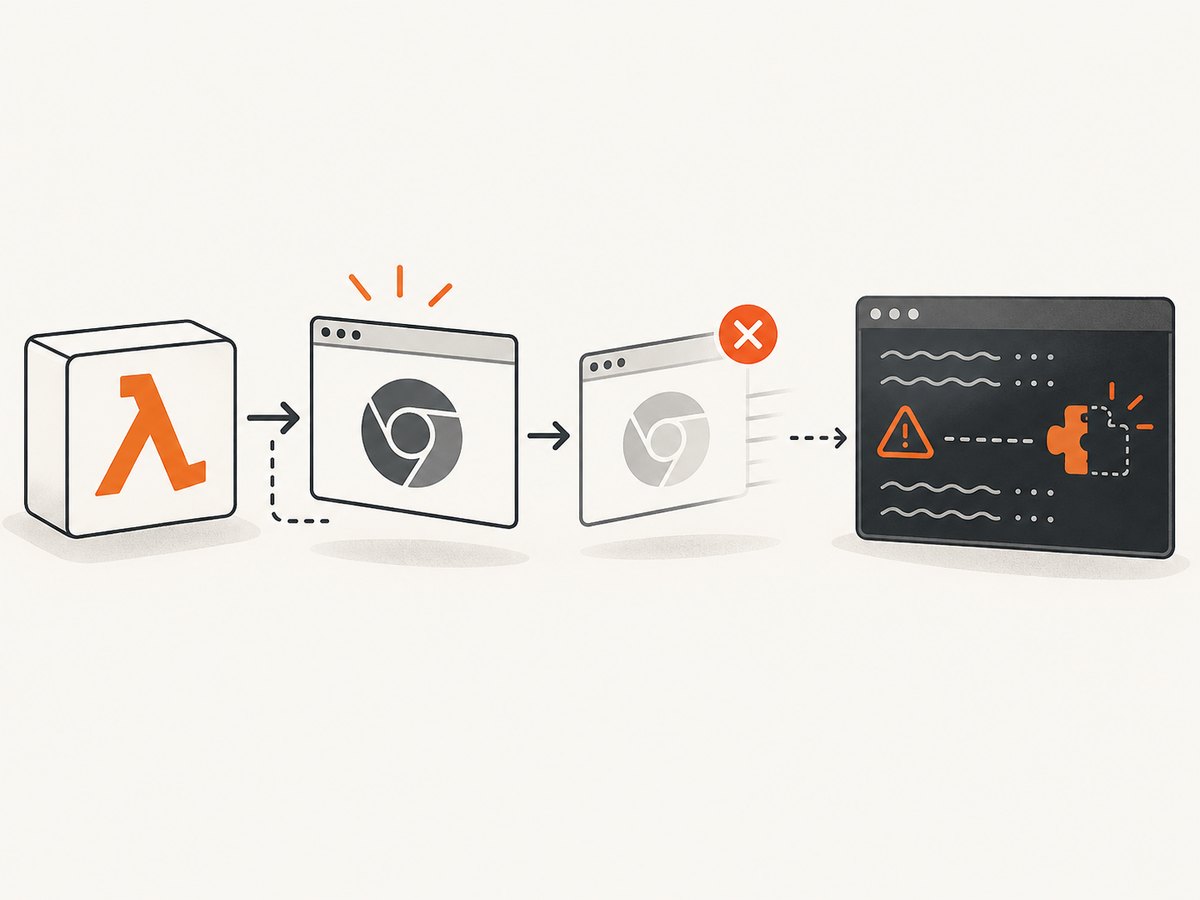
Read the browser process output before changing flags. A missing .so file, an executable-format error, a sandbox failure, or a crash caused by an incompatible build points to a different fix.
2. A diagnostic sequence that works in Lambda
- Turn on startup logs. Pass
dumpio=Truetopyppeteer.launch(). Pyppeteer pipes browser output internally by default, so without this option the useful error can be hidden. See the Pyppeteer launcher documentation. - Log the deployed path. Confirm that the file exists in the Lambda artifact or layer, is executable, and is the architecture you deployed. A path that works on your workstation may not exist in the deployed package.
- Run dependency checks in the target environment. Use
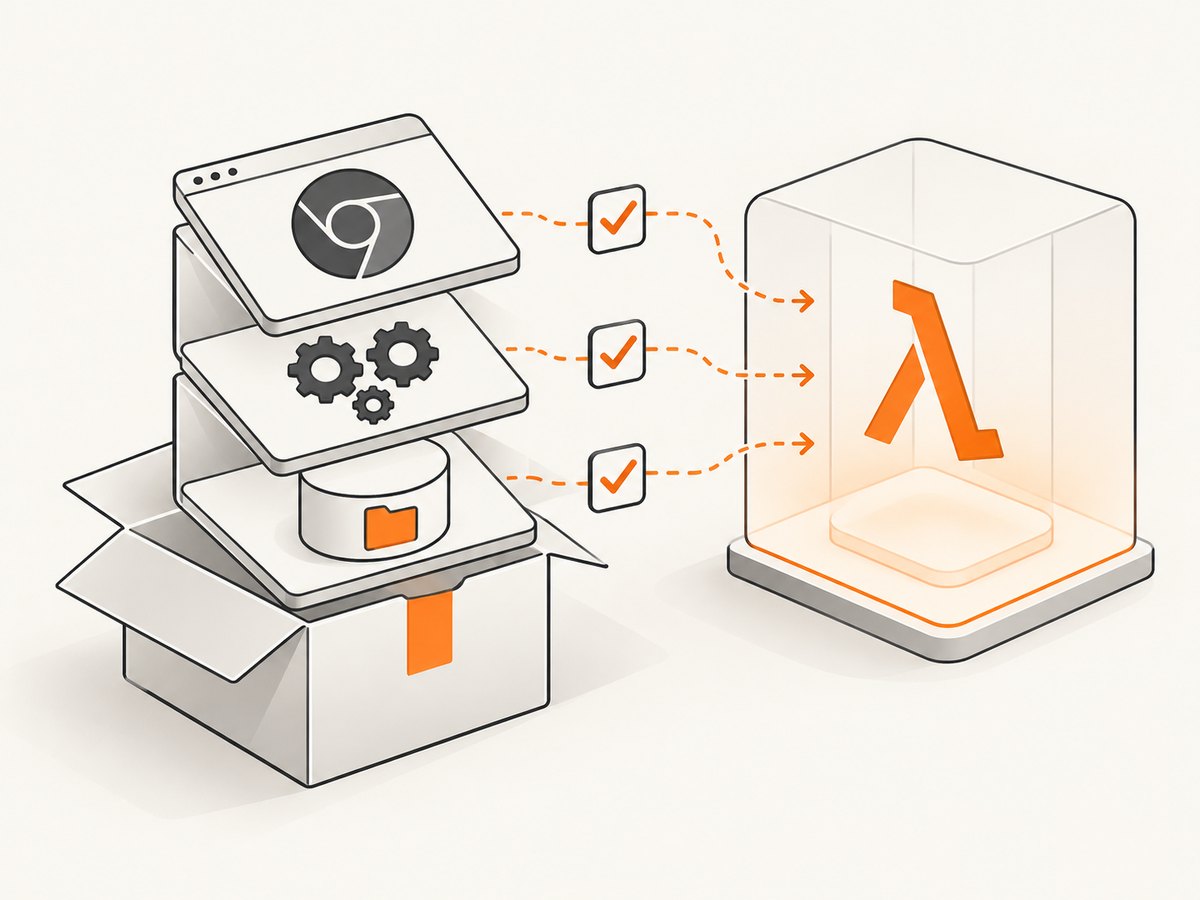
lddagainst the binary. If the output contains “not found”, install or package that library in a compatible layer or image. Browser flags cannot provide missing operating-system libraries. - Check runtime and architecture compatibility. Use a Chromium build intended for the Lambda operating-system generation and CPU architecture. Keep the browser version aligned with the Pyppeteer version; externally supplied versions are not guaranteed by Pyppeteer.
- Check writable temporary storage when evidence points to space. Lambda exposes temporary storage at
/tmp. AWS documents a configurable capacity from 512 MB to 10,240 MB. Increasing it can fix a failed download or extraction, but it cannot fix a missing shared library. See AWS Lambda ephemeral storage. - Reproduce with the same artifact. A directly relevant Lambda report worked locally with Python 3.12 but failed on Python 3.9 after deployment, even with several common headless flags. That community report attributed the failure to missing libraries; treat it as a hypothesis to verify in your runtime, not a universal rule.
3. Complete Pyppeteer Lambda example
The following handler shows the diagnostic settings and a safe cleanup path. Set CHROME_EXECUTABLE to the path supplied by your layer, container image or deployment package.
import asyncio
import json
import os
from pyppeteer import launch

CHROME_EXECUTABLE = os.environ.get("CHROME_EXECUTABLE", "/opt/chromium")

async def capture(url: str):
    browser = None
    try:
        browser = await launch(
            executablePath=CHROME_EXECUTABLE,
            headless=True,
            dumpio=True,
            handleSIGINT=False,
            handleSIGTERM=False,
            handleSIGHUP=False,
            args=[
                "--no-sandbox",
                "--disable-setuid-sandbox",
                "--disable-dev-shm-usage",
                "--disable-gpu",
                "--no-zygote",
            ],
        )
        page = await browser.newPage()
        await page.goto(url, {"waitUntil": "networkidle2", "timeout": 60000})
        return await page.screenshot({"type": "png", "fullPage": True})
    finally:
        if browser is not None:
            await browser.close()

def lambda_handler(event, context):
    url = event.get("url", "https://example.com")
    image = asyncio.get_event_loop().run_until_complete(capture(url))
    return {
        "statusCode": 200,
        "headers": {"Content-Type": "image/png"},
        "isBase64Encoded": True,
        "body": __import__("base64").b64encode(image).decode("ascii"),
    }
The flags above are commonly used in restricted environments, but they are not a guaranteed solution. A reported Lambda deployment used --no-sandbox, --disable-gpu, --single-process, --disable-dev-shm-usage and --no-zygote and still failed. Use the Chromium stderr output to decide whether a flag is relevant.
4. Verify the executable and its libraries
Add temporary diagnostics before launching:
import os
import stat
import subprocess

path = os.environ.get("CHROME_EXECUTABLE", "/opt/chromium")
print("chrome path:", path)
print("exists:", os.path.exists(path))
if os.path.exists(path):
    print("mode:", oct(os.stat(path).st_mode))
    print("executable:", os.access(path, os.X_OK))
    print("file:", subprocess.run(["file", path], capture_output=True, text=True).stdout)
    print("ldd:", subprocess.run(["ldd", path], capture_output=True, text=True).stdout)
Interpret the results as follows:
- File does not exist: fix the layer, container image, deployment path or environment variable.
- Permission denied: make the binary executable during packaging and verify the mounted filesystem permissions.
- Exec format error: the binary architecture does not match the Lambda architecture.
not foundinldd: package the required library in a compatible layer or use a container image that includes it.- Chromium starts and immediately exits: inspect stderr for incompatible flags, profile-directory problems, crashes or runtime incompatibility.
Do not assume that a downloaded file named headless-chromium is compatible merely because it launches on a laptop. The operating-system libraries, CPU architecture and runtime generation all matter.
5. Lambda storage, packaging and cold starts
Chromium extraction and temporary profiles consume writable space. Lambda’s writable temporary directory is /tmp; AWS documents 512 MB through 10,240 MB of configurable ephemeral storage. Increase it only when logs or extraction failures show that space is the problem. It does not add X11 or other shared libraries.
Prefer packaging the browser in a Lambda layer or container image rather than downloading it during every invocation. If you do download at startup, cache the extracted file under /tmp and guard concurrent extraction. Check free space before unpacking:
import shutil
print(shutil.disk_usage("/tmp"))
Keep the browser version fixed in your build. A moving download URL can silently change the binary and make a previously working deployment fail.
6. Choosing a fix: Lambda or another environment
| Question | Stay on Lambda when… | Consider another environment when… |
|---|---|---|
| Libraries | You can package every required shared library in a layer or image. | The browser depends on libraries unavailable in your chosen runtime image. |
| Compatibility | The browser build matches the Lambda OS generation, architecture and Pyppeteer version. | You cannot obtain a compatible build or must use a fixed workstation-oriented binary. |
| Storage | The package and temporary profile fit your deployment and /tmp limits. |
Downloads or extraction repeatedly exhaust temporary space. |
| Operations | Cold starts and Lambda limits fit the workload. | You need a long-lived browser process or more control over the host. |
One community answer reports success after moving the workload to EC2, but that is an anecdotal workaround rather than evidence that Lambda universally cannot run Pyppeteer. Make the decision from your dependency, compatibility and operational evidence.
7. Or skip the browser setup
ScreenshotNeo provides a website screenshot API and MCP server, so your Lambda function can make one HTTP request instead of packaging Chromium and its libraries. Before capture it accepts cookie and consent banners and removes more than 60 known consent platforms, newsletter popups and chat widgets. Bot checks, blank pages, timeouts, failed loads and cache hits are not billed, and the response identifies the result with X-Page-Verdict and X-Billed headers. Its MCP server provides take_screenshot, get_page_info and capture_pdf for Claude, Cursor and other MCP clients.
See the ScreenshotNeo API documentation for all options.
cURL
curl -G "https://api.screenshotneo.com/v1/shot" -d access_key=YOUR_API_KEY --data-urlencode url=https://stripe.com -o shot.webpPython
import requests
r = requests.get("https://api.screenshotneo.com/v1/shot", params={"access_key": "YOUR_API_KEY", "url": "https://stripe.com"}, timeout=90)
r.raise_for_status()
open("shot.webp", "wb").write(r.content)
Node.js
const q = new URLSearchParams({ access_key: 'YOUR_API_KEY', url: 'https://stripe.com' });
const res = await fetch(`https://api.screenshotneo.com/v1/shot?${q}`);
if (!res.ok) throw new Error(`${res.status} ${await res.text()}`);
const fs = await import('node:fs/promises');
await fs.writeFile('shot.webp', Buffer.from(await res.arrayBuffer()));
You can still request full-page captures, CSS-element captures, device presets or custom viewports, dark mode, retina scale, custom CSS and JavaScript, waits, blocked resources, headers, cookies, user agents, authorization, timezone, geolocation, transparent backgrounds, resizing, caching, signed links, asynchronous jobs, webhooks and bulk capture. ScreenshotNeo has 1,000 free shots per month with no card; paid plans start at $5 for 3,000 shots. Create a free ScreenshotNeo account.
8. Troubleshooting checklist
| Symptom | Likely cause | Fix |
|---|---|---|
| Browser closed unexpectedly with no useful detail | Browser stderr is hidden. | Set dumpio=True and inspect CloudWatch logs. |
| “No such file or directory” | Wrong path or missing layer. | Log CHROME_EXECUTABLE, list the directory and correct the deployment. |
| “Permission denied” | Binary lacks execute permission. | Set executable mode during packaging and verify permissions in Lambda. |
| “Exec format error” | Architecture mismatch. | Use a browser built for the function architecture. |
error while loading shared libraries |
Missing runtime dependency. | Use ldd, then add the missing library to a compatible layer or image. |
| Extraction fails or profile creation fails | Insufficient /tmp space. |
Measure disk usage, remove stale files and increase ephemeral storage if needed. |
| Works locally, fails in Lambda | Different OS, libraries, architecture or Python runtime. | Test the exact deployment artifact in a matching environment. |
| Flags changed but the error remains | The underlying issue is dependency or compatibility related. | Stop copying flags and follow the executable, ldd and stderr checks. |
9. Performance, reliability and cost notes
- Cold starts: Chromium packaging, extraction and startup add latency. Reuse a browser only when you can manage lifecycle and isolation safely.
- Concurrency: Each invocation may need separate temporary profile data and memory. Watch for contention in
/tmpand browser process limits. - Timeouts: Set a page timeout below the Lambda function timeout so the handler can close Chromium and return a useful error.
- Reliability: Pin browser and Pyppeteer versions, log the exact path and version, and redeploy when the Lambda runtime or architecture changes.
- Cost: The dossier provides no Lambda-versus-EC2 cost benchmark. Measure memory size, duration, invocation rate and operational overhead for your workload.
10. FAQ
Does --no-sandbox fix this error?
No. It can be required in some restricted environments, but a reported Lambda deployment used it and still failed because the underlying problem was attributed to missing libraries.
Should I always increase Lambda /tmp storage?
Only when download, extraction or profile creation shows a storage problem. Extra space cannot supply missing shared libraries.
Is Pyppeteer’s bundled Chromium always safe on Lambda?
No. Pyppeteer works best with its bundled version, but the bundle still must be compatible with the Lambda operating system and architecture.
When should I move to EC2?
Consider it when you need host-level control or cannot package a compatible browser and dependency set. The available EC2 evidence is anecdotal, so validate the workload before migrating.


