How to Fix Pyppeteer BrowserError: Failed to Connect to Browser Port
Fix Pyppeteer’s “Failed to Connect to Browser Port” by separating launch problems from WebSocket connection problems.
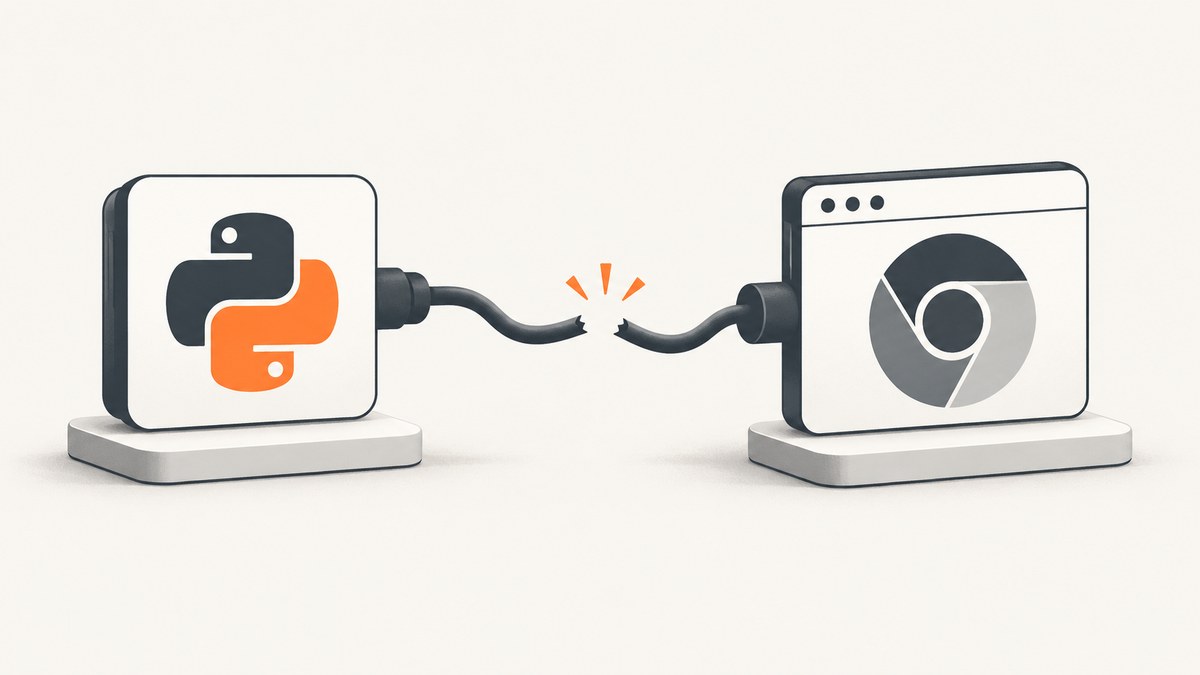
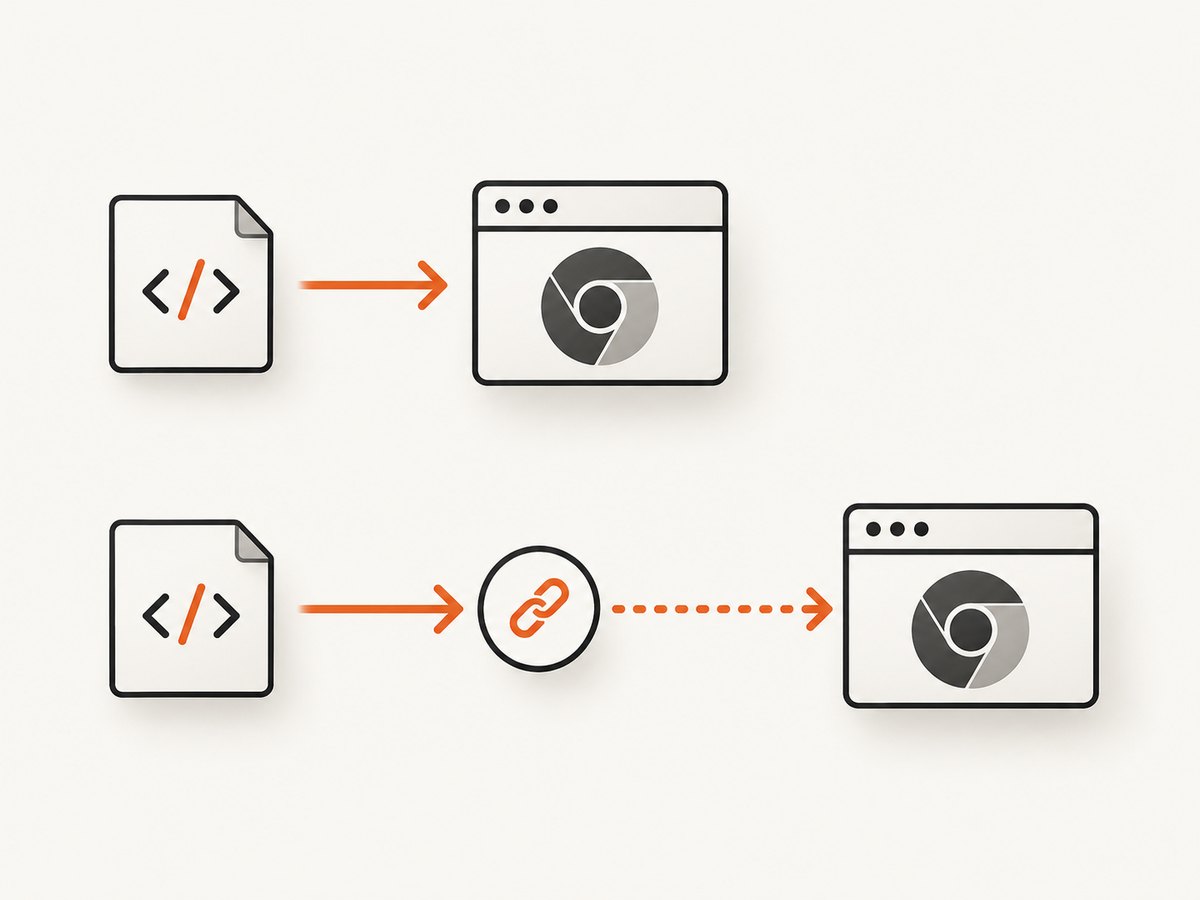
“Failed to Connect to Browser Port” is a symptom, not a diagnosis. First determine whether your code calls pyppeteer.launch() or pyppeteer.connect():
launch()starts Chromium. Check installation, the executable path, startup arguments and browser logs.connect()attaches to an existing browser. It requires the complete WebSocket endpoint, such asws://host:port/devtools/browser/<id>; a port number alone is insufficient.
Use the matching path below, then enable diagnostics so the traceback and browser stderr identify the remaining cause. Pyppeteer’s documentation covers the launch and connect APIs and their options (API reference).
1. Identify the connection path
import asyncio
from pyppeteer import launch, connect

async def main():
    # Starts a Chromium process.
    browser = await launch()
    await browser.close()

    # Attaches to an already-running browser. The endpoint must be complete.
    browser = await connect(
        browserWSEndpoint="ws://127.0.0.1:9222/devtools/browser/REPLACE_WITH_ID"
    )
    await browser.close()

asyncio.run(main())
Do not run both branches in the same diagnosis. Locate the actual call in your application and follow the corresponding checklist.
2. Fix launch() failures
Install Pyppeteer and its Chromium build
python -m pip install --upgrade pyppeteer
pyppeteer-install
Pyppeteer downloads a Chromium build on first use. Running pyppeteer-install during image or machine setup makes that dependency explicit before the application starts. The bundled Chromium is the compatibility baseline recommended by Pyppeteer; alternate browser versions are not guaranteed to work (installation documentation).
Run a minimal launch probe
import asyncio
from pyppeteer import launch

async def main():
    browser = await launch(headless=True)
    page = await browser.newPage()
    await page.goto("https://example.com", {"waitUntil": "networkidle2"})
    print(await page.title())
    await browser.close()

asyncio.run(main())
If this fails, the problem is before any page-specific code. Verify that the Python process can execute the configured Chromium binary in the same environment.
Check a custom executable
import asyncio
from pyppeteer import launch

async def main():
    browser = await launch(
        executablePath="/absolute/path/to/chrome-or-chromium",
        headless=True,
    )
    print(await (await browser.pages())[0].title())
    await browser.close()

asyncio.run(main())
Confirm the path exists and is executable from the runtime user. Test the bundled browser first; add executablePath only when you have a specific reason to use another installation.
Expose startup errors
import asyncio
import logging
from pyppeteer import launch

async def main():
    logging.basicConfig(level=logging.DEBUG)
    browser = await launch(
        dumpio=True,
        logLevel=logging.DEBUG,
    )
    await browser.close()

asyncio.run(main())
dumpio=True forwards the browser process output. Debug logging can be very verbose, including protocol send and receive messages, so enable it for diagnosis and reduce it afterward.
Change one launch option at a time
Documented launch options include executablePath, args, env, dumpio and userDataDir. Keep a known-good minimal launch, then add one option per run. This makes an invalid flag, environment variable or profile directory visible.
3. Fix connect() failures
Start Chromium with remote debugging
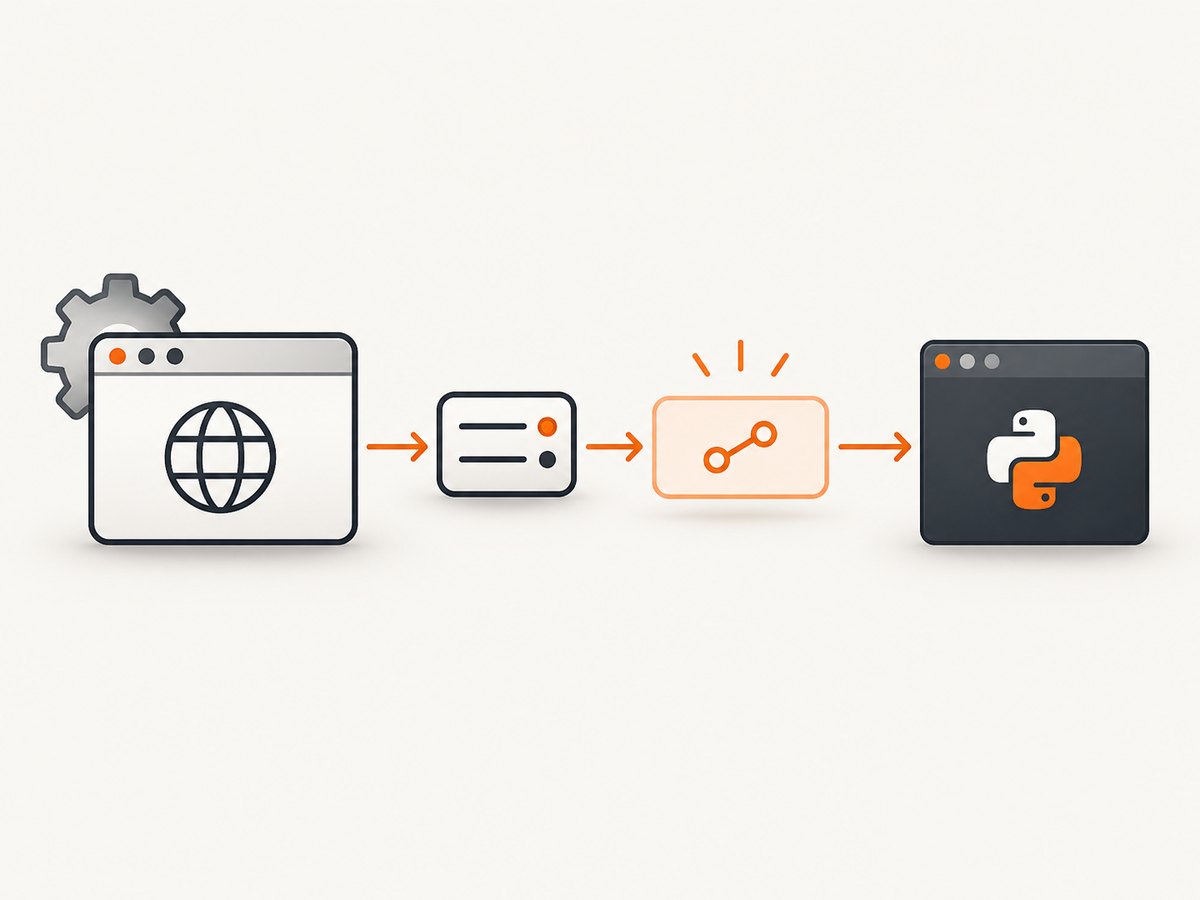
chromium --headless --remote-debugging-port=9222The browser must remain running and reachable by the Python process. A successful port bind is not enough: Pyppeteer needs the browser-specific WebSocket path.
Obtain the complete WebSocket endpoint
Chrome exposes version information at the debugging HTTP endpoint. Query it from the same network namespace as your Python process:
curl http://127.0.0.1:9222/json/versionRead the webSocketDebuggerUrl value and pass the entire string to browserWSEndpoint.
import asyncio
import json
from urllib.request import urlopen
from pyppeteer import connect

async def main():
    with urlopen("http://127.0.0.1:9222/json/version", timeout=10) as response:
        version = json.load(response)

    endpoint = version["webSocketDebuggerUrl"]
    browser = await connect(browserWSEndpoint=endpoint)
    print("Connected", await browser.version())
    await browser.close()

asyncio.run(main())
The endpoint normally looks like ws://host:port/devtools/browser/<id>. Do not replace it with only ws://host:9222 or 9222.
Check reachability from the application environment
- Verify the browser process is still alive.
- From the Python container or host, request
http://host:port/json/version. - Use the host name visible from that environment.
127.0.0.1inside a container refers to the container itself, not the host. - Confirm firewalls, container networks and port mappings allow both the HTTP discovery request and the WebSocket connection.
4. A repeatable diagnostic sequence
- Capture the complete traceback and the exact Pyppeteer version.
- Record whether the failing call is
launch()orconnect(). - For
launch(), runpyppeteer-install, test the bundled Chromium and enabledumpio. - For
connect(), query/json/version, copywebSocketDebuggerUrlexactly and test it from the application environment. - Check browser stderr and process lifetime. A browser that exits before listening requires startup investigation; a running browser with a failed attachment requires endpoint or reachability investigation.
- Change one variable per attempt and keep the minimal reproducer until the connection succeeds.
5. Common errors and fixes
| Symptom | Likely cause | Fix |
|---|---|---|
| Chromium executable not found | First-run download did not occur, or the configured path is wrong. | Run pyppeteer-install; remove executablePath or point it to an executable path visible to the process. |
| Connection refused on the debugging port | No browser is listening, the browser exited, or the address is wrong. | Start Chromium with remote debugging, inspect stderr, and query /json/version from the same environment. |
HTTP discovery works but connect() fails |
Only the port was supplied, the browser-specific path is stale, or WebSocket traffic is blocked. | Use the current full webSocketDebuggerUrl and verify WebSocket reachability. |
| Works locally but fails in a container | Different filesystem, user, network namespace or environment variables. | Install the browser in the image, use an in-container executable path, and test the endpoint inside the container. |
| Browser starts and immediately exits | Startup arguments, profile directory, permissions or an environment issue. | Enable dumpio, remove nonessential args, use a writable userDataDir, and test the bundled Chromium. |
Different BrowserError wording |
Pyppeteer has several BrowserError messages, including target-creation errors. | Use the complete traceback; do not assume every BrowserError is a port problem. |
| Custom Chrome behaves unpredictably | The installed browser version may not match Pyppeteer’s supported protocol. | Use the bundled Chromium first. Treat executablePath as an explicit compatibility risk. |
6. Version and environment details to record
- Pyppeteer package version and Python version.
- Operating system, container image and runtime user.
- Whether the browser is bundled, custom or remote.
- The exact launch arguments and executable path.
- For
connect(), the endpoint host, port and whether the browser-specific path came from a fresh/json/versionresponse. - Relevant environment variables. Pyppeteer documents
PYPPETEER_HOME,XDG_DATA_HOME,PYPPETEER_CHROMIUM_REVISIONandPYPPETEER_DOWNLOAD_HOST.
Documentation versions matter: the available Pyppeteer reference is for an older release, so compare these details with the documentation and package version used by your project.
7. Performance, reliability and cost notes
- Startup time: launching a browser for every request adds process and page initialization overhead. Reuse a healthy browser when your workload permits, but recreate it after a crash.
- Reliability: treat a WebSocket endpoint as temporary. A browser restart changes the browser ID, so rediscover
webSocketDebuggerUrlinstead of caching it forever. - Isolation: separate user-data directories prevent concurrent jobs from fighting over one profile.
- Observability: keep concise launch and connection logs in production; enable full debug output only while investigating.
- Cost: Pyppeteer itself does not provide a hosted browser service. Your infrastructure bears browser CPU, memory, storage and network costs.
8. Do-it-yourself checklist
- I confirmed whether the code uses
launch()orconnect(). - For
launch(), Chromium is installed and executable by the runtime user. - I tested the bundled Chromium before selecting a custom executable.
- For
connect(), I used the complete WebSocket endpoint from/json/version. - The browser is alive and reachable from the Python environment.
- I captured stderr, debug logs and the full traceback.
Or skip the browser setup
ScreenshotNeo provides a hosted screenshot API when you only need the resulting image or PDF. Its request accepts a URL and returns PNG, JPEG, WebP or PDF; the API and configuration options are documented at ScreenshotNeo docs.
curl -G "https://api.screenshotneo.com/v1/shot" -d access_key=YOUR_API_KEY --data-urlencode url=https://stripe.com -o shot.webpimport requests
r = requests.get("https://api.screenshotneo.com/v1/shot", params={"access_key": "YOUR_API_KEY", "url": "https://stripe.com"}, timeout=90)
open("shot.webp", "wb").write(r.content)const q = new URLSearchParams({ access_key: 'YOUR_API_KEY', url: 'https://stripe.com' });
const res = await fetch(`https://api.screenshotneo.com/v1/shot?${q}`);Cookie banners, newsletter popups and chat widgets are removed before the shot. Bot checks, blank pages and failed loads are never billed, and response headers identify the page verdict and billing status. An MCP server provides take_screenshot, get_page_info and capture_pdf tools for Claude, Cursor and other MCP clients. The Free plan includes 1,000 screenshots a month with no card; paid plans start at $5 for 3,000 shots.
Create a free ScreenshotNeo account.
FAQ
Is a browser port number enough for connect()?
No. Supply the full ws://host:port/devtools/browser/<id> endpoint returned by the browser.
Should I always set executablePath?
No. Start with Pyppeteer’s bundled Chromium, which is the documented compatibility baseline. Use a custom executable only when required and tested.
Why does the same endpoint stop working after a restart?
The browser-specific ID can change. Query /json/version again and use the new webSocketDebuggerUrl.
Does this message prove the port is blocked?
No. The wording alone cannot distinguish a startup failure, an incorrect endpoint, a dead browser or another BrowserError. The traceback and logs are required.


