How to Fix Pyppeteer Failing to Download Chromium on AWS Lambda
Stop runtime Chromium download failures in Pyppeteer on AWS Lambda by packaging a compatible browser and configuring its executable path.
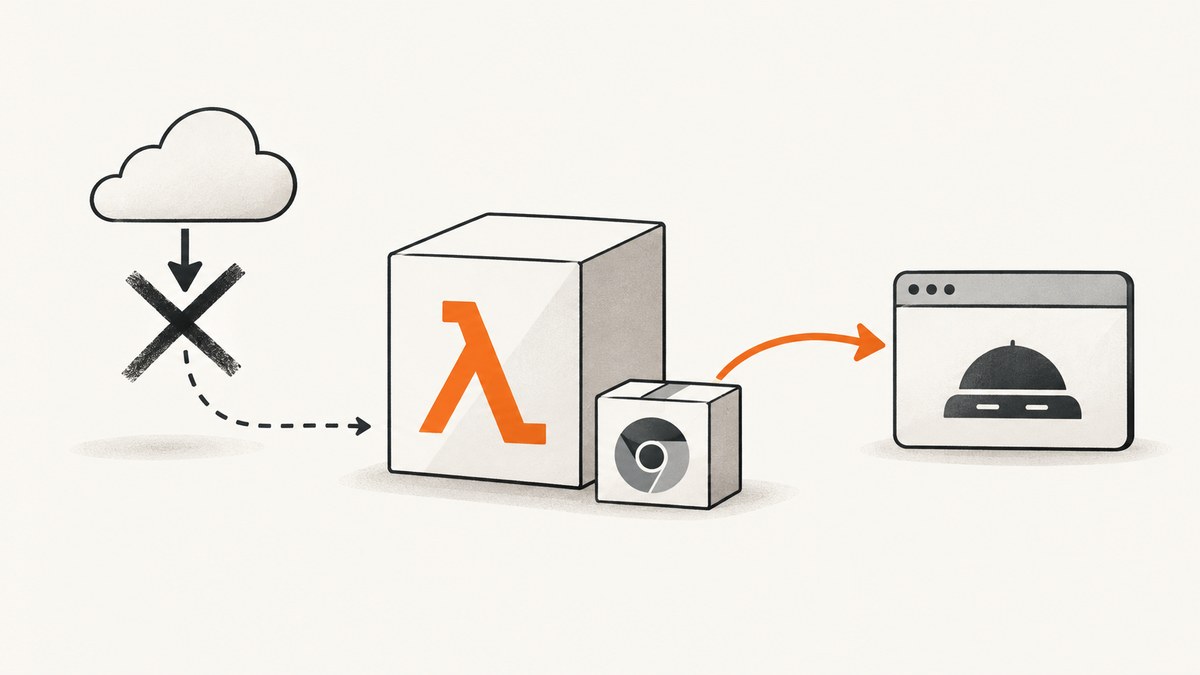
Direct answer: do not make Lambda download Chromium during an invocation. Package a Chromium build that matches your Lambda Python runtime, Linux environment and processor architecture, then pass its deployed path to Pyppeteer with executablePath. Verify the archive layout, executable permissions and Lambda logs before investigating page-level failures.
Pyppeteer downloads Chromium on first use when it cannot find a local executable. That behavior is convenient on a workstation but makes a Lambda invocation depend on download-host access and a writable extraction location. The Pyppeteer project also warns that it is unmaintained and has been outside minor changes for a long time, so validate the browser build and runtime combination you choose.
1. Identify where the failure occurs
AWS separates failures into initialization, handler processing and function return. Start with the first exception in CloudWatch rather than the final timeout message.
- Record the complete exception and stack trace.
- Note whether the error happens before the handler starts, inside the handler, or while returning a response.
- Search the logs for a download URL, extraction directory, executable path and permission error.
- Check whether the expected browser file exists in the deployed package or mounted layer.
This distinction matters: a missing file is a packaging problem; a present file that cannot start may indicate an incompatible binary, missing native library, permissions issue or insufficient resources.
2. Choose a deployment layout
| Layout | Use when | Checks |
|---|---|---|
| Function ZIP | The browser and Python dependencies belong to one function. | Confirm the executable path inside the unzipped function directory and keep the archive organized for your runtime. |
| Lambda layer | Several functions share the same browser or dependencies. | For Python layers, include a top-level python/ directory, build with the same Python version as the function, and ship Linux-compatible contents. |
| Container image | You need an image-based deployment workflow. | Build the image for the Lambda runtime and architecture, and verify the browser path in the image. |
AWS documents ZIP packages and layers for dependencies. The exact best location depends on your artifact size, reuse needs and deployment process. Do not assume a browser built on macOS or Windows will run on Lambda.
3. Package a Lambda-compatible Chromium
- Select a Chromium build intended for the Amazon Linux environment used by your Lambda runtime.
- Select the correct processor architecture for the function.
- Build or assemble the artifact in a Linux-compatible environment, or use a distribution that explicitly supports your runtime and architecture.
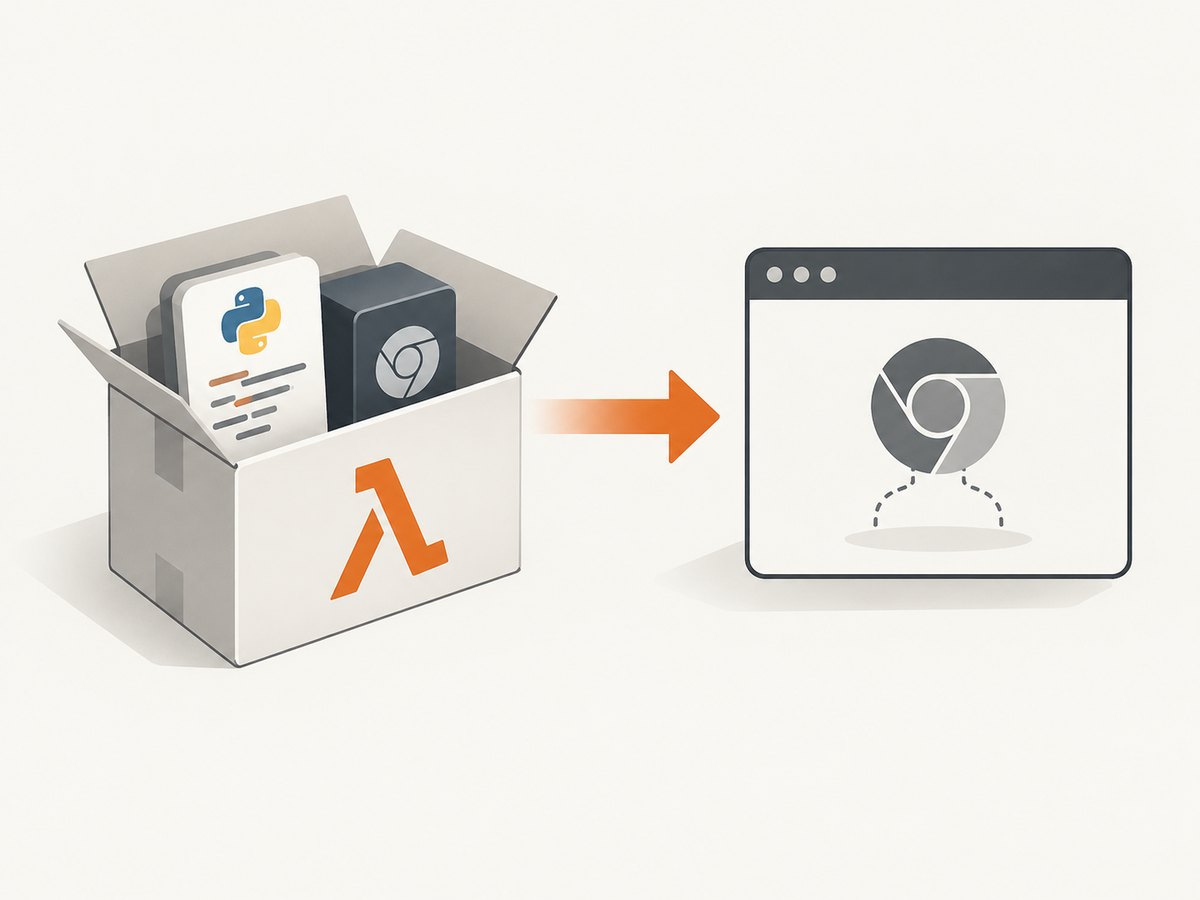
- Place the binary and any required native libraries in the function package, layer or container image.
- Make the executable runnable and record its final deployed path.
The sources do not provide a complete Pyppeteer-specific Lambda recipe or certify a particular current Chromium distribution. Treat this as a deployment pattern and validate the exact artifact you select.
4. Configure Pyppeteer with the real path
Pyppeteer’s documented executablePath launch option selects an existing Chromium or Chrome executable. Replace the placeholder below with the path that exists in the deployed artifact.
import asyncio
import os
import pyppeteer

CHROMIUM_PATH = os.environ.get(
    "CHROMIUM_PATH",
    "/opt/chromium/chromium",  # Example only; use your deployed path
)

async def render():
    browser = await pyppeteer.launch(
        executablePath=CHROMIUM_PATH,
        headless=True,
    )
    try:
        page = await browser.newPage()
        await page.goto("https://example.com", {"waitUntil": "networkidle2"})
        return await page.title()
    finally:
        await browser.close()

def lambda_handler(event, context):
    return {"title": asyncio.get_event_loop().run_until_complete(render())}
If your runtime or application already has an event-loop strategy, keep that strategy and only add the explicit executable path. The important diagnostic is to log the resolved path and confirm that the file exists before calling launch.
Path and permission checks
import os

path = os.environ["CHROMIUM_PATH"]
print({
    "path": path,
    "exists": os.path.exists(path),
    "is_file": os.path.isfile(path),
    "executable": os.access(path, os.X_OK),
})
A path that worked locally can fail in Lambda because the package is rooted somewhere else. A layer path and a function-package path are different; use the path produced by your deployment layout rather than a workstation path.
5. Validate the layer or archive before deploying
- List the archive contents and confirm the Python layer has
python/at its root. - Confirm the browser file is present at the path your code uses.
- Confirm the Python version used to build dependencies matches the function runtime.
- Confirm the browser and native libraries target Linux and the configured Lambda architecture.
- Confirm executable permissions survived packaging.
- Deploy a diagnostic handler that checks existence and permissions before starting a page.
AWS specifically calls out Linux compatibility and processor architecture for native extensions. Apply the same discipline to Chromium and its native libraries.
6. Understand Pyppeteer’s downloader settings
If you deliberately retain runtime downloading, Pyppeteer documents these controls:
| Setting | Purpose | What to verify |
|---|---|---|
PYPPETEER_HOME |
Controls browser extraction and temporary user-data storage. | The configured location is usable by the Lambda process. |
PYPPETEER_DOWNLOAD_HOST |
Changes the download host. | The host is reachable from the function when downloading is required. |
PYPPETEER_CHROMIUM_REVISION |
Selects a Chromium revision. | The requested revision is available and compatible with your selected runtime. |
pyppeteer-install |
Runs the documented browser installation command outside the handler. | The resulting browser is included in the deployed artifact rather than fetched during an invocation. |
These settings describe Pyppeteer’s behavior; the supplied sources do not establish that changing one is a durable Lambda fix. A prepackaged executable removes the invocation-time download dependency.
7. Troubleshoot common errors
| Symptom | Likely area | Fix |
|---|---|---|
| Download starts during the first invocation | No local executable was found. | Package Chromium and pass its path through executablePath. Log the path before launch. |
| Executable not found | Wrong path or archive layout. | Inspect the ZIP or layer contents, use the deployed path and verify the top-level Python layer directory. |
| Permission denied | Executable bit or filesystem permissions. | Preserve executable permissions when building the artifact and verify os.access(path, os.X_OK). |
| Exec format error | Architecture mismatch. | Build or obtain Chromium for the Lambda processor architecture configured for the function. |
| Shared-library or loader error | Browser or native dependency does not match Amazon Linux. | Rebuild or replace the artifact in a compatible Linux environment and inspect the missing library named in the log. |
| Initialization timeout | Browser startup or dependency loading occurs during initialization. | Move only safe setup outside the handler, inspect the first log entry, and verify the browser is already packaged. |
| Browser exists but startup is slow or unstable | Resource pressure or page workload. | Check configured memory and processing needs. AWS states that increasing memory also increases CPU; do not treat this as a substitute for fixing a missing or incompatible executable. |
| Page navigation times out | Page-level network or rendering problem. | Separate navigation diagnostics from browser discovery, log the URL and wait condition, and inspect the page workload after confirming Chromium starts. |
8. Memory, performance and reliability
Chromium startup and page rendering can be slower in Lambda than on a developer machine. AWS recommends considering available memory and processing power when execution is slower; increasing configured memory also increases CPU. Use that guidance after proving the executable is present and launchable.
- Reuse a browser within an invocation when your handler processes multiple pages, and close pages and the browser in cleanup code.
- Keep browser discovery deterministic by using an explicit path.
- Log launch duration, navigation duration and the page URL so startup problems are distinguishable from slow pages.
- Prefer a layer or image when several functions need the same browser, but keep the runtime and architecture aligned.
- Rebuild and redeploy the browser when changing the Lambda runtime or architecture; do not assume an old artifact remains compatible.
The chrome-aws-lambda project recommends at least 512 MB of memory and 1600 MB or more for its Node.js-oriented packaged Chromium. Those figures are that project’s recommendations, not AWS requirements and not a verified Pyppeteer setting. Do not copy its Node.js launch arguments or package into Python Pyppeteer code without validating compatibility.
9. Cost and operational trade-offs
Runtime downloads shift work into the invocation and add dependency on download-host reachability and writable extraction. Packaging shifts work into build and deployment: you must maintain the browser artifact, native libraries, archive layout and architecture match. The supplied sources do not benchmark either approach or establish current AWS package-size limits, temporary-storage limits or network requirements, so measure those constraints in your own account.
Or skip the browser setup
If your goal is simply to obtain reliable website screenshots, ScreenshotNeo provides a website screenshot API and MCP server. It handles the browser environment for you:
curl -G "https://api.screenshotneo.com/v1/shot" -d access_key=YOUR_API_KEY --data-urlencode url=https://stripe.com -o shot.webpimport requests
r = requests.get(
"https://api.screenshotneo.com/v1/shot",
params={"access_key": "YOUR_API_KEY", "url": "https://stripe.com"},
timeout=90,
)
open("shot.webp", "wb").write(r.content)const q = new URLSearchParams({ access_key: 'YOUR_API_KEY', url: 'https://stripe.com' });
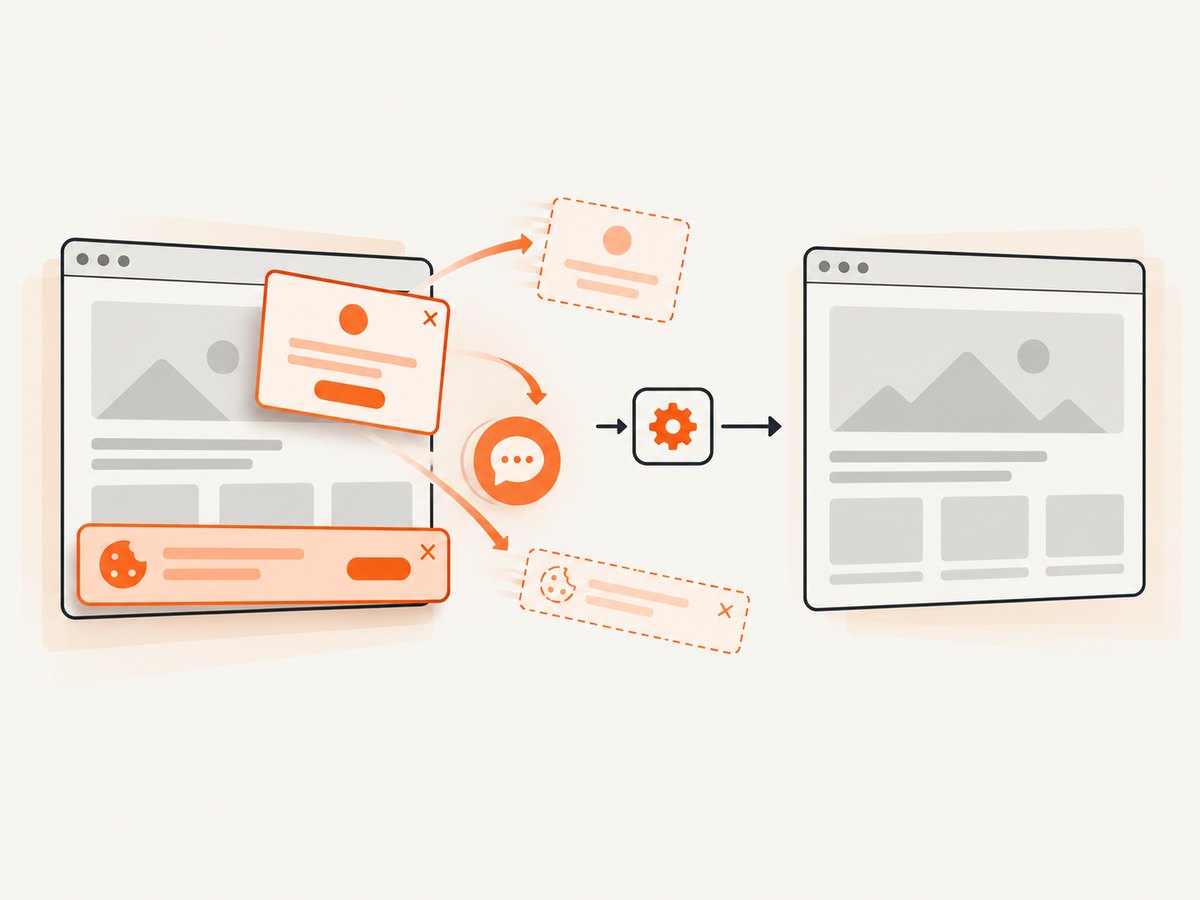
const res = await fetch(`https://api.screenshotneo.com/v1/shot?${q}`);See the ScreenshotNeo documentation for request options. Cookie banners, popups and chat widgets are removed before the shot; bot checks, blank pages and failed loads are never billed. An MCP server lets AI agents take screenshots, and 1,000 screenshots a month are free with no card; paid plans start at $5 for 3,000. Start with a free ScreenshotNeo account.
FAQ
Does setting PYPPETEER_HOME solve Lambda Chromium failures?
It can control where Pyppeteer extracts the browser and stores temporary data, but it does not package a compatible executable or prove that the location is writable. Use it only when you intentionally retain the downloader.
Can I use a Chromium binary built on my laptop?
Only if it is compatible with the Lambda Linux environment, runtime and processor architecture. A workstation build is not evidence of Lambda compatibility.
Is Pyppeteer actively maintained?
The project repository says it is unmaintained and has been outside minor changes for a long time. Treat browser revision and runtime compatibility as items to validate during deployment.
Should I increase memory first?
Increase memory when logs show a present, launchable browser is slow or unstable under load. Memory cannot fix a missing file, wrong architecture or incompatible native library.
Is the Node.js chrome-aws-lambda package a Python solution?
No. It is an example of a Lambda-specific packaging architecture in the Node.js ecosystem. It is not a direct Pyppeteer/Python compatibility recommendation.
Deployment checklist
- Chromium is packaged before invocation.
- The executable path is configured explicitly.
- The archive or layer has the expected directory layout.
- Python dependencies and native libraries match the Lambda Linux environment.
- Browser architecture matches the function architecture.
- Logs distinguish initialization, handler and return failures.
- Resource tuning happens only after browser discovery is verified.
Use this sequence to turn an opaque download error into a specific packaging, compatibility or runtime diagnosis.


