How to Fix Pyppeteer Closing Unexpectedly After an Asyncio Exception
Fix Pyppeteer browser crashes by preserving the first error, owning one event loop, reading Chromium stderr, and closing cleanly.
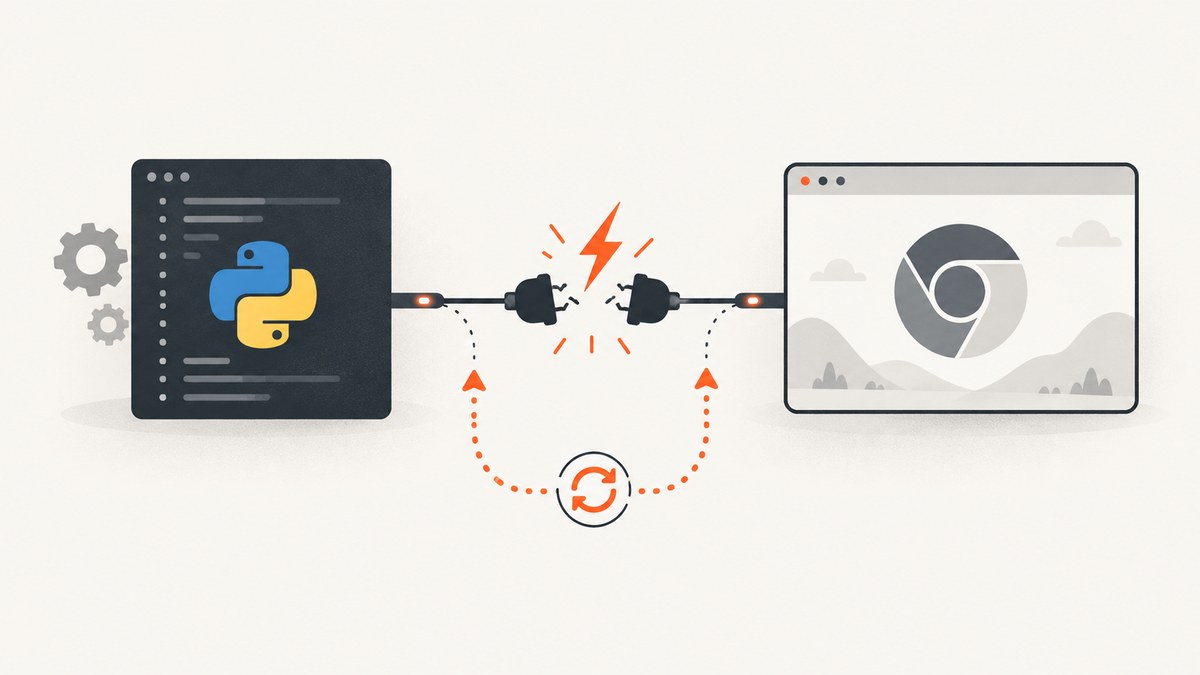
Short answer: treat the asyncio traceback and the Pyppeteer shutdown message as layers of one failure. Chromium or its DevTools WebSocket usually disappeared first; errors such as Target closed, ConnectionClosed, or InvalidStateError can then appear while Pyppeteer is cleaning up. Preserve the earliest exception, capture Chromium stderr, use one event-loop owner, close the browser in finally, and verify that the browser binary and dependencies match your Pyppeteer release.
What “Browser closed unexpectedly” and “Target closed” mean
Pyppeteer sends commands to Chromium over the Chrome DevTools Protocol. If the Chromium process exits or its WebSocket connection disappears, pending commands cannot finish. The resulting traceback may contain several messages:
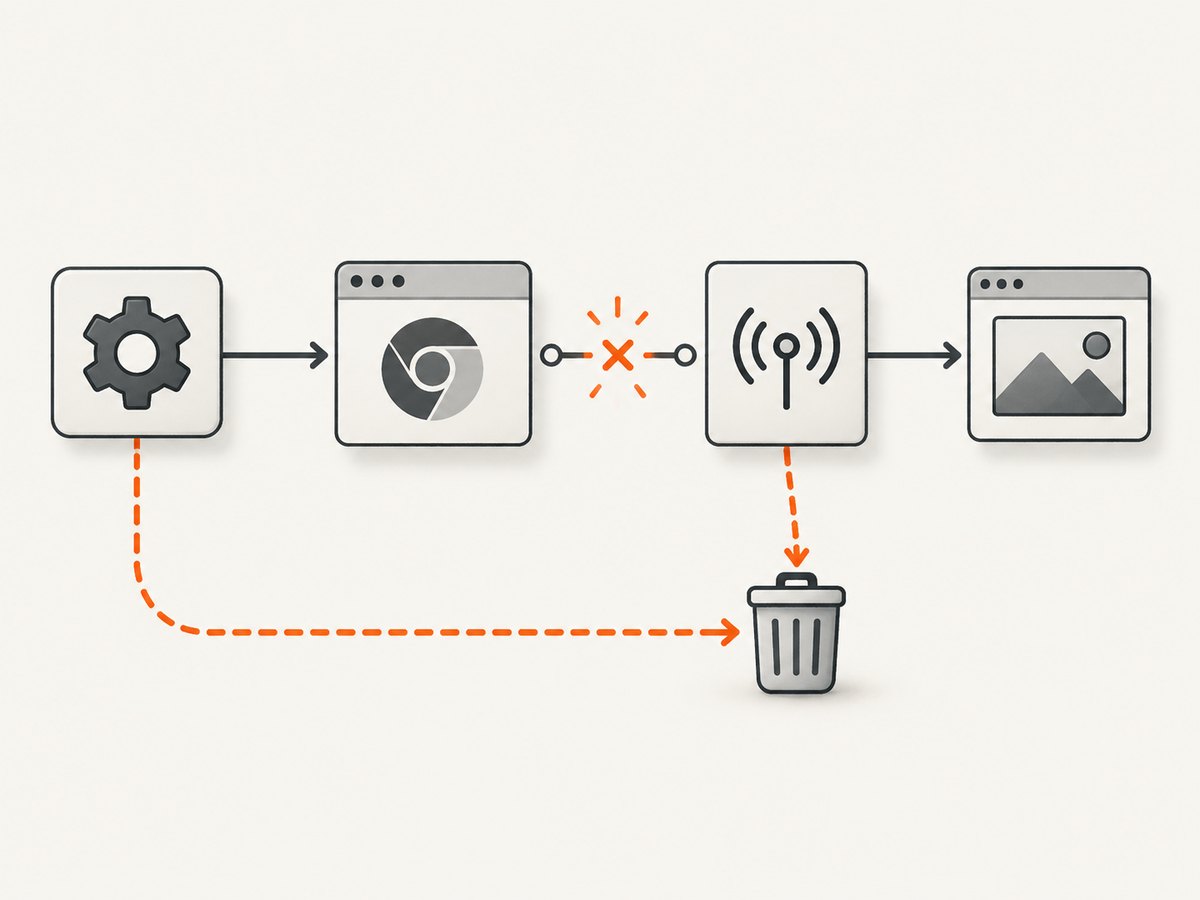
pyppeteer.errors.BrowserError: Browser closed unexpectedly: Chromium exited during launch or shortly afterward.Protocol error Page.getFrameTree: Target closed: the page or browser target vanished while a command was in flight. This exact pattern is documented in Pyppeteer issue #435.ConnectionClosed: the DevTools WebSocket transport was lost. See the connection-loss report in issue #158.asyncio.exceptions.InvalidStateError: often a secondary callback or cleanup error after the transport has already failed.
The first exception and Chromium’s stderr are more useful than the final cleanup line. A Docker launch failure, for example, is covered in issue #194.
The reliable recovery sequence
1. Preserve the first failure
Log the complete traceback and browser output before changing page code. Do not catch an exception and immediately replace it with “Target closed”; that hides the cause.
2. Give asyncio one owner
For a normal script, create one top-level coroutine and call asyncio.run() once. In an application that already owns an event loop, await your coroutine from that loop. Do not repeatedly create, stop, and close loops around a live Browser object. Pyppeteer’s loop launch option is documented as experimental in its API reference.
3. Always close in finally
Initialize browser to None, then close it if creation succeeded. This keeps cleanup deterministic while preserving the original exception.
import asyncio
from pyppeteer import launch

async def main():
    browser = None
    try:
        browser = await launch({"dumpio": True})
        page = await browser.newPage()
        await page.goto("https://example.com", waitUntil="networkidle2")
        title = await page.title()
        print(title)
    finally:
        if browser is not None:
            await browser.close()

if __name__ == "__main__":
    asyncio.run(main())
4. Turn on launch diagnostics
dumpio=True forwards Chromium’s stdout and stderr to the parent process. Read those lines for missing shared libraries, permission errors, sandbox failures, an invalid executable, or an immediate process exit.
5. Use the Chromium version Pyppeteer expects
Pyppeteer works best with the Chromium revision it bundles. Its API documentation does not guarantee compatibility with an unrelated browser binary. During diagnosis, remove an accidental executablePath override and let Pyppeteer use its downloaded browser.
6. Inspect Docker and CI as a runtime problem
Confirm that Chromium can execute in the image, all shared libraries are installed, the process user has permission to launch it, and the container has suitable sandbox and shared-memory limits. There is no universal launch flag that fixes every container; stderr identifies the actual failure.
7. Check dependency compatibility
The Pyppeteer issue tracker associates websockets 7.0 with lost browser connections. Reproduce the problem in a clean environment using versions supported by your Pyppeteer release, then pin the working dependency set.
8. Treat Windows socket resets as transport evidence
WinError 10054 means the connection was forcibly closed. Investigate browser termination, security software, proxy interference, and process logs before rewriting navigation code; this symptom is recorded in issue #284.
A diagnostic script you can run
This script reports the Python environment, enables Chromium output, and keeps cleanup separate from page work.
import asyncio
import platform
import sys
from pyppeteer import launch

async def main():
    browser = None
    try:
        print("Python:", sys.version)
        print("Platform:", platform.platform())
        browser = await launch({
            "dumpio": True,
            "handleSIGINT": False,
            "handleSIGTERM": False,
            "handleSIGHUP": False,
        })
        page = await browser.newPage()
        response = await page.goto(
            "https://example.com",
            {"waitUntil": "networkidle2", "timeout": 30000},
        )
        print("HTTP status:", response.status if response else "no response")
        print("Title:", await page.title())
    except Exception:
        import traceback
        traceback.print_exc()
        raise
    finally:
        if browser is not None:
            try:
                await browser.close()
            except Exception as close_error:
                print("Browser cleanup failed:", repr(close_error), file=sys.stderr)

if __name__ == "__main__":
    asyncio.run(main())
Common failure locations and fixes
| Where it fails | Likely cause | What to do |
|---|---|---|
During launch() |
Chromium cannot execute, missing libraries, permissions, sandbox or shared-memory limits | Enable dumpio, read stderr, verify the runtime, and test the bundled Chromium binary directly. |
| Immediately after launch | Incompatible executablePath or browser process exits |
Remove the override and use the bundled revision; inspect process and security logs. |
During goto() |
Navigation timeout, renderer crash, or target destroyed | Keep the original traceback, check Chromium stderr, use an explicit timeout, and test the URL manually in the same environment. |
| During page evaluation | Page navigated or closed while JavaScript was running | Check for redirects and application-triggered closes; avoid issuing commands after closing the page. |
| During cleanup | Earlier browser failure caused secondary callback errors | Report the first exception; make cleanup conditional and do not mask it. |
| Only in Docker or CI | Image libraries, user permissions, sandbox, /dev/shm, or resource limits | Compare the working local and CI images, collect stderr, and fix the runtime dependency rather than adding random flags. |
| Only with a particular websockets version | Transport compatibility regression | Recreate in a clean virtual environment and pin a version supported by your Pyppeteer release. |
Event-loop patterns that prevent secondary errors
Do this in a script
async def main():
    browser = await launch()
    try:
        # page work
        pass
    finally:
        await browser.close()

asyncio.run(main())
Do this inside an async application
async def capture_once():
    browser = None
    try:
        browser = await launch()
        page = await browser.newPage()
        return await page.title()
    finally:
        if browser:
            await browser.close()

# Call with: await capture_once()
Do not call asyncio.run() from code that is already running inside an event loop, such as an async web handler or notebook. Do not retain a Browser object after its owning loop has been closed.
Performance, reliability, and cost notes
- Launching Chromium is expensive compared with reusing a browser within one controlled event loop, but reuse requires strict lifecycle ownership and health checks.
- Set explicit navigation and operation timeouts so a stalled page cannot hold resources forever.
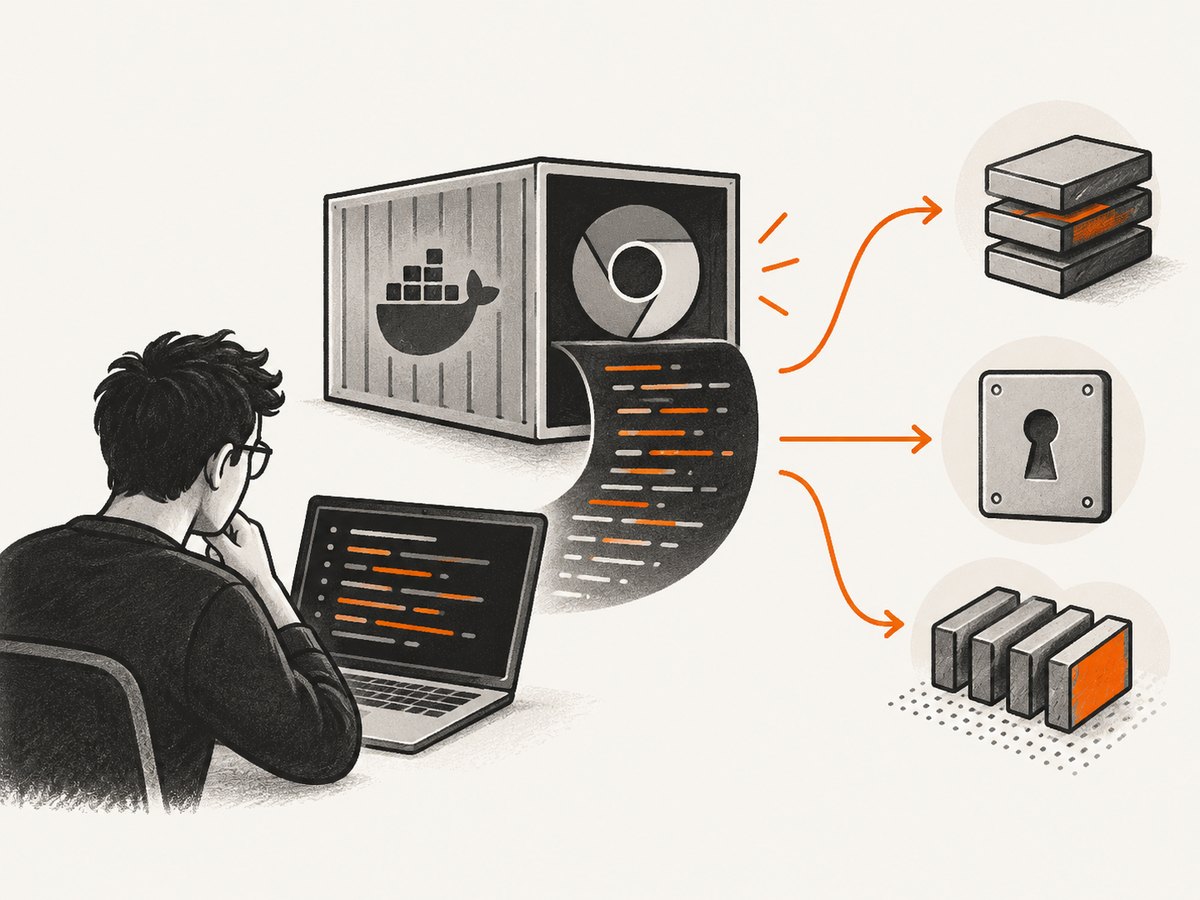
- Capture stderr in CI artifacts. It is usually the fastest way to distinguish a browser crash from an application exception.
- Pin Pyppeteer and its compatible dependency set after reproducing a clean installation.
- Keep cleanup idempotent: page work may fail, and cleanup may also encounter a closed transport.
Or skip the browser setup
If your goal is a reliable screenshot rather than maintaining Chromium, ScreenshotNeo provides a GET request that returns PNG, JPEG, WebP, or PDF. Cookie and consent banners, newsletter popups, and chat widgets are removed before capture. Bot checks, blank pages, failed loads, timeouts, and cache hits are not billed, and response headers report the page verdict and billing status. Its MCP server lets Claude, Cursor, and other MCP clients call take_screenshot, get_page_info, and capture_pdf.
See the ScreenshotNeo API documentation for all options.
curl -G "https://api.screenshotneo.com/v1/shot" -d access_key=YOUR_API_KEY --data-urlencode url=https://stripe.com -o shot.webpimport requests
r = requests.get("https://api.screenshotneo.com/v1/shot", params={"access_key": "YOUR_API_KEY", "url": "https://stripe.com"}, timeout=90)
open("shot.webp", "wb").write(r.content)const q = new URLSearchParams({ access_key: 'YOUR_API_KEY', url: 'https://stripe.com' });
const res = await fetch(`https://api.screenshotneo.com/v1/shot?${q}`);ScreenshotNeo includes full-page and element capture, device presets, custom CSS and JavaScript, waits, headers, cookies, user agents, blocking rules, caching, signed links, PDFs, async jobs, bulk capture, and usage reporting. The Free plan includes 1,000 screenshots each month with no card; paid plans start at $5 for 3,000. Create a free ScreenshotNeo account.
FAQ
Should I ignore InvalidStateError?
Do not ignore the traceback, but treat it as potentially secondary. Find the earliest exception and the Chromium stderr lines first.
Will adding --no-sandbox always fix Docker?
No. Docker failures have different causes. Use stderr and runtime inspection to identify the specific problem before changing security flags.
Can I keep using a system Chrome binary?
You can try, but Pyppeteer gives no compatibility guarantee for unrelated browser versions. The bundled Chromium is the safer diagnostic baseline.
Why does the error appear only after my coroutine raises?
The coroutine failure begins shutdown while other protocol callbacks are still pending. Those callbacks then report a closed target or connection.
What should I include in a bug report?
Include the first traceback, Chromium stderr, operating system, container details, Python and Pyppeteer versions, websockets version, browser executable path, and a minimal reproducer.


