How to Fix Pyppeteer Connections Closing While Crawling
Diagnose Pyppeteer “target closed” and WebSocket errors with version checks, lifecycle fixes, timeout guidance, diagnostics, and reliable crawler patterns.
Pyppeteer connection errors are symptoms, not a single diagnosis. Pyppeteer sends browser-control commands over a DevTools WebSocket connection and associates work with browser targets such as pages. If the browser process, WebSocket connection, or page target closes while an operation is pending, navigation and page operations can fail with messages such as connection unexpectedly closed, WebSocket connection is closed, Websocket connection is lost, or Target closed.
Fix the problem by isolating four causes in order: Chromium compatibility, premature browser or page closure, dependency compatibility, and timeout or task cancellation. The sections below provide a reproducible diagnostic sequence, runnable code, lifecycle patterns, and recovery guidance.
1. Confirm what actually closed
Capture the complete traceback and identify the operation that was waiting when the failure occurred. The same exception can appear during launch(), connect(), newPage(), navigation, JavaScript evaluation, or shutdown.
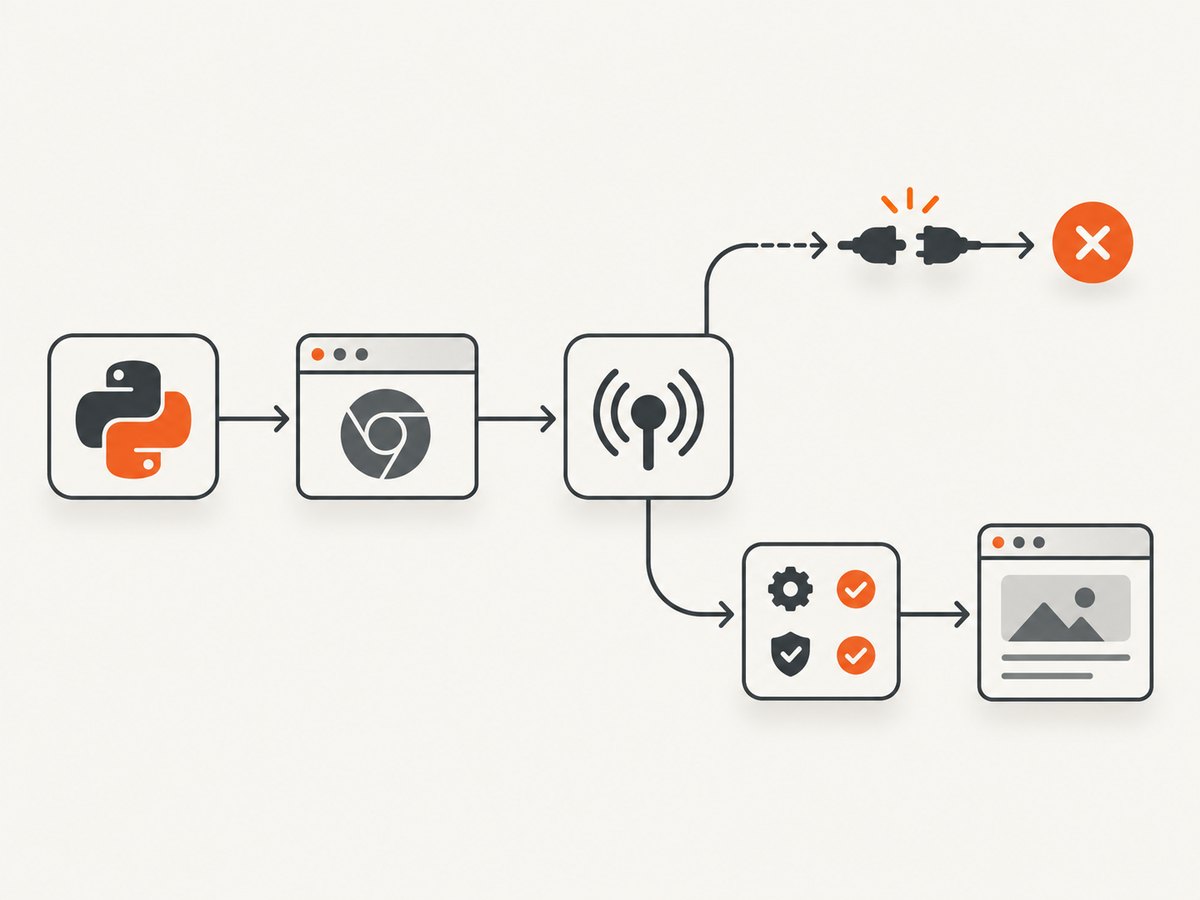
- Browser process closed: every page and pending command becomes unusable.
- WebSocket disconnected: the Python client can no longer send DevTools commands.
- Page target closed: one page fails while the browser may still be alive.
- Task cancelled: a timeout wrapper can interrupt navigation while other code still uses the browser.
Do not treat the exception text alone as proof of a browser crash. Record the Python, Pyppeteer, Chromium, and websockets versions; operating-system or container details; whether you launched or attached to Chromium; and the full browser stderr output.
2. Run a minimal diagnostic crawler
Start with one browser, one page, and a stable URL. Pyppeteer’s API documentation describes dumpio and logging options for exposing browser output. The API reference is legacy documentation, so verify option names and defaults against the version installed in your environment: Pyppeteer API documentation.
import asyncio
import logging
import platform
import sys

import pyppeteer
from pyppeteer import launch

try:
    import websockets
    WEBSOCKETS_VERSION = getattr(websockets, "__version__", "unknown")
except ImportError:
    WEBSOCKETS_VERSION = "not installed"

URL = "https://example.com"

async def main():
    print("Python:", sys.version)
    print("Platform:", platform.platform())
    print("Pyppeteer:", getattr(pyppeteer, "__version__", "unknown"))
    print("websockets:", WEBSOCKETS_VERSION)

    browser = await launch(
        headless=True,
        dumpio=True,
        handleSIGINT=False,
        handleSIGTERM=False,
        handleSIGHUP=False,
    )
    try:
        print("Browser process:", browser.process.pid if browser.process else None)
        page = await browser.newPage()
        await page.goto(URL, {"waitUntil": "networkidle2", "timeout": 60000})
        print("Title:", await page.title())
        print("URL:", page.url)
    finally:
        await browser.close()

if __name__ == "__main__":
    logging.basicConfig(level=logging.DEBUG)
    asyncio.run(main())
If this script works, add your crawler’s concurrency, proxy, authentication, custom executable path, and cancellation logic one change at a time. If it fails, save the stderr and traceback before changing configuration.
3. Check Chromium compatibility first
Pyppeteer works best with its bundled Chromium. Its API documentation states that compatibility with other Chromium versions is not guaranteed. If your code sets executablePath, run the same minimal script without that override and compare the result.
Compare bundled and custom Chromium
# Bundled Chromium
browser = await launch(headless=True, dumpio=True)

# Custom Chromium: test only after the bundled run
browser = await launch(
    headless=True,
    executablePath="/absolute/path/to/chromium",
    dumpio=True,
)
Record the exact browser version in both runs. Do not assume that a system Chromium update remains compatible with the Pyppeteer package already installed.
When attaching with connect()
If you attach to an existing browser, verify that the WebSocket endpoint is current and reachable. A stale endpoint, a browser that has already exited, or a container network boundary can produce connection-closed errors before page work begins.
browser = await pyppeteer.connect(
    browserWSEndpoint="ws://127.0.0.1:9222/devtools/browser/your-endpoint"
)
try:
    page = await browser.newPage()
finally:
    await browser.disconnect()
Use disconnect() when your process does not own the remote browser. Use close() only when your code owns the browser process and should terminate it.
4. Find premature browser or page closure
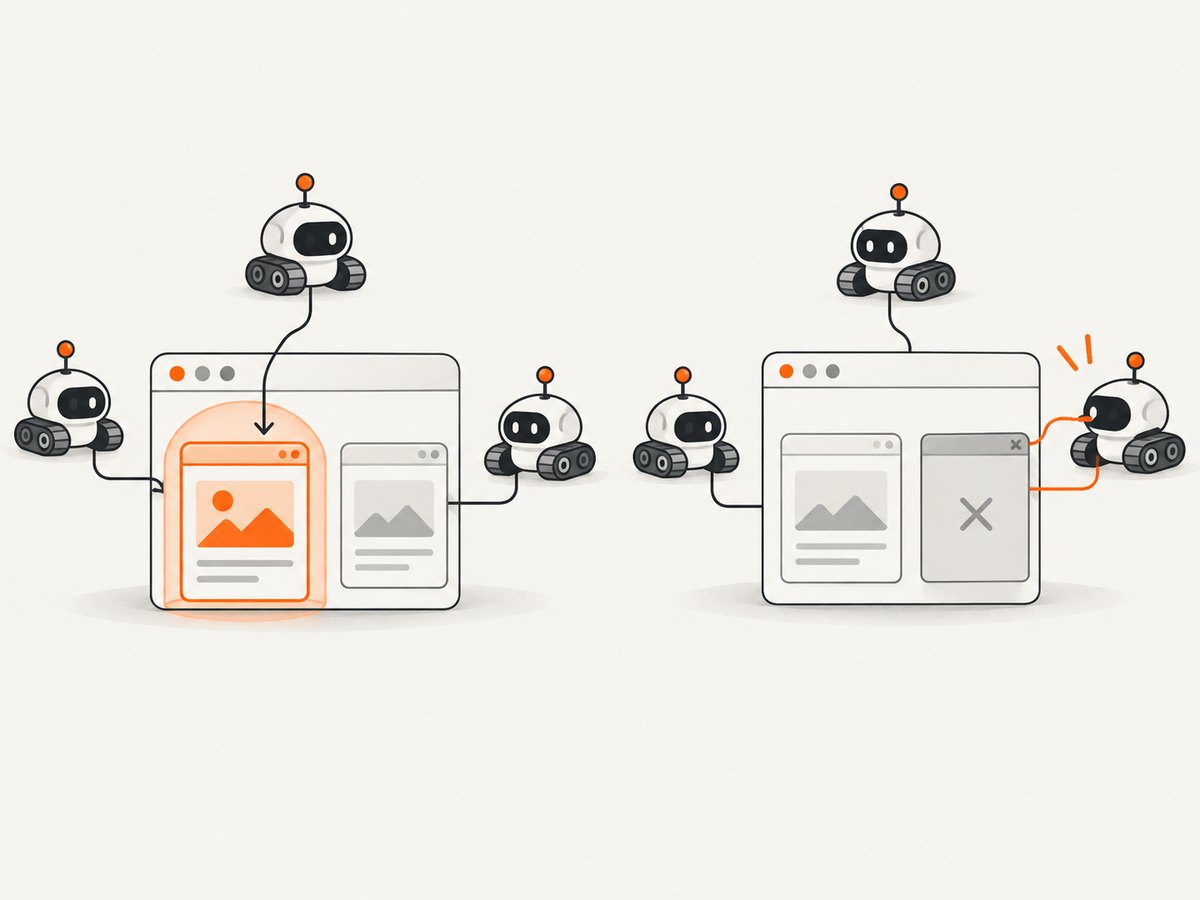
Search the crawler for browser.close(), browser.disconnect(), page closure, context closure, and cancellation handlers. A common failure is a shared browser being closed by one task while another task is still navigating.
Give every resource one owner
async def crawl_one(browser, url):
    page = await browser.newPage()
    try:
        await page.goto(url, {"waitUntil": "domcontentloaded", "timeout": 60000})
        return await page.title()
    finally:
        await page.close()

async def crawl_all(urls):
    browser = await launch(headless=True, dumpio=True)
    try:
        results = []
        for url in urls:
            results.append(await crawl_one(browser, url))
        return results
    finally:
        await browser.close()
The browser remains alive until every awaited page operation finishes. Each page is closed by the function that created it. If you use concurrent workers, keep the browser close operation outside the worker lifetime and wait for all workers before shutting it down.
Do not close from a competing cancellation path
Audit finally blocks carefully. A timeout handler that closes the shared browser can invalidate unrelated tasks. Prefer cancelling the individual operation, wait for worker tasks to finish, then close the page and browser in a single owner-controlled shutdown path.
5. Inspect timeouts and cancellation
Temporarily remove tight navigation timeouts or make them longer while diagnosing. One historical issue report described reproducing a WebSocket failure with a short asyncio.wait_for around navigation; that report is evidence to inspect cancellation, not proof that every timeout is unsafe.
async def navigate_with_timeout(page, url):
    try:
        await asyncio.wait_for(
            page.goto(url, {"waitUntil": "domcontentloaded", "timeout": 60000}),
            timeout=90,
        )
    except asyncio.TimeoutError:
        # Keep shutdown in the owner of this page.
        await page.close()
        raise
Do not let a cancelled task continue using a page. Also avoid sharing one page among concurrent tasks: one task can navigate or close it while another is waiting for a selector or response.
6. Test dependency compatibility in a clean environment
Create a fresh virtual environment and install the exact Pyppeteer version used by the crawler. Record the installed websockets version as well. A historical report associated WebSocket loss with a websockets 7.0 upgrade. That report is a compatibility lead, not a universal current fix; test versions against your Python and Pyppeteer versions instead of blindly applying an old pin.
python -m venv .venv
. .venv/bin/activate
python -m pip install --upgrade pip
python -m pip install pyppeteer
python -m pip freeze
python diagnostic.py
Change one dependency at a time. Keep the working and failing lock files so you can identify which variable changed.
7. Reduce concurrency and isolate the failing target
- Run one browser and one page.
- Use a stable URL and no proxy, custom executable, or request interception.
- Enable browser stderr with
dumpio=True. - Restore your normal navigation wait condition.
- Restore one crawler feature at a time.
- Increase concurrency gradually and watch for the first failing worker.
This sequence distinguishes a deterministic compatibility problem from a race in crawler lifecycle management. If only concurrent runs fail, inspect shared browser and page ownership before changing browser flags.
8. Common errors and fixes
| Log or symptom | Likely cause | What to check |
|---|---|---|
Target closed during newPage() |
Browser process or connection ended before the target was created. | Browser stderr, custom Chromium path, another task calling close(). |
WebSocket connection is closed |
DevTools transport disconnected. | Browser lifetime, attached endpoint, dependency versions, container networking. |
Websocket connection is lost after a timeout |
Cancellation interrupted navigation or cleanup. | asyncio.wait_for, task cancellation, and whether another task still uses the browser. |
connection unexpectedly closed in a crawler |
Shared resource was closed or Chromium exited. | Resource ownership, page closure, process stderr, and concurrency. |
| Works with bundled Chromium but not system Chromium | Unsupported browser-version combination. | Exact Chromium and Pyppeteer versions; remove executablePath or use a compatible pair. |
| Works alone but fails with workers | Race or premature shutdown. | One page per task, await all workers, and close the browser once. |
9. Reliability and performance practices
- Reuse a browser deliberately: launching one browser for a bounded batch reduces startup work, but requires strict ownership and cleanup.
- Use one page per concurrent task: this prevents navigation and closure races on a shared page.
- Bound concurrency: raise worker count gradually and retain the URL, worker ID, and operation in logs.
- Separate navigation timeout from shutdown: a timed-out page should not automatically close a browser used by other workers.
- Keep retries targeted: retry a page operation only after checking that the browser and page are still connected; recreate a page or browser when the target is gone.
- Preserve diagnostics: save versions, browser stderr, launch mode, endpoint, URL, and the full traceback for every unrecovered failure.
10. A recovery wrapper for a single page
This pattern treats a closed target as a signal to discard the page and lets the caller decide whether to recreate the browser.
async def capture_title(browser, url, attempts=2):
    last_error = None
    for attempt in range(attempts):
        page = None
        try:
            page = await browser.newPage()
            await page.goto(url, {"waitUntil": "domcontentloaded", "timeout": 60000})
            return await page.title()
        except Exception as exc:
            last_error = exc
            if attempt + 1 == attempts:
                raise
            await asyncio.sleep(1)
        finally:
            if page is not None:
                try:
                    await page.close()
                except Exception:
                    pass
    raise last_error
Do not use a retry loop to hide a browser that is permanently disconnected. Check browser state and recreate it when the process or transport has ended.
11. When to report an unresolved bug
Provide a minimal reproduction with the Python, Pyppeteer, Chromium, and websockets versions; operating system or container details; launch versus connect mode; custom executable path; browser stderr; complete traceback; URL or a stable replacement; concurrency; and timeout values. Pyppeteer is an unofficial port of Puppeteer, and its repository points users to Puppeteer documentation and troubleshooting material: Pyppeteer repository.
Historical reports are useful context but are not universal diagnoses: issue #435, issue #62, and issue #158.
12. Or skip the browser setup
If your goal is a clean screenshot rather than maintaining Chromium, ScreenshotNeo provides a website screenshot API. It accepts one GET request and returns PNG, JPEG, WebP, or PDF. Cookie and consent banners, newsletter popups, and chat widgets are removed before capture. Bot checks, blank pages, failed loads, timeouts, and cache hits are not billed, and response headers identify the page verdict and billing result.
See the ScreenshotNeo API documentation for the complete option set, including full-page capture, CSS-element capture, device presets, retina scale, PDF output, custom CSS and JavaScript, waits, request blocking, headers, cookies, user agents, timezone, geolocation, caching, signed links, asynchronous jobs, bulk capture, and usage reporting.
cURL
curl -G "https://api.screenshotneo.com/v1/shot" -d access_key=YOUR_API_KEY --data-urlencode url=https://stripe.com -o shot.webpPython
import requests
r = requests.get("https://api.screenshotneo.com/v1/shot", params={"access_key": "YOUR_API_KEY", "url": "https://stripe.com"}, timeout=90)
r.raise_for_status()
open("shot.webp", "wb").write(r.content)
Node.js
const q = new URLSearchParams({ access_key: 'YOUR_API_KEY', url: 'https://stripe.com' });
const res = await fetch(`https://api.screenshotneo.com/v1/shot?${q}`);
if (!res.ok) throw new Error(`Screenshot failed: ${res.status}`);
const fs = await import('node:fs/promises');
await fs.writeFile('shot.webp', Buffer.from(await res.arrayBuffer()));
ScreenshotNeo also has an MCP server with take_screenshot, get_page_info, and capture_pdf tools for Claude, Cursor, and other MCP clients. The Free plan includes 1,000 shots per month with no card; paid plans start at $5 for 3,000 shots. Create a free ScreenshotNeo account.
FAQ
Is “Target closed” always a Chromium crash?
No. It can mean the page target, WebSocket connection, or browser process closed, and cancellation can expose the same symptom.
Should I immediately pin websockets 7.0?
No. The report involving 7.0 is historical. Reproduce in a clean environment and verify a version change against your installed Python and Pyppeteer versions.
Should every timeout be removed?
No. Temporarily relax tight timeouts to isolate cancellation. Restore an explicit timeout once the lifecycle is correct.
Can I share one Pyppeteer page across workers?
That is risky because concurrent navigation, evaluation, and closure can interfere. Use one page per task or serialize access.
When should I use disconnect() instead of close()?
Use disconnect() when another process owns the browser. Use close() when your code owns and should terminate it.


