How to Fix Pyppeteer Closing Unexpectedly in Python 3.9 AWS Lambda
Diagnose Pyppeteer’s “Browser closed unexpectedly” on AWS Lambda with version checks, logs, packaging fixes, and a reliable launch pattern.
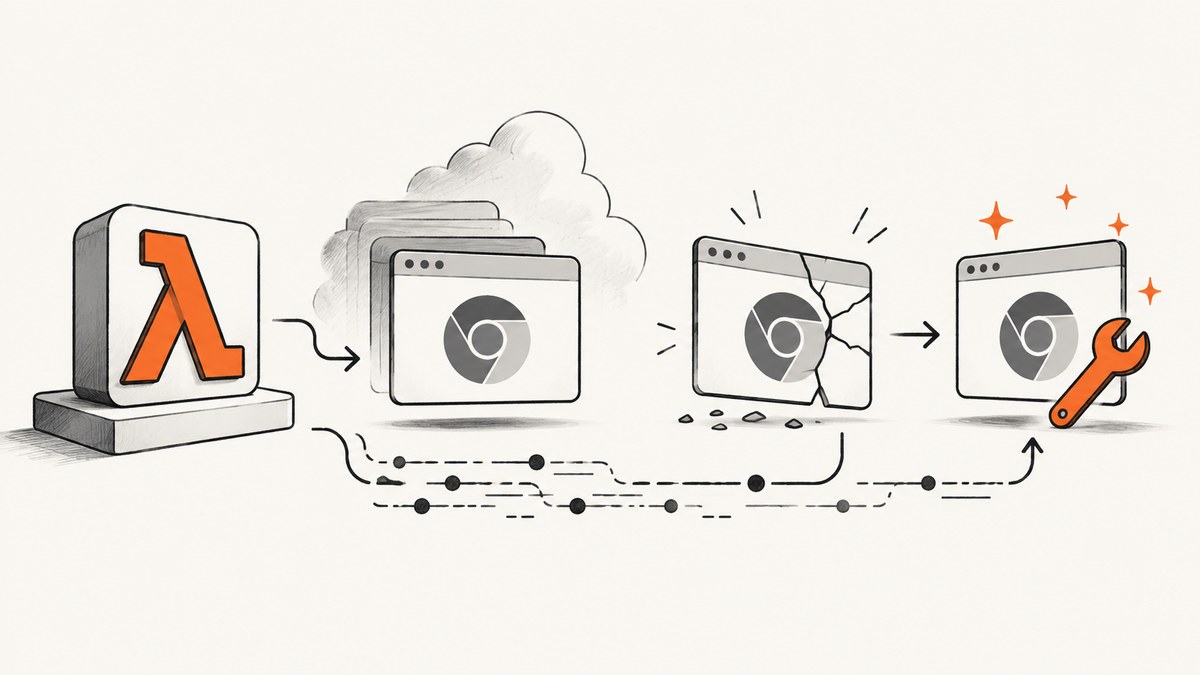
Start with evidence, not a launch-flag guess. “Browser closed unexpectedly” can come from an incompatible Chromium binary, missing shared libraries, bad permissions, an incomplete extraction, an unsupported runtime or architecture, a timeout, or a Lambda environment reset. Record the exact Pyppeteer version, Chromium build, Lambda runtime, CPU architecture, binary path and launch arguments, then inspect browser stderr and CloudWatch logs.
Pyppeteer’s indexed API reference warns that it works best with the Chromium version bundled with Pyppeteer and provides no guarantee for another version. The reference is for Pyppeteer 0.0.25, so verify the documentation and behavior for the version installed in your deployment: Pyppeteer API Reference.
1. Check the runtime before changing code
Python 3.9 on AWS Lambda is deprecated. AWS lists a deprecation date of 2025-12-15 for python3.9 on Amazon Linux 2, with projected blocks on creating new functions on 2027-02-01 and updating functions on 2027-03-03. Confirm the current dates in the AWS Lambda runtimes table before publishing or scheduling a migration.

Capture these values in a log line or deployment report:
- Lambda runtime and Amazon Linux generation
- CPU architecture:
x86_64orarm64 - Pyppeteer package version
- Chromium version and how the binary was built
- Whether
executablePathpoints to an external browser - Exact launch arguments
- Configured memory and timeout
- Whether Chromium is packaged, extracted to
/tmp, supplied by a layer or included in a container image
Do not copy a browser binary built for Python 3.9/Amazon Linux 2 into a different runtime or architecture without validating the pair. A browser and its native libraries must be built and tested for the environment that executes them.
2. Use a diagnostic Lambda handler
The following handler makes browser output visible, checks the executable before launch, waits for page work to finish and closes Chromium on every path. Set CHROMIUM_PATH only when you have verified that the external binary matches your Pyppeteer package and Lambda environment.
import asyncio
import json
import logging
import os
import platform
import stat
from pathlib import Path

import pyppeteer
from pyppeteer import launch

logger = logging.getLogger()
logger.setLevel(logging.INFO)


def executable_report(path_text):
    if not path_text:
        return {"configured": False}
    path = Path(path_text)
    mode = path.stat().st_mode if path.exists() else None
    return {
        "configured": True,
        "path": str(path),
        "exists": path.exists(),
        "is_file": path.is_file(),
        "executable": bool(mode and (mode & stat.S_IXUSR)),
        "size": path.stat().st_size if path.exists() else None,
    }


async def capture(url):
    chromium_path = os.environ.get("CHROMIUM_PATH")
    logger.info("runtime=%s arch=%s pyppeteer=%s chromium=%s report=%s",
                platform.platform(), platform.machine(),
                getattr(pyppeteer, "__version__", "unknown"),
                chromium_path or "bundled",
                executable_report(chromium_path))

    options = {
        "headless": True,
        "dumpio": True,
        "autoClose": False,
        "args": [
            "--no-sandbox",
            "--disable-setuid-sandbox",
            "--disable-dev-shm-usage",
            "--single-process",
        ],
    }
    if chromium_path:
        options["executablePath"] = chromium_path

    browser = None
    try:
        browser = await launch(options)
        page = await browser.newPage()
        await page.goto(url, {
            "waitUntil": "networkidle2",
            "timeout": 30000,
        })
        title = await page.title()
        html = await page.content()
        return {"title": title, "html_bytes": len(html.encode("utf-8"))}
    finally:
        if browser is not None:
            try:
                await browser.close()
            except Exception:
                logger.exception("Chromium close failed")


def lambda_handler(event, context):
    url = event.get("url", "https://example.com")
    try:
        result = asyncio.run(capture(url))
        return {"statusCode": 200, "body": json.dumps(result)}
    except Exception:
        logger.exception("Pyppeteer invocation failed")
        raise
dumpio=True forwards Chromium’s stdout and stderr to the function logs. pyppeteer.DEBUG = True can also be enabled before launching when you need Pyppeteer’s debug logging:
import pyppeteer
pyppeteer.DEBUG = True
Use autoClose=False here so the finally block owns cleanup. The documented default is True; confirm launcher defaults for your installed version.
3. Verify the browser binary and extraction
- Confirm the configured path exists inside Lambda, not only in your build machine.
- Check that extraction completed before
launch()runs. - Check executable permissions after packaging or extraction.
- Check that the compressed archive did not exceed available
/tmpspace. - Check native dependencies by reading Chromium stderr. Missing shared libraries usually appear there before the browser exits.
- Check that the binary architecture matches the Lambda architecture.
The related incident report describes downloading Chromium into /tmp, but that detail does not establish that extraction or permissions caused the failure. Treat it as a deployment pattern to inspect, not a universal fix.
If you extract on each invocation, do it before launch and verify the result:
from pathlib import Path
import os
import stat
import zipfile


def extract_browser(zip_path, target_dir="/tmp/chromium"):
    target = Path(target_dir)
    target.mkdir(parents=True, exist_ok=True)
    with zipfile.ZipFile(zip_path) as archive:
        archive.extractall(target)
    binary = target / "chrome"
    if not binary.exists():
        raise FileNotFoundError(f"Chromium was not found at {binary}")
    binary.chmod(binary.stat().st_mode | stat.S_IXUSR | stat.S_IXGRP | stat.S_IXOTH)
    if not os.access(binary, os.X_OK):
        raise PermissionError(f"Chromium is not executable: {binary}")
    return str(binary)
Use a safe archive layout for your own deployment and validate the actual extracted path. Never assume that a ZIP’s top-level directory matches the path in executablePath.
4. Read the right Lambda logs
A browser launch problem can occur during initialization, handler processing or return. AWS troubleshooting guidance lists code, configuration, downstream services, permissions and dependency loading among possible causes. Inspect the complete CloudWatch sequence:
| Log evidence | What it indicates | Next action |
|---|---|---|
INIT_REPORT |
Failure while initializing the runtime or loading dependencies | Check imports, layers, native libraries and initialization timeout |
| Chromium stderr immediately after launch | Browser-level crash, missing library, unsupported option or permission problem | Fix the reported binary or launch configuration |
REPORT with timeout |
Invocation exceeded the configured maximum execution time | Compare startup and page timings with the timeout; increase only with measured justification |
| Runtime exit or reset after an error | Lambda replaced or reset the execution environment | Assume no browser process survives; initialize and close it per invocation |
Find the REPORT line matching the request ID and trace that ID through the full log stream. AWS documents that Lambda can reset an environment after an invocation failure, and it may terminate environments during maintenance. A warm invocation is not a promise that a previous Chromium process still exists. See Lambda runtime environment lifecycle and AWS invocation troubleshooting.
5. Separate compatibility failures from timeout failures
Use a short diagnostic URL first, then test the real page. A browser that exits before newPage() points to launch, binary or native-library problems. A browser that launches but times out during goto() points to DNS, TLS, page JavaScript, network access, an overly strict wait condition or insufficient timeout.
Measure each stage:
import time

started = time.monotonic()
browser = await launch(options)
logger.info("browser_start_seconds=%.3f", time.monotonic() - started)

page = await browser.newPage()
nav_started = time.monotonic()
await page.goto(url, {"waitUntil": "domcontentloaded", "timeout": 30000})
logger.info("navigation_seconds=%.3f", time.monotonic() - nav_started)
Use domcontentloaded while diagnosing. Switch to networkidle2 only when the page requires network quiescence, because analytics, long polling and streaming requests can prevent it from completing.
6. Configure memory, timeout and lifecycle deliberately
- Give the function enough memory for Chromium startup and page rendering; validate with measured duration and memory logs.
- Set a timeout longer than the slowest expected cold start plus navigation and cleanup.
- Do not return while browser tasks are still pending.
- Close the browser in
finally, including when navigation or page evaluation raises. - Keep initialization predictable. AWS documents a default on-demand initialization limit of 10 seconds before Lambda retries initialization at the first invocation with the configured function timeout; other modes have different behavior.
- Do not rely on execution-environment reuse for correctness. Reuse may improve warm-start performance, but Lambda can freeze, reset or terminate the environment.
7. Common errors and fixes
| Symptom | Likely branch | Fix to verify |
|---|---|---|
| “Browser closed unexpectedly” immediately after launch | Incompatible Chromium, missing library, wrong architecture or invalid flag | Use the bundled Chromium or a verified matching build; enable dumpio and inspect stderr |
ENOENT for the executable |
Wrong path or extraction did not finish | Log the path, list the directory and validate extraction before launch |
Permission denied |
Executable bit lost during packaging | Restore execute permissions and verify with os.access |
| Works locally, fails in Lambda | Different OS, architecture, libraries, filesystem or environment variables | Build and test the browser artifact for the exact Lambda runtime and architecture |
Timeout during goto() |
Slow page, network access, perpetual requests or unsuitable wait condition | Measure navigation, test domcontentloaded, check VPC/DNS/TLS and set a justified timeout |
| Fails only on later invocations | Stale browser process, reset environment or leaked resources | Create a known-good browser per invocation or implement carefully validated reuse; always close it |
| Fails during initialization | Import or dependency loading problem | Inspect INIT_REPORT, layer contents and native dependencies |
| Browser starts but page is blank | Page script failure, blocked resource or premature capture | Capture console/page errors, wait for a known selector and inspect network behavior |
8. Rebuild for a supported runtime
For a maintainable deployment, choose a currently supported Lambda runtime and architecture, then rebuild Pyppeteer, Chromium and native dependencies together. Do not move a Python 3.9/Amazon Linux 2 artifact into another environment by copying files alone. Validate:
- the package imports in the target runtime;
- the browser starts with the target architecture;
- the browser can load a simple HTTPS page;
- the function completes within its configured timeout;
- the browser closes after success and after exceptions;
- the deployment has enough space for extraction and temporary files.
9. Or skip the browser setup
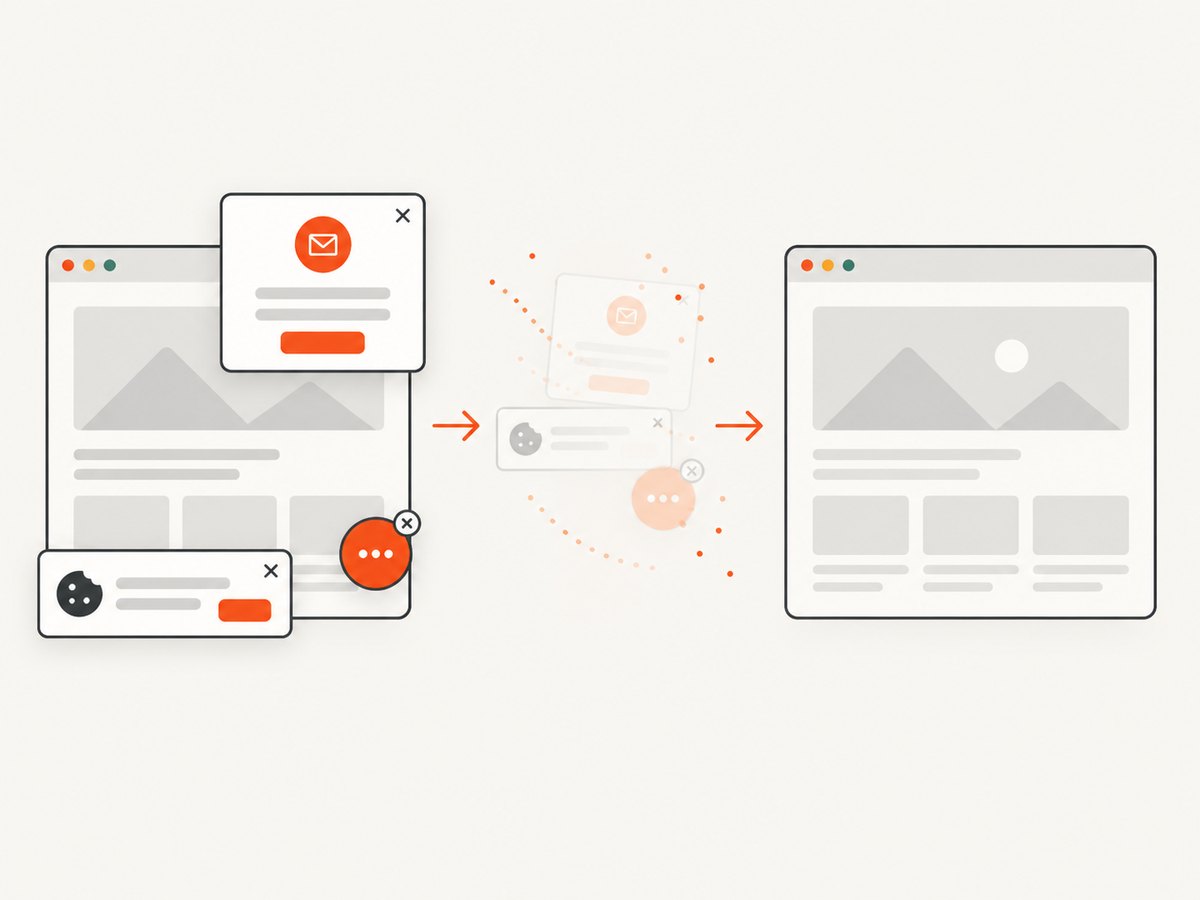
If the goal is simply to obtain a clean screenshot from a URL, ScreenshotNeo removes the Lambda browser packaging problem. Its API accepts one GET request and returns PNG, JPEG, WebP or PDF. It can accept cookie and consent banners before capture and remove more than 60 known consent platforms, newsletter popups and chat widgets. Bot checks, blank pages, timeouts, failed loads and cache hits are not billed, and response headers identify the page verdict and billing result. Its MCP server also exposes take_screenshot, get_page_info and capture_pdf for Claude, Cursor and other MCP clients.
See the ScreenshotNeo API documentation for the full option set.
cURL
curl -G "https://api.screenshotneo.com/v1/shot" -d access_key=YOUR_API_KEY --data-urlencode url=https://example.com -o shot.webpPython
import requests
r = requests.get("https://api.screenshotneo.com/v1/shot", params={"access_key": "YOUR_API_KEY", "url": "https://example.com"}, timeout=90)
r.raise_for_status()
open("shot.webp", "wb").write(r.content)
Node.js
const q = new URLSearchParams({ access_key: 'YOUR_API_KEY', url: 'https://example.com' });
const res = await fetch(`https://api.screenshotneo.com/v1/shot?${q}`);
if (!res.ok) throw new Error(`Screenshot failed: ${res.status}`);
const buffer = Buffer.from(await res.arrayBuffer());
require('fs').writeFileSync('shot.webp', buffer);
ScreenshotNeo includes full-page capture with lazy images loaded, element capture by CSS selector, device presets, custom viewports, retina scale, PDF controls, custom CSS and JavaScript, waits, request blocking, headers, cookies, user agents, authorization, timezone, geolocation, transparent backgrounds, resizing, caching, signed links, asynchronous jobs, webhooks, bulk capture and a usage API. Plans include 1,000 free shots per month with no card; paid plans start at $5 for 3,000 shots. Create a free ScreenshotNeo account.
10. FAQ
Is --no-sandbox the confirmed fix?
No. It is commonly present in constrained container environments, but this incident report does not establish it as the cause or resolution. Verify the browser build, stderr, permissions and runtime first.
Should I always use an external Chromium executable?
No. Pyppeteer’s API reference says compatibility with browsers other than its bundled Chromium is not guaranteed. Use an external binary only when its version, libraries, architecture and runtime have been validated together.
Can I keep a global browser between Lambda calls?
You can investigate reuse for warm invocations, but correctness cannot depend on it. Lambda may freeze, reset or terminate an environment, so handle a missing or dead browser and close it safely.
Does increasing the timeout repair a browser crash?
No. A timeout adjustment helps only when logs show work is still running. An immediate browser exit requires compatibility, dependency, permission or launch diagnostics.
Should this deployment remain on Python 3.9?
Plan a migration. AWS lists Python 3.9 as deprecated, so rebuild and validate the browser stack on a supported runtime and architecture.


