How to Fix Pyppeteer Navigation Timeouts When Converting Jupyter Notebooks to PDF
Diagnose Pyppeteer navigation timeouts in Jupyter PDF exports: verify the exporter, choose the right wait condition, tune limits, and fix stalled resources.
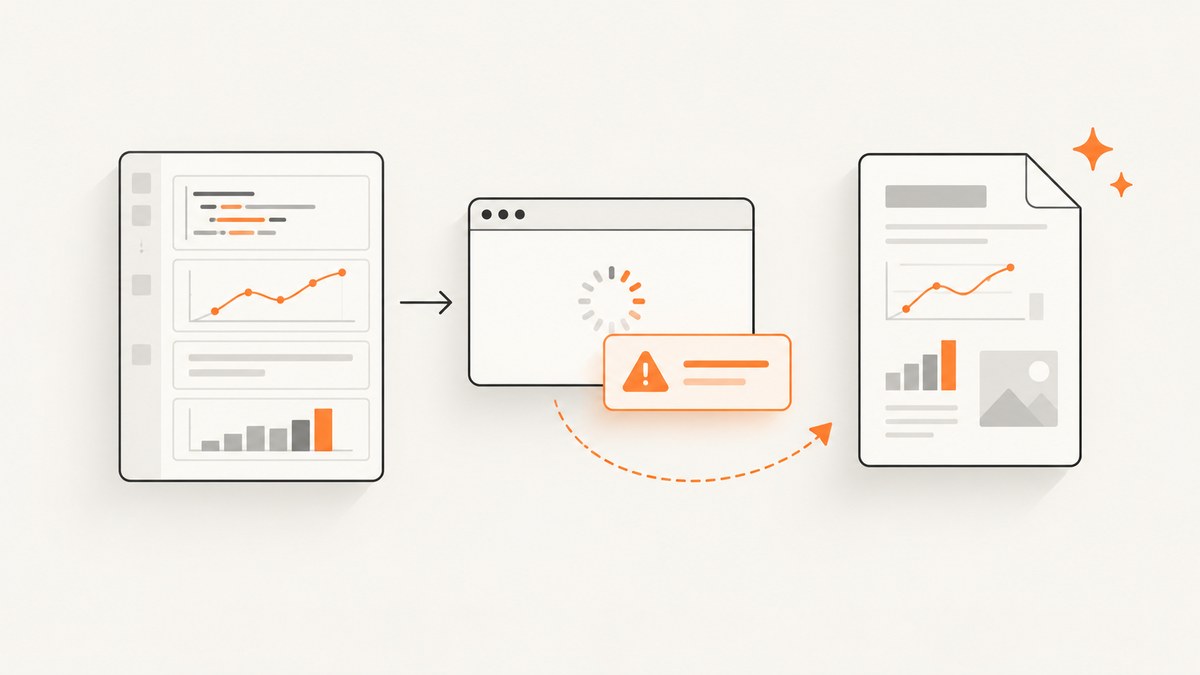
Start by identifying the exporter. Current nbconvert WebPDF renders notebook HTML in headless Chromium with Playwright, while jupyter nbconvert --to pdf uses LaTeX. Pyppeteer advice applies only when your command or custom script actually launches Pyppeteer. Once Pyppeteer is confirmed, inspect goto()‘s waitUntil condition and timeout before changing values.
Pyppeteer’s documented default navigation timeout is 30 seconds and its default completion condition is load. You can use domcontentloaded, networkidle0, or networkidle2, set a per-call timeout, change the browser-wide default, or set timeout 0 to disable it. A larger timeout only gives a slow page more time; it does not explain why the page is stalled.
1. Confirm which Jupyter-to-PDF path is failing
Record the command, package versions, operating system, and complete traceback. These paths have different dependencies and different fixes.
| Path | Rendering engine | Typical command | When Pyppeteer advice applies |
|---|---|---|---|
| WebPDF | Headless Chromium via Playwright in current nbconvert | jupyter nbconvert notebook.ipynb --to webpdf |
Only if an older nbconvert, fork, or custom exporter uses Pyppeteer |
| LaTeX | jupyter nbconvert notebook.ipynb --to pdf |
It does not; investigate TeX errors instead | |
| Custom script | Whatever browser library the script imports | Application-specific | Yes, if it imports and calls Pyppeteer |
Current nbconvert documentation describes WebPDF as browser-rendered HTML and documents LaTeX as the separate PDF exporter. Verify your installed version and command against the nbconvert usage documentation.
python -m pip show nbconvert pyppeteer playwright
jupyter nbconvert --version
jupyter nbconvert notebook.ipynb --to webpdf --debug
# Or the LaTeX-backed route:
jupyter nbconvert notebook.ipynb --to pdf --debug
2. Read the exact failure before changing the timeout
Separate a navigation timeout from other failures. Pyppeteer documents SSL errors, invalid URLs, main-resource load failures, and exceeded timeouts as different conditions. Capture the URL, the waitUntil value, elapsed time, and the first exception.
import asyncio
import time
from pyppeteer import launch

async def inspect_navigation(url):
    browser = await launch(headless=True, args=["--no-sandbox"])
    page = await browser.newPage()
    started = time.monotonic()
    try:
        response = await page.goto(
            url,
            {"waitUntil": "load", "timeout": 30_000},
        )
        print("status:", response.status if response else "no response")
        print("seconds:", round(time.monotonic() - started, 2))
        print("title:", await page.title())
    except Exception as exc:
        print(type(exc).__name__, str(exc))
        print("seconds:", round(time.monotonic() - started, 2))
        raise
    finally:
        await browser.close()

asyncio.run(inspect_navigation("file:///absolute/path/to/notebook.html"))
If the URL is a local file, use an absolute path. If the page loads notebook HTML through a local HTTP server, check that the server is still running and reachable from the browser process. For remote assets, record which host or request is slow or unreachable.
3. Choose a readiness condition that matches the PDF
The waitUntil setting controls when goto() is considered complete:

| Condition | What it waits for | Use it when | Risk |
|---|---|---|---|
domcontentloaded |
The initial HTML has been parsed | The notebook is usable once its DOM exists and you explicitly wait for required output | Images, fonts, and scripts may still be loading |
load |
The page load event (Pyppeteer’s default) | Required resources participate in normal page loading | A slow or stuck resource can delay printing |
networkidle0 |
No active connections for 500 ms | You control all requests and truly need a quiet network | Analytics, websockets, polling, or third-party requests can prevent completion |
networkidle2 |
No more than two active connections for 500 ms | A page has a small amount of expected background traffic | It still does not prove that a particular plot or image is ready |
For a notebook, an explicit readiness signal is often more useful than broad network idle. Wait for a known output selector or a JavaScript predicate after DOM navigation.
import asyncio
from pyppeteer import launch

async def export_html_to_pdf(html_url, output_path):
    browser = await launch(headless=True, args=["--no-sandbox"])
    page = await browser.newPage()
    try:
        await page.goto(
            html_url,
            {"waitUntil": "domcontentloaded", "timeout": 60_000},
        )
        # Change this selector to one your notebook template emits.
        await page.waitForSelector(".jp-RenderedHTMLCommon, .output_area", {
            "timeout": 60_000,
        })
        await page.emulateMedia("print")
        await page.pdf({"path": output_path, "printBackground": True})
    finally:
        await browser.close()

asyncio.run(export_html_to_pdf(
    "file:///absolute/path/to/notebook.html",
    "notebook.pdf",
))
If you need to wait for a plot library or custom flag, expose a deterministic condition in the page and wait for it:
await page.waitForFunction(
    "window.__NOTEBOOK_READY__ === true",
    {"timeout": 60_000},
)
Do not change to domcontentloaded without checking the resulting PDF. It can finish before images, fonts, MathJax, or client-side plots are ready.
4. Set a deliberate timeout
Use a finite value that reflects your workload. Pyppeteer supports a per-call timeout and a browser-wide default navigation timeout; 0 disables the limit.
# Per navigation (milliseconds)
await page.goto(url, {"waitUntil": "load", "timeout": 120_000})

# Apply to subsequent navigations on this page
page.setDefaultNavigationTimeout(120_000)

# Disable the navigation timeout (use only with an external job limit)
page.setDefaultNavigationTimeout(0)
An unlimited browser wait can leave a worker stuck forever when a host never responds. Keep an outer process or job deadline, log the URL and condition, and close the browser in a finally block.
5. Check content and external dependencies
Large plots, remote images, fonts, JavaScript bundles, slow servers, and unreachable URLs are reasonable hypotheses, but no universal notebook size threshold is established. A historical nbconvert issue reported many subplots and a timeout that remained after increasing the timeout; that report is anecdotal and does not prove a general file-size limit. See nbconvert issue #1468.
- Open the generated HTML in the same environment and inspect the browser console and network panel.
- Try a copy with remote images and widgets removed to isolate external requests.
- Check that every remote hostname resolves and responds from the machine running Chromium.
- Look for polling, websocket, analytics, or other requests that keep network-idle conditions open.
- For plots, wait for the plot’s rendered element or a page-ready flag, then print.
- Compare a small notebook with the failing notebook to identify the first content that changes behavior.
6. A complete Pyppeteer export script
This example renders notebook HTML, waits for DOM construction and a notebook output element, then writes a PDF. Adjust the selector and URL to your template.
#!/usr/bin/env python3
import argparse
import asyncio
from pathlib import Path
from pyppeteer import launch

async def main(html_path: str, pdf_path: str, timeout_ms: int):
    html_uri = Path(html_path).resolve().as_uri()
    browser = await launch(headless=True, args=["--no-sandbox"])
    page = await browser.newPage()
    page.setDefaultNavigationTimeout(timeout_ms)
    try:
        await page.goto(html_uri, {
            "waitUntil": "domcontentloaded",
            "timeout": timeout_ms,
        })
        await page.waitForSelector(".output_area", {"timeout": timeout_ms})
        await page.emulateMedia("print")
        await page.pdf({
            "path": pdf_path,
            "format": "A4",
            "printBackground": True,
            "margin": {"top": "16mm", "right": "14mm", "bottom": "16mm", "left": "14mm"},
        })
    finally:
        await browser.close()

if __name__ == "__main__":
    parser = argparse.ArgumentParser()
    parser.add_argument("html")
    parser.add_argument("pdf")
    parser.add_argument("--timeout-ms", type=int, default=120_000)
    args = parser.parse_args()
    asyncio.run(main(args.html, args.pdf, args.timeout_ms))
python render_notebook.py notebook.html notebook.pdf --timeout-ms 1200007. Compare the two nbconvert exporters
Use WebPDF when your output depends on browser HTML, CSS, JavaScript, client-side plots, or browser fonts. Use the LaTeX-backed --to pdf route when your notebook and environment are prepared for TeX and you do not need browser-only behavior. The sources establish the pipeline distinction, not a universal winner; validate the PDF produced by your own notebook.
# Browser-rendered route (current nbconvert uses Playwright)
jupyter nbconvert notebook.ipynb --to webpdf --allow-chromium-download

# LaTeX route
jupyter nbconvert notebook.ipynb --to pdf
8. Troubleshooting checklist
| Symptom | Likely cause | Fix |
|---|---|---|
| Timeout at about 30 seconds | Pyppeteer’s default navigation timeout | Set a deliberate per-call or default timeout and inspect readiness conditions. |
Timeout only with networkidle0 |
Polling, analytics, websocket, or another persistent request | Wait for a specific selector or function; remove or block unnecessary requests. |
| PDF is missing images or plots | domcontentloaded completed before assets were ready |
Wait for the relevant selector or readiness flag before calling pdf(). |
| Invalid URL or SSL error | Malformed URL, certificate, or inaccessible host | Open the exact URL from the same machine and correct the URL or certificate problem. |
| Blank PDF | Printing occurred before notebook output was inserted | Wait for output elements and verify the HTML contains the expected cells. |
| Works locally, fails in CI | Missing browser binary, fonts, permissions, or network access | Install the browser required by your exporter, run with the CI user’s permissions, and test asset reachability. |
| Attempt to navigate directly to a PDF fails | Pyppeteer’s headless mode does not support navigating to a PDF document | Navigate to HTML and use the browser’s PDF export method. |
| Increasing timeout changes nothing | The underlying request, exporter, or readiness condition is wrong | Confirm the pipeline, inspect logs and requests, and compare WebPDF with LaTeX. |
9. Performance, reliability, and cost considerations
- Performance: reuse a browser process for multiple notebooks when isolation permits, but create a fresh page per export and always close pages and browsers.
- Reliability: use finite navigation and outer job deadlines, deterministic selectors, captured logs, and retries only for transient network failures. Retrying a permanently invalid URL will not help.
- Reproducibility: pin nbconvert, Pyppeteer or Playwright, browser, and notebook dependencies. Browser changes can affect CSS, fonts, and pagination.
- Network control: self-host assets where possible or ensure CI can reach every required host. A page that never becomes quiet can make network-idle waits unreliable.
- Cost: self-hosted browser exports consume your own compute and maintenance time. A hosted screenshot or PDF API can move browser installation and operational work out of the export worker; check its billing semantics and required options before migrating.

Or skip the browser setup
ScreenshotNeo provides a website screenshot API and MCP server. One GET request returns PNG, JPEG, WebP, or PDF. It can accept cookie or consent banners like a visitor and remove more than 60 known consent platforms, newsletter popups, and chat widgets before capture; each step can be turned off. Bot checks or CAPTCHAs, blank pages, timeouts, failed loads, and cache hits are not billed, and the response reports the result in X-Page-Verdict and X-Billed headers.
See the ScreenshotNeo API documentation for all options. The basic call is:
curl -G "https://api.screenshotneo.com/v1/shot" -d access_key=YOUR_API_KEY --data-urlencode url=https://stripe.com -o shot.webpimport requests
r = requests.get("https://api.screenshotneo.com/v1/shot", params={"access_key": "YOUR_API_KEY", "url": "https://stripe.com"}, timeout=90)
open("shot.webp", "wb").write(r.content)const q = new URLSearchParams({ access_key: 'YOUR_API_KEY', url: 'https://stripe.com' });
const res = await fetch(`https://api.screenshotneo.com/v1/shot?${q}`);For notebook-related captures, options include full-page shots with lazy images loaded, CSS-selector element capture, custom CSS and JavaScript, waits for a selector, delay or network idle, custom headers and cookies, request blocking, PDF paper size and margins, signed webhooks for async jobs, and bulk capture of up to 100 URLs per call. Its MCP server exposes take_screenshot, get_page_info, and capture_pdf to Claude, Cursor, and other MCP clients.
The free plan includes 1,000 shots per month with no card. Paid plans start at $5 for 3,000 shots; every feature is on every plan. Create a free ScreenshotNeo account.
FAQ
Is a Pyppeteer timeout always caused by a large notebook?
No. Large plots are one hypothesis. The timeout can also reflect a slow resource, a persistent request, an unsuitable waitUntil condition, or a different exporter. The historical issue report does not establish a universal size limit.
Should I always use networkidle0 for PDF quality?
No. It waits for a quiet network, not for semantic readiness, and background requests can prevent completion. Prefer a selector or page-ready predicate tied to the content you must print.
What is the difference between WebPDF and --to pdf?
WebPDF renders HTML in a headless browser; --to pdf uses LaTeX. Check the installed nbconvert version and choose based on your notebook’s browser and TeX requirements.
Can Pyppeteer open a PDF URL in headless mode?
Pyppeteer’s reference warns that headless mode does not support navigating directly to a PDF document. Render HTML and call the browser PDF export instead.
Where should I report a persistent failure?
Keep the exact command, package versions, operating system, URL or HTML-loading method, waitUntil value, timeout, traceback, and a minimal notebook. Those details distinguish exporter, browser, network, and content problems.


