How to Fix Pyppeteer PageError in Python requests-html
Diagnose Pyppeteer PageError in requests-html by matching the final error token to the right URL, TLS, timeout, or Chromium fix.
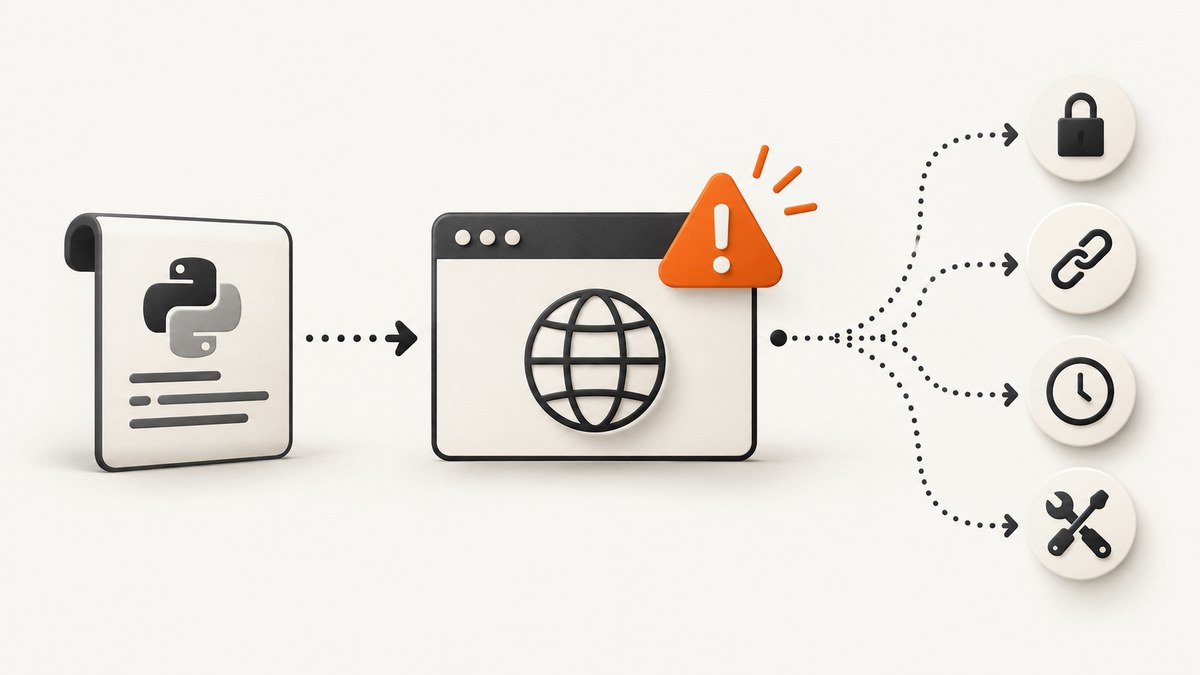
Match the final error token to its failure class, then fix that layer. In requests-html, r.html.render() reloads the page in Chromium through Pyppeteer. A pyppeteer.errors.PageError can mean an SSL failure, invalid URL, navigation timeout, or failed main resource. A browser launch error such as Browser closed unexpectedly is a different problem.
The quickest diagnostic is to preserve the complete exception and the exact URL, then run a minimal render. Do not start by disabling certificate checks or endlessly increasing timeouts.
1. Reproduce the error with a minimal script
from requests_html import HTMLSession

url = "https://example.com/"
session = HTMLSession()
response = session.get(url, timeout=30)
response.html.render(timeout=30, retries=2, wait=0.5)
print(response.html.text)
The first render downloads Chromium into ~/.pyppeteer/. On Linux, Chromium may also need system packages. See the requests-html documentation for the rendering model and API.
2. Read the complete PageError suffix
Pyppeteer documents that Page.goto() raises when navigation encounters an SSL error, an invalid URL, a timeout, or a failed main resource. The default navigation timeout is 30 seconds; Pyppeteer allows changing it, and timeout=0 disables it. Read the Pyppeteer API reference before changing timeout behavior.

| Final error token or symptom | Layer | Likely cause | Fix |
|---|---|---|---|
net::ERR_CERT_* |
TLS | Expired, mismatched, incomplete, intercepted, or untrusted certificate | Repair the certificate chain, hostname, proxy, or CA trust. Only use the diagnostic bypass described below for a controlled endpoint. |
ERR_INVALID_URL or invalid-target wording |
URL | Missing scheme, malformed URL, or unsupported target | Pass an absolute URL such as https://example.com/; inspect redirects and URL construction. |
TimeoutError, navigation timeout, or timeout wording |
Navigation | Slow server, redirect chain, page work, or a dead endpoint | Confirm the URL loads, then raise render(timeout=...) and use a small retry count. |
| Failed main resource / network failure | HTTP or navigation | DNS, proxy, connection reset, blocked request, or server failure | Check the URL outside Chromium, proxy settings, DNS, response status, and redirects. |
Browser closed unexpectedly |
Chromium/OS | Missing shared libraries, executable permissions, sandbox restrictions, or damaged download | Inspect the Pyppeteer browser download, OS dependencies, container permissions, and sandbox configuration. |
3. Fix certificate and TLS errors
The canonical requests-html report for this class is net::ERR_CERT_SYMANTEC_LEGACY in issue #174. The production fix is to correct the endpoint or trust path:
- Open the same URL with a normal browser and with a command-line HTTP client.
- Check certificate expiry, hostname coverage, intermediate certificates, and proxy interception.
- Verify that the machine or container has an up-to-date CA bundle.
- Check whether an enterprise proxy replaces certificates and whether its CA is trusted by the process.
- Retest the minimal script before adding cookies, scripts, scrolling, or concurrency.
For a controlled internal self-signed endpoint, requests-html exposes the underlying request verification control. Setting verify=False causes the browser launch path to use ignoreHTTPSErrors=True, as documented in the browser-launch traceback from issue #552:
from requests_html import HTMLSession

url = "https://internal.example.test/"
session = HTMLSession()
response = session.get(url, timeout=30, verify=False)
response.html.render(timeout=30)
print(response.html.text)
This disables certificate validation. Use it only to confirm that trust verification is the cause on an endpoint you control; install the correct CA or repair the certificate for production.
4. Fix invalid URLs and redirects
from urllib.parse import urlparse

url = "https://example.com/path"
parsed = urlparse(url)
if parsed.scheme not in ("http", "https") or not parsed.netloc:
    raise ValueError(f"Use an absolute http(s) URL: {url}")
Pass the validated URL to session.get(). Log the final response URL and inspect redirects. A URL copied from a page may be relative, contain whitespace, or omit https://; Pyppeteer expects a URL with a scheme.
5. Handle slow pages without hiding other failures
The documented render() API exposes timeout, retries, wait, and sleep. Increase them only after proving that DNS, TLS, and the server work. A larger timeout cannot repair a dead host or invalid certificate.
from requests_html import HTMLSession

url = "https://example.com/slow-page"
session = HTMLSession()
response = session.get(url, timeout=45)
response.html.render(
    timeout=90,
    retries=2,
    wait=1.0,
    sleep=2.0,
)
print(response.html.text)
Choose values deliberately
- HTTP timeout: limits the initial requests-html fetch.
- Render timeout: limits the browser rendering operation exposed by requests-html.
- Retries: help with transient navigation failures but multiply work on a permanently broken URL.
- Wait and sleep: allow scripts or delayed content to appear; they also increase latency for every successful request.
6. Repair Chromium launch failures
If the traceback says Browser closed unexpectedly, the page may never have been reached. requests-html downloads Chromium on the first render into ~/.pyppeteer/, and its documentation warns that Linux packages may be required.
- Run the minimal script as the same user that runs the application.
- Confirm the Chromium files exist and are executable.
- Inspect the traceback for missing shared libraries.
- In containers, check sandbox and permission restrictions.
- Remove a corrupted browser download only when the traceback indicates bootstrap corruption, then let Pyppeteer download it again.
- Keep browser launch diagnostics separate from URL, TLS, and page-script debugging.
7. Isolate the failing layer
- Test the URL with
session.get(url, timeout=30)and record status, headers, and final URL. - Render the same URL with the minimal script.
- Add one change at a time: cookies, proxies, custom headers, JavaScript, scrolling, or concurrency.
- Capture the complete traceback, URL, Python version, requests-html version, and operating-system/container details.
This separates an HTTP-fetch problem from a Chromium launch problem and from a Pyppeteer navigation problem.
8. Performance, reliability, and cost considerations
- First-run cost: the initial Chromium download adds startup time and requires disk space and OS libraries.
- Per-page cost: JavaScript rendering launches browser work, so it is slower and heavier than a plain HTTP request.
- Retries: cap retries and use backoff in production; otherwise a dead URL can consume worker capacity.
- Concurrency: limit simultaneous browser pages to available CPU, memory, file descriptors, and network bandwidth.
- Observability: log the error suffix, URL, redirect target, timeout values, and whether the failure happened before or after browser launch.
- Security: keep TLS verification enabled except for a controlled diagnostic; never turn
verify=Falseinto a blanket production setting.

Or skip the browser setup
If your goal is a reliable screenshot rather than maintaining Chromium and Pyppeteer, ScreenshotNeo provides a single screenshot API request. Its capture pipeline accepts cookie and consent banners before the shot and removes more than 60 known consent platforms, newsletter popups, and chat widgets. Bot checks, blank pages, timeouts, failed loads, and cache hits are not billed, and each response identifies the result with X-Page-Verdict and X-Billed headers.
See the ScreenshotNeo API documentation for options such as full-page capture, CSS-element capture, device and retina settings, custom JavaScript and CSS, waits, blocking rules, headers, cookies, geolocation, caching, PDFs, async jobs, bulk capture, and signed links.
cURL
curl -G "https://api.screenshotneo.com/v1/shot" -d access_key=YOUR_API_KEY --data-urlencode url=https://stripe.com -o shot.webpPython
import requests

r = requests.get(
    "https://api.screenshotneo.com/v1/shot",
    params={"access_key": "YOUR_API_KEY", "url": "https://stripe.com"},
    timeout=90,
)
r.raise_for_status()
open("shot.webp", "wb").write(r.content)
Node.js
const q = new URLSearchParams({ access_key: 'YOUR_API_KEY', url: 'https://stripe.com' });
const res = await fetch(`https://api.screenshotneo.com/v1/shot?${q}`);
if (!res.ok) throw new Error(`Screenshot failed: ${res.status}`);
const fs = await import('node:fs/promises');
await fs.writeFile('shot.webp', Buffer.from(await res.arrayBuffer()));
An MCP server also exposes take_screenshot, get_page_info, and capture_pdf to Claude, Cursor, and other MCP clients. The Free plan includes 1,000 screenshots per month without a card; paid plans start at $5 for 3,000. Create a free ScreenshotNeo account.
Common errors checklist
- Does the URL include
https://orhttp://? - Does the initial
session.get()succeed before rendering? - Is the final error token certificate, URL, timeout, or failed resource?
- Is Chromium downloaded in the expected
~/.pyppeteer/directory? - Are Linux shared libraries and container permissions present?
- Did a proxy replace the site certificate?
- Are you using
verify=Falseonly for a controlled diagnostic? - Did you add retries or concurrency before proving the minimal case?
FAQ
Is every PageError a certificate problem?
No. The suffix identifies several navigation classes, including invalid URLs, timeouts, failed main resources, and SSL errors.
Will increasing the timeout fix a certificate error?
No. Timeout changes help slow reachable pages. They do not repair TLS trust, DNS, malformed URLs, or a stopped server.
Why does the first render take longer?
requests-html downloads Chromium into ~/.pyppeteer/ on the first render and may require Linux packages.
Should I permanently set verify=False?
No. It disables certificate validation. Use it only to diagnose a controlled self-signed endpoint, then fix the certificate or CA trust.
When should I replace requests-html with an API?
Use an API when you need repeatable screenshots without operating a local Chromium installation, especially for batch work, PDFs, caching, or AI-agent workflows.


