How to Fix Pyppeteer Session Crashes and Timeouts
Separate Pyppeteer timeouts from closed targets, collect browser evidence, fix waits and Chromium setup, and know when to switch tools.
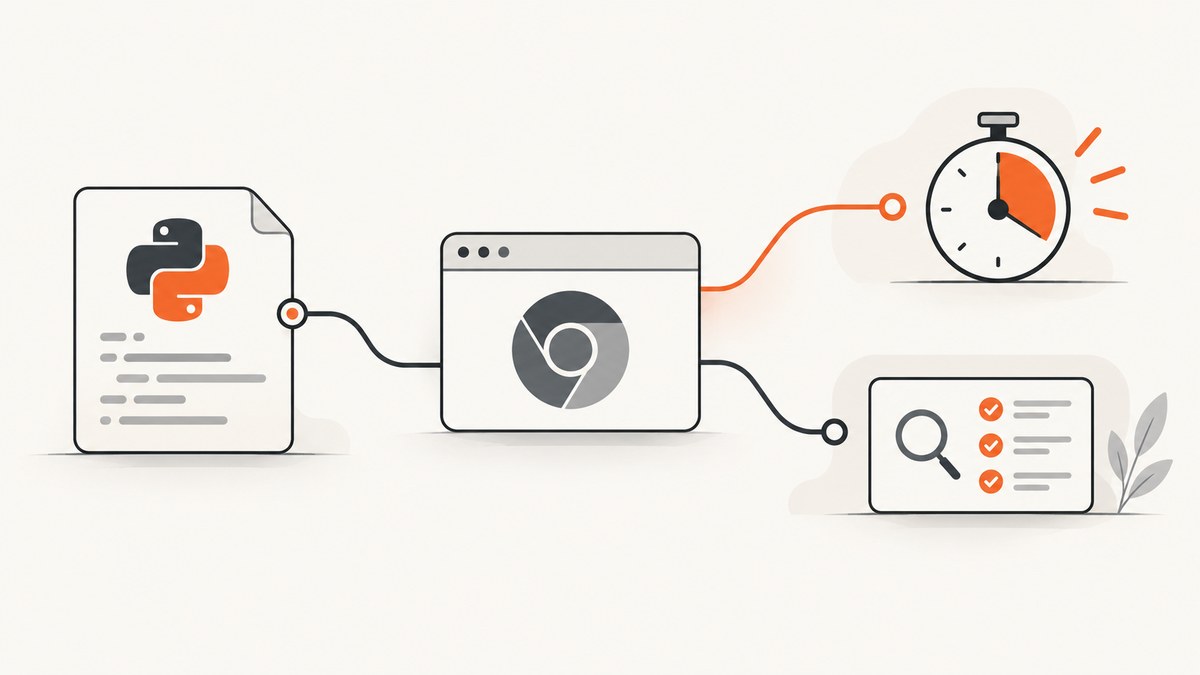
Start by classifying the failure. A Pyppeteer timeout means a navigation or wait exceeded its limit. Target closed means the browser, page, or target disappeared before a protocol command finished. Increasing a timeout cannot repair a browser process that has already exited.
Use this order: capture the complete traceback and browser logs, identify the exact operation that failed, verify the Chromium binary and launch configuration, then change the wait condition or timeout only when it matches the work your script actually needs.
1. Identify the failure class
Navigation or wait timeout
Pyppeteer documents 30-second defaults for navigation, selector, function, request and response waits. A timeout usually means the awaited event never happened in that period. Record the operation: goto(), waitForSelector(), waitForFunction(), waitForNavigation(), or another wait.
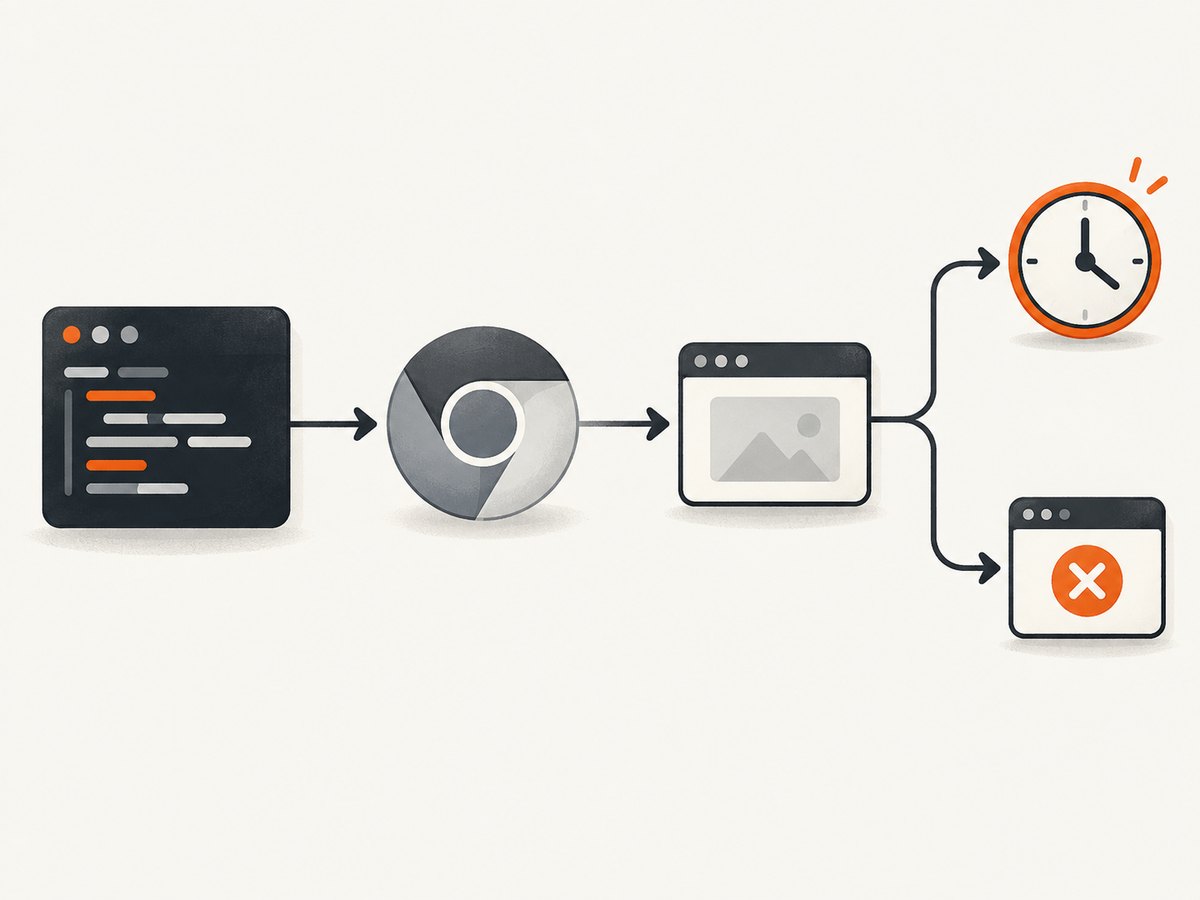
Target closed or connection errors
Errors such as Protocol error Page.getFrameTree: Target closed and connection unexpectedly closed indicate that the target or browser session disappeared. Check whether your code closed the page or browser, whether Chromium exited, and whether the target was replaced before the protocol command completed.
Issue #435 documents one Page.getFrameTree: Target closed report with Pyppeteer 1.0.2 and headless=False. It demonstrates the symptom and the importance of recording environment details; it does not establish a universal cause or a general fix. Read the issue report.
Navigation exceptions that are neither timeout nor target closure
goto() can also fail because of an SSL error, an invalid URL, or a failed main resource. Preserve the original exception and request-failure details instead of converting every navigation error into a timeout diagnosis.
2. Capture evidence before changing settings
Enable Pyppeteer debugging and forward Chromium output:
import asyncio
import os
import platform
import sys
import pyppeteer
from pyppeteer import launch

pyppeteer.DEBUG = True

async def main():
    browser = await launch(
        headless=True,
        dumpio=True,
        # Keep your existing options here while diagnosing.
        args=[]
    )
    try:
        page = await browser.newPage()
        await page.goto("https://example.com", {
            "waitUntil": "domcontentloaded",
            "timeout": 30000,
        })
        print(await page.title())
    finally:
        await browser.close()

print({
    "python": sys.version,
    "pyppeteer": getattr(pyppeteer, "__version__", "unknown"),
    "platform": platform.platform(),
    "executable": os.environ.get("CHROME_PATH", "bundled/default"),
})
asyncio.get_event_loop().run_until_complete(main())
pyppeteer.DEBUG = True exposes errors that may otherwise be suppressed. The launcher’s dumpio=True forwards browser stdout and stderr. Save the complete Python traceback, browser output, operating system or container details, Python and Pyppeteer versions, Chromium version and path, all launch arguments, and the last successful operation. These are documented in the Pyppeteer API reference.
3. Match navigation waits to the page
Pyppeteer supports load (the default), domcontentloaded, networkidle0, and networkidle2. Choose the condition that represents readiness for your task:
| Condition | Use when | Risk |
|---|---|---|
domcontentloaded |
You need the parsed document and can wait for specific elements afterward. | Images and other resources may still be loading. |
load |
The page’s load event is a suitable boundary. | It may finish before client-rendered content appears. |
networkidle0 |
The page should become completely quiet. | Analytics, sockets or polling can prevent completion. |
networkidle2 |
A small amount of continuing network activity is expected. | Persistent requests can still make the wait unsuitable. |
await page.goto(
    "https://example.com/dashboard",
    {"waitUntil": "domcontentloaded", "timeout": 30000}
)
await page.waitForSelector("main[data-ready='true']", {"timeout": 30000})
For dynamic pages, wait for the result your task needs rather than assuming a lifecycle event proves it is ready:
await page.waitForFunction(
    "document.querySelectorAll('.result').length > 0",
    {"timeout": 30000}
)
Clicks that trigger navigation
Start the navigation wait before or concurrently with the click. Otherwise a fast navigation can occur before the listener is attached:
await asyncio.gather(
    page.waitForNavigation({"waitUntil": "domcontentloaded"}),
    page.click("a.next-page")
)
4. Set timeouts deliberately
Use a longer timeout only after confirming that the browser is alive and the awaited condition is correct. Set a global navigation timeout when all navigations in a job need the same limit:
page.setDefaultNavigationTimeout(60000)
await page.goto("https://slow.example", {"waitUntil": "domcontentloaded"})
Set an individual timeout for one known-slow operation:
await page.waitForSelector(
    "#report-complete",
    {"timeout": 90000}
)
A timeout of 0 disables that timeout. Use it only when you have an external job deadline and cancellation strategy; otherwise a condition that never occurs can wait indefinitely.
5. Verify Chromium and launch compatibility
Pyppeteer works best with its bundled Chromium and does not guarantee compatibility with arbitrary Chrome versions. The project documents downloading Chromium on first use and provisioning it ahead of time with pyppeteer-install:
python -m pip install pyppeteer
pyppeteer-install
Check that the executable exists and can start in the same user, container and environment as the application. Record these launch variables before changing them:
executablePathand the actual Chromium versionheadlessmodeargs, including sandbox and shared-memory flagsuserDataDirenvdumpio, signal-handling options andautoClose
Change one variable at a time. If a bundled browser works but an external executable fails, treat browser-version compatibility as the leading variable. If headless and non-headless differ, preserve both configurations and compare the browser logs rather than assuming one mode is universally defective.
6. Prevent accidental target shutdowns
Keep the browser alive until every page operation has completed, and avoid closing a page from a cleanup path while another task is using it:
async def capture(url):
    browser = await launch(headless=True, dumpio=True)
    page = await browser.newPage()
    try:
        await page.goto(url, {"waitUntil": "domcontentloaded"})
        return await page.screenshot({"path": "shot.png", "fullPage": True})
    finally:
        await browser.close()
When running concurrent jobs, give each task a clear page ownership rule. Do not reuse a page after page.close(), do not call browser.close() from one worker while others are active, and check that a browser process has not exited before issuing another protocol command.
7. Troubleshooting checklist
| Symptom | Likely cause | Fix |
|---|---|---|
| Navigation timeout at 30 seconds | Wrong waitUntil, slow page, or navigation that never completes. |
Use the appropriate lifecycle event, wait for a concrete selector, or increase the timeout after confirming the process is alive. |
waitForSelector timeout |
Selector is wrong, content is inside a frame, or rendering failed. | Inspect the DOM, identify the frame, verify the page URL and console output, then wait for the actual condition. |
networkidle0 never finishes |
Polling, analytics, sockets or other persistent requests. | Use domcontentloaded or load, then wait for the required element or function. |
Target closed |
Browser/page closed, Chromium exited, or target disappeared. | Check lifecycle code and browser stderr; verify executable, launch flags, environment and process exit status. |
| SSL, invalid URL or main-resource error | Navigation failed before the expected page loaded. | Preserve the original exception, validate the URL and certificate, and inspect request failures. |
| Works locally, fails in CI or a container | Different Chromium binary, permissions, display, sandbox, shared memory or environment. | Record versions and launch arguments, run the provisioned Chromium in that environment, and compare browser logs. |
| Failure appears after upgrading Pyppeteer | Changed browser revision or API behavior. | Record the installed version and browser revision, reproduce with the documented bundled browser, and change one dependency at a time. |
8. Performance, reliability and cost considerations
- Startup: launching Chromium for every URL adds process and download overhead. Reuse one browser process when jobs are isolated by page and lifecycle ownership, but close it predictably at the end of the batch.
- Waits: network-idle waits can be slower and less reliable on sites with continuous requests. A targeted selector or function condition usually expresses the requirement more directly.
- Timeouts: longer limits increase worst-case job duration and can hold resources. Add an outer job deadline even when an individual Pyppeteer timeout is disabled.
- Reliability: collect browser stderr and full tracebacks in production logs. Without process evidence, a timeout and a dead target can look similar in an abbreviated log.
- Cost: self-hosted Pyppeteer costs compute, Chromium storage and engineering time. If your goal is simply a screenshot, an API can move browser provisioning and cleanup outside your application.
9. Should you migrate from Pyppeteer?
The Pyppeteer project README says: “This repo is unmaintained and has been outside of minor changes for a long time. Please consider playwright-python as an alternative.” This is maintainer guidance, checked 2026-09-29, not proof that migration will fix a particular crash. Compare the candidate library’s own documentation, API differences, browser support, maintenance and behavior for your workload.
Before migrating, classify the incident and preserve evidence. A library change may help with maintenance or browser compatibility, but it cannot correct an invalid selector, an impossible network-idle condition or application code that closes the browser too early.
10. Or skip the browser setup
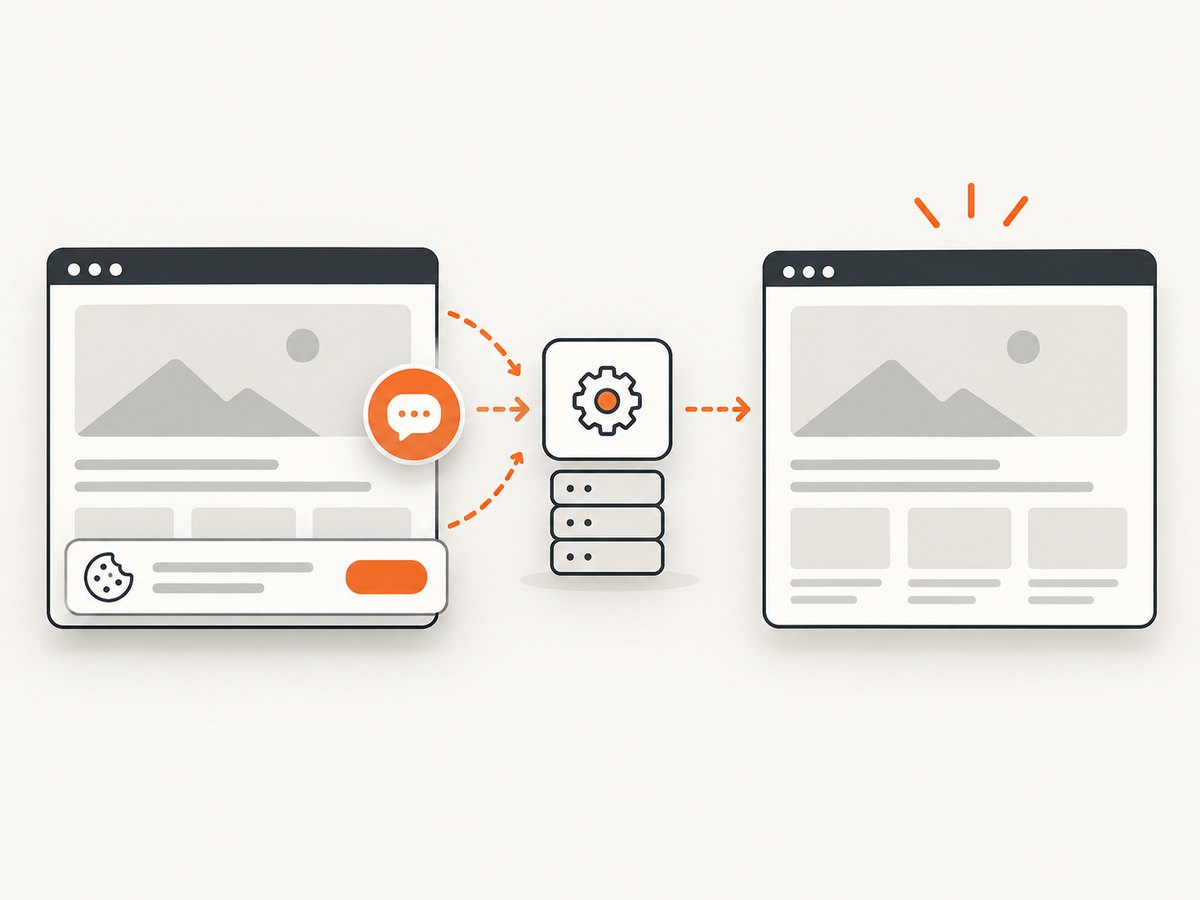
If you only need a clean screenshot, ScreenshotNeo provides a GET endpoint that returns PNG, JPEG, WebP or PDF. Its browser setup is handled for you:
curl -G "https://api.screenshotneo.com/v1/shot" -d access_key=YOUR_API_KEY --data-urlencode url=https://stripe.com -o shot.webpimport requests
r = requests.get("https://api.screenshotneo.com/v1/shot", params={"access_key": "YOUR_API_KEY", "url": "https://stripe.com"}, timeout=90)
open("shot.webp", "wb").write(r.content)const q = new URLSearchParams({ access_key: 'YOUR_API_KEY', url: 'https://stripe.com' });
const res = await fetch(`https://api.screenshotneo.com/v1/shot?${q}`);See the ScreenshotNeo API documentation for request options. Cookie and consent banners, newsletter popups and chat widgets are removed before the shot. Bot checks, blank pages and failed loads are never billed, and response headers identify the page verdict and billing result. An MCP server lets Claude, Cursor and other MCP clients call take_screenshot, get_page_info and capture_pdf. The free plan includes 1,000 screenshots a month with no card; paid plans start at $5 for 3,000.
Create a free ScreenshotNeo account and try the first 1,000 screenshots without a card.
11. FAQ
Does increasing the timeout fix Target closed?
No. It can help only when a live browser is still working toward a valid condition. For a closed target, inspect browser exit, page lifecycle and launch compatibility.
Is networkidle0 always the most complete wait?
No. Sites with polling, analytics or sockets may never become idle. Wait for the specific element or function that represents completion.
Should I always use headless mode?
No mode is universally correct. Compare headless and non-headless behavior with the same versions, launch arguments and browser logs.
Can I use an arbitrary installed Chrome?
You can configure an external executable, but the API reference says Pyppeteer works best with its bundled Chromium and gives no guarantee for arbitrary Chrome versions.
Where should I start if the project is unmaintained?
First capture evidence and isolate the failure. Then evaluate playwright-python or another maintained option using its own documentation and a reproduction of your workload.


