How to Fix Pyppeteer Timeouts After a Page Has Loaded
A page can look loaded while Pyppeteer waits on a selector, function, or navigation that never completes. Find the failing await and match its condition.
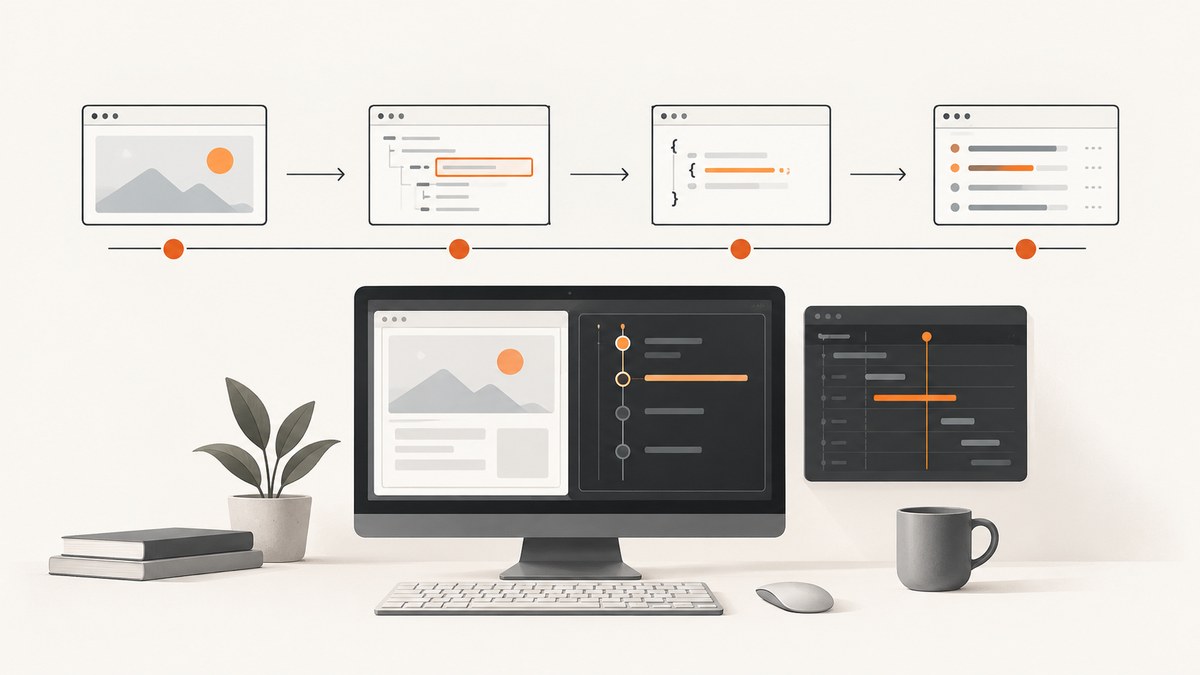
A page looking loaded does not mean every later Pyppeteer wait has completed. The fix is to identify the exact await that raises the timeout, then configure that operation for the state your script actually needs.
goto() waits for a navigation event, waitForSelector() waits for a DOM element (and optionally its visibility), waitForFunction() waits for a JavaScript expression to become truthy, and waitForNavigation() waits for a navigation or reload. Treating all of these as “page load” creates misleading fixes.
The API meanings below come from the Pyppeteer API reference. That reference documents 30 seconds as the default timeout for navigation, selector, and function waits, and a 500 millisecond window for network-idle conditions.
1. Find the await that actually timed out
Separate each operation and log its start and end. A successful navigation does not prove that a selector exists or that application JavaScript has reached the state your next step expects.
import asyncio
from pyppeteer import launch

async def timed(label, operation):
    print(f"START {label}")
    try:
        result = await operation
        print(f"DONE  {label}")
        return result
    except Exception as exc:
        print(f"FAIL  {label}: {type(exc).__name__}: {exc}")
        raise

async def main():
    browser = await launch(headless=True)
    page = await browser.newPage()
    try:
        await timed(
            "goto",
            page.goto("https://example.com", {"waitUntil": "load", "timeout": 30000}),
        )
        await timed(
            "selector",
            page.waitForSelector("h1", {"timeout": 30000}),
        )
    finally:
        await browser.close()

asyncio.get_event_loop().run_until_complete(main())
Keep the complete exception text. It tells you which method failed and prevents you from changing navigation settings when the real problem is a missing selector or an application condition.
2. Understand what “loaded” means
| Operation | Completion condition | Typical reason it times out |
|---|---|---|
goto() |
A selected navigation lifecycle event | The chosen event never occurs, or the response is genuinely slow |
waitForSelector() |
A selector matches the live DOM; with visible: true, it must also be visible |
Wrong selector, wrong frame, delayed rendering, or hidden element |
waitForFunction() |
The page function returns a truthy value | The condition is impossible or checks the wrong state |
waitForNavigation() |
A navigation or reload occurs | The click only changes application state, or the wait was armed too late |
If a selector already exists when waitForSelector() starts, it should resolve immediately. A page can therefore be visually complete while a later wait still correctly reports that its own condition has not happened.
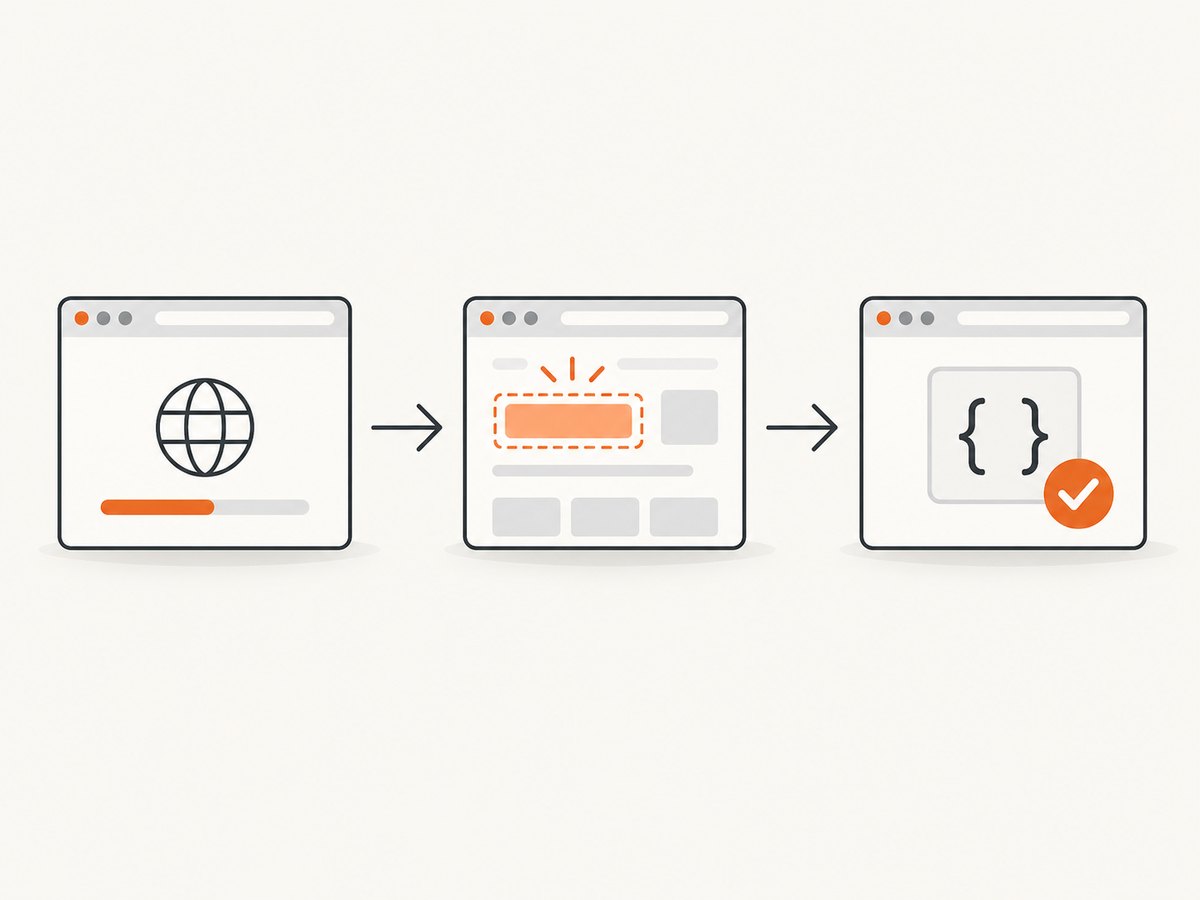
3. Diagnose in a repeatable order
- Record the Pyppeteer version, Python version, browser executable and browser version.
- Log every awaited operation separately.
- Copy the full timeout message, including the method name and selector or condition.
- Check the live page and frame where the operation runs.
- Choose the narrowest condition that matches the next action.
- Set the timeout on the failing operation, then retest.
Do not assume a Puppeteer bug report applies to Pyppeteer. Puppeteer and Pyppeteer are different projects, and a regression reported for Puppeteer 19.8.0 does not establish the same defect in your installed Pyppeteer version.
4. Fix a timeout from page.goto()
Pyppeteer documents four waitUntil values:
load: wait for the page’sloadevent. This is the default.domcontentloaded: wait until the document has been parsed and theDOMContentLoadedevent fires.networkidle0: require no more than zero active network connections for at least 500 ms.networkidle2: require no more than two active network connections for at least 500 ms.
Use the event required by the next step. If the script only needs the parsed document, domcontentloaded may be appropriate. If it needs a client-rendered result, use a navigation event that can finish and then wait explicitly for the result.
await page.goto(
    url,
    {
        "waitUntil": "domcontentloaded",
        "timeout": 60000,
    },
)
await page.waitForSelector("#results", {"timeout": 30000})
A site that continuously polls, opens analytics connections, or streams data may never reach an idle condition. Do not switch to a weaker condition unless the content required by your script is ready at that point. The per-call timeout controls this navigation; 0 disables the method timeout and should only be used when an intentionally unbounded wait is acceptable.
page.setDefaultNavigationTimeout(60000)
await page.goto(url, {"waitUntil": "load"})
5. Fix a timeout from waitForSelector()
Check these causes in order:
- The selector does not match the current DOM. Inspect the exact spelling, escaping and nesting.
- The element is inside an iframe. Query the correct frame instead of the top-level page.
- The application has not created the element yet. Wait for the state that creates it.
- The element exists but is hidden. With
visible: true, Pyppeteer requires it to be in the DOM and not havedisplay: noneorvisibility: hidden.
await page.goto(url, {"waitUntil": "domcontentloaded", "timeout": 60000})
await page.waitForSelector("#results", {"timeout": 30000, "visible": True})
In Python, use True; in JavaScript examples use true. If the page uses an iframe:
frame = next((f for f in page.frames if f.url.startswith("https://app.example.com")), None)
if frame is None:
    raise RuntimeError("Target frame was not found")
await frame.waitForSelector("#results", {"timeout": 30000})
The official reference summarizes the failure this way: “If the selector doesn’t appear after the timeout milliseconds of waiting, the function will raise error.”
6. Fix a timeout from waitForFunction()
waitForFunction() is not a general “wait until loaded” call. It resolves only when the supplied page function returns a truthy value. Verify that the expression can become true on this page and that it is checking the right global or DOM state.
await page.waitForFunction(
    "() => window.appState && window.appState.ready === true",
    {"timeout": 30000, "polling": "raf"},
)
The documented polling choices are raf (the default), mutation, or a numeric interval in milliseconds. Choose mutation when DOM changes drive the state, or a numeric interval when checking on a fixed cadence is sufficient.
7. Fix a timeout from waitForNavigation()
First confirm that the action really navigates or reloads. History API URL changes count as navigation, while a hash-only change can return None. A click that only updates application state may never satisfy a navigation wait.
Arm the wait before triggering the action. This prevents the navigation event from being missed:
navigation = asyncio.ensure_future(page.waitForNavigation({"timeout": 30000}))
await page.click("a.next")
await navigation
If the click updates a result panel without navigation, wait for that panel instead:
await page.click("button.load-more")
await page.waitForSelector(".result-card:nth-child(11)", {"timeout": 30000})
8. Complete Pyppeteer diagnostic script
This script uses a shorter navigation condition, then waits for the content the task needs. Replace the URL and selector with values from your page.
import asyncio
from pyppeteer import launch

URL = "https://example.com"
RESULT_SELECTOR = "h1"

async def main():
    browser = await launch(headless=True)
    page = await browser.newPage()
    page.setDefaultNavigationTimeout(60000)
    try:
        print("Navigating")
        response = await page.goto(
            URL,
            {
                "waitUntil": "domcontentloaded",
                "timeout": 60000,
            },
        )
        if response is None:
            raise RuntimeError("Navigation returned no response")

        print("Waiting for required content")
        await page.waitForSelector(RESULT_SELECTOR, {"timeout": 30000})
        print("Ready:", await page.title())
    finally:
        await browser.close()

if __name__ == "__main__":
    asyncio.get_event_loop().run_until_complete(main())
9. Or skip the browser setup
If your goal is a clean website screenshot rather than browser automation, ScreenshotNeo returns a PNG, JPEG, WebP or PDF from one GET request. Its cleanup steps accept cookie and consent banners before capture and remove more than 60 known consent platforms, newsletter popups and chat widgets. Each step can be turned off. Bot checks, blank pages, timeouts, failed loads and cache hits are not billed, and response headers report the page verdict and billing result.

See the ScreenshotNeo API documentation for all options.
cURL
curl -G "https://api.screenshotneo.com/v1/shot" \
  -d access_key=YOUR_API_KEY \
  --data-urlencode url=https://stripe.com \
  -o shot.webp
Python
import requests

r = requests.get(
    "https://api.screenshotneo.com/v1/shot",
    params={"access_key": "YOUR_API_KEY", "url": "https://stripe.com"},
    timeout=90,
)
r.raise_for_status()
open("shot.webp", "wb").write(r.content)
Node.js
const fs = require('node:fs/promises');

const q = new URLSearchParams({ access_key: 'YOUR_API_KEY', url: 'https://stripe.com' });
const res = await fetch(`https://api.screenshotneo.com/v1/shot?${q}`);
if (!res.ok) throw new Error(`ScreenshotNeo returned ${res.status}`);
await fs.writeFile('shot.webp', Buffer.from(await res.arrayBuffer()));
ScreenshotNeo also provides full-page capture with lazy images loaded, CSS-selector element capture, dark mode, device presets or custom viewports, retina scale, PDF paper settings and page ranges, custom CSS and JavaScript, pre-capture clicks, selector or network-idle waits, request and resource blocking, custom headers and cookies, timezone and geolocation, transparent backgrounds, resizing, TTL caching, signed links, asynchronous jobs with signed webhooks, bulk capture for up to 100 URLs per call, a usage API and an OpenAPI specification.
An MCP server exposes take_screenshot, get_page_info and capture_pdf to Claude, Cursor and other MCP clients. Every plan includes every feature. The Free plan includes 1,000 shots per month without a card; paid plans start at $5 for 3,000 shots.
Create a free ScreenshotNeo account with 1,000 screenshots per month and no card.
10. Troubleshooting checklist
| Symptom | Likely cause | Fix |
|---|---|---|
goto() times out on a page that appears in a browser |
The selected lifecycle event never completes, often because of long-lived connections | Try domcontentloaded, then wait for the required selector or function explicitly. |
waitForSelector() never returns |
Wrong selector, delayed rendering, wrong frame, or hidden element | Inspect the live DOM, select the intended frame, remove visible: true if visibility is not required, or wait for the state that creates the element. |
waitForFunction() times out |
The expression never becomes truthy | Evaluate the expression in the page, verify variable names and choose raf, mutation or an interval that matches the update mechanism. |
waitForNavigation() times out after a click |
The click changes state without navigation, or the wait started after the click | Start the wait before clicking; if there is no navigation, wait for the changed DOM instead. |
| Raising the timeout changes nothing | The condition is impossible, not merely slow | Validate the selector, frame, function result and navigation behavior before increasing the limit. |
| Timeout appears only in one environment | Different Pyppeteer, Python, browser or executable versions | Record all versions and the browser path, then reproduce with the same runtime context. |
11. Performance, reliability and cost
- Performance: Use the earliest navigation event that still guarantees the next operation is safe. Waiting for network idle on a page with polling can add unnecessary delay or never finish.
- Reliability: Prefer a specific selector or application-ready condition over a fixed sleep. Use a timeout long enough for the site’s normal behavior, but keep the failure bounded.
- Concurrency: Do not create unbounded browser pages or waits. Close pages and browsers in
finallyblocks and keep navigation and selector waits separate so failures are diagnosable. - Cost: Self-hosted Pyppeteer consumes your own compute and browser maintenance time. ScreenshotNeo bills only clean shots; bot checks, blank pages, timeouts, failed loads and cache hits cost nothing, with the result indicated by
X-Page-VerdictandX-Billedheaders.
12. FAQ
Does a successful goto() mean the page is ready?
No. It means the selected navigation condition completed. A client-rendered component may still need a selector or function wait.
Should I always use networkidle0?
No. Polling, analytics and streaming connections can prevent it from completing. Select the condition that matches the content your next step needs.
Is timeout: 0 a permanent fix?
No. It disables that method’s timeout and can leave a worker waiting forever when the condition is impossible.
Why does a hash link behave differently?
A hash-only URL change can return None from waitForNavigation(). Wait for the DOM or application state that the hash change triggers.
Can I use ScreenshotNeo for PDFs as well as images?
Yes. Its API supports PDF output with paper size, margins, landscape mode and page ranges.


