How to Fix Images Not Displaying in pytest-html Reports
Find why pytest-html images are missing, fix file paths and extras, and choose between a portable single-file report and external assets.
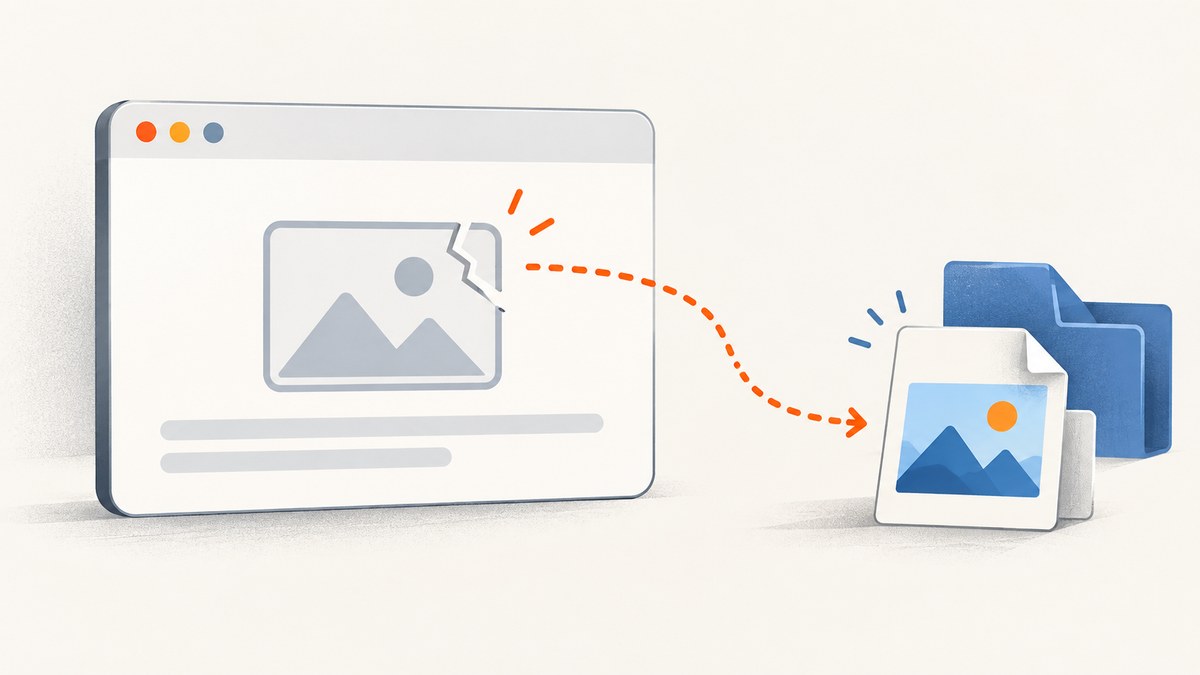
If an image is missing from a pytest-html report, inspect the generated HTML and check the image’s src. The source must point to a file or URL that the report viewer can actually access. If you use --self-contained-html, remember that image extras supplied as file paths or links remain external resources; that flag does not automatically embed arbitrary images.
The practical fix is usually to correct the image path relative to where the report is opened, or to embed the image data when you need one portable HTML file. The current pytest-html guide documents pytest_html.extras.image and format helpers such as extras.png, as well as the report hook and extras fixture. Follow the API for your installed version. pytest-html user guide
1. Find what the report is trying to load
Open the report in a browser, then inspect the broken image. Use the browser’s developer tools, or open the HTML source in an editor and search for <img. Record the src value. It will commonly be one of these:
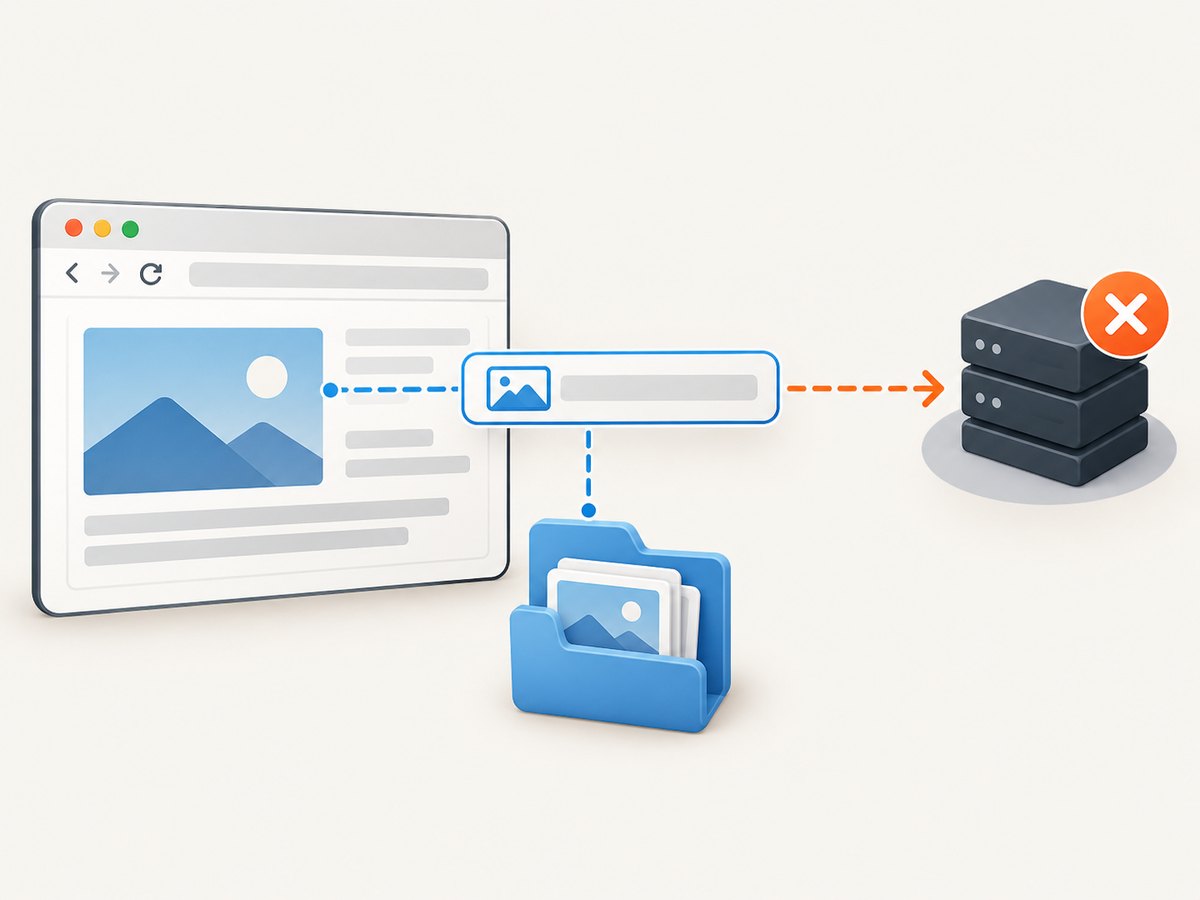
- A relative path, such as
screenshots/failure.png. - A file path, such as
/home/runner/work/app/screenshots/failure.png. - An HTTP URL, which the browser requests from a server.
- A data URL, typically beginning
data:image/png;base64,, which carries image data in the HTML.
For a relative path, resolve it from the report’s actual URL or file location and serving context. It does not necessarily resolve from your project root or from conftest.py. For example, a report opened from a local development server can cause a relative link to resolve under that server’s localhost URL. A pytest-html issue documents a missing image whose link resolved to localhost and returned 404. pytest-html issue #265
Then verify the resolved target exists and can be read by the browser or report host. If the source is an HTTP URL, open it directly and check its status and access requirements. If it is a data URL, confirm the content is actually present rather than an empty or malformed value.
2. Attach an image using the current extras API
For a report that can access the image file, build the path deliberately. The following example assumes this layout:
project/
├── conftest.py
├── tests/
└── artifacts/
    └── failure.png
In conftest.py, make the path absolute from the configuration file and attach the extra to the test report:
from pathlib import Path

import pytest
import pytest_html


ARTIFACT = Path(__file__).parent / "artifacts" / "failure.png"


@pytest.hookimpl(hookwrapper=True)
def pytest_runtest_makereport(item, call):
    outcome = yield
    report = outcome.get_result()

    # Keep extras added by other plugins or hooks.
    extras = list(getattr(report, "extras", []))

    if report.when == "call" and report.failed and ARTIFACT.is_file():
        extras.append(pytest_html.extras.png(str(ARTIFACT)))

    report.extras = extras
Run the suite and write the report:
python -m pytest --html=report.htmlThis example attaches the image only when the test call fails and the file exists. Remove the failure condition if you want it on every result. The explicit file check makes a missing screenshot visible as a missing artifact rather than causing the hook to attach a path that cannot work.
For a dynamically generated image, point the extra at the actual output file after it has been saved. If your capture library returns bytes instead, check the installed pytest-html version’s accepted input and image helper behavior before choosing how to pass them. The documented helpers include extras.png(image), extras.jpg(image), extras.svg(image), and the general extras.image(...). The user guide’s extras examples
3. Add an image from a test with the fixture
If the image belongs to one test and you do not need a global hook, use the extras fixture. This example attaches an existing PNG:
from pathlib import Path

import pytest_html


def test_checkout(extras):
    screenshot = Path("artifacts") / "checkout.png"
    assert screenshot.is_file(), f"Screenshot is missing: {screenshot}"
    extras.append(pytest_html.extras.png(str(screenshot)))

    # Replace with the test's real assertion.
    assert True
Pytest resolves that relative filesystem path from the process working directory, while the browser later resolves a relative image URL in the context where the report is served. Those are different operations. Make the file path absolute when working-directory variation is possible, and still verify the generated report’s src.
The fixture is convenient for per-test artifacts. A hook is more useful when a plugin or shared setup has to attach evidence consistently. In either case, append to the extras list so content added by other code is preserved, and assign the final list back to report.extras in hook-based code.
4. Choose between external files and a self-contained report
| Choice | What travels with the report | Check before sharing |
|---|---|---|
| Report plus image files | The HTML and its referenced assets | Preserve the directory structure or serve the assets at reachable URLs. |
| Self-contained HTML | Report assets are placed into the HTML, but file or link image extras can remain external | Inspect the generated image source and verify whether image data is embedded. |
pytest-html explicitly warns that images added as files or links are external resources and may not display as expected in a standalone report. The plugin issues a warning when these are added. Creating a self-contained report
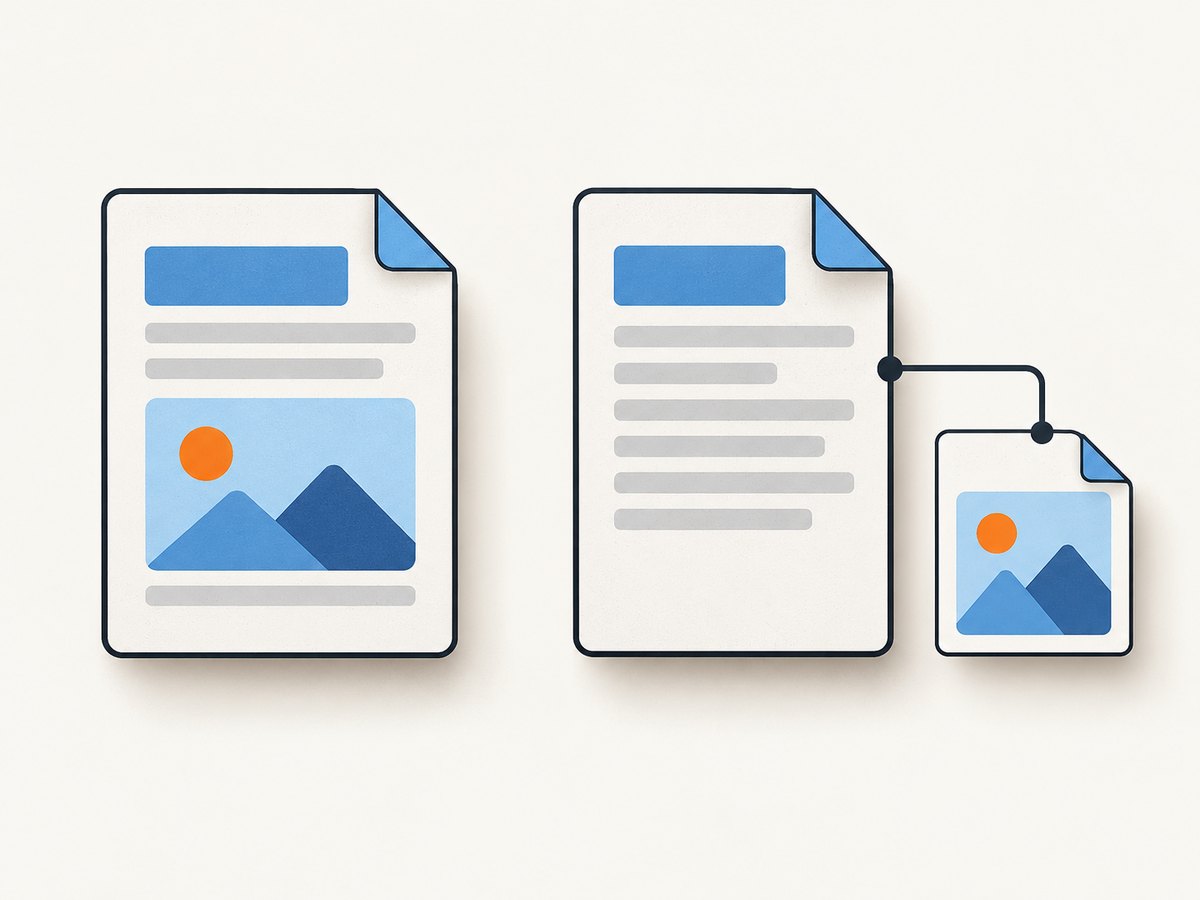
Generate a single-file report with:
python -m pytest --html=report.html --self-contained-htmlIf images still disappear, the command alone is not the fix. Supply image data in a form supported by your installed version, regenerate the report, and inspect the resulting src for an embedded data URL. If you choose external files, distribute them with the report and keep their expected paths intact, or serve them from a location the viewer can reach. Don’t assume a coworker’s machine can read an absolute path from your workstation or CI runner.
5. Capture and attach a browser screenshot
A common use case is taking a screenshot after a browser test fails. The screenshot must be saved before pytest-html attaches it. This simplified Selenium example uses the fixture to attach the generated PNG:
from pathlib import Path

import pytest_html
from selenium import webdriver


def test_page_title(extras, tmp_path):
    driver = webdriver.Chrome()
    try:
        driver.get("https://example.com")
        assert "Expected title" in driver.title
    except AssertionError:
        image_path = tmp_path / "failure.png"
        driver.save_screenshot(str(image_path))
        extras.append(pytest_html.extras.png(str(image_path)))
        raise
    finally:
        driver.quit()
This snippet demonstrates the pytest-html attachment flow; it assumes Selenium and a working Chrome driver are already installed and configured. Considerations for your own suite:
- Keep the browser alive until screenshot capture finishes. Quit it in a
finallyblock so failures do not leak browser processes. - Save the image before adding the extra. If the test fails before a screenshot is written, there is no file to display.
tmp_pathis useful during the run, but if report processing or asset serving happens later, ensure the file remains available for that whole period.- If your goal is a portable single-file report, verify your installed pytest-html version’s supported image-data path and inspect the generated HTML afterward.
6. Troubleshoot by symptom
| Symptom | Likely cause | Fix |
|---|---|---|
| Browser shows 404 for the image | The generated relative or HTTP URL resolves to a location without the file. | Inspect src, resolve it from the report’s serving context, and place or serve the file at that location. |
| Image shows locally but not in CI or to a teammate | The report refers to a machine-specific absolute path or an asset absent from the shared artifact. | Publish the image alongside the report, preserve the relative layout, or embed its data using a supported method. |
Image breaks only with --self-contained-html |
The extra references a file or link, which the guide identifies as external. | Embed image data if supported, or distribute and serve the external resource. |
| Report contains no image link at all | The hook did not run, the branch condition was false, or extras were not assigned to the report. | Check report.when, failure conditions, and that you set report.extras after appending. |
| Image link is present but file is absent | Screenshot creation failed, used another output path, or happened after attachment. | Check file existence immediately before adding the extra and log the resolved path. |
| Old examples work inconsistently | They may use a deprecated API such as report.extra. |
Use the installed version’s docs; current guidance uses report.extras. pytest-html deprecations |
When debugging, use this order:
- Regenerate the report from a clean run so the HTML matches the code and artifacts you are inspecting.
- Find the exact image
src; don’t infer it from the Python argument. - Resolve that URL in the browser’s context, then open it directly or check its network response.
- Verify the file exists and is readable by the report publisher or viewer.
- Check whether the report is single-file and whether the image is truly embedded.
- Confirm the extras API and hook behavior against the installed pytest-html version.
7. Reliability, speed, and artifact cost
Image attachment itself is not a substitute for reliable artifact handling. Save screenshots to a known directory, use unique names when tests run in parallel, and avoid sharing a single path that concurrent tests can overwrite. For CI, upload the report and its referenced images as one artifact with directory structure preserved. That makes the report’s dependencies explicit and gives a teammate the same files the browser expects.
Embedding image data improves portability because the report can carry the image with it, but the HTML grows with the image content. External assets keep the HTML lighter while requiring a reachable file or URL and coordinated artifact retention. Choose based on how the report will be consumed: a single file sent around favors embedding; a hosted report with managed assets can use external resources. Validate the generated report in the same kind of viewer your recipient will use.
For large test suites, attach evidence selectively, such as on failures, and consider image dimensions and retention. This reduces unnecessary report size and storage. These are operational tradeoffs rather than pytest-html guarantees; measure them in your own CI environment and retain artifacts for the period your team needs.
8. Or skip the browser setup
If your immediate need is a screenshot of a web page rather than a screenshot of a browser-driven test session, ScreenshotNeo provides a website screenshot API. One GET request returns an image or PDF. The API also accepts custom headers and cookies and supports full-page captures, selectors, wait conditions, and other capture options. See the ScreenshotNeo API docs for configuration and response details.
curl -G "https://api.screenshotneo.com/v1/shot" \
  -d access_key=YOUR_API_KEY \
  --data-urlencode url=https://example.com \
  -o shot.webp
Or call it from Python:
import requests

r = requests.get(
    "https://api.screenshotneo.com/v1/shot",
    params={"access_key": "YOUR_API_KEY", "url": "https://example.com"},
    timeout=90,
)
r.raise_for_status()
open("shot.webp", "wb").write(r.content)
Or from Node.js:
const q = new URLSearchParams({
  access_key: 'YOUR_API_KEY',
  url: 'https://example.com'
});
const res = await fetch(`https://api.screenshotneo.com/v1/shot?${q}`);
if (!res.ok) throw new Error(`Screenshot request failed: ${res.status}`);
await Bun.write('shot.webp', res);
ScreenshotNeo removes cookie banners, newsletter popups, and chat widgets before the shot. Bot checks, blank pages, and failed loads are never billed; response headers say which page verdict applied and whether it was billed. Its MCP server lets AI agents take screenshots. The free plan includes 1,000 screenshots a month with no card, and paid plans start at $5 for 3,000. Create a free ScreenshotNeo account.
9. FAQ
Why does the image URL return 404 in the report?
The browser is requesting a path where the image is not available. Inspect the generated src and resolve it from the report’s actual URL or file location, not from the Python source file by assumption.
Does --self-contained-html embed every image?
No. The pytest-html guide says file and link image extras remain external resources and may not display in a standalone report.
Should I use report.extra or report.extras?
Use the current documentation for your installed version. The current guide demonstrates report.extras; the deprecations page says report.extra is deprecated.
Can I attach an image from a URL?
The guide lists image extras from URLs, but the URL still has to be reachable by the report viewer. For portable reports, check whether embedding is supported by your installed version.


