How to Fix python-imgkit Failing to Render the Whole Page
Fix partial python-imgkit screenshots by checking crop settings, viewport width, JavaScript timing, renderer errors, and headless display setup.

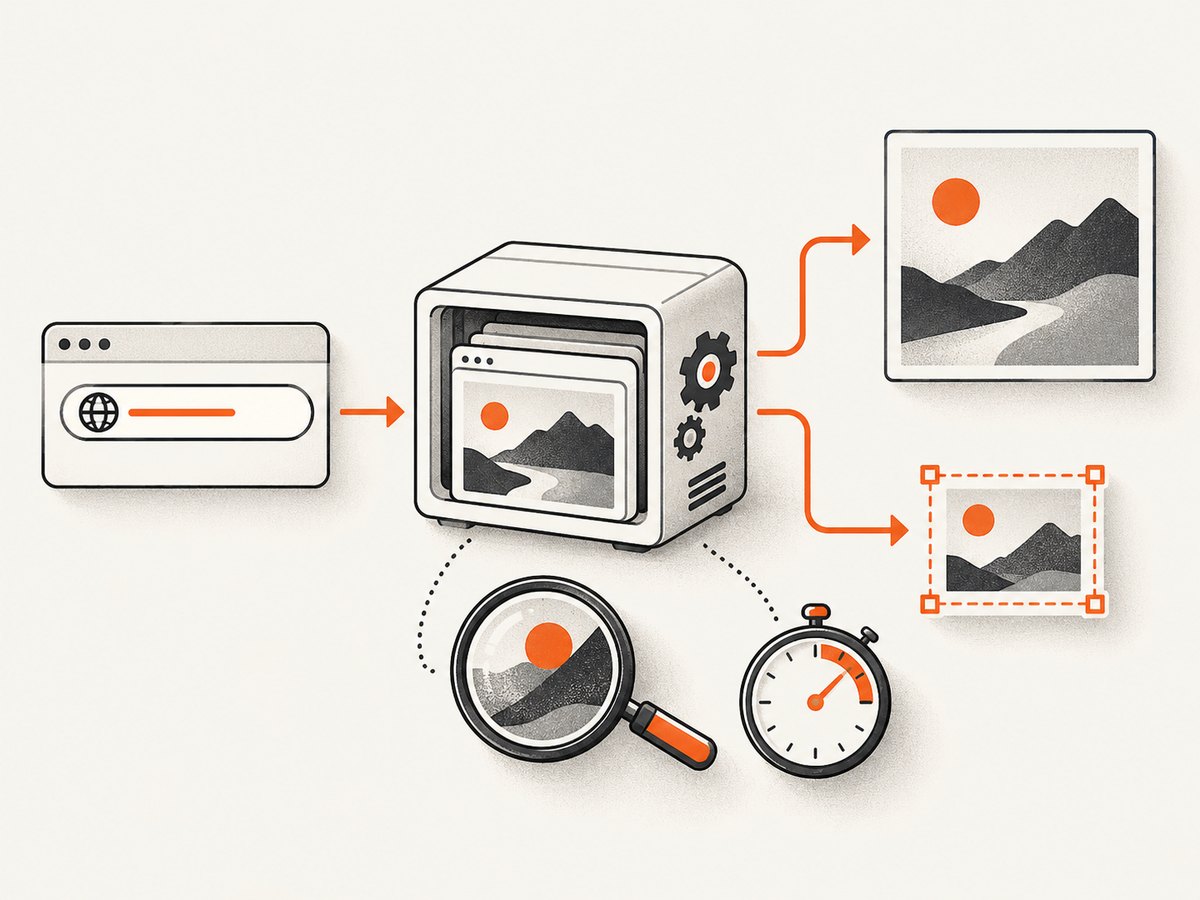
If imgkit produces only a small part of a page, the Python wrapper is rarely the only thing involved. imgkit delegates rendering to wkhtmltoimage, so the final image depends on wrapper options, renderer width, JavaScript timing, the page’s layout, and the environment running the binary.
Start with this order: remove unintended crop options, verify the viewport width, wait for dynamic content, run the generated renderer command directly, and check the headless display configuration. The sections below show how to isolate each cause with runnable examples.
1. Confirm what is actually rendering
Before changing options, save the exact input and record the renderer version. A reproducible case should include:
- The source URL or HTML file.
- Your complete
imgkitoptions dictionary. - The operating system and Python version.
- The output format and destination path.
- The result of
wkhtmltoimage --version.
python -m pip show imgkit
wkhtmltoimage --version
python --version
imgkit is a wrapper; it does not replace the renderer. The package documentation also recommends executing the underlying command shown in an exception so you can see diagnostics that are hidden when everything is called through Python. See the imgkit documentation for wrapper behavior and option handling.
2. Remove accidental crop settings
The most common explanation for a “small part of the page” is an option that explicitly restricts the output. wkhtmltoimage supports crop width, crop height, and crop coordinates. In imgkit, those options use hyphenated names such as crop-w, crop-h, crop-x, and crop-y.
First, capture with a minimal configuration:
import imgkit

imgkit.from_url(
    "https://example.com",
    "page.png",
    options={"format": "png"},
)
If this output contains the complete page, add your previous options back one at a time. Remove any crop setting that you did not intentionally choose:
options = {
    "format": "png",
    # Do not set these unless you want a fixed region:
    # "crop-w": 800,
    # "crop-h": 600,
    # "crop-x": 0,
    # "crop-y": 0,
}
imgkit.from_url("https://example.com", "page.png", options=options)
A crop height is different from a full-page capture. It tells the renderer how much of the rendered surface to copy. If the page is taller than that value, the lower content will never reach the output.
3. Set and verify the viewport width
Responsive pages can have entirely different layouts at different widths. A navigation bar may collapse, columns may stack, and JavaScript may choose a different component tree. The renderer’s --width value is a layout input. With smart width enabled, it acts as a guide; with --disable-smart-width, it becomes strict.
Try an explicit width that matches the layout you expect:
import imgkit

options = {
    "format": "png",
    "width": 1440,
}
imgkit.from_url("https://example.com", "desktop.png", options=options)
If you need a strict viewport, compare the result with smart width disabled:
options = {
    "format": "png",
    "width": 1440,
    "disable-smart-width": "",
}
imgkit.from_url("https://example.com", "strict-width.png", options=options)
Use the same width when comparing runs. Otherwise a “missing” section may simply have moved below a responsive breakpoint. Inspect the page in a normal browser at the target width and compare its layout with the rendered image.
4. Wait for JavaScript and lazy content
Many pages are only shells at initial load. JavaScript then fetches data, inserts components, draws charts, or loads images. If capture starts immediately, the screenshot can contain the header and an empty content area.
A fixed delay is the simplest solution:
import imgkit

options = {
    "format": "png",
    "javascript-delay": 1000,
}
imgkit.from_url("https://example.com/app", "after-delay.png", options=options)
The delay is in milliseconds. Increase it only as much as needed; a large value raises latency for every request. A more deterministic approach is to coordinate the page with window.status. The page sets a known status after its data and layout are ready, and the renderer waits for that value:
import imgkit

options = {
    "format": "png",
    "window-status": "screenshot-ready",
}
imgkit.from_url("https://example.com/app", "status-gated.png", options=options)
For a page you control, set the status after the final render step:
<script>
  loadDashboard().then(() => {
    renderCharts();
    window.status = "screenshot-ready";
  });
</script>
If the page never sets that value, the capture can wait indefinitely or fail according to the renderer’s behavior. Test the ready path in a browser first, and use a delay when you cannot change the page.
5. Run the renderer command directly
When imgkit raises an exception, copy the generated wkhtmltoimage command from the error and run it in a shell. This separates Python configuration errors from renderer failures, missing libraries, network problems, and crashes.
wkhtmltoimage \
  --format png \
  --width 1440 \
  --javascript-delay 1000 \
  https://example.com \
  direct.png
Look for messages about an unavailable protocol, SSL, blocked resources, JavaScript errors, or a process crash. Some wkhtmltoimage versions are documented as capable of segmentation faults. If the direct command crashes with the same input, changing Python code will not repair it; try a supported renderer build and reduce the page to a minimal reproduction.
6. Fix headless server display issues
On a desktop, the renderer can use the local display. On a headless Linux server, container, or CI worker, display setup can be the failure point. The imgkit documentation describes using Xvfb and passing the xvfb option or configuring its executable path.
import imgkit

config = imgkit.config(
    xvfb="/usr/bin/xvfb-run"
)
imgkit.from_url(
    "https://example.com",
    "headless.png",
    config=config,
    options={"format": "png"},
)
The executable path differs by distribution. Confirm it with command -v xvfb-run. If your deployment already starts Xvfb, do not start a second display blindly; instead pass the correct display environment to the process.
7. A complete diagnostic script
This script captures a URL with a controlled width, waits for JavaScript, and logs the configuration. Remove the delay or replace it with window-status when the page provides a ready signal.
from pathlib import Path
import imgkit

URL = "https://example.com"
OUTPUT = Path("diagnostic.png")

options = {
    "format": "png",
    "width": 1440,
    "javascript-delay": 1000,
    # Keep crop options out until the full page works.
}

print("URL:", URL)
print("Output:", OUTPUT.resolve())
print("Options:", options)
imgkit.from_url(URL, str(OUTPUT), options=options)
print("Wrote", OUTPUT.stat().st_size, "bytes")
8. Troubleshooting checklist
| Symptom | Likely cause | Fix |
|---|---|---|
| Only a fixed rectangle appears | crop-w or crop-h is set |
Remove crop dimensions and coordinates, then retry. |
| Desktop content is missing or stacked | Viewport width differs from the expected breakpoint | Set width; compare smart and strict width. |
| Header appears but data does not | Capture starts before JavaScript finishes | Use javascript-delay or a window-status signal. |
| Command exits with a crash | Renderer version or page triggers a wkhtmltoimage failure |
Run the command directly, record the version, and test a different supported build. |
| Works locally but fails in CI | No display server or missing shared libraries | Configure Xvfb and verify executable paths. |
| Images are blank or absent | Lazy loading, blocked resources, or capture before image requests finish | Wait longer, trigger loading in page code, and inspect direct-command diagnostics. |
| Page height varies between runs | Asynchronous content or fonts change layout | Use a readiness signal and make external dependencies deterministic. |

9. Performance, reliability, and cost considerations
Performance
Rendering cost grows with page complexity, resource count, JavaScript execution, and wait time. Start with one URL and a small delay, then measure the command duration. Avoid an unnecessarily large viewport and avoid waiting several seconds when a readiness signal is available. Full-page pages with many images can consume more memory than a fixed crop.
Reliability
Pin the renderer version in deployment, keep a known-good test URL, and save failed inputs with their options. Treat remote resources as unreliable: a third-party script, font, or API can change the final height or prevent a ready signal. A timeout around the Python process prevents one page from holding a worker forever. Retry only transient failures; repeated retries will not fix a deterministic crop or width mismatch.
Cost
Self-hosting avoids a per-shot service charge but shifts work to your own machines, browser dependencies, monitoring, and maintenance. If you capture at scale, account for CPU, memory, queueing, and failed jobs when choosing worker limits.
Or skip the browser setup
If you need reliable screenshots without installing and maintaining wkhtmltoimage, ScreenshotNeo provides a GET endpoint that returns PNG, JPEG, WebP, or PDF. The API handles the browser environment and exposes capture controls for full-page output, selectors, waits, custom CSS and JavaScript, headers, cookies, user agents, blocking rules, device presets, and more. See the ScreenshotNeo API documentation for the complete option list.
curl -G "https://api.screenshotneo.com/v1/shot" -d access_key=YOUR_API_KEY --data-urlencode url=https://stripe.com -o shot.webpimport requests
r = requests.get(
"https://api.screenshotneo.com/v1/shot",
params={"access_key": "YOUR_API_KEY", "url": "https://stripe.com"},
timeout=90,
)
r.raise_for_status()
open("shot.webp", "wb").write(r.content)const q = new URLSearchParams({ access_key: 'YOUR_API_KEY', url: 'https://stripe.com' });
const res = await fetch(`https://api.screenshotneo.com/v1/shot?${q}`);
if (!res.ok) throw new Error(`HTTP ${res.status}`);
const fs = await import('node:fs/promises');
await fs.writeFile('shot.webp', Buffer.from(await res.arrayBuffer()));Cookie and consent banners, newsletter popups, and chat widgets are removed before the shot. Bot checks, blank pages, failed loads, timeouts, and cache hits are not billed, and response headers identify the page verdict and billing result. ScreenshotNeo also has an MCP server so Claude, Cursor, and other MCP clients can call take_screenshot, get_page_info, and capture_pdf. The Free plan includes 1,000 screenshots each month with no card; paid plans start at $5 for 3,000 shots. Create a free ScreenshotNeo account.
FAQ
Does imgkit have a single full-page flag?
No. Full output depends on the renderer surface, crop settings, viewport, and when the page is captured. Remove crop limits and make loading deterministic.
Should I always disable smart width?
No. Compare both modes. Smart width can fit content naturally; strict width is useful when you need a repeatable responsive layout.
Is a reported Folium failure proof that Folium is incompatible?
No. A report of a Folium map rendering only a small part is an input-specific symptom. Check crop settings, width, JavaScript timing, and renderer diagnostics before blaming the page framework.
Why does a delay fix one page but not another?
A delay only waits a fixed amount. Pages with variable network or data time need a readiness signal, such as window.status, or page code that makes all required content available before capture.
What should I attach when asking for help?
Include the HTML or URL, options, generated command, operating system, wkhtmltoimage --version, and the smallest output that still reproduces the problem.


