How to Fix Python Screenshots That Cannot Capture a Program
Fix missing, black, or wrong Python screenshots by checking capture scope, dependencies, display backends, and app-specific restrictions.
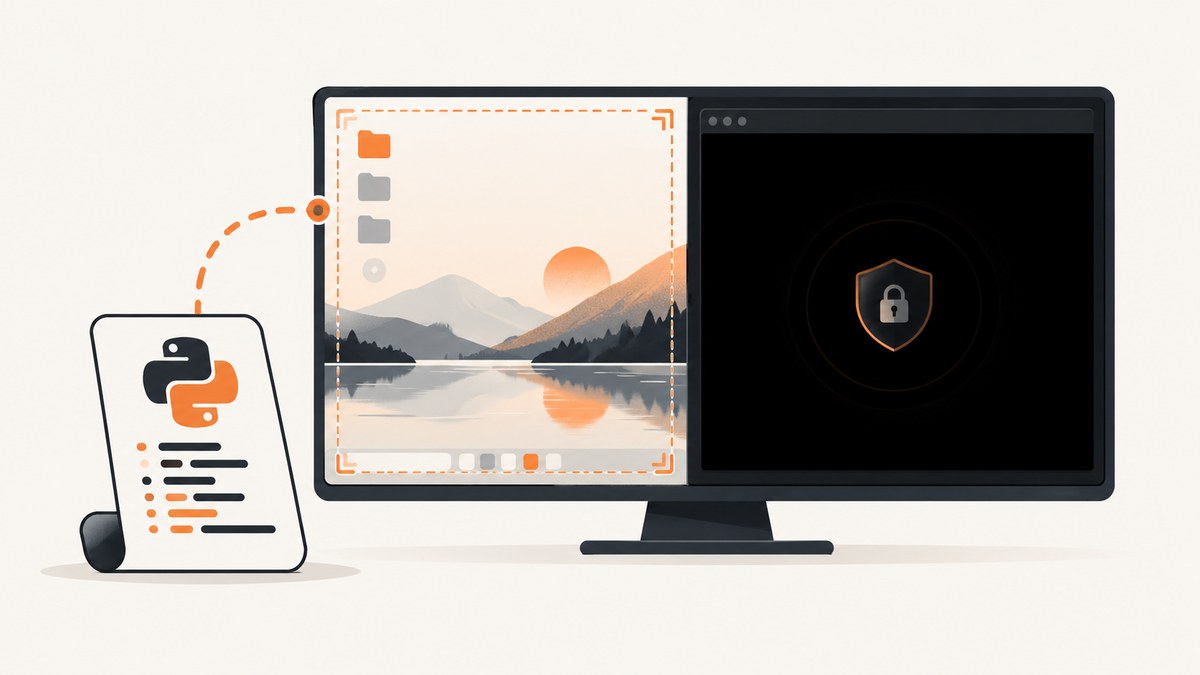
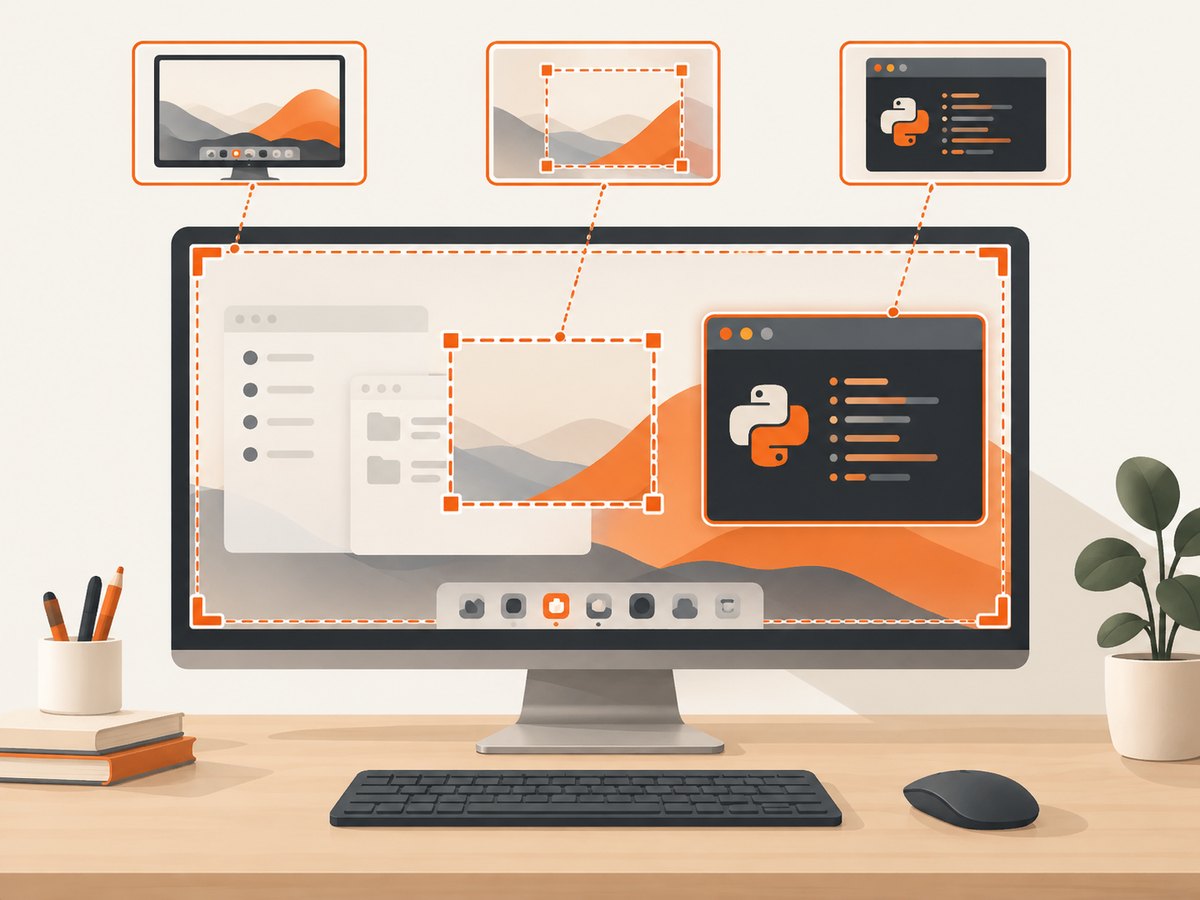
Direct answer: first determine whether you need a whole-desktop, rectangular-region, or single-window screenshot. A desktop or region that also fails points to dependencies, permissions, the display session, or the capture backend. If those work and only one program is black or missing, the target application may render through a protected or special path that ordinary Python screen APIs cannot read. There is no universal library switch that bypasses that restriction.
Work through the checks below in order. Record your operating system and version, desktop session (X11 or Wayland on Linux), monitor layout and scaling, Python and Pillow versions, and whether the app is minimized, covered, remote, hardware-accelerated, or protected.
1. Establish the capture scope and a baseline
Run a full-screen capture and then a known visible region before targeting the failing program. This separates an environment problem from an app-specific problem; the distinction follows from the separate screen, region, and window APIs documented by Pillow and MSS.
from PIL import ImageGrab

full = ImageGrab.grab()
full.save('debug-full.png')
region = ImageGrab.grab(bbox=(0, 0, 800, 600))
region.save('debug-region.png')
print('full:', full.size, 'region:', region.size)- If both files are black, empty, or exceptions occur, fix the environment and dependencies first.
- If they are correct but the program window is black, investigate that program’s rendering and capture policy.
- If the image has the wrong monitor or offset, inspect display selection, scaling, and coordinate systems.
2. Fix PyAutoGUI captures
PyAutoGUI screenshot() returns a Pillow image and accepts a filename. Screenshot support requires Pillow. On Linux, its documentation names the scrot command; the installation guide also lists Tkinter and scrot.
import pyautogui

image = pyautogui.screenshot()
image.save('desktop.png')
pyautogui.screenshot('desktop-direct.png')
pyautogui.screenshot('region.png', region=(0, 0, 800, 600))
Install into the same interpreter that runs your script:
python -m pip install --upgrade pyautogui pillow
# Linux (Debian/Ubuntu example): install scrot and Tk through your system package manager
# sudo apt install scrot python3-tk
Check for interpreter mismatches with python -c "import sys, PIL, pyautogui; print(sys.executable, PIL.__version__)". A missing scrot, a virtual environment using a different Python, or a headless session can make a valid script fail.
3. Capture a window or region with Pillow
ImageGrab.grab() captures the screen by default; bbox limits a rectangle. Current Pillow versions also support a single window: Windows takes an HWND and macOS takes a CGWindowID. Window capture was added in Pillow 11.2.1 for Windows and 12.1.0 for macOS.
from PIL import ImageGrab

ImageGrab.grab().save('screen.png')
ImageGrab.grab(bbox=(100, 100, 1200, 900)).save('region.png')

# Windows: replace with the integer HWND
# ImageGrab.grab(window=hwnd).save('window.png')
# macOS: replace with the integer CGWindowID
# ImageGrab.grab(window=cg_window_id).save('window.png')
On macOS Retina displays, documented behavior can return 2x pixel dimensions. Use scale_down=True when you need logical rather than backing-pixel dimensions on a Pillow version that exposes that option.
4. Use MSS when you need explicit monitor or backend control
MSS exposes monitors and regions through platform-specific backends. On GNU/Linux it uses the DISPLAY environment variable by default and documents selecting another display and X11 backends.
from mss import mss
from PIL import Image

with mss() as sct:
    print('monitors:', sct.monitors)
    shot = sct.grab(sct.monitors[1])
    Image.frombytes('RGB', shot.size, shot.rgb).save('monitor-1.png')
    box = {'left': 100, 'top': 100, 'width': 800, 'height': 600}
    shot = sct.grab(box)
    Image.frombytes('RGB', shot.size, shot.rgb).save('region-mss.png')
In SSH, containers, or multiple local displays, verify that DISPLAY points to the session containing the target window. The MSS documentation describes X11 implementations; it does not establish one universal Wayland fix.
5. When only one program is black
If unrelated desktop areas capture correctly, the failure is likely specific to the target’s rendering or capture restrictions. Hardware-accelerated surfaces, protected video, remote-desktop surfaces, overlays, and minimized windows can present pixels differently from ordinary desktop content. The reviewed documentation does not provide a universal bypass.
- Restore or unminimize the app and recapture a small region.
- Try the application’s own export or screenshot command, documented API, or an authorized capture workflow.
- Compare a software-rendered view, if the application offers one, without attempting to defeat content protection.
- Save a full desktop image and inspect whether the app is absent, black, or outside your coordinates.
A Reddit user described an anecdotal symptom as “the whole window is just black if taken screenshot”; treat that as one user report, not a general diagnosis (source).
6. Native Windows capture for Windows applications
Microsoft’s screen-capture documentation covers Windows capture APIs. For WinUI 3, Microsoft says the picker must be initialized with the app window handle before PickSingleItemAsync. This is useful when implementing a Windows capture feature, not a drop-in repair for every Python script.
7. Or skip the browser setup
If the “program” is a web page or web app, ScreenshotNeo captures the URL through one GET request.
See the ScreenshotNeo API docs for all options:
curl -G "https://api.screenshotneo.com/v1/shot" -d access_key=YOUR_API_KEY --data-urlencode url=https://stripe.com -o shot.webpimport requests
r = requests.get("https://api.screenshotneo.com/v1/shot", params={"access_key": "YOUR_API_KEY", "url": "https://stripe.com"}, timeout=90)
r.raise_for_status()
open("shot.webp", "wb").write(r.content)const q = new URLSearchParams({ access_key: 'YOUR_API_KEY', url: 'https://stripe.com' });
const res = await fetch(`https://api.screenshotneo.com/v1/shot?${q}`);
if (!res.ok) throw new Error(`${res.status} ${await res.text()}`);
const fs = await import('node:fs/promises');
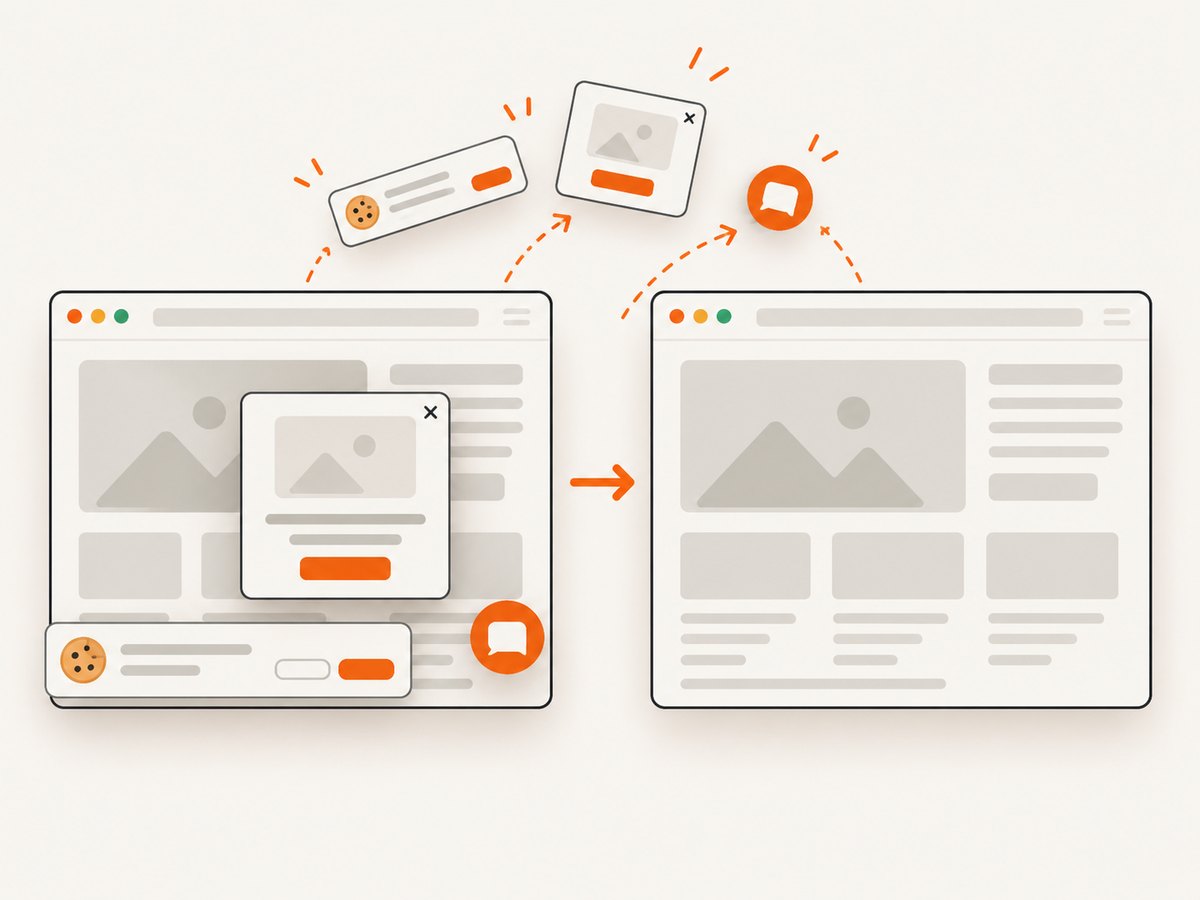
await fs.writeFile('shot.webp', Buffer.from(await res.arrayBuffer()));Before capture, ScreenshotNeo accepts cookie or consent banners and removes more than 60 known consent platforms, newsletter popups, and chat widgets; each step can be turned off. Bot checks or CAPTCHAs, blank pages, timeouts, failed loads, and cache hits are not billed, and responses identify the result with X-Page-Verdict and X-Billed. Its MCP server provides take_screenshot, get_page_info, and capture_pdf for Claude, Cursor, and other MCP clients. One thousand screenshots each month are free with no card; paid plans start at $5 for 3,000. Create a free ScreenshotNeo account.
8. Troubleshooting checklist
| Symptom | Likely cause | Fix |
|---|---|---|
| ImportError | Package installed into another interpreter | Run python -m pip install ... with the same Python used to run the script. |
| Linux command or display error | Missing scrot, Tkinter, or wrong DISPLAY |
Install documented dependencies and run inside the graphical session. |
| Entire image black | Headless or locked session, permission issue, or backend mismatch | Test a visible desktop region locally and verify the session. |
| Only one app black | Target-specific rendering or protection | Use the app’s export/API or an authorized native workflow. |
| Wrong monitor or offset | Scaling, negative coordinates, or wrong MSS monitor index | Print monitor geometry and account for logical versus physical pixels. |
| Window argument rejected | Old Pillow or wrong identifier type | Upgrade and pass a Windows HWND or macOS CGWindowID. |
| Remote or SSH capture empty | Process cannot access the GUI display | Run in the user session or configure the intended display. |
9. Performance, reliability, and cost
- Capture only the needed region or window when full-screen images are expensive to process.
- Reuse an MSS context for repeated captures and avoid unnecessary PNG recompression.
- Log OS, session, library versions, geometry, and image dimensions with failures.
- For unattended jobs, detect blank or unchanged frames and retry after the window is visible.
- The MSS 10.2.0 release notes report a local Debian/X11 4K benchmark comparing backends; treat it as a release-note result, not a universal speed guarantee (release history).
- For web screenshots, ScreenshotNeo offers caching with a chosen TTL, async jobs with signed webhooks, bulk capture of up to 100 URLs per call, and a usage API.
10. FAQ
Can Python capture a minimized window?
Usually screen APIs capture visible composited pixels. Test the application’s export or a native window API.
Should I switch from PyAutoGUI to MSS?
Choose based on scope and backend needs. Neither promises access to every application’s rendered content.
Is Wayland the cause?
It can change available capture paths, but the cited MSS documentation does not establish one universal Wayland remedy.
Can ScreenshotNeo capture a native desktop program?
No. ScreenshotNeo captures web URLs. Use it for web pages or web apps; use desktop and native APIs for local windows.


