How to Fix Randomly Dark Chrome Screenshots in Capybara
Randomly dark Capybara screenshots have no proven universal fix. Use this diagnostic sequence to isolate Chrome, ChromeDriver, headless mode, and CI issues.
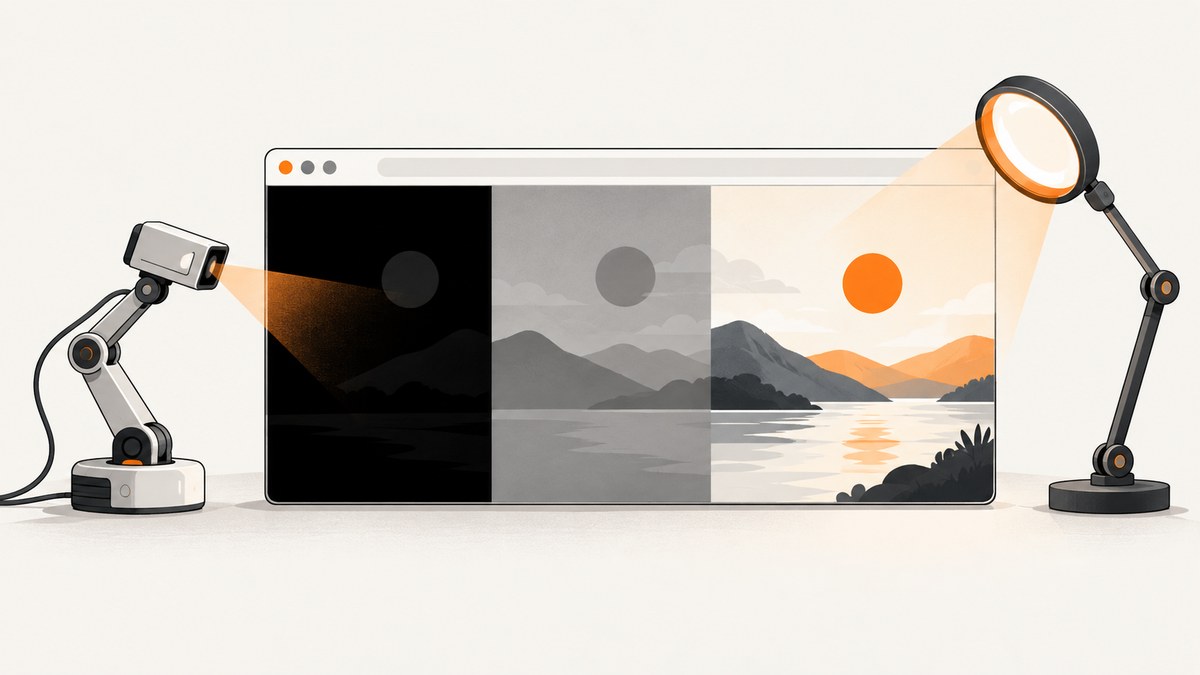
A randomly dark Chrome screenshot in Capybara does not point to one known cause, and there is no verified flag that fixes every case. Start by preserving the failing image, classifying what “dark” means, and recording the exact browser, driver, viewport, and execution environment. Then compare the same Chrome binary outside the test harness, compare headless and headed runs, and change one setting at a time.
This process helps determine whether the failure belongs to page rendering, Chrome or ChromeDriver, the test harness, or the CI/container environment. It also gives you useful evidence if the problem persists. The guidance below distinguishes established diagnostic steps from hypotheses; a setting that happens to help in one environment is not automatically a general fix.
1. Classify the screenshot before changing anything
Save the failing PNG exactly as produced. Do not crop, recompress, or overwrite it during diagnosis. Note whether it is uniformly black, uniformly gray or blank, only partly dark, or a normal page captured at an unexpected size. These are different symptoms and may have different causes.
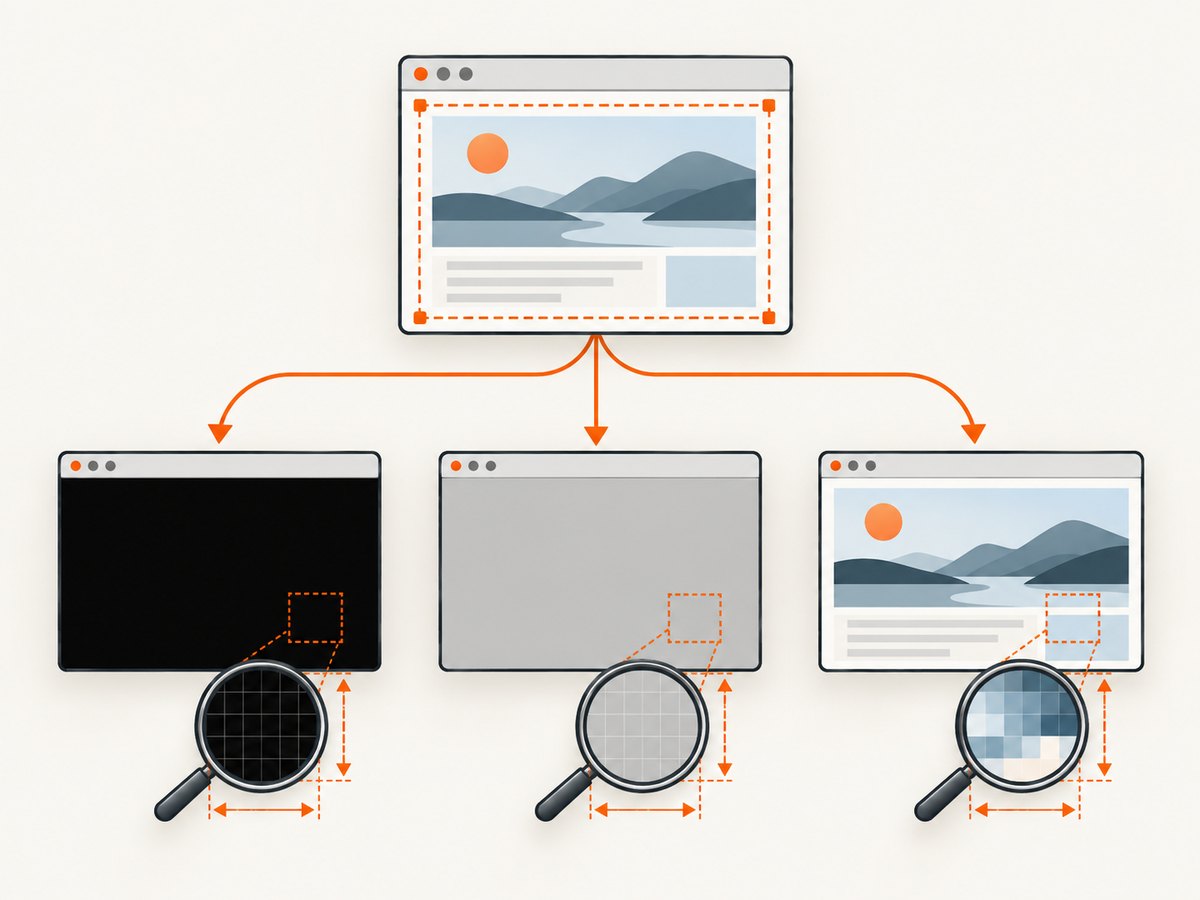
Record whether the failure occurs in viewport screenshots, full-page screenshots, or both. Check the artifact dimensions and compare them with the viewport you requested. A wrong viewport can make a page look unexpectedly dark or incomplete, even if the pixels themselves are valid. If failures are intermittent, keep both failing and successful examples with their run details.
- Uniform black: record the image dimensions, browser mode, and whether the page itself was visibly rendered in that run.
- Gray or blank: check whether the browser captured before the page rendered, and compare with a headed run.
- Partly dark: note which region is affected and whether it corresponds to an overlay, animation, lazy content, or a page section.
- Wrong dimensions: compare actual output dimensions with the requested viewport and device scale factor.
A historical Capybara report described empty, gray screenshots from save_and_open_screenshot in headless Chrome, but it does not establish a current universal cause or fix. Treat it as evidence that similar symptoms have occurred, not as a diagnosis.
2. Record the complete browser and test context
Intermittent failures are difficult to compare if runs differ in unrecorded ways. For each successful and failing run, capture this checklist:
- Chrome version and the path to the Chrome binary the driver actually launched.
- ChromeDriver version.
- Capybara and Selenium versions.
- Operating system, container image, and whether the run was local or in CI.
- Headless or headed mode, plus the complete Chrome command-line switches.
- Requested viewport dimensions, screenshot dimensions, and device scale factor.
- Whether the screenshot was viewport or full page, and whether the failure was repeatable.
ChromeDriver’s official troubleshooting guidance recommends confirming the Chrome binary and switches, launching that binary directly, and comparing the result with behavior in the test environment. Chrome and ChromeDriver releases should be tracked as a pair; consult Chrome for Testing release information when version behavior may be involved.
3. Make a minimal Capybara reproduction
Reduce the case to one page and one screenshot. Keep the same browser binary, driver, viewport, and headless setting as the failing test. Remove unrelated test setup only if doing so does not change those conditions. The snippet below is a minimal shape for a Selenium-backed Capybara setup; use the same versions and browser options as your application.
require "capybara"
require "capybara/dsl"
require "selenium-webdriver"

Capybara.register_driver :chrome_diagnostic do |app|
  options = Selenium::WebDriver::Chrome::Options.new
  options.add_argument("--headless")
  options.add_argument("--window-size=1440,1000")

  Capybara::Selenium::Driver.new(
    app,
    browser: :chrome,
    options: options
  )
end

Capybara.default_driver = :chrome_diagnostic
Capybara.app_host = "https://example.com"

session = Capybara::Session.new(:chrome_diagnostic)
session.visit("/")
session.save_screenshot("capybara-diagnostic.png")
session.driver.quit
Run it several times and preserve each artifact and its metadata. Replace the example host with the page that reliably reproduces the problem. If the issue only appears in your full application, retain the minimum application setup necessary to trigger it; a reproduction that removes the trigger is not useful.
Do not add a bundle of speculative flags. If you test an explicit viewport or a different headless mode, make that the sole change for the comparison and record the result. Capybara configuration examples sometimes set a device scale factor, window size, or conditional CI options; those are settings worth recording and testing individually, not proven cures for dark pixels.
4. Compare the same Chrome binary outside Capybara
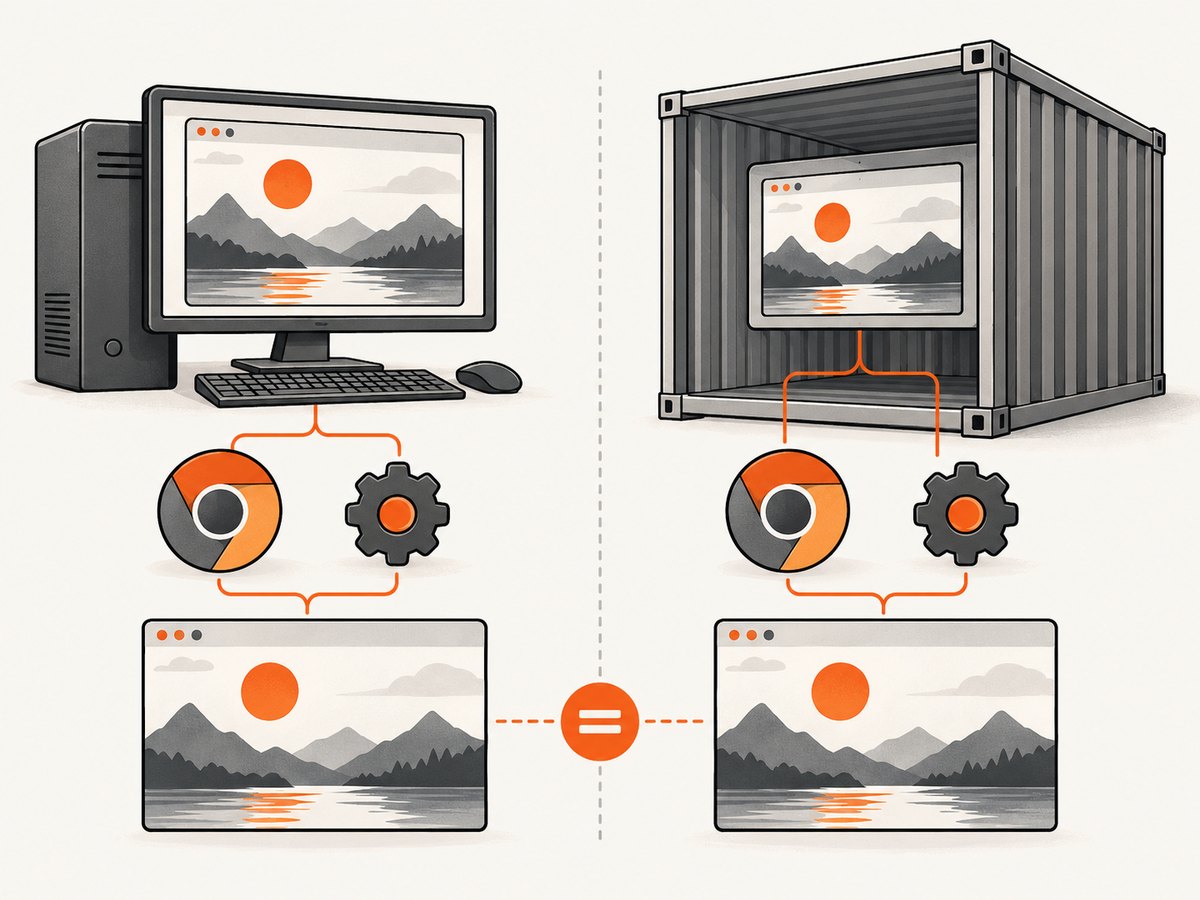
Use the exact Chrome executable and relevant switches from the test run. Chrome’s documentation describes command-line screenshot capture with --screenshot and explicit --window-size options. A direct browser run helps separate a Chrome/page problem from a driver or harness problem.
/path/to/chrome \
  --headless \
  --window-size=1440,1000 \
  --screenshot=/tmp/chrome-direct.png \
  https://example.com
Replace /path/to/chrome, the switches, dimensions, and URL with the values from your environment. Compare the direct artifact with the Capybara artifact: dimensions, affected regions, and whether either image is uniformly blank. If direct capture fails in the same way, investigate Chrome, the page, and the environment first. If direct capture succeeds but Capybara fails, focus on the driver, test configuration, and differences in how the browser is launched.
Chrome has both a newer headless mode and an older headless shell, and screenshot behavior can depend on version and mode. Compare the installed browser’s documented mode and actual output. Do not assume that a headless-related difference proves headless mode caused the dark pixels; it narrows the investigation.
5. Compare headed and headless execution
Run the same minimal reproduction in headless and headed modes while keeping the page, browser version, viewport, and other options fixed. If headed succeeds and headless fails, preserve that comparison and inspect the headless mode and output dimensions. If both fail, the mode alone is less likely to explain the difference.
A Chromium issue reported that Chrome 128 headless with ChromeDriver ignored --window-size; it was marked as a duplicate. This is a reason to verify the actual screenshot dimensions when your failure aligns with that version, not evidence that the issue causes dark pixels. Check what your run produced rather than inferring the viewport from the option you supplied.
Change only one variable per run. A useful order is:
- Confirm the actual Chrome binary and driver versions.
- Record requested and actual screenshot dimensions.
- Compare headless and headed runs.
- Test a viewport or device scale factor change individually.
- Compare local execution with the CI/container environment.
6. Check CI and container differences
If local screenshots are sound but CI artifacts are dark, compare the recorded context from both environments. Check the container image, installed Chrome binary, ChromeDriver version, launch switches, headless mode, requested and actual dimensions, and device scale factor. Verify which binary the driver launched instead of relying on a machine’s default chrome command.
Keep CI-specific changes isolated. An example project configuration that conditionally changes settings in CI can suggest what to inspect, but it does not show that those settings fix this symptom in another project. Do not add unrelated flags in a group: if the screenshot changes, you will not know which change mattered.
In particular, do not treat --no-sandbox as a generic screenshot fix. Chrome’s troubleshooting guidance says running as root on Linux is a common startup-crash cause, describes --no-sandbox as a possible workaround, and says that configuration is unsupported and highly discouraged. A startup-crash workaround does not establish a remedy for dark screenshots.
7. Troubleshooting: symptom, likely direction, and next step
| Symptom | What it suggests | Next step |
|---|---|---|
| Direct Chrome and Capybara images are both dark or blank | The issue may be in Chrome, page rendering, or the execution environment. | Confirm the binary and switches, preserve the minimal page, and compare with another run in the same environment. |
| Direct image looks right; Capybara image does not | The browser launch or automation path differs. | Compare the actual binary, complete switches, driver version, viewport, and screenshot method. |
| Headed works; headless fails | Mode-specific behavior is a useful lead, but is not proof of a particular cause. | Check the installed headless mode, browser version, actual dimensions, and direct headless capture. |
| Failure aligns with Chrome 128 and requested size is ignored | A reported version-specific issue makes dimensions worth checking. | Measure artifact dimensions and consult Chrome for Testing release information; do not infer dark-pixel causality from the report. |
| Local works; CI fails | Environment, binary, options, or container differences may matter. | Compare the context checklist field by field and change one CI setting at a time. |
| Chrome does not start as root on Linux | This is a browser startup issue, distinct from a screenshot rendering diagnosis. | Follow ChromeDriver troubleshooting guidance. Treat the no-sandbox workaround as unsupported and highly discouraged. |
| Only full-page output is affected | The difference may be related to capture extent, page layout, or content loading. | Compare viewport output, dimensions, and page state with the full-page result. |
When the failure remains, attach the original failing and successful screenshots, a minimal reproducer, versions, binary path, switches, viewport and scale factor, and local-versus-CI results to your issue report. That evidence makes it possible to test a concrete case instead of guessing from “sometimes dark.”
8. Performance, reliability, and cost considerations
Repeated diagnostic captures cost time and CI minutes, so keep the reproduction small and run only the comparisons that distinguish likely causes. Save artifacts from both successful and failed runs; an intermittent issue needs a baseline. Avoid parallel configuration changes that make results impossible to attribute.
For test reliability, record enough environment detail that a future browser or driver update can be compared with the failing pair. Check Chrome and ChromeDriver release information when behavior changes after an update. A screenshot’s requested dimensions, actual dimensions, browser mode, and binary path are useful alongside the image itself.
If your goal is simply to obtain screenshots of public pages outside your Capybara test, a screenshot API can avoid maintaining a local browser and driver setup. ScreenshotNeo is a website screenshot API and MCP server from Yorker Media. It accepts one GET request for a URL and returns PNG, JPEG, WebP, or PDF; its API options include viewport and device settings, full-page capture, waiting, and custom CSS or JavaScript. This is a separate capture path, so it does not diagnose or repair a failing Capybara run.
Or skip the browser setup
For standalone website captures, ScreenshotNeo takes a screenshot with one GET request. The API documentation describes the available options.
curl -G "https://api.screenshotneo.com/v1/shot" -d access_key=YOUR_API_KEY --data-urlencode url=https://stripe.com -o shot.webpimport requests
r = requests.get("https://api.screenshotneo.com/v1/shot", params={"access_key": "YOUR_API_KEY", "url": "https://stripe.com"}, timeout=90)
open("shot.webp", "wb").write(r.content)const q = new URLSearchParams({ access_key: 'YOUR_API_KEY', url: 'https://stripe.com' });
const res = await fetch(`https://api.screenshotneo.com/v1/shot?${q}`);ScreenshotNeo accepts cookie and consent banners before capture and removes more than 60 known consent platforms, newsletter popups, and chat widgets. Bot checks, blank pages, failed loads, and cache hits are not billed; response headers identify the page verdict and billing status. Its MCP server provides screenshot and page information tools for AI agents such as Claude, Cursor, and other MCP clients.
The free plan includes 1,000 screenshots a month with no card. Paid plans start at $5 for 3,000 shots; every feature is available on every plan. These API captures are useful for independent page capture and automation workflows, but they are not a substitute for reproducing a Capybara-specific failure.
Sign up for 1,000 free screenshots a month with no card.
FAQ
Is there a Chrome flag that reliably fixes random dark screenshots?
No verified universal flag is established for this symptom. Test one setting at a time and keep the exact run context with the result.
Does a gray screenshot mean Chrome failed to load the page?
Not necessarily. A gray or blank artifact is a symptom, not a root cause. Compare page state, direct browser output, and headed versus headless runs.
Should I update ChromeDriver first?
First record the Chrome and ChromeDriver versions and confirm which binaries are in use. If behavior may be version-related, consult Chrome for Testing release information and preserve a minimal reproducer.
Can ScreenshotNeo fix my Capybara test?
No. It provides a separate website screenshot API and MCP server. Use the diagnostic comparisons above to investigate the Capybara browser and driver path.


