How to Fix React PDF Generation with jsPDF and html-to-image
Fix blank, clipped, image-free, or misaligned React PDFs by separating DOM capture, image encoding, and jsPDF insertion.
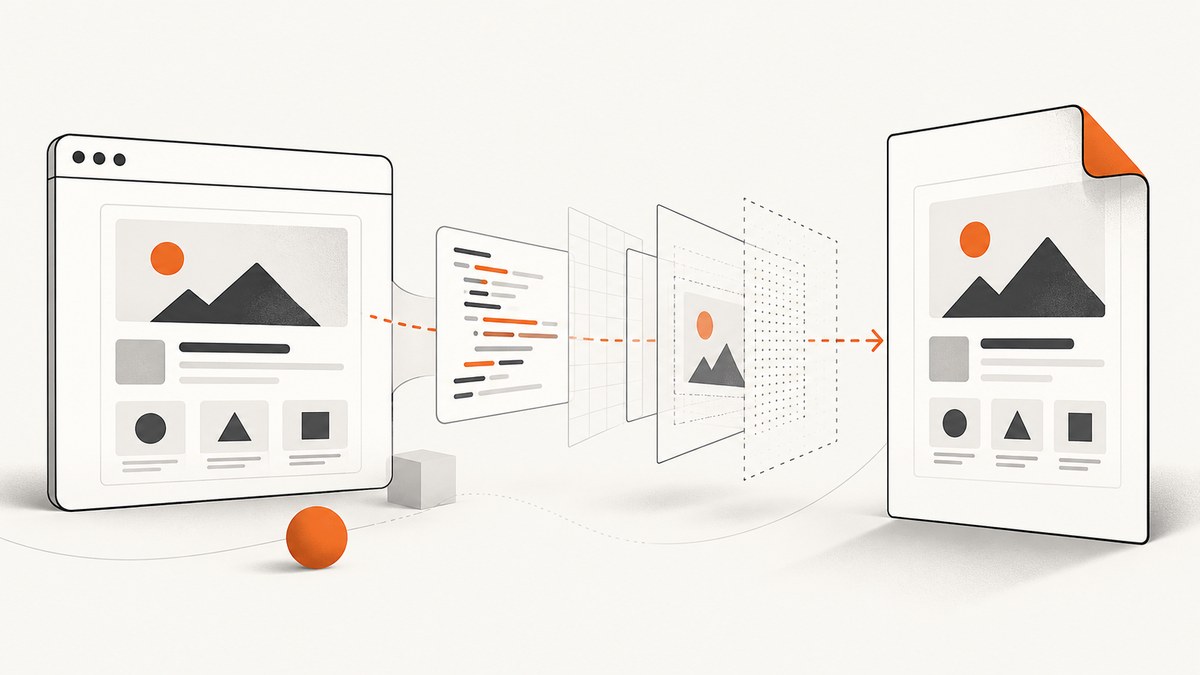
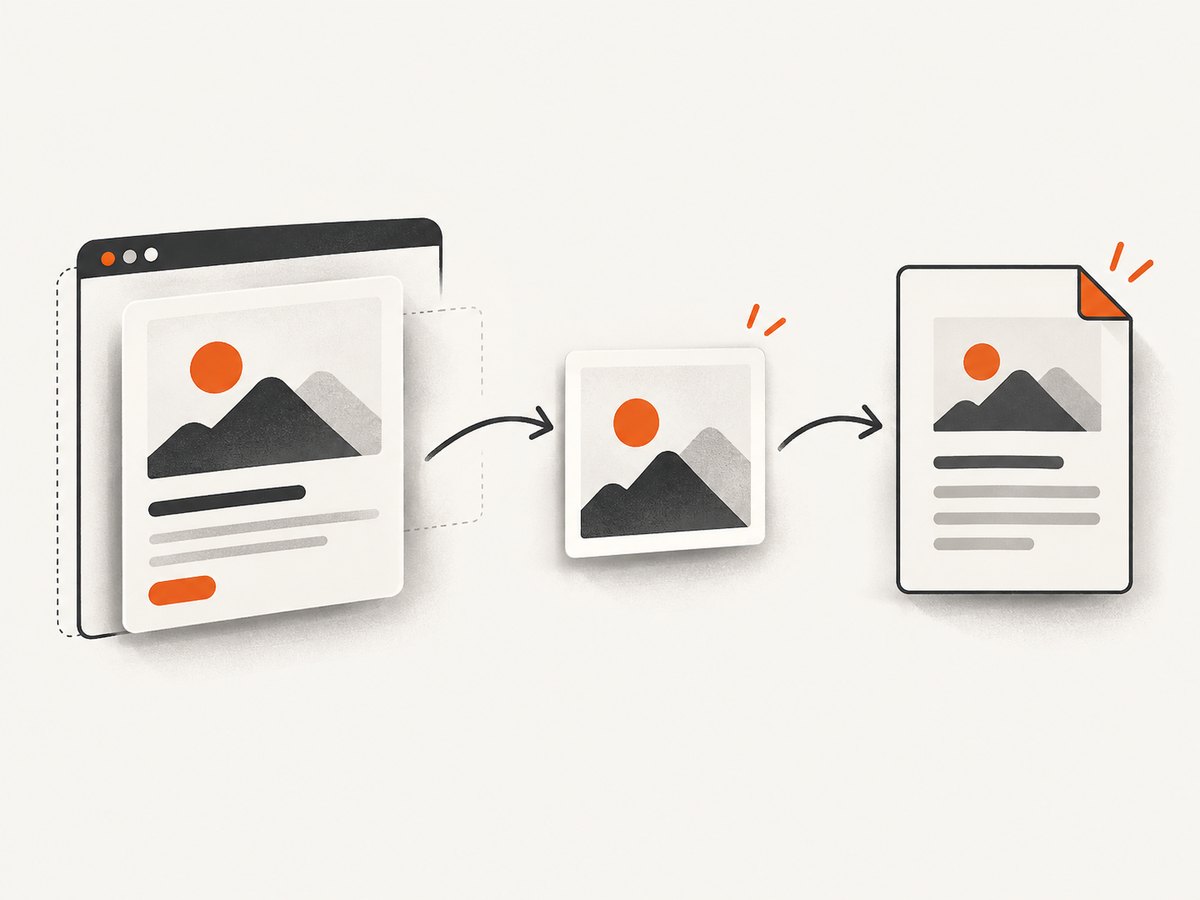
Direct answer: React PDF export with jsPDF and html-to-image is a three-stage pipeline: capture the mounted DOM node, verify the returned image data, then place that image into a correctly sized PDF. Most blank, clipped, or missing-image PDFs fail in one of those stages.
Use a ref on the exact element to export, wait until its data and assets are loaded, await toPng (or another html-to-image method), and pass the resulting data URL to jsPDF.addImage. If capture rejects, debug browser resources and CSS. If the data URL is valid but the PDF is blank, debug image format and PDF coordinates. If the PDF exists but looks wrong, inspect the captured image before changing jsPDF settings.
1. Install the libraries and choose the export node
Install the two packages in the React application:
npm install html-to-image jspdfAttach a ref to a mounted element that contains the content intended for the PDF. Do not capture a loading placeholder, a hidden element, or a parent whose size depends on content that has not arrived yet.
The html-to-image project exposes promise-returning methods including toPng, toJpeg, toSvg, toBlob, toCanvas, and toPixelData. Always await the promise and handle rejection. Read the html-to-image documentation.
2. A complete React example
This component captures a report card and inserts it into an A4 PDF. It checks that the node exists, disables the button while exporting, and reports errors instead of silently downloading a bad file.
import { useRef, useState } from 'react';
import { toPng } from 'html-to-image';
import jsPDF from 'jspdf';

export default function Report() {
  const reportRef = useRef(null);
  const [exporting, setExporting] = useState(false);
  const [error, setError] = useState('');

  async function exportPdf() {
    setError('');
    const node = reportRef.current;
    if (!node) {
      setError('The report is not mounted yet.');
      return;
    }

    setExporting(true);
    try {
      // Capture the rendered DOM node and wait for the image data.
      const dataUrl = await toPng(node);

      // Inspect the image before inserting it into the PDF.
      if (!dataUrl || !dataUrl.startsWith('data:image/')) {
        throw new Error('html-to-image did not return an image data URL.');
      }

      const image = new Image();
      image.src = dataUrl;
      await image.decode();

      const pdf = new jsPDF({
        orientation: 'portrait',
        unit: 'mm',
        format: 'a4'
      });

      const pageWidth = pdf.internal.pageSize.getWidth();
      const pageHeight = pdf.internal.pageSize.getHeight();
      const margin = 10;
      const maxWidth = pageWidth - margin * 2;
      const maxHeight = pageHeight - margin * 2;
      const imageRatio = image.width / image.height;

      let width = maxWidth;
      let height = width / imageRatio;
      if (height > maxHeight) {
        height = maxHeight;
        width = height * imageRatio;
      }

      const x = (pageWidth - width) / 2;
      const y = margin;
      pdf.addImage(dataUrl, 'PNG', x, y, width, height);
      pdf.save('report.pdf');
    } catch (cause) {
      console.error('PDF export failed', cause);
      setError('PDF export failed. Check the browser console and the troubleshooting steps below.');
    } finally {
      setExporting(false);
    }
  }

  return (
    <main>
      <button type="button" onClick={exportPdf} disabled={exporting}>
        {exporting ? 'Preparing PDF…' : 'Export PDF'}
      </button>
      {error && <p role="alert">{error}</p>}

      <section ref={reportRef} style={{ background: '#fff', padding: 24 }}>
        <h1>Monthly report</h1>
        <p>This is the content captured into the PDF.</p>
        <img src="/images/chart.png" alt="Revenue chart" />
      </section>
    </main>
  );
}
The addImage API accepts data URLs, image elements, canvas elements, and other image representations. The example deliberately calculates dimensions from the image ratio so the page does not stretch the capture.
Make the capture deterministic
- Render the export node only after its API data has loaded.
- Wait for images and web fonts used inside the node to finish loading.
- Give the node a stable background color; transparent backgrounds can appear different against a PDF page.
- Capture the smallest node that contains the intended document. Avoid including navigation, sticky controls, or buttons.
- Use a dedicated export stylesheet for print dimensions, predictable margins, and page-break boundaries.
3. Images, fonts, and cross-origin security
Cross-origin resources are the most common reason a DOM-to-image export rejects or loses images. Browser origin rules can taint a canvas when an image comes from another origin. The html2canvas FAQ explains that the remote image server must permit the request with an appropriate Access-Control-Allow-Origin response, or the resource must be fetched through a suitable same-origin proxy. A client-side option cannot grant permission that the remote server does not send.
Inspect the browser console and Network panel for failed requests to:
<img>sources and CSSbackground-imageURLs- Web fonts referenced by stylesheets
- Stylesheets hosted on another origin
- Images that redirect to a host with different CORS headers
For a failing resource, serve it from the application origin, configure the asset host to return the correct CORS header, or proxy it through your own backend. The html-to-image README also describes embedding image and font resources and warns that rendering a canvas already tainted by cross-origin content can fail.
4. Long content, clipping, and multiple pages
A single DOM node becomes one raster image in this workflow. Fit it to one PDF page only when the content is short enough to remain readable. Very tall nodes can exceed browser canvas dimensions and produce an empty or clipped result. The html2canvas FAQ identifies browser canvas-size limits as a cause of blank or cut-off output; its configuration reference documents explicit width, height, scale, and viewport controls.
For reports that need several pages, split the UI into intentional page sections and capture each section separately:
const pageNodes = Array.from(document.querySelectorAll('[data-pdf-page]'));
const pdf = new jsPDF({ unit: 'mm', format: 'a4' });

for (let index = 0; index < pageNodes.length; index += 1) {
  const dataUrl = await toPng(pageNodes[index]);
  if (index > 0) pdf.addPage();
  pdf.addImage(dataUrl, 'PNG', 10, 10, 190, 277);
}

pdf.save('report.pdf');
This approach keeps page boundaries under your control. If you instead capture one very tall node, measure its rendered dimensions and consider reducing raster scale or dividing the content before capture. Higher raster dimensions consume more memory and make canvas-limit failures more likely.
5. Debug the pipeline one stage at a time
- DOM stage: confirm the ref points to the visible, fully populated node. Temporarily add a border around it and inspect its scroll dimensions.
- Image stage: log the returned value from
toPng, open the data URL in a new tab, or render it in a temporary<img>. If it is blank, the PDF library is not the cause. - PDF stage: verify that the image format passed to
addImagematches the data URL, and that x, y, width, and height are inside the page. - Download stage: ensure
pdf.saveruns after all awaited work and that the browser has not blocked the download.
This separation prevents changing PDF dimensions when the actual problem is a blocked font or image request.
6. Troubleshooting common errors
| Symptom | Likely cause | Fix |
|---|---|---|
toPng rejects with a security or tainted-canvas error |
Image, font, stylesheet, or background image is cross-origin without permission | Check Network responses, enable CORS on the asset server, serve the asset same-origin, or use a same-origin proxy. A browser option cannot override server policy. |
| PDF is blank but the click handler ran | Capture failed, returned invalid data, or the image was placed outside the page | Await the capture, catch the rejection, inspect the data URL, and log calculated PDF coordinates and dimensions. |
| Images are missing | Images were not loaded yet or their origin is not permitted | Wait until data and assets are ready; inspect image requests and response headers; test the captured data URL before calling jsPDF. |
| Fonts or CSS look different | DOM-to-image reconstructs supported styles rather than taking a literal browser screenshot | Simplify unsupported styling, ensure external stylesheets and fonts load, and compare the intermediate image with the live page. html2canvas documents this reconstruction model. |
| Output is clipped or empty for a tall report | Browser canvas dimension or memory limit | Measure the node, lower raster dimensions, set deliberate capture dimensions, or split the report into page sections. |
| Safari fails while other browsers work | html-to-image relies on SVG foreignObject and browser security behavior differs |
Review the project’s browser and security notes; simplify the captured markup or provide a server-side/alternate export path. |
| PDF text cannot be selected or searched | The page was rasterized into an image | Use a PDF path that lays out text and graphics as PDF content when searchable text, accessibility, or crisp scaling is required. html2pdf.js documents this image-based trade-off. |
| PDF has unexpected whitespace or wrong proportions | Image ratio and page dimensions were not calculated together | Read the captured image dimensions, preserve its aspect ratio, and center it inside the target page as shown in the example. |
7. Performance, reliability, and cost considerations
- Performance: capture only the export node. Large images, custom fonts, shadows, and long pages increase rasterization work and memory use.
- Reliability: disable the export button during the asynchronous operation, catch every promise rejection, and keep the original DOM available until capture completes.
- Repeatability: use stable dimensions and export-specific styles. Responsive layout changes can otherwise alter the PDF between viewport sizes.
- File size: a full-page raster image can produce a large PDF. JPEG can reduce size for photographic content, while PNG preserves sharp UI edges and transparency.
- Text requirements: image-based PDFs are not inherently searchable or selectable. Choose a text-layout PDF generator when that requirement is central.
- Browser support: test the browsers your users actually run, especially when external stylesheets, fonts, SVG, or
foreignObjectare involved.
8. Where jsPDF’s built-in HTML method fits
jsPDF also offers an html method. Its official documentation identifies html2canvas as an optional dependency and DOMPurify when the input is an HTML string. Bundlers may load these dependencies dynamically. This can be convenient, but it retains html2canvas’s rendering constraints; it does not automatically solve cross-origin resources, unsupported CSS, or canvas limits.
9. Or skip the browser setup
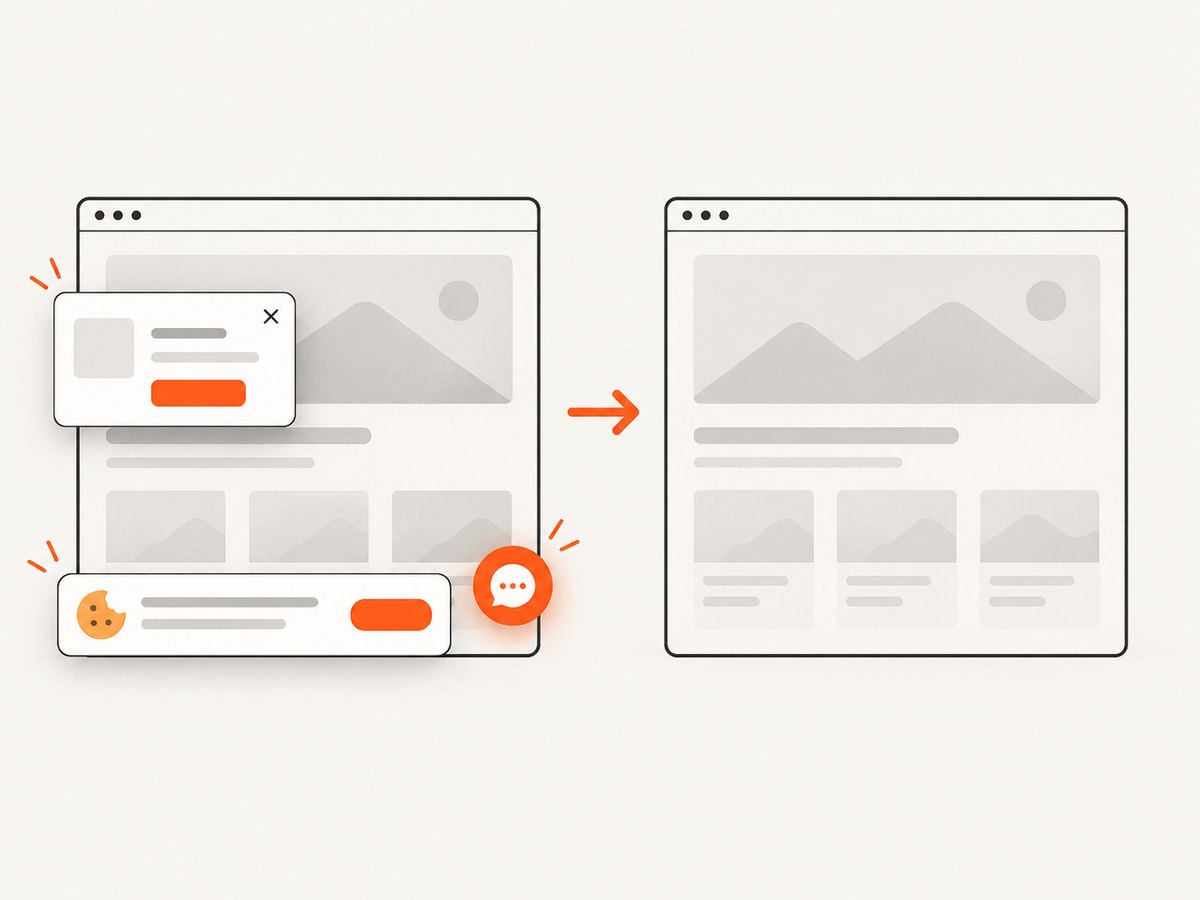
ScreenshotNeo turns a URL into a clean PNG, JPEG, WebP, or PDF through one request. It accepts cookie and consent banners as a visitor, removes more than 60 known consent platforms plus newsletter popups and chat widgets, and lets each cleanup step be turned off. Bot checks, blank pages, timeouts, failed loads, and cache hits are not billed; the response reports the verdict with X-Page-Verdict and X-Billed headers.
See the ScreenshotNeo API documentation for all options, including full-page capture with lazy images loaded, CSS-selector element capture, device presets and custom viewports, retina scale, PDF paper sizes and page ranges, custom CSS and JavaScript, click and wait actions, request blocking, headers, cookies, user agents, authorization, timezone, geolocation, transparent backgrounds, resizing, caching, signed links, async webhooks, bulk capture, usage data, and the OpenAPI specification.
cURL
curl -G "https://api.screenshotneo.com/v1/shot" \
  -d access_key=YOUR_API_KEY \
  --data-urlencode url=https://stripe.com \
  -o shot.webp
Python
import requests

r = requests.get(
    "https://api.screenshotneo.com/v1/shot",
    params={"access_key": "YOUR_API_KEY", "url": "https://stripe.com"},
    timeout=90,
)
r.raise_for_status()
open("shot.webp", "wb").write(r.content)
Node.js
const q = new URLSearchParams({ access_key: 'YOUR_API_KEY', url: 'https://stripe.com' });
const res = await fetch(`https://api.screenshotneo.com/v1/shot?${q}`);
if (!res.ok) throw new Error(`ScreenshotNeo returned ${res.status}`);
const buffer = Buffer.from(await res.arrayBuffer());
require('node:fs').writeFileSync('shot.webp', buffer);
ScreenshotNeo also provides an MCP server with take_screenshot, get_page_info, and capture_pdf tools for Claude, Cursor, and other MCP clients. The Free plan includes 1,000 shots per month without a card; paid plans start at $5 for 3,000 shots. Create a free ScreenshotNeo account.
10. FAQ
Should I use PNG or JPEG?
Use PNG for interfaces, text, transparency, and sharp edges. Use JPEG when photographic content and a smaller raster are more important.
Can this workflow preserve selectable text?
No. The captured page is inserted as an image. Use a PDF generator that creates text and vector content when selection, search, accessibility, or high-resolution scaling is required.
Why does enabling CORS not always fix the export?
CORS must be granted by the server that serves the resource. Client-side settings cannot make an uncooperative image or font server send the required header.
Is a server required for React export?
No. html-to-image and jsPDF can run in the browser, subject to browser resource and canvas limits. A server or screenshot API becomes useful when you need controlled rendering, repeatable assets, large pages, or automated jobs.
How do I know whether jsPDF or capture is broken?
Open the data URL produced by toPng before calling addImage. A bad intermediate image indicates a DOM/resource/rendering issue; a good image with a bad PDF points to PDF format, coordinates, or page sizing.


