How to Fix Page Unresponsive Errors in react-pdf/renderer
Stop react-pdf/renderer from freezing Chrome with Web Workers, stable inputs, viewer virtualization, and practical troubleshooting steps.
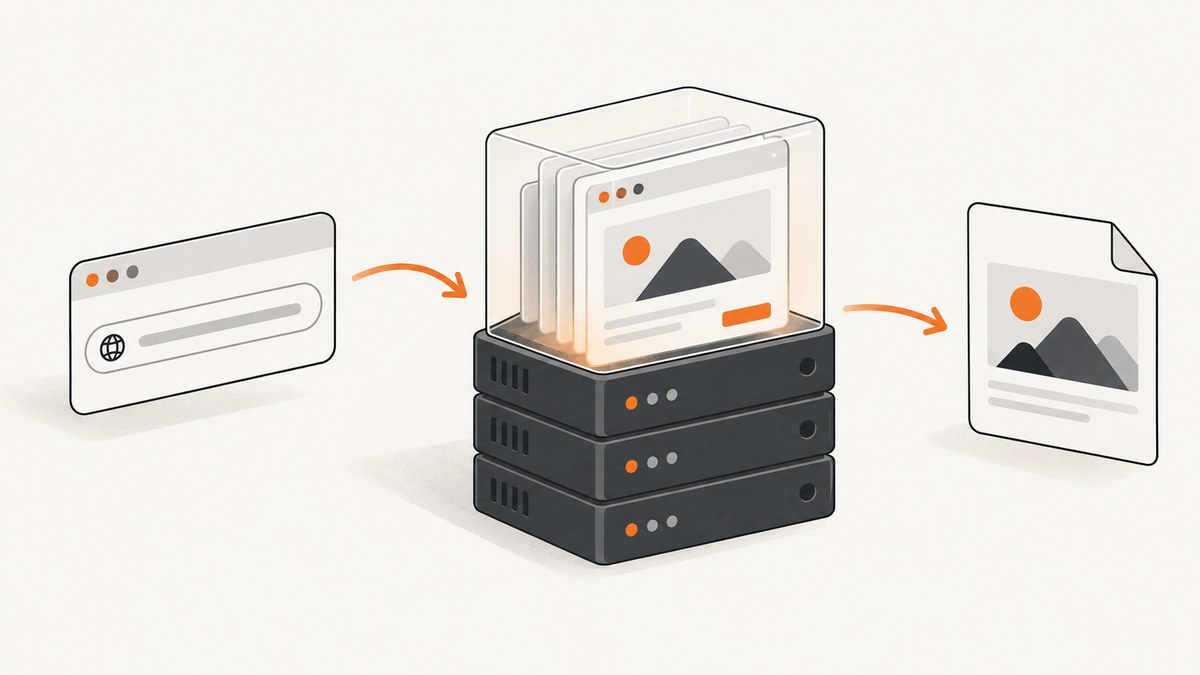
Short answer: A “Page Unresponsive” warning usually means react-pdf/renderer is doing synchronous PDF layout on the browser’s main thread. Move generation into a Web Worker for large documents, keep document and option objects stable, render only visible pages in viewers, and reduce raster density when canvases consume too much memory.
React-PDF’s advanced documentation warns that browser rendering can occupy the main thread for documents with 30 or more pages. Large tables, long paragraphs, custom fonts, images, and complex wrapping can trigger the same problem with fewer pages. While layout runs, the browser cannot paint, scroll, or process input.
1. Identify what is actually freezing
There are two different workloads:
| Workload | Typical APIs | Likely fix |
|---|---|---|
| Generating a new PDF | pdf(...).toBlob(), PDFDownloadLink, usePDF |
Move the renderer into a Web Worker or generate on a server. |
| Displaying an existing PDF | Document and Page from react-pdf |
Virtualize pages, cap pixel density, and verify range requests. |
First add timing around the operation that freezes:
const started = performance.now();
const blob = await pdf(<Invoice data={data} />).toBlob();
console.log(`PDF generation: ${Math.round(performance.now() - started)} ms`, blob.size);
If the log appears only after the tab recovers, generation blocked the main thread. If generation is quick but scrolling an existing file freezes, the viewer is rendering too many pages or too many pixels at once.
2. Prevent repeated renders before changing architecture
React-PDF can recompute when it receives a new object identity, even if the values are unchanged. Avoid inline file, options, and document data objects.
import { useMemo, useState } from 'react';
import { Document, Page } from 'react-pdf';

export function StableViewer({ url, password }) {
  const file = useMemo(() => ({ url, password }), [url, password]);
  const options = useMemo(() => ({
    // Keep worker and range-transport inputs stable as well.
    cMapUrl: '/cmaps/',
    cMapPacked: true
  }), []);

  return (
    <Document file={file} options={options}>
      <Page pageNumber={1} />
    </Document>
  );
}
Do not write <Document file={{ url }} options={{ cMapUrl: '/cmaps/' }} /> inside a component that re-renders frequently. Store values in state or memoize them with the correct dependencies. With current Suspense behavior, keep worker and binary inputs outside a suspending subtree so initial retries do not repeat expensive work.
3. Generate large PDFs inside a Web Worker
A worker is the principal browser-side fix because it removes layout work from the UI thread. Send plain serializable data with postMessage; React elements and functions cannot be structured-cloned. The document component must be created inside the worker.
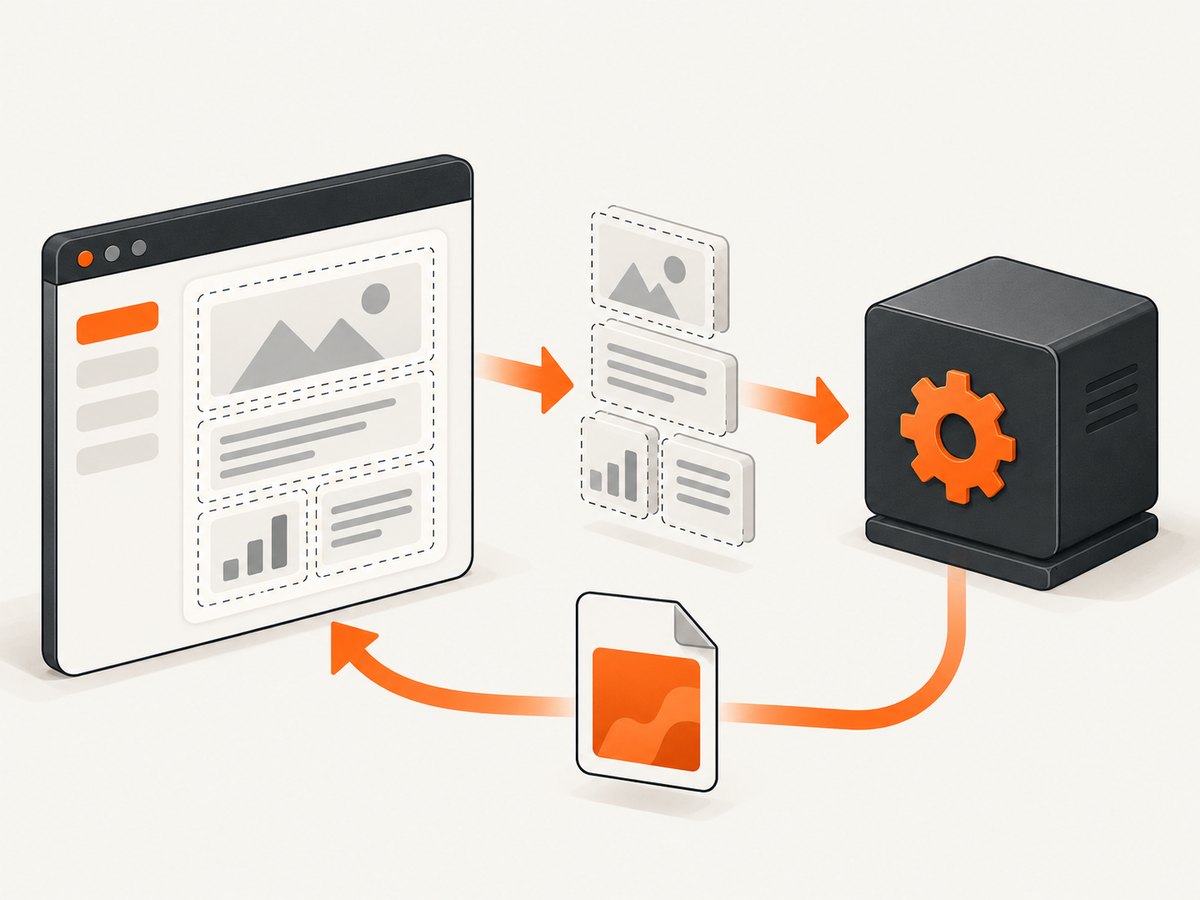
Worker entry point
// pdf.worker.js
import React from 'react';
import { pdf, Document, Page, Text, View, StyleSheet, Font } from '@react-pdf/renderer';

const styles = StyleSheet.create({
  page: { padding: 32, fontSize: 10 },
  heading: { fontSize: 18, marginBottom: 12 },
  row: { flexDirection: 'row', borderBottom: 1, paddingVertical: 5 },
  cell: { flex: 1 }
});

// Register custom fonts here, inside the worker, if your document uses them.
// Font.register({ family: 'Inter', src: '/fonts/Inter-Regular.ttf' });

function InvoiceDocument({ invoice }) {
  return (
    <Document>
      {invoice.pages.map((rows, pageIndex) => (
        <Page size="A4" style={styles.page} key={pageIndex}>
          <Text style={styles.heading}>{invoice.title}</Text>
          {rows.map((row) => (
            <View style={styles.row} key={row.id}>
              <Text style={styles.cell}>{row.description}</Text>
              <Text style={styles.cell}>{row.amount}</Text>
            </View>
          ))}
        </Page>
      ))}
    </Document>
  );
}

self.onmessage = async ({ data }) => {
  try {
    const blob = await pdf(<InvoiceDocument invoice={data.invoice} />).toBlob();
    const buffer = await blob.arrayBuffer();
    self.postMessage({ ok: true, buffer }, [buffer]);
  } catch (error) {
    self.postMessage({ ok: false, error: error instanceof Error ? error.message : String(error) });
  }
};
React component that calls the worker
import { useEffect, useRef, useState } from 'react';

export function PdfDownload({ invoice }) {
  const workerRef = useRef(null);
  const [state, setState] = useState({ status: 'idle', error: null });

  useEffect(() => {
    const worker = new Worker(new URL('./pdf.worker.js', import.meta.url), { type: 'module' });
    workerRef.current = worker;

    worker.onmessage = ({ data }) => {
      if (!data.ok) {
        setState({ status: 'error', error: data.error });
        return;
      }
      const blob = new Blob([data.buffer], { type: 'application/pdf' });
      const href = URL.createObjectURL(blob);
      const link = document.createElement('a');
      link.href = href;
      link.download = 'invoice.pdf';
      link.click();
      URL.revokeObjectURL(href);
      setState({ status: 'done', error: null });
    };

    worker.onerror = (event) => setState({ status: 'error', error: event.message });
    return () => worker.terminate();
  }, []);

  function generate() {
    setState({ status: 'working', error: null });
    // invoice must contain JSON-serializable values only.
    workerRef.current.postMessage({ invoice });
  }

  return (
    <div>
      <button onClick={generate} disabled={state.status === 'working'}>
        {state.status === 'working' ? 'Generating…' : 'Download PDF'}
      </button>
      {state.status === 'error' && <p role="alert">{state.error}</p>}
    </div>
  );
}
Bundler syntax differs. Vite, Webpack, and modern frameworks support new Worker(new URL('./pdf.worker.js', import.meta.url), { type: 'module' }); configure the worker entry point according to your bundler. The worker cannot access the DOM, browser-only globals, or non-serializable callbacks.
4. Generate on the server when the browser should do no PDF work
Server-side generation is useful for very large or sensitive documents and for consistent output across devices. This is an architectural consequence of moving synchronous layout away from the main thread; it is not a claim about a specific benchmark. Return a job ID for long documents, store the resulting PDF, and let the browser download it when complete.
Keep generation and delivery separate: a server can stream or range-serve an existing PDF, but HTTP Partial Content does not make client-side PDF generation asynchronous.
5. Make existing PDF viewers cheaper
Virtualize long documents
Rendering many pages simultaneously is compute intensive. Render only pages near the viewport using a virtualization library or your own intersection-based window. Keep a small overscan range so fast scrolling does not show blank gaps.
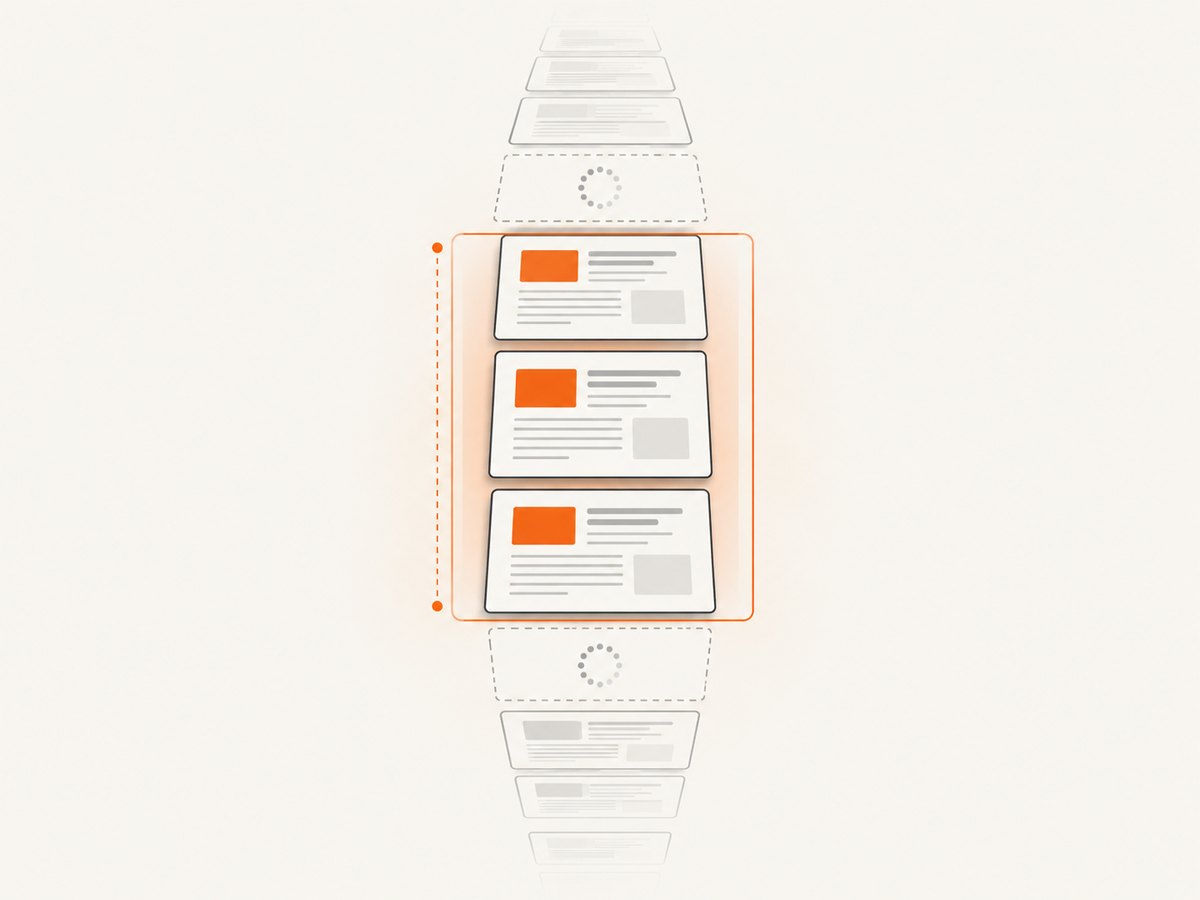
function VisiblePages({ numPages, firstVisible, lastVisible }) {
  const pages = [];
  for (let pageNumber = firstVisible; pageNumber <= lastVisible; pageNumber += 1) {
    if (pageNumber >= 1 && pageNumber <= numPages) {
      pages.push(<Page key={pageNumber} pageNumber={pageNumber} />);
    }
  }
  return <>{pages}</>;
}
Cap device pixel density when needed
High-DPI displays multiply the physical canvas pixels. Lowering the effective pixel ratio reduces memory and paint cost at the expense of some sharpness.
<Page pageNumber={pageNumber} devicePixelRatio={1} />
Apply a cap only after measuring. A lower ratio does not speed up the PDF layout algorithm; it reduces raster work in the viewer.
Use range requests for remote PDFs
When an existing PDF is fetched from a server, verify that the response supports byte ranges and returns Accept-Ranges: bytes. Partial Content can reduce first-page download time and bandwidth for suitable files. It cannot fix a freeze caused by creating a new PDF locally.
6. Control recomputation with usePDF
If application state changes frequently, avoid regenerating on every keystroke. Keep draft fields separate from the data used to produce the document, then call update deliberately.
import { usePDF } from '@react-pdf/renderer';

function ExportButton({ invoice }) {
  const [instance, update] = usePDF({ document: <InvoiceDocument invoice={invoice} /> });

  function refresh() {
    update(<InvoiceDocument invoice={invoice} />);
  }

  return (
    <>
      <button onClick={refresh} disabled={instance.loading}>Refresh PDF</button>
      {instance.error && <span role="alert">{instance.error.message}</span>}
      {instance.url && <a href={instance.url} download="invoice.pdf">Download</a>}
    </>
  );
}
7. Measure layout complexity, not only page count
- Count pages and rows before rendering.
- Test large tables and long unbroken strings.
- Check custom font registration and missing font files.
- Measure image dimensions and decoded pixel count.
- Test paragraphs with different wrapping and break rules.
- Profile repeated renders in React DevTools and browser Performance tools.
Thirty pages is a warning point from the documentation, not a universal failure threshold. A complex three-page layout can still freeze while wrapping and pagination are computed.
8. Troubleshooting common errors
| Symptom | Cause | Fix |
|---|---|---|
| Chrome says “Page Unresponsive” during export | Synchronous generation saturates the main thread. | Move pdf(...).toBlob() into a Web Worker or generate on the server. |
| Generation repeats after unrelated state changes | Fresh document, file, or options objects are created on each render. | Use useMemo, state, or controlled usePDF updates. |
| Worker throws cloning or DataCloneError | React elements, functions, class instances, or other non-serializable values were posted. | Send plain objects, arrays, numbers, strings, booleans, and asset URLs; construct React elements inside the worker. |
| Worker cannot load a font or image | Relative asset URLs or DOM-dependent code do not resolve in the worker. | Use reachable absolute or public URLs, bundle assets, and register fonts inside the worker. |
| Viewer freezes while scrolling | Too many pages or canvases render simultaneously. | Virtualize pages and reduce overscan. |
| Viewer uses excessive memory on Retina displays | Canvas pixel count scales with device pixel ratio. | Set a lower devicePixelRatio after checking visual requirements. |
| First page loads slowly from a remote PDF | Server does not support byte ranges or the file is delivered in one large response. | Enable HTTP range requests and verify 206 Partial Content responses. |
| Old workaround no longer helps | The issue may be fixed in a newer package or React combination. | Check installed @react-pdf/renderer, react-pdf, and React versions, then retest after upgrading. Review the v4 compatibility notes and the maintainer’s August 2026 fix reference. |
9. Version and build checks
- Record versions of
@react-pdf/renderer,react-pdf, React, and your bundler. - Confirm the worker entry point is included in the production build.
- Check whether your bundler has an ESM or esbuild caveat noted by the React-PDF compatibility documentation.
- Reproduce with a minimal document before adding fonts, images, and tables.
- Retest after upgrading; a maintainer reported a browser-freeze fix in pull request #3502 on August 23, 2026.
10. Choose the right architecture
| Option | Use it when | Trade-off |
|---|---|---|
| Web Worker generation | You must create PDFs in the browser and documents are large. | Requires worker and bundler setup; no DOM access. |
| Server-side generation | Files are large or sensitive, or output must be consistent. | Adds backend jobs, storage, and a network round trip. |
| Viewer virtualization | The problem is displaying many existing pages. | Does not accelerate PDF generation. |
Controlled usePDF updates |
Frequent app updates trigger unnecessary recomputation. | Requires explicit update management. |
| Pixel-density cap | Canvas memory or paint cost dominates. | May reduce sharpness. |
11. Or skip the browser setup
If your actual goal is a clean image or PDF of a rendered web page rather than constructing a PDF with React-PDF, ScreenshotNeo provides a single screenshot API call. It handles browser setup and can return PNG, JPEG, WebP, or PDF.
cURL
curl -G "https://api.screenshotneo.com/v1/shot" -d access_key=YOUR_API_KEY --data-urlencode url=https://stripe.com -o shot.webpPython
import requests
r = requests.get("https://api.screenshotneo.com/v1/shot", params={"access_key": "YOUR_API_KEY", "url": "https://stripe.com"}, timeout=90)
open("shot.webp", "wb").write(r.content)
Node.js
const q = new URLSearchParams({ access_key: 'YOUR_API_KEY', url: 'https://stripe.com' });
const res = await fetch(`https://api.screenshotneo.com/v1/shot?${q}`);
See the ScreenshotNeo API documentation for request options. Cookie banners, newsletter popups, and chat widgets are removed before capture. Bot checks, blank pages, failed loads, timeouts, and cache hits are not billed, and response headers identify the page verdict and billing result. ScreenshotNeo also offers an MCP server with take_screenshot, get_page_info, and capture_pdf tools for AI agents. The Free plan includes 1,000 screenshots per month with no card; paid plans start at $5 for 3,000 shots.
Create a free ScreenshotNeo account to try it.
12. Performance and reliability checklist
- Measure generation and viewing separately.
- Move large generation jobs off the main thread.
- Send only serializable worker data.
- Memoize file, options, and document inputs.
- Virtualize pages and cap pixel density when needed.
- Use range requests only for delivery of existing PDFs.
- Show progress, cancellation, and an actionable error state.
- Test the largest realistic table, font set, image, and page count.
- Keep a server-side fallback for documents that exceed browser memory or time limits.
FAQ
Is 30 pages the exact limit?
No. React-PDF documents 30 pages as a point where main-thread occupation becomes likely. Layout complexity and device performance can make smaller files freeze.
Does splitting work across animation frames fix generation?
Not reliably. PDF layout is computation-heavy and synchronous. A worker or server moves that work away from the UI thread.
Can HTTP range requests fix a frozen export?
No. Ranges help download an existing PDF. They do not change how a new PDF is generated.
Should I use a worker for every PDF?
Small documents may be fine on the main thread. Use a worker when exports block input, exceed your latency budget, or vary widely in size.
Does reducing device pixel ratio make PDF generation faster?
It reduces viewer canvas rasterization. It does not speed up React-PDF layout and pagination.


