How to Fix “ReadableStream Is Not Defined” When Using Puppeteer page.pdf() on AWS
Fix Puppeteer’s “ReadableStream is not defined” PDF error on AWS by checking runtime, package, and Chromium versions, then applying a safe fallback.
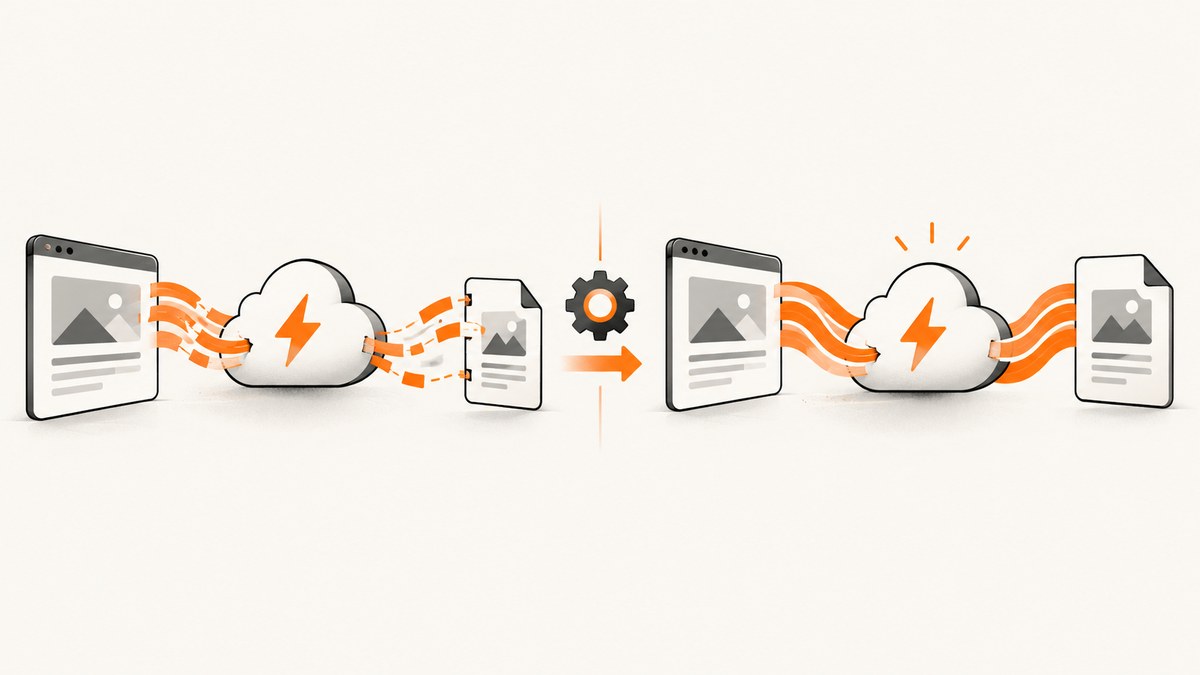
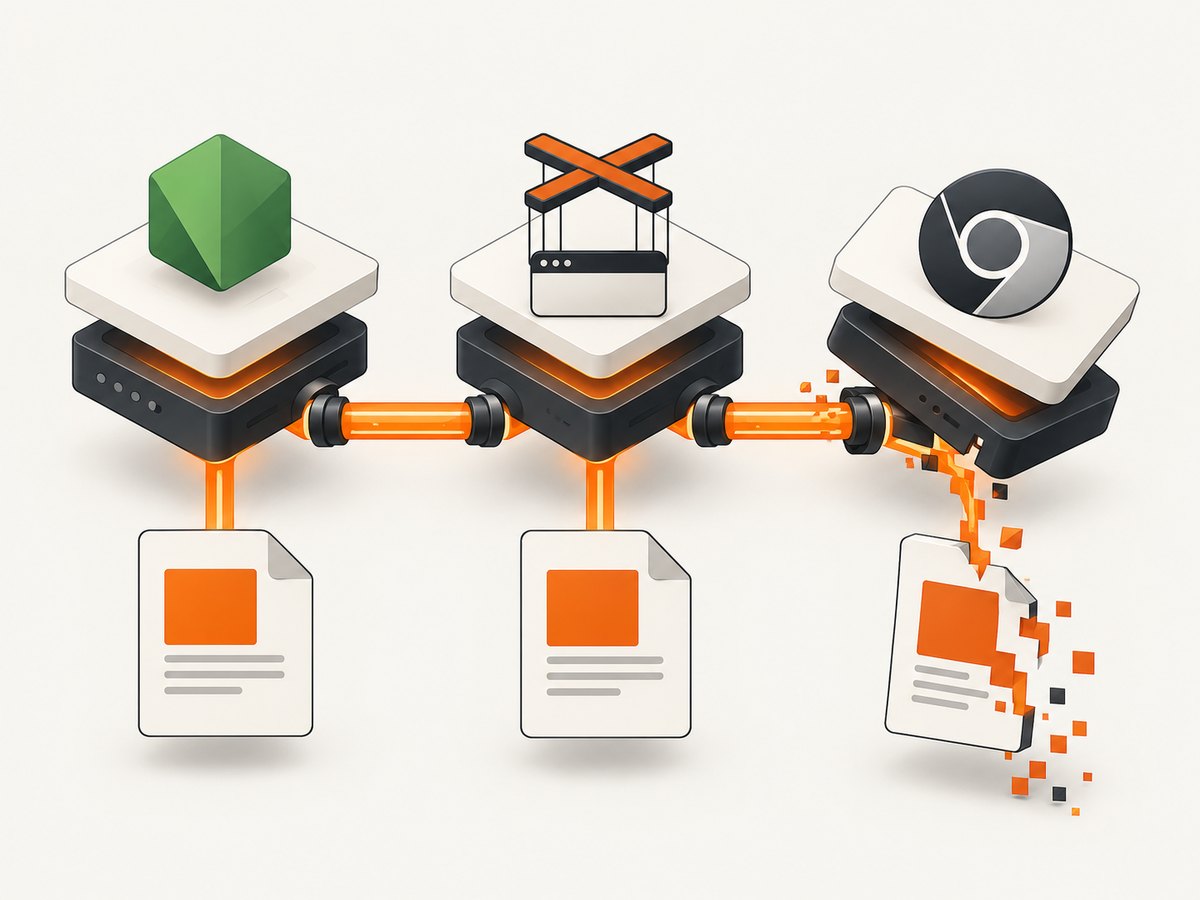
Short answer: inspect the Node.js process, Puppeteer package, and Chromium binary that run in AWS. The error occurs when Puppeteer converts Chrome’s PDF protocol stream into a Web ReadableStream, but the production process cannot resolve that global. Node.js documents the browser-compatible global as available from v18.0.0, so a Node 18 or newer deployment that lacks it needs investigation of the actual runtime, launch configuration, and dependency artifact. Aligning the deployed Node.js, Puppeteer (or puppeteer-core), and Chromium versions fixed the matching production report, but that is case evidence rather than a universal version prescription.
This guide shows how to diagnose the failure in AWS Lambda, containers, and other AWS hosts; how to apply a conditional compatibility shim; and how to avoid masking a dependency or runtime mismatch.
What the error means
A typical stack trace includes functions such as getReadableFromProtocolStream, createPDFStream, and page.pdf. Puppeteer asks Chrome for a PDF through the Chrome DevTools Protocol, then turns the protocol stream into a Web ReadableStream. Puppeteer’s source types createPDFStream() as returning ReadableStream<Uint8Array>, which explains why the global is touched during PDF generation.
The failure is therefore usually environmental. Your application code can be identical locally and in AWS while these values differ:
- Node.js executable and exact patch version
- Node launch flags or a custom runtime image
puppeteerversuspuppeteer-core, and the lockfile-resolved version- Chromium executable path and browser version
- Build output, layers, or dependency installation performed during deployment
Node’s documentation lists the global ReadableStream as added in v18.0.0. The same documentation labels the API experimental for the cited v20 documentation, so record the exact runtime rather than relying on a major-version label. See the Node.js Web Streams global documentation and Puppeteer’s PDF implementation source.
Step 1: Log the real production versions
Add a diagnostic route, startup log, or temporary error log in the same Lambda invocation or container process that calls page.pdf(). Do not inspect only your local shell or CI job.
const fs = require('node:fs');
const processInfo = {
  node: process.version,
  execPath: process.execPath,
  readableStreamType: typeof globalThis.ReadableStream,
  puppeteerVersion: (() => {
    try {
      return require('puppeteer/package.json').version;
    } catch (_) {
      try {
        return require('puppeteer-core/package.json').version;
      } catch (_) {
        return 'not found';
      }
    }
  })()
};

console.log(JSON.stringify(processInfo));

// If you know the executable path, ask that binary for its version separately.
// Example: chromium --version or /opt/chromium/chromium --version
For a Lambda deployment, log the values immediately before launching Puppeteer. For a container, run the same command in the built image, not only on the host. Also record the browser path and the output of that binary’s --version command. A managed AWS product can bundle a particular set of versions; for example, AWS CloudWatch Synthetics documents a combination of Lambda Node.js 18.x, puppeteer-core 21.9.0, and Chromium 121.0.6167.139. That is a product-specific bundle, not a compatibility matrix for every Lambda function or container. See the AWS CloudWatch Synthetics Node.js documentation.
Step 2: Compare local and AWS artifacts
- Run
node --versionlocally and printprocess.versionin AWS. - Run
npm ls puppeteer puppeteer-corein the deployed artifact and compare it with the lockfile. - Confirm whether the application uses
puppeteer, which normally downloads a browser, orpuppeteer-core, which expects you to provide one. - Print the exact
executablePathpassed topuppeteer.launch(). - Run that browser with
--versioninside the same image, layer, or function environment. - Check whether a build step ran
npm installwithout the lockfile, omitted optional dependencies, or copied a differentnode_modulestree.
Keep the three components internally consistent. A browser binary copied from one deployment image and a Puppeteer version installed by another build can produce failures that do not appear locally.
Step 3: Check runtime flags and loading order
If AWS reports Node 18 or later but typeof globalThis.ReadableStream is "undefined", inspect how Node is started. Custom runtimes, wrappers, unusual launch flags, and code that replaces globals can change what the application sees. Verify the value in the handler process, before importing application modules that initialize Puppeteer.
Do not assume that changing the Lambda runtime selector changed an already-built container. For managed runtimes, record the runtime version at incident time; AWS runtime updates can occur automatically by default. The AWS Lambda runtimes documentation describes runtime lifecycle and update behavior.
Step 4: Apply a conditional compatibility shim
If the deployed process genuinely lacks the global and you cannot correct the runtime immediately, expose Node’s Web Streams implementation before Puppeteer is imported or used:
const { ReadableStream } = require('node:stream/web');
globalThis.ReadableStream ??= ReadableStream;

const puppeteer = require('puppeteer-core');
With ECMAScript modules:
import { ReadableStream } from 'node:stream/web';
globalThis.ReadableStream ??= ReadableStream;

import puppeteer from 'puppeteer-core';
The assignment is a targeted workaround inferred from Node’s Web Streams module and Puppeteer’s use of the global. It is not an AWS-prescribed universal fix. Validate it in the actual deployment target, and keep the version diagnostics in logs while you investigate the underlying mismatch.
Complete PDF example for AWS
The following handler demonstrates the ordering: install the fallback first, launch the browser with the executable available in your environment, generate the PDF, and close the browser in a finally block.
const { ReadableStream } = require('node:stream/web');
globalThis.ReadableStream ??= ReadableStream;

const puppeteer = require('puppeteer-core');

exports.handler = async (event) => {
  const browser = await puppeteer.launch({
    executablePath: process.env.CHROMIUM_PATH,
    headless: true,
    args: [
      '--no-sandbox',
      '--disable-setuid-sandbox',
      '--disable-dev-shm-usage'
    ]
  });

  try {
    const page = await browser.newPage();
    await page.goto(event.url, {
      waitUntil: 'networkidle0',
      timeout: 30000
    });

    const pdf = await page.pdf({
      format: 'A4',
      printBackground: true,
      preferCSSPageSize: true,
      margin: { top: '16mm', right: '16mm', bottom: '16mm', left: '16mm' }
    });

    return {
      statusCode: 200,
      headers: {
        'Content-Type': 'application/pdf',
        'Content-Disposition': 'inline; filename="document.pdf"'
      },
      isBase64Encoded: true,
      body: pdf.toString('base64')
    };
  } finally {
    await browser.close();
  }
};
Use an executable path that exists in the deployed artifact. The exact Chromium packaging and launch arguments depend on your Lambda layer, container image, or AWS service. The --no-sandbox flags are common in restricted environments, but review your runtime’s security model before adding them.
Options that affect PDF reliability
| Option | Use | Common mistake |
|---|---|---|
waitUntil |
Wait for navigation events such as networkidle0. |
Assuming network idle means every client-rendered component is ready. |
page.waitForSelector() |
Wait for a known application element. | Waiting for a selector that is hidden or never rendered in production. |
page.emulateMediaType('print') |
Apply print media CSS intentionally. | Forgetting that print styles can hide content. |
printBackground |
Include background colors and images. | Expecting transparent web backgrounds in a PDF. |
preferCSSPageSize |
Honor the document’s @page size. |
Combining it with CSS that has no valid page size. |
timeout |
Bound navigation and selector waits. | Using a timeout longer than the Lambda limit. |
For pages with delayed data, use both a navigation wait and an application-ready marker:
await page.goto(url, { waitUntil: 'domcontentloaded', timeout: 30000 });
await page.waitForSelector('[data-pdf-ready="true"]', { timeout: 30000 });
await page.emulateMediaType('print');
const pdf = await page.pdf({ format: 'A4', printBackground: true });
Common errors and fixes
| Symptom | Likely cause | Fix |
|---|---|---|
ReadableStream is not defined |
The process lacks the global used by Puppeteer’s PDF stream conversion. | Log process.version and typeof globalThis.ReadableStream; align runtime and dependencies, then use the conditional shim only if necessary. |
Cannot find module 'puppeteer-core' |
Production installed a different dependency set or omitted production dependencies. | Inspect the lockfile install and deployment artifact; include the package in production dependencies. |
Failed to launch the browser process |
Wrong executable path, missing shared libraries, permissions, or incompatible binary. | Print the path, run --version in the image, and use the browser package intended for that runtime. |
| PDF hangs until Lambda times out | Never-ending requests, websockets, fonts, or client-side rendering. | Set navigation and selector timeouts, block or avoid nonessential requests, and wait for an explicit ready marker. |
| Blank or incomplete PDF | Capture starts before data or lazy content is rendered. | Wait for the application’s data-ready selector and verify the URL, authentication, and viewport. |
| Works locally but not after deployment | Different Node, Puppeteer, Chromium, architecture, or build artifact. | Compare all three versions and the CPU architecture inside the deployed environment. |
Performance, reliability, and cost notes
- Cold starts: launching Chromium is expensive. Reuse a browser between warm invocations only if you handle crashed pages and reset state between requests.
- Memory: PDF rendering uses browser memory, fonts, images, and page JavaScript. Increase Lambda memory when processes are killed or become erratic, then observe duration and failure logs.
- Timeouts: keep the Lambda timeout above the browser’s navigation and PDF timeouts, with room for startup and cleanup.
- Concurrency: one browser per request is simpler but costly; shared browsers reduce startup work but require strict page isolation and recovery.
- Reliability: pin dependencies with a lockfile, record browser versions, and rebuild when the AWS base image or managed runtime changes.
- Cost: AWS charges for the compute time and memory your function uses. A failed render can still consume invocation resources, so fail fast on invalid URLs and unreachable dependencies.
Or skip the browser setup
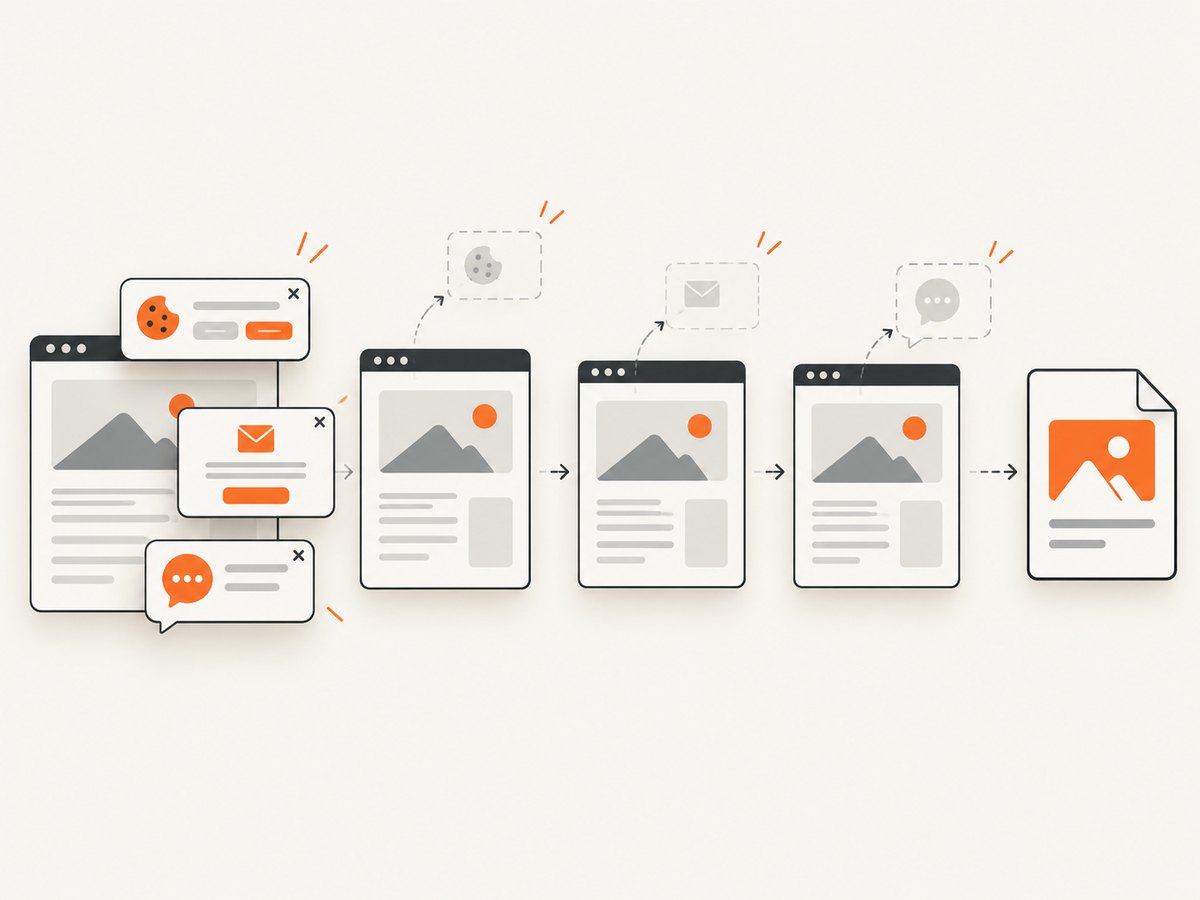
If your requirement is simply to obtain a clean screenshot or PDF from a URL, ScreenshotNeo provides a hosted screenshot API and MCP server. It handles browser setup and offers a single GET request. Cookie and consent banners are accepted and removed before capture, along with more than 60 known consent platforms, newsletter popups, and chat widgets. Bot checks, blank pages, timeouts, failed loads, and cache hits are not billed, and the response identifies the result with X-Page-Verdict and X-Billed headers.
See the ScreenshotNeo API documentation for the complete option set. This one-call example returns a WebP image:
curl -G "https://api.screenshotneo.com/v1/shot" -d access_key=YOUR_API_KEY --data-urlencode url=https://stripe.com -o shot.webpimport requests
r = requests.get("https://api.screenshotneo.com/v1/shot", params={"access_key": "YOUR_API_KEY", "url": "https://stripe.com"}, timeout=90)
open("shot.webp", "wb").write(r.content)
const q = new URLSearchParams({ access_key: 'YOUR_API_KEY', url: 'https://stripe.com' });
const res = await fetch(`https://api.screenshotneo.com/v1/shot?${q}`);
ScreenshotNeo supports PNG, JPEG, WebP, and PDF output; full-page and element capture; dark mode; device presets or custom viewports; retina scale; custom CSS and JavaScript; clicks; selector waits and delays; network-idle waits; request and resource blocking; headers, cookies, user agents, authorization, timezone, geolocation, transparent backgrounds, resizing, configurable caching, signed links, asynchronous jobs with signed webhooks, bulk capture of up to 100 URLs per call, a usage API, and an OpenAPI specification. Its MCP server exposes take_screenshot, get_page_info, and capture_pdf for Claude, Cursor, and other MCP clients.
The Free plan includes 1,000 screenshots per month without a card. Paid plans start at $5 for 3,000 screenshots; yearly billing gives two months free, and every feature is available on every plan. Create a free ScreenshotNeo account.
Deployment checklist
- Log
process.version,process.execPath, andtypeof globalThis.ReadableStream. - Log the installed Puppeteer package and version.
- Log the Chromium path and binary version.
- Verify the lockfile and production dependency tree.
- Check architecture, memory, timeout, and browser launch permissions.
- Wait for an application-ready selector before calling
page.pdf(). - Use the
node:stream/webshim only when the global is actually absent. - Retest in the deployed AWS target after every runtime or browser change.
FAQ
Does installing Node 20 always fix the error?
No. Node 18 and later document the global, but the deployed process may not be the runtime you think it is, and Puppeteer and Chromium still need to match the environment.
Should I downgrade Puppeteer?
Do not downgrade by default. First identify the versions in production and choose a supported, internally consistent combination. Individual reports do not establish one universally correct downgrade target.
Can I assign any Web Streams implementation?
Use Node’s node:stream/web implementation when available, assign it before Puppeteer loads, and verify PDF generation in the target runtime.
Is the issue specific to Lambda?
No. The same mismatch can occur in ECS, Fargate, EC2, or a custom AWS container. The diagnostic method is the same: inspect the actual Node process, package tree, and browser binary.
Why does a screenshot API help with this PDF error?
A hosted service removes the need to package and operate Chromium in your AWS function. ScreenshotNeo also provides PDF capture, clean-page handling, and an MCP interface for AI agents.


