How to Fix Renderer Timeouts When Capturing Screenshots with ChromeDriver in Jenkins
Diagnose ChromeDriver renderer timeouts in Jenkins by isolating the failing command, startup context, versions, memory pressure, and evidence.
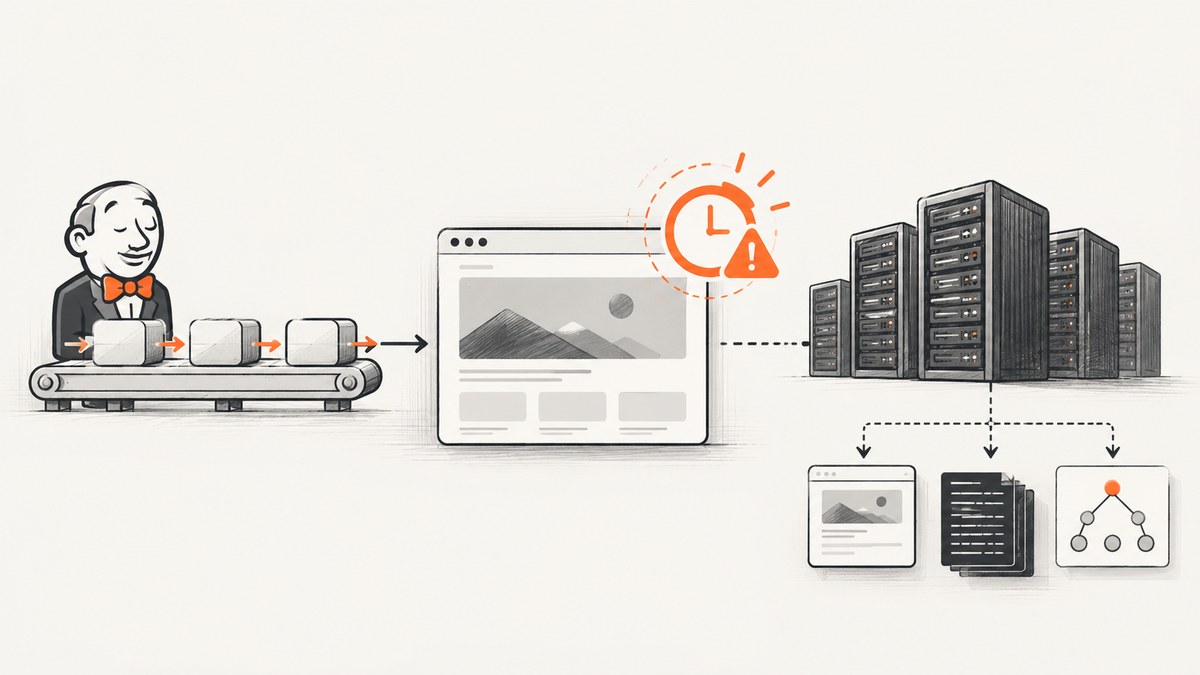
A ChromeDriver error such as Timed out receiving message from renderer while taking a screenshot in Jenkins is a symptom, not a diagnosis. The failing operation may be browser startup, navigation, JavaScript execution, element lookup, or the screenshot command itself. Fix it by identifying the exact command, reproducing Chrome in the Jenkins agent context, checking browser and driver versions, separating Selenium timeout categories, investigating memory pressure, and preserving the evidence from failed builds.
No official source documents one renderer-specific setting that fixes every occurrence. Increasing Selenium’s page-load or script timeout can help diagnose a navigation or script stall, but it is not an established fix for a renderer screenshot timeout.
1. Identify the operation that actually timed out
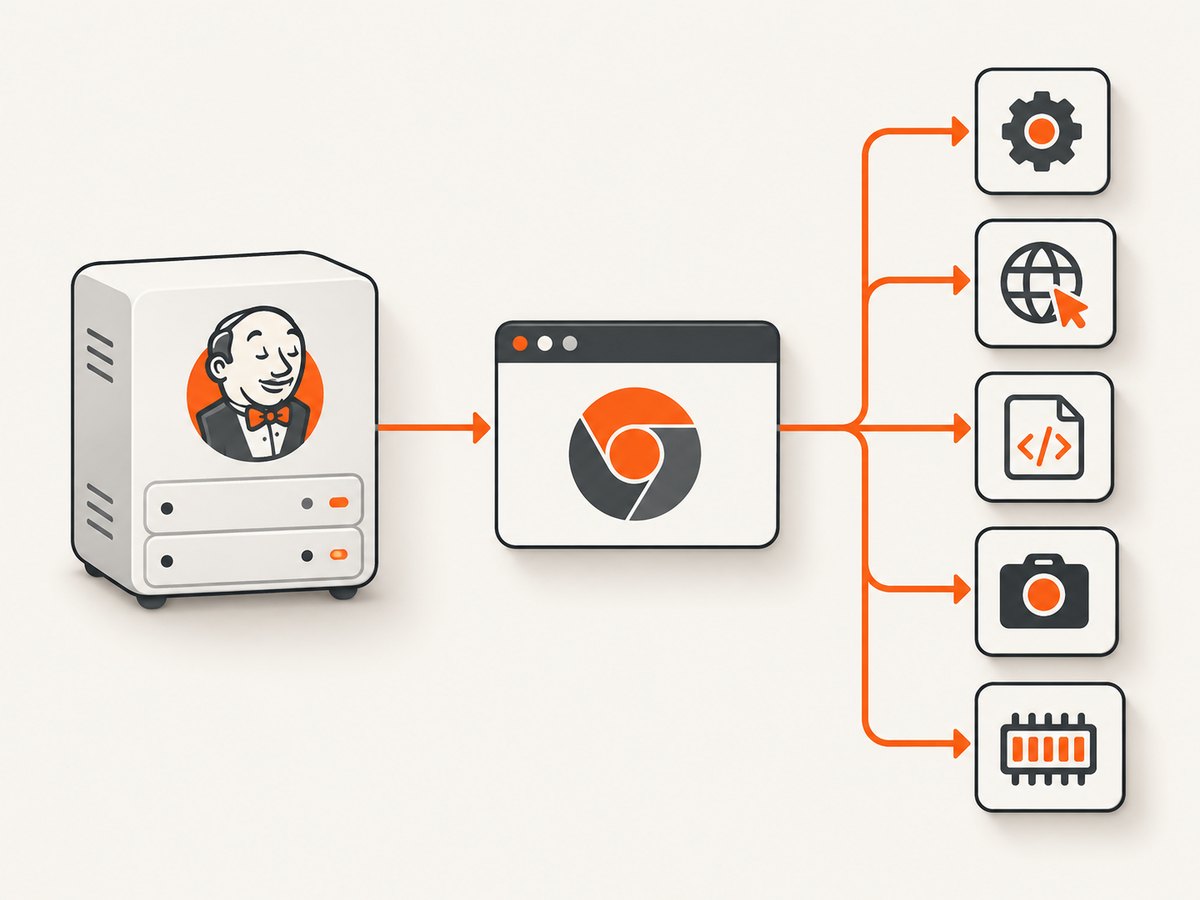
Start by logging each WebDriver phase separately. Selenium treats screenshots as a WebDriver operation that returns an encoded image. Page-load and script timeouts govern different activities, so a timeout raised by getScreenshotAs should not automatically be labelled a page-load timeout.
WebDriver driver = new ChromeDriver(options);
try {
    long start = System.nanoTime();
    System.out.println("navigation.start");
    driver.get("https://example.com");
    System.out.printf("navigation.done %.0f ms%n", (System.nanoTime() - start) / 1_000_000.0);

    start = System.nanoTime();
    System.out.println("screenshot.start");
    byte[] png = ((TakesScreenshot) driver).getScreenshotAs(OutputType.BYTES);
    Files.write(Path.of("target/screenshots/home.png"), png);
    System.out.printf("screenshot.done %.0f ms%n", (System.nanoTime() - start) / 1_000_000.0);
} finally {
    driver.quit();
}
Also log element lookups and scripts around the failing step. The useful evidence is the exact exception, command name, elapsed time, current URL, browser console output if available, and whether the failure happens on every URL or only on one page.
2. Reproduce Chrome in the Jenkins agent context
Chrome can behave differently under a Jenkins service account, container, workspace, or virtual display than it does on a developer workstation. ChromeDriver’s troubleshooting guidance specifically calls out continuous build systems such as Jenkins. Run the same Chrome binary with the same arguments under the account that executes the job, then inspect the ChromeDriver log.
google-chrome --version
chromedriver --version
id
which google-chrome
which chromedriver
mkdir -p "$WORKSPACE/chrome-profile"
google-chrome --headless=new --disable-gpu \
  --user-data-dir="$WORKSPACE/chrome-profile" \
  https://example.com \
  --screenshot="$WORKSPACE/chrome-direct.png" \
  --window-size=1280,900
If direct Chrome startup fails, fix the installation, permissions, profile directory, display configuration, or sandbox environment before changing Selenium code. Configure ChromeDriver logging so the job records the binary path and command-line options.
ChromeDriverService service = new ChromeDriverService.Builder()
    .withLogFile(new File("target/chromedriver.log"))
    .withVerbose(true)
    .build();
WebDriver driver = new ChromeDriver(service, options);
Do not run Chrome as root as a first workaround
Chrome’s documentation says a common cause of startup crashes on Linux is running Chrome as root. Its guidance discourages using --no-sandbox as a workaround. Create a regular user for the agent, give it a writable home and temporary directory, and run Chrome with that user. This addresses documented startup failures; it does not independently explain every renderer timeout.
pipeline {
  agent { label 'linux-browser' }
  stages {
    stage('Browser smoke test') {
      steps {
        sh '''
          set -eux
          id
          google-chrome --version
          chromedriver --version
          mkdir -p "$WORKSPACE/chrome-profile" "$WORKSPACE/target/screenshots"
        '''
      }
    }
  }
}
3. Align Chrome and ChromeDriver versions
Record both versions from the worker that failed. Selenium’s Chrome documentation states that the browser and driver major versions should match; a mismatch produces driver errors, and disabling the build’s compatibility check is unsupported.
echo "Chrome: $(google-chrome --version)"
echo "Driver: $(chromedriver --version)"
# For Chromium installations, use the matching binary names if applicable.
chromium --version || true
chromedriver --version
Do not rely on versions from the controller or a local laptop. The relevant pair is installed on the Jenkins agent or inside the container running the test. Pin compatible browser and driver packages in the agent image, and update them together. After an update, run a small navigation plus screenshot smoke test before the full suite.
4. Separate Selenium timeout settings
Selenium documents a default script timeout of 30,000 ms and a default page-load timeout of 300,000 ms. Page-load strategy controls how navigation waits:
normalwaits for full resource completion.eagerwaits for the DOM to become interactive and may return before every subresource finishes.nonedoes not block WebDriver on navigation completion.
These settings are useful for proving that navigation or script execution is the slow phase. They are not documented renderer-screenshot timeout controls.
Duration pageLoad = Duration.ofSeconds(300);
Duration script = Duration.ofSeconds(30);
options.setPageLoadStrategy(PageLoadStrategy.EAGER);
WebDriver driver = new ChromeDriver(options);
driver.manage().timeouts().pageLoadTimeout(pageLoad);
driver.manage().timeouts().scriptTimeout(script);
Use a bounded wait for the application state you need instead of sleeping indefinitely. For example, wait for a known content selector, then capture.
WebDriverWait wait = new WebDriverWait(driver, Duration.ofSeconds(60));
driver.get("https://example.com/dashboard");
wait.until(ExpectedConditions.visibilityOfElementLocated(By.cssSelector("main")));
byte[] image = ((TakesScreenshot) driver).getScreenshotAs(OutputType.BYTES);
Test one variable at a time. If changing page-load strategy changes the navigation timing but the screenshot command still fails, the evidence points away from a page-load timeout.
5. Check memory and process pressure on the agent
A renderer can fail when the worker is under CPU or memory pressure, but do not infer that from the exception alone. Check the agent’s process list, container limits, workspace disk, and kernel logs at the time of failure.
free -h
ulimit -a
df -h "$WORKSPACE"
ps -eo pid,ppid,%mem,%cpu,cmd --sort=-%mem | head -20
dmesg -T | tail -100
Jenkins documents Linux exit code 137 as evidence that the kernel may have killed Jenkins or an individual build because of virtual-memory exhaustion. Confirm it in dmesg. Establish which process was killed and on which machine; increasing the Jenkins controller heap does not automatically fix a Chrome renderer process on an agent.
For repeatable diagnosis:
- Run one browser at a time on the affected worker.
- Record container memory and shared-memory limits.
- Compare a small page with the failing page.
- Check whether parallel jobs correlate with failures.
- Retain the browser and driver logs for the same build.
If the Jenkins JVM itself is failing, Jenkins recommends JVM diagnostics such as VisualVM and heap dumps. Keep that investigation separate from Chrome process failures.
6. Preserve screenshots and logs from failed builds
Always save a screenshot when the browser is still usable, plus the page source, driver log, browser version, and Jenkins environment. Selenium documents both current-page and element-level screenshots.
Path dir = Path.of("target", "screenshots");
Files.createDirectories(dir);
try {
    Files.write(dir.resolve("failure.png"),
        ((TakesScreenshot) driver).getScreenshotAs(OutputType.BYTES));
    Files.writeString(dir.resolve("failure.html"), driver.getPageSource());
} catch (Exception captureError) {
    captureError.printStackTrace();
}
Archive the files in Jenkins so they remain available after the workspace is deleted.
post {
  always {
    archiveArtifacts artifacts: 'target/screenshots/**,target/chromedriver.log',
                     allowEmptyArchive: true
  }
}
Jenkins also has a UI Test Capture plugin page that describes writing files under target/screenshots/, but that page reports version 1.0.43 from 2015 and says its source wiki is permanently offline. Verify current plugin compatibility before adopting it. Generic artifact archiving works without depending on that legacy documentation.
7. A minimal Jenkins diagnostic job
This pipeline makes the environment and failure stage visible. Adapt the commands to the browser package and test runner used by your agent.
pipeline {
  agent { label 'linux-browser' }
  stages {
    stage('Versions and resources') {
      steps {
        sh '''
          set -eux
          id
          google-chrome --version
          chromedriver --version
          free -h
          df -h
        '''
      }
    }
    stage('Screenshot smoke test') {
      steps {
        sh 'mvn -B -Dtest=ScreenshotSmokeTest test'
      }
    }
  }
  post {
    always {
      sh 'dmesg -T | tail -100 || true'
      archiveArtifacts artifacts: 'target/screenshots/**,target/chromedriver.log', allowEmptyArchive: true
    }
  }
}
8. Common errors and their fixes
| Symptom | Likely investigation | Action |
|---|---|---|
Timed out receiving message from renderer during screenshot |
Exact screenshot command, renderer and driver logs | Separate navigation, script, lookup, and capture timings; do not assume page-load timeout. |
| Chrome exits immediately in Jenkins | Agent account, binary path, profile permissions, startup log | Run the same binary directly as the agent user; fix installation or permissions. |
Chrome runs only with --no-sandbox |
Root or restricted account | Use a regular user and correct the environment; Chrome documents this workaround as unsupported and highly discouraged. |
| Session not created or driver startup error | Browser and driver major versions | Install a matching pair on the worker and rerun the smoke test. |
| Build ends with exit code 137 | Kernel memory kill, container limit, parallelism | Check dmesg, identify the killed process, and reduce pressure or raise the relevant agent limit. |
| Navigation hangs before capture | Page-load strategy, application readiness, network dependencies | Log navigation separately, use a targeted readiness wait, and test eager only as a diagnostic. |
| No evidence after a failed build | Artifacts not archived | Write files under target/screenshots/ and archive them in a post-build step. |
9. Or skip the browser setup
If your goal is a reliable image of a URL rather than maintaining ChromeDriver workers, ScreenshotNeo provides a website screenshot API and MCP server. It accepts one GET request and returns PNG, JPEG, WebP, or PDF. The API handles browser setup for you and exposes verdict and billing headers.
See the ScreenshotNeo API documentation for the full parameter reference.
cURL
curl -G "https://api.screenshotneo.com/v1/shot" -d access_key=YOUR_API_KEY --data-urlencode url=https://stripe.com -o shot.webpPython
import requests
r = requests.get("https://api.screenshotneo.com/v1/shot", params={"access_key": "YOUR_API_KEY", "url": "https://stripe.com"}, timeout=90)
r.raise_for_status()
open("shot.webp", "wb").write(r.content)
Node.js
const q = new URLSearchParams({ access_key: 'YOUR_API_KEY', url: 'https://stripe.com' });
const res = await fetch(`https://api.screenshotneo.com/v1/shot?${q}`);
if (!res.ok) throw new Error(`${res.status} ${await res.text()}`);
const fs = await import('node:fs/promises');
await fs.writeFile('shot.webp', Buffer.from(await res.arrayBuffer()));
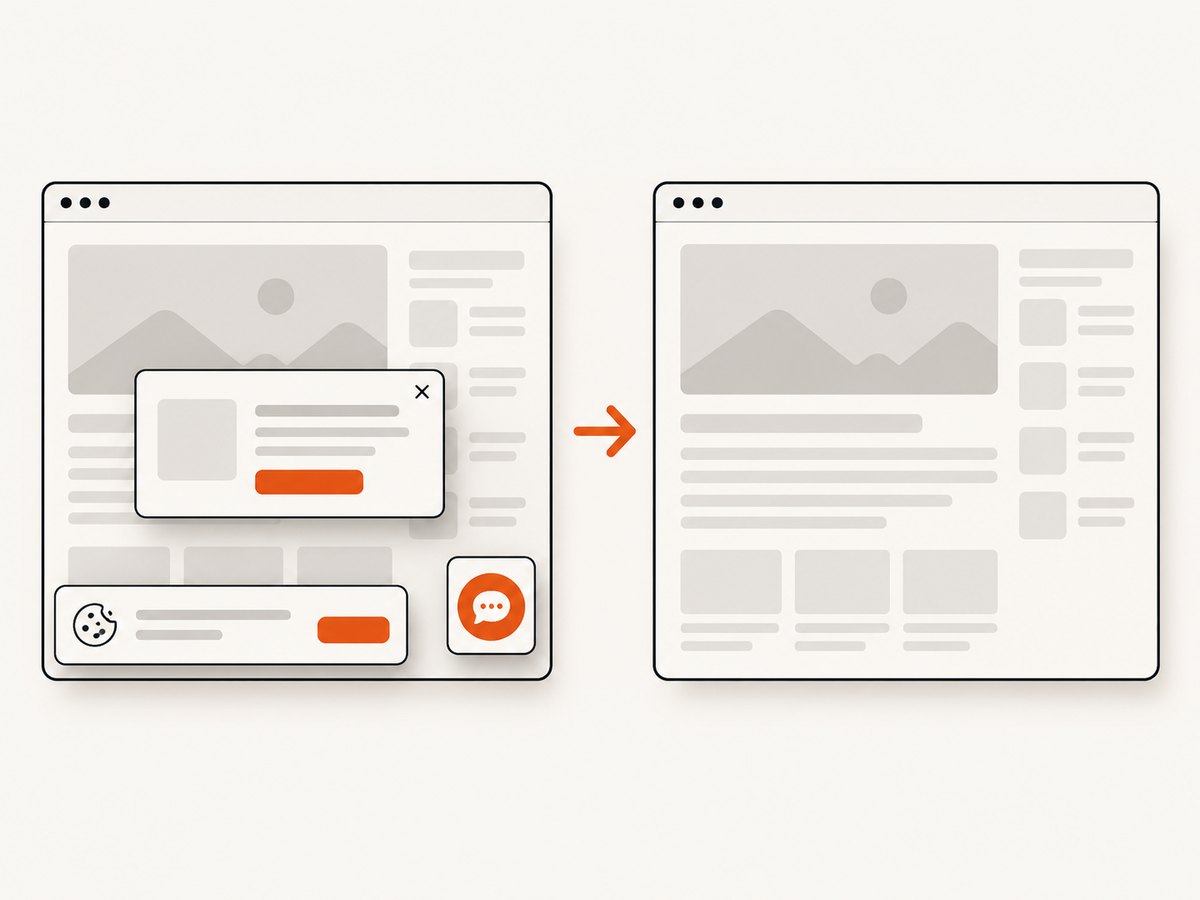
ScreenshotNeo removes cookie and consent banners, newsletter popups, and chat widgets before capture. Bot checks, blank pages, timeouts, failed loads, and cache hits are not billed; response headers include X-Page-Verdict and X-Billed so your pipeline can record what happened. Its MCP server provides take_screenshot, get_page_info, and capture_pdf for Claude, Cursor, and other MCP clients.
For tuning, it supports full-page captures with lazy images loaded, CSS element captures, dark mode, device presets or custom viewports, retina scale, PDF paper and page options, custom CSS and JavaScript, clicks, selector waits, delays, network-idle waits, request blocking, headers, cookies, user agents, authorization, timezone, geolocation, transparent backgrounds, resizing, configurable caching, signed links, asynchronous jobs with signed webhooks, bulk capture of up to 100 URLs per call, a usage API, and an OpenAPI specification. Existing parameter names used by other screenshot APIs also work, which can simplify migration.
The Free plan includes 1,000 screenshots per month with no card. Paid plans start at $5 for 3,000 screenshots; every feature is available on every plan. Create a free ScreenshotNeo account.
10. Performance and reliability checklist
- Pin matching Chrome and ChromeDriver versions in the agent image.
- Run a direct Chrome startup check under the Jenkins account.
- Use a dedicated writable profile per concurrent browser.
- Measure navigation, scripts, waits, and screenshot capture separately.
- Use explicit readiness conditions instead of arbitrary long sleeps.
- Limit browser parallelism until memory usage is known.
- Record agent, container, browser, driver, and test-runner versions.
- Archive screenshots, page source, driver logs, and kernel evidence.
- Use Selenium timeout changes to isolate navigation or script stalls, not as a guaranteed renderer fix.
11. FAQ
Is this always caused by a slow page?
No. The message can occur with startup, environment, compatibility, resource, or capture problems. Identify the command and collect logs first.
Should I set page-load timeout to ten minutes?
Only when diagnosing a navigation that legitimately needs more time. Selenium documents page-load and script timeouts separately; neither is a documented universal renderer-capture control.
Does headless mode fix renderer timeouts?
Headless mode can make Jenkins setup simpler, but it does not establish the cause or guarantee a fix. Reproduce with the exact options used by the job.
What should I include in a support report?
Include the exact exception and command, Chrome and ChromeDriver versions, agent and container details, ChromeDriver log, Jenkins console output, memory limits, dmesg evidence, and whether direct Chrome startup succeeds.
Can I capture only a failing element?
Yes. Selenium supports element-level screenshots, which can reduce the amount of page rendering needed and can help isolate whether a full-page operation is involved.


