How to Fix RNHTMLtoPDF’s “Could Not Create Folder Structure” Error
Diagnose RNHTMLtoPDF’s folder error by checking directory options, app storage, returned paths, permissions, and native logs.
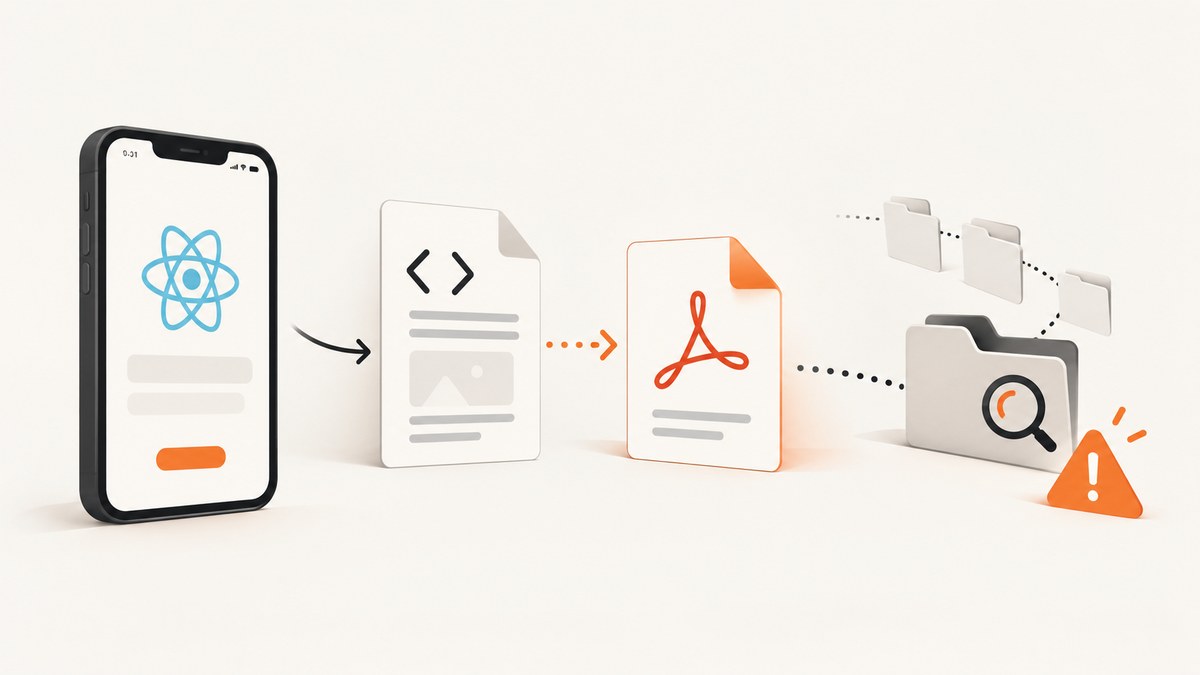
RNHTMLtoPDF error: Could not create folder structure is a symptom from the PDF output stage, not a diagnosis with one guaranteed cause. Start by checking the directory option, the app’s storage context, and the exact path returned by generatePDF. Then compare your Android, React Native, and react-native-html-to-pdf versions and read the native log if the message remains.
What the error means
react-native-html-to-pdf converts an HTML string into a PDF. During that process it must choose an output directory, create or access the required folders, and write the generated file. A failure in any of those steps can surface as “Could not create folder structure.” The message alone does not prove that the directory is the only problem: an Android report also showed IllegalArgumentException: fd cannot be null, indicating a later file-descriptor or PDF-writing failure can appear alongside folder errors.
The project README documents directory as the output directory and says the cache directory is used by default. On iOS, the README says Documents is the only custom directory value accepted. Match the README and API to the package version installed in your app before copying an example.
Fastest diagnostic sequence
- Record versions and platform details. Write down Android API level, target SDK, React Native version, and the installed
react-native-html-to-pdfversion. - Reduce the request. Use a short HTML string, a simple file name, and no optional directory while diagnosing. This tests the documented cache default.
- Check
directoryandfileName. Confirm that the directory value is supported by your installed version. On iOS, useDocumentsfor a custom directory according to the README. - Log the returned path. Do not infer where the file went from a directory label such as
Download. Use the exactfilePathreturned by the conversion. - Verify the next operation. File viewers, share sheets, uploads, and open-document code must consume that returned path, not a separately constructed public Downloads path.
- Check Android access at runtime. Confirm the permission result and the actual device configuration. Historical 2020 issue reports describe permission fixes for some React Native 0.63/API 29 setups, but those reports are not universal instructions for current apps.
- Read the native stack trace. If the folder message persists, capture the complete Android or iOS native log and identify whether the failure occurs while creating a directory, opening a file, or writing PDF bytes.
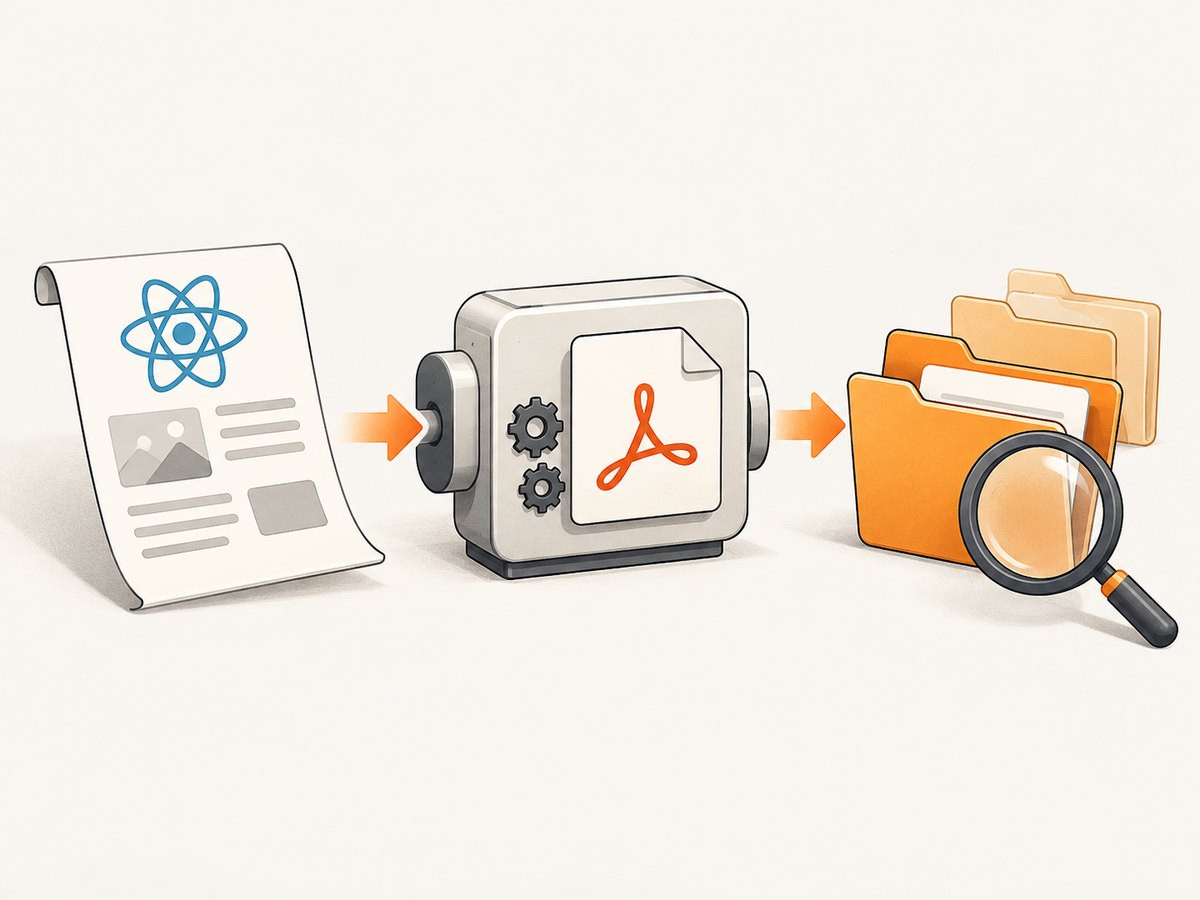
Minimal React Native example
Use this small request to separate an output-path problem from HTML or application logic. Confirm the API names against the version installed in your project.
import { generatePDF } from 'react-native-html-to-pdf';

export async function createDiagnosticPdf() {
  const options = {
    html: '<html><body><h1>Diagnostic PDF</h1><p>Path check</p></body></html>',
    fileName: 'rnhtmltopdf-diagnostic',
    base64: false,
    // Omit directory first so the documented cache default is exercised.
  };

  try {
    const file = await generatePDF(options);
    console.log('RNHTMLtoPDF result:', file);
    console.log('Generated path:', file.filePath);
    return file;
  } catch (error) {
    console.error('RNHTMLtoPDF conversion failed:', error);
    throw error;
  }
}
If this succeeds, add your real HTML and options one at a time. If it fails, the problem is probably environment, storage, package compatibility, or native writing rather than your page markup.
Directory and path checks
Start with the default cache directory
The README describes the cache directory as the default when directory is omitted. That is the best baseline because it avoids assuming that a directory name maps to a shared user-visible folder.
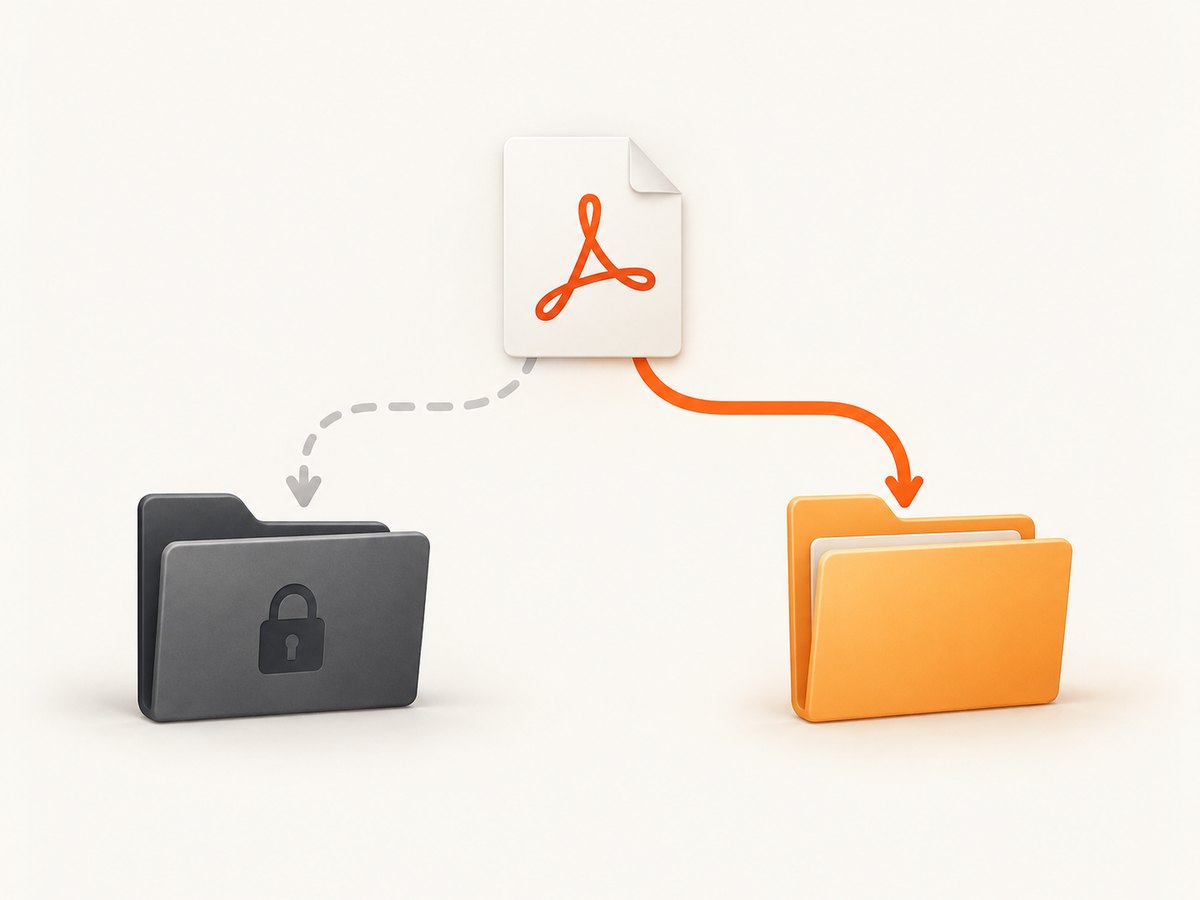
Add a documented directory deliberately
const options = {
  html: '<h1>Invoice</h1>',
  fileName: 'invoice-123',
  base64: false,
  directory: 'Documents',
};

const file = await generatePDF(options);
console.log(file.filePath);
Use only values documented for your platform and installed package version. The README specifically documents Documents as the only custom directory value accepted on iOS.
Inspect the actual result
const file = await generatePDF(options);

if (!file || !file.filePath) {
  throw new Error('PDF conversion returned no filePath');
}

console.log('Use this exact path for sharing or opening:', file.filePath);
An Android repository report returned an app-specific path under Android/data/.../files/Download even though the developer expected the shared public Downloads folder. Treat that as a diagnostic example: a directory label does not establish the storage location your UI or file manager exposes.
Android permissions and compatibility
The exact-error issue contains historical user reports from different React Native and Android configurations. One React Native 0.63 report said requesting storage permission at runtime resolved the problem; another report involved API 29 and the android:requestLegacyExternalStorage="true" manifest flag. These are observations from a 2020 issue, not current universal fixes.
Check these facts in your own app:
- Android API level and device or emulator image.
- Application target SDK and build tools.
- React Native version and native module version.
- Whether the app actually requested and received any permission required by that configuration.
- The path returned by the library and whether your subsequent code can read it.
Do not add legacy-storage flags, old manifest permissions, or dependency downgrades by default. Investigate them only when they match your versions and a controlled reproduction, then verify the result on every supported Android configuration.
Separate folder failures from PDF-writing failures
When the message remains after a path check, inspect the full native log. An Android report included IllegalArgumentException: fd cannot be null. That kind of exception points to a file descriptor or write stage rather than proving that directory creation alone failed.
// Keep the original error and include the returned object when available.
try {
  const result = await generatePDF(options);
  console.log(JSON.stringify(result, null, 2));
} catch (error) {
  console.error('message:', error?.message);
  console.error('stack:', error?.stack);
  throw error;
}
Reproduce with the smallest HTML possible, then compare the native stack for the minimal request and the production request. This tells you whether complex HTML, a custom directory, or the native file-writing path changes the failure.
Common causes and fixes
| Symptom | Likely cause | What to do |
|---|---|---|
| Error appears immediately with a custom directory | Unsupported or malformed directory value | Remove directory, test the cache default, then use a documented value for the installed version. |
| PDF exists but the app cannot open it | Downstream code uses an assumed path | Pass the returned filePath to the viewer, share flow, or uploader. |
| Works on one Android version only | Platform, target SDK, permission, or native dependency difference | Record versions, check runtime permission state, and reproduce on the failing API level. |
| Folder message plus native file-descriptor exception | Failure during file opening or writing | Capture the complete native stack and debug the write stage separately. |
| Only large or complex HTML fails | Converter or resource-loading issue exposed after path creation | Test minimal HTML, then add fonts, images, scripts, and layout features incrementally. |
| Changing Gradle or React Native versions appears to help | Setup-specific compatibility interaction | Do not generalize a single report; pin the versions, document the change, and verify on supported environments. |
Production checklist
- Pin and record the library, React Native, Android API, and target SDK versions.
- Use a documented
directoryvalue, or begin with the cache default. - Generate unique file names when concurrent jobs can run.
- Log
filePathin development and pass it directly to later file operations. - Handle conversion failures and preserve the native stack in crash logs.
- Test the smallest HTML and then representative pages on each supported platform.
- Verify whether the output is app-private or user-visible before promising a download location.
Performance, reliability, and storage notes
PDF generation is local native work, so conversion time depends on HTML size, embedded assets, fonts, device speed, and the native converter. Keep diagnostic HTML small and avoid measuring reliability from one emulator. For repeated or large documents, clean up files according to your app’s retention policy and avoid assuming that cache files are permanent.
A successful conversion does not guarantee that a user can browse to the file. The returned path is the authoritative handoff between the converter and your share, open, upload, or preview code. Test both stages.
Or skip the browser setup
If your goal is to capture a web page as an image or PDF rather than convert local React Native HTML, ScreenshotNeo provides a single HTTP request. Its API accepts the URL and returns a PNG, JPEG, WebP, or PDF. See the ScreenshotNeo API documentation for the available options.
curl -G "https://api.screenshotneo.com/v1/shot" -d access_key=YOUR_API_KEY --data-urlencode url=https://example.com -o shot.webpimport requests
r = requests.get(
"https://api.screenshotneo.com/v1/shot",
params={"access_key": "YOUR_API_KEY", "url": "https://example.com"},
timeout=90,
)
r.raise_for_status()
open("shot.webp", "wb").write(r.content)const q = new URLSearchParams({ access_key: 'YOUR_API_KEY', url: 'https://example.com' });
const res = await fetch(`https://api.screenshotneo.com/v1/shot?${q}`);
if (!res.ok) throw new Error(`Screenshot failed: ${res.status}`);
const bytes = await res.arrayBuffer();Cookie banners, newsletter popups, and chat widgets are removed before the shot. Bot checks, blank pages, failed loads, timeouts, and cache hits are not billed, and response headers identify the page verdict and billing result. ScreenshotNeo also has an MCP server so Claude, Cursor, and other MCP clients can take screenshots. The free plan includes 1,000 screenshots each month with no card, and paid plans start at $5 for 3,000 shots.
Sign up for 1,000 free screenshots a month.
FAQ
Does this message always mean Android storage permission is missing?
No. Historical issue reports include permission-related fixes, but the message can also involve an unsupported directory, an unexpected app-specific path, or a later native write failure.
Is Download the public Downloads folder?
Not necessarily. Verify file.filePath; an issue report observed an app-specific Android path containing Download.
Should I enable requestLegacyExternalStorage?
Do not treat it as a current universal fix. It was reported as helpful in a 2020 API 29 setup, and its relevance depends on your target SDK and platform configuration.
What should I change first?
Remove the custom directory, use minimal HTML, log the returned path, and capture the native stack. Add options back one at a time.
Why does a generated PDF still fail to open?
The converter may have written the file successfully while your viewer or share code points somewhere else. Use the exact returned filePath and test access before presenting the document.


