How to Fix rSelenium Screenshots That Differ from the Actual Page
Make rSelenium screenshots match the reference by controlling viewport, timing, pixel density, browser environment, and capture scope.
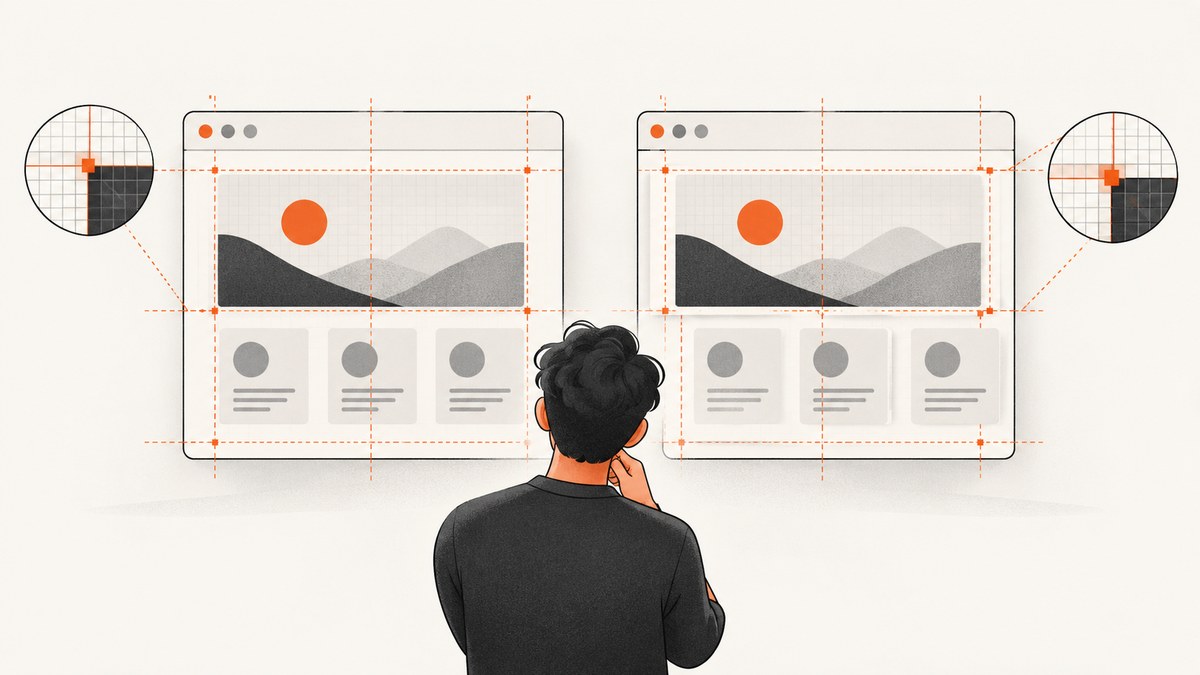
Set the browser geometry, wait for a deterministic ready state, match the capture region, and record the rendering environment. An rSelenium screenshot is produced from a WebDriver browsing context, so window size, viewport size, scroll position, device pixel ratio, browser build, fonts, and page timing all affect the pixels.
This guide shows a reproducible diagnostic workflow, complete RSelenium examples, and fixes for blank, incomplete, incorrectly sized, or visually different PNG files.
1. Record the environment before comparing images
Start by logging every condition that can change layout or rasterization. A reference image is comparable only when the actual run uses a sufficiently similar environment.
- Browser name and exact version
- WebDriver or driver version
- RSelenium and R versions
- Operating system, architecture, locale, timezone, and color settings
- Headless or headed mode, GPU availability, and container or CI image
- Installed fonts and font loading policy
- Viewport dimensions, browser zoom, and
window.devicePixelRatio
Playwright’s visual-comparison guidance also identifies host OS, browser version, settings, hardware, power source, headless mode, and fonts as causes of rendering differences. Keep those variables fixed for visual regression work: Playwright visual comparisons.
2. Set and verify the viewport
Do not assume the host monitor resolution is the browser viewport. A headless browser can start with a small implementation-specific viewport unless you provide one. Match the reference CSS viewport, then verify the dimensions after navigation.
library(RSelenium)

url <- "https://example.com"

# Start a driver appropriate for your environment.
rD <- rsDriver(
  browser = "chrome",
  chromever = "latest",
  verbose = FALSE
)
remDr <- rD$client
remDr$open()

# Match the reference CSS viewport.
remDr$setWindowSize(width = 1280, height = 900)
remDr$navigate(url)

# Inspect the dimensions the page actually received.
geom <- remDr$executeScript(
  "return {
     outerWidth: window.outerWidth,
     outerHeight: window.outerHeight,
     innerWidth: window.innerWidth,
     innerHeight: window.innerHeight,
     dpr: window.devicePixelRatio,
     scrollWidth: document.documentElement.scrollWidth,
     scrollHeight: document.documentElement.scrollHeight
   };"
)[[1]]
print(geom)

# Capture from a known scroll position.
remDr$executeScript("window.scrollTo(0, 0);")
remDr$screenshot(file = "actual.png")

remDr$close()
rD$server$stop()
RSelenium exposes setWindowSize(width, height) and maxWindowSize() in its remote driver implementation. Use the latter only when the baseline was created at the largest available window:
remDr$maxWindowSize()Selenium documents why this matters: screen resolution can change how an application renders, so WebDriver provides mechanisms for moving and resizing the browser window. See Working with windows and tabs.
Viewport size versus window size
setWindowSize() sets the outer browser window. Browser chrome, headless implementation details, and operating-system decorations can make innerWidth and innerHeight different. Compare the logged innerWidth and innerHeight with the reference viewport, not just the requested outer dimensions.
3. Wait for the state that should be captured
remDr$navigate() returning does not prove that a client-rendered chart, image, web font, or asynchronous component is finished. Selenium’s wait model repeatedly evaluates a condition until it becomes truthy; use the same readiness idea in RSelenium instead of taking an immediate screenshot.
Poll a readiness marker
wait_until <- function(remDr, javascript, timeout = 30, interval = 0.25) {
  deadline <- Sys.time() + timeout
  repeat {
    value <- remDr$executeScript(javascript)[[1]]
    if (isTRUE(value)) return(invisible(TRUE))
    if (Sys.time() >= deadline) {
      stop("Timed out waiting for page readiness")
    }
    Sys.sleep(interval)
  }
}

remDr$navigate("https://example.com/dashboard")
wait_until(
  remDr,
  "return document.querySelector('[data-testid=dashboard-ready]') !== null;"
)
remDr$executeScript("window.scrollTo(0, 0);")
remDr$screenshot(file = "dashboard.png")
Wait for a loading marker to disappear
wait_until(
  remDr,
  "return !document.querySelector('.loading-spinner');"
)
Check fonts and images when they affect layout
wait_until(
  remDr,
  "return document.fonts ? document.fonts.status === 'loaded' : true;"
)
wait_until(
  remDr,
  "return Array.from(document.images).every(function (img) { return img.complete; });"
)
These checks are useful only when the page’s own state is reliable. If there is no deterministic marker, use a documented delay and treat it as a weaker fallback:
Sys.sleep(3)
remDr$screenshot(file = "delayed.png")
For animated pages, freeze motion before capture and apply the same stabilization to the baseline and actual runs:
remDr$executeScript("var style = document.createElement('style');
style.id = 'screenshot-freeze';
style.textContent = '* { animation: none !important; transition: none !important; caret-color: transparent !important; }';
document.head.appendChild(style);")
4. Match the capture scope and scroll position
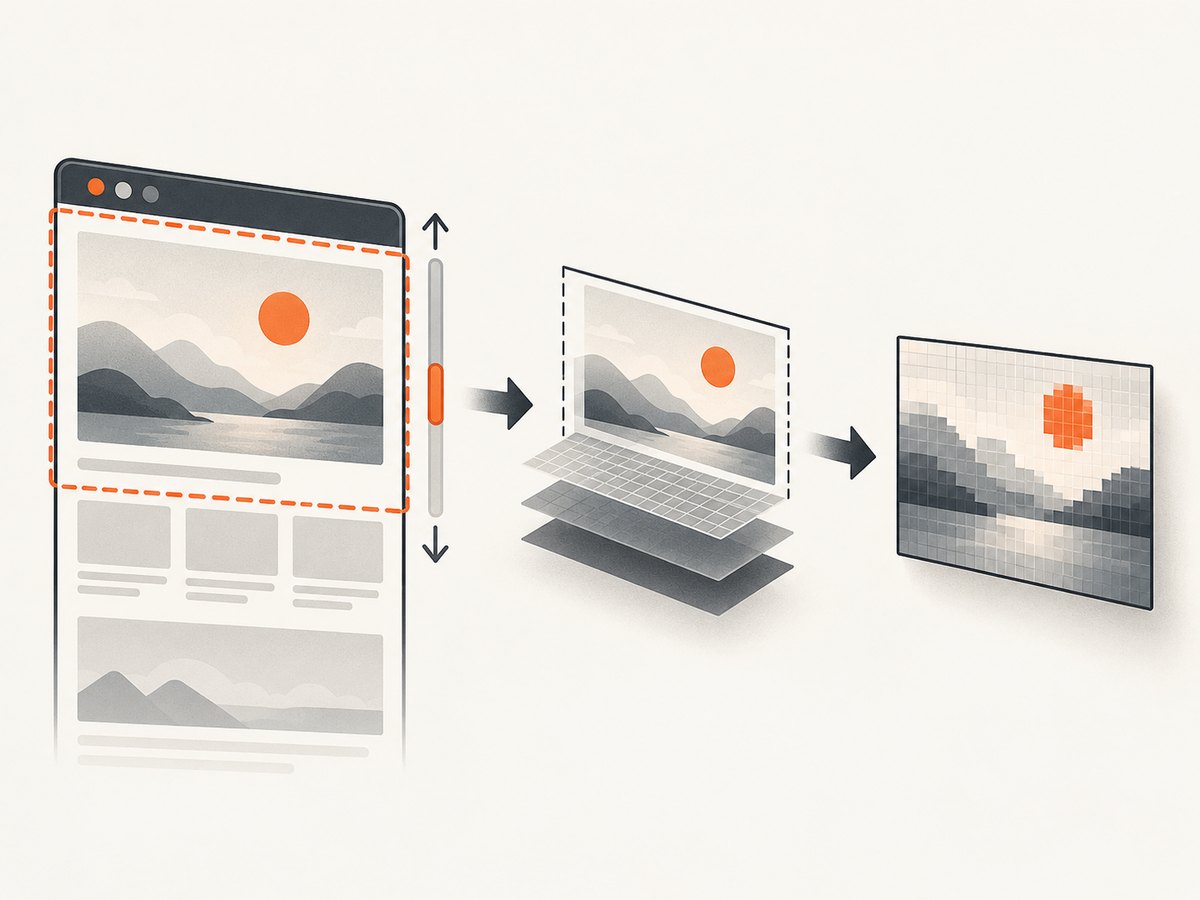
A “screenshot” can mean a viewport, the current window, an element crop, or a full-page image. Selenium’s screenshot API makes a best effort to return, in order, the entire page, current window, visible portion of the current frame, or the entire display. An apparently wrong image may therefore be a different scope rather than a rendering failure: Selenium screenshots.
Viewport capture
remDr$executeScript("window.scrollTo(0, 0);")
remDr$screenshot(file = "viewport-top.png")
Element capture
card <- remDr$findElement(using = "css selector", value = "[data-testid='invoice-card']")
card$screenshot(file = "invoice-card.png")
Use the same selector, element state, scroll position, and clipping rectangle for both images. If the element moves because of late-loading fonts or ads, wait for its final dimensions first.
Long pages
Do not assume screenshot() always means the entire document. For a long page, choose one deliberate method: a defined viewport, an element crop, or a full-page/stitching strategy supported by your driver. Log scrollHeight and compare it with the reference before deciding that content is missing.
5. Check CSS pixels, device pixels, and HiDPI
CSS dimensions and PNG dimensions are not necessarily equal. A 1280 CSS-pixel viewport on a device-pixel-ratio (DPR) of 2 can produce an image about 2560 pixels wide. Record both values:
geom <- remDr$executeScript(
  "return {
     cssWidth: window.innerWidth,
     cssHeight: window.innerHeight,
     dpr: window.devicePixelRatio
   };"
)[[1]]
print(geom)
Compare the PNG’s pixel dimensions with the reference and determine whether the difference is a scale issue or a layout issue. Browser zoom is not equivalent to a true HiDPI device. The CRAN webshot documentation warns that 2× zoom does not advertise a true HiDPI device, so responsive sites may choose different higher-resolution assets or layout branches.
- If text wraps differently, inspect CSS viewport width, zoom, fonts, and responsive breakpoints.
- If geometry matches but glyph edges differ, inspect OS, font files, GPU, browser build, and headless mode.
- For a fair comparison, compare CSS-pixel geometry separately from device-pixel raster output.
6. Pin the rendering environment for visual regression
Pixel identity requires more than the same URL. Use a fixed container or CI image with pinned browser and driver versions, installed fonts, locale, timezone, color settings, and headless configuration. Record the image digest or equivalent environment identifier with each baseline.
If exact identity is unnecessary, use a small visual tolerance and review meaningful regions. Antialiasing differences can remain even when layout and content are correct.
7. Diagnose the difference systematically
- Compare PNG dimensions. A different width or height usually indicates viewport, full-page, element, or DPR mismatch.
- Compare logged geometry. Check inner dimensions, scroll dimensions, DPR, and scroll position.
- Check readiness. Confirm that the same data, fonts, images, and loading markers are complete.
- Check capture scope. Verify viewport versus element versus full page.
- Classify the pixels. Text wrapping and shifted boxes indicate layout; missing regions indicate timing or blocked resources; edge-only differences indicate rasterization.
- Re-run in the pinned environment. If the result changes between runs, investigate animation, time-dependent widgets, ads, random data, or network responses.
8. Common errors and fixes
| Symptom | Likely cause | Fix |
|---|---|---|
| Screenshot is the wrong size | Outer window was set, but CSS viewport or DPR differs | Set explicit dimensions, log innerWidth/innerHeight and DPR, then match the reference. |
| Headless layout differs from headed Chrome | Different default viewport, GPU path, browser flags, or fonts | Pin browser/driver/container settings and verify the actual viewport. |
| Chart or component is missing | Capture ran before client rendering completed | Wait for a readiness marker, expected text, or loading marker removal. |
| Images are blank | Images or lazy-loaded assets have not completed, or requests failed | Wait for document.images, scroll required regions into view, and inspect network/resource errors. |
| Fonts cause different line breaks | Web fonts are still loading or unavailable in the runner | Wait for document.fonts.status and install/pin the exact font files. |
| Only animated areas differ | Transitions, video, caret, carousel, or time-dependent widget | Disable motion or freeze the application state before capture. |
| Top of page is missing | Scroll position differs | Run window.scrollTo(0, 0) and verify scrollY. |
| Full page expected but only viewport returned | Driver screenshot fallback or unsupported full-page behavior | Use an explicit full-page/stitching method or capture a known element. |
| Text edges differ while boxes match | OS, GPU, font rasterizer, or browser version | Pin the complete environment or use a review tolerance. |
| Intermittent blank page | Navigation timeout, bot check, failed request, or transient backend state | Capture diagnostics, wait for a known state, retry only idempotent navigation, and distinguish timeout from application failure. |
9. A reusable RSelenium capture function
capture_page <- function(remDr, url, output, width = 1280, height = 900,
                         ready_js = "return document.readyState === 'complete';",
                         timeout = 30) {
  remDr$setWindowSize(width, height)
  remDr$navigate(url)

  wait_until(remDr, ready_js, timeout = timeout)
  wait_until(remDr,
    "return document.fonts ? document.fonts.status === 'loaded' : true;",
    timeout = timeout
  )

  remDr$executeScript("window.scrollTo(0, 0);")
  remDr$executeScript("var s = document.createElement('style');
    s.textContent = '* { animation: none !important; transition: none !important; caret-color: transparent !important; }';
    document.head.appendChild(s);")

  geometry <- remDr$executeScript(
    "return {
       innerWidth: window.innerWidth,
       innerHeight: window.innerHeight,
       dpr: window.devicePixelRatio,
       scrollWidth: document.documentElement.scrollWidth,
       scrollHeight: document.documentElement.scrollHeight,
       scrollY: window.scrollY
     };"
  )[[1]]

  remDr$screenshot(file = output)
  list(url = url, geometry = geometry, output = output)
}
10. Performance, reliability, and cost considerations
Performance
- Use a readiness selector instead of a long fixed sleep; it finishes as soon as the required state exists.
- Reuse a driver session when capturing several pages, but reset cookies, storage, viewport, scroll position, and injected styles between pages.
- Capture an element or viewport when a full document is not needed.
- Disable unnecessary animations and wait only for resources that affect the target region.
Reliability
- Keep browser and driver versions compatible and pinned.
- Store geometry and environment metadata next to each baseline.
- Separate navigation failures, incomplete application state, and visual mismatches in your logs.
- Use retries only for transient, idempotent navigation failures; retries cannot fix a deterministic viewport or font mismatch.
Cost
Self-hosted RSelenium costs the compute and maintenance time of your browser runners, containers, fonts, drivers, and CI jobs. If you need a managed screenshot endpoint, compare billing semantics as well as request price: failed loads, bot checks, and blank pages can otherwise consume quota.
11. Or skip the browser setup
ScreenshotNeo provides a single GET request for PNG, JPEG, WebP, or PDF output. It removes cookie and consent banners, newsletter popups, and chat widgets before capture; bot checks, blank pages, failed loads, timeouts, and cache hits are not billed, and response headers identify the page verdict and billing result. Its MCP server provides take_screenshot, get_page_info, and capture_pdf tools for Claude, Cursor, and other MCP clients.

See the ScreenshotNeo API documentation for all parameters.
cURL
curl -G "https://api.screenshotneo.com/v1/shot" \
  -d access_key=YOUR_API_KEY \
  --data-urlencode url=https://stripe.com \
  -o shot.webp
Python
import requests

r = requests.get(
    "https://api.screenshotneo.com/v1/shot",
    params={"access_key": "YOUR_API_KEY", "url": "https://stripe.com"},
    timeout=90,
)
r.raise_for_status()
open("shot.webp", "wb").write(r.content)
Node.js
const q = new URLSearchParams({ access_key: 'YOUR_API_KEY', url: 'https://stripe.com' });
const res = await fetch(`https://api.screenshotneo.com/v1/shot?${q}`);
if (!res.ok) throw new Error(`HTTP ${res.status}`);
const data = Buffer.from(await res.arrayBuffer());
require('fs').writeFileSync('shot.webp', data);
Every feature is available on every plan, including full-page and element capture, custom CSS and JavaScript, waits, headers, cookies, user agents, geolocation, caching, signed links, asynchronous jobs, webhooks, bulk capture, and PDF options. The free plan includes 1,000 shots per month without a card; paid plans start at $5 for 3,000 shots. Only clean shots are billed.
Create a free ScreenshotNeo account and start with 1,000 screenshots per month at no charge.
12. FAQ
Why does the same URL produce different screenshots on two machines?
The browser, driver, operating system, fonts, GPU/headless mode, viewport, DPR, locale, or page timing differs. Log and pin those inputs before comparing pixels.
Should I use browser zoom to simulate a retina display?
No. Zoom changes page scaling but does not advertise a true HiDPI device. Match device pixel ratio through the browser environment and verify the output dimensions.
Is document.readyState === 'complete' enough?
Often it is not. Client-rendered data, web fonts, lazy images, and post-load components can still be changing. Prefer an application-specific readiness marker.
How can I tell whether a mismatch is layout or antialiasing?
Check dimensions, text wrapping, and element positions first. If geometry matches and only glyph edges or colors differ, investigate rasterization or use a small comparison tolerance.
When should I capture an element instead of the page?
Capture an element when the test concerns a stable component and surrounding content is dynamic. Use the same selector and wait for its final bounds in both runs.


