How to Fix RTL Text in PDFs with Mixed Hebrew, English, and Numbers
Fix reversed Hebrew, English, and numbers in PDFs by correcting source direction, mixed text runs, export settings, and viewer-specific issues.
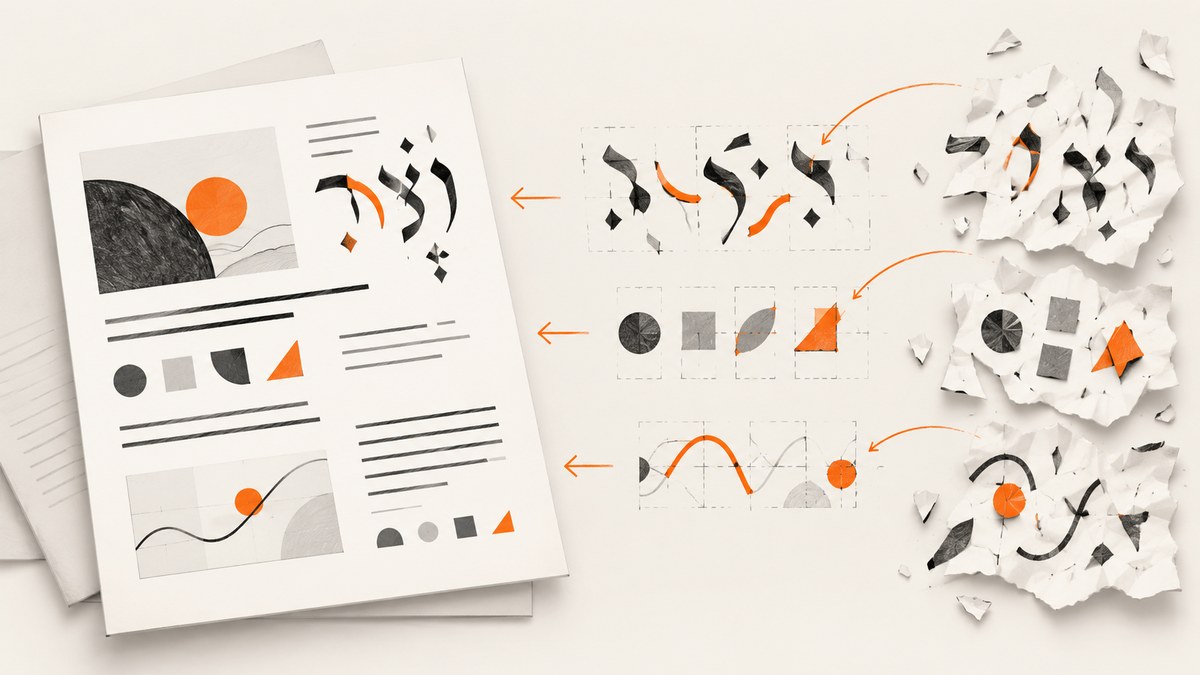
When Hebrew, English, and numbers appear in the wrong order in a PDF, the reliable fix is usually to correct the editable source document, export a new PDF, and inspect that PDF in the reader your audience uses. Set the paragraph direction to right-to-left (RTL), keep embedded English phrases and numeric strings as left-to-right (LTR) runs when necessary, and do not reverse characters manually.
The display order is governed by Unicode’s bidirectional algorithm. Hebrew letters have right-to-left behavior, Latin letters have left-to-right behavior, and digits or punctuation can be resolved from their surrounding context. The sequence stored in the file (logical order) is therefore different from the order you see on screen (visual order). A line that looks backwards is not proof that its underlying characters were stored backwards.
1. Find where the order first breaks
Before changing text, isolate the layer that is failing. The same PDF can look correct in one viewer, print correctly but copy incorrectly, or contain a defect introduced during export.
| Symptom | Likely layer | First action |
|---|---|---|
| It is wrong in the editable document | Authoring direction or language setup | Set the paragraph RTL and review mixed runs |
| Source looks right, exported PDF looks wrong everywhere | PDF export, font, or shaping | Export again with Hebrew/complex-script support and embedded fonts |
| Only one viewer displays it incorrectly | Viewer rendering or font support | Open the same file in the target reader and a second current reader |
| Display is right, copied text is wrong | Text extraction or character mapping | Test extraction separately; do not alter visible text blindly |
| Only a form field or annotation is wrong | Field or markup direction settings | Use the field’s RTL and digit options where supported |
This diagnostic split follows the separate roles of Unicode layout, authoring applications, PDF viewers, and extraction tools. It prevents a viewer-specific symptom from causing destructive edits to a correct source.
2. Understand bidirectional text before editing
Unicode defines an algorithm for laying out lines that mix scripts. Hebrew characters are strongly RTL. Latin letters are strongly LTR. European digits are generally weakly directional, and punctuation such as parentheses, slashes, colons, and hyphens may take direction from nearby strong characters. That is why a date, phone number, URL, or identifier can appear to jump to an unexpected side of a Hebrew phrase.
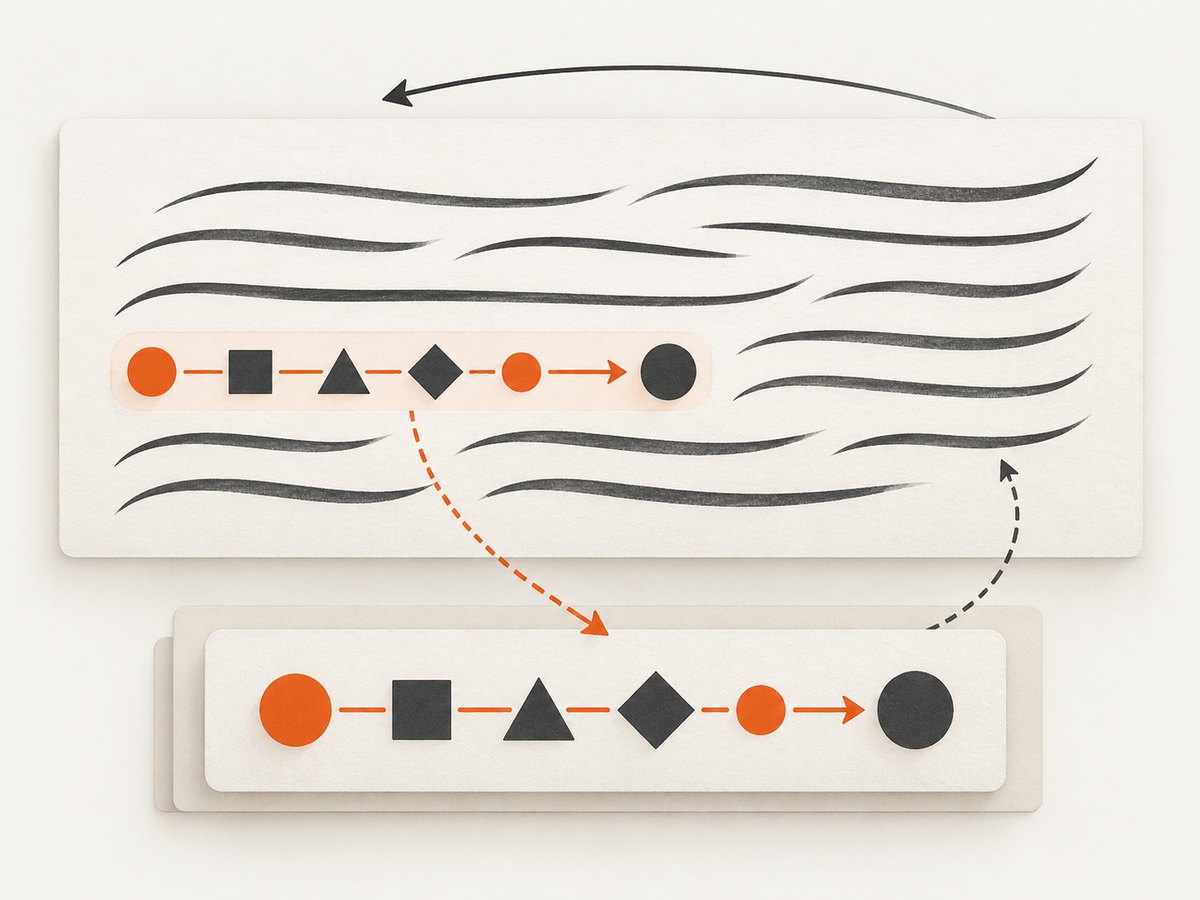
Read and store mixed text in logical order. For example, keep an English product name and its digits in their natural sequence; control how that run is displayed with paragraph and character/run direction settings. Unicode’s Bidirectional Algorithm (UAX #9) and its bidirectional text FAQ explain why visual order changes by context.
Do not start by reversing a string character by character. Manual reversal often fixes one screenshot while breaking copying, searching, accessibility, or a different viewer. Invisible directional control characters exist, but they are an advanced tool for a known boundary problem, not a general replacement for correct paragraph and run settings.
3. Fix an editable Microsoft Office source
- Enable Hebrew or another RTL language. Install the language and keyboard support required by your Office version. Language support and keyboard configuration are separate steps in Microsoft’s documented workflow.
- Select the affected paragraphs. Use the right-to-left paragraph control so alignment, tab stops, bullets, and line flow start from the correct side.
- Mark embedded LTR runs. Select English words, URLs, model numbers, dates, or numeric expressions and set their character direction to LTR when the application exposes that control. Keep the characters in their normal logical order.
- Check punctuation boundaries. Inspect parentheses, quotation marks, decimal separators, slashes, and trailing punctuation around the LTR run. Add spacing or group the run consistently rather than inserting reversed characters.
- Export a fresh PDF. Use the application’s PDF export, retain selectable text, and include fonts when that option is available. Reopen the new file instead of relying on the editor’s preview.
Microsoft’s guide to right-to-left languages in Office documents language support and the RTL paragraph control. Menu names vary by Office release, so search the ribbon for “right-to-left paragraph” if the icon is not visible.
A repeatable Office export checklist
- Paragraph direction is RTL for Hebrew paragraphs.
- English and number runs remain logically ordered and are marked LTR where needed.
- Dates, phone numbers, URLs, and identifiers were checked with surrounding punctuation.
- The PDF was reopened in the intended desktop or browser reader.
- Copy, search, and print were tested independently.
4. Fix an editable LibreOffice source
LibreOffice exposes mixed-direction behavior through its Complex Text Layout (CTL) settings. Enable CTL and the relevant language, then apply RTL paragraph direction to Hebrew paragraphs. For embedded English or numbers, select the run and choose LTR direction when available. LibreOffice also documents contextual numeral display: the appearance of digits can depend on locale and surrounding formatting.
- Open Tools → Options → Language Settings and enable the language and CTL support needed for Hebrew.
- Turn on the RTL/LTR paragraph controls if they are not present on the toolbar.
- Select each affected paragraph and apply RTL direction.
- Select mixed English and numeric runs and apply LTR direction where their boundaries are ambiguous.
- Review list markers, tables, tabs, and punctuation; these are separate layout objects and may need their own direction.
- Export to PDF, reopen the result, and verify display, print, search, and copy.
See LibreOffice’s Complex Text Layout help for the CTL and contextual numeral settings. If the source is an imported DOCX, compare the imported document with a newly created test paragraph; import conversion can carry different direction metadata.
5. Export and inspect the PDF systematically
Use a small test file before regenerating a long document. Include one Hebrew-only line, one English-only line, a mixed sentence, a date, a phone number, a URL, parentheses, a table, and a list. This gives you a controlled way to see which construct fails.
# LibreOffice headless export example
libreoffice --headless --convert-to pdf --outdir ./out ./source.odt

# Confirm that the expected PDF was produced
ls -l ./out/source.pdf
The command only performs an export; it cannot infer the intended direction of a badly authored paragraph. Open the resulting PDF in the target reader and compare it with the source. If the output changes after a font substitution, install or embed a Hebrew-capable font permitted by your document’s license and export again.
Inspecting Unicode properties in Python
A short diagnostic script can show the directional class assigned to each character. It helps explain why a punctuation mark follows nearby context; it does not rewrite a PDF.
import unicodedata

sample = "שלום ABC 123 (45)"
for character in sample:
    codepoint = f"U+{ord(character):04X}"
    name = unicodedata.name(character, "UNKNOWN")
    bidi = unicodedata.bidirectional(character) or "NONE"
    print(f"{codepoint} {character!r:4} {bidi:3} {name}")
Use this when documenting a bug or comparing two source strings. Keep the original logical sequence intact; direction belongs in paragraph and run formatting unless you have a narrowly defined control-character requirement.
6. Existing PDFs: body text, fields, and annotations are different
If you no longer have the editable source, first identify whether the problem is ordinary page text, an interactive form field, or an annotation. A PDF editor may offer direction and digit controls for fields or text markups while offering no general repair for already positioned body text.
Adobe’s documentation states that Acrobat supports viewing, searching, and printing Hebrew PDFs on Windows. The same documentation describes direction and digit options for specified form fields, signatures, and text box markups. Those controls should not be presented as a universal body-text fix. See Adobe’s Asian, European, and Middle Eastern language support for the supported scopes.
- Body text: return to the source if possible. If it is unavailable, recreate the affected text in a direction-aware editor rather than manually swapping glyphs.
- Form field: open field properties and set the documented RTL direction and digit behavior, then test typing, saving, reopening, and printing.
- Annotation or markup: set its direction if the annotation type exposes that control. Check the same annotation in the reader used by recipients.
- Scanned page: it has no text order until OCR is applied. OCR language and reading-order settings become a separate source of errors.
7. Troubleshooting common failures
| Error or symptom | Cause | Fix |
|---|---|---|
| Hebrew letters are individually reversed | Text was manually reversed or imported in visual order | Restore logical character order and apply RTL paragraph direction |
| English phrase is scrambled inside Hebrew | The embedded run inherited RTL context | Select the phrase and mark it LTR; check adjacent punctuation |
| Numbers move before or after the wrong word | Digits are weakly directional and context resolved them differently | Group the numeric run consistently, set its direction, and test the surrounding punctuation |
| Parentheses appear on the unexpected side | Neutral punctuation adopted surrounding direction | Keep the phrase as one run, review spacing, and test in the target reader |
| Looks correct in the editor but wrong in PDF | Export conversion, missing font, or shaping issue | Export again with Hebrew support and embedded fonts; compare a minimal test file |
| Only Acrobat or only a browser is wrong | Viewer rendering or font handling | Update the viewer, verify the target reader, and avoid declaring the PDF fixed from one preview |
| Display is correct but copy/paste is reversed | Extraction order or character mapping differs from visual layout | Report it as an extraction issue and test another extractor; do not alter visible text without source evidence |
| Search cannot find Hebrew words | Missing or incorrect character mapping, often from a scan or bad export | Regenerate selectable text with Hebrew fonts or OCR configured for Hebrew, then retest |
8. Performance, reliability, and document-quality checks
Direction fixes are usually inexpensive compared with rebuilding a document after delivery. Use a small bilingual fixture in your export pipeline and compare the generated PDF in at least one desktop reader and the reader your audience uses. Keep a copy of the editable source so a viewer-specific workaround does not become permanent content.
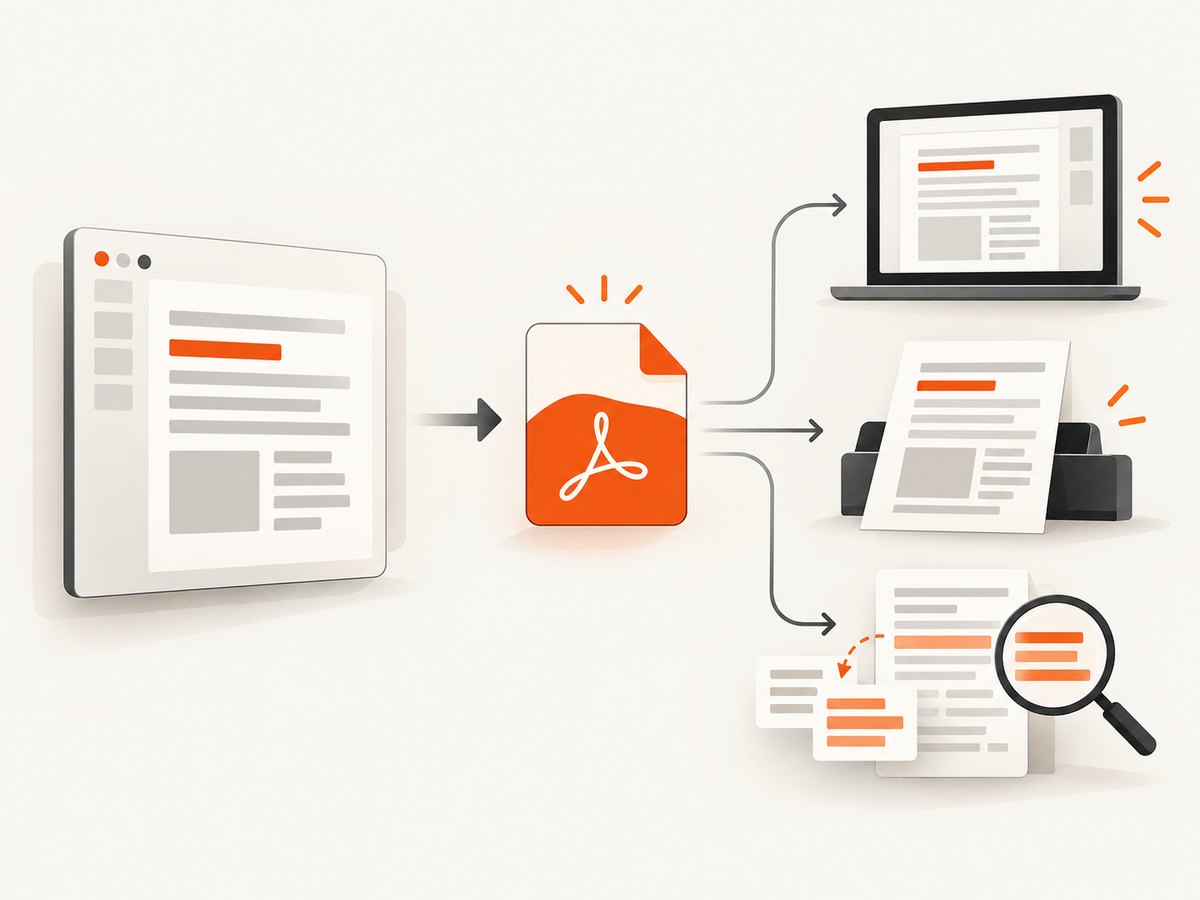
For automated production, validate more than a rendered screenshot: confirm that Hebrew search works, that copied text preserves logical order, and that printed output matches the screen. Large tables, nested lists, headers, footers, and page breaks can introduce independent direction settings. Test those structures explicitly.
Do not claim success from visual inspection alone. A PDF can render correctly while exposing a poor extraction order to assistive technology or downstream indexing. Conversely, an extractor can report an odd order while the visual document is correct. Treat display, print, search, copy, and accessibility as separate acceptance checks.
9. Or skip the browser setup
If you need a clean reference image or PDF of the repaired document, ScreenshotNeo can capture the rendered page through one API request. It accepts the cookie or consent banner like a visitor, removes more than 60 known consent platforms plus newsletter popups and chat widgets before capture, and reports whether a response was clean or failed. Bot checks, blank pages, timeouts, failed loads, and cache hits are not billed.
See the ScreenshotNeo API documentation for all options. Basic capture:
curl -G "https://api.screenshotneo.com/v1/shot" -d access_key=YOUR_API_KEY --data-urlencode url=https://stripe.com -o shot.webpimport requests
r = requests.get("https://api.screenshotneo.com/v1/shot", params={"access_key": "YOUR_API_KEY", "url": "https://stripe.com"}, timeout=90)
open("shot.webp", "wb").write(r.content)const q = new URLSearchParams({ access_key: 'YOUR_API_KEY', url: 'https://stripe.com' });
const res = await fetch(`https://api.screenshotneo.com/v1/shot?${q}`);For PDF review workflows, ScreenshotNeo also supports PDF paper size, margins, landscape mode, and page ranges. You can wait for a selector or network idle, inject custom CSS or JavaScript, set timezone and geolocation, hide selectors, block resources, choose a device or viewport, and capture a single element or a full page with lazy images loaded. Response headers identify the page verdict and whether the shot was billed, so failed captures do not silently consume credits. An MCP server provides take_screenshot, get_page_info, and capture_pdf tools for Claude, Cursor, and other MCP clients.
The free plan includes 1,000 screenshots each month with no card. Paid plans start at $5 for 3,000 shots; every feature is available on every plan. Create a free ScreenshotNeo account and generate a clean capture for your review pipeline.
10. FAQ
Should I reverse Hebrew characters to make a PDF look right?
No. Keep logical character order and set paragraph or run direction. Reversal can damage search, copy, and accessibility.
Why do numbers move even when the Hebrew sentence is correct?
Digits are weakly directional. Their position is resolved from surrounding strong characters and punctuation, so mark a numeric run LTR when its boundary is ambiguous.
Can Acrobat repair all RTL body text?
Adobe documents Hebrew viewing, searching, and printing support, plus RTL controls for specified fields and annotations. That scope does not establish a universal body-text repair tool.
What if the PDF looks correct but copying is wrong?
Treat visual rendering and extraction as separate problems. Check the source’s logical order, test another extractor, and avoid changing visible text without evidence.
Is a viewer or the source document at fault?
It can be either. Compare the editable source, exported PDF, target reader, print output, and copied text to locate the first failure.


