How to Fix Safari’s “Could Not Capture Snapshot” Error
Safari’s “Could Not Capture Snapshot” cause is unconfirmed. Follow Apple’s safest troubleshooting steps and learn reliable alternatives for full-page captures.
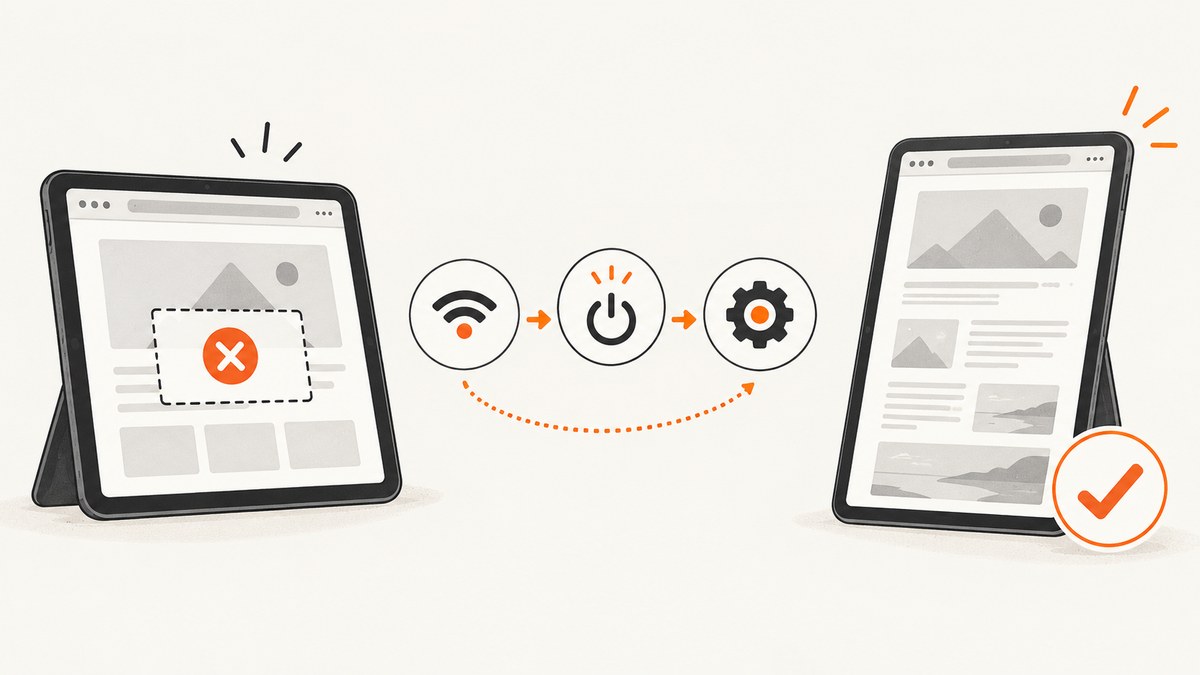
Short answer: Apple has not published a confirmed cause for Safari’s exact “Could Not Capture Snapshot” message. Treat it as a capture failure, then narrow the problem by checking whether it affects one page or every page. Apple’s general Safari guidance is to try another network, review VPN settings, restart the device, clear Safari website data, check JavaScript, and investigate iCloud Private Relay when only one site is affected. These are general remedies, not guaranteed fixes for this exact message.
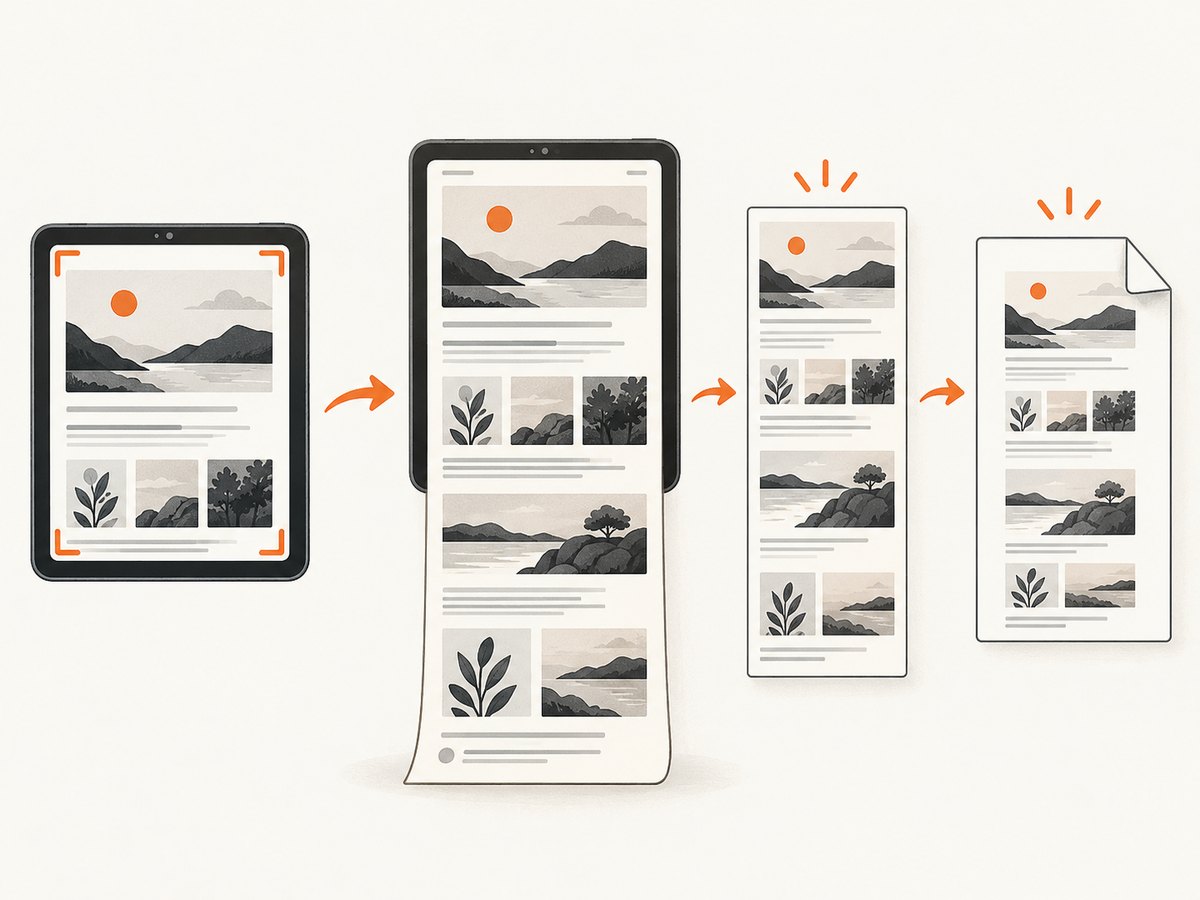
If you only need a full-page image or PDF, iPad has a built-in alternative: take a normal screenshot, tap the thumbnail, choose Full Page, then save the result. Apple documents this workflow for long webpages in Safari.
What the error means—and what Apple has not confirmed
The phrase “Could Not Capture Snapshot” sounds like a failure while Safari is turning the current webpage into an image. Apple’s public consumer support article does not identify that exact message or name a trigger. Apple’s WebKit developer documentation does describe snapshot APIs whose completion handler returns an image or nil plus an error when capture fails, but it does not establish that Safari’s consumer message comes from that API.
That distinction matters: avoid assuming that JavaScript, a specific website framework, storage corruption, or an iOS bug is the cause without more evidence. Record the device model, iOS or iPadOS version, the page, the action that triggered the message, and whether other sites can be captured.
Use this troubleshooting sequence
1. Check whether one page or every page fails
- Open a simple site such as
https://www.apple.com. - Try the same capture action there.
- Try a second unrelated site.
If only one page fails, the site, its content, or the network path to it may be involved. Apple recommends checking Private Relay for a problem isolated to one website and contacting that website’s developer if Safari still cannot load it. This does not prove the website caused the snapshot error; it helps scope the investigation.

2. Try another network
Switch from Wi-Fi to cellular data, or connect to another Wi-Fi network. If a VPN is enabled, review its settings or temporarily disable it for diagnosis. Apple notes that some apps and websites may block content when a VPN is active.
3. Restart the iPhone or iPad
Restart the device, reopen Safari, load the page again, and retry the capture. A restart clears transient process and networking state without deleting Safari data.
4. Clear Safari website data
Apple’s current path is:
- Open Settings.
- Tap Apps, then Safari.
- Tap Clear History and Website Data.
- Tap Clear History to confirm.
This is a broad browser cleanup step, not a proven error-specific repair. It can sign you out of sites and remove stored website data, so save anything you need before clearing it.
5. Check JavaScript
Some webpages do not render or behave correctly without JavaScript. Check:
- Open Settings.
- Tap Apps → Safari → Advanced.
- Make sure JavaScript is enabled.
Apple lists this for pages that fail to load; it does not state that disabling JavaScript causes “Could Not Capture Snapshot.”
6. Investigate iCloud Private Relay for a single-site failure
If every other site works but one site does not, check whether Private Relay is enabled in iCloud settings. Temporarily turning it off can show whether the network path changes the result. Re-enable it after diagnosis if it is not the cause.
7. Retry with a simpler page state
- Wait until the page finishes loading before taking the snapshot.
- Close extra Safari tabs and reopen the affected page.
- Dismiss video, login, or consent overlays if the page allows it.
- Try the page’s mobile or reader-friendly version when available.
- Test a different page on the same domain to separate a page-specific failure from a site-wide one.
These are diagnostic actions, not Apple-confirmed causes or fixes for the quoted message.
Capture a full webpage on iPad without fixing the error
When the goal is a long webpage image or PDF, use Apple’s built-in full-page screenshot workflow:
- Press and quickly release the top button and either volume button. On an iPad with a Home button, press the top button and Home button.
- Tap the screenshot thumbnail in the lower-left corner.
- Tap Full Page.
- Scroll the preview to inspect the captured page.
- Tap Done, then choose Save as Image or Save PDF to Files.
Apple documents this as an alternative capture route, not as a repair for “Could Not Capture Snapshot.” See Apple’s iPad screenshot instructions.
When the problem needs the website developer
Contact the site owner when:
- Only one website or one route on a website fails.
- The page fails on multiple networks and after a restart.
- Other browsers or devices also show incomplete content.
- The page requires a login, a consent flow, or a challenge that prevents normal loading.
Include the URL, device and OS version, Safari version if available, time of failure, whether Private Relay or a VPN was enabled, and a screen recording or screenshot of the message. Do not send passwords or private page contents.
Developer context: WebKit snapshot APIs
If you maintain a Safari web extension or an app using WebKit, Apple documents snapshot capture as an asynchronous operation. The completion handler receives an image (or nil) and an error. That documentation explains how developers should handle a failed capture; it does not diagnose the consumer-facing Safari message.
Read the primary references: WebKit web-extension snapshot documentation and WKWebView snapshot documentation.
Or skip the browser setup
If you need a repeatable capture from a script, CI job, documentation pipeline, or AI workflow, ScreenshotNeo provides a website screenshot API and MCP server. One GET request returns a PNG, JPEG, WebP, or PDF. The request below captures Stripe as a WebP:
cURL
curl -G "https://api.screenshotneo.com/v1/shot" -d access_key=YOUR_API_KEY --data-urlencode url=https://stripe.com -o shot.webpPython
import requests

r = requests.get(
    "https://api.screenshotneo.com/v1/shot",
    params={"access_key": "YOUR_API_KEY", "url": "https://stripe.com"},
    timeout=90,
)
r.raise_for_status()
open("shot.webp", "wb").write(r.content)
Node.js
const q = new URLSearchParams({ access_key: 'YOUR_API_KEY', url: 'https://stripe.com' });
const res = await fetch(`https://api.screenshotneo.com/v1/shot?${q}`);
if (!res.ok) throw new Error(`HTTP ${res.status}`);
const data = Buffer.from(await res.arrayBuffer());
require('fs').writeFileSync('shot.webp', data);
See the ScreenshotNeo API documentation for request parameters and response details. Relevant controls include full-page capture with lazy images loaded, CSS-selector element capture, dark mode, device presets or custom viewports, retina scale, PDF paper size and margins, custom CSS and JavaScript, click actions, selector waits, delays, network-idle waits, request blocking, headers, cookies, user agents, Authorization, timezone, geolocation, transparent backgrounds, resizing, caching with a chosen TTL, signed links, asynchronous jobs with signed webhooks, bulk capture of up to 100 URLs per call, usage data, and an OpenAPI specification.
ScreenshotNeo removes cookie-consent banners, newsletter popups, and chat widgets before capture. Bot checks or CAPTCHAs, blank pages, timeouts, failed loads, and cache hits are not billed; response headers identify the page verdict and whether the shot was billed. Its MCP server exposes take_screenshot, get_page_info, and capture_pdf for Claude, Cursor, and other MCP clients.
The Free plan includes 1,000 shots per month with no card. Paid plans start at $5 for 3,000 shots; every feature is available on every plan. Create a free ScreenshotNeo account to start.
Troubleshooting checklist
| Symptom | Likely scope | Action |
|---|---|---|
| Every page fails | Device, network, Safari state | Try another network, review VPN, restart, clear website data, and check JavaScript. |
| Only one site fails | Site or network path | Check Private Relay, test another network, and contact the site developer. |
| Page loads but snapshot fails | Capture-specific state | Wait for loading, close and reopen the tab, dismiss overlays, and try the iPad Full Page workflow. |
| Full Page is unavailable | Unsupported or unsuitable page state | Retry after the page loads fully; use a normal screenshot or an external capture service. |
| Capture works on another network | VPN, Private Relay, filtering, or Wi-Fi path | Compare VPN and Private Relay settings and ask the network administrator about filtering. |
| ScreenshotNeo response is not an image | HTTP error or page verdict | Check the HTTP status and response headers, verify the access key and URL, and inspect X-Page-Verdict and X-Billed. |
Reliability, performance, and cost considerations
- For local Safari capture: results depend on the current device, Safari state, network, page behavior, and OS version. Reproduce on another network and device before blaming the website.
- For automated capture: wait for a selector, a fixed delay, or network idle when the page renders asynchronously. Use a CSS selector for a smaller, more stable image when a full page is unnecessary.
- For repeat jobs: choose a cache TTL when acceptable, use async jobs and signed webhooks for long captures, and use bulk capture for up to 100 URLs per call.
- For billing: ScreenshotNeo bills only clean shots. Bot checks, blank pages, timeouts, failed loads, and cache hits cost nothing, and the response identifies the verdict and billing status.
- For sensitive pages: pass only the headers, cookies, user agent, and Authorization values required by the target site, and protect API keys in server-side code.
FAQ
Is “Could Not Capture Snapshot” a documented Safari error?
The exact consumer message and its trigger are not identified in Apple’s published support guidance reviewed for this article. Apple documents related snapshot APIs for developers but does not connect them to this message.
Will clearing Safari data definitely fix it?
No. Apple recommends clearing website data for general Safari loading problems. It is a broad troubleshooting step and may sign you out of websites.
Can I save a full Safari webpage as a PDF on iPad?
Yes. Take a screenshot, tap the thumbnail, choose Full Page, tap Done, and choose Save PDF to Files.
Should I disable Private Relay permanently?
No. Temporarily changing it can help diagnose a single-site problem. Restore your preferred setting after testing.
What information should I include when reporting the issue?
Send the URL, device model, iOS or iPadOS version, Safari version if known, exact action, time, network, VPN or Private Relay status, and whether other sites work.


