How to Fix Safari WebDriver in Python Selenium
Enable Safari’s built-in WebDriver, start a Python Selenium session, and diagnose common startup and control failures on macOS.
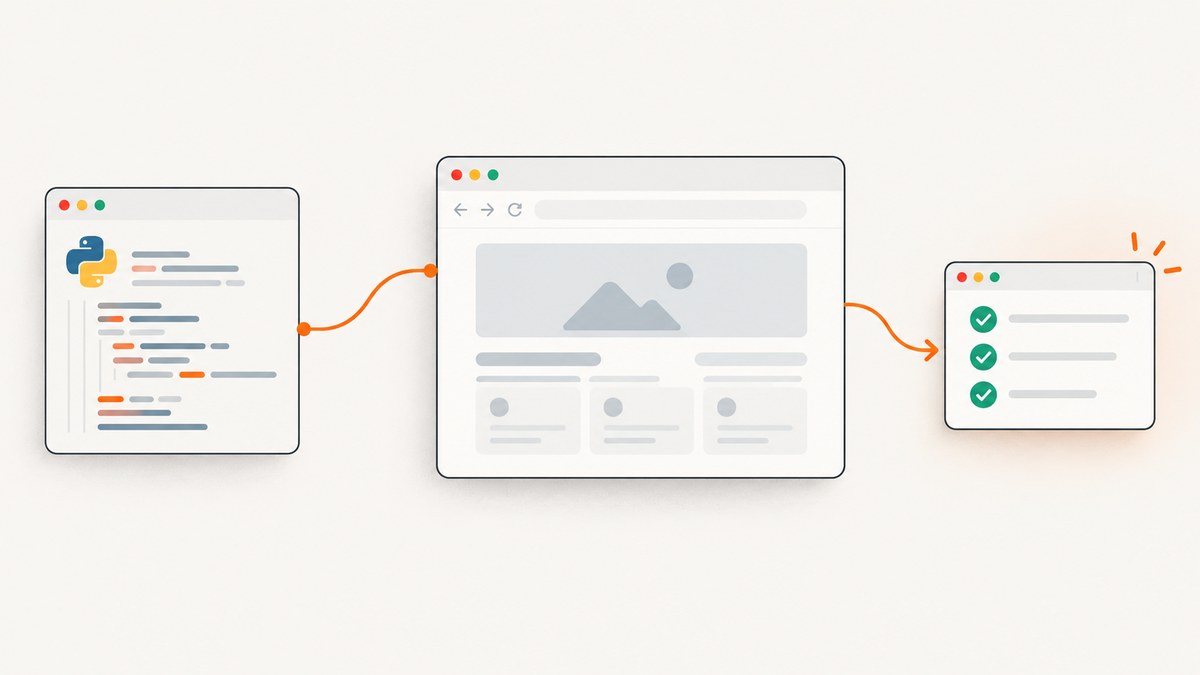
To fix Safari WebDriver with Python Selenium, use a Mac with Safari installed, enable remote automation in Safari’s Developer settings (or run safaridriver --enable), install or update Selenium, and create a session with webdriver.Safari(). Safari includes its own driver, so a separate driver download is normally unnecessary. If the session still fails, check that automation is enabled, that the driver matches the Safari build, and that another WebDriver session is not already using Safari.
1. Confirm your environment
Local Safari WebDriver automation is a macOS workflow. Safari supplies safaridriver with the operating system at /usr/bin/safaridriver. Selenium’s current documentation lists Python 3.10 and later as supported and recommends installing or upgrading the Python bindings with pip. Check the current Selenium Safari documentation if your environment uses a different Python or Selenium version.
python3 --version
which python3
python3 -m pip show selenium
/usr/bin/safaridriver --version
Use the same Python executable to install Selenium and run your script. This avoids a common environment mix-up where Selenium is installed in one virtual environment but the script runs in another.
python3 -m pip install -U seleniumFor a project, create and activate a virtual environment first, then install Selenium into it:
python3 -m venv .venv
source .venv/bin/activate
python -m pip install -U selenium
2. Enable Safari remote automation
Safari does not accept WebDriver control until remote automation is allowed. In current Safari on macOS, open Safari’s Developer settings and select Allow remote automation. Apple documents the alternative Terminal command:
safaridriver --enableIf you upgraded macOS from an earlier release and the command does not enable the driver, Apple says you may need to run it with sudo:
sudo safaridriver --enableRun the command once for the macOS installation, then retry the Python script. The setting is system-level browser automation permission, not a Selenium option. Apple describes this setup in its Safari remote automation guide and Safari Developer settings documentation.
3. Start a minimal Selenium session
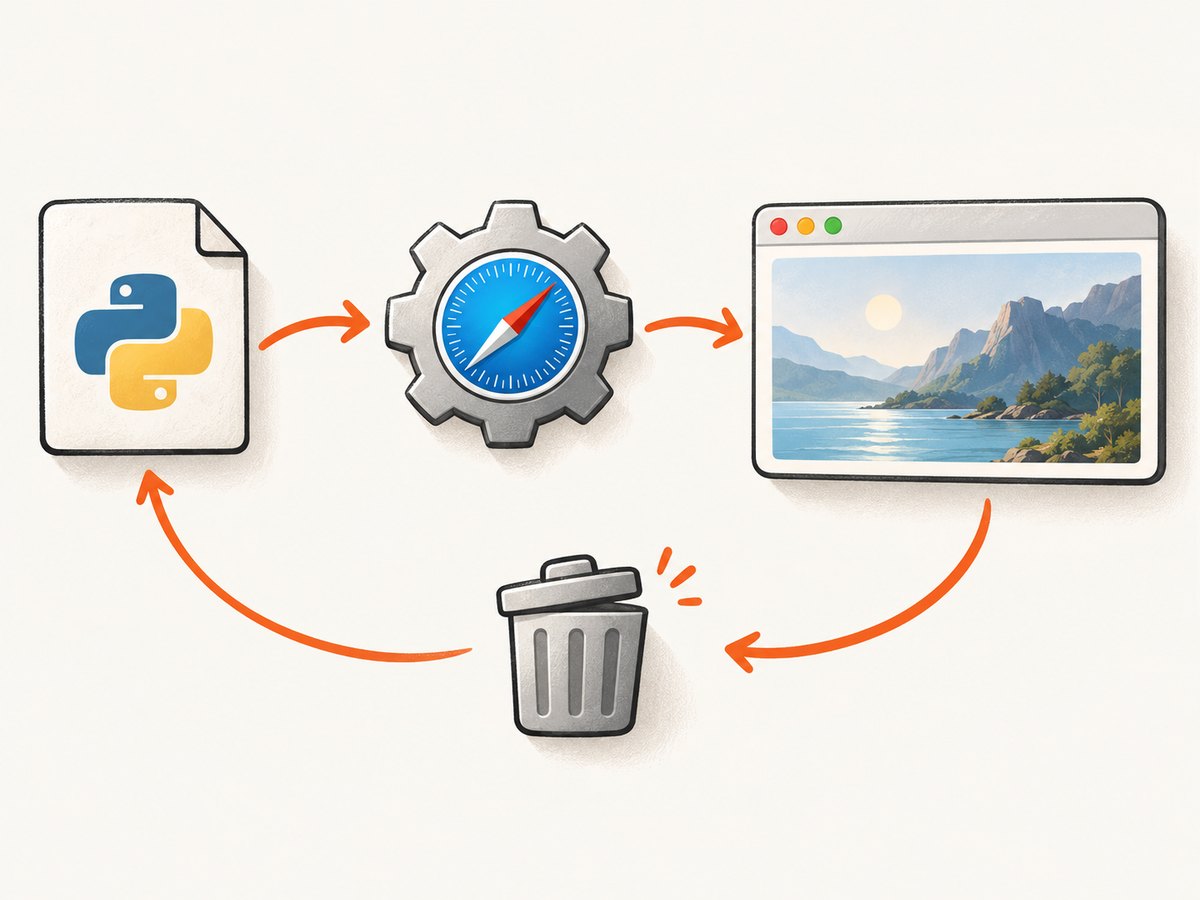
The Selenium Python binding starts Safari directly. This complete example opens a page, prints its title, and always closes the session, including when navigation or an assertion raises an exception.
from selenium import webdriver


def main() -> None:
    driver = webdriver.Safari()
    try:
        driver.get("https://example.com")
        print(driver.title)
    finally:
        driver.quit()


if __name__ == "__main__":
    main()
Run it from Terminal with the intended Python environment active:
python safari_check.pywebdriver.Safari() starts Safari and its native driver. driver.quit() closes the browser session and shuts down the driver process. Put cleanup in a finally block in scripts and test fixtures so a failed test does not leave Safari occupied.
4. Configure logging for startup failures
If the minimal example does not start, enable the Safari service log. Selenium’s Python Safari service accepts enable_logging=True; Selenium documents the log directory as ~/Library/Logs/com.apple.WebDriver/.
from selenium import webdriver

service = webdriver.SafariService(enable_logging=True)
driver = webdriver.Safari(service=service)
try:
    driver.get("https://example.com")
    print(driver.title)
finally:
    driver.quit()
Inspect the service output and Safari’s Web Inspector to distinguish session startup problems from page behavior. Apple notes that Web Inspector’s console, Elements panel, and script debugger remain available during a WebDriver test. Keep logs with the failing test details: Safari version, macOS version, Python version, Selenium version, and the exact exception.
5. Check the browser and driver pairing
The standard Safari driver at /usr/bin/safaridriver launches the Safari version associated with that installation. Safari Technology Preview has a separate driver inside its application bundle. The two drivers are not interchangeable across browser builds. If you intend to automate Technology Preview, select Selenium’s Technology Preview option rather than assuming the standard driver will control it.
from selenium import webdriver
from selenium.webdriver.safari.options import Options

options = Options()
options.use_technology_preview = True
service = webdriver.SafariService(enable_logging=True)
driver = webdriver.Safari(options=options, service=service)
try:
    driver.get("https://example.com")
    print(driver.title)
finally:
    driver.quit()
Use this only if Safari Technology Preview is installed and is the intended test target. For ordinary Safari, omit the options object and use webdriver.Safari(). Apple’s WebDriver in Safari overview explains the driver association and setup.
6. Understand Safari session constraints
Safari creates isolated automation windows. They do not share normal Safari browsing windows, history, AutoFill, settings, or other sensitive browsing state. Tests that depend on your everyday browser profile should instead establish their required state within the test.
Apple also documents a limit of one active Safari browser instance and one attached WebDriver session at a time. Do not start multiple concurrent Safari sessions against the same installation. Run those tests sequentially, or use a test design that does not require competing sessions. A glass pane also catches stray user interaction during automated tests, so avoid clicking or typing into the automation window while a test is running.
7. Common errors and fixes
| Symptom | Likely cause | What to do |
|---|---|---|
| Safari session fails to start or reports automation is not allowed | Remote automation has not been enabled. | Select Allow remote automation in Safari Developer settings, or run safaridriver --enable. After a macOS upgrade, try the Apple-documented sudo form if needed. |
| Driver launches the wrong browser build or cannot control it | The standard Safari driver and Technology Preview driver target different installations. | Confirm which browser you intend to test. Use the matching driver; for Technology Preview, enable Selenium’s Technology Preview option. |
Python reports ModuleNotFoundError: No module named 'selenium' |
Selenium was installed into a different Python environment. | Activate the project environment and install with python -m pip install -U selenium using the same python that runs the script. |
| A second test cannot attach or Safari is already in use | Another Safari WebDriver session or active automated instance is occupying Safari. | Ensure earlier tests call quit(); serialize Safari tests because Apple documents one active attached session. |
| Safari opens but the test appears to hang on a page | The issue may be navigation, site behavior, or a page-level script rather than driver setup. | Use a small known page to verify startup, then inspect the page with Web Inspector and review the driver logs. Diagnose the observed exception instead of changing driver configuration at random. |
| Instructions recommend downloading Selenium’s old SafariDriver | The guidance refers to the legacy implementation. | Use Apple’s built-in driver. Apple says not to use the former SafariDriver implementation maintained by Selenium. |
These checks narrow down the documented setup issues; they cannot guarantee that every website-specific failure has the same cause. Preserve the exact exception and logs before changing versions or settings.
8. iPhone and iPad Safari is a separate workflow
Local webdriver.Safari() automates Safari on macOS. Automating Safari on a connected iPhone or iPad requires a Mac plus device-side configuration. Apple says to enable WebDriver on the Mac and enable both Web Inspector and Remote Automation in Safari settings on the device. Follow Apple’s iOS WebDriver setup for that path; do not apply the local Mac checklist alone and expect it to configure a mobile device.
9. A practical checklist
- Confirm you are running on a Mac with the intended Safari installation.
- Check that Python and Selenium come from the same active environment.
- Enable Allow remote automation or run
safaridriver --enable. - Start with the minimal
webdriver.Safari()example. - Always call
driver.quit()in cleanup. - For failures, enable Safari service logging and inspect the documented log directory.
- Check for a browser-build mismatch or another active session before changing unrelated settings.
10. Performance, reliability, and cost
Safari WebDriver is useful when the test needs a real Safari session, Safari-specific behavior, or browser interaction. Startup includes launching a browser and attaching a driver, so keep a session alive for a sequence of related checks where your test framework permits it, then close it reliably. Avoid opening a new session per assertion and avoid parallel Safari sessions on one installation because of Apple’s documented single-session constraint.
For reliability, keep the setup explicit: pin the Python environment in project dependencies, record the Safari and macOS versions in failure reports, use predictable test data, and collect service logs when startup breaks. A successful driver launch confirms the automation path, not that every page will load or behave identically. Page errors should be diagnosed separately through logs and Web Inspector.
The native driver is included with macOS Safari, and Selenium is installed as a Python package. This workflow has no per-screenshot service charge, but it does require a Mac, browser startup time, and maintenance of the local test environment. If the goal is simply to obtain a website screenshot rather than exercise Safari interactively, a screenshot API can avoid managing a local browser session.
Or skip the browser setup
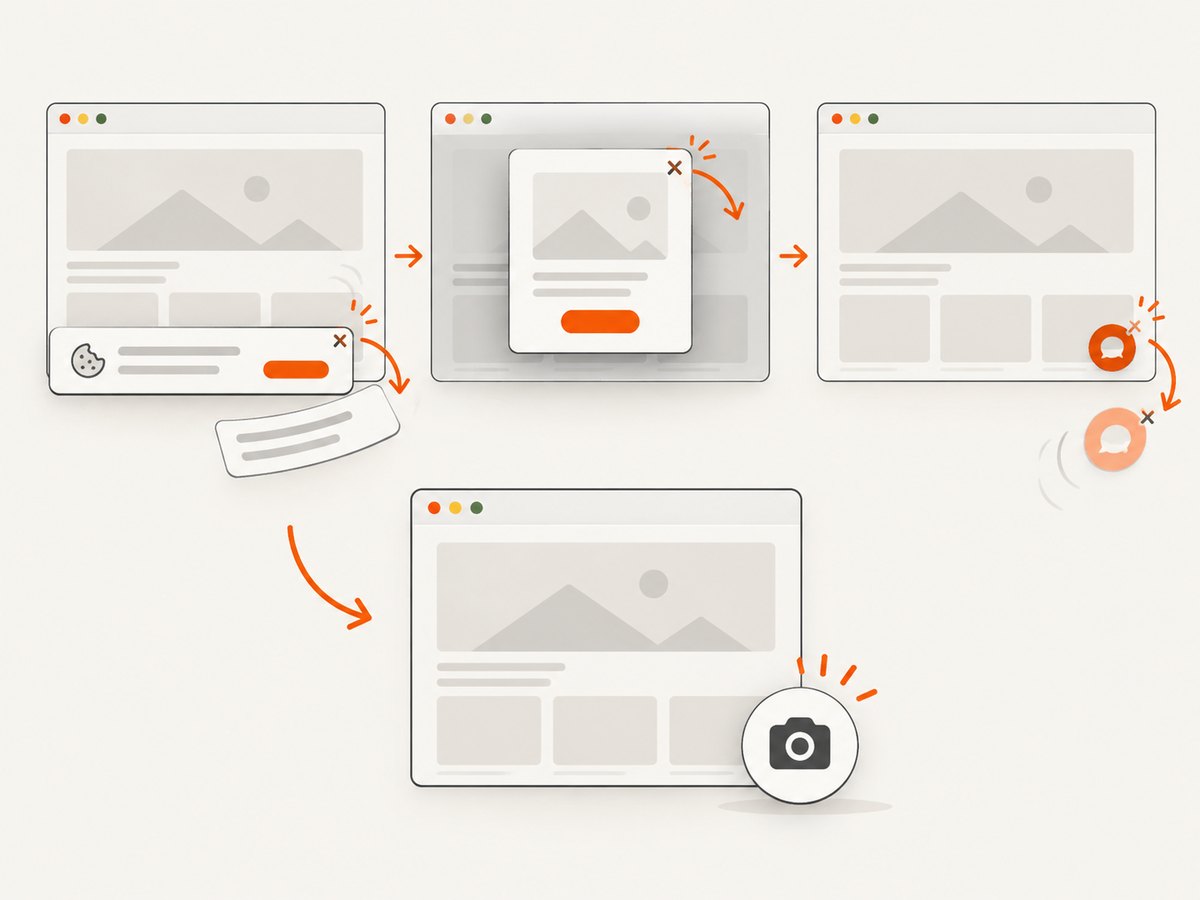
ScreenshotNeo is a website screenshot API and MCP server from Yorker Media. One GET request returns a PNG, JPEG, WebP, or PDF. Its capture flow accepts cookie or consent banners like a visitor and removes 60+ known consent platforms, newsletter popups, and chat widgets before the shot; each of those steps can be turned off. Bot checks and CAPTCHAs, blank pages, timeouts, failed loads, and cache hits cost nothing, and the response identifies the page verdict and billing status in X-Page-Verdict and X-Billed headers. An MCP server provides take_screenshot, get_page_info, and capture_pdf tools for Claude, Cursor, and other MCP clients. It is for captures, not a substitute for interactive Safari WebDriver tests.
See the ScreenshotNeo API documentation. This Python example saves the returned image bytes:
import requests

r = requests.get(
    "https://api.screenshotneo.com/v1/shot",
    params={"access_key": "YOUR_API_KEY", "url": "https://stripe.com"},
    timeout=90,
)
r.raise_for_status()
with open("shot.webp", "wb") as image:
    image.write(r.content)
Use cURL or Node.js if that fits your toolchain. These examples use the same API endpoint:
curl -G "https://api.screenshotneo.com/v1/shot" -d access_key=YOUR_API_KEY --data-urlencode url=https://stripe.com -o shot.webpconst q = new URLSearchParams({ access_key: 'YOUR_API_KEY', url: 'https://stripe.com' });
const res = await fetch(`https://api.screenshotneo.com/v1/shot?${q}`);
if (!res.ok) throw new Error(`Screenshot request failed: ${res.status}`);
await import('node:fs/promises').then(fs => fs.writeFile('shot.webp', Buffer.from(await res.arrayBuffer())));Python needs the requests package (python -m pip install requests). The Node.js snippet uses built-in fetch and filesystem APIs in a modern Node.js environment. Keep the API key private; avoid committing it to source control.
ScreenshotNeo includes full-page capture with lazy images loaded, CSS-selector element capture, dark mode, device presets and custom viewports, retina scale, PDF settings, HTML/CSS-to-image, custom CSS and JavaScript, clicks, selector and network-idle waits, request and resource blocking, custom headers, cookies, user agent, authorization, timezone and geolocation, transparent backgrounds, image resizing, configurable cache TTL, signed image links, async jobs with signed webhooks, bulk capture of up to 100 URLs per call, a usage API, and an OpenAPI spec. Parameter names used by other screenshot APIs also work to ease migration. The named settings cover common capture needs; consult the documentation for request details.
Pricing is Free for 1,000 shots per month with no card, Starter $5 for 3,000, Growth $15 for 15,000, Pro $39 for 60,000, Scale $99 for 250,000, and Business $249 for 1,000,000; yearly billing gives two months free, and every feature is on every plan. Create a free ScreenshotNeo account for 1,000 screenshots a month with no card.
FAQ
Does Safari WebDriver work on Windows?
The documented local Safari workflow requires macOS: Safari supplies its driver with the operating system, and Selenium’s Safari example is marked as requiring macOS. Use a Mac for local Safari automation.
Do I need to download SafariDriver separately?
Normally, no. Safari includes /usr/bin/safaridriver. Technology Preview has its own bundled driver, so select the matching browser build.
Why does my normal Safari profile not appear in the test?
WebDriver automation uses isolated Safari windows with separate browsing state. Set up the state required by each test explicitly.
Can I run two Safari Selenium tests at once?
Apple documents one active Safari WebDriver session at a time. Close the existing session and run Safari tests sequentially on that installation.
Can a screenshot API replace Selenium?
It can return a page image or PDF without local browser setup, but it does not provide the interactive Safari session this Selenium workflow is for. Use WebDriver when the test needs browser interaction.


