How to Fix Screenshot Dimensions That Do Not Match the Display
Learn whether your screenshot has wrong pixels, capture bounds, zoom, density, or editor stretching—and fix the cause on Windows, Android, iPhone, and APIs.
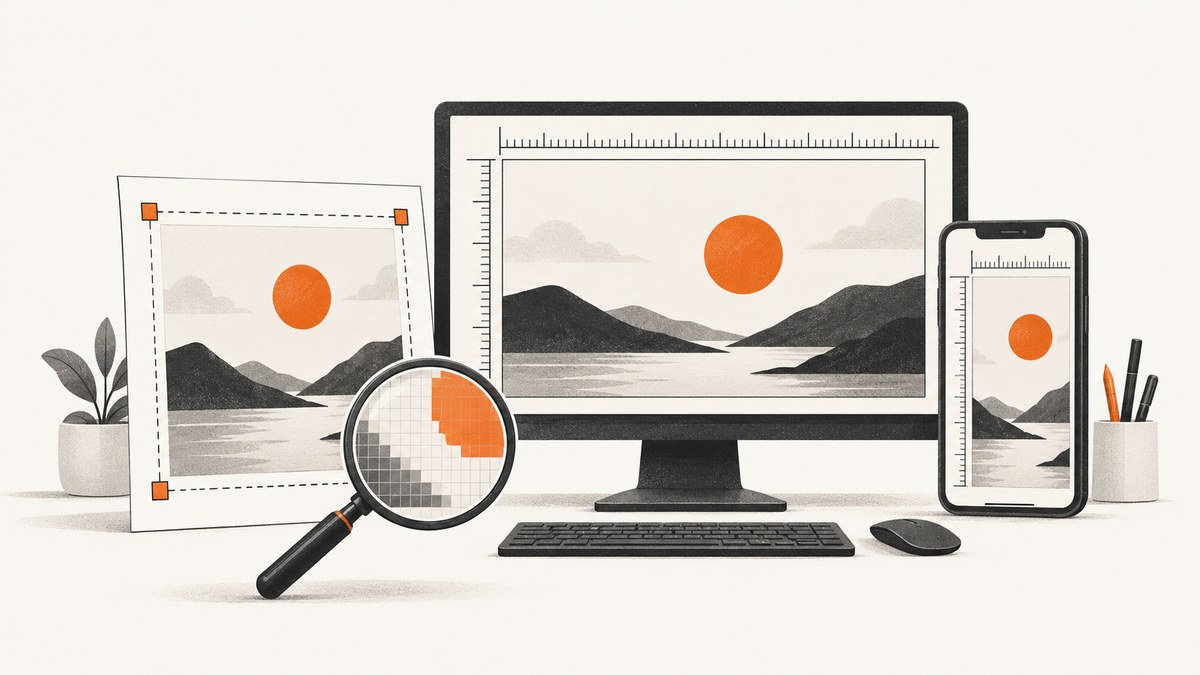
A screenshot can appear to have the wrong dimensions for several different reasons. First inspect the saved file’s pixel width and height. Then decide whether the problem is incorrect capture bounds, display zoom, pixel density, an editor frame that stretched the image, or a destination that requires resizing. Changing the monitor or phone resolution will not repair an image that is already saved.
1. Identify which “dimension” is wrong
Use this checklist before changing any settings:
- Pixel dimensions: the file reports a width and height different from the display or submission requirement.
- Apparent size: the pixels are correct, but the image looks too large or too small when opened or pasted.
- Capture region: you captured a window or rectangle but expected the full display.
- Editor frame: a device mockup or editor resized the image to fit a different frame.
- Physical size: the same pixel count looks different on displays with different pixel densities.
Keep the original file. Make a copy before resizing, cropping, or exporting.
2. Inspect the actual file dimensions
Windows
In File Explorer, right-click the image, choose Properties, and open Details. Check Dimensions. You can also open the image in Paint and inspect its resize dialog. Microsoft documents Snipping Tool’s full-screen, window, and rectangular capture modes, plus editing a snip in Paint for sizing: Microsoft Support.
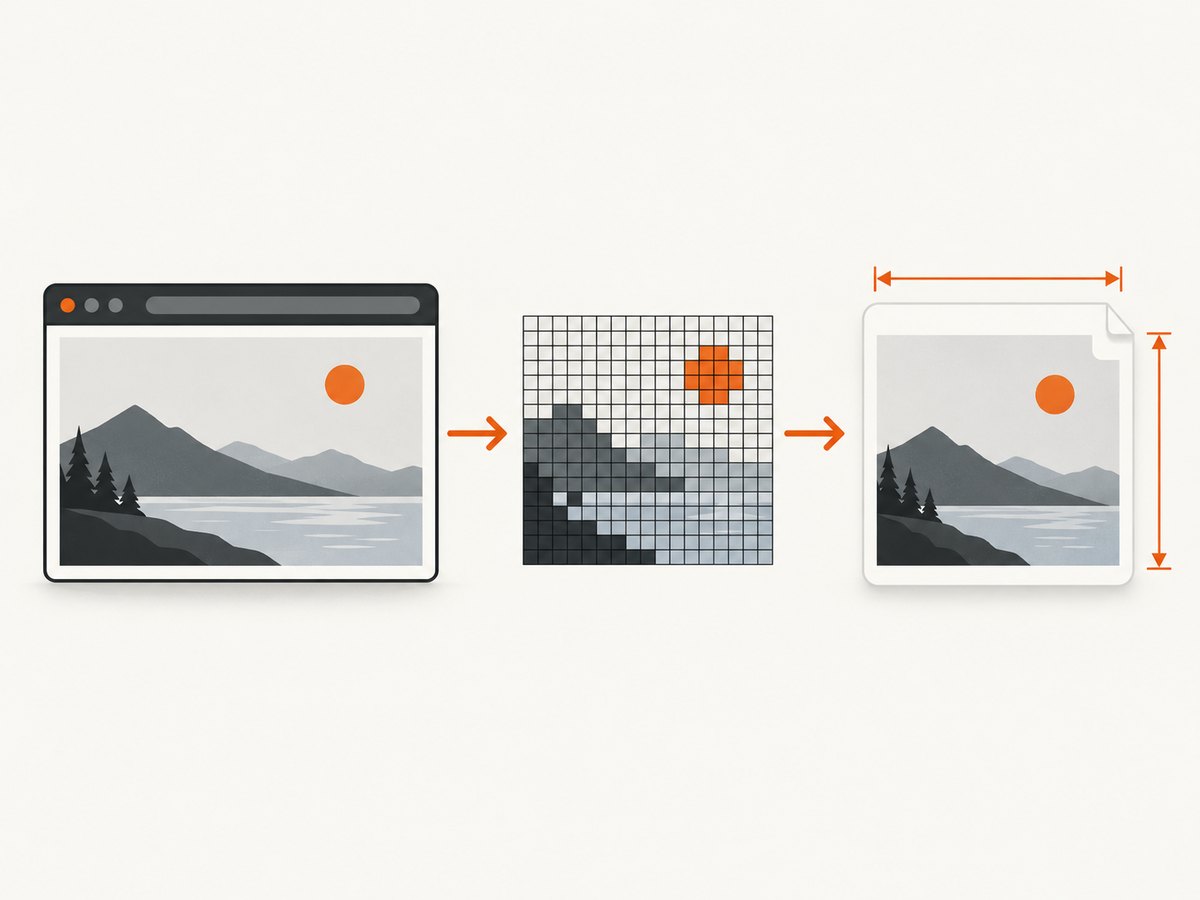
magick identify screenshot.pngThe ImageMagick command prints the stored pixel width and height. If ImageMagick is unavailable, use the file properties or an image editor.
Python (Pillow)
from PIL import Image

with Image.open("screenshot.png") as image:
    print(f"{image.width} x {image.height} pixels")
    print(f"format: {image.format}")
    print(f"metadata DPI: {image.info.get('dpi')}")
Install Pillow once with python -m pip install pillow. DPI metadata describes intended print density; it does not change the number of pixels.
3. Compare pixels with the intended display
A display’s physical size and its pixel dimensions are different measurements. Android’s pixel-density guidance explains why the same pixel count can represent different physical sizes, and recommends density-independent units for app layouts: Android Developers. Therefore:
- For a pixel-perfect submission, compare width and height in pixels.
- For printed output, also set the required physical size and DPI in the editor.
- For an on-screen preview, check the viewer’s zoom and the operating system’s display scaling.
Do not lower system scaling simply because a pasted image looks large. Scaling changes the interface and is only a diagnostic lead; it does not rewrite the screenshot’s pixels.
4. Capture the intended area on Windows
- Open Snipping Tool.
- Choose full-screen capture when the entire display is required.
- Choose window capture for one application window.
- Choose rectangular capture for a precise region.
- Open the result in Paint only if you need deliberate resizing or cropping.
Before saving, verify that the selection includes the exact edges required by your destination. A window capture cannot contain the taskbar or another monitor, and a rectangular capture will not automatically expand to the display resolution.
5. Android device screenshots
Use the phone’s built-in screenshot command, then inspect the saved file rather than assuming it matches the panel’s marketing resolution. Android Help says scrolling screenshots are available on Android 12 and later on most screens that support scrolling, although steps vary by phone: Google Android Help.
- A normal screenshot usually reflects the rendered screen area, not the phone’s outer bezel.
- A scrolling screenshot is taller than the visible display by design.
- Some apps disable screenshots or render protected content; this is not a dimension mismatch.
- Density affects physical appearance. Use dp/sp for app layout decisions rather than treating raw pixels as a universal size.
6. Android Studio captures and device frames
When exporting a screenshot from Android Studio, confirm that the selected device frame matches the device that produced the capture. Android Developers documents that selecting a different frame causes the editor to stretch the image to the frame dimensions: Take a screenshot | Android Studio.
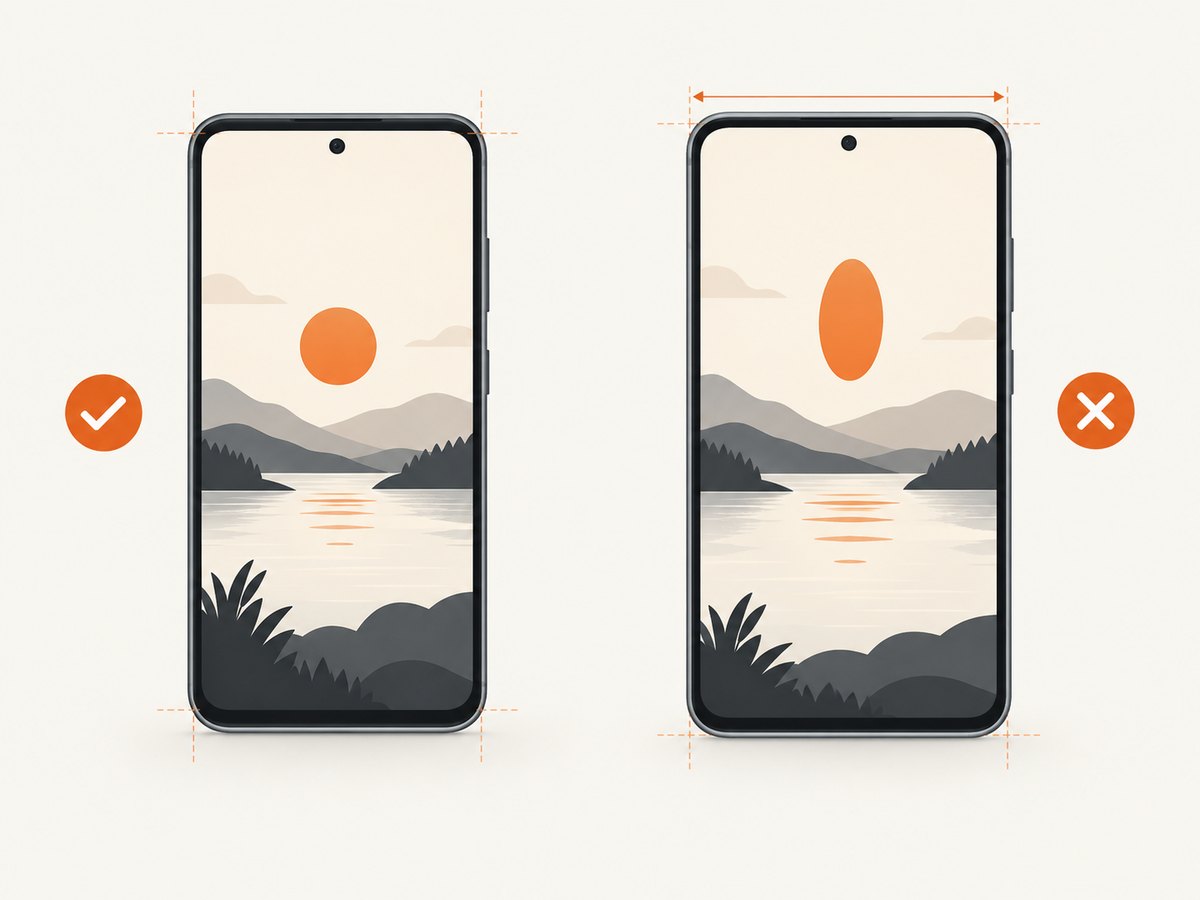
- Identify the emulator or physical device used for the capture.
- Select that same model and orientation in the screenshot frame controls.
- Export again and inspect the resulting pixel dimensions.
- If you need a fixed submission size, resize a copy after export while preserving the aspect ratio.
If the frame is only decorative, export the raw screenshot first. Add the frame as a separate composition so it cannot silently stretch the source image.
7. iPhone screenshots
Apple’s iPhone guide states that screenshots use PNG format and documents screen-capture settings: Apple Support. The guide does not establish a general control for arbitrary screenshot width and height. If a store, report, or design file requires exact dimensions:
- Capture normally.
- Inspect the PNG’s pixel dimensions.
- Duplicate the original.
- Crop or resize the duplicate in an image editor, preserving proportions unless the specification explicitly requires distortion.
- Export in the format required by the destination.
8. Xiaomi resolution settings
On supported Xiaomi models, the manufacturer documents a screen-resolution control under Settings > Display > Screen Resolution: Xiaomi Support. This is model- and software-specific. It changes how the phone renders future content; it does not resize an existing screenshot file. Check the exact model and software version before following that path.
9. Resize, crop, or pad correctly
| Goal | Operation | Risk |
|---|---|---|
| Exact width and height, same composition | Scale proportionally, then crop or add padding | Cropping can remove content; padding changes the background |
| Show the entire screenshot | Fit inside a fixed box and add padding | Output may contain borders |
| Fill a fixed box edge to edge | Scale to cover, then crop | Edges are lost |
| Match a device frame | Use the frame for the same device and orientation | A mismatched frame stretches the image |
Never stretch width and height independently unless distortion is intentional. Keep the source PNG or lossless original, and make JPEG or WebP derivatives only at the final step.
from PIL import Image, ImageOps

source = Image.open("screenshot.png").convert("RGB")
target = (1280, 720)

# Fit without distortion; add black padding where needed.
result = ImageOps.contain(source, target)
canvas = Image.new("RGB", target, "black")
left = (target[0] - result.width) // 2
top = (target[1] - result.height) // 2
canvas.paste(result, (left, top))
canvas.save("screenshot-1280x720.png", format="PNG")
10. Web captures: control the viewport, not the monitor
For browser automation, separate three values:
- Viewport: the CSS pixel width and height used to render the page.
- Device scale: the pixel density multiplier used when rasterizing.
- Output image: the final file dimensions after full-page capture, cropping, or resizing.
A retina or high-density capture can contain more bitmap pixels than the viewport’s CSS width. A full-page capture can be taller than the visible viewport. Lazy-loaded images can also change the page height after scrolling. Record the viewport, scale, format, and capture mode alongside each asset so later comparisons are meaningful.
11. Troubleshooting common failures
| Symptom | Likely cause | Fix |
|---|---|---|
| Correct dimensions in properties, too large when pasted | Viewer zoom or display scaling | Set the editor or viewer to 100% zoom; compare pixel dimensions before changing system settings. |
| Image is wider or taller than expected | Window, rectangle, scrolling capture, or full-page mode was selected | Repeat with the intended capture mode and inspect the bounds. |
| Android Studio image looks stretched | Device frame does not match the captured device | Select the actual device and orientation, then export again. |
| Phone screenshot does not equal panel resolution | Rendered content, density, or navigation area differs from the panel specification | Inspect the file and use the destination’s required pixel size; do not infer it from physical screen size. |
| Scrolling screenshot is unexpectedly tall | Scrolling capture includes content below the visible viewport | Use a normal screenshot or crop the scrolling result deliberately. |
| Resized image looks blurry | Upscaling, repeated JPEG exports, or low-quality interpolation | Start from the original, resize once, and export PNG when sharp edges matter. |
| Output has transparent or unexpected borders | Fit-with-padding or transparent background | Check the canvas color and alpha settings; use crop-to-fill when borders are not allowed. |
| Only one app is the wrong size | The app’s layout or density handling, rather than the screenshot tool | Test another app and inspect the layout in density-independent units. |
12. Automated screenshots with ScreenshotNeo
If the problem is a web page capture, ScreenshotNeo lets you set the viewport and capture behavior through one API request instead of maintaining browser setup. Its options include full-page capture with lazy images loaded, CSS-selector element capture, 12 device presets or a custom viewport, retina scale, image resizing, dark mode, custom CSS and JavaScript, waits for a selector, delay or network idle, and transparent backgrounds. Use the exact output dimensions required by your destination and keep the original response as your source asset.
See the ScreenshotNeo documentation for the current request options. A minimal request is:
curl -G "https://api.screenshotneo.com/v1/shot" -d access_key=YOUR_API_KEY --data-urlencode url=https://stripe.com -o shot.webpimport requests
r = requests.get(
"https://api.screenshotneo.com/v1/shot",
params={"access_key": "YOUR_API_KEY", "url": "https://stripe.com"},
timeout=90,
)
r.raise_for_status()
open("shot.webp", "wb").write(r.content)const q = new URLSearchParams({ access_key: 'YOUR_API_KEY', url: 'https://stripe.com' });
const res = await fetch(`https://api.screenshotneo.com/v1/shot?${q}`);
if (!res.ok) throw new Error(`Screenshot failed: ${res.status}`);
const data = Buffer.from(await res.arrayBuffer());
require('fs').writeFileSync('shot.webp', data);Or skip the browser setup
ScreenshotNeo removes cookie and consent banners, newsletter popups, and chat widgets before the shot. Bot checks, blank pages, timeouts, failed loads, and cache hits are not billed, and response headers identify the page verdict and billing status. Its MCP server gives Claude, Cursor, and other MCP clients take_screenshot, get_page_info, and capture_pdf tools. The free plan includes 1,000 screenshots each month with no card; paid plans start at $5 for 3,000 shots.
Create a free ScreenshotNeo account and start with 1,000 screenshots a month at no charge.
13. Performance, reliability, and cost considerations
- Capture only the region you need when a full-page image is unnecessary; full-page and lazy-image loading can take longer.
- Use a wait for a selector or network idle when content is asynchronous; a fixed delay can be either too short or wasteful.
- Cache stable pages with a TTL when repeated captures are acceptable. Cache hits are not billed by ScreenshotNeo.
- For many URLs, use bulk capture (up to 100 URLs per call) or asynchronous jobs with signed webhooks.
- Check
X-Page-VerdictandX-Billedso your pipeline can distinguish a clean capture from a bot check, blank page, timeout, failed load, or cache hit. - Keep viewport, scale, capture mode, and destination dimensions in job metadata so a later mismatch is diagnosable.
14. A repeatable dimension checklist
- Save the original screenshot.
- Read its pixel width and height.
- Write down the required destination width, height, aspect ratio, and format.
- Decide whether the mismatch is pixels, apparent zoom, capture bounds, density, or an editor frame.
- Recapture with the correct region, device, orientation, viewport, or scale when possible.
- Otherwise resize a copy with proportional scaling, crop, or padding.
- Reopen the exported file and verify dimensions again.
- Submit the verified derivative while retaining the original.
FAQ
Does changing DPI change screenshot pixels?
No. DPI metadata can affect print sizing, but the bitmap width and height remain the same until you resize or resample it.
Why is a full-page web screenshot taller than my monitor?
Full-page capture includes content below the visible viewport. Use a viewport capture when you need only what is currently visible.
Should I use PNG, JPEG, or WebP?
Use the format required by the destination. PNG is suitable when you need lossless edges or transparency; choose JPEG or WebP when the workflow accepts them and smaller files matter.
Can a screenshot have the right pixels but the wrong physical size?
Yes. Pixel density, viewer zoom, print DPI, and operating-system scaling can change apparent or physical size without changing the bitmap.
Will changing a phone’s resolution resize an old screenshot?
No. It affects subsequent rendering on supported models. Resize the saved image separately if an existing file must meet fixed dimensions.


