How to Fix “Could Not Take Screenshot Due to Security Policy”
Learn why Android blocks screenshots, how to identify app and administrator restrictions, and which authorized alternatives you can use.
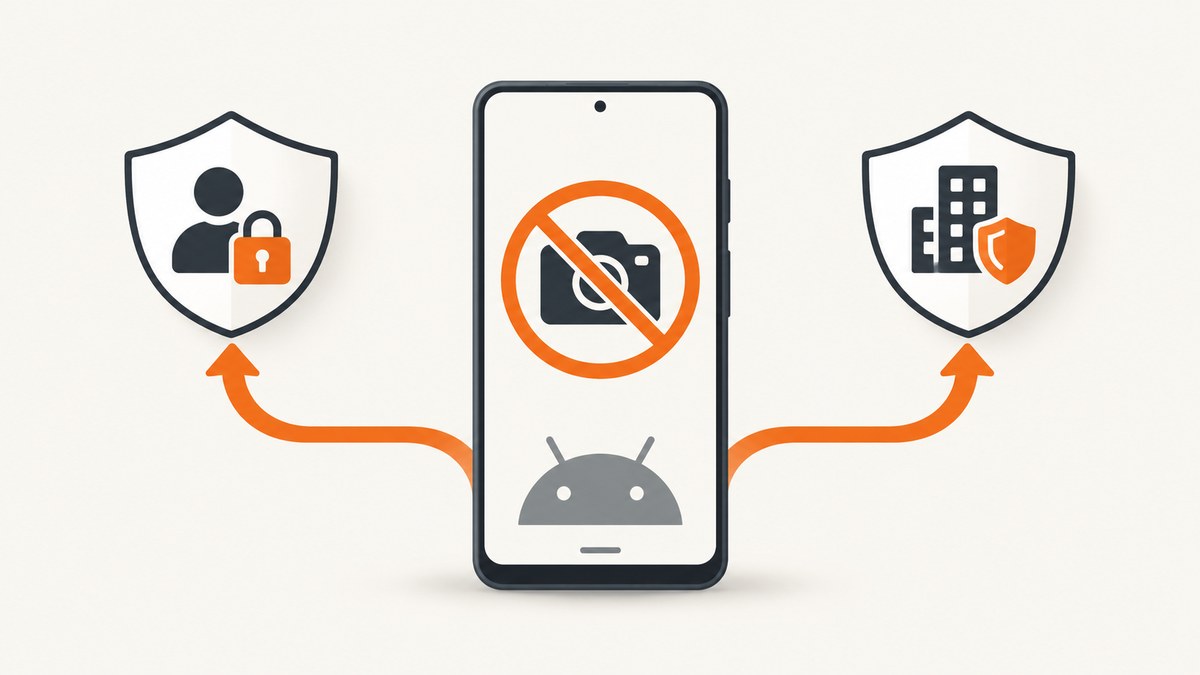
Short answer: Android shows “Could not take screenshot due to security policy” when the app has marked its window as secure or a device administrator has disabled screen capture. Test another app first, check the affected app’s privacy or export options, and contact your organization’s administrator if the phone is managed. There is no general user setting that overrides an app’s secure window or an administrator policy.
What the message means
Android supports an app-level protection called FLAG_SECURE. The official API describes it as treating window content as secure so it cannot appear in screenshots or on non-secure displays. See the WindowManager.LayoutParams.FLAG_SECURE documentation.
Android also exposes a separate device-management control through DevicePolicyManager. A work or school administrator can disable screen capture for a device or managed profile. See the DevicePolicyManager screen-capture documentation.
These controls are normal security behavior. The message alone does not indicate that the phone is hacked or broken.
Identify which restriction you are seeing
| What you observe | Likely cause | Next step |
|---|---|---|
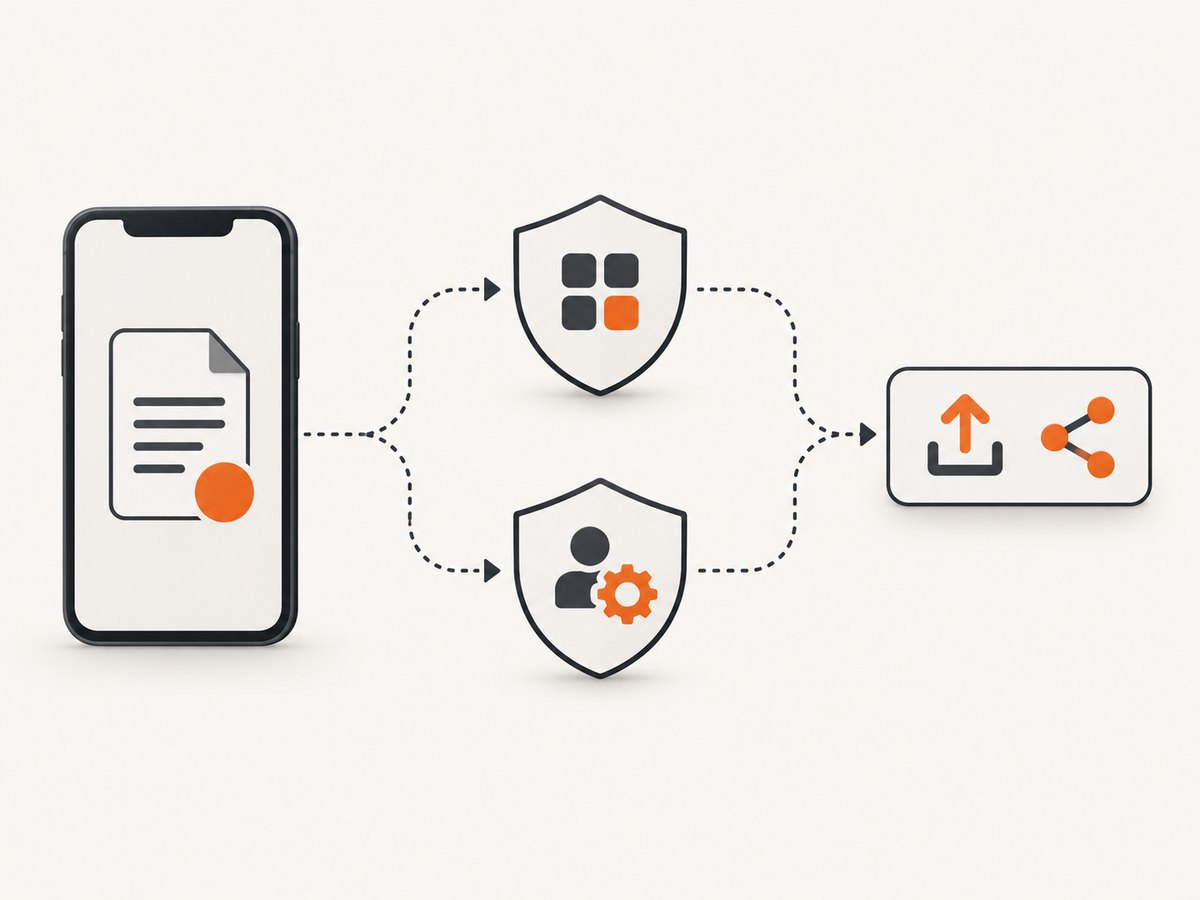
| Screenshots work on the home screen and in other apps, but fail in one app or screen. | The app or a protected mode is blocking capture. | Check that app’s privacy settings and use its export, share, download or print feature. |
| Failure occurs in work apps or across a managed profile. | An enterprise or school policy may disable capture. | Ask the organization’s administrator whether screenshots are permitted and which sharing method is approved. |
| Screenshots fail everywhere. | The available evidence does not identify one universal cause. | Check the device maker’s current support guidance and contact the administrator if the device is managed. |
Step-by-step troubleshooting
1. Test an ordinary screen
- Open the home screen or a non-sensitive app.
- Take a screenshot using the device’s normal shortcut.
- If it succeeds, return to the original app and note whether only one screen, account, or mode is protected.
A failure limited to one app points toward an app-level rule. Banking apps and private browsing modes such as Chrome Incognito are common examples discussed in support communities, but behavior varies by app and version.
2. Check private or protected modes
If you are in an incognito, secret, secure, or private mode, leave that mode only when it is appropriate for your task. Look for an explicit screenshot, sharing, or export option inside the app. Do not assume a menu path: settings differ by app, device manufacturer, and Android release.
3. Use the app’s approved export route
When a screen is protected, look for:
- Share or send
- Download
- Export to PDF or another document format
- Copy or account statements on the service’s official website
For example, a bill provider may offer the same document as a downloadable PDF through its web account. The available option depends on the service.
4. Check whether the device is managed
Look for work or school enrollment, a management profile, or restrictions that affect multiple managed apps. Contact IT or the device administrator and ask:
- Is screen capture disabled by policy?
- Is there an approved export or sharing workflow?
- Can the administrator provide the information or temporarily allow capture?
Do not attempt to bypass a company or school policy. The administrator controls the managed configuration.
5. If every app fails
The cited Android APIs explain app-level and administrator restrictions, but they do not establish one complete diagnosis for every device-wide screenshot failure. Consult the manufacturer’s current support documentation for your model and Android version. If the device is managed, involve the organization’s administrator.
What will not reliably fix a security-policy block
There is no documented general Android switch that overrides FLAG_SECURE or an administrator’s screen-capture policy. Do not rely on a screen-recording app, Google Assistant, a third-party screenshot utility, or a physical accessory to defeat the restriction. Those methods may still be blocked, may violate policy, or may expose protected information.
When you need a screenshot of a website you are authorized to capture
The Android restriction applies to the protected app or managed device. If the information is available as an ordinary web page and you have permission to capture it, use a browser or a server-side screenshot workflow instead of trying to capture the protected phone screen.
Browser method
- Open the page in a regular browser session.
- Sign in only through the service’s official site.
- Use the browser’s built-in screenshot or print-to-PDF command if the site permits it.
- Keep credentials and private data out of scripts and logs.
Or skip the browser setup
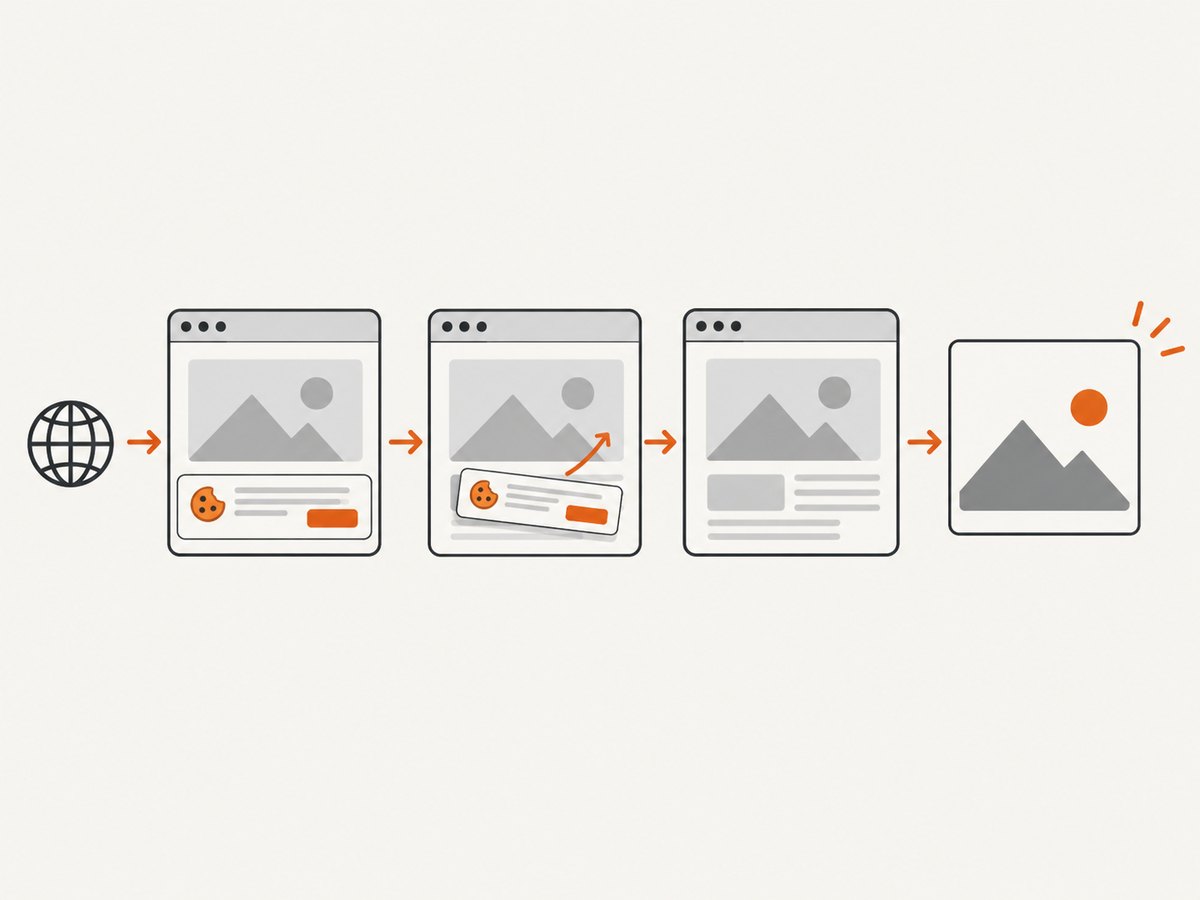
ScreenshotNeo is a website screenshot API. It accepts one GET request and returns a PNG, JPEG, WebP, or PDF. Before capture it accepts cookie or consent banners and removes more than 60 known consent platforms, newsletter popups, and chat widgets; each step can be turned off. Bot checks or CAPTCHAs, blank pages, timeouts, failed loads, and cache hits are not billed, and the response reports the result through X-Page-Verdict and X-Billed headers.
See the ScreenshotNeo API documentation for all options.
cURL
curl -G "https://api.screenshotneo.com/v1/shot" -d access_key=YOUR_API_KEY --data-urlencode url=https://stripe.com -o shot.webpPython
import requests
r = requests.get("https://api.screenshotneo.com/v1/shot", params={"access_key": "YOUR_API_KEY", "url": "https://stripe.com"}, timeout=90)
open("shot.webp", "wb").write(r.content)
Node.js
const q = new URLSearchParams({ access_key: 'YOUR_API_KEY', url: 'https://stripe.com' });
const res = await fetch(`https://api.screenshotneo.com/v1/shot?${q}`);
The API also supports full-page capture with lazy images loaded, CSS-selector element capture, dark mode, device presets or custom viewports, retina scale, PDF paper sizes and page ranges, custom CSS and JavaScript, clicks, waits, request blocking, headers, cookies, user agents, authorization, timezone, geolocation, transparent backgrounds, resizing, chosen cache TTLs, signed links, asynchronous jobs with signed webhooks, bulk capture of up to 100 URLs per call, usage reporting, and an OpenAPI specification. An MCP server provides take_screenshot, get_page_info, and capture_pdf for Claude, Cursor, and other MCP clients.
Free accounts include 1,000 shots each month without a card. Paid plans start at $5 for 3,000 shots; yearly billing provides two months free. Create a free ScreenshotNeo account.
Troubleshooting common errors
| Error or symptom | Cause | Fix |
|---|---|---|
| Only one banking or private-mode screen fails. | The app marks that window secure. | Use the app’s export or share feature, or access the service’s official website. |
| All work-profile screens fail. | A device-management policy disables capture. | Ask IT for the approved workflow; do not try to override it. |
| A screenshot tool captures a black or blank image. | The protected window is excluded from screenshots. | Request an authorized document or export from the app or service. |
| The error appears on every screen. | Device-wide behavior needs model-specific diagnosis. | Follow the manufacturer’s support guidance and check management enrollment. |
| Website capture returns a bot-check, blank page, timeout, or failed-load result. | The target did not produce a clean page. | Inspect X-Page-Verdict and X-Billed; adjust waits, headers, cookies, or authorization when you are permitted to do so. |
Performance, reliability, and cost considerations
- Local capture: convenient for a permitted screen, but it remains subject to app and administrator policy.
- Server-side capture: separates website rendering from the phone and can be automated, but credentials, cookies, and authorization headers must be handled securely.
- Waits and lazy content: use a selector wait, delay, or network-idle wait when a page renders asynchronously; full-page mode loads lazy images.
- Caching: choose a cache TTL when repeated captures do not need a fresh render.
- Billing: ScreenshotNeo bills only clean shots; bot checks, blank pages, timeouts, failed loads, and cache hits cost nothing.
- Batch work: bulk capture supports up to 100 URLs per call, while asynchronous jobs and signed webhooks help with longer workflows.
FAQ
Can I turn off the security policy myself?
Usually not. An app controls its secure window, and an organization controls managed-device policy. Use an approved export or ask the responsible administrator.
Does the message mean someone hacked my phone?
No. App-level secure windows and device-management restrictions are ordinary explanations supported by Android’s APIs.
Why can I screenshot other apps?
Because the restriction may apply only to the protected app, screen, account, or private mode.
Can I use a screenshot API to capture a protected Android app?
No. A website screenshot API captures an authorized web URL; it does not override Android’s protected-window or administrator controls.
What should I do with sensitive account information?
Use the provider’s official download, share, print, or web-account workflow and follow any organization policy.


