How to Fix Screenshots Not Working in Chrome
Fix Chrome screenshots by checking your device, capture method, save location, extension permissions, and administrator policies—in that order.
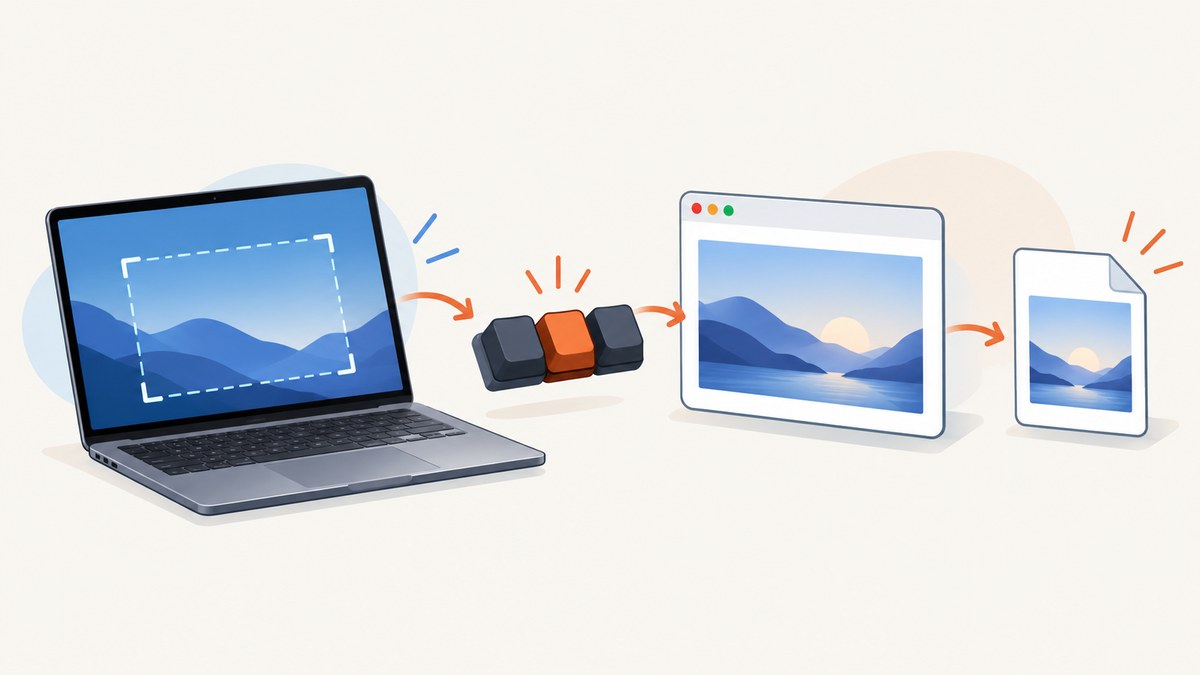
When screenshots do not work in Chrome, first identify whether you are using ChromeOS, Windows, or macOS. ChromeOS has a built-in Screen Capture tool; on Windows and macOS, screenshots usually come from the operating system or an extension. If you use a managed work or school device, an administrator may block screenshots regardless of which shortcut or extension you try.
On a Chromebook, open Settings > Screen Capture or press Shift + Ctrl + Show windows. If the external keyboard has no Show windows key, press Ctrl + Shift + F5. Then check the Downloads folder and clipboard. If screenshots fail across multiple methods on a managed device, ask your administrator to check the screenshot policy. Google documents the Chromebook capture modes, shortcuts, and save behavior in its Screen Capture instructions.
1. Identify what you are trying to capture
“Screenshot in Chrome” can refer to several different tasks. The right fix depends on the device, target, and output you expect. A browser extension that captures a page is not the same thing as a system screenshot of the whole desktop, and screen recording has its own permissions and policies.
| Device or task | Capture path to try first | Where to look |
|---|---|---|
| Chromebook screen, window, or region | ChromeOS Screen Capture tool or Chromebook shortcut | Clipboard and Downloads, unless the folder was changed |
| Windows desktop or Chrome window | Windows screenshot tool or shortcut | Clipboard, Pictures, or the location selected by the tool |
| Mac desktop or Chrome window | macOS screenshot controls or shortcut | Clipboard or the location selected in screenshot options |
| Webpage content or a long page | Browser extension or a screenshot service | The extension or service’s configured download location |
| Live tab, window, or desktop recording | Screen recording tool or browser screen-sharing prompt | The recording tool’s configured folder |
Use a system capture tool when you need pixels from the desktop or a specific window. Use a page capture tool when you need webpage content, especially a full page that extends beyond the visible viewport. If a site’s screen-sharing button fails, troubleshoot screen-video permissions separately from ordinary screenshots.
2. Take a screenshot on a Chromebook
- Open the Screen Capture interface. Press the dedicated Screenshot key if your Chromebook has one. Otherwise, open the status area at the bottom right, choose Settings, then Screen Capture; or use Shift + Ctrl + Show windows.
- Choose Screenshot in the capture bar.
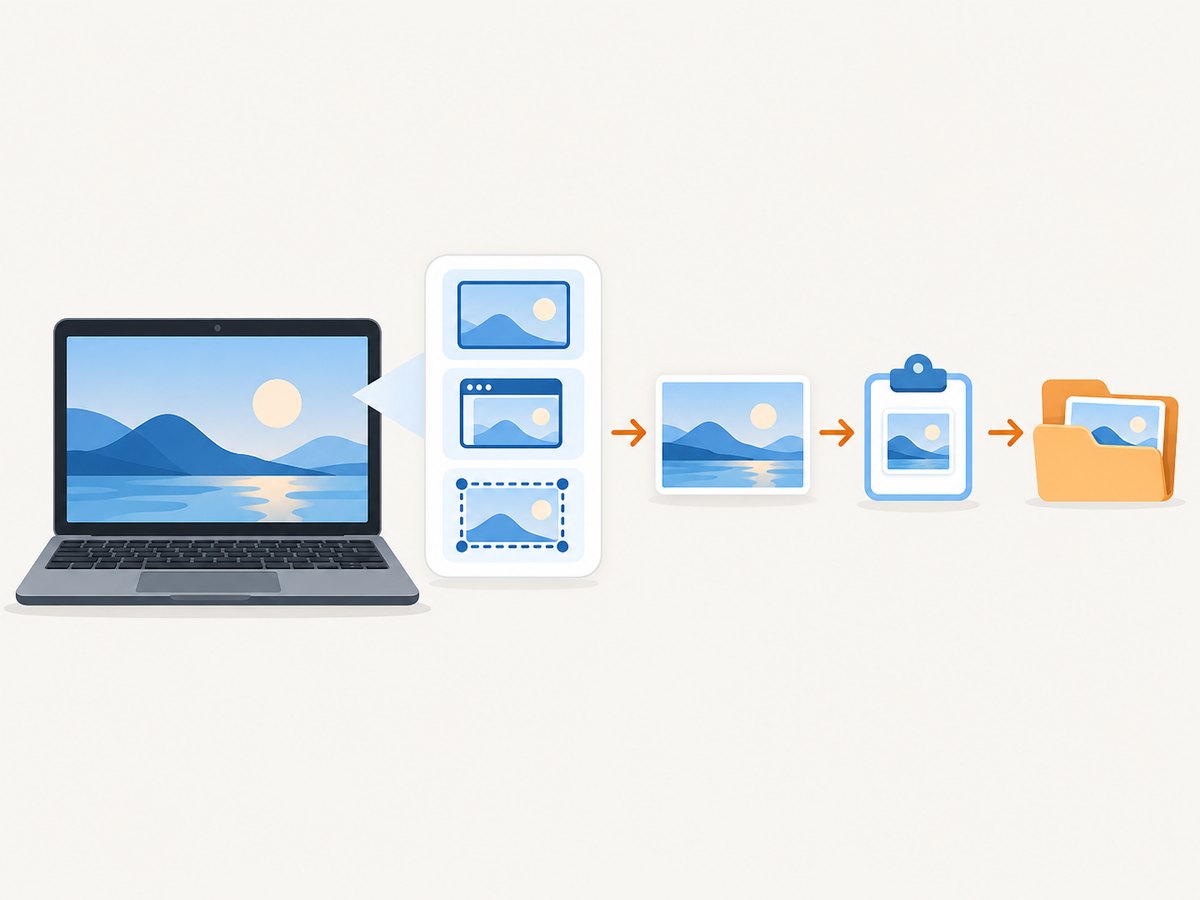
- Select Full screen, Partial, or Window, then complete the capture. For partial capture, drag to select a region.
- For an external keyboard without a Show windows key, use Ctrl + Shift + F5.
- Open the Files app and check Downloads. The Screen Capture tool can use another selected folder, so check its settings if Downloads is empty.
Google says captures are automatically copied to the clipboard and saved in Downloads by default. The capture bar also provides a way to change the destination folder. A dedicated Screenshot key, the Screen Capture menu, and keyboard shortcuts all lead to the built-in interface, so trying the menu is a useful way to tell whether the shortcut itself is the problem. See Google’s official Chromebook steps.
Check the keyboard and shortcut
- Make sure you press the key labeled Show windows, not the full-screen key beside it. They have different icons and functions.
- On a Chromebook keyboard, the primary screenshot shortcut is Ctrl + Show windows; for the Screen Capture toolbar and its modes use Shift + Ctrl + Show windows. Google’s shortcut reference lists both.
- If using an external keyboard, try the documented Ctrl + Shift + F5 fallback. Function keys may also behave differently depending on keyboard settings.
- If the device is a Chromebook tablet, use the Screen Capture menu or the device’s documented power-and-volume shortcut rather than expecting a laptop key combination.
3. Find the screenshot you already took
A capture can succeed even when you do not see a file appear where you expected. On ChromeOS, open the Files app, select Downloads, and sort by recent items. Also check the recent file previews in the shelf and paste into an image-capable app to check the clipboard. If a folder was selected in Screen Capture settings, look there instead. Managed devices may have an administrator-set destination, including cloud storage; Google lists the available Chrome management settings.
On Windows or macOS, the destination depends on the operating system’s capture method and settings. Look at the capture notification, clipboard, and the screenshot tool’s saved-location setting. With an extension, open its own download history or settings: Chrome’s general Downloads list can help locate downloaded files, but extensions may also display or store results in their own interface.
4. Separate a Chrome problem from an extension problem
If an extension says it captured the screen but produces no image, test the platform’s built-in capture path first. On ChromeOS, use Screen Capture. If that works, the issue is more likely limited to the extension, its permissions, or policy than to the device’s basic capture path.
- Open the extension’s details from Chrome’s extensions page.
- Review the permissions it requests and whether access is allowed on the current site. Some extensions need permission to read page content; page capture and desktop capture can require different access.
- Check whether the extension is enabled and up to date, then reload the page and retry.
- Try the extension on an ordinary, non-sensitive page. If it fails only on a particular site, the site or an organization’s rules may restrict capture.
- If the device or browser is managed, check with the administrator before reinstalling extensions. An intentional restriction can apply across shortcuts, apps, and extensions.
Chromium’s documentation describes extensions and browser capture capabilities, but installing or changing an extension does not override administrator policy. Avoid granting an extension broader permissions than its task requires.
5. Check managed-device restrictions
On ChromeOS, an organization can control whether users take screenshots through the keyboard shortcut, apps, or extensions that use Chrome’s capture API. Google describes the setting as controlling whether users can take screenshots on ChromeOS devices and notes that it applies to captures made by any method. See the Chrome Enterprise policy guidance.
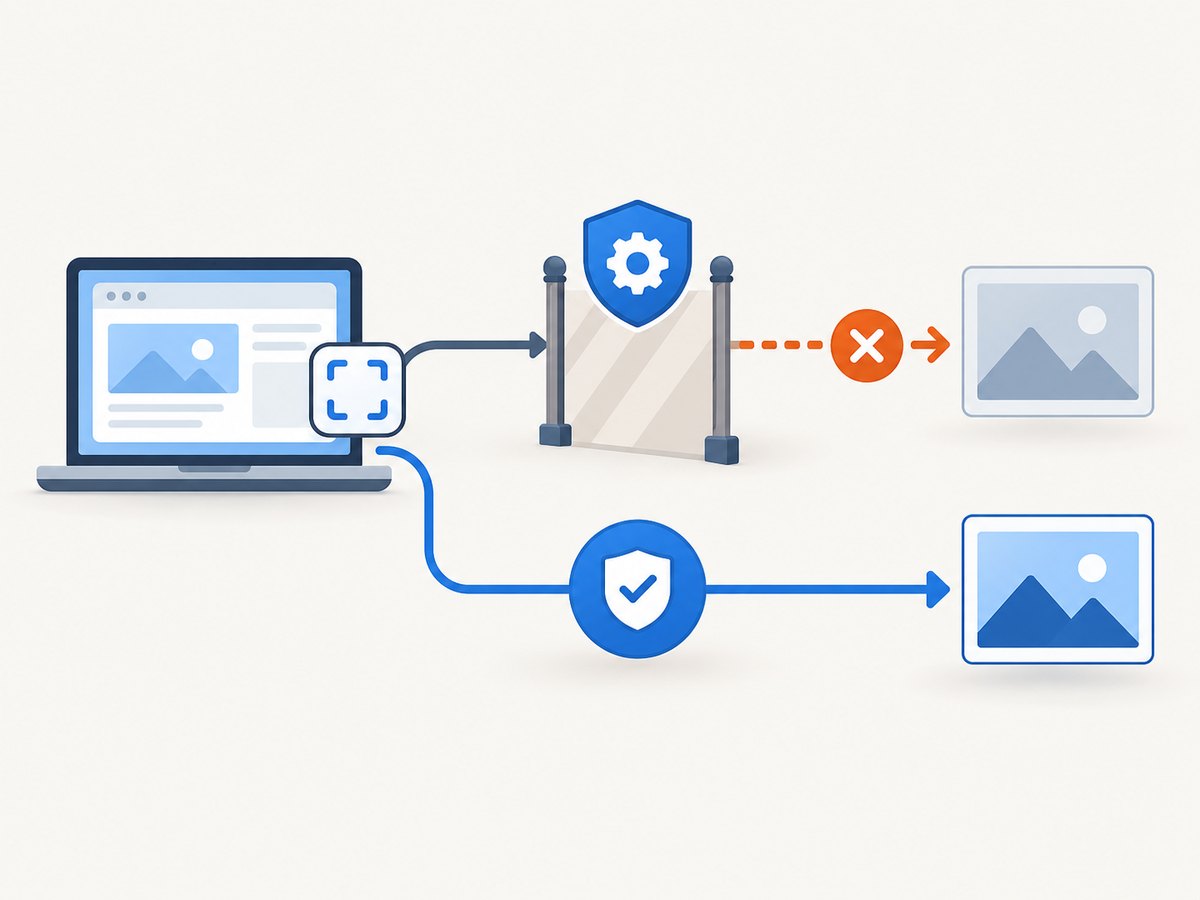
For managed Windows and Mac devices, Chrome Enterprise Premium also offers screenshot prevention for specified websites. This is different from an ordinary shortcut failure: changing keys, restarting Chrome, or reinstalling an extension will not remove a policy. If a restriction appears on a work or school device, contact the administrator and share the page or app where it occurs.
Do not try to circumvent a restriction intended to protect sensitive information. If you need an exception for legitimate work, ask the administrator whether the policy supports an approved exception for that site or task.
6. Troubleshoot screen recording and screen sharing separately
If the failure happens after clicking a website’s Share screen button, it is probably a screen-video capture issue rather than an ordinary screenshot issue. Sites request permission to share a tab, window, or desktop through browser APIs; the user may need to choose a source in Chrome’s prompt. If no prompt appears or the request fails, a browser or organization policy may deny it.
Chrome Enterprise documents a Screen Capture Allowed policy that can deny sites’ screen-sharing API requests. When disabled, those API calls fail, subject to configured origin exceptions. On a managed browser, ask the administrator to check this policy and any allowed-origin settings. On an unmanaged device, confirm that you clicked the sharing control, selected the intended tab or window, and granted the requested browser permission.
For Chromebook screen recording through the built-in tool, open Screen Capture, select Screen record, choose full screen, partial screen, or window, and start recording. Recordings are saved alongside screenshots by default, and the Chromebook tool offers audio and camera settings. Use this path to distinguish a recording workflow issue from a website’s screen-sharing request.
7. Troubleshooting checklist
| Symptom | Likely cause | What to do |
|---|---|---|
| Chromebook shortcut does nothing | Wrong key, external keyboard, or shortcut conflict | Open Screen Capture from Settings; try Ctrl + Shift + F5 on an external keyboard. |
| Shortcut opens a toolbar but no image appears | Capture mode is selected but not completed | Choose full screen, window, or partial region and finish the selection. |
| Screenshot seems to vanish | Looking in the wrong folder, or checking only the file system | Check clipboard, Downloads, recent files, and the folder selected in capture settings. |
| Built-in capture works but extension fails | Extension disabled, permission missing, site restriction, or organization policy | Review extension details and site access; try a permitted page; ask the administrator if managed. |
| Capture fails only on a work or school device | Screenshot policy or site-specific protection | Contact IT; policy may apply to shortcuts, apps, and extensions alike. |
| Website screen-share prompt fails | Screen-video capture policy, permission, or origin restriction | Check the browser prompt and ask the administrator to review screen-capture policy and exceptions. |
| Screenshot is blank or incomplete | Capture may have occurred before content rendered, or the tool captured a different target | Wait for the page to finish loading, verify the selected window or tab, and retry. For webpage automation, use a page capture tool with an appropriate wait condition. |
8. Performance, reliability, and cost for developer workflows
For an occasional manual capture, the built-in operating-system or ChromeOS tool is usually the shortest path and does not require setting up an API. For repeatable website screenshots in tests, documentation, monitoring, or content workflows, manual keyboard capture adds variability: the page may still be loading, a cookie notice may cover content, and the result depends on the current desktop state.
Automated browser capture can improve repeatability when you control the viewport, wait for a selector or page state, and choose a consistent output format. It still depends on the target website being reachable and rendering as expected. Retries should be limited and reserved for transient failures; repeatedly retrying a blocked or invalid target wastes time. For costs, compare any service’s per-capture billing rules and plan limits against your actual volume, including how failed captures and cache hits are treated.
For a developer who needs a website image rather than a picture of the local desktop, ScreenshotNeo is a website screenshot API and MCP server. It accepts a URL in one GET request and can return PNG, JPEG, WebP, or PDF. It can accept cookie banners and remove more than 60 known consent platforms, newsletter popups, and chat widgets before capture, with each step independently switchable. Its response identifies page verdict and billing status; bot checks, CAPTCHAs, blank pages, timeouts, failed loads, and cache hits cost nothing. See the ScreenshotNeo API documentation for parameters and setup.
Or skip the browser setup
For a website screenshot, one request can replace local browser setup. This cURL example saves a WebP image:
curl -G "https://api.screenshotneo.com/v1/shot" \
  -d access_key=YOUR_API_KEY \
  --data-urlencode url=https://stripe.com \
  -o shot.webp
Python with Requests:
import requests

r = requests.get(
    "https://api.screenshotneo.com/v1/shot",
    params={"access_key": "YOUR_API_KEY", "url": "https://stripe.com"},
    timeout=90,
)
open("shot.webp", "wb").write(r.content)
Node.js using the built-in fetch API:
const q = new URLSearchParams({
  access_key: 'YOUR_API_KEY',
  url: 'https://stripe.com'
});
const res = await fetch(`https://api.screenshotneo.com/v1/shot?${q}`);
if (!res.ok) throw new Error(`Screenshot request failed: ${res.status}`);
await Bun.write('shot.webp', res);
In Node.js environments without Bun, consume the response as a buffer and write it using Node’s file-system module:
import { writeFile } from 'node:fs/promises';

const q = new URLSearchParams({
  access_key: 'YOUR_API_KEY',
  url: 'https://stripe.com'
});
const res = await fetch(`https://api.screenshotneo.com/v1/shot?${q}`);
if (!res.ok) throw new Error(`Screenshot request failed: ${res.status}`);
await writeFile('shot.webp', Buffer.from(await res.arrayBuffer()));
Use the API key from your account and keep it out of public source code. The same parameter names used by other screenshot APIs also work, which can make switching straightforward. ScreenshotNeo also supports full-page capture with lazy images loaded, CSS selector element capture, dark mode, device and viewport settings, custom CSS and JavaScript, waiting for a selector or network idle, request blocking, custom headers and cookies, PDFs, caching, signed links, async jobs, bulk capture, and an MCP server with take_screenshot, get_page_info, and capture_pdf. The request examples above use the default request shape; consult the docs for optional parameters and formats.
Cookie banners, popups, and chat widgets can be removed before the shot. Bot checks, blank pages, and failed loads are never billed. An MCP server lets AI agents take screenshots. The Free plan includes 1,000 screenshots per month with no card; paid plans start at $5 for 3,000. Create a free ScreenshotNeo account to get started.
FAQ
Why does my Chromebook screenshot shortcut do nothing?
Check the key combination and try opening Screen Capture from Settings. For an external keyboard without Show windows, use Ctrl + Shift + F5. If all methods fail on a managed device, ask your administrator whether screenshot capture is restricted.
Where did Chrome save my screenshot?
On Chromebook, check Downloads, the clipboard, and the folder chosen in Screen Capture settings. For Windows, Mac, or an extension, check the capture tool’s destination or download history.
Can a Chrome extension bypass a screenshot block?
No. ChromeOS organization policy can cover screenshots taken by shortcuts, apps, and extensions. Ask the administrator about approved access.
Why can I take a screenshot but not share my screen?
Screen sharing uses browser screen-video capture permissions and may be governed by a separate policy. Check Chrome’s prompt and, on a managed device, ask IT to review the site’s policy and any permitted exceptions.
Does this fix Chrome’s webpage screenshot feature?
This guide focuses on screenshots that fail through device tools, extensions, or screen-sharing flows. For automated webpage captures, use a browser automation workflow or screenshot API and configure it to wait for the page content you need.


