How to Fix Screenshots That Aren’t Working
Find out why screenshots fail on Windows, Mac, Android, or Chromebook—and fix shortcuts, capture tools, missing files, and app restrictions.

A screenshot shortcut failing does not always mean screenshot capture is broken. The fastest diagnosis is to open your device’s built-in capture interface, make a test capture, and then check whether the result went to the clipboard or a file. The exact keys, save location, and restrictions differ between Windows, macOS, Android, and ChromeOS.
Use this order:
- Identify the device and operating system version.
- Open the on-screen screenshot tool instead of repeating the same shortcut.
- Try the platform’s documented alternate key combination.
- Check the clipboard and the expected output folder.
- Test another app or capture mode if only one window fails.
1. Fast diagnostic: interface, shortcut, or saved file?
Separate the failure into three parts:
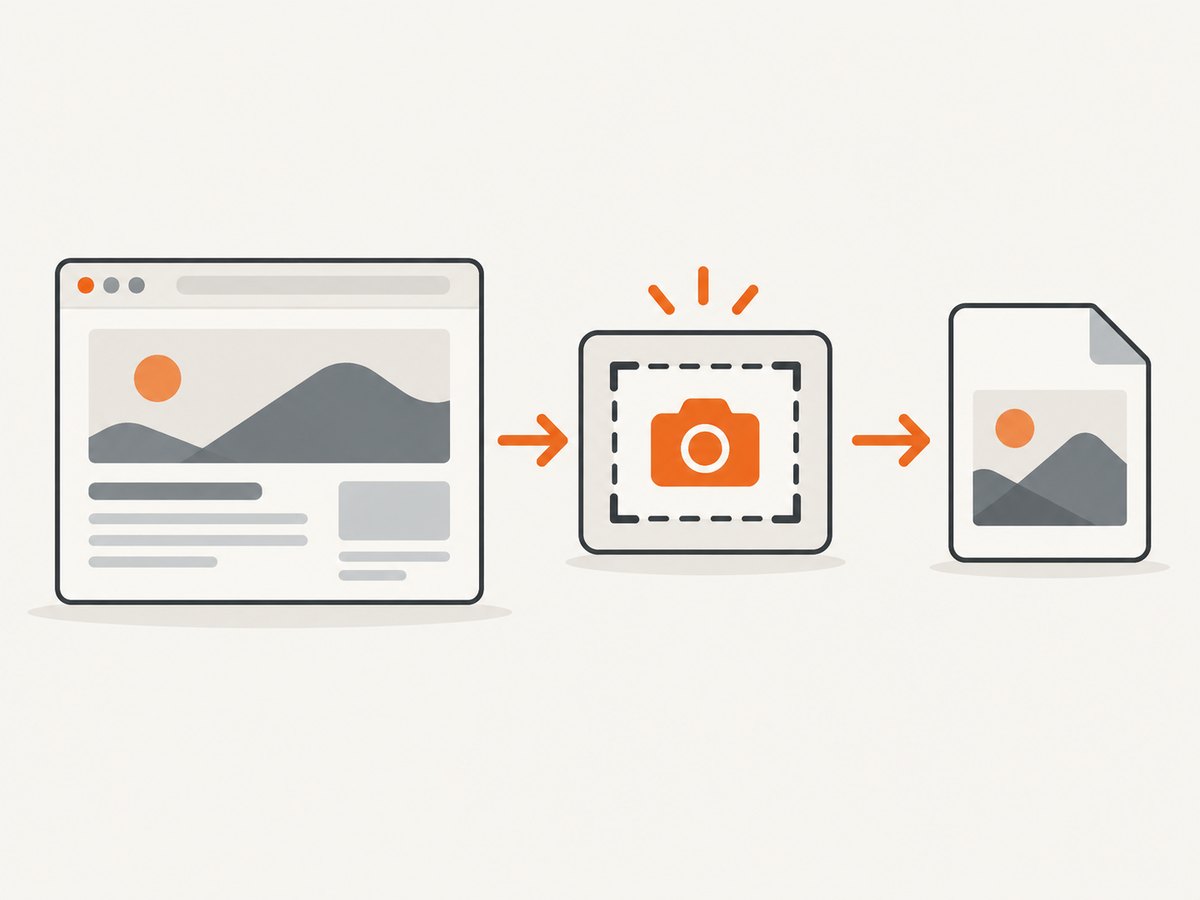
- Capture interface: Does the system’s screenshot panel or menu open?
- Input method: Does the keyboard shortcut work, or is a key missing, remapped, or blocked?
- Output: Was an image copied to the clipboard, saved somewhere else, or never created?
For example, Windows Snipping Tool can capture a rectangle, window, full screen, or free-form region. If Windows+Shift+S does nothing, launch Snipping Tool from Start and choose New instead. A successful snip appears in the Snipping Tool window; use Save as to create a file. Microsoft documents these modes and save controls in its Snipping Tool guide.
If the on-screen tool works, screenshot capture is functioning. Concentrate on the keyboard, shortcut settings, or the particular application you were trying to capture. If the interface also fails, check permissions, device policies, or an operating-system problem.
2. Windows 10 and Windows 11
Open Snipping Tool directly
- Open Start and search for Snipping Tool.
- Select New.
- Choose rectangle, window, full-screen, or free-form mode.
- Capture the area, then select Save as and choose a known folder.
The shortcut for the same overlay is Windows+Shift+S. If it does not react, the Start-menu route tests the capture service without relying on that shortcut.
Try the documented file-saving shortcuts
When the keyboard has a Print Screen key, Microsoft documents Windows+PrtSc. Check File Explorer > Pictures > Screenshots for the resulting files. On devices without a PrtScn key, Microsoft documents Fn+Windows+Space. See Microsoft’s Print Screen shortcut guidance for the supported combinations.
Clipboard versus file
A capture can be successful while no file appears. Some Print Screen actions copy pixels to the clipboard. Open Paint, an image editor, or a message field and press Ctrl+V. If the image pastes, save it from that application. Snipping Tool’s editor also keeps the capture in its window until you save it.
When an application cannot access libraries
If a third-party editor cannot read or write your Pictures, Documents, or Videos libraries, review Settings > Privacy & security on Windows 11, or Settings > Privacy on Windows 10. Microsoft explains that denied library access can limit an app’s functionality; this does not by itself prove that Snipping Tool failed. The relevant reference is Microsoft’s library access and privacy guidance.
3. macOS
Use the Screenshot toolbar
Press Shift+Command+5 to open Apple’s Screenshot toolbar. It provides full-screen, selected-window, and selected-area capture plus options for where to save. This is the best diagnostic when a shortcut appears dead because it bypasses the individual capture shortcut.
Keyboard combinations and default location
- Shift+Command+3: capture the full screen.
- Shift+Command+4: select an area.
- Shift+Command+5: open Screenshot controls.
Apple says captures made with these keyboard shortcuts save to the desktop by default. Hold Control while using a shortcut to copy the capture instead of saving it as a file, then paste it into another app. If you changed the destination in Screenshot options, check that folder rather than assuming the desktop.
Check customized shortcuts
Open Apple menu > System Settings > Keyboard > Keyboard Shortcuts > Screenshots. Confirm the actions you need are enabled and still use the keys you expect. A shortcut may fail because another utility has claimed the same combination.
One window does not capture
Try selected-area or full-screen capture. Apple documents that some applications, including DVD Player, may not allow window pictures. A failure limited to one application therefore does not establish that macOS screenshots are generally broken. Test another window and another mode.
Find a disappearing thumbnail
After capture, the floating thumbnail can be opened, dragged into another app, or swiped away. If you do not see a desktop file, reopen Shift+Command+5 and inspect the selected save location.
4. Android phones and tablets
Android controls vary by manufacturer and version. Start with Google’s documented combination: press Power+Volume Down at the same time. On supported devices, hold Power and tap Screenshot in the power menu instead. Some Pixel instructions require Android 11 or newer, so check the model and version when the menu differs.
Find the result in Google Photos > Collections > On this device > Screenshots. Older Android versions may use the Gallery app’s Screenshots folder. If neither button method works, Google directs you to the phone manufacturer’s support site; do not assume another brand uses the same gesture or menu.
For a device-specific failure, record the phone model, Android version, whether the power menu appears, and whether other buttons work. That information helps the manufacturer distinguish a shortcut issue from a hardware or policy restriction.
5. Chromebook and ChromeOS
Open Screen Capture without the shortcut
Use the Screenshot key when your Chromebook keyboard has one. Otherwise open the shelf or time menu and select Screen capture, or open Settings > Screen Capture. Google also documents Shift+Ctrl+Show windows. With an external keyboard that lacks a Show windows key, use Ctrl+Shift+F5.
Opening Screen Capture from the shelf is a useful test: if the menu works, the problem is probably the keyboard, its mapping, or the missing key rather than ChromeOS capture itself.
Check Downloads and the selected folder
Chromebook screenshots save to Downloads by default. The capture tool lets you choose another folder. Open the Files app and search by the capture date if Downloads is empty.
6. A platform-by-platform checklist
| Platform | Interface test | Documented shortcut | Typical destination |
|---|---|---|---|
| Windows 10/11 | Start > Snipping Tool > New | Windows+Shift+S; Windows+PrtSc; Fn+Windows+Space without PrtScn | Pictures/Screenshots for Windows+PrtSc; Snipping Tool uses Save as |
| macOS | Shift+Command+5 | Shift+Command+3 or Shift+Command+4 | Desktop by default, or the selected Screenshot location |
| Android | Power menu > Screenshot | Power+Volume Down | Photos Screenshots album or Gallery/Screenshots |
| ChromeOS | Shelf/time menu > Screen capture | Shift+Ctrl+Show windows; Ctrl+Shift+F5 on some external keyboards | Downloads by default, or the chosen folder |
7. Common errors and fixes
“The shortcut does nothing”
Open the native capture interface first. If it works, inspect keyboard layout, Fn-lock state, missing keys, shortcut customizations, and software that intercepts global shortcuts. Use the documented alternate combination for your platform instead of applying a Windows shortcut to a Mac, Chromebook, or phone.
“I saw a flash, but no file exists”
Check whether the action copied to the clipboard. Paste into an editor. Then inspect the platform’s normal folder: Windows Pictures/Screenshots, Mac desktop or selected location, Chromebook Downloads, or Android’s Screenshots album.
“Only one application fails”
Capture another window and try full-screen or selected-area mode. macOS explicitly documents that some applications do not permit window pictures. A work-managed device may also apply an administrator policy; consult the administrator or vendor because the supplied platform guidance does not establish a universal policy fix.
“The image is blank or incomplete”
Repeat the capture in another mode and application. If the issue is a web page, wait for content to finish loading, scroll through lazy-loaded sections, and try a full-page capture tool. If a protected or special-rendering window remains blank, use the application’s export function or its support documentation.
“Android instructions do not match my phone”
That is expected across manufacturers. Use the model-specific support site after trying Power+Volume Down and the Power-menu Screenshot action.
“A Chromebook external keyboard has no Show windows key”
Use the documented Ctrl+Shift+F5 combination, or open Screen Capture from the shelf/time menu. A new keyboard is unnecessary until these free paths fail.
8. When browser screenshots are the real problem
Desktop shortcuts are designed for what is visible on your screen. Automated website capture has different failure modes: consent banners cover content, newsletter popups appear after load, chat widgets overlap the page, lazy images have not loaded, or a bot check returns a blank response. For repeatable captures, diagnose the browser workflow separately from the operating-system shortcut.
Useful controls include waiting for a selector or network idle, adding a delay, loading lazy images, setting a viewport and device scale, selecting one element by CSS, hiding selectors, using custom CSS or JavaScript, and supplying headers, cookies, a user agent, Authorization, timezone, or geolocation. Blocking ads, trackers, requests, or resource types can also make a page deterministic. For PDFs, page size, margins, landscape mode, and page ranges matter.
9. Or skip the browser setup
ScreenshotNeo is a website screenshot API and MCP server. Make one GET request and receive a PNG, JPEG, WebP, or PDF. The API accepts the common screenshot parameter names, so an existing integration is easier to move.

cURL:
curl -G "https://api.screenshotneo.com/v1/shot" -d access_key=YOUR_API_KEY --data-urlencode url=https://stripe.com -o shot.webpPython:
import requests
r = requests.get("https://api.screenshotneo.com/v1/shot", params={"access_key": "YOUR_API_KEY", "url": "https://stripe.com"}, timeout=90)
open("shot.webp", "wb").write(r.content)
Node.js:
const q = new URLSearchParams({ access_key: 'YOUR_API_KEY', url: 'https://stripe.com' });
const res = await fetch(`https://api.screenshotneo.com/v1/shot?${q}`);
See the ScreenshotNeo API documentation for request options. Before capture it accepts cookie and consent banners and removes more than 60 known consent platforms, newsletter popups, and chat widgets; each cleanup step can be turned off. Bot checks, blank pages, timeouts, failed loads, and cache hits are not billed. Response headers identify the page verdict and whether the request was billed with X-Page-Verdict and X-Billed.
For difficult pages, configure full-page capture with lazy images, a CSS selector for one element, dark mode, any viewport or one of 12 device presets, retina scale, transparent backgrounds, image resizing, custom CSS and JavaScript, clicks, waits, blocking rules, identity and location settings, or a cache TTL. Async jobs support signed webhooks; bulk capture handles up to 100 URLs per call; signed links work in public <img> tags; usage data, an OpenAPI specification, and PDF controls are available. An MCP server exposes take_screenshot, get_page_info, and capture_pdf to Claude, Cursor, and other MCP clients.
Performance and cost are easier to reason about when you choose the smallest capture: an element instead of a full page, a cache TTL for unchanged pages, blocked trackers and ads, and async jobs for large batches. Reliability improves when you wait for a selector or network idle and provide the headers or cookies the site requires. Only clean shots are billed. The Free plan includes 1,000 shots per month without a card; paid plans start at $5 for 3,000 shots. Create a free ScreenshotNeo account.
10. Prevention and repeatable capture
- Write down the device model and operating-system version before troubleshooting.
- Keep a known test page or simple document for separating system-wide and app-specific failures.
- Choose a predictable save folder and verify it after changing Screenshot or Screen Capture settings.
- For browser automation, wait for a meaningful selector, use a stable viewport, and record whether the response was billed.
- For batches, use async jobs or bulk capture and cache pages whose content has not changed.
FAQ
Why does pressing Print Screen appear to do nothing?
It may copy the image to the clipboard rather than save a file. Paste into an editor, or use Snipping Tool and Save as on Windows.
Where do Mac screenshots go?
Keyboard captures go to the desktop by default. Screenshot settings can change the destination, and holding Control copies instead of saving.
Can I use one screenshot shortcut on every device?
No. Windows, macOS, Android, and ChromeOS document different controls, and Android manufacturers can change them further.
What should I do if only a web page fails?
Test a different browser or page first. For repeatable captures, use waits, cookie handling, popup removal, and resource controls in a browser screenshot API such as ScreenshotNeo.
Does a missing screenshot always mean a permissions problem?
No. It may be in the clipboard or a different folder. Check the platform destination before changing permissions.


