How to Fix Selenium Clicks Not Working on Anchor Elements
When Selenium finds an <a> but cannot click it, diagnose timing, overlays, hit-target geometry, and stale elements before choosing a fix.
If Selenium finds an <a> element but its click fails, first read the exact WebDriver exception. Then check whether the page is ready, whether an overlay covers the element’s center, whether the target geometry is unusual, or whether the DOM node became stale. Selenium performs a real pointer-style click after scrolling the element into view; changing immediately to JavaScript can hide the cause instead of fixing it.
This guide answers: “How do I fix Selenium clicks not working on anchor elements?” It uses Python for the runnable WebDriver examples and includes equivalent Selenium snippets for Java and JavaScript. The reliable pattern is to wait for the application state you need, inspect the actual hit target, make a cause-specific correction, then verify the result of the click.
1. Read the error before changing the test
A successful locator only says that Selenium found a matching node. It does not prove the node is ready for a user-like click. WebDriver checks interactability, scrolls an out-of-view target into view, and clicks its center point. If another element covers that point, the browser can reject the click as intercepted.
| Error | What it generally means | First direction |
|---|---|---|
ElementClickInterceptedException |
Another element is in the way at the requested click point. | Inspect overlays and the element’s center. |
ElementNotInteractableException |
The target cannot be interacted with by the requested method in its current state. | Check visibility, enabledness, target choice, and layout. |
StaleElementReferenceException |
The saved reference no longer points to an attached DOM node. | Wait for the update and locate the element again. |
NoSuchElementException |
No matching node was found at lookup time. | Check selector, frame, window, and whether rendering has completed. |
TimeoutException |
The condition passed to a wait did not become true in time. | Check the condition, selector, page state, and timeout budget. |
These meanings are distinct in the [WebDriver error reference](https://developer.mozilla.org/en-US/docs/Web/WebDriver/Reference/Errors). Record the exception and its message before adjusting locators or adding delays; each points toward a different failure mode.
2. Wait for the state the link needs
Modern pages can update after the initial document load. A completed readyState does not ensure that JavaScript-driven rendering, a menu animation, or an application request has finished. Use an explicit wait tied to the condition your test actually needs. Selenium’s [wait guidance](https://www.selenium.dev/documentation/webdriver/waits/) also warns that mixing implicit and explicit waits can produce unpredictable total wait times.
Python: wait until visible and enabled
from selenium import webdriver
from selenium.webdriver.common.by import By
from selenium.webdriver.support.ui import WebDriverWait
from selenium.webdriver.support import expected_conditions as EC

# Install Selenium with: python -m pip install selenium
# Configure a driver for your browser according to Selenium's documentation.
driver = webdriver.Chrome()
wait = WebDriverWait(driver, 10)
try:
    driver.get("https://example.com")
    link = wait.until(
        EC.element_to_be_clickable((By.CSS_SELECTOR, "a.some-link"))
    )
    link.click()
    wait.until(lambda d: d.current_url.endswith("/destination"))
finally:
    driver.quit()
element_to_be_clickable checks visibility and enabledness. It does not guarantee that an overlay will leave the center point unobstructed. If this wait succeeds and the click is still intercepted, continue to hit-target diagnosis. See Selenium’s [Python expected conditions](https://www.selenium.dev/selenium/docs/api/py/webdriver_support/selenium.webdriver.support.expected_conditions.html).
Java: use an explicit wait for the same condition
import java.time.Duration;
import org.openqa.selenium.By;
import org.openqa.selenium.WebDriver;
import org.openqa.selenium.WebElement;
import org.openqa.selenium.chrome.ChromeDriver;
import org.openqa.selenium.support.ui.ExpectedConditions;
import org.openqa.selenium.support.ui.WebDriverWait;

WebDriver driver = new ChromeDriver();
try {
    driver.get("https://example.com");
    WebDriverWait wait = new WebDriverWait(driver, Duration.ofSeconds(10));
    WebElement link = wait.until(
        ExpectedConditions.elementToBeClickable(By.cssSelector("a.some-link"))
    );
    link.click();
    wait.until(d -> d.getCurrentUrl().endsWith("/destination"));
} finally {
    driver.quit();
}
JavaScript: wait, click, and verify navigation
// Install with: npm install selenium-webdriver
const { Builder, By, until } = require('selenium-webdriver');

(async function run() {
  const driver = await new Builder().forBrowser('chrome').build();
  try {
    await driver.get('https://example.com');
    const link = await driver.wait(
      until.elementLocated(By.css('a.some-link')),
      10000
    );
    await driver.wait(until.elementIsVisible(link), 10000);
    await driver.wait(until.elementIsEnabled(link), 10000);
    await link.click();
    await driver.wait(async d =>
      (await d.getCurrentUrl()).endsWith('/destination'), 10000);
  } finally {
    await driver.quit();
  }
})();
Keep implicit waiting disabled when using this explicit-wait pattern. A fixed sleep is a poor general repair: it can still be too short on a slow run and waste time on a fast one. Wait for a visible menu, a completed animation state, a route change, or another concrete application condition.
3. Inspect the center point and page geometry
When an anchor is visible but intercepted, look for a cookie banner, sticky header, modal, loading mask, or floating widget over the center of the link. Selenium’s [interaction documentation](https://www.selenium.dev/documentation/webdriver/elements/interactions/) explains the center-point behavior: “If the center of the element is obscured for some reason, Selenium will return an element click intercepted error.” The page may look clickable while the exact point WebDriver targets is covered.
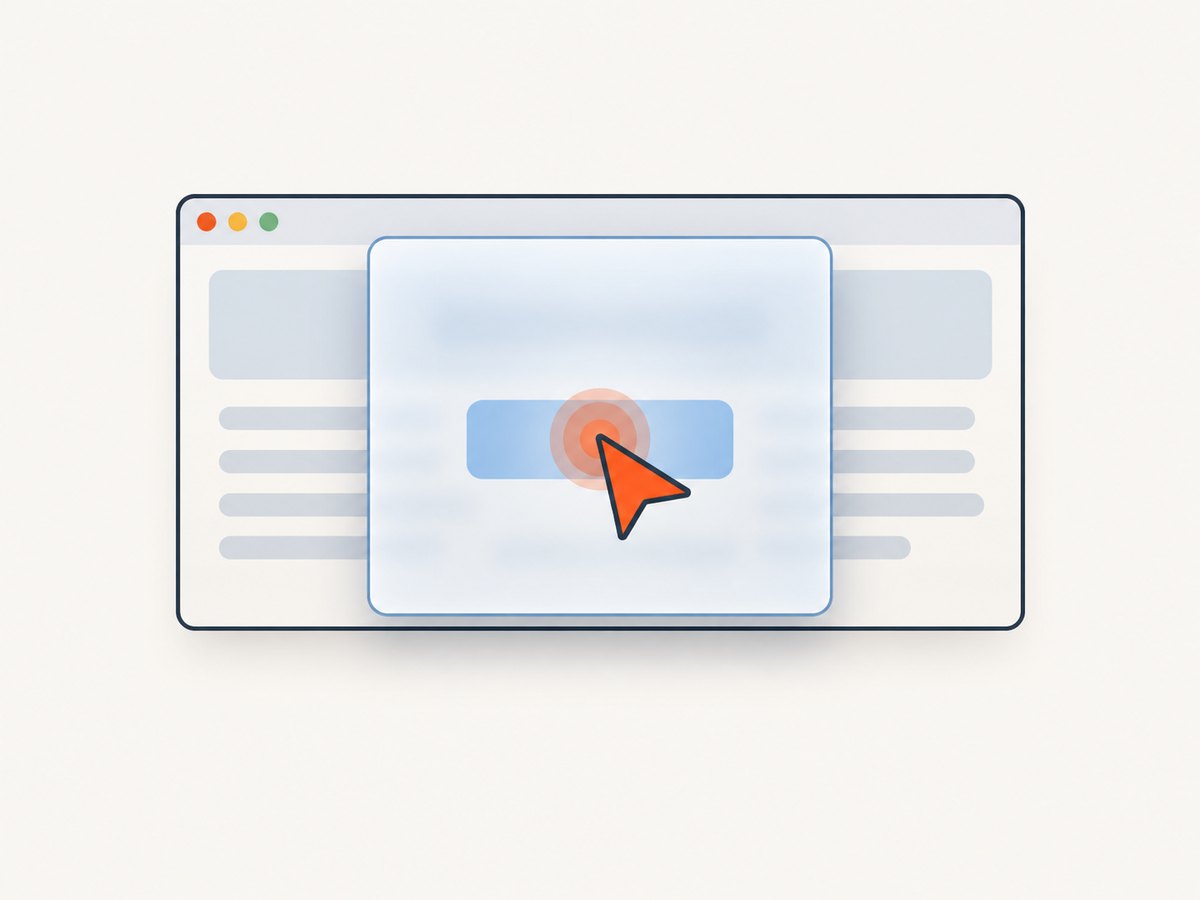
Capture the current screenshot and inspect the DOM around the link and blocker. Check whether a fixed or sticky element overlaps the target after Selenium scrolls it into view. Also inspect responsive layout and animation: the target may move between the browser’s location calculation and the click.
Check the target without changing the interaction
from selenium.webdriver.common.by import By

link = driver.find_element(By.CSS_SELECTOR, "a.some-link")
print("displayed:", link.is_displayed())
print("enabled:", link.is_enabled())
print("rect:", link.rect)
print("tag:", link.tag_name)
print("href:", link.get_attribute("href"))
driver.save_screenshot("click-failure.png")
These checks help explain the state but do not establish that the center is unobstructed. For Chrome, you can ask the page which element occupies the anchor’s center. This is diagnostic JavaScript, not the click workaround:
cover = driver.execute_script("""
const r = arguments[0].getBoundingClientRect();
return document.elementFromPoint(r.left + r.width / 2, r.top + r.height / 2);
""", link)
print("center hit target:", cover.tag_name if cover else None,
      cover.get_attribute("class") if cover else None)
The returned node may be the anchor itself or one of its descendants, which is normally consistent with the intended target. If it is a banner, mask, or unrelated element, handle that blocker or choose a valid point only if the page’s interaction semantics support it.
4. Choose a repair that matches the cause
| Repair | Use it when | Trade-off |
|---|---|---|
| Wait for the application condition | Rendering, menu opening, or a transient transition has not settled. | Does not remove a persistent overlay or correct bad geometry. |
| Dismiss the blocker through the UI | A consent dialog or modal is expected and has a legitimate close/accept control. | Test the real user path; don’t silently delete production behavior. |
| Click a clickable descendant | The actual interactive child is the proper target or ChromeDriver’s anchor-bounds edge case applies. | Confirm the child represents the user action; avoid arbitrary descendants. |
| Use a pointer offset | A safe point within the element is known and remains meaningful. | Responsive changes can make hard-coded offsets brittle. |
| Use JavaScript activation | The test intentionally verifies script-level activation, or as a diagnostic fallback. | It bypasses normal pointer hit testing and may conceal a real user-facing defect. |
Dismiss an expected modal or banner
If the application expects the visitor to accept or close a dialog, perform that action and wait for it to disappear before clicking the link.
dismiss = wait.until(EC.element_to_be_clickable(
    (By.CSS_SELECTOR, "button.cookie-accept")
))
dismiss.click()
wait.until(EC.invisibility_of_element_located(
    (By.CSS_SELECTOR, ".cookie-banner")
))
link = wait.until(EC.element_to_be_clickable(
    (By.CSS_SELECTOR, "a.some-link")
))
link.click()
If a test fixture owns the overlay and it is irrelevant to the scenario, configure that fixture to start without it. Removing or hiding a blocker is appropriate only when the scenario allows it; otherwise it skips behavior the test should cover.
Target the actual child, when the DOM calls for it
Some anchors contain a child that extends outside the anchor’s bounds. ChromeDriver documents this as a click troubleshooting case. Inspect the DOM and target the real clickable descendant if that child is the control the user would activate. Do not change every link selector to a child selector without confirming the markup.
Use an offset only for a known safe point
from selenium.webdriver.common.action_chains import ActionChains

# Example: click 5 px from the element's top-left corner.
# Confirm that point is inside the intended clickable area.
ActionChains(driver).move_to_element_with_offset(link, 5, 5).click().perform()
Offsets depend on the current dimensions, text wrapping, zoom, and responsive layout. If the element moves or resizes, calculate a suitable point from its current rectangle and still verify that the point hits the intended link.
JavaScript click is not a normal pointer click
driver.execute_script("arguments[0].click()", link)This invokes the element’s DOM click behavior and may activate it despite an overlay that would block a user. Use it when the test specifically needs script-level activation or to isolate whether the application handler works. For end-to-end tests of a person using the page, resolve the overlay or geometry issue and keep the WebDriver click.
5. Handle movement, rerenders, and navigation
A moving target can become unclickable between position calculation and activation. ChromeDriver’s [click troubleshooting guidance](https://chromedriver.chromium.org/help/clicking-issues) advises waiting for a target that eventually stops moving. Wait for the animation or layout transition to finish; retry only when movement is transient and the application state is still valid.
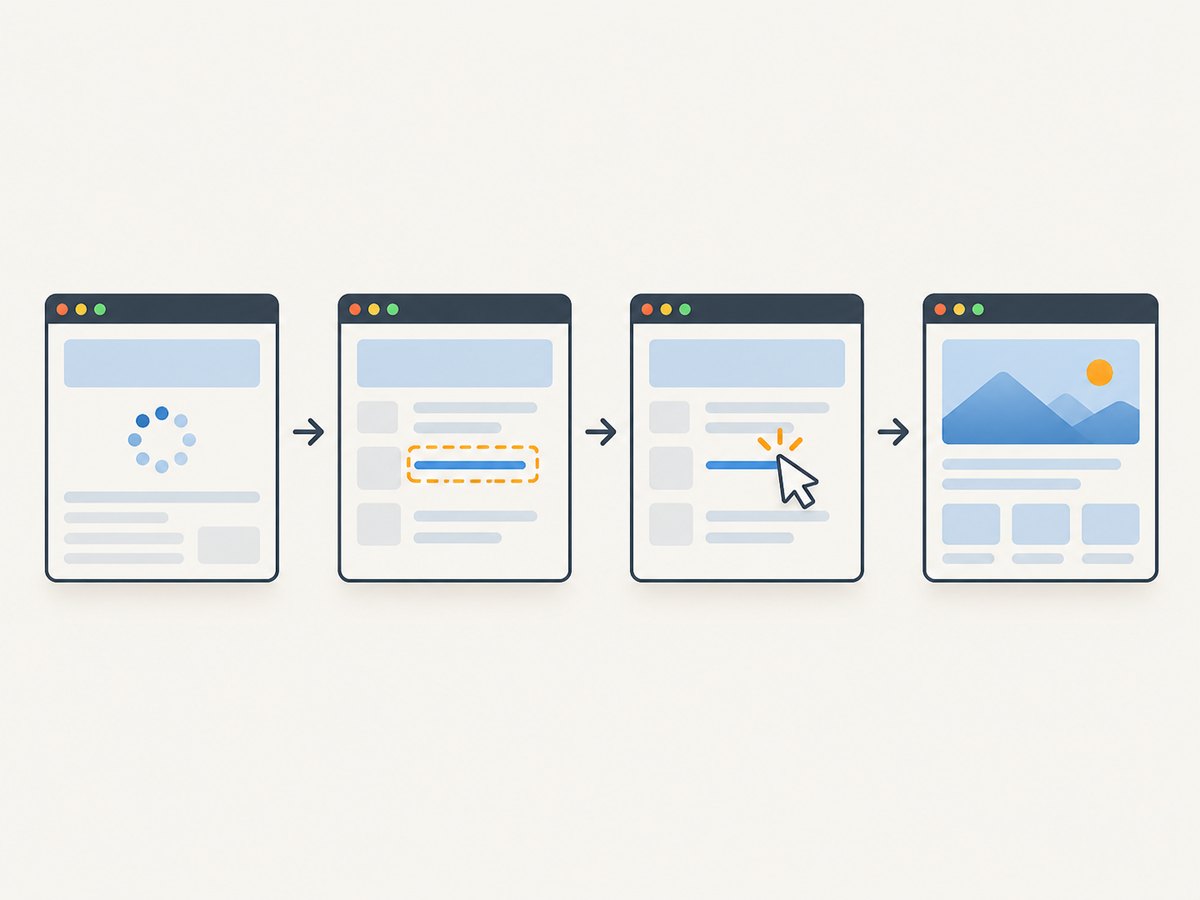
When a framework rerenders the link, an old WebElement reference can become stale. Re-locate after the update rather than repeatedly clicking the detached reference:
wait.until(EC.staleness_of(old_link))
new_link = wait.until(EC.element_to_be_clickable(
    (By.CSS_SELECTOR, "a.some-link")
))
new_link.click()
After a click that navigates or changes application state, wait for the expected outcome: a URL, title, destination element, new window, or in-page state. A successful click command does not prove the next page is ready. For a new tab, wait for the window count to increase, switch to its handle, then wait for a destination condition.
6. Troubleshooting checklist
- Copy the exact exception. Intercepted, not-interactable, stale, missing, and timeout errors need different fixes.
- Confirm context. Ensure the driver is in the correct window and frame, and that the selector identifies the intended link.
- Wait for the necessary state. Use an explicit condition for the menu, link, overlay dismissal, or route.
- Inspect the hit target. Save a screenshot, examine the rectangle, and check what occupies the center point.
- Look for movement and replacement. Animations can shift coordinates; rerenders invalidate references.
- Make the smallest relevant correction. Dismiss an expected blocker, target the actual child, or use a justified offset.
- Verify the outcome. Wait for the destination or expected application state.
- Retain a real pointer click for user-flow tests. Reserve JavaScript activation for cases where its different semantics are intentional.
7. Performance, reliability, and cost of the fixes
Explicit waits usually make suites both faster and less timing-sensitive than a fixed delay: they return when the requested condition becomes true and stop waiting at the configured limit. Choose a timeout that fits the application and environment, and keep the wait condition narrow enough to reveal what failed. Long timeouts should not conceal a selector that can never match.
Repeated blind retries can make a flaky test appear green while obscuring a race or overlay defect. If retrying a transient movement, capture enough state to distinguish a temporary shift from a persistent obstruction. Reacquiring an element after rerender improves correctness; repeatedly polling a stale reference cannot repair it.
Browser automation has resource and runtime costs: each browser session consumes time and machine resources. Avoid unnecessary fixed sleeps and duplicate navigation. For screenshot-only documentation or visual records, a screenshot API may avoid maintaining a browser driver. ScreenshotNeo is a website screenshot API and MCP server; its clean shots remove supported consent banners, newsletter popups, and chat widgets, and only clean shots are billed. This is a separate capture workflow, not a replacement for Selenium interaction assertions.
8. Or skip the browser setup
If the task is to capture the page rather than test a user’s link interaction, ScreenshotNeo can return an image or PDF with one GET request. See the [ScreenshotNeo documentation](https://screenshotneo.com/docs/).
curl -G "https://api.screenshotneo.com/v1/shot" \
  -d access_key=YOUR_API_KEY \
  --data-urlencode url=https://example.com \
  -o shot.webp
import requests
r = requests.get(
"https://api.screenshotneo.com/v1/shot",
params={"access_key": "YOUR_API_KEY", "url": "https://example.com"},
timeout=90,
)
r.raise_for_status()
open("shot.webp", "wb").write(r.content)const q = new URLSearchParams({
access_key: 'YOUR_API_KEY',
url: 'https://example.com'
});
const res = await fetch(`https://api.screenshotneo.com/v1/shot?${q}`);
if (!res.ok) throw new Error(`Screenshot request failed: ${res.status}`);
await require('node:fs/promises').writeFile('shot.webp', Buffer.from(await res.arrayBuffer()));Cookie banners, popups, and chat widgets are removed before the shot. Bot checks, blank pages, and failed loads are never billed; response headers identify the page verdict and billing status. An MCP server lets AI agents use screenshot, page-info, and PDF-capture tools. The free plan includes 1,000 screenshots a month with no card; paid plans start at $5 for 3,000. Every feature is on every plan. Learn about [ScreenshotNeo](https://screenshotneo.com) and [start free](https://screenshotneo.com/account/sign-up/).
9. Frequently asked questions
Why does Selenium find my anchor but still refuse to click it?
Finding the node is only a locator result. The anchor may not be interactable yet, may be covered at its center, may have unusual bounds, or may have been replaced after lookup.
Does element_to_be_clickable guarantee the click will work?
No. It checks visibility and enabledness. Another element can still cover the point Selenium targets.
Should I use JavaScript for every failed link click?
No. It changes the interaction semantics and can bypass a real pointer obstruction. Diagnose first; use JavaScript only when script-level activation is what the test intends.
Do I need to wait for document.readyState?
Document readiness can be useful, but it does not establish that later JavaScript changes or application-specific transitions have finished. Wait for the condition relevant to the scenario.
Why does the test pass locally and fail in CI?
Timing, viewport, fonts, and rendering can affect when content appears and where a link sits. Use condition-based waits and inspect the failing run’s screenshot and hit target instead of assuming a longer fixed pause will solve it.


