How to Fix Selenium Screenshots That Show a Black Overlay
Diagnose black Selenium screenshots systematically with headed/headless comparisons, stable waits, viewport checks, element captures, and reliable fixes.

A Selenium screenshot with a black overlay is usually a symptom to isolate, not a problem with one universal switch. First determine whether the dark layer is rendered by the page or appears only in the saved image. Then compare headed and headless runs, fix the capture timing, hold the viewport constant, and narrow the screenshot scope.
Selenium can capture the current browsing context and individual elements. Firefox also exposes full-document screenshot methods. Selenium’s window and screenshot documentation and the Firefox WebDriver API describe these controls.
1. Confirm what is actually black
Before changing Chrome flags, inspect the page while the automated browser is paused at the capture point.
- Save the failing screenshot and record its dimensions.
- Take a second screenshot immediately after stopping the test or open the same URL manually.
- Check whether the live page contains a modal, loading layer, consent dialog, application dimmer, or test fixture.
- If the live page is clear but the file is dark, compare capture mode, timing, viewport, and browser versions.
A page-owned overlay must be closed or waited out in the application. A dark saved image with a clear live page requires an environment or capture investigation.
2. Reproduce with a controlled Selenium test
The following Python example fixes the viewport, waits for a target condition, captures both the page and an element, and logs the browser dimensions. Install Selenium with pip install selenium; Selenium Manager can obtain a compatible driver for current installations.
from pathlib import Path
from selenium import webdriver
from selenium.webdriver.chrome.options import Options
from selenium.webdriver.common.by import By
from selenium.webdriver.support.ui import WebDriverWait
from selenium.webdriver.support import expected_conditions as EC

URL = "https://example.com"
OUT = Path("artifacts")
OUT.mkdir(exist_ok=True)

options = Options()
# Remove this line for the headed comparison.
options.add_argument("--headless")
options.add_argument("--window-size=1440,1000")

with webdriver.Chrome(options=options) as driver:
    driver.get(URL)
    wait = WebDriverWait(driver, 30)

    # Replace this with the condition that means your UI is ready.
    wait.until(EC.visibility_of_element_located((By.TAG_NAME, "body")))

    print("window:", driver.get_window_size())
    print("viewport:", driver.execute_script(
        "return {width: innerWidth, height: innerHeight, dpr: devicePixelRatio};"
    ))

    driver.save_screenshot(str(OUT / "whole-page.png"))
    element = wait.until(EC.visibility_of_element_located((By.TAG_NAME, "h1")))
    element.screenshot(str(OUT / "element.png"))
Run the same script once without --headless. Keep the Chrome build, driver, URL, viewport, application state, and wait condition unchanged. A difference between the two files narrows the failing path; it does not by itself prove a GPU, compositor, or Selenium defect.
3. Compare headed and headless Chrome correctly
Chrome Headless runs without visible browser UI and shares Chrome’s browser code. The current guidance is in Chrome Headless mode. Chrome’s implementation changed in version 112, and from Chrome 132.0.6793.0 the old Headless mode is distributed as the standalone chrome-headless-shell binary.
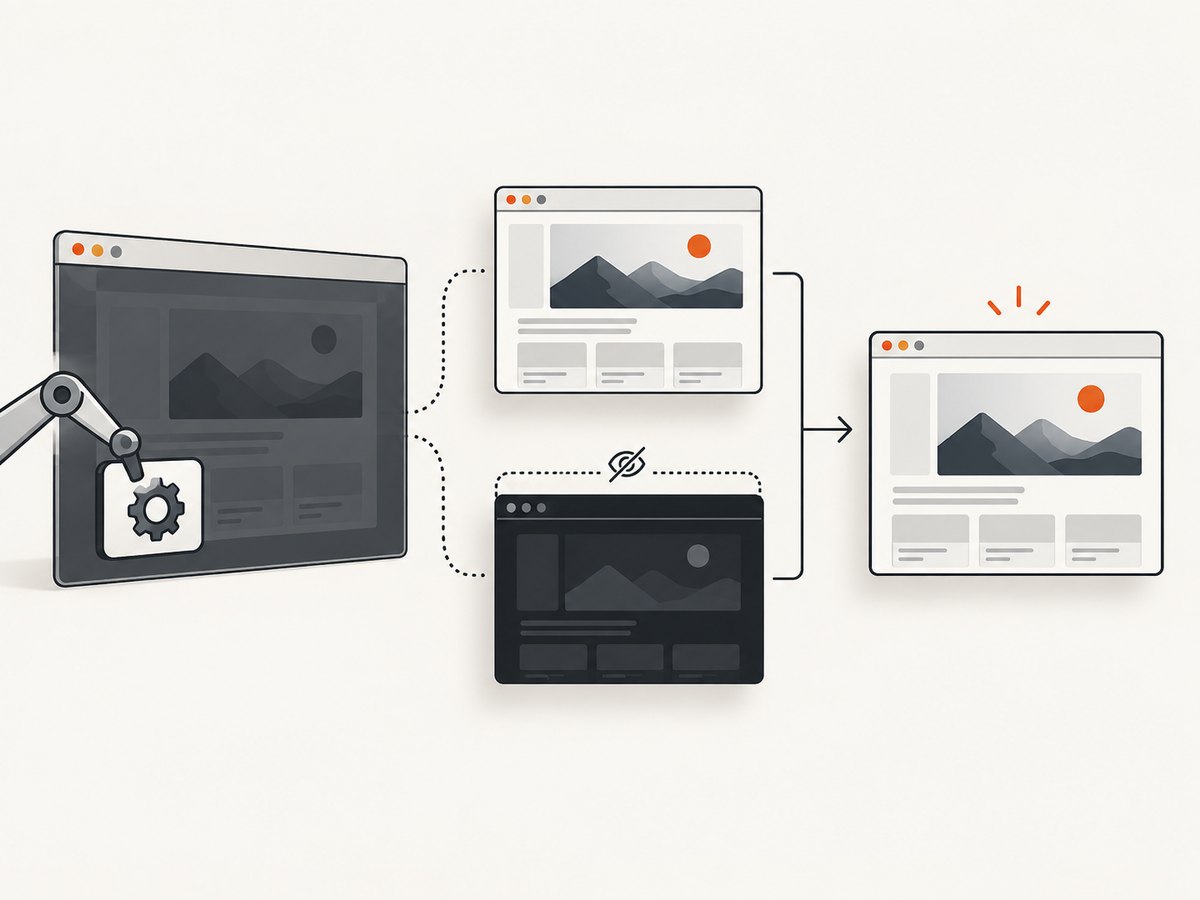
Use Selenium’s current --headless option after checking the deployed browser version. Do not copy old --headless=old or --headless=new recipes as universal fixes. Record these values for both runs:
- Chrome version and driver version
- Selenium binding version
- Operating system or container image
- Headed or headless mode
- Window size, inner viewport, and device-pixel ratio
- URL, authentication state, and capture timestamp
4. Stabilize viewport and window behavior
Window dimensions change responsive layouts, modal placement, lazy-loading thresholds, and the size of application overlays. Set a known size before navigation or capture and log the effective size.
driver.set_window_size(1440, 1000)
print(driver.get_window_size())
print(driver.execute_script("return [innerWidth, innerHeight, devicePixelRatio]"))
You can also use driver.maximize_window() for a headed comparison, but a fixed size is easier to reproduce in CI. Compare one viewport at a time; changing browser, mode, and dimensions together hides the cause.
5. Wait for the real visual state
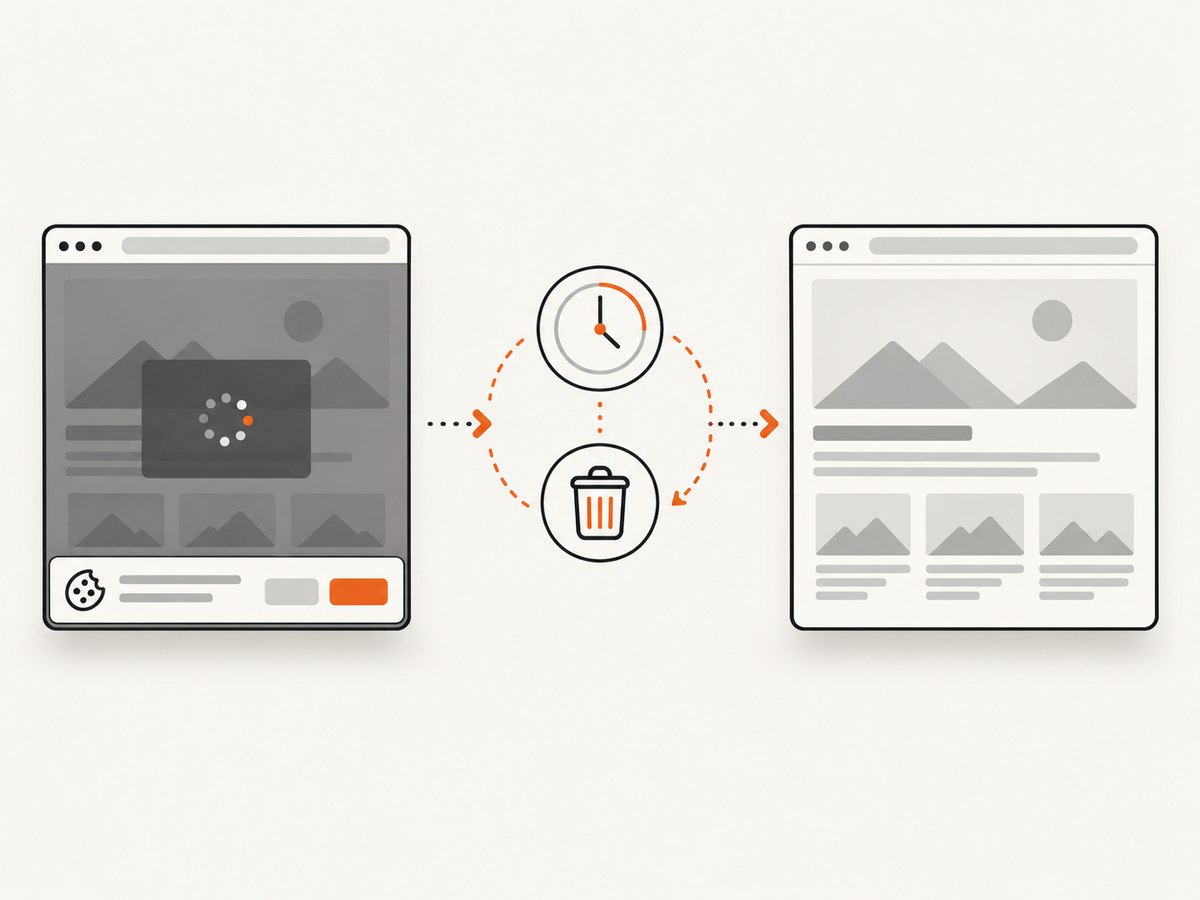
Navigation completion does not guarantee that an application has finished rendering. Chrome’s command-line screenshot workflow captures content as soon as page load completes unless a timeout or virtual-time budget is supplied. In Selenium, wait for the condition that should be visible in the image.
from selenium.webdriver.support import expected_conditions as EC

wait.until(EC.visibility_of_element_located((By.CSS_SELECTOR, "main.dashboard")))
wait.until(EC.invisibility_of_element_located((By.CSS_SELECTOR, ".loading-overlay")))
# If the application exposes a readiness flag:
wait.until(lambda d: d.execute_script("return window.appReady === true"))
driver.save_screenshot("ready.png")
Prefer a selector, state flag, or disappearance condition over an arbitrary long sleep. If the page has animations, wait for the final class or state used by the application. A short diagnostic delay can confirm a timing race, but it should not be the permanent fix.
6. Narrow the screenshot scope
Capture the whole browsing context and the affected element. Selenium documents both forms. If only the full-window image is dark, inspect page-wide UI and window rendering. If the element image is also dark, inspect the element’s content and ancestors.
# Whole current browsing context
driver.save_screenshot("window.png")

# One element
panel = driver.find_element(By.CSS_SELECTOR, "main.dashboard")
panel.screenshot("panel.png")
Firefox has browser-specific full-document APIs. When comparing Chrome and Firefox, treat a difference as evidence of a browser-specific path, not proof of the root cause.
7. Check page-owned overlays
If the dark layer is visible in the live page, inspect application state before browser flags.
- Close a modal only through the same user-visible control a real visitor would use.
- Wait for consent or loading layers to become invisible.
- Check whether a test fixture intentionally adds a full-screen backdrop.
- Inspect ancestors for fixed-position elements, high
z-index, opacity, or a blend mode. - Verify that a failed API request has not left the application in a blocking state.
overlay = driver.find_element(By.CSS_SELECTOR, ".loading-overlay")
print("display:", overlay.value_of_css_property("display"))
print("opacity:", overlay.value_of_css_property("opacity"))
print("z-index:", overlay.value_of_css_property("z-index"))
Do not hide arbitrary elements until you know they are the cause; doing so can conceal a real application failure.
8. Use a one-variable diagnostic matrix
| Run | Browser mode | Scope | Timing | What it tells you |
|---|---|---|---|---|
| A | Headed | Whole page | Target condition | Baseline with visible UI |
| B | Headless | Whole page | Target condition | Mode difference |
| C | Headless | Element | Target condition | Page-wide versus element scope |
| D | Headless | Whole page | Immediate | Timing sensitivity |
| E | Headless | Whole page | Target condition | Different fixed viewport |
Keep the Chrome and driver versions constant while changing one axis. Reproduce with a minimal page before changing graphics flags or downgrading software.
9. Troubleshooting common errors
| Symptom | Likely area | Fix |
|---|---|---|
| Only headless is black | Mode or environment difference | Compare current Chrome versions, fixed viewport, and identical waits; use current Headless guidance. |
| Both whole-page and element images are black | Page state or ancestor overlay | Inspect the live page, element ancestors, modal state, and application logs. |
| Whole page is black but element is clear | Page-wide layer or window capture | Inspect fixed overlays and compare a different viewport; keep the element capture as evidence. |
| Screenshot is taken before content appears | Readiness condition | Wait for the target selector, network-driven state, or loading layer to disappear. |
| Layout changes between runs | Viewport mismatch | Set and log a fixed window size and inner viewport. |
Element is not interactable |
Overlay still covers target | Wait for overlay invisibility or close it through the application’s control. |
SessionNotCreatedException |
Browser and driver mismatch | Record versions and install a compatible driver or let Selenium Manager resolve it. |
| Blank or partial image in CI | Navigation, resource, or container issue | Save console/browser logs, verify URL access, and reproduce with a minimal page. |
10. Make failures reproducible
Attach the failing image and a short report containing the Selenium binding and version, browser and driver versions, operating system or container image, headed/headless mode, viewport dimensions, URL or minimal page, whether the overlay appears live, whether whole-page and element captures differ, and available console or browser logs. This turns a visual complaint into a testable browser-state comparison.
11. Performance, reliability, and cost notes
- Use one browser session for related captures when isolation is not required; startup is usually more expensive than another screenshot in the same session.
- Wait on precise conditions to avoid both premature images and unnecessary idle time.
- Keep viewport and browser versions pinned in CI so visual diffs represent application changes.
- Capture an element when full-page output is unnecessary; it reduces files and simplifies diagnosis.
- Save diagnostics only on failure in large test suites, while retaining browser and driver version metadata.
- There is no universal black-overlay frequency or single flag supported by the references; measure your own failure rate after isolating the variable.
Or skip the browser setup
ScreenshotNeo provides a website screenshot API and MCP server. One request returns a PNG, JPEG, WebP, or PDF. It accepts cookie and consent banners before capture and removes more than 60 known consent platforms, newsletter popups, and chat widgets; each step can be disabled. Bot checks, blank pages, timeouts, failed loads, and cache hits are not billed, and the response identifies the result with X-Page-Verdict and X-Billed headers.
See the ScreenshotNeo API documentation for the complete parameter list.
curl -G "https://api.screenshotneo.com/v1/shot" -d access_key=YOUR_API_KEY --data-urlencode url=https://example.com -o shot.webpimport requests
r = requests.get("https://api.screenshotneo.com/v1/shot", params={"access_key": "YOUR_API_KEY", "url": "https://example.com"}, timeout=90)
open("shot.webp", "wb").write(r.content)
const q = new URLSearchParams({ access_key: 'YOUR_API_KEY', url: 'https://example.com' });
const res = await fetch(`https://api.screenshotneo.com/v1/shot?${q}`);
ScreenshotNeo also supports full-page capture with lazy images loaded, CSS-selector element capture, dark mode, device presets, custom viewports, retina scale, custom CSS and JavaScript, clicks, waits, blocked requests, headers, cookies, user agents, authorization, timezone, geolocation, transparent backgrounds, resizing, TTL caching, signed links, asynchronous jobs with signed webhooks, bulk capture of 100 URLs per call, usage reporting, and an OpenAPI specification. Its MCP server provides take_screenshot, get_page_info, and capture_pdf for Claude, Cursor, and other MCP clients.
Free usage includes 1,000 screenshots per month with no card. Paid plans start at $5 for 3,000 screenshots; every feature is available on every plan. Create a free ScreenshotNeo account.
FAQ
Is a black screenshot always a Chrome GPU bug?
No. First determine whether the page itself is displaying a modal, loading layer, consent dialog, or other dark element. A headed/headless difference is evidence for further investigation, not a diagnosis.
Should I add a long sleep?
Use a short delay only as a diagnostic. The durable fix is a condition tied to the intended UI state, such as a selector becoming visible or a loading layer becoming invisible.
Which headless flag should I use?
Check the deployed Chrome version and follow current Chrome Headless documentation. Historical --headless=old and --headless=new advice should not be copied without that version check.
Why compare an element screenshot?
It separates a page-wide overlay or window-rendering issue from content that is already dark inside the element or one of its ancestors.
What should I include in a bug report?
Include the image, Selenium binding, browser and driver versions, operating system or container, mode, viewport, URL or minimal page, live-page appearance, whole-page versus element results, and available logs.


