How to Fix Selenium Screenshots with ChromeDriver 73 and Chrome 73
A Chrome 73 screenshot timeout under Jenkins or another Windows service was traced to Chrome itself. Here’s how to diagnose that legacy issue and choose a supported fix.
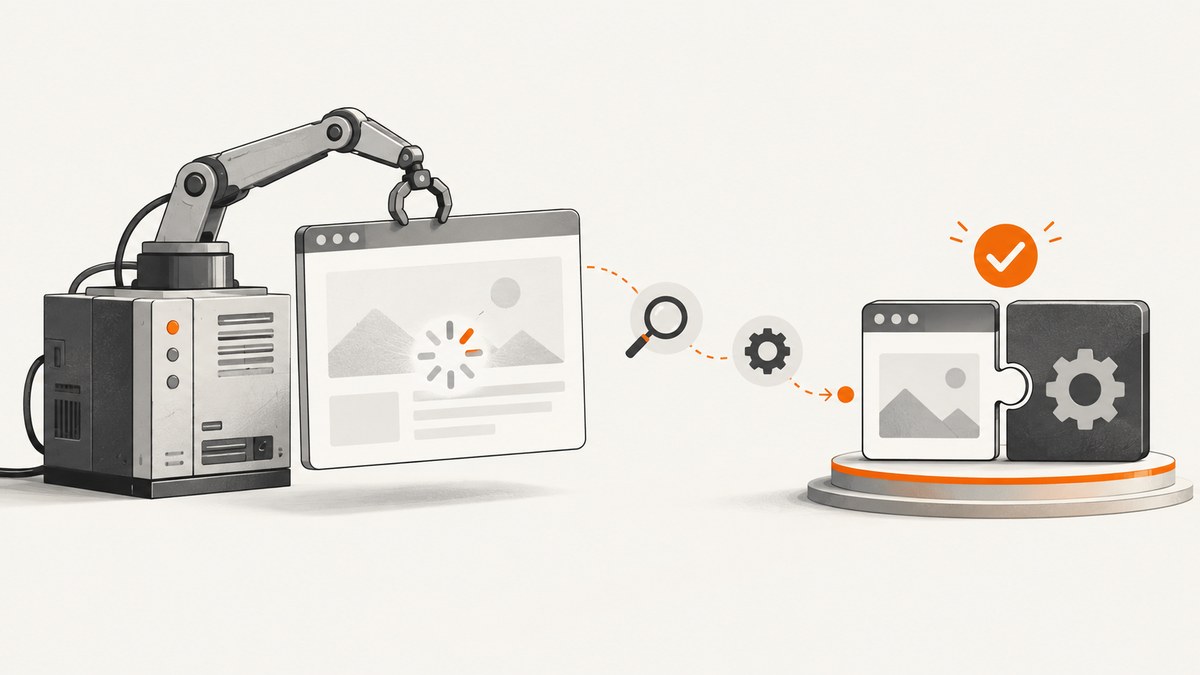
If Selenium screenshot capture fails with Timed out receiving message from renderer in a legacy Windows Jenkins setup, the reported Chrome 73 incident points to Chrome 73 running as a service, not to ChromeDriver 73 itself. For that historical setup, the reported workaround was to downgrade to Chrome 72 and pair it with ChromeDriver 2.46 or 72.0.3626.69. Treat that as a reproduction workaround for an old stack, not a configuration to adopt for current testing. For a maintained stack, use a Selenium-supported Chrome version and a matching ChromeDriver major version.
The report came from one environment: Windows 10, Chrome 73.0.3683.86, ChromeDriver 73.0.3683.68, Selenium 3.11.0, with Jenkins launching the browser. It does not establish that all Chrome 73 screenshot calls fail. The attributed diagnosis and workaround were recorded in the [Stack Overflow incident](https://stackoverflow.com/questions/55364056/timed-out-receiving-message-from-renderer-10-000-while-capturing-screenshot-usi). The Chromium issue linked from that answer was not readable in the research pass, so treat the diagnosis as secondhand attribution.
1. Identify which Chrome 73 failure you have
These symptoms can look alike while having different causes. This article focuses on a screenshot request timing out after Chrome has launched, especially when Chrome is started by Jenkins, Task Scheduler, or another Windows service. The incident’s log included Timed out receiving message from renderer: 10.000, followed by a Selenium failure at screenshot capture. A separate report described a longer renderer timeout during Jenkins startup. Neither log alone proves that screenshot capture is the only underlying problem.
Record the versions and launch context from the failing run before changing anything:
- Chrome version, including all four version components.
- ChromeDriver version from the actual executable being launched.
- Selenium binding and version.
- Windows version and whether the job runs as a service, scheduled task, or interactive user.
- Whether the browser is headless, and the exact failing command and preceding browser log lines.
Use the executable paths from the job environment. A developer machine’s Chrome version or PATH may differ from the one Jenkins sees. ChromeDriver 73.0.3683.68 was listed as supporting Chrome 73, so matching those versions did not by itself prevent the reported service-context issue. [ChromeDriver’s 73 release entry](https://developer.chrome.com/docs/chromedriver/downloads/) describes version support; it does not list this screenshot incident as a fix.
2. Choose a fix based on whether you are reproducing the old stack
For a legacy reproduction
If you must recreate the reported environment to debug an old test suite, isolate it and try the documented pair: Chrome 72 with ChromeDriver 2.46 or ChromeDriver 72.0.3626.69. Change one factor at a time and preserve the original logs. Confirm that Jenkins is actually launching the downgraded Chrome and driver binaries. The report gives this as a workaround, not a guarantee, and the available sources do not establish current security or support status for Chrome 72. Do not use this historical downgrade as general advice for internet-facing browsing or a new automation system.
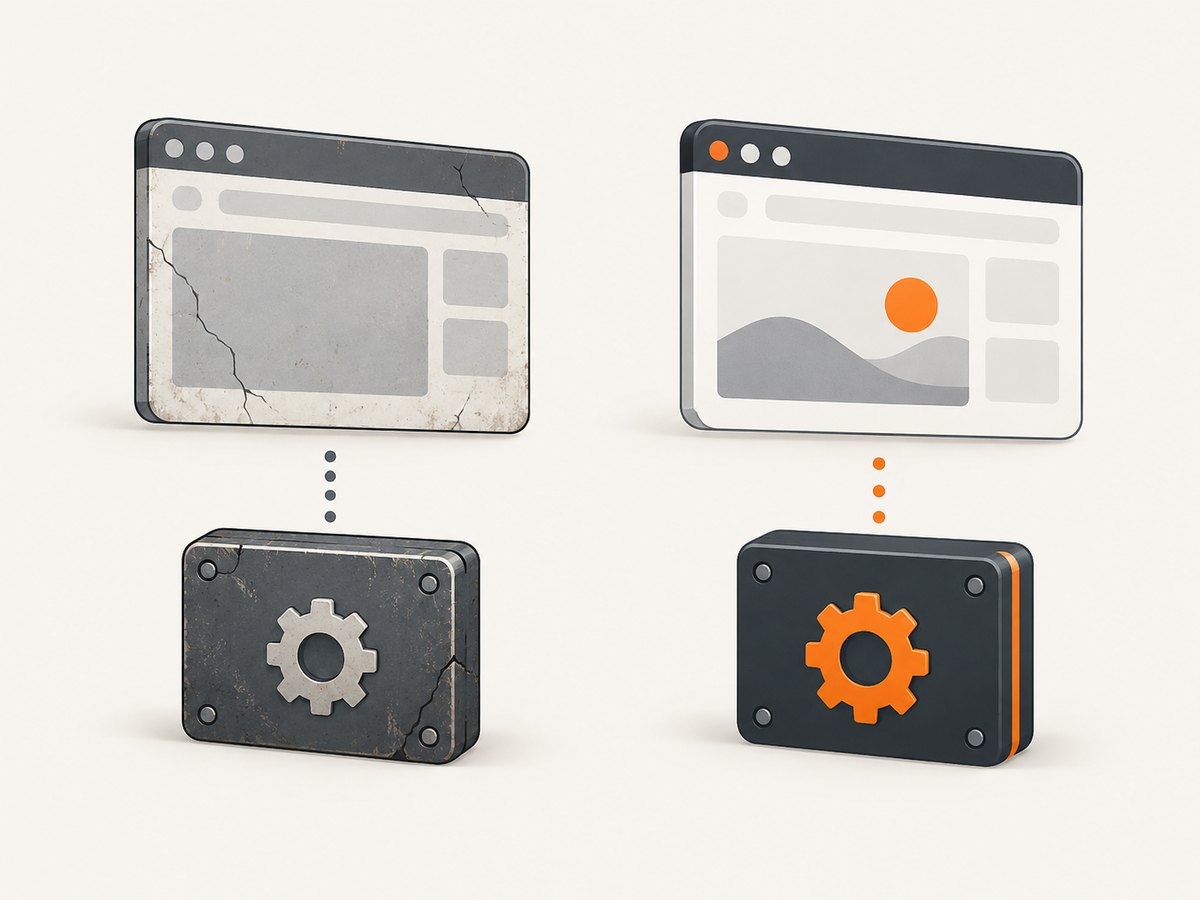
For a maintained Selenium installation
Move to a current, supported browser and driver pair. Selenium’s Chrome documentation says Selenium 4 is compatible with Chrome 75 and later by default and that the Chrome and ChromeDriver major versions should match. Follow the current [Selenium Chrome documentation](https://www.selenium.dev/documentation/webdriver/browsers/chrome/) for your binding and setup. Do not assume that installing ChromeDriver 73 alone fixes a Chrome 73 service-launch bug.
| Goal | Practical path | Limit |
|---|---|---|
| Reproduce the reported old failure | Test Chrome 72 with ChromeDriver 2.46 or 72.0.3626.69 in an isolated environment. | Historical workaround only; does not certify a current stack. |
| Maintain current automated tests | Use Selenium 4 with a supported Chrome version and matching ChromeDriver major version. | Version alignment does not rule out service permissions, profile, or page-specific failures. |
3. Capture a screenshot with Selenium and log the failure
The following Python example uses Selenium’s screenshot API to save the current browser window as a PNG. It records the browser and driver versions when a session can be created, keeps the exception visible, and always attempts to close the browser. Install Selenium in the same Python environment that runs the job. Provide Chrome and a compatible driver through your established deployment setup.
from pathlib import Path
import logging
from selenium import webdriver
from selenium.webdriver.chrome.options import Options

logging.basicConfig(level=logging.INFO)

options = Options()
# Add this only if your job is intended to run without a visible window.
options.add_argument("--headless")

# For diagnosis, set an explicit binary_location if Jenkins uses
# a Chrome installation outside the service account's normal PATH.
# options.binary_location = r"C:\Program Files\Google\Chrome\Application\chrome.exe"

driver = None
try:
    driver = webdriver.Chrome(options=options)
    logging.info("browser=%s", driver.capabilities.get("browserVersion"))
    logging.info("driver=%s", driver.capabilities.get("chrome", {}).get("chromedriverVersion"))
    driver.set_page_load_timeout(60)
    driver.get("https://example.com")

    output = Path("artifacts")
    output.mkdir(parents=True, exist_ok=True)
    if not driver.save_screenshot(str(output / "page.png")):
        raise RuntimeError("WebDriver did not save the screenshot")
except Exception:
    logging.exception("Browser setup, navigation, or screenshot capture failed")
    raise
finally:
    if driver is not None:
        driver.quit()
This is a diagnostic pattern, not a workaround for the Chrome 73 service bug. If the exception occurs at save_screenshot, record that separately from driver startup or get() navigation. Selenium documents screenshot capture as an API that saves the current window as PNG; the incident report’s stack likewise pointed to getScreenshotAs. [Selenium WebDriver documentation](https://www.selenium.dev/documentation/webdriver/).
4. Troubleshoot the Windows service context
- Verify the process identity. Check which Windows account runs Jenkins or the scheduled task. A service can have different access to files, profiles, environment variables, and browser installations than an interactive login.
- Log the actual binaries. Capture Chrome’s version, ChromeDriver’s version, resolved executable paths, Selenium version, and command-line options from the job itself. Remove ambiguity from stale copies earlier on PATH.
- Compare launch contexts. Run the same test under the service and an interactive session with equivalent browser, driver, profile, and headless settings. A difference narrows the diagnosis; it does not, by itself, identify the cause.
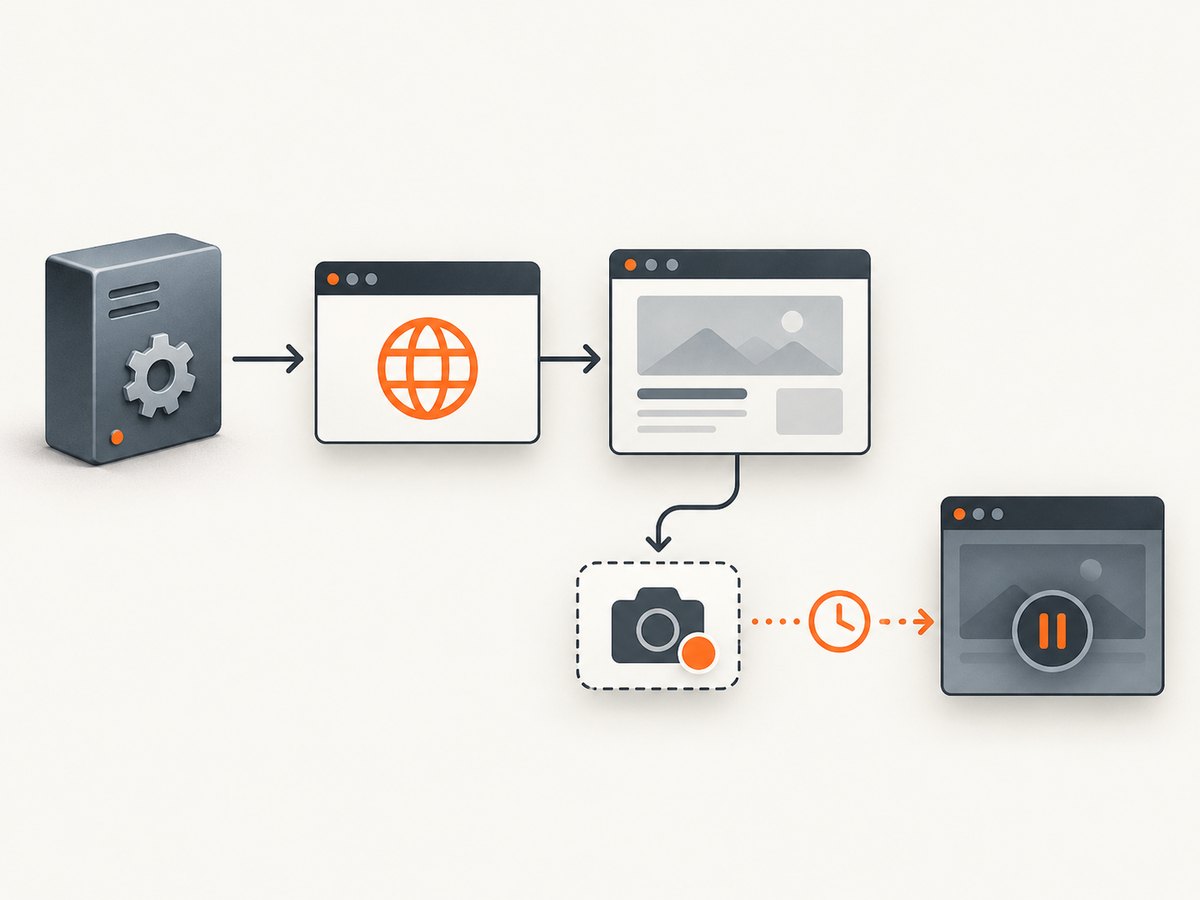
- Separate setup, navigation, and screenshot stages. Add clear log markers before and after session creation, page navigation, and
save_screenshot. Preserve the ChromeDriver log and Selenium exception so you know which operation stopped responding. - Test a clean profile in an isolated run. If the service reuses a browser profile, compare with a dedicated temporary profile to check whether profile state is involved. Do not run concurrent jobs against the same profile.
- Apply only the relevant version change. For a legacy reproduction, test the documented Chrome 72 pair. For maintained systems, migrate to a supported Selenium and Chrome pair. Record the result rather than changing browser, driver, Selenium, and job configuration simultaneously.
5. Common errors and what they mean
| Symptom | Likely interpretation | Next step |
|---|---|---|
Timed out receiving message from renderer during screenshot capture |
Renderer did not answer the screenshot request in time. In the reported case, this occurred with Chrome 73 launched as a Windows service. | Confirm launch context and versions. For historical reproduction, test the Chrome 72 workaround; otherwise use a supported current stack. |
SessionNotCreatedException or “only supports Chrome version …” |
The driver and browser do not form a compatible pair, or a different driver binary is being selected. | Inspect the versions and paths used by the job; align the major versions per current Selenium guidance. |
| Chrome fails to start only in Jenkins | The service context differs from the interactive environment, or the service resolves a different installation or configuration. | Log process identity, executable paths, arguments, and startup output; compare equivalent runs. |
| Navigation times out before screenshot code runs | The failure is at page load, not the screenshot command. | Log the failing stage and inspect navigation timeout and page behavior separately. |
| Screenshot returns false or file is missing | The save operation did not produce the expected artifact, or the service cannot write to the chosen location. | Check the return value, create the directory, and verify write permissions for the service account. |
| Timeout persists after changing driver version | The driver version may not be the reported root cause; the service launch context or Chrome process may still be relevant. | Do not keep cycling drivers blindly. Reconfirm Chrome version and reproduce the reported conditions. |
6. Reliability, runtime, and cost considerations
A browser screenshot is a request to a live browser renderer. In CI, it adds browser startup, navigation, page rendering, and image writing to the test path. Keep screenshot capture tied to a deliberate point in the test, and log the stage so a renderer timeout is distinguishable from a slow or failed page load. The sources for this Chrome 73 incident provide no benchmark, timeout tuning value, or evidence that increasing a timeout fixes the underlying issue.
For reliability, pin and record the browser, driver, and Selenium versions used by a legacy reproduction. For a maintained setup, follow Selenium’s current compatibility guidance and update the browser and driver as a pair. Run service-context diagnosis in a contained test environment, especially when checking an obsolete browser. The report describes a version-specific problem, not a universal failure mode.
Cost is usually operational: CI minutes and maintenance time spent keeping old dependencies reproducible. A downgrade may help isolate a historical regression but can prolong dependence on a legacy setup. A supported upgrade requires validating application tests against the new browser. No source in this research provides pricing or quantified performance differences for these paths.
7. Or skip the browser setup
If the task is to capture a website rather than test browser interactions, ScreenshotNeo offers a one-call screenshot API. It is a website screenshot API and MCP server for developers. See the [ScreenshotNeo documentation](https://screenshotneo.com/docs/) for the API options and setup.
curl -G "https://api.screenshotneo.com/v1/shot" -d access_key=YOUR_API_KEY --data-urlencode url=https://stripe.com -o shot.webpimport requests
r = requests.get(
"https://api.screenshotneo.com/v1/shot",
params={"access_key": "YOUR_API_KEY", "url": "https://stripe.com"},
timeout=90,
)
r.raise_for_status()
open("shot.webp", "wb").write(r.content)const q = new URLSearchParams({ access_key: 'YOUR_API_KEY', url: 'https://stripe.com' });
const res = await fetch(`https://api.screenshotneo.com/v1/shot?${q}`);
if (!res.ok) throw new Error(`Screenshot request failed: ${res.status}`);
const fs = await import('node:fs/promises');
await fs.writeFile('shot.webp', Buffer.from(await res.arrayBuffer()));ScreenshotNeo removes cookie banners, popups, and chat widgets before the shot. Bot checks, blank pages, and failed loads are never billed, and response headers report the page verdict and billing status. Its MCP server lets AI agents use take_screenshot, get_page_info, and capture_pdf. The Free plan includes 1,000 screenshots a month with no card; paid plans start at $5 for 3,000. [Learn about ScreenshotNeo](https://screenshotneo.com) or [create a free account](https://screenshotneo.com/account/sign-up/).
8. Frequently asked questions
Was ChromeDriver 73.0.3683.68 the cause?
The incident’s attributed diagnosis says the root cause was Chrome 73.x, while the listed driver supported Chrome 73. The report is secondhand evidence from Stack Overflow, not a universal finding.
Does downgrading to Chrome 72 fix every screenshot timeout?
No. It is the historical workaround reported for this particular legacy service setup. Other renderer timeouts can have different causes.
Can I keep ChromeDriver 73 and update only Selenium?
The cited report does not establish that changing Selenium fixes this Chrome 73 service-context issue. For a maintained installation, use the current Selenium guidance for supported Chrome versions and matching driver majors.
Is this the right fix if Chrome will not launch at all?
Not necessarily. First determine whether the error occurs during session creation, navigation, or screenshot capture. The incident addressed renderer timeout behavior; a startup failure needs its own diagnosis.


