How to Fix Selenium Screenshots Failing in Chrome When They Work in Firefox
When Selenium screenshots work in Firefox but fail in Chrome, identify whether the failure is in startup, capture, or file writing before changing your setup.
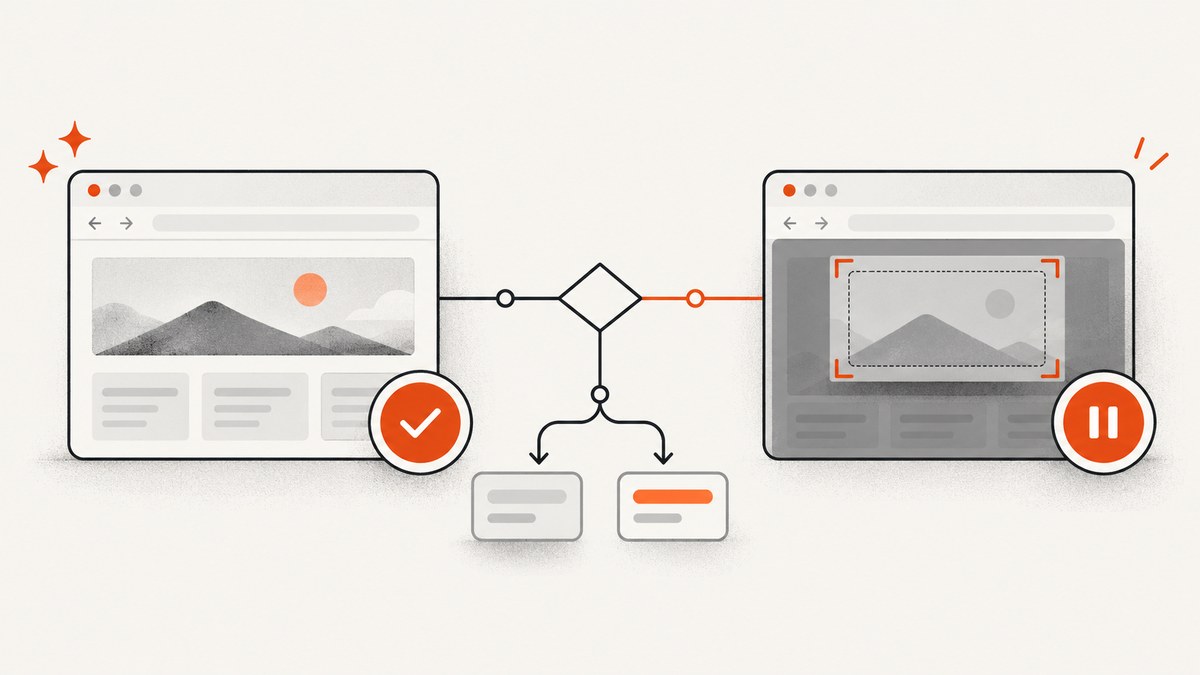
When Selenium screenshots work in Firefox but fail in Chrome, first find out which step fails: starting Chrome, issuing the screenshot command, or saving the returned image. Those are different problems. Firefox working does not prove that ChromeDriver, the Chrome binary, or Chrome’s launch environment is configured correctly.
Use Selenium’s normal WebDriver screenshot API after Chrome has opened the page. If the command succeeds but no PNG appears, investigate the file path and write permissions. If Chrome never starts or the screenshot command throws, collect the exception and versions before changing options.
This guide walks through that diagnosis without assuming a particular exception, language binding, operating system, or runner. The title alone does not reveal the cause. Record the exact error, Selenium version, Chrome version, ChromeDriver version, operating system, headless or headed mode, and whether the session is local, remote, or managed by a test service.
1. Locate the failing step
Run a minimal test that starts Chrome, navigates to a page, captures a screenshot, and saves it. Observe each stage separately. A test that fails during driver startup has not reached screenshot capture; a successful screenshot command followed by a failed write points to the destination path or filesystem instead.
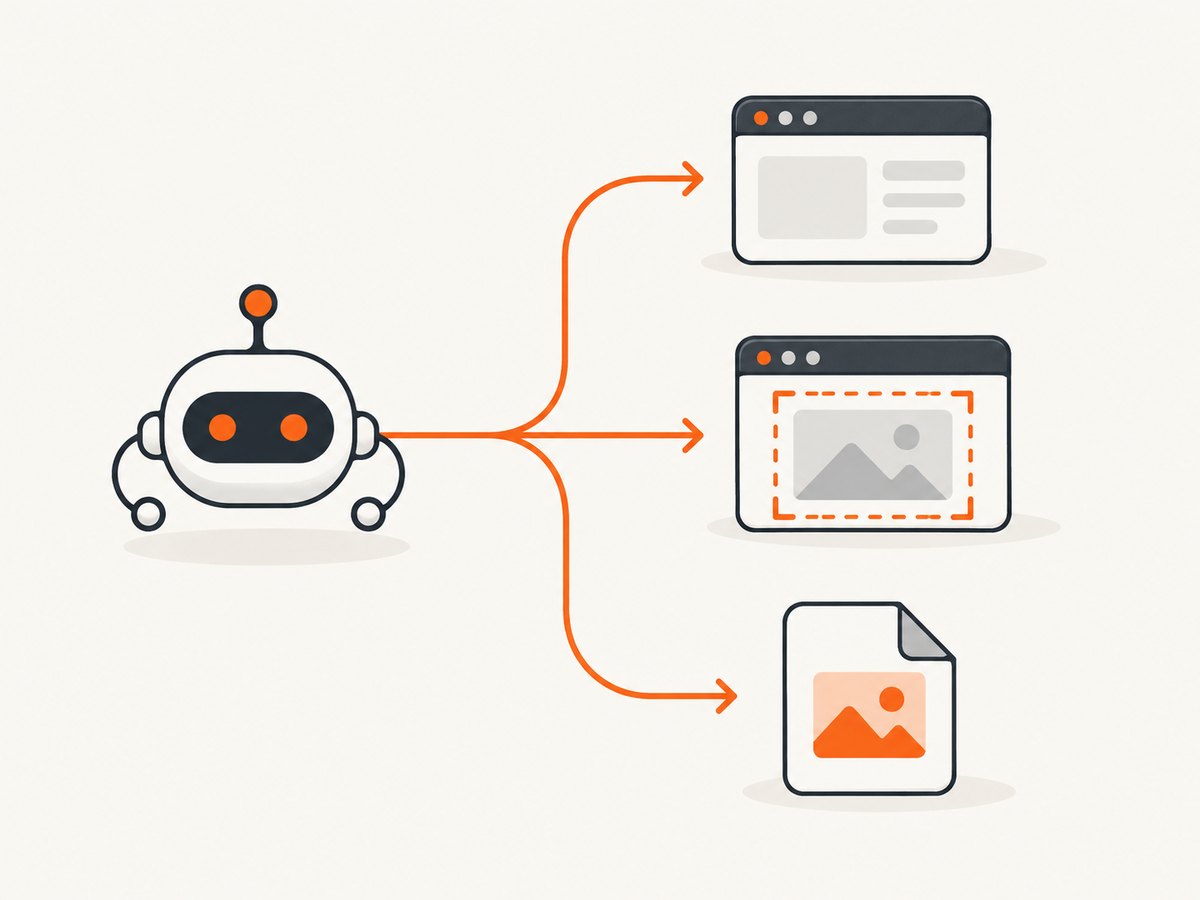
- Does Chrome start? Confirm a WebDriver session is created and navigation completes. If not, investigate ChromeDriver discovery, the selected Chrome binary, and launch environment.
- Does the screenshot command complete? If it throws, retain the full exception and stack trace. If it returns data, confirm that the result is nonempty and has the expected image format.
- Does writing the image complete? Check the target directory, path, permissions, disk space, and the API’s return value. Treat file output as a separate step from the browser command.
WebDriver’s screenshot command captures the current browsing context and returns a Base64-encoded screenshot. Selenium’s Python Chromium API also offers methods that save a current-window screenshot as PNG; its documentation describes a false return on an I/O error. A failed save therefore does not, by itself, show that Chrome could not capture the page. See Selenium’s WebDriver screenshot documentation and Python Chromium WebDriver API.
2. Check Chrome and ChromeDriver setup
ChromeDriver is a separate executable Selenium uses to control Chrome. A Firefox session uses a different browser and driver path, so success in Firefox does not validate ChromeDriver installation, discovery, browser selection, or compatibility. Check which Chrome binary the run uses and which ChromeDriver executable Selenium selects.
Selenium’s driver-location guidance covers configuring a driver path through a Service object and using Selenium Manager or a driver-management library where appropriate. Follow the guidance for your binding and environment rather than assuming a driver available on your interactive shell’s PATH will also be available to a CI worker or test service. Read Selenium’s driver location troubleshooting page.
Check the actual installed versions. ChromeDriver releases from M115 onward are published through the Chrome for Testing availability dashboard; consult the official ChromeDriver documentation and its distribution guidance when matching a browser and driver. Avoid relying on an old compatibility table or copying a version number from an unrelated machine.
Python: minimal local capture
This example uses Selenium’s Python binding, Selenium Manager for driver management in supported setups, and the current-window PNG save method. Install Selenium in the same environment that runs the script. If driver management is unavailable in your environment, configure the driver according to Selenium’s driver-location documentation.
from pathlib import Path
from selenium import webdriver
from selenium.webdriver.chrome.options import Options

output = Path("artifacts") / "chrome.png"
output.parent.mkdir(parents=True, exist_ok=True)

options = Options()
# Uncomment for a headless run, then compare with a headed run if needed.
# options.add_argument("--headless")

driver = webdriver.Chrome(options=options)
try:
    driver.get("https://example.com")
    saved = driver.save_screenshot(str(output.resolve()))
    if not saved:
        raise OSError(f"Screenshot was not saved to {output.resolve()}")
    print(f"Saved {output.resolve()}")
finally:
    driver.quit()
Use a known writable, absolute destination while diagnosing. Create the parent directory explicitly. If the browser command succeeds but the method reports a save failure, test a different local path and inspect filesystem permissions rather than repeatedly changing Chrome launch flags.
Java: minimal local capture
The Java binding exposes screenshots through TakesScreenshot. This example uses Selenium Manager where supported to locate the driver, writes the returned bytes to a known path, and always quits the session.
import java.nio.file.Files;
import java.nio.file.Path;
import org.openqa.selenium.OutputType;
import org.openqa.selenium.TakesScreenshot;
import org.openqa.selenium.WebDriver;
import org.openqa.selenium.chrome.ChromeDriver;

public class ChromeShot {
    public static void main(String[] args) throws Exception {
        Path output = Path.of("artifacts", "chrome.png").toAbsolutePath();
        Files.createDirectories(output.getParent());
        WebDriver driver = new ChromeDriver();
        try {
            driver.get("https://example.com");
            byte[] png = ((TakesScreenshot) driver).getScreenshotAs(OutputType.BYTES);
            if (png.length == 0) throw new IllegalStateException("Empty screenshot");
            Files.write(output, png);
            System.out.println("Saved " + output);
        } finally {
            driver.quit();
        }
    }
}
JavaScript: minimal local capture
With Selenium’s JavaScript package, the driver returns screenshot data that can be written separately. Keeping the write separate makes it easier to tell a browser command failure from a filesystem failure.
const { Builder } = require('selenium-webdriver');
const chrome = require('selenium-webdriver/chrome');
const fs = require('node:fs/promises');
const path = require('node:path');

(async () => {
  const output = path.resolve('artifacts/chrome.png');
  await fs.mkdir(path.dirname(output), { recursive: true });
  const options = new chrome.Options();
  // Compare with headless mode only after a headed run works:
  // options.addArguments('--headless');

  const driver = await new Builder().forBrowser('chrome').setChromeOptions(options).build();
  try {
    await driver.get('https://example.com');
    const base64 = await driver.takeScreenshot();
    if (!base64) throw new Error('Screenshot command returned no data');
    await fs.writeFile(output, Buffer.from(base64, 'base64'));
    console.log(`Saved ${output}`);
  } finally {
    await driver.quit();
  }
})().catch(error => { console.error(error); process.exitCode = 1; });
3. Isolate Chrome startup and environment problems
If Chrome fails before the screenshot call, test the same Chrome binary outside WebDriver. Confirm which binary is actually being used and inspect ChromeDriver’s log. ChromeDriver’s troubleshooting guidance also recommends comparing a normal user environment with a special test harness or service when a script behaves differently there. See ChromeDriver’s startup troubleshooting page.
On Linux, ChromeDriver documents running Chrome as root as a common startup-crash cause. Its page says the --no-sandbox workaround is unsupported and highly discouraged. Do not add that flag as a routine fix. Instead, inspect the user and environment that launch the browser and follow the supported deployment guidance for your runner.
Compare one variable at a time
| Dimension | What to record or compare | Why it helps |
|---|---|---|
| Browser and driver | Chrome binary path/version and ChromeDriver version | Identifies a Chrome-specific installation or selection difference. |
| Launch mode | Headed versus headless, plus Chrome options | Shows whether the failure is tied to a launch configuration. |
| Execution context | Local machine, CI worker, container, remote WebDriver, or test service | Paths, permissions, installed binaries, and available environment can differ. |
| Profile and binary | Explicit Chrome binary and profile-related options, if used | Helps confirm the browser and configuration actually used by the session. |
| Capture versus output | Command exception/result separately from file write result | Separates browser capture from saving the returned bytes. |
Begin with the smallest test that reproduces the failure. Remove unrelated test fixtures, custom profiles, extensions, and optional arguments temporarily. Change one item at a time and keep the original exception with each run. A successful Firefox run is useful as a comparison, but it is not proof of a particular Chrome cause.
4. Make capture and file handling explicit
Capture only after navigation reaches the state you intend to document. If the page loads asynchronously, wait for an application-specific ready condition before the screenshot; otherwise the screenshot may be valid but show an intermediate page. This is different from Chrome failing to execute the screenshot command.
Use a full output path in automated environments and ensure the directory exists. In remote sessions, the browser and the test client may run on different machines: determine where the screenshot bytes are returned and where the file write occurs. Do not assume a path inside a browser container is a path on the test runner.
For debugging, save the raw screenshot bytes before applying image transformations. Check that the result is nonempty and can be opened as PNG. Preserve the original response or exception. If saving with a binding’s convenience method, inspect its documented return value; if saving bytes yourself, let filesystem errors surface rather than swallowing them.
5. Common errors and fixes
| Symptom | Likely area to inspect | Next step |
|---|---|---|
| Driver cannot be found or session creation fails | ChromeDriver discovery or driver setup | Check the selected driver, Service path, Selenium Manager support, and the execution environment. |
| Chrome starts and then exits | Chrome binary, launch environment, options, or runner | Test the same binary directly, inspect ChromeDriver logs, and compare with a normal user environment. |
| Screenshot command throws | WebDriver session or browser command | Capture the full exception and versions; verify the session is still alive and navigation completed. |
| Screenshot method returns false | File output I/O | Use an absolute path, create the directory, and check write permissions and available storage. |
| File exists but is empty or unreadable | Returned data handling or interrupted write | Check the screenshot result before writing, preserve the original bytes, and validate the file format. |
| Works locally but fails in CI or a service | Different binary, user, filesystem, or runner environment | Log versions and paths in the failing environment and compare its setup with the local run. |
These are investigation paths, not a diagnosis of a specific run. The exact exception and environment details determine which path applies.
6. Reliability, performance, and cost considerations
For reliable test artifacts, make the test fail clearly when a screenshot is missing or empty, create output directories explicitly, and always close the WebDriver session in a cleanup block. Keep driver and browser version information in failure logs. This makes intermittent environment differences easier to identify without masking the original error.

Screenshot capture adds browser work and image output to a test. Capture only the states you need, and avoid launching a fresh browser for every image when your test design can safely reuse a session. Keep screenshots for failures or checkpoints that help diagnose a test; large full-page images and frequent captures can consume storage and slow artifact handling. Actual overhead depends on page size, runner, and capture configuration, so measure it in your own suite rather than relying on a generic timing claim.
With Selenium, cost depends on where and how you run browsers: local machines, CI capacity, or a remote testing service have their own resource and storage costs. Selenium itself does not establish a universal per-screenshot price. For a one-off capture outside a browser test suite, a screenshot API can avoid maintaining the browser and driver setup.
Or skip the browser setup
If your task is to capture a website rather than validate browser behavior inside a Selenium test, ScreenshotNeo provides a website screenshot API and MCP server. A GET request returns a PNG, JPEG, WebP, or PDF, and its options include full-page capture, element capture, device presets, custom waits, and more. See the ScreenshotNeo API documentation.
curl -G "https://api.screenshotneo.com/v1/shot" -d access_key=YOUR_API_KEY --data-urlencode url=https://stripe.com -o shot.webpimport requests
r = requests.get("https://api.screenshotneo.com/v1/shot", params={"access_key": "YOUR_API_KEY", "url": "https://stripe.com"}, timeout=90)
open("shot.webp", "wb").write(r.content)const q = new URLSearchParams({ access_key: 'YOUR_API_KEY', url: 'https://stripe.com' });
const res = await fetch(`https://api.screenshotneo.com/v1/shot?${q}`);ScreenshotNeo accepts cookie and consent banners like a visitor and removes 60+ known consent platforms, newsletter popups, and chat widgets before capture; each step can be turned off. Bot checks, blank pages, failed loads, timeouts, and cache hits are not billed, and response headers report the page verdict and billing status. Its MCP server provides take_screenshot, get_page_info, and capture_pdf tools for Claude, Cursor, and other MCP clients. The free plan includes 1,000 screenshots a month with no card; paid plans start at $5 for 3,000 shots. Sign up for 1,000 free screenshots a month, with no card required.
FAQ
Why does Firefox work if Chrome fails?
The browsers use different browser and driver setup paths. A working Firefox session does not establish that ChromeDriver found the intended Chrome binary or that Chrome starts successfully in the same environment.
Should I change screenshot APIs first?
No. First establish whether Chrome starts, whether the WebDriver screenshot command returns, and whether the file write succeeds. A different API will not fix a startup or filesystem problem.
What details should I include when asking for help?
Include the full exception, Selenium binding and version, Chrome and ChromeDriver versions, operating system, headless or headed mode, local or remote setup, and whether navigation completed before capture.
Does a successful screenshot mean the page finished loading?
No. It means the screenshot command returned an image. Decide what page state you need and wait for the relevant application condition before capturing it.


