How to Fix Selenium Element Not Clickable Errors in Headless Browsers
Fix Selenium click errors in headless Chrome by inspecting the blocked click point, synchronizing page state, and choosing the right interaction.
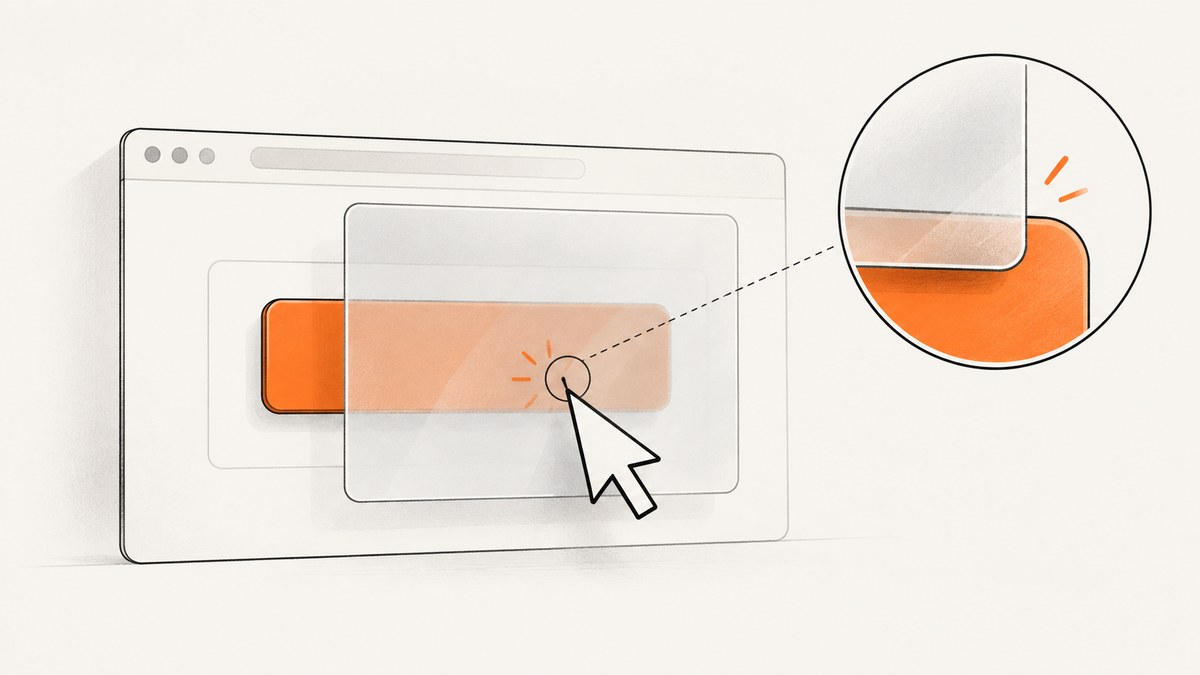
If Selenium says an element is not clickable in headless Chrome, first identify the exact point it tried to click and what covered it. Selenium scrolls an out-of-view element into view and normally clicks its center; if another element obscures that point, the click is intercepted. Save a screenshot and the target’s geometry from the failing run, wait for the actual blocker or layout movement to settle, then retry with a normal WebDriver click. Selenium documents the interaction model, and ChromeDriver explains common clicking issues.
1. Understand the error before changing the click
“Element not clickable” is often a shorthand for a more specific WebDriver exception. In particular, ElementClickInterceptedException means another element obscured the target where Selenium attempted to click. Existence in the DOM, visibility, and clickability are different conditions: an element can exist and appear visible while a banner or fixed header covers its center. Selenium’s Python API also defines ElementNotInteractableException for interactions that cannot be performed because the element is not interactable or another element would receive the action. See the official Selenium Python exception reference.
WebDriver’s normal element click is valuable because it approximates a user action and exposes genuine page problems. Replacing it immediately with JavaScript can make a test pass while leaving the user-facing obstruction untouched. Diagnose first; use an offset or script click only when the application’s intended interaction really requires it.
2. Capture evidence at the failure point
Collect the screenshot, target rectangle, viewport, browser versions, and exception immediately around the failing click. Do this in the same run that fails; a screenshot captured later may show a different overlay or layout.
from pathlib import Path
from selenium.common.exceptions import WebDriverException

button = driver.find_element(By.CSS_SELECTOR, "button.continue")
try:
    button.click()
except WebDriverException:
    driver.save_screenshot("click-failure.png")
    rect = button.rect
    print({
        "rect": rect,
        "viewport": driver.execute_script(
            "return {width: innerWidth, height: innerHeight, "
            "scrollX, scrollY, readyState: document.readyState}"
        ),
        "url": driver.current_url,
    })
    raise
ChromeDriver recommends inspecting where it attempted to click and comparing the target’s position with the reported point. The target’s center is approximately (x + width/2, y + height/2) in the element rectangle, but scrolling, fixed positioning, and viewport coordinates matter. Use the screenshot and live DOM together rather than treating a logged rectangle as a complete picture.
3. Check the hit target and overlay
At the moment of failure, inspect the element at the center point. A compact browser-side probe can report the topmost DOM element at that coordinate:
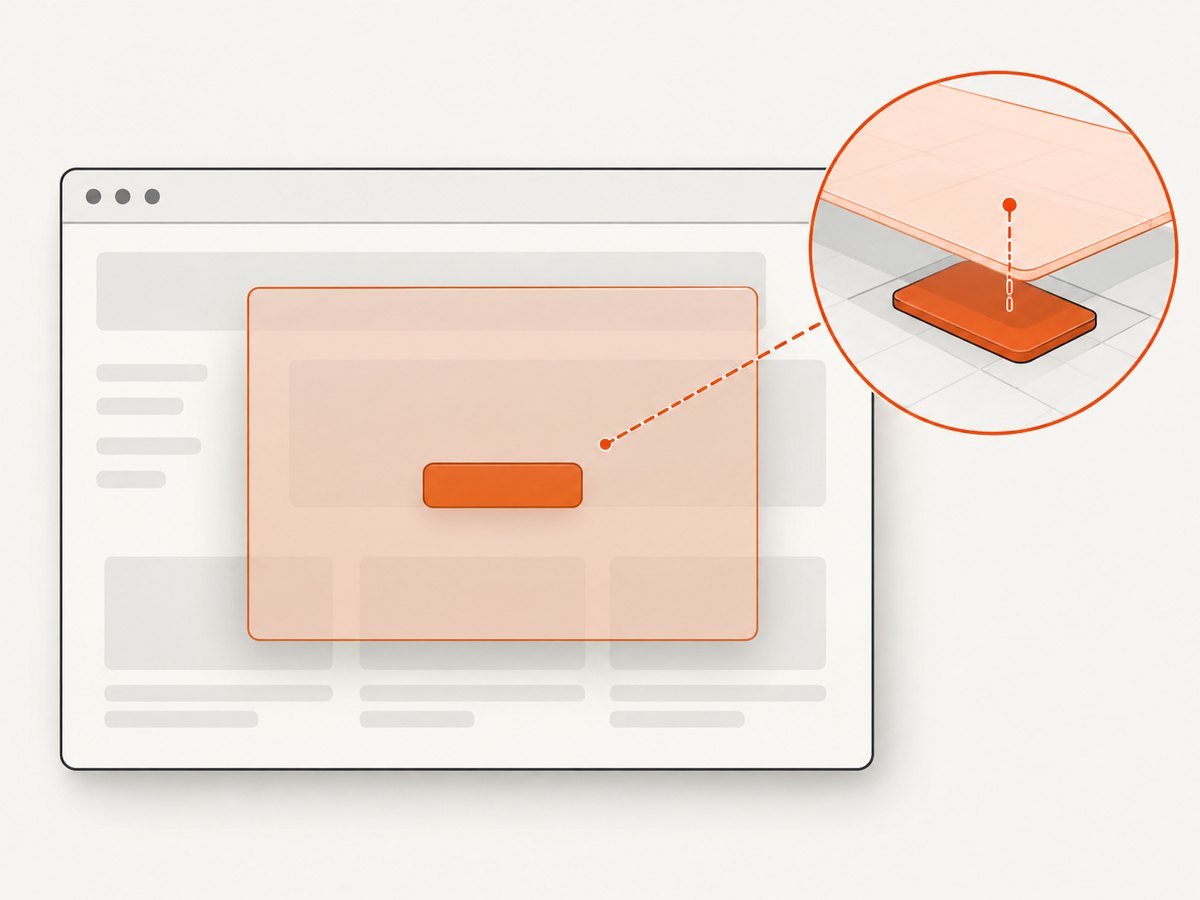
probe = driver.execute_script("""
const r = arguments[0].getBoundingClientRect();
const x = r.left + r.width / 2;
const y = r.top + r.height / 2;
const hit = document.elementFromPoint(x, y);
return {
  point: {x, y},
  hitTag: hit?.tagName,
  hitId: hit?.id,
  hitClass: hit?.className,
  targetTag: arguments[0].tagName,
  targetId: arguments[0].id
};
""", button)
print(probe)
This is diagnostic JavaScript executed through Selenium, not a replacement click. Shadow DOM, frames, transforms, and rapidly changing layouts can complicate interpretation; run the probe in the correct frame and inspect the screenshot too. Common blockers include a consent dialog, loading mask, sticky navigation, modal backdrop, chat widget, or an element that moved during an animation. These are examples of the obstruction patterns ChromeDriver describes, not a guarantee that any particular site has them.
Also verify that the chosen locator represents the actual interactive element. ChromeDriver documents cases where the center of a parent is not the real hit target—for example, an anchor containing an image—and suggests targeting the child when it is the genuine click target. Prefer a locator for the real button or link over a broad container.
4. Wait for the page condition that makes clicking valid
A document reaching readyState=complete does not mean client-side rendering, data loading, animations, or overlays have finished. Selenium describes synchronization races and recommends explicit waits for application conditions. A fixed sleep can be too short on a slow run and unnecessarily long on a fast one. Wait for the relevant condition: the overlay to disappear, the button to become enabled, or a known page state to appear.
from selenium.webdriver.common.by import By
from selenium.webdriver.support.ui import WebDriverWait
from selenium.webdriver.support import expected_conditions as EC

wait = WebDriverWait(driver, 15, poll_frequency=0.2)
overlay = (By.CSS_SELECTOR, ".loading-mask")
button_locator = (By.CSS_SELECTOR, "button.continue")

wait.until(EC.invisibility_of_element_located(overlay))
button = wait.until(EC.element_to_be_clickable(button_locator))
button.click()
element_to_be_clickable is useful for visibility and enabled state, but it does not prove that every possible overlay has gone. If a known banner covers the button, wait for that banner’s invisibility as shown. If the application signals readiness through a state attribute or a result element, wait for that state instead. Re-locate elements after DOM replacement: a stored WebElement can become stale when a framework rebuilds the component.
5. Handle movement, scrolling, and headless differences
When an element is moving, Selenium may measure its position and act after it has shifted. ChromeDriver advises waiting for the element to stop moving; clicks on an element that never settles cannot be guaranteed. Prefer an application signal that marks the animation or transition complete. If none exists, use a short stability poll of the bounding rectangle as a diagnostic fallback:
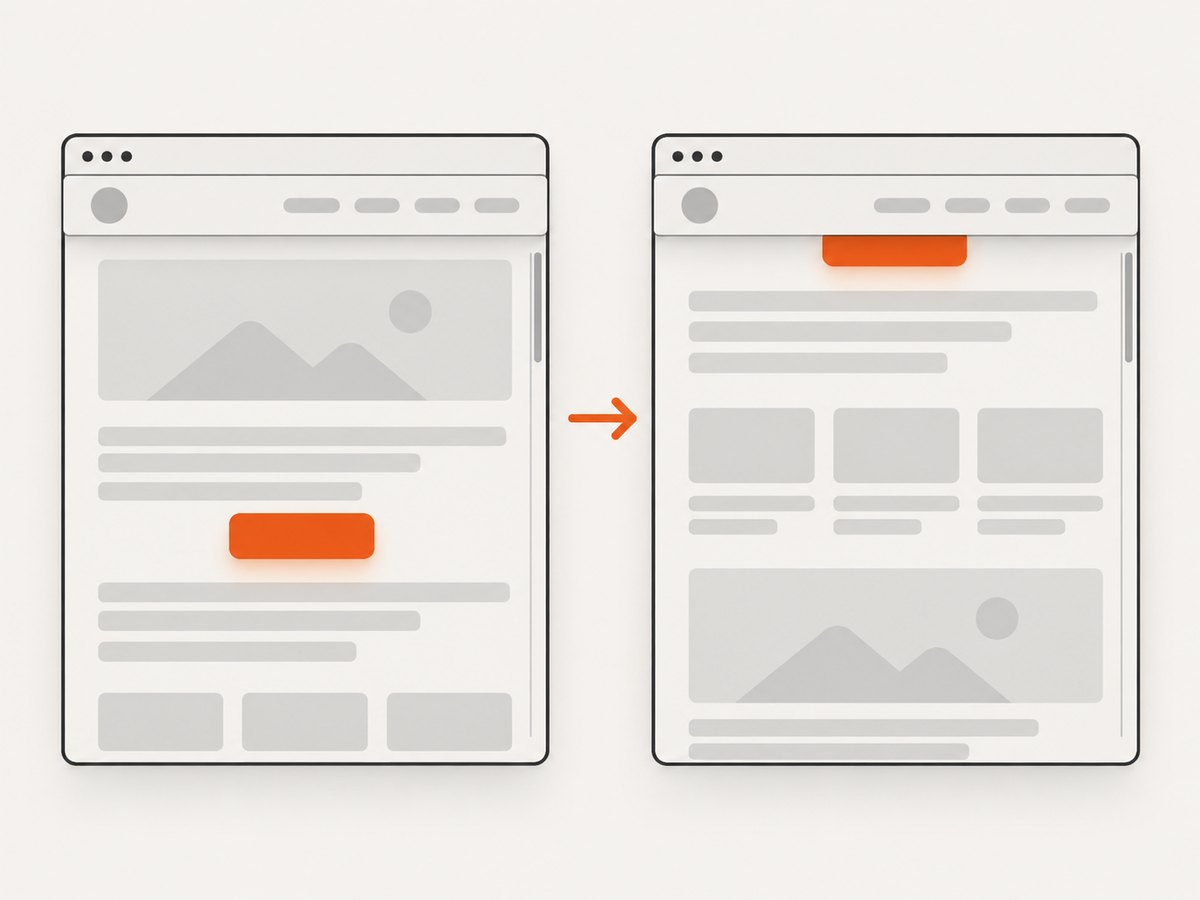
import time

def wait_until_stable(element, timeout=5, interval=0.1, samples=3):
    deadline = time.monotonic() + timeout
    previous = None
    unchanged = 0
    while time.monotonic() < deadline:
        current = driver.execute_script(
            "const r=arguments[0].getBoundingClientRect(); "
            "return [r.x,r.y,r.width,r.height];", element
        )
        if current == previous:
            unchanged += 1
            if unchanged >= samples:
                return
        else:
            unchanged = 0
        previous = current
        time.sleep(interval)
    raise TimeoutError("Element did not reach a stable rectangle")

wait_until_stable(button)
button.click()
This checks geometry only; it cannot establish that an overlay is absent or that an animation is semantically complete. Use it as supplementary evidence, not a universal readiness condition.
For a headless-only failure, compare headed and headless runs using the same viewport dimensions, browser and driver versions, URL, wait conditions, and test data. Record innerWidth, innerHeight, scroll position, target rectangle, and screenshot. Responsive breakpoints may produce a different layout when the viewport differs. Timing and page state can also vary. This is a diagnostic inference from WebDriver’s click geometry and Chrome’s headless documentation; it does not mean every headless run behaves differently. Chrome documents that unified Headless and headful modes are available, and from Chrome 132 the old Headless mode is distributed separately as chrome-headless-shell. See Chrome Headless mode.
6. Runnable headless Python example
This example starts current Chrome in headless mode, uses an explicit wait, captures failure evidence, and re-raises the exception so the test still fails honestly. Install Selenium and ensure a compatible Chrome installation is available; Selenium Manager can manage the driver in supported setups.
from selenium import webdriver
from selenium.webdriver.common.by import By
from selenium.webdriver.support.ui import WebDriverWait
from selenium.webdriver.support import expected_conditions as EC
from selenium.common.exceptions import WebDriverException

options = webdriver.ChromeOptions()
options.add_argument("--headless")
options.add_argument("--window-size=1440,1000")

driver = webdriver.Chrome(options=options)
try:
    driver.get("https://example.com")
    wait = WebDriverWait(driver, 15)
    link = wait.until(EC.element_to_be_clickable((By.CSS_SELECTOR, "a")))
    try:
        link.click()
    except WebDriverException:
        driver.save_screenshot("headless-click-failure.png")
        print("target rectangle:", link.rect)
        print("viewport:", driver.execute_script(
            "return [innerWidth, innerHeight, scrollX, scrollY]"
        ))
        raise
finally:
    driver.quit()
Replace the example URL and locator with the page under test. Add an explicit wait for the real blocker when one is known. Set the same explicit window size in headed and headless runs when comparing behavior. Do not remove the failure evidence once the fix is in place; it helps distinguish a regression from an unrelated timing change.
7. When a different click method is justified
Use ordinary element.click() after the page is ready and the click point is clear. Consider a WebDriver action offset when the center is intentionally covered but a different point within the same target is the actual user-operable region. Re-check the screenshot and DOM to verify the point. ChromeDriver also describes JavaScript as a possible remedy for particular hit-target issues, but a script-triggered click() does not reproduce pointer hit testing and can bypass the behavior the test is meant to validate.
Do not use execute_script("arguments[0].click()", element) as a catch-all retry. It may hide an unwanted modal, a broken layout, a disabled control, or a real inability to use the page. If the goal is specifically to test application event handling rather than real pointer interaction, document that distinction in the test.
8. Troubleshooting common Selenium errors
| Symptom | Likely cause | Useful next step |
|---|---|---|
ElementClickInterceptedException |
Another element occupies the target’s click point. | Save screenshot; inspect center hit target; wait for or resolve the obstruction. |
ElementNotInteractableException |
Element is hidden, outside a usable state, or not the correct interactive target. | Check displayed/enabled state, locator, frame, and whether a child control receives input. |
NoSuchElementException |
Wrong locator, wrong frame, or element not yet inserted. | Verify the selector and browsing context; wait for the expected element. |
StaleElementReferenceException |
The DOM node was replaced after it was located. | Wait for the update, then find the element again using its locator. |
| Click works headed, fails headless | Viewport, responsive layout, timing, browser version, or actual page state differs. | Compare screenshots, geometry, versions, and viewport from both runs. |
| Retry sometimes succeeds | Race with movement, asynchronous UI, or transient overlay. | Wait on the application condition; avoid blind repeated clicks that can double-submit. |
Keep retries bounded and safe. Repeating a click can submit a form twice or trigger duplicate navigation. If retrying is appropriate, first establish that the first interaction did not take effect and that the click point is now clear.
9. Reliability, performance, and cost notes
Explicit waits generally make suites more reliable than arbitrary long sleeps because they proceed as soon as the condition becomes true and time out with a clear failure. Keep diagnostic screenshots on failure rather than capturing every page if storage and runtime matter. A geometry stability poll adds browser round trips and should be reserved for moving targets; an app-provided ready signal is usually more direct. Keep browser and driver versions recorded in CI so a headless regression can be compared against a known setup.
There is no universal timeout value: choose one based on the application’s expected load and CI environment, then make timeout failures observable. A timeout should report which condition did not occur. Avoid increasing timeouts to conceal a permanent overlay or bad selector. Selenium and Chrome behavior can evolve, so consult the official docs when upgrading deployed versions.
10. Or skip the browser setup
If you need a visual record of the page while diagnosing a UI issue, ScreenshotNeo can capture a screenshot with one GET request. It is a website screenshot API and MCP server from ScreenshotNeo; its capture options include viewport, full-page, selectors, waits, custom CSS and JavaScript, and request controls. It can help you inspect what the page looks like, though it does not replace Selenium interaction tests.
See the ScreenshotNeo API documentation for options. Example cURL call:
curl -G "https://api.screenshotneo.com/v1/shot" \
  -d access_key=YOUR_API_KEY \
  --data-urlencode url=https://stripe.com \
  -o shot.webp
Cookie banners, popups, and chat widgets are removed before the shot. Bot checks, blank pages, failed loads, timeouts, and cache hits are not billed. Its MCP server lets AI agents use take_screenshot, get_page_info, and capture_pdf. The free plan includes 1,000 screenshots a month with no card; paid plans start at $5 for 3,000.
Sign up for 1,000 free screenshots a month, with no card required.
11. Frequently asked questions
Does headless Chrome ignore overlays?
No. The click still depends on the actual page layout and hit target. Inspect the failing run rather than assuming headless mode bypasses page content.
Will increasing the window size always fix it?
No. It can change responsive layout and may help identify a viewport-specific issue, but an overlay or moving target can still cover the center.
Should I scroll the element into view myself?
WebDriver normally scrolls an out-of-viewport element into view as part of interaction. Manual scrolling is useful when it helps reproduce or diagnose a fixed-header overlap; follow it with a fresh state check.
Why does a visible element still fail?
Visibility does not guarantee that its center point is unobstructed or that its position remained stable until the click.


