How to Fix Selenium Timeouts After Clicks That Do Not Navigate
Fix Selenium click timeouts by waiting for the state your click actually causes: updated content, navigation, a new window, or an alert.
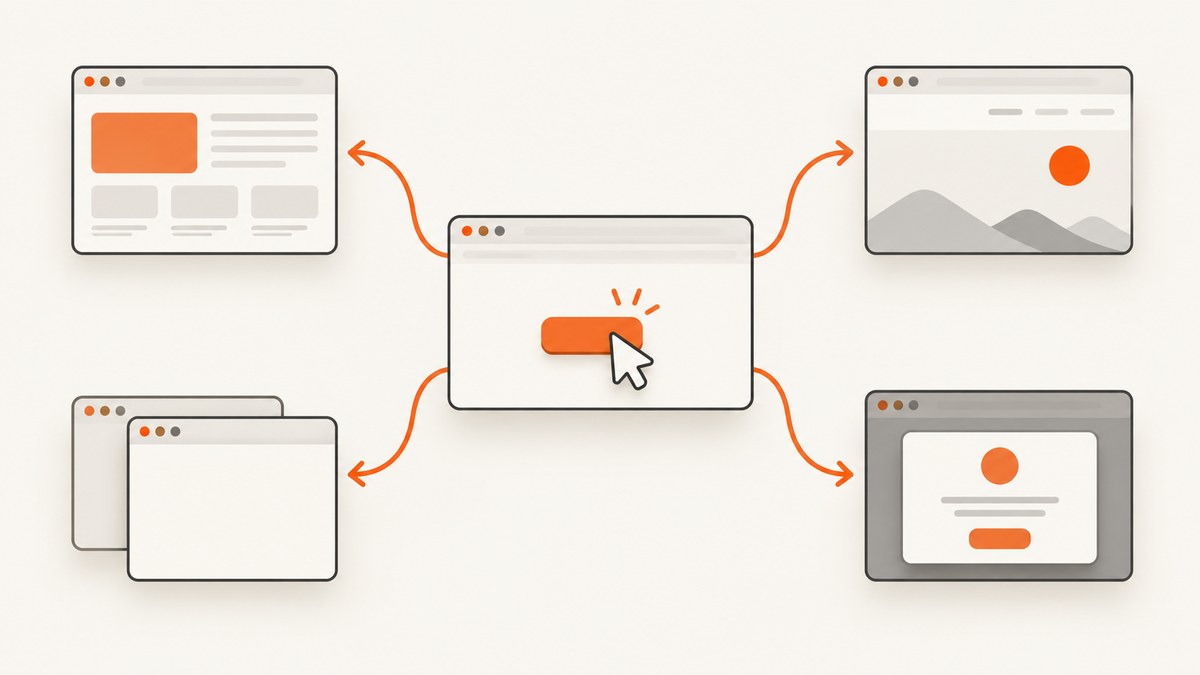
A Selenium click can time out even when the click succeeded. The usual cause is a wait for navigation when the application only changes the current document. Fix the timeout by identifying the post-click outcome and waiting for that observable state: a visible element, changed text, a stale old element, a URL, a new window, or an alert. Increasing the timeout does not help when the condition can never become true.
1. Identify what the click should do
Before changing waits, read the complete exception and the stack-trace line that timed out. A timeout, click-intercepted error, stale-element error, and missing-element error require different fixes.
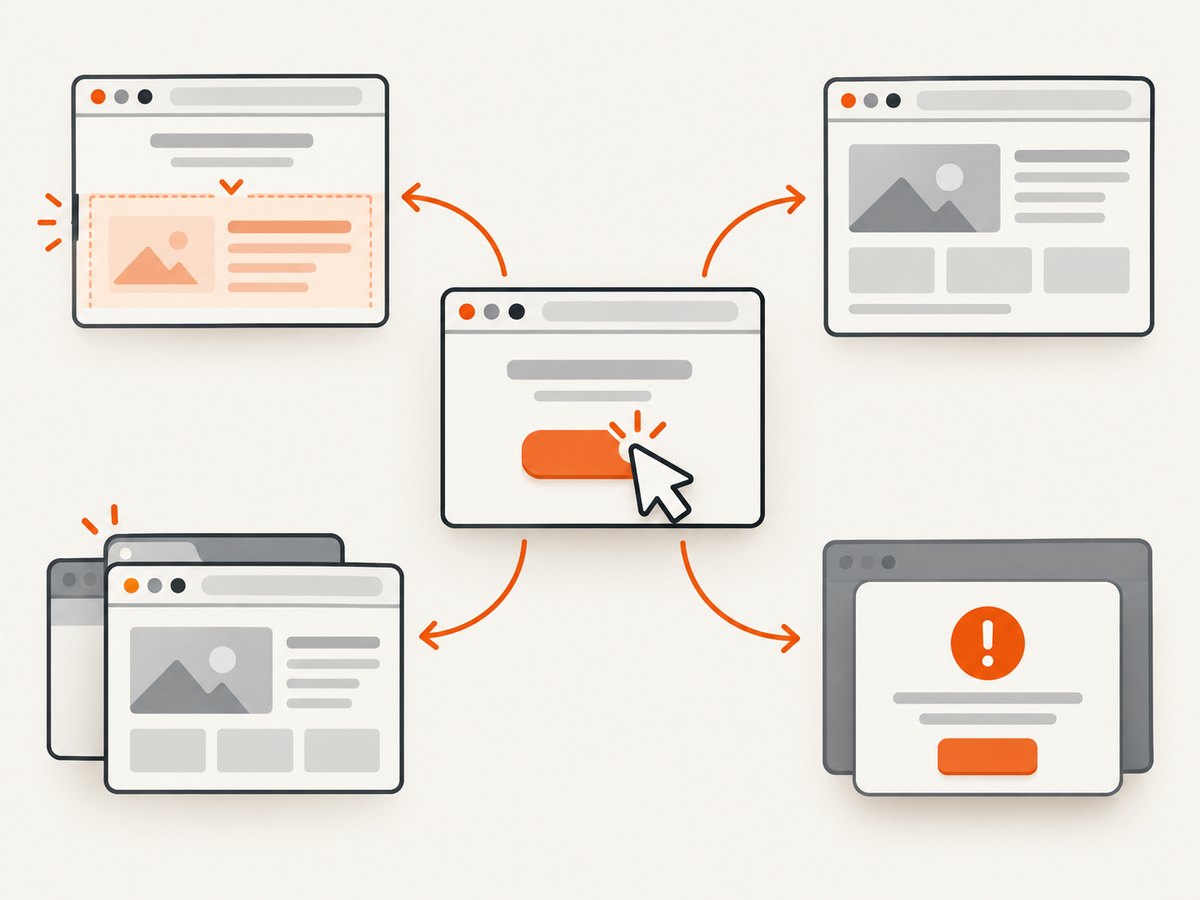
| Expected result | Wait for |
|---|---|
| Content is revealed or added in the same document | Presence or visibility of the resulting element |
| Existing content changes | Expected text or an application-specific predicate |
| The old view is replaced | Staleness of an element from the old view |
| The browser navigates | An expected URL or destination element |
| A new tab or window opens | An increase in window handles |
| A browser alert appears | Alert presence |
Selenium navigation commands wait for a configured document readiness state; the default target is complete. That covers assets defined in the HTML, but it does not guarantee that later JavaScript rendering or an asynchronous application update has finished. See Selenium’s waiting strategies documentation.
2. Use an explicit wait for the resulting state
Explicit waits poll a condition until it is truthy or the timeout expires. Selenium’s Python binding polls every 0.5 seconds by default and ignores NoSuchElementException while polling; until raises TimeoutException when the condition never succeeds. Fixed sleeps can be too short on a slow run and unnecessarily long on a fast run.
Same-page reveal or update (Python)
from selenium import webdriver
from selenium.webdriver.common.by import By
from selenium.webdriver.support.ui import WebDriverWait
from selenium.webdriver.support import expected_conditions as EC

# Create the driver using your installed browser driver.
driver = webdriver.Chrome()
wait = WebDriverWait(driver, 10)

try:
    driver.get("https://example.com/app")
    driver.find_element(By.ID, "reveal").click()
    wait.until(EC.visibility_of_element_located((By.ID, "revealed")))
finally:
    driver.quit()
Use presence_of_element_located when the element only needs to exist in the DOM. Use visibility_of_element_located when it must be displayed. For text updates, wait for the expected text in a stable element.
Wait for changed text (Python)
from selenium.webdriver.common.by import By
from selenium.webdriver.support.ui import WebDriverWait

status = driver.find_element(By.CSS_SELECTOR, "[data-testid='status']")
old_text = status.text

driver.find_element(By.CSS_SELECTOR, "button[data-action='save']").click()

WebDriverWait(driver, 10).until(
    lambda d: d.find_element(By.CSS_SELECTOR, "[data-testid='status']").text != old_text
)
Wait for the old view to be replaced (Python)
from selenium.webdriver.common.by import By
from selenium.webdriver.support.ui import WebDriverWait
from selenium.webdriver.support import expected_conditions as EC

old_panel = driver.find_element(By.ID, "results-panel")
driver.find_element(By.ID, "next").click()
WebDriverWait(driver, 10).until(EC.staleness_of(old_panel))
WebDriverWait(driver, 10).until(
    EC.visibility_of_element_located((By.ID, "new-results-panel"))
)
staleness_of is useful when a framework detaches and recreates the element. If the framework mutates the same node, wait for a changed attribute, text value, or child element instead.
3. When the click really navigates
Do not wait for a URL merely because a control looks like a link. If a navigation is the intended result, capture the current URL and wait for the expected destination or destination content.
from selenium.webdriver.common.by import By
from selenium.webdriver.support.ui import WebDriverWait
from selenium.webdriver.support import expected_conditions as EC

old_url = driver.current_url
driver.find_element(By.LINK_TEXT, "Account").click()
WebDriverWait(driver, 10).until(EC.url_contains("/account"))
WebDriverWait(driver, 10).until(
    EC.visibility_of_element_located((By.CSS_SELECTOR, "h1[data-page='account']"))
)
Waiting for destination content as well as the URL makes the assertion match what the test needs to use next. If redirects are expected, wait for the final URL pattern rather than an intermediate URL.
4. New windows, tabs, and alerts
New window or tab
from selenium.webdriver.support.ui import WebDriverWait

before = set(driver.window_handles)
driver.find_element(By.ID, "open-report").click()

WebDriverWait(driver, 10).until(
    lambda d: len(set(d.window_handles) - before) == 1
)
new_handle = (set(driver.window_handles) - before).pop()
driver.switch_to.window(new_handle)
Always switch to the new browsing context before locating its elements. A wait against the original tab can time out even though the new tab opened correctly.
Browser alert
from selenium.webdriver.support.ui import WebDriverWait
from selenium.webdriver.support import expected_conditions as EC

driver.find_element(By.ID, "delete").click()
alert = WebDriverWait(driver, 10).until(EC.alert_is_present())
assert "delete" in alert.text.lower()
alert.accept()
5. Complete Node.js example
Install the binding with npm install selenium-webdriver. This example waits for an in-page update; replace the locators with those from your application.
const { Builder, By, until } = require('selenium-webdriver');

(async function () {
  const driver = await new Builder().forBrowser('chrome').build();
  try {
    await driver.get('https://example.com/app');
    await driver.findElement(By.id('reveal')).click();
    await driver.wait(until.elementLocated(By.id('revealed')), 10000);
    await driver.wait(async () => {
      const element = await driver.findElement(By.id('revealed'));
      return await element.isDisplayed();
    }, 10000);
  } finally {
    await driver.quit();
  }
}());
For navigation in Node.js, wait for a destination condition such as driver.wait(until.urlContains('/account'), 10000). For a new window, compare driver.getAllWindowHandles() before and after the click.
6. Avoid conflicting wait settings
Selenium warns against mixing implicit and explicit waits because their timing can interact unpredictably. Prefer one explicit synchronization strategy around the state transition. If a codebase already sets an implicit wait, remove it or account for it consistently before diagnosing a timeout.
# Prefer explicit waits for post-click states.
driver.implicitly_wait(0)
wait = WebDriverWait(driver, 10)
Keep page-load, script, and command timeouts separate in your diagnosis. A timeout from get() is different from a WebDriverWait.until() timeout after a click.
7. Troubleshooting checklist
“The timeout is always at the click line”
- Check whether the error is actually
ElementClickInterceptedException,ElementNotInteractableException, or a timeout from a wrapper around the click. - Wait for the control to be clickable, close overlays, and verify the correct frame and window.
“The click returns, but waiting for navigation times out”
- The application probably updates content in place. Replace the URL condition with visibility, text, attribute, or staleness of the expected result.
“The expected element never appears”
- Validate the locator in the current DOM and browsing context.
- Confirm the click activated the intended control and that the resulting state can occur for the test data.
- Check whether the element is inside an iframe; switch into it before waiting.
“The old element is found but later commands fail with stale element”
- Locate the element again after the framework replaces it, or wait for
staleness_ofand then locate the new element.
“It works locally but times out in CI”
- Wait for the application state rather than a fixed sleep.
- Capture the URL, window handles, page source, screenshot, and browser logs at failure.
- Use a timeout appropriate for the environment, while keeping the predicate specific.
“The page loaded but JavaScript data is still missing”
readyState=completedoes not mean asynchronous requests and rendering are finished. Wait for the application’s loaded marker, expected data row, or a network-idle mechanism provided by your test framework.
8. Performance, reliability, and timeout selection
- Use the shortest timeout that covers normal environmental variance and a predicate that proves the next operation is safe.
- Prefer stable IDs, data attributes, or semantic locators over brittle CSS paths.
- Wait for one meaningful state transition instead of chaining several unrelated sleeps.
- When a view is replaced, waiting for staleness followed by the new view makes the transition explicit.
- Log the condition, locator, elapsed time, URL, and current window or frame when a wait fails. This separates an application regression from a locator mistake.
Longer waits increase failure-detection time and can hide a condition that is impossible to satisfy. Short waits create flaky failures when the application legitimately varies. Tune the duration from observed application behavior, but keep the condition tied to the intended outcome.
9. Or skip the browser setup
If your goal is a rendered page image rather than an interactive Selenium test, ScreenshotNeo provides a single screenshot request. Its cleanup steps accept cookie or consent banners and remove more than 60 known consent platforms, newsletter popups, and chat widgets before capture; each step can be turned off. Bot checks, blank pages, timeouts, failed loads, and cache hits are not billed, and the response identifies the result with X-Page-Verdict and X-Billed headers. An MCP server provides take_screenshot, get_page_info, and capture_pdf for AI clients.

See the ScreenshotNeo API documentation for all options.
cURL
curl -G "https://api.screenshotneo.com/v1/shot" \
  -d access_key=YOUR_API_KEY \
  --data-urlencode url=https://stripe.com \
  -o shot.webp
Python
import requests

r = requests.get(
    "https://api.screenshotneo.com/v1/shot",
    params={"access_key": "YOUR_API_KEY", "url": "https://stripe.com"},
    timeout=90,
)
r.raise_for_status()
open("shot.webp", "wb").write(r.content)
Node.js
const q = new URLSearchParams({ access_key: 'YOUR_API_KEY', url: 'https://stripe.com' });
const res = await fetch(`https://api.screenshotneo.com/v1/shot?${q}`);
if (!res.ok) throw new Error(`Screenshot failed: ${res.status}`);
const fs = await import('node:fs/promises');
await fs.writeFile('shot.webp', Buffer.from(await res.arrayBuffer()));
ScreenshotNeo supports full-page capture with lazy images loaded, element capture, device presets or custom viewports, dark mode, retina scale, custom CSS and JavaScript, clicks, waits, blocked requests, headers, cookies, user agents, authorization, timezone, geolocation, transparent backgrounds, resizing, caching, signed links, asynchronous jobs, bulk capture, usage reporting, PDFs, HTML/CSS rendering, and an OpenAPI specification. The parameter names used by other screenshot APIs also work to simplify migration.
Free accounts include 1,000 screenshots each month with no card. Paid plans start at $5 for 3,000 shots; yearly billing provides two months free. Create a free ScreenshotNeo account.
10. FAQ
Should I add a sleep after every click?
No. Wait for the specific state the click is meant to produce. A fixed sleep neither proves that state nor adapts well to different environments.
Can a click update the page without changing the URL?
Yes. Single-page applications commonly update the current document in place. Wait for the changed content, visibility, or replacement element.
What if I do not know whether a click navigates?
Observe the URL and DOM before and after the action, then choose the condition that represents the behavior your test needs.
Why does a longer timeout not fix the failure?
The predicate may be impossible: the locator may be wrong, the click may target another frame or window, or the application may never perform the assumed navigation.
What details should I include when asking for help?
Include the Selenium language and version, browser and driver, complete exception, failing line, implicit/page-load/script timeout settings, click locator, and the state transition you expect.


