How to Fix Selenium C# Element Not Visible Errors When Entering Text
Fix Selenium C# element-not-visible errors by targeting the real input, waiting for visibility, handling rerenders, and diagnosing interactability failures.
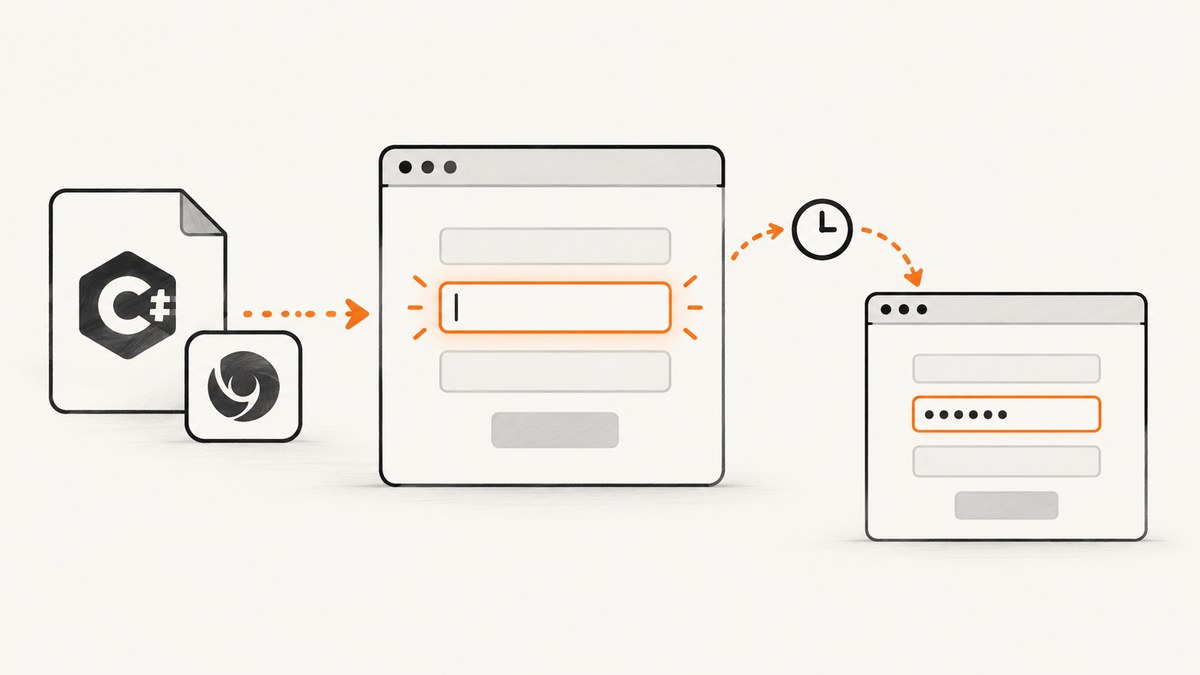
Short answer: Selenium can find an element that is present in the DOM but still hidden, covered, disabled, or replaced during a rerender. Locate the actual editable control, perform the action that reveals it, wait until it is displayed and enabled, then call SendKeys.
Selenium’s official guidance says: “An element must be both present and displayed on the page in order for Selenium to interact with it.” See the waiting strategies documentation and element interaction documentation.
1. Reliable C# pattern
using OpenQA.Selenium;
using OpenQA.Selenium.Chrome;
using OpenQA.Selenium.Support.UI;

using var driver = new ChromeDriver();
driver.Navigate().GoToUrl("https://example.test/signup");

var wait = new WebDriverWait(driver, TimeSpan.FromSeconds(10));
var email = wait.Until(d =>
{
    var element = d.FindElement(By.Id("email"));
    return element.Displayed ? element : null;
});

email.SendKeys("reader@example.com");
If a click, tab switch, or modal reveals the form, perform that action before waiting:
driver.FindElement(By.CssSelector("button[data-open-signup]")).Click();

var field = wait.Until(d =>
{
    var candidate = d.FindElement(By.CssSelector("form#signup input[name='email']"));
    return candidate.Displayed && candidate.Enabled ? candidate : null;
});
field.SendKeys("reader@example.com");
A condition-based wait ends as soon as the state is correct. A fixed Thread.Sleep can finish too early on a slow run and waste time on a fast run.
2. Diagnose the failure in order
- Confirm the target. Your locator may select a label, wrapper, hidden template, or duplicate field.
SendKeysbelongs on a text field or another keyboard-interactable element. - Check the state transition. A document can be loaded while JavaScript is still opening a dialog, switching tabs, or populating a form. Wait after the action that reveals the control.
- Check displayed and editable state. Presence in the DOM does not mean visible. Disabled, readonly, or non-keyboard controls can produce an invalid-state or interactability exception.
- Check overlays and frames. A modal, sticky header, consent layer, or iframe can block or hide the target. Handle the overlay or switch into the correct frame before locating the field.
- Check for a stale reference. If a framework rerenders the form, an old
IWebElementno longer points to the current node. Locate it again after the transition. - Read the complete exception. Older code may mention
ElementNotVisibleException; current Selenium documentation commonly uses the broaderelement not interactablecategories. Record the exception, locator, Selenium .NET version, browser, and driver.
3. Choose a locator for the real input
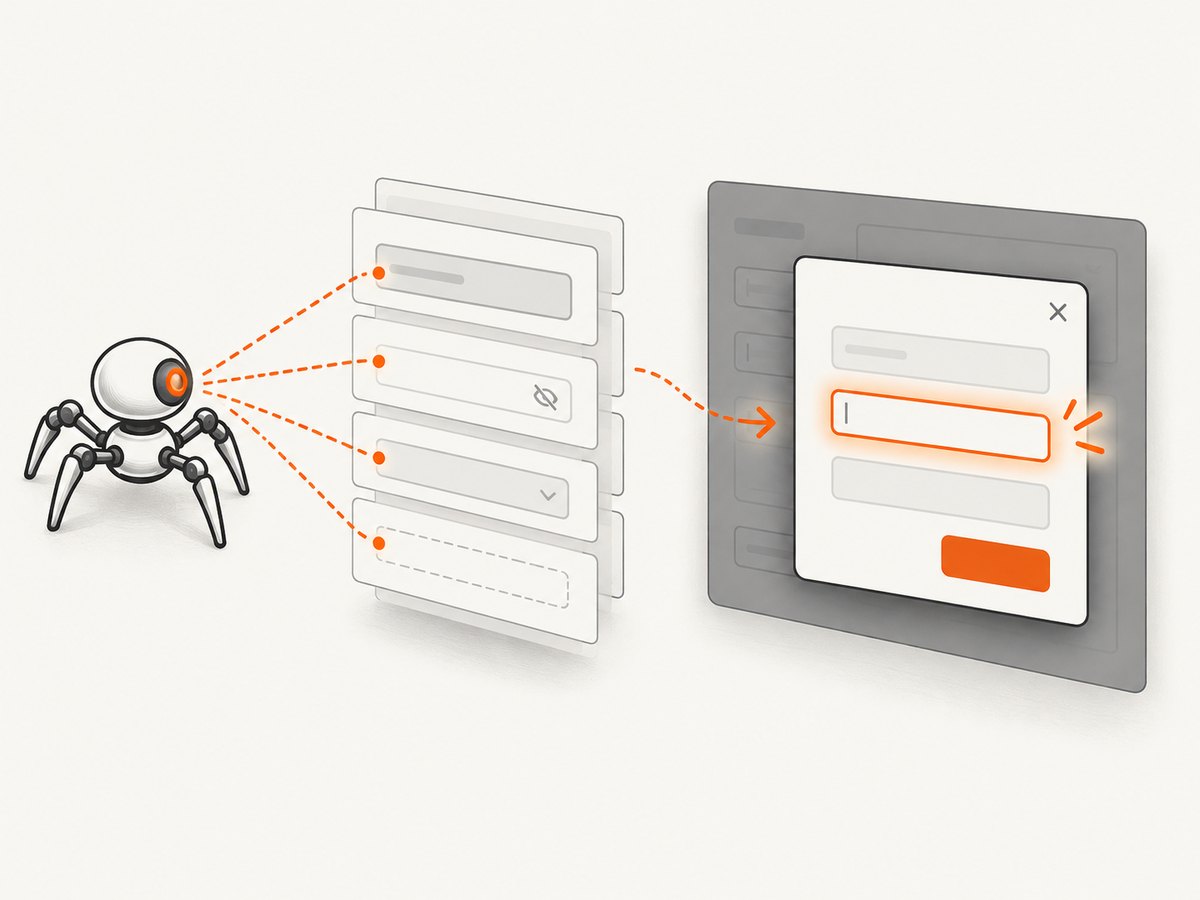
Prefer stable attributes such as a unique id, name, or deliberate test identifier. Avoid broad classes that match hidden desktop and mobile variants.
By.Id("email")
By.Name("email")
By.CssSelector("input[data-testid='email']")
By.CssSelector("div[role='dialog']:not([aria-hidden='true']) input[name='email']")
When several matches are expected, inspect candidates instead of assuming the first match is usable:
var candidates = driver.FindElements(By.CssSelector("input[name='email']"));
var field = candidates.FirstOrDefault(e => e.Displayed && e.Enabled)
    ?? throw new NoSuchElementException("No displayed, enabled email field found");
field.SendKeys("reader@example.com");
4. Wait for dynamic forms
Wait for display and enablement
var field = wait.Until(d =>
{
    var e = d.FindElement(By.CssSelector("input[name='search']"));
    return e.Displayed && e.Enabled ? e : null;
});
field.SendKeys("selenium");
Reacquire after a rerender
driver.FindElement(By.Id("change-account")).Click();

var freshField = wait.Until(d =>
{
    try
    {
        var e = d.FindElement(By.Id("email"));
        return e.Displayed ? e : null;
    }
    catch (StaleElementReferenceException)
    {
        return null;
    }
});
freshField.Clear();
freshField.SendKeys("new@example.com");
Handle an iframe
var frame = wait.Until(d => d.FindElement(By.CssSelector("iframe[name='payment']")));
driver.SwitchTo().Frame(frame);
var card = wait.Until(d =>
{
    var e = d.FindElement(By.Id("card-number"));
    return e.Displayed ? e : null;
});
card.SendKeys("4111111111111111");
driver.SwitchTo().DefaultContent();
An element inside an iframe cannot be found from the top-level document. Switch into the frame first, then return to the parent or default content when finished.
5. Common errors and fixes
| Symptom | Cause | Fix |
|---|---|---|
NoSuchElementException |
Wrong locator, wrong frame, or content not inserted | Verify the selector, switch to the frame, and wait for insertion. |
| Element not visible or not interactable | Hidden duplicate, collapsed panel, overlay, or off-state control | Select the displayed candidate, perform the reveal action, handle overlays, and wait. |
ElementNotInteractableException |
Displayed but disabled, readonly, or not keyboard-interactable | Use the real editable input and wait for Enabled. |
ElementClickInterceptedException |
Another element covers the target | Dismiss the covering dialog or banner, then locate the field again. |
StaleElementReferenceException |
DOM node was replaced | Wait for the update and reacquire the element. |
| Text enters the wrong field | Duplicate responsive fields or broad selector | Scope by dialog and form, then use stable attributes. |
| Works locally but flakes in CI | Timing, viewport, browser profile, or network differences | Use explicit state waits, a deterministic viewport, and capture diagnostics. |
6. Approaches to avoid
- Do not equate presence with readiness.
FindElementonly proves that a matching node was returned. - Do not rely on long sleeps. They hide the actual state transition and increase suite time.
- Do not use JavaScript value assignment as the first fix. It can bypass keyboard events and application validation. Use WebDriver interaction unless the application explicitly requires another mechanism.
- Do not reuse references across navigation or rerendering. Find the element again after the DOM changes.
7. Reliability and performance checklist
- Use a locator that uniquely identifies the editable control.
- Set an explicit upper timeout appropriate to the page.
- Wait for displayed and enabled state rather than sleeping.
- Capture the URL, HTML, screenshot, locator, and full exception when a wait expires.
- Keep browser, driver, and Selenium package versions compatible.
- Use a predictable window size when responsive layouts create duplicate controls.
Browser startup and page rendering are the main costs of this approach. Reusing a driver within a fixture can reduce setup overhead, while isolated sessions improve test independence. Selenium itself does not charge per interaction; your costs are browser infrastructure and CI time.
8. Or skip the browser setup
If you need a clean image or PDF of a page rather than interactive form testing, ScreenshotNeo returns it from one request. It accepts cookie and consent banners before capture and removes 60+ known consent platforms, newsletter popups, and chat widgets; each step can be turned off. Bot checks, blank pages, timeouts, failed loads, and cache hits are not billed, and response headers report the page verdict and billing status. Its MCP server provides take_screenshot, get_page_info, and capture_pdf tools for Claude, Cursor, and other MCP clients.

See the ScreenshotNeo API documentation for all options.
cURL
curl -G "https://api.screenshotneo.com/v1/shot" -d access_key=YOUR_API_KEY --data-urlencode url=https://stripe.com -o shot.webpPython
import requests
r = requests.get("https://api.screenshotneo.com/v1/shot", params={"access_key": "YOUR_API_KEY", "url": "https://stripe.com"}, timeout=90)
open("shot.webp", "wb").write(r.content)
Node.js
const q = new URLSearchParams({ access_key: 'YOUR_API_KEY', url: 'https://stripe.com' });
const res = await fetch(`https://api.screenshotneo.com/v1/shot?${q}`);
if (!res.ok) throw new Error(`HTTP ${res.status}`);
const fs = await import('node:fs/promises');
await fs.writeFile('shot.webp', Buffer.from(await res.arrayBuffer()));
1,000 screenshots a month are free with no card, and paid plans start at $5 for 3,000. Create a free ScreenshotNeo account.
9. FAQ
Why does Selenium find the field but refuse to type?
DOM presence is separate from displayed and keyboard-interactable state. The locator may also match a hidden duplicate or a control covered by another element.
Should I use Thread.Sleep?
Use an explicit condition wait. A fixed delay cannot determine whether the field is ready.
When should I catch a stale element?
Catch it around an expected transition, then reacquire the element. Repeated retries should not hide a broken locator.
Is this always a Selenium version issue?
The exact exception name and supported wait constructors depend on your Selenium .NET package. Record the package version, but the core rule remains: target a displayed, keyboard-interactable control.


