How to Fix Dropdowns That Do Not Work in Selenium WebDriver
Fix Selenium dropdown failures by identifying native versus custom controls, waiting for the right state, and diagnosing each WebDriver exception.
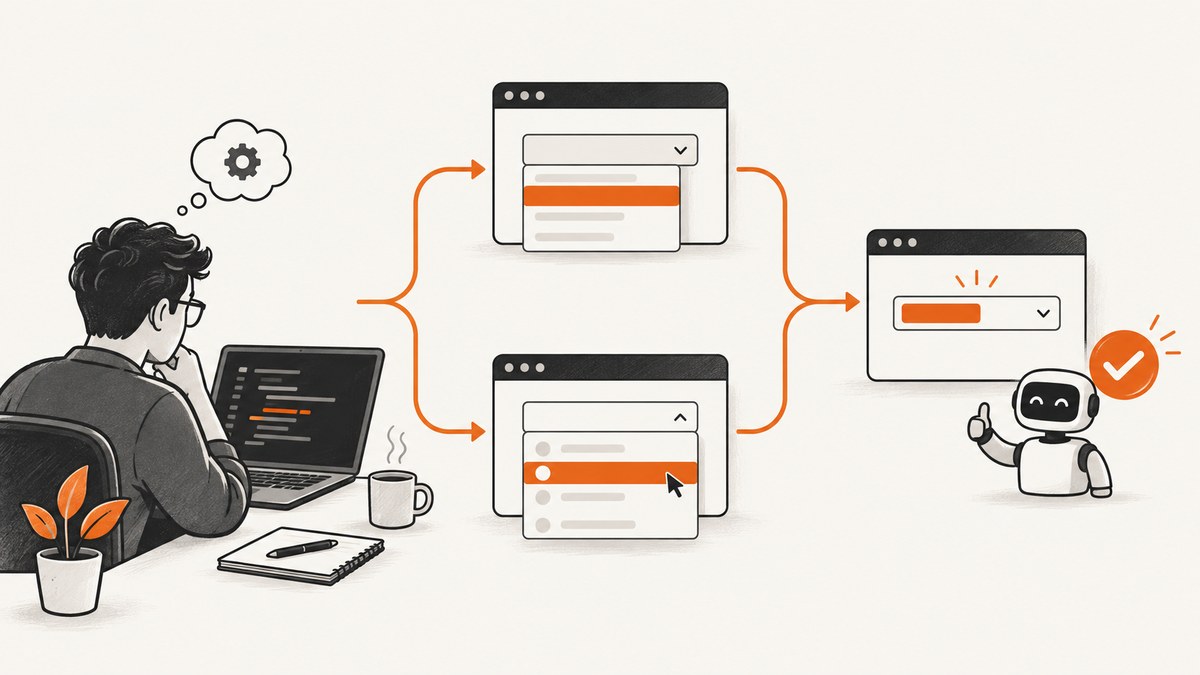
Selenium dropdown failures usually come from using the wrong interaction model. Use Selenium’s Select helper only when the control is a real HTML <select> containing <option> elements. A custom JavaScript dropdown built from elements such as div or li needs normal WebDriver actions: click its visible trigger, wait for the menu, then click the visible option. In both cases, confirm that the element is in the current frame or window, present, visible, enabled, unobscured and ready for interaction.
This guide gives a decision process, runnable Python examples, equivalent JavaScript patterns, exception-specific fixes, verification steps and performance notes.
1. Identify the dropdown before changing code
Open browser developer tools and inspect the rendered control, not just the visual appearance.
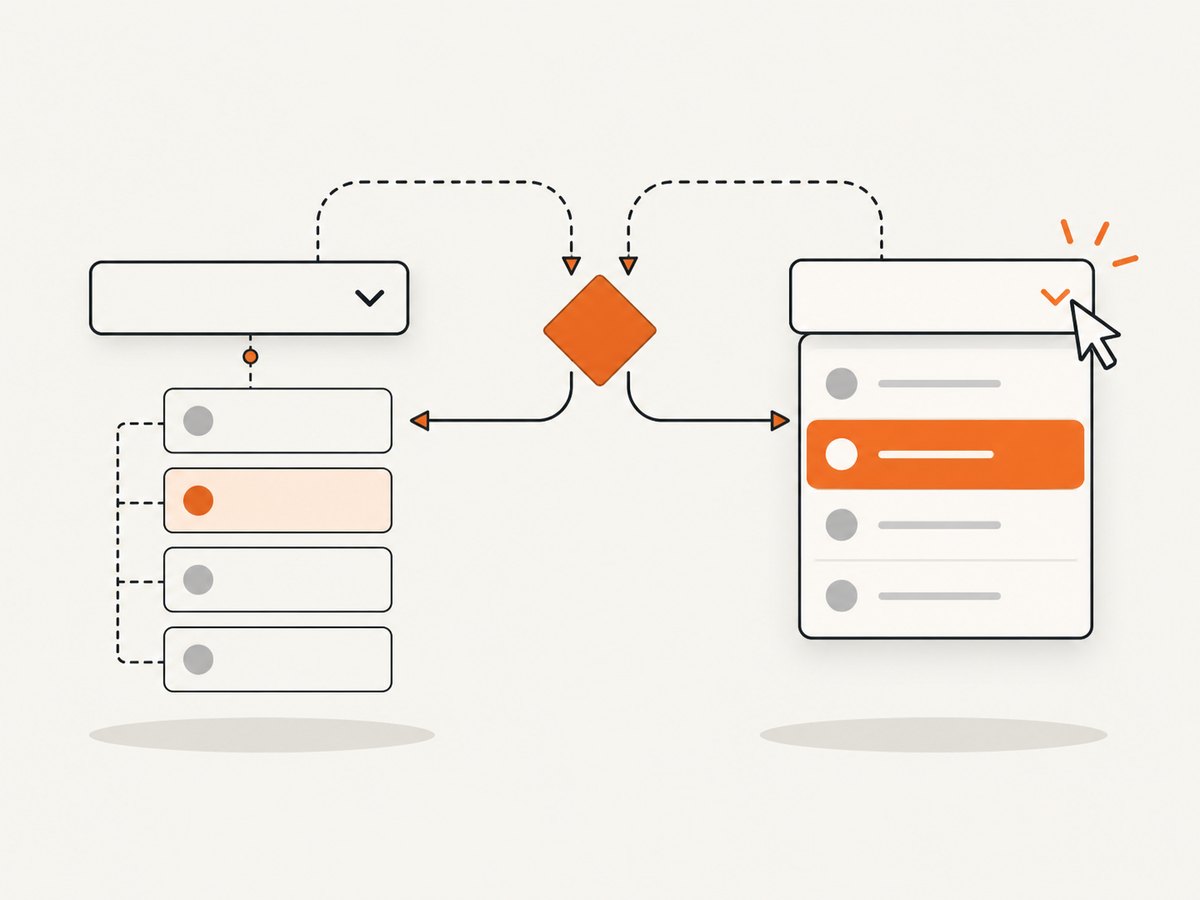
| DOM shape | Correct Selenium approach | How to verify |
|---|---|---|
<select> with <option> children |
Select helper |
Read first_selected_option or the selected attribute |
Custom widget using div, button, ul or li |
Click trigger, wait for the open state, click an option | Check the displayed label, form value or resulting UI state |
Selenium’s official documentation states that the Select class works only with HTML select and option elements; JavaScript overlays built with div or li require a different sequence (Selenium select-list documentation).
2. Native HTML select: use the Select helper
Prefer visible text when the label is stable and meaningful. Use a value when the underlying value is stable. Use an index only when the position is part of the contract.
from selenium import webdriver
from selenium.webdriver.common.by import By
from selenium.webdriver.support.ui import Select

options = webdriver.ChromeOptions()
options.add_argument("--headless=new")
driver = webdriver.Chrome(options=options)
try:
    driver.get("https://example.com/form")

    country = Select(driver.find_element(By.ID, "country"))
    country.select_by_visible_text("Canada")
    # Alternatives:
    # country.select_by_value("ca")
    # country.select_by_index(2)

    selected = country.first_selected_option
    assert selected.text.strip() == "Canada"
finally:
    driver.quit()
Adapt the URL, locator and option text to your page. A disabled option cannot be selected. If the command succeeds but the application does not react, verify the selected state and then wait for the dependent result, such as a second menu or a validation message.
Useful native-select checks
from selenium.webdriver.common.by import By
from selenium.webdriver.support.ui import Select

el = driver.find_element(By.CSS_SELECTOR, "select[name='country']")
assert el.is_displayed() and el.is_enabled()
select = Select(el)
assert any(option.text.strip() == "Canada" and option.is_enabled()
           for option in select.options)
select.select_by_visible_text("Canada")
assert select.first_selected_option.get_attribute("value") == "ca"
3. Custom JavaScript dropdown: interact with visible elements
Do not pass a div wrapper to Select. Find the actual trigger, click it, wait until the option list is visible, and click the intended option. Re-locate the option after opening because many frameworks render the list only after the click.
from selenium import webdriver
from selenium.webdriver.common.by import By
from selenium.webdriver.support import expected_conditions as EC
from selenium.webdriver.support.ui import WebDriverWait

options = webdriver.ChromeOptions()
options.add_argument("--headless=new")
driver = webdriver.Chrome(options=options)
wait = WebDriverWait(driver, 15)
try:
    driver.get("https://example.com/custom-form")

    trigger = wait.until(EC.element_to_be_clickable(
        (By.CSS_SELECTOR, "[data-testid='country-trigger']")))
    trigger.click()

    option = wait.until(EC.element_to_be_clickable((
        By.XPATH, "//div[@role='option' and normalize-space()='Canada']")))
    option.click()

    chosen = wait.until(EC.visibility_of_element_located(
        (By.CSS_SELECTOR, "[data-testid='country-trigger']")))
    assert chosen.text.strip() == "Canada"
finally:
    driver.quit()
Common custom-widget patterns include aria-expanded="true" on the trigger, an options container whose CSS class changes when open, and options marked with role="option". Prefer stable data attributes or accessible roles over generated class names.
Keyboard interaction when clicking is unreliable
from selenium.webdriver.common.keys import Keys

trigger.click()
trigger.send_keys(Keys.ARROWDOWN)
trigger.send_keys(Keys.ENTER)
assert "Canada" in trigger.text
Use keyboard actions only when the widget supports them and your assertion confirms the resulting state.
4. Wait for the state required by the next action
Navigation reaching a ready state does not guarantee that JavaScript has rendered or revealed the dropdown. Wait for presence when you only need the node, visibility when it must be displayed, and clickability when the next operation is a click. Selenium advises against mixing implicit and explicit waits because it can produce unpredictable wait times (Selenium waiting strategies).
from selenium.webdriver.support import expected_conditions as EC
from selenium.webdriver.support.ui import WebDriverWait

wait = WebDriverWait(driver, 15)
# Node exists in the DOM:
wait.until(EC.presence_of_element_located((By.ID, "country")))
# Trigger is displayed:
wait.until(EC.visibility_of_element_located((By.ID, "country-trigger")))
# Trigger can be clicked:
wait.until(EC.element_to_be_clickable((By.ID, "country-trigger")))
# A custom menu has opened:
wait.until(EC.visibility_of_element_located((By.CSS_SELECTOR, "[role='listbox']")))
# A dependent result has updated:
wait.until(EC.text_to_be_present_in_element((By.ID, "state"), "Ontario"))
Replace fixed sleeps with a condition tied to the UI state you need. A sleep may be too short on a slow run and unnecessarily long on a fast one.
5. Check the browsing context and locator
A correct selector still fails if Selenium is looking at the wrong document.
- Confirm the preceding navigation or action completed.
- Switch into the iframe that contains the control.
- Switch to the correct window or tab.
- Use a unique locator against the rendered DOM.
- Reacquire elements after a rerender.
# iframe example
frame = wait.until(EC.presence_of_element_located((By.CSS_SELECTOR, "iframe#checkout")))
driver.switch_to.frame(frame)
wait.until(EC.element_to_be_clickable((By.ID, "country-trigger"))).click()
driver.switch_to.default_content()

# window example
original = driver.current_window_handle
for handle in driver.window_handles:
    if handle != original:
        driver.switch_to.window(handle)
        break
6. Diagnose the exact WebDriver exception
| Symptom or exception | Likely cause | Fix |
|---|---|---|
NoSuchElementException |
Wrong page or context, changed locator, or element not yet in the DOM | Check navigation, frame/window, selector and dynamic rendering; add a targeted wait. |
ElementNotInteractableException |
Hidden element, wrong match, disabled control, unsupported operation or unusable viewport | Find the visible control, ensure it is enabled, scroll or wait, and use the interaction appropriate to its type. |
ElementClickInterceptedException |
Overlay, modal, fixed header or animation receives the click | Wait for the obstruction to disappear, inspect the target’s center point, position the element and click the real trigger. |
StaleElementReferenceException |
The framework rerendered the node after you located it | Wait for the update, then locate a fresh element reference. |
| Selection has no effect | Wrong control type, disabled option, unstable label/value, or custom event sequence | Reclassify the widget, use a stable selector, and assert the resulting state. |
See Selenium’s official error guide and element interaction guide. Selenium clicks the center point of an element; ChromeDriver recommends inspecting the target rectangle and overlays when a click is intercepted (ChromeDriver clicking issues).
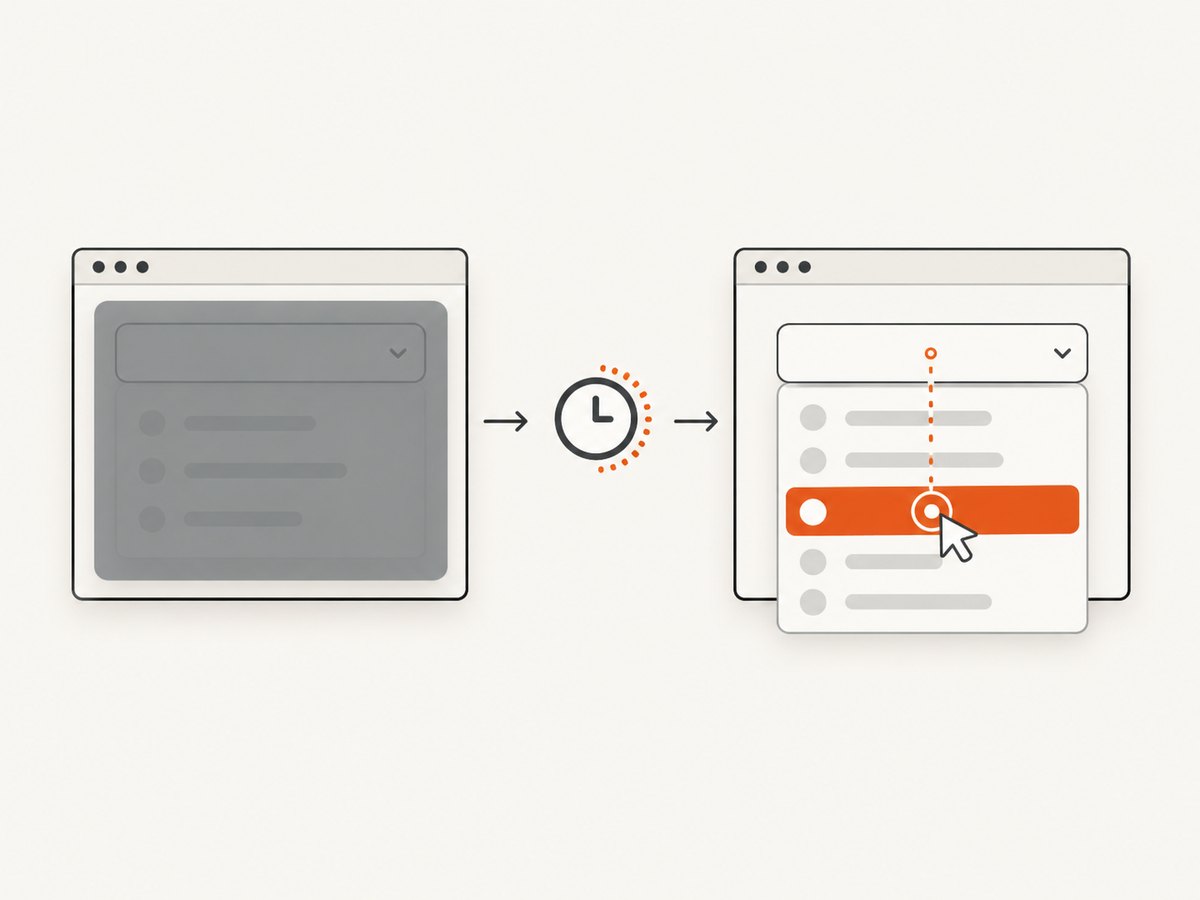
Click interception checklist
- Wait until a cookie banner, modal, spinner or chat panel is gone.
- Check whether a fixed header covers the element after scrolling.
- Wait for animations or layout movement to finish.
- Click the visible trigger rather than a hidden duplicate input.
- Use JavaScript scrolling only to position the element; keep the real interaction a WebDriver action.
7. Verify the selection and resulting behavior
A completed command does not prove that the application changed state.
- Native select: inspect
first_selected_option, its text, value or selected attribute. - Custom widget: assert the trigger’s displayed label, selected option class, ARIA state or form value.
- Dependent UI: wait for the next menu, network-driven result or validation state.
- Submission: assert the confirmation or server-visible result rather than only the click.
# Native verification
selected = Select(driver.find_element(By.ID, "country")).first_selected_option
assert selected.get_attribute("value") == "ca"

# Custom verification
trigger = driver.find_element(By.CSS_SELECTOR, "[data-testid='country-trigger']")
assert trigger.get_attribute("aria-expanded") == "false"
assert trigger.text.strip() == "Canada"
8. JavaScript and Node.js patterns
With Selenium’s JavaScript binding, the same distinction applies. Use the native element’s value for a real select; for custom controls, click and wait for the option.
const { Builder, By, until } = require('selenium-webdriver');

(async function () {
  const driver = await new Builder().forBrowser('chrome').build();
  try {
    await driver.get('https://example.com/custom-form');
    const trigger = await driver.wait(
      until.elementLocated(By.css("[data-testid='country-trigger']")), 15000);
    await driver.wait(until.elementIsVisible(trigger), 15000);
    await trigger.click();
    const option = await driver.wait(
      until.elementLocated(By.xpath("//div[@role='option' and normalize-space()='Canada']")), 15000);
    await driver.wait(until.elementIsVisible(option), 15000);
    await option.click();
    if ((await trigger.getText()).trim() !== 'Canada') throw new Error('Selection not applied');
  } finally {
    await driver.quit();
  }
})();
9. Performance, reliability and cost notes
- Use one explicit wait strategy with sensible per-condition timeouts; avoid polling faster than the UI can change.
- Keep locators stable and specific to reduce retries and accidental matches.
- Reacquire references after known framework updates instead of catching stale errors repeatedly.
- Capture browser logs and screenshots when a failure is intermittent; record the current URL, frame, window handle and selected text.
- Do not add arbitrary sleeps to hide a race. Wait for the state that proves the next action is safe.
- Run headless and parallel only after the interaction is deterministic; concurrency can expose shared test data and timing problems.
10. Or skip the browser setup
If your goal is a clean image or PDF of the page rather than an end-to-end interaction test, ScreenshotNeo makes one GET request and returns a PNG, JPEG, WebP or PDF. It accepts cookie and consent banners like a visitor, removes more than 60 known consent platforms plus newsletter popups and chat widgets before capture, and lets each cleanup step be turned off. Bot checks, blank pages, timeouts, failed loads and cache hits are not billed; response headers report the page verdict and billing result. Its MCP server provides take_screenshot, get_page_info and capture_pdf for Claude, Cursor and other MCP clients.
Read the full parameter reference in the ScreenshotNeo docs.
cURL
curl -G "https://api.screenshotneo.com/v1/shot" -d access_key=YOUR_API_KEY --data-urlencode url=https://stripe.com -o shot.webpPython
import requests

r = requests.get("https://api.screenshotneo.com/v1/shot", params={"access_key": "YOUR_API_KEY", "url": "https://stripe.com"}, timeout=90)
r.raise_for_status()
open("shot.webp", "wb").write(r.content)
Node.js
const q = new URLSearchParams({ access_key: 'YOUR_API_KEY', url: 'https://stripe.com' });
const res = await fetch(`https://api.screenshotneo.com/v1/shot?${q}`);
if (!res.ok) throw new Error(`Screenshot failed: ${res.status}`);
require('fs').writeFileSync('shot.webp', Buffer.from(await res.arrayBuffer()));
ScreenshotNeo includes full-page capture with lazy images loaded, CSS-element capture, custom CSS and JavaScript, waits, request blocking, headers, cookies, user agents, timezone and geolocation, caching with a chosen TTL, signed links, async jobs with signed webhooks, bulk capture for up to 100 URLs per call, PDF controls, HTML/CSS-to-image and a usage API. The free plan includes 1,000 shots each month with no card; paid plans start at $5 for 3,000 shots. Create a free ScreenshotNeo account.
11. Short FAQ
Can I use Select on a div that looks like a select?
No. Select is for real select/option markup. Click the custom trigger and its rendered option instead.
Why does the dropdown work manually but fail in headless mode?
Headless runs can expose timing, viewport, animation and overlay assumptions. Add state-based waits, set a suitable viewport, and verify the actual visible target.
Should I use JavaScript to set the value?
Only when the application explicitly supports that path and you dispatch the events it needs. Normal WebDriver interaction gives a more faithful user flow.
What information should a bug report include?
Include the control’s DOM shape, locator, browser and driver versions, current frame/window, exact exception, HTML around the control and the state you expected after selection.


