How to Fix Python Selenium Element Not Found Errors for IDs and Classes
Fix Selenium’s NoSuchElementException by checking the rendered page, locator, browsing context, and timing. Get runnable Python examples for IDs, classes, waits, and common failures.
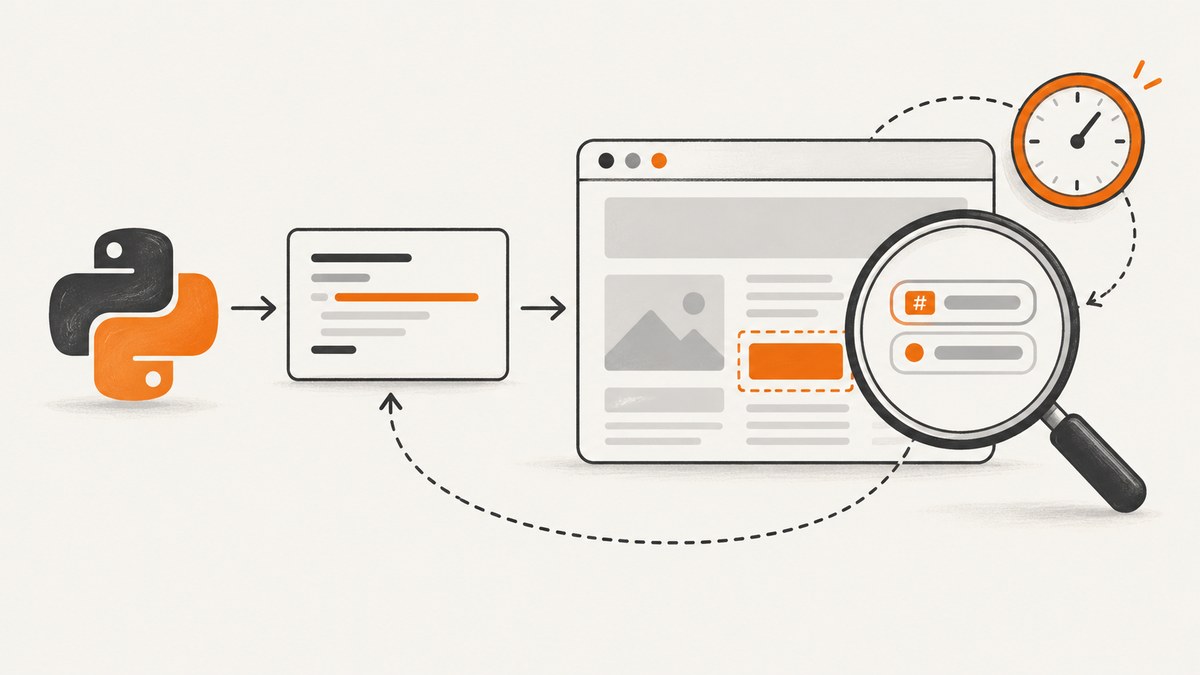
Selenium raises NoSuchElementException when it cannot find a matching element in the current browsing context at the moment your code looks for it. The fix is usually to verify the rendered attribute and locator, switch into the right frame or window, or wait for a dynamic page to add the element.
Use Selenium’s modern By API: driver.find_element(By.ID, "loginForm") for an ID, and driver.find_element(By.CLASS_NAME, "username") for one class token. For a compound class or a more specific match, use CSS, such as By.CSS_SELECTOR, ".card.primary". On pages that render asynchronously, use a condition-based explicit wait instead of an immediate lookup.
1. Start with the right locator
Import By and pass the locator strategy and value as separate arguments. The ID value is the attribute value without a #; a class value is one token without a ..
from selenium.webdriver.common.by import By

login_form = driver.find_element(By.ID, "loginForm")
username = driver.find_element(By.CLASS_NAME, "username")
These calls return a WebElement when a match exists. If there is no matching element, Selenium raises NoSuchElementException. The exception does not tell you whether the selector is misspelled, the page is still rendering, or the element is in another frame. Check those conditions before changing a locator that may already be correct. See Selenium’s locator documentation.
ID locators
IDs are useful when the rendered element has a unique, stable id attribute:
from selenium.webdriver.common.by import By

email = driver.find_element(By.ID, "email")
email.send_keys("dev@example.com")
Do not include the CSS hash prefix. By.ID, "#email" asks Selenium to find an ID whose literal value starts with #; it does not mean “CSS ID selector.” If you want CSS syntax, use By.CSS_SELECTOR, "#email".
Class locators
By.CLASS_NAME accepts one class token. For <div class="card primary">, this is valid:
card = driver.find_element(By.CLASS_NAME, "card")This is not valid as a class-name locator because the value contains a space:
# Wrong: CLASS_NAME accepts one token, not a space-separated class list
card = driver.find_element(By.CLASS_NAME, "card primary")
Use CSS for multiple classes. The selector .card.primary matches an element that has both class tokens, regardless of their order:
card = driver.find_element(By.CSS_SELECTOR, ".card.primary")CSS is also helpful when you need to scope the target to a form, match a name attribute, or combine conditions:
field = driver.find_element(
    By.CSS_SELECTOR,
    "form#loginForm input[name='username']"
)
Use quotes carefully when building CSS strings. For a dynamically inserted value, escape it correctly or use a different locator strategy; malformed selector syntax raises an invalid-selector error rather than “not found.”
2. Wait for dynamic content with the condition you need
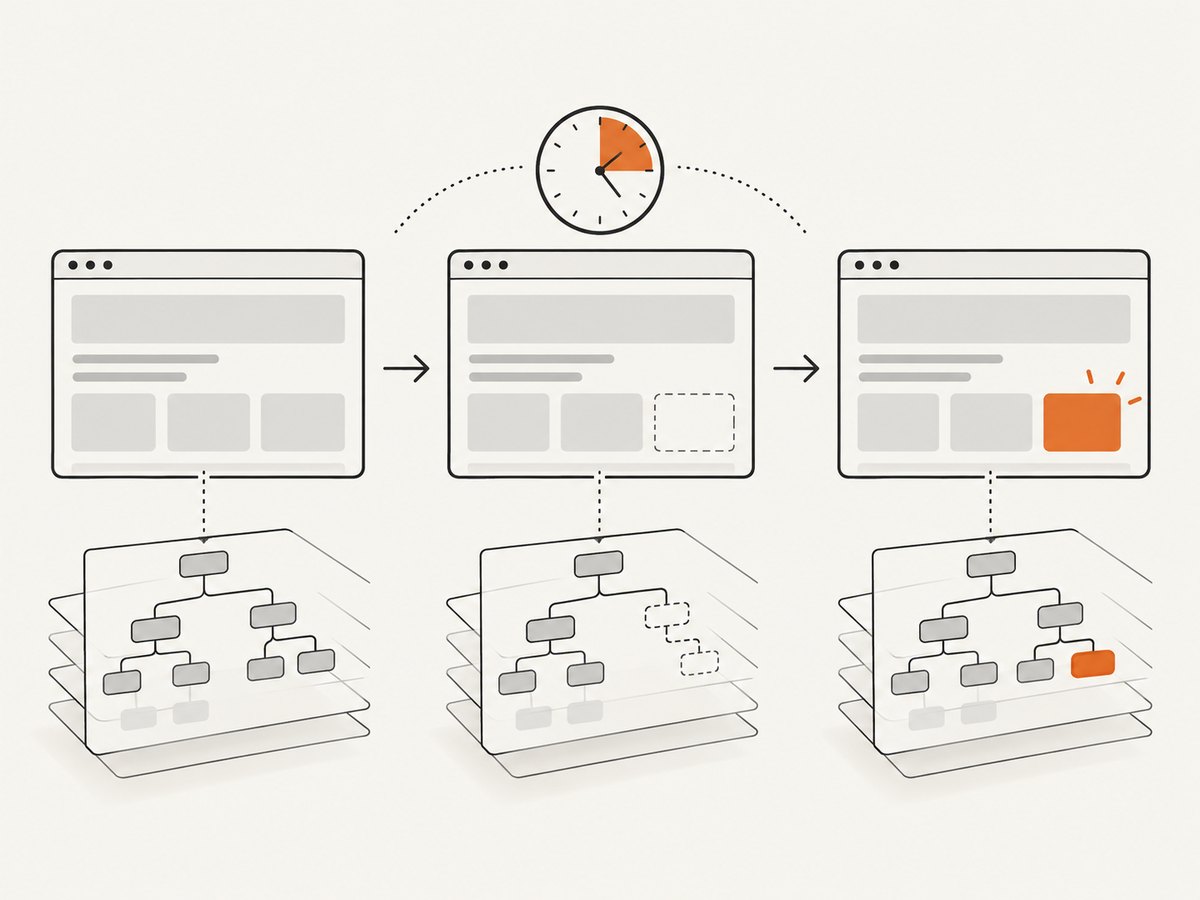
A successful navigation call does not guarantee that JavaScript has already inserted every element. Use an explicit wait that polls for a particular condition. Selenium’s WebDriverWait polls every 0.5 seconds by default, ignores NoSuchElementException while polling, and raises TimeoutException if the condition does not become true before the timeout. See the waits guide and Python WebDriverWait API.
from selenium.webdriver.common.by import By
from selenium.webdriver.support.ui import WebDriverWait
from selenium.webdriver.support import expected_conditions as EC

wait = WebDriverWait(driver, 10)
email = wait.until(
    EC.presence_of_element_located((By.ID, "email"))
)
Choose the condition based on what you plan to do:
| Condition | What it establishes | Use it when |
|---|---|---|
presence_of_element_located |
The element exists in the DOM. | You need to find it; it may still be hidden. |
visibility_of_element_located |
The element exists and is visible. | You need to read it or interact with a visible control. |
element_to_be_clickable |
The element is visible and enabled. | You are about to click it. |
# Wait for a visible element by one class token
username = wait.until(
    EC.visibility_of_element_located((By.CLASS_NAME, "username"))
)

# Wait until a button can be clicked
submit = wait.until(
    EC.element_to_be_clickable((By.CSS_SELECTOR, "button.submit"))
)
submit.click()
A wait is not a repair for a wrong locator. It gives the page time to reach the expected state; if the condition never becomes true, the timeout is evidence to inspect the page, context, selector, and application state.
A complete runnable example
This example opens a page, waits for a form field by ID, enters a value, and reports useful diagnostic details if the lookup times out. Install Selenium with python -m pip install selenium. A compatible browser and driver setup is also required; follow the setup instructions for your browser in the Selenium getting started documentation.
from selenium import webdriver
from selenium.common.exceptions import TimeoutException
from selenium.webdriver.common.by import By
from selenium.webdriver.support.ui import WebDriverWait
from selenium.webdriver.support import expected_conditions as EC

URL = "https://example.com/your-form"

options = webdriver.ChromeOptions()
# Uncomment to run without opening a visible browser window.
# options.add_argument("--headless=new")

driver = webdriver.Chrome(options=options)
try:
    driver.get(URL)
    wait = WebDriverWait(driver, 10)

    try:
        email = wait.until(
            EC.visibility_of_element_located((By.ID, "email"))
        )
    except TimeoutException:
        print("Timed out waiting for #email")
        print("Final URL:", driver.current_url)
        print("Title:", driver.title)
        print("Page source excerpt:", driver.page_source[:2000])
        raise

    email.send_keys("dev@example.com")
finally:
    driver.quit()
Replace the example URL and ID with the page and rendered attribute you have inspected. The finally block closes the browser even if a lookup or interaction fails.
3. Diagnose a selector that looks correct
When an ID or class seems right but Selenium still reports no match, follow these checks in order. They help isolate a wrong value from a timing or browsing-context problem.
- Confirm the final URL. Redirects, login flows, or navigation failures may leave the browser on a different page. Print
driver.current_urlanddriver.titleafter navigation. - Inspect the rendered DOM. Use browser developer tools or examine
driver.page_source. Confirm the attribute exists in the current page and check exact spelling, capitalization, punctuation, and whitespace. The source response may differ from the DOM after JavaScript runs, so inspect the rendered page when possible. - Check the timing. If the element appears after a request or client-side render, use an explicit wait for its presence or visibility rather than calling
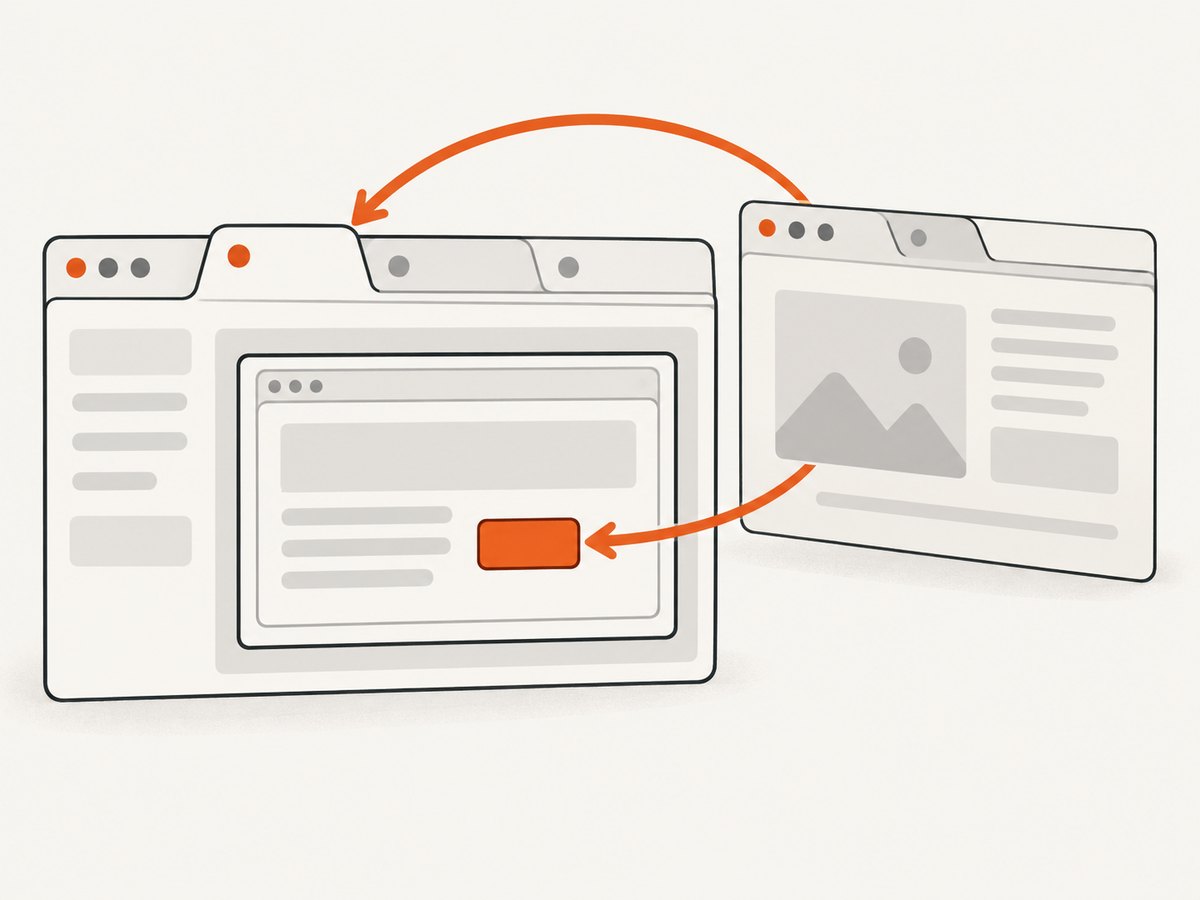
find_elementimmediately. - Check the window or tab. Selenium searches the current window. If a click opened another tab, switch to its handle before locating the element.
- Check iframe boundaries. An element inside an iframe is not found from the top-level document. Switch into the frame first.
- Check the locator’s shape. Use one token with
By.CLASS_NAME; use CSS for compound classes or a scoped match. - Count matches while debugging.
find_elementsreturns a list, including an empty list when there are no matches. This lets you distinguish zero matches from several matches without an exception.
from selenium.webdriver.common.by import By

matches = driver.find_elements(By.CSS_SELECTOR, ".card.primary")
print("matches:", len(matches))
print("url:", driver.current_url)
print("title:", driver.title)
print(driver.page_source[:2000])
Switch to the correct iframe
Locate the frame in the top-level page, switch into it, then locate the target. Switch back when you need to interact with the parent document:
frame = wait.until(
    EC.presence_of_element_located((By.CSS_SELECTOR, "iframe#payment-frame"))
)
driver.switch_to.frame(frame)

card_number = wait.until(
    EC.visibility_of_element_located((By.ID, "card-number"))
)

# Return to the top-level document when finished with the frame.
driver.switch_to.default_content()
If the frame is nested, switch into each containing frame in sequence. A correct selector in the wrong frame still returns no match.
Switch to a newly opened tab
After an action opens a new tab or window, wait for another handle and switch to it:
before = set(driver.window_handles)

# Perform the action that opens another tab here.

wait.until(lambda d: len(d.window_handles) > len(before))
new_handle = next(handle for handle in driver.window_handles if handle not in before)
driver.switch_to.window(new_handle)

target = wait.until(
    EC.presence_of_element_located((By.ID, "target"))
)
4. Choose locators and waits deliberately
| Need | Good starting point | Common mistake |
|---|---|---|
| One element with a stable ID | By.ID, "email" |
Including # in the ID value. |
| One class token | By.CLASS_NAME, "username" |
Passing "user name" as one class locator. |
| Several class tokens | By.CSS_SELECTOR, ".card.primary" |
Assuming class order is fixed in a space-separated class string. |
| Nested or attribute-specific target | CSS selector or XPath | Using a broad selector that matches a different element. |
| Element is added asynchronously | Explicit wait for the needed condition | Adding arbitrary sleeps that are too short or always delay the run. |
Selenium also supports NAME, XPATH, LINK_TEXT, PARTIAL_LINK_TEXT, TAG_NAME, and CSS_SELECTOR locator strategies. Prefer a selector tied to a stable property of the target. Use XPath when its relationship or text matching is useful, and CSS when it expresses the needed attributes and hierarchy clearly. Neither strategy can locate an element that has not yet appeared or is outside the current context.
Implicit versus explicit waits
An implicit wait applies to element lookups across the WebDriver session. An explicit wait is scoped to a particular condition and returns as soon as that condition succeeds. For page-specific readiness, explicit waits make the expected state visible in the code and give failures a targeted timeout.
# Optional global setting; keep it conservative if you use it.
driver.implicitly_wait(2)

# Targeted wait for a specific page condition.
wait = WebDriverWait(driver, 10)
email = wait.until(
    EC.presence_of_element_located((By.ID, "email"))
)
Avoid layering long implicit waits inside explicit waits: each poll may itself wait during its element lookup, creating longer and harder-to-predict delays. A common approach is to use explicit waits consistently and leave the implicit wait at its default.
5. Handle DOM replacement and stale elements
NoSuchElementException means no element matched when the lookup ran. A related issue occurs after a successful lookup: if the page replaces that DOM node, the saved WebElement reference can become stale. Locate the element again after the update rather than reusing an old reference.
# Wait for a page update, then find the current node again.
wait.until(EC.presence_of_element_located((By.ID, "results")))
result = driver.find_element(By.ID, "results")
If an action causes a rerender, put the next lookup after that action and wait for the new state. Do not repeatedly retry an old element reference. Record the final URL, locator, wait condition, and exception text so the failing state can be reproduced.
6. Troubleshooting common errors
| Symptom | Likely cause | Fix |
|---|---|---|
NoSuchElementException immediately |
Wrong locator, element not rendered yet, or wrong frame/window. | Inspect the rendered DOM and context; use a targeted explicit wait for dynamic content. |
TimeoutException from wait.until |
The requested condition never became true before the timeout. | Verify final URL, exact attribute, frame/window, and whether the element is actually expected in this page state. Increase the timeout only when the page legitimately needs longer. |
| Class lookup fails with multiple class names | By.CLASS_NAME received a space-separated value. |
Pass one token or use a compound CSS selector such as .card.primary. |
| Invalid selector error | Malformed CSS/XPath syntax or incorrect escaping. | Validate the selector in developer tools and quote attribute values correctly. |
| Element is present but interaction fails | The element may be hidden, disabled, covered, or not ready for interaction. | Wait for visibility or clickability as appropriate; inspect overlays and application state. |
| Element found before a page update, then stale | The page replaced the DOM node after the lookup. | Wait for the update and locate the element again after rerendering. |
| Works manually but not in automation | Automation may be at a different URL, state, viewport, or timing point. | Capture URL, title, page source excerpt, and wait condition at failure; reproduce the same navigation and state. |
Do not solve every lookup failure by increasing timeouts. A longer wait helps only if the correct element will appear later. If the selector is wrong or the browser is in the wrong context, waiting simply postpones the same failure.
7. Reliability, runtime, and cost notes
- Reliability: Explicit conditions tie the script to an observable page state. Prefer checking the element your next action actually needs over sleeping for a fixed number of seconds.
- Runtime: A wait returns as soon as its condition succeeds, so a ten-second maximum does not imply a ten-second delay on every successful run. Keep timeouts proportionate to the page and environment.
- Diagnostics: Log the final URL, locator strategy and value, expected condition, and exception. A short DOM excerpt or saved page source can reveal redirects, missing content, or changed attributes.
- Selector maintenance: IDs and dedicated data attributes are generally more specific than generic styling classes. If you control the page, stable automation attributes can reduce coupling to presentation changes.
- Infrastructure cost: Selenium runs a browser, so execution consumes the compute and time of the machine or browser service running it. Avoid retry loops that repeatedly launch browsers for a deterministic selector or context mistake.
8. Capture a page without setting up browser automation
If your task is to obtain a website screenshot rather than interact with the page, ScreenshotNeo provides a website screenshot API and MCP server. The DIY Selenium method above is the right fit when you need to inspect and operate on DOM elements; a screenshot request can be simpler when you only need an image or PDF.
Or skip the browser setup
One GET request takes a URL and returns an image or PDF. This Python example saves the response body:
import requests

r = requests.get(
    "https://api.screenshotneo.com/v1/shot",
    params={"access_key": "YOUR_API_KEY", "url": "https://stripe.com"},
    timeout=90,
)
open("shot.webp", "wb").write(r.content)
See the ScreenshotNeo API documentation for request options and response details. cURL and Node.js alternatives:
curl -G "https://api.screenshotneo.com/v1/shot" -d access_key=YOUR_API_KEY --data-urlencode url=https://stripe.com -o shot.webpconst q = new URLSearchParams({ access_key: 'YOUR_API_KEY', url: 'https://stripe.com' });
const res = await fetch(`https://api.screenshotneo.com/v1/shot?${q}`);- Cookie and consent banners, newsletter popups, and chat widgets are removed before the shot; each cleanup step can be turned off.
- Bot checks, blank pages, timeouts, failed loads, and cache hits are not billed. Response headers say the page verdict and whether the request was billed.
- An MCP server gives AI agents tools to take screenshots, get page information, and capture PDFs.
- The free plan includes 1,000 screenshots a month with no card; paid plans start at $5 for 3,000 shots. Every feature is on every plan.
Sign up free for 1,000 screenshots a month, with no card.
9. FAQ
Why does Selenium say no such element when the ID is correct?
The browser may not be on the expected page, the element may not have rendered yet, or it may be inside another frame or window. Confirm the rendered DOM and current context before changing the ID.
Should I use CSS or XPath instead of an ID?
Use the simplest stable locator that expresses the target. CSS is convenient for compound classes and scoped attributes; XPath can express relationships or text-based conditions. Changing strategy does not fix timing or context.
What should I do if an element appears after clicking?
Wait for a condition that represents the resulting state, then locate the new element. If the click opens a tab or changes frames, switch to that context first.
Is a fixed sleep ever useful?
A short sleep can help isolate a timing hypothesis during debugging, but it is not a reliable readiness check. Replace it with an explicit wait for the element or state your next step requires.


