How to Fix UnsupportedOperationError When Taking Selenium WebDriver Element Screenshots
Fix Selenium element screenshot errors by checking driver support, separating capture from file I/O, and cropping a full-browser screenshot when needed.
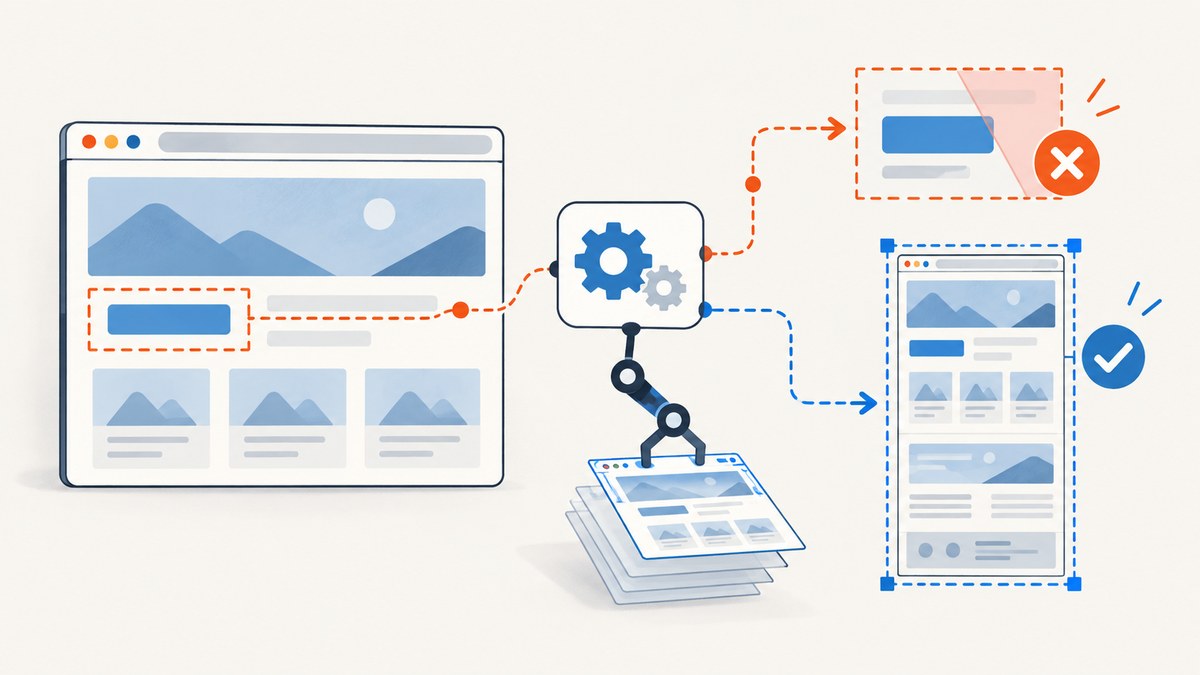
Short answer: Selenium raises UnsupportedOperationException (often reported as “UnsupportedOperationError”) when the browser-driver implementation does not support the WebElement screenshot command. Check the exact browser, driver, Selenium binding, and execution context first. If that combination cannot capture an element directly, take a normal browser screenshot and crop it to the element’s rectangle. Treat screenshot capture and saving the resulting bytes as separate operations so you do not mistake a filesystem error for an unsupported command.
The Java TakesScreenshot contract explicitly documents UnsupportedOperationException when the underlying implementation does not support screenshot capture. It also describes WebElement screenshots as browser-dependent best effort. A method existing in Python, JavaScript, or Java therefore does not guarantee that every browser-driver pair implements it.
What the exception means
This exception identifies an implementation capability problem first. It does not, by itself, prove that your locator failed, that the element is hidden, or that the destination PNG path is unwritable. Those conditions can produce different errors or an empty result.
| Failure point | Typical symptom | What to inspect |
|---|---|---|
| Element screenshot command | UnsupportedOperationException, command-not-supported response, or a remote-session error |
Browser, driver, Selenium version, local versus Grid execution, and vendor support |
| Element state | Timeout, stale element, zero-size image, or an element outside the viewport | Wait conditions, visibility, scrolling, overlays, and re-locating the element |
| File output | Python returns False, or an OSError/IOException |
Absolute path, parent directory, permissions, and available disk space |
| Crop calculation | Wrong region, blank crop, or shifted image | Scroll offset, device-pixel ratio, browser chrome, and screenshot dimensions |
1. Record the environment before changing code
Capture the details below in the bug report or test log. The available Selenium documentation does not provide a universal browser-by-browser support matrix, so version-specific conclusions require the exact environment.
- Selenium language binding and version
- Browser name and version
- Driver name and version
- Local session, Selenium Grid, cloud provider, or another remote session
- Operating system and architecture
- The complete exception class and message
- The element screenshot call and locator
Then check the documentation for that browser and driver combination. SeleniumLibrary describes element screenshots as having limited support among browser vendors and directs users to the relevant vendor-driver documentation. A successful run in Chrome does not establish support in Firefox, Safari, or a remote driver.
2. Use the documented element operation for your binding
Python
Python exposes PNG bytes, base64, and a file-saving method. The command that obtains the screenshot runs before the file write. This distinction lets you tell an unsupported capture command from a local I/O failure.
from pathlib import Path
from selenium import webdriver
from selenium.webdriver.common.by import By
from selenium.webdriver.support.ui import WebDriverWait
from selenium.webdriver.support import expected_conditions as EC

URL = "https://example.com"
OUTPUT = Path("/absolute/path/element.png")

options = webdriver.ChromeOptions()
options.add_argument("--headless=new")
driver = webdriver.Chrome(options=options)

try:
    driver.get(URL)
    element = WebDriverWait(driver, 20).until(
        EC.visibility_of_element_located((By.CSS_SELECTOR, "h1"))
    )

    # Command-level capture: may raise if this driver does not support it.
    png_bytes = element.screenshot_as_png
    OUTPUT.parent.mkdir(parents=True, exist_ok=True)
    OUTPUT.write_bytes(png_bytes)

    # Equivalent binding method. It returns False for a file I/O failure.
    # saved = element.screenshot(str(OUTPUT))
    # print("saved:", saved)
finally:
    driver.quit()
element.screenshot_as_base64 is useful when the image must be returned through an API instead of written locally. The Python API expects a full path ending in .png for the file method.
JavaScript (Node.js)
Selenium’s JavaScript binding documents WebElement.takeScreenshot() as a base64-encoded PNG of the visible region encompassed by the element’s bounding rectangle.
const { Builder, By } = require("selenium-webdriver");
const fs = require("node:fs/promises");

(async () => {
  const driver = await new Builder().forBrowser("chrome").build();
  try {
    await driver.get("https://example.com");
    const element = await driver.findElement(By.css("h1"));
    const base64 = await element.takeScreenshot();
    await fs.writeFile("element.png", Buffer.from(base64, "base64"));
  } finally {
    await driver.quit();
  }
})();
Java
In Java, a WebElement may implement TakesScreenshot, but the API makes support a best-effort browser capability. Keep the cast and capture inside a controlled error path.
import java.nio.file.Files;
import java.nio.file.Path;
import org.openqa.selenium.By;
import org.openqa.selenium.WebDriver;
import org.openqa.selenium.WebElement;
import org.openqa.selenium.chrome.ChromeDriver;
import org.openqa.selenium.OutputType;
import org.openqa.selenium.TakesScreenshot;

WebDriver driver = new ChromeDriver();
try {
    driver.get("https://example.com");
    WebElement element = driver.findElement(By.cssSelector("h1"));
    try {
        byte[] png = element.getScreenshotAs(OutputType.BYTES);
        Files.write(Path.of("element.png"), png);
    } catch (UnsupportedOperationException ex) {
        System.err.println("This browser-driver path does not support element screenshots");
        throw ex;
    }
} finally {
    driver.quit();
}
3. Fallback: capture the browser and crop the element
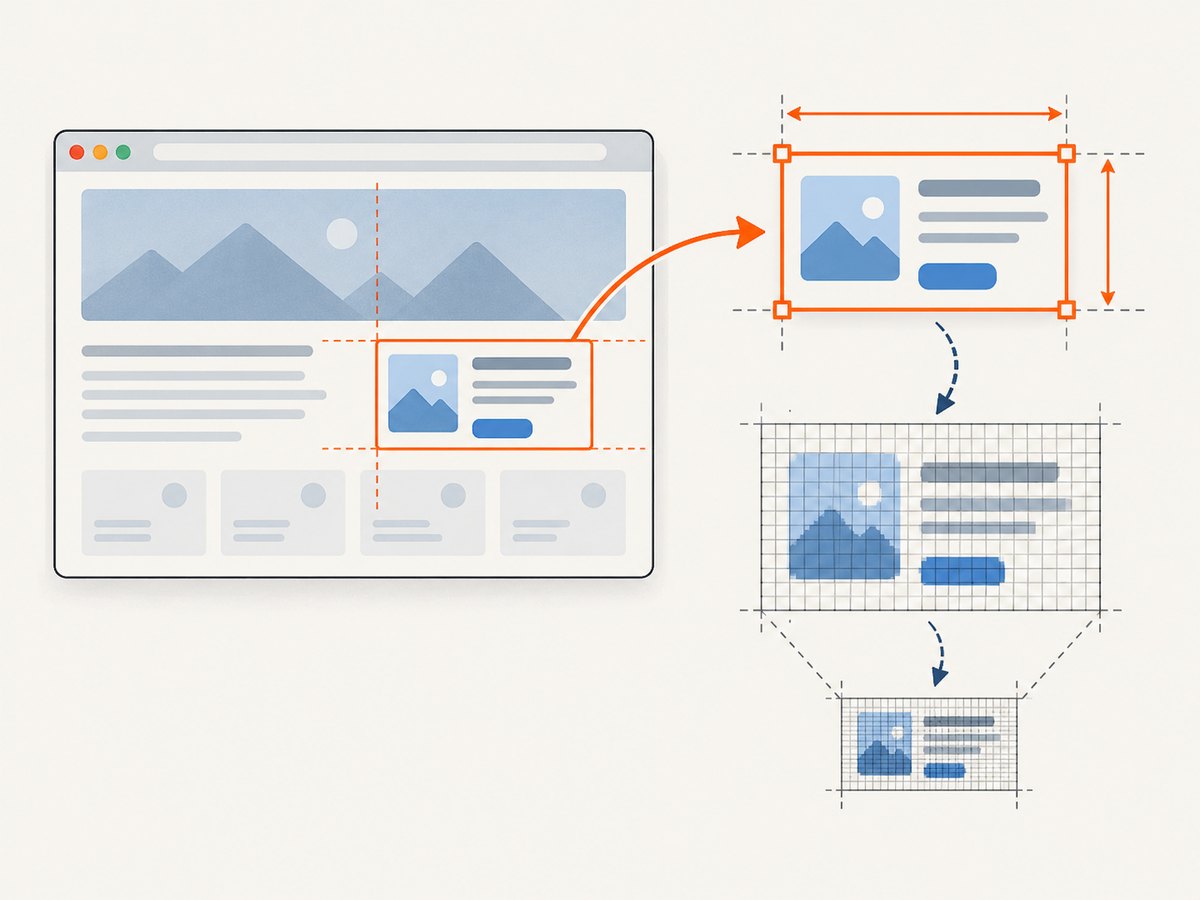
When direct element capture is unsupported, a full WebDriver screenshot followed by a crop is the practical workaround. Selenium documents element location and size/rect APIs, while WebDriver exposes whole-browser screenshot methods. The crop is an engineering fallback, not a guarantee of pixel-perfect equivalence.
Python crop implementation
from io import BytesIO
from PIL import Image
from selenium import webdriver
from selenium.webdriver.common.by import By
from selenium.webdriver.support.ui import WebDriverWait
from selenium.webdriver.support import expected_conditions as EC

options = webdriver.ChromeOptions()
options.add_argument("--headless=new")
driver = webdriver.Chrome(options=options)
try:
    driver.set_window_size(1440, 1000)
    driver.get("https://example.com")
    element = WebDriverWait(driver, 20).until(
        EC.visibility_of_element_located((By.CSS_SELECTOR, "h1"))
    )

    # Bring the target into the viewport before reading its rectangle.
    driver.execute_script(
        "arguments[0].scrollIntoView({block: 'center', inline: 'nearest'});",
        element,
    )
    rect = driver.execute_script("""
        const r = arguments[0].getBoundingClientRect();
        return {x: r.left, y: r.top, width: r.width, height: r.height};
    """, element)

    browser_png = driver.get_screenshot_as_png()
    image = Image.open(BytesIO(browser_png))

    # Browser screenshots can use more pixels than CSS coordinates.
    scale_x = image.width / driver.execute_script("return window.innerWidth")
    scale_y = image.height / driver.execute_script("return window.innerHeight")
    left = max(0, round(rect["x"] * scale_x))
    top = max(0, round(rect["y"] * scale_y))
    right = min(image.width, round((rect["x"] + rect["width"]) * scale_x))
    bottom = min(image.height, round((rect["y"] + rect["height"]) * scale_y))

    if right <= left or bottom <= top:
        raise RuntimeError("Element has no visible pixels to crop")
    image.crop((left, top, right, bottom)).save("element-crop.png")
finally:
    driver.quit()
Crop edge cases
- Device-pixel ratio: CSS pixels and screenshot pixels can differ. Derive scale from screenshot dimensions and
window.innerWidth/innerHeight, as above. - Scrolling:
getBoundingClientRect()is viewport-relative. Scroll the element into view immediately before taking the browser screenshot. - Clipping: A partially visible element produces a partial crop. Expand the viewport or scroll before capture when the whole element is required.
- Fixed headers and overlays: They can cover the target after scrolling. Hide the overlay or use a different scroll position.
- CSS transforms: Transforms and fractional coordinates can create one-pixel edges. Round only at the final crop step.
- Full-page mode: A stitched full-page screenshot may use coordinates different from a viewport screenshot. Use a matching coordinate system or crop a viewport capture.
- Shadow DOM and iframes: Locate the element in the correct shadow root or switch into the iframe before reading its rectangle.
4. Diagnose common errors
| Error or symptom | Cause | Fix |
|---|---|---|
UnsupportedOperationException |
The underlying browser-driver implementation does not support WebElement screenshots. | Verify the exact driver documentation; use a full-driver screenshot and crop. |
UnsupportedOperationError in a report |
Informal spelling or a language-specific wrapper around Java’s exception. | Find the underlying exception class and command response in the full log. |
NoSuchElementException |
The locator failed before capture. | Correct the locator, wait for the page state, and confirm the correct frame. |
StaleElementReferenceException |
The page re-rendered after the element was located. | Wait for the update to finish and locate the element again immediately before capture. |
Python returns False |
The screenshot bytes were obtained but writing the requested file failed. | Use an absolute writable path, create the parent directory, and check permissions. |
| Blank or tiny image | The element is hidden, zero-sized, outside the viewport, or covered. | Wait for visibility, inspect rect, scroll into view, and remove obstructing overlays. |
| Wrong crop position | CSS coordinates were used as device pixels, or scroll position changed. | Capture after scrolling and calculate horizontal and vertical scale separately. |
| Works locally but fails on Grid | The remote browser or driver has different screenshot capabilities or viewport settings. | Record remote browser versions and test the fallback in the same session type. |
5. Make captures reliable
- Wait for the capture state. Wait for visibility and, when needed, a stable selector or network completion. A present DOM node can still be painting or covered.
- Freeze the viewport. Set a known window size and device scale where your test environment permits it.
- Disable animation for diagnostic captures. Inject temporary CSS that sets transitions and animations to zero duration.
- Capture once per failure. Repeated retries can hide a deterministic unsupported-command error and increase test time.
- Log metadata. Store browser, driver, Selenium version, viewport, device-pixel ratio, element rect, and whether direct or crop capture was used.
- Keep direct and fallback paths separate. This makes command support, page readiness, and file output independently observable.
Performance, reliability, and cost considerations
A direct element command usually transfers fewer pixels than a full browser screenshot plus image decoding and cropping. The fallback adds browser screenshot time, memory for the PNG, and an image-processing dependency. For many test cases this is acceptable; for high-volume visual capture, measure both paths in the same browser and remote environment.

Remote sessions add network transfer and can return different screenshot dimensions. Avoid assuming a fixed device-pixel ratio. If screenshots are artifacts in CI, write them only on failure or when a visual assertion fails. If they are product output, use deterministic viewport and asset-loading settings so retries produce comparable images.
Selenium itself does not define a screenshot billing model. Your costs come from the browser infrastructure, CI minutes, storage, and any image-processing service you add. A hosted screenshot API can move browser maintenance out of your application, but evaluate it against the exact cleanup, billing, and format requirements of your workflow.
Or skip the browser setup
ScreenshotNeo provides a website screenshot API and MCP server. One GET request returns PNG, JPEG, WebP, or PDF, and it supports full-page captures, CSS-element capture, device presets or custom viewports, retina scale, waits, custom CSS and JavaScript, cookies, headers, user agents, authorization, geolocation, timezone, request blocking, caching, signed links, asynchronous jobs, bulk capture, and a usage API. See the ScreenshotNeo documentation for parameter names and the OpenAPI specification.
cURL
curl -G "https://api.screenshotneo.com/v1/shot" \
  -d access_key=YOUR_API_KEY \
  --data-urlencode url=https://stripe.com \
  -o shot.webp
Python
import requests
r = requests.get("https://api.screenshotneo.com/v1/shot", params={"access_key": "YOUR_API_KEY", "url": "https://stripe.com"}, timeout=90)
open("shot.webp", "wb").write(r.content)
Node.js
const q = new URLSearchParams({ access_key: 'YOUR_API_KEY', url: 'https://stripe.com' });
const res = await fetch(`https://api.screenshotneo.com/v1/shot?${q}`);
ScreenshotNeo accepts cookie and consent banners before capture and removes more than 60 known consent platforms, newsletter popups, and chat widgets; each cleanup step can be turned off. Bot checks or CAPTCHAs, blank pages, timeouts, failed loads, and cache hits are not billed. The response reports the result through X-Page-Verdict and X-Billed headers. Its MCP server exposes take_screenshot, get_page_info, and capture_pdf for Claude, Cursor, and other MCP clients.
Free usage includes 1,000 screenshots per month with no card. Paid plans start at $5 for 3,000 screenshots; every feature is available on every plan. Create a free ScreenshotNeo account.
FAQ
Is UnsupportedOperationError the official Java name?
The standard Java class is UnsupportedOperationException. “UnsupportedOperationError” is often an informal or language-specific description.
Does changing PNG to JPEG fix the exception?
No. The exception occurs at the screenshot command’s capability layer, before image format conversion or file writing.
Can I assume element screenshots work because the method exists?
No. Binding methods can exist while a particular browser-driver implementation does not support the command.
Why does a full screenshot work when an element screenshot fails?
Whole-browser capture and WebElement capture can be separate driver commands. The driver may implement the former but not the latter.
Will cropping always match direct element capture?
No. Cropping depends on viewport position, device-pixel ratio, clipping, transforms, and overlays. It is a practical fallback with those limits.


