How to Fix Python Selenium Element Screenshots Capturing the Wrong Screen Section
Fix wrong-section Selenium screenshots with stable waits, fresh element geometry, scroll control, DPI-safe cropping, and practical diagnostics.
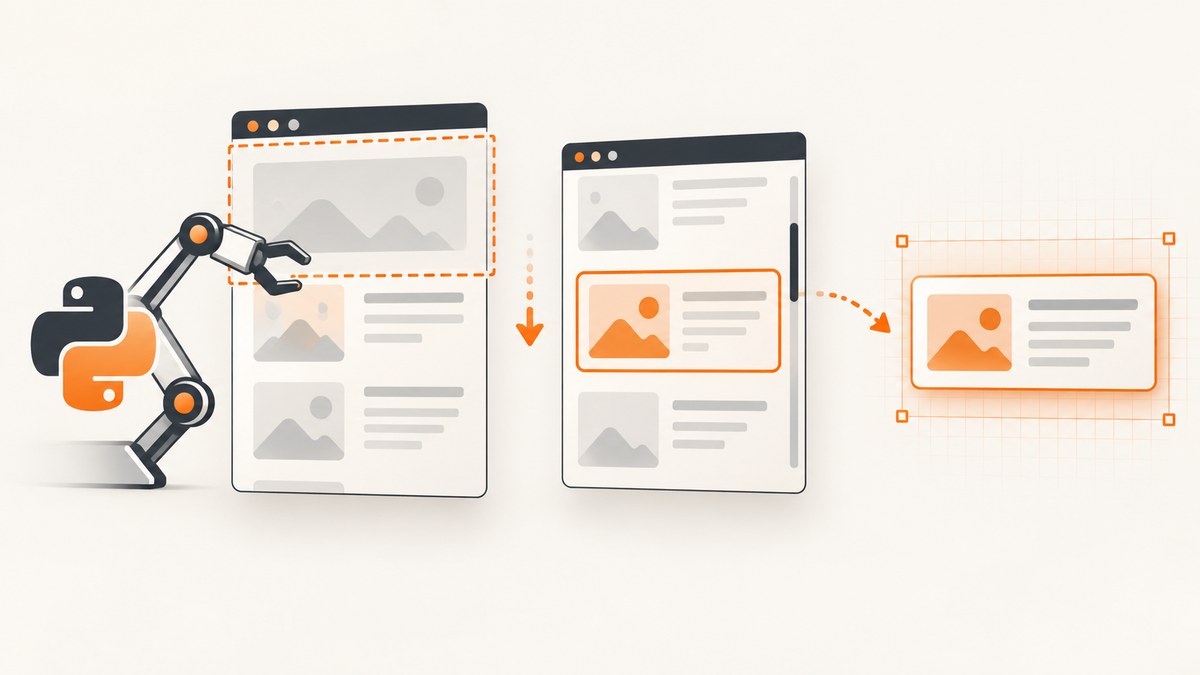
Use Selenium’s element screenshot API first: locate the intended element, wait until its layout is stable, scroll it into a controlled position, then call element.screenshot('card.png'). Most wrong-section captures come from measuring before rendering settles, retaining a stale element after a framework rerender, misunderstanding scroll containers, or mixing CSS pixels with device pixels.
from selenium.webdriver.common.by import By

card = driver.find_element(By.CSS_SELECTOR, 'article.card')
card.screenshot('card.png')
# Or keep the PNG in memory:
png_bytes = card.screenshot_as_png
Selenium documents WebElement.screenshot() as saving a screenshot of the current element to a PNG file, and also provides screenshot_as_png and screenshot_as_base64 for in-memory processing. The output filename should end in .png. See the Selenium Python WebElement API.
1. A stable Python capture that avoids the wrong section
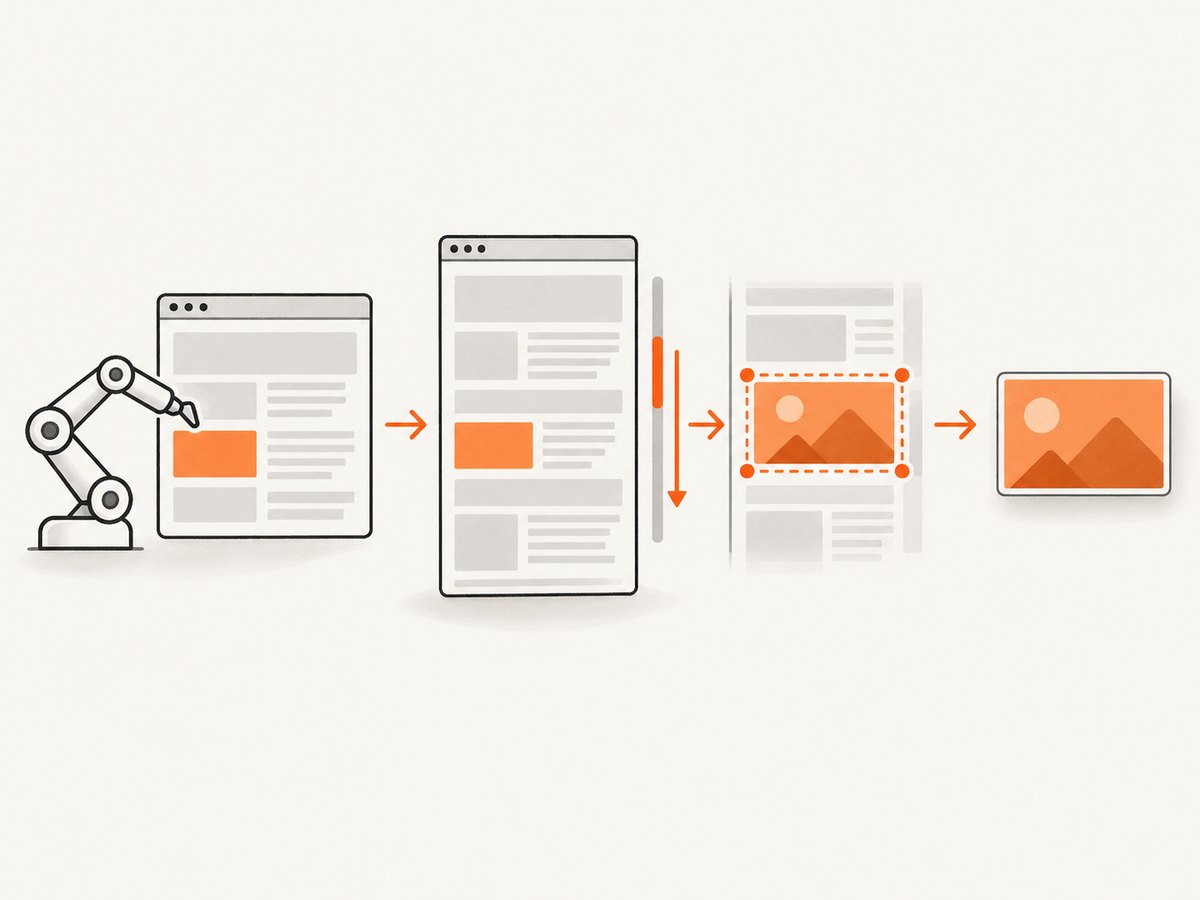
This complete example waits for visibility, scrolls the target into view, re-locates it after scrolling, waits for one rendering frame, records geometry, and saves the element PNG.
from selenium import webdriver
from selenium.webdriver.common.by import By
from selenium.webdriver.support.ui import WebDriverWait
from selenium.webdriver.support import expected_conditions as EC

options = webdriver.ChromeOptions()
options.add_argument('--headless=new')
options.add_argument('--window-size=1440,1200')

driver = webdriver.Chrome(options=options)
wait = WebDriverWait(driver, 15)
locator = (By.CSS_SELECTOR, 'article.card')

try:
    driver.get('https://example.com/page-with-cards')
    element = wait.until(EC.visibility_of_element_located(locator))

    driver.execute_script(
        "arguments[0].scrollIntoView({block: 'center', inline: 'nearest'});",
        element,
    )

    # A React/Vue/Angular update may replace the node during scrolling.
    element = wait.until(EC.visibility_of_element_located(locator))
    driver.execute_async_script(
        "const done = arguments[arguments.length - 1];"
        "requestAnimationFrame(() => done());"
    )

    geometry = driver.execute_script("""
        const r = arguments[0].getBoundingClientRect();
        return {
          x: r.x, y: r.y, width: r.width, height: r.height,
          scrollX: window.scrollX, scrollY: window.scrollY,
          dpr: window.devicePixelRatio,
          viewportWidth: document.documentElement.clientWidth,
          viewportHeight: window.innerHeight
        };
    """, element)
    print(geometry)
    element.screenshot('card.png')
finally:
    driver.quit()
Why each step matters
- Visibility wait: the locator can succeed while an element is hidden, collapsed, or covered by a loading state.
- Controlled scroll: Selenium’s implementation uses
scrollIntoView(true)before obtaining the element rectangle. A sticky header or nested scroller can therefore affect the visible pixels. Explicitly choosingblock: 'center'makes the result easier to reason about. - Re-location: component frameworks frequently replace DOM nodes after data, images, fonts, or responsive layout changes.
- Animation frame: waiting one frame lets the browser commit the scroll and layout before the screenshot.
- Geometry logging: the rectangle, viewport, scroll offsets, and device pixel ratio explain most apparent offsets.
2. Diagnose the element before capturing
First confirm that your selector resolves to the element you think it does. Hidden duplicate cards, mobile and desktop variants, and repeated list items are common causes of a screenshot that is technically correct for the wrong node.
matches = driver.find_elements(By.CSS_SELECTOR, 'article.card')
print('matches:', len(matches))
for index, candidate in enumerate(matches):
    print(index, candidate.is_displayed(), candidate.rect)

# Inspect the exact node immediately before capture.
print('selenium rect:', element.rect)
print('browser rect:', driver.execute_script("""
const r = arguments[0].getBoundingClientRect();
return {x:r.x, y:r.y, width:r.width, height:r.height,
        top:r.top, left:r.left, right:r.right, bottom:r.bottom};
""", element))
print('window:', driver.get_window_size())
print('viewport:', driver.execute_script(
    "return {w: document.documentElement.clientWidth, h: window.innerHeight};"
))
print('scroll:', driver.execute_script(
    'return {x: window.scrollX, y: window.scrollY};'
))
print('dpr:', driver.execute_script('return window.devicePixelRatio'))
element.rect reports the element’s size and location. getBoundingClientRect() reports viewport-relative CSS coordinates. They are not automatically image-pixel coordinates.
3. Fix scrolling and nested containers
A page can have the document scroll, a modal scroll, and one or more independently scrollable panels. Scrolling the document does not reveal content hidden inside a panel. Selenium’s element screenshot behavior can capture only the currently visible portion of a scrollable container; it does not magically stitch the container’s entire overflow content.
# Scroll the container that owns the content.
container = driver.find_element(By.CSS_SELECTOR, '.results-panel')
driver.execute_script(
    "arguments[0].scrollTop = arguments[0].scrollTop + arguments[1];",
    container, 500
)

# Or reveal the target inside that container.
target = driver.find_element(By.CSS_SELECTOR, '.results-panel article.card')
driver.execute_script(
    "arguments[0].scrollIntoView({block: 'nearest', inline: 'nearest'});",
    target
)
target.screenshot('visible-panel-section.png')
If the target is taller than its scroll box, decide whether you need the visible portion or the complete content. For complete content, capture deliberate scroll segments and stitch them, or use a full-page capture method. Do not assume one element screenshot contains pixels that are outside the element’s scrollable viewport.
4. Handle layout shifts, fonts, images, and animation
A locator can resolve before the final geometry exists. Web fonts change line wrapping; images without reserved dimensions expand cards; ads and consent dialogs insert nodes; transitions move the target during capture.
# Wait for a page-specific readiness signal when possible.
wait.until(EC.visibility_of_element_located((By.CSS_SELECTOR, '.page-ready')))

# Wait until the element has the same size for several polls.
def stable_size(driver):
    node = driver.find_element(*locator)
    size = node.size
    return node if size['width'] > 0 and size['height'] > 0 else False

element = wait.until(stable_size)

# Disable motion for deterministic captures (page permitting).
driver.execute_script("""
const style = document.createElement('style');
style.textContent = `*, *::before, *::after {
  animation-duration: 0s !important;
  animation-delay: 0s !important;
  transition: none !important;
  caret-color: transparent !important;
}`;
document.head.appendChild(style);
""")
For image-heavy pages, wait for the relevant images rather than sleeping for an arbitrary duration:
wait.until(lambda d: d.execute_script("""
const root = arguments[0];
return [...root.querySelectorAll('img')].every(img => img.complete);
""", element))
5. Frames, shadow DOM, transforms, and overlays
iframes
An element inside an iframe is invisible to selectors in the top document. Switch to the correct frame first, then locate and capture the element. Return to the default context before interacting with the parent page.
frame = wait.until(EC.presence_of_element_located((By.CSS_SELECTOR, 'iframe.checkout')))
driver.switch_to.frame(frame)
inner = wait.until(EC.visibility_of_element_located((By.CSS_SELECTOR, '.summary')))
inner.screenshot('summary.png')
driver.switch_to.default_content()
Shadow DOM
For an open shadow root, obtain the root and query inside it. A selector that works in ordinary document HTML will not cross a shadow boundary.
host = driver.find_element(By.CSS_SELECTOR, 'product-card')
shadow = host.shadow_root
inner = shadow.find_element(By.CSS_SELECTOR, '.price')
inner.screenshot('price.png')
Fixed headers, transforms, and dialogs
A fixed header can cover the top of a target after scrolling. CSS transform, browser zoom, and scale effects can make the visual pixels differ from the untransformed rectangle. Close consent dialogs and overlays, or hide them for the capture, then log computed styles and geometry. If a target is animated, wait for its final state or disable the animation.
6. CSS pixels versus image pixels: safe manual cropping
Manual cropping is appropriate when you need padding, a composite of several elements, or a driver-specific workaround. The dangerous pattern is multiplying a rectangle by an assumed device-pixel ratio or adding scrollY to a viewport screenshot. getBoundingClientRect() is already viewport-relative.
from io import BytesIO
from PIL import Image

png = driver.get_screenshot_as_png()
rect = driver.execute_script("""
const r = arguments[0].getBoundingClientRect();
return {x:r.x, y:r.y, width:r.width, height:r.height};
""", element)
viewport = driver.execute_script("""
return {w: document.documentElement.clientWidth, h: window.innerHeight};
""")

image = Image.open(BytesIO(png))
scale_x = image.width / viewport['w']
scale_y = image.height / viewport['h']
box = (
    round(rect['x'] * scale_x),
    round(rect['y'] * scale_y),
    round((rect['x'] + rect['width']) * scale_x),
    round((rect['y'] + rect['height']) * scale_y),
)
image.crop(box).save('card-crop.png')
Deriving scale from the actual screenshot and viewport handles high-DPI output more reliably than assuming scale_x == devicePixelRatio. Browser and driver combinations can produce dimensions that do not exactly match that assumption.
7. Choosing direct element capture or a manual crop
| Need | Recommended approach | Reason |
|---|---|---|
| One visible DOM element | element.screenshot() |
Supported, simple, and avoids coordinate conversion. |
| Padding around one element | Full screenshot plus calculated crop | You control the extra border. |
| Several non-adjacent elements | Full screenshot plus composite processing | An element API captures one node. |
| Entire overflow panel | Segmented scroll captures and stitching | Only visible scroll content is available at once. |
| Pixel-perfect automation at many URLs | Screenshot API | No browser lifecycle or coordinate code in your application. |
8. Troubleshooting common errors
| Symptom | Likely cause | Fix |
|---|---|---|
| Wrong card or duplicate section | Selector matches hidden or repeated nodes | Count matches, filter for displayed state, use a stable data attribute, and log element.rect. |
| Top or bottom is shifted | Sticky header, scrollIntoView alignment, or transform | Scroll to center, inspect fixed overlays, and capture after a frame. |
StaleElementReferenceException |
Framework replaced the node | Locate again immediately before capture; do not reuse a retained WebElement. |
| Only part of a long panel appears | Nested scroll container clips overflow | Scroll that container and capture segments, or choose a full-page strategy. |
| Crop is offset on Retina | CSS coordinates were treated as image pixels | Compute scale from actual PNG dimensions and viewport dimensions. |
| Element is missing inside an iframe | Wrong browsing context | Switch into the iframe before locating it. |
| Screenshot catches a loading state | Fonts, images, data, or animation are unfinished | Wait for a page-ready condition, complete images, stable dimensions, and a rendering frame. |
| Blank or covered capture | Consent banner, modal, bot check, or overlay | Close or hide the overlay when permitted; verify the page state before capture. |
9. Reliability, performance, and cost considerations
For a test suite, use a fixed browser window, explicit waits, deterministic test data, and a fresh locator near the capture. Avoid long fixed sleeps because they slow every run and still do not guarantee stable layout. Set a page-load and script timeout appropriate to your site, and save diagnostic geometry with failures.
Element screenshots are generally cheaper in CPU and memory than full-page screenshots because the output is smaller, but browser startup, navigation, JavaScript execution, fonts, and image decoding dominate many runs. Reuse a driver when isolation permits; create a fresh driver when state leakage would change the page. For parallel jobs, give each browser an independent profile and viewport.
When captures run in production, account for failed navigation, bot checks, blank responses, and cache behavior. A browser workflow still requires you to operate drivers, wait for pages, manage credentials, and store output. A hosted capture API can move those concerns out of your service.
10. Or skip the browser setup
ScreenshotNeo provides a website screenshot API and MCP server. One GET request returns PNG, JPEG, WebP, or PDF, and its element capture option can target a CSS selector without managing Selenium.
See the ScreenshotNeo API documentation for parameters and response details.
curl -G 'https://api.screenshotneo.com/v1/shot' \
  -d access_key=YOUR_API_KEY \
  --data-urlencode url=https://stripe.com \
  -o shot.webp
import requests
r = requests.get(
'https://api.screenshotneo.com/v1/shot',
params={'access_key': 'YOUR_API_KEY', 'url': 'https://stripe.com'},
timeout=90,
)
r.raise_for_status()
open('shot.webp', 'wb').write(r.content)const q = new URLSearchParams({
access_key: 'YOUR_API_KEY',
url: 'https://stripe.com'
});
const res = await fetch(`https://api.screenshotneo.com/v1/shot?${q}`);
if (!res.ok) throw new Error(`${res.status} ${await res.text()}`);
const bytes = Buffer.from(await res.arrayBuffer());
require('fs').writeFileSync('shot.webp', bytes);For a Selenium-like element capture, pass the selector and relevant options documented by ScreenshotNeo. It supports full-page capture with lazy images loaded, one element by CSS selector, dark mode, device presets or custom viewports, retina scale, custom CSS and JavaScript, clicks, selector or network-idle waits, hidden selectors, headers, cookies, user agents, Authorization, timezone, geolocation, blocked requests and resource types, resizing, caching with a chosen TTL, signed links, asynchronous jobs with signed webhooks, bulk capture of up to 100 URLs per call, usage data, PDFs, HTML/CSS to image, and an OpenAPI specification. Parameter names used by other screenshot APIs also work to ease migration.
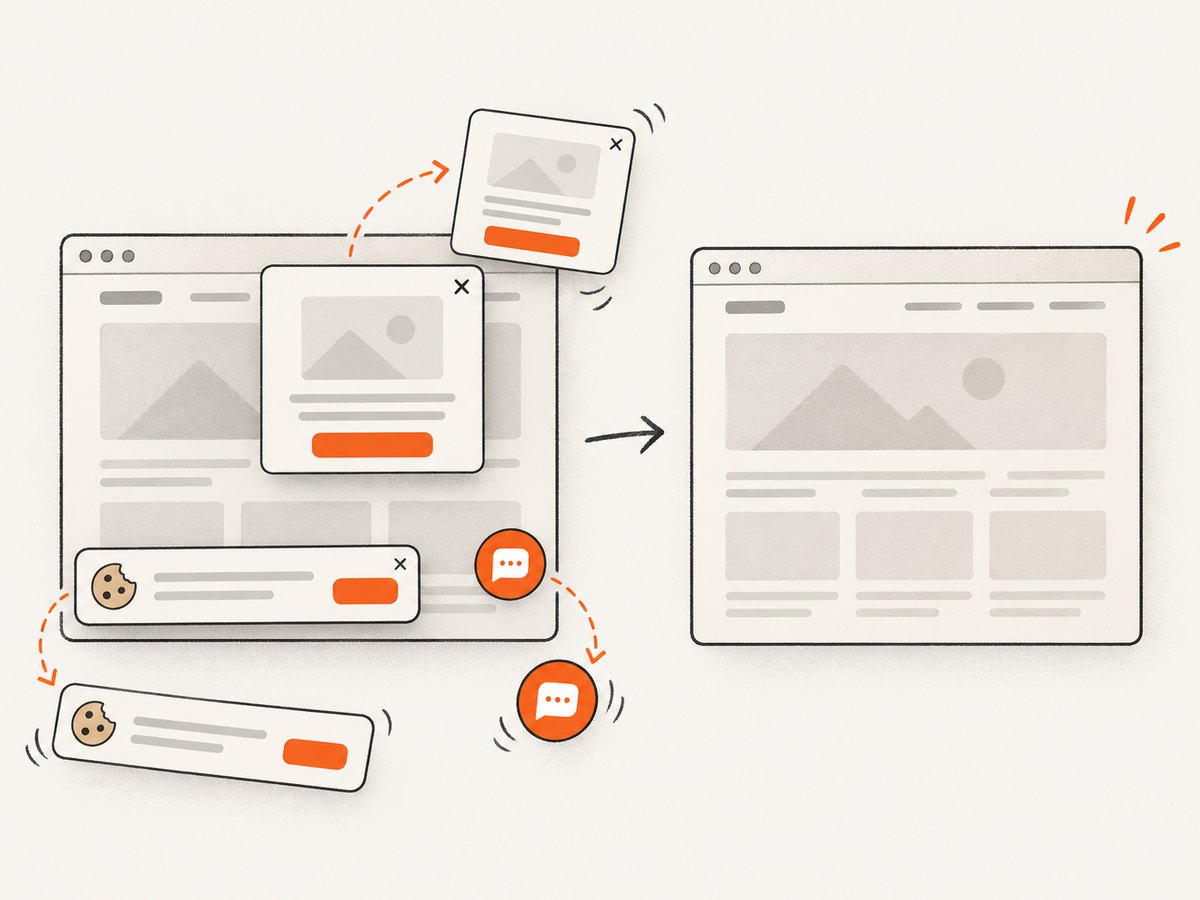
Cookie and consent banners are accepted like a visitor and more than 60 known consent platforms, newsletter popups, and chat widgets are removed before capture; each step can be disabled. Only clean shots are billed. Bot checks or CAPTCHAs, blank pages, timeouts, failed loads, and cache hits cost nothing, and response headers identify the page verdict and billing status with X-Page-Verdict and X-Billed. Its MCP server exposes take_screenshot, get_page_info, and capture_pdf to Claude, Cursor, and other MCP clients.
Free includes 1,000 shots per month with no card. Paid plans start at $5 for 3,000 shots; yearly billing gives two months free, and every feature is available on every plan. Create a free ScreenshotNeo account.
11. FAQ
Does element.screenshot() capture content below the fold?
It captures the element as exposed by the driver. A scrollable element can be limited to its currently visible content, so capture segments or use a full-page method for overflow.
Should I add window.scrollY to the crop coordinates?
Not for a viewport screenshot cropped from getBoundingClientRect(). Those coordinates are already viewport-relative. Add document offsets only when converting to document coordinates for another capture method.
Why is my PNG larger than the browser viewport?
Device scale or high-DPI settings can produce more image pixels than CSS viewport pixels. Derive horizontal and vertical scale from the actual PNG and viewport dimensions.
Can I capture an element in an iframe?
Yes. Switch to the iframe first, locate the element in that context, capture it, and then switch back to the default document.
When should I use a screenshot API instead of Selenium?
Use Selenium when you need browser-level control and already operate the test infrastructure. Use an API when you want URL-to-image automation without driver lifecycle, viewport cropping, consent cleanup, and failure billing logic in your application.


