How to Fix Selenium find_elements_by_X Returning an Empty List
Migrate legacy Selenium locators, then diagnose empty results with selector checks, explicit waits, and the right frame or shadow root.
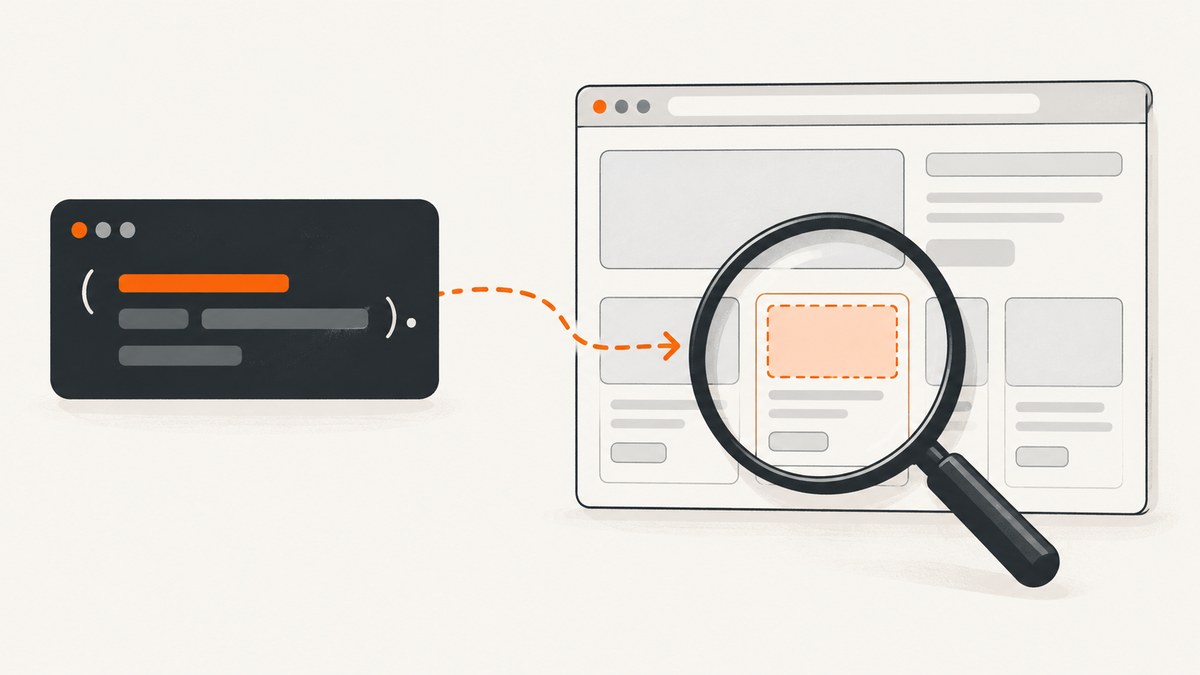
An empty list from Selenium means the locator found no matching elements in the current browsing context at the moment the search ran. In current Selenium Python, replace legacy calls such as driver.find_elements_by_css_selector(".result") with the By-based API:
from selenium.webdriver.common.by import By

elements = driver.find_elements(By.CSS_SELECTOR, ".result")
That migration fixes removed legacy method names, but it does not guarantee a match. The selector may be wrong, the page may not have rendered the target yet, or the target may be inside an iframe or shadow root. Diagnose those separately instead of adding a delay and hoping.
1. Replace find_elements_by_X with the Selenium 4 API
In current Selenium Python, import By and pass both the locator strategy and its value to find_elements. The method returns a list; with no matches, that list is empty. Selenium documents this finder API and the available strategies in its element finders guide. The Selenium 4 upgrade guide covers the move away from older Python APIs.
| Legacy method | Current form |
|---|---|
find_elements_by_id("login") |
find_elements(By.ID, "login") |
find_elements_by_name("email") |
find_elements(By.NAME, "email") |
find_elements_by_css_selector(".result") |
find_elements(By.CSS_SELECTOR, ".result") |
find_elements_by_xpath("//button") |
find_elements(By.XPATH, "//button") |
find_elements_by_class_name("card") |
find_elements(By.CLASS_NAME, "card") |
find_elements_by_tag_name("a") |
find_elements(By.TAG_NAME, "a") |
Other strategies include By.LINK_TEXT and By.PARTIAL_LINK_TEXT. Match the strategy to the locator syntax. An XPath expression passed with By.CSS_SELECTOR is not interpreted as XPath, and vice versa. Some malformed selectors raise an invalid-selector exception rather than returning an empty list.
2. Use a condition-based wait for dynamic content
A page navigation completing does not mean a JavaScript application has finished adding its results. Selenium’s waiting guide explains that readyState covers HTML-defined assets, while later JavaScript can still change the page. Use an explicit wait for the condition your next step requires: DOM presence or visibility.
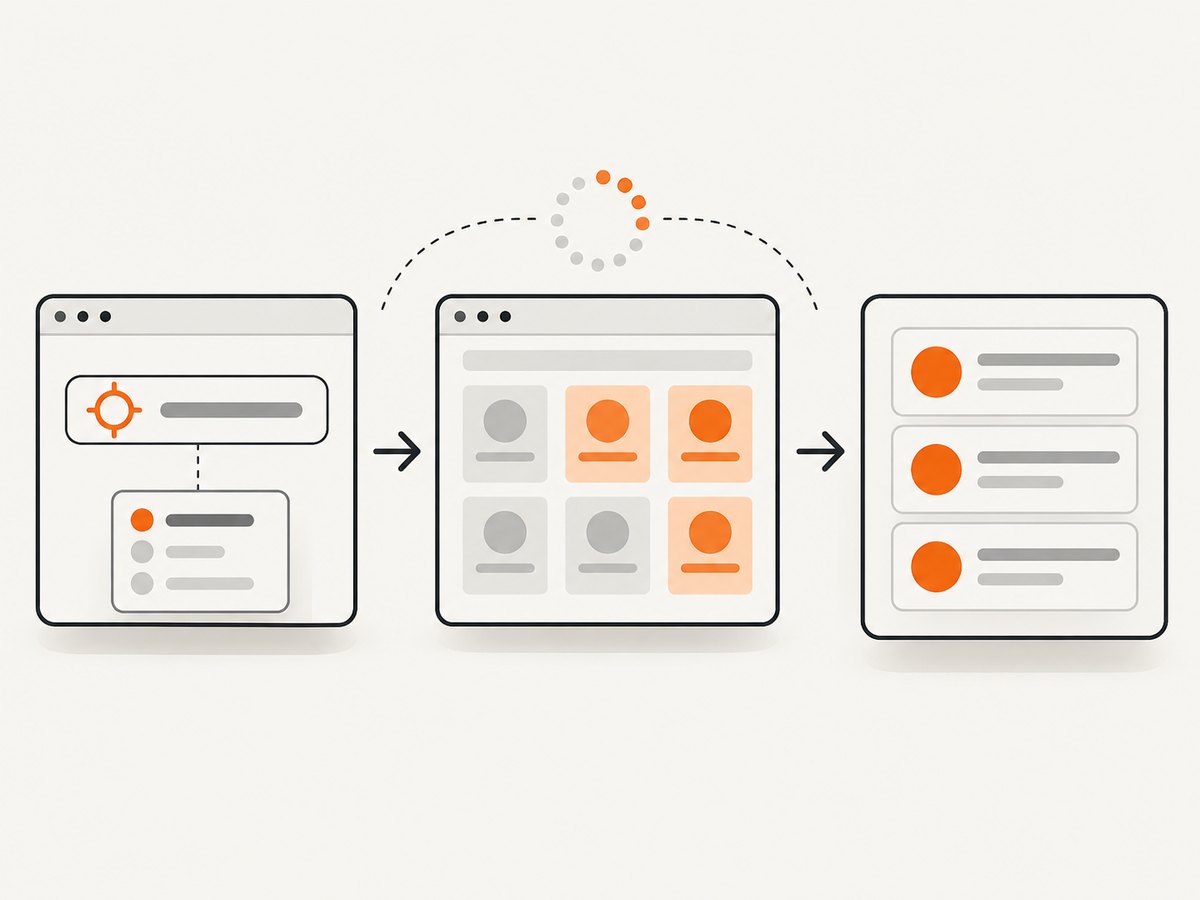
Runnable example: wait for results
This example opens a page, waits for result elements to enter the DOM, and prints their text. Replace the URL and selector with the page you are automating.
from selenium import webdriver
from selenium.webdriver.common.by import By
from selenium.webdriver.support import expected_conditions as EC
from selenium.webdriver.support.ui import WebDriverWait

URL = "https://example.com/search"
LOCATOR = (By.CSS_SELECTOR, ".result")

options = webdriver.ChromeOptions()
# Uncomment for headless execution:
# options.add_argument("--headless=new")

driver = webdriver.Chrome(options=options)
try:
    driver.get(URL)
    results = WebDriverWait(driver, 10).until(
        EC.presence_of_all_elements_located(LOCATOR)
    )
    for result in results:
        print(result.text)
finally:
    driver.quit()
presence_of_all_elements_located waits until at least one matching element exists. If the next operation needs an element users can see, use visibility_of_element_located instead. A wait timeout means its condition never became true within the configured interval; that narrows the investigation but does not tell you whether the cause is a selector, page state, or context problem. See Selenium’s waiting strategies documentation.
Choose the condition that matches the task
- Need nodes in the DOM: use
presence_of_element_locatedfor one, orpresence_of_all_elements_locatedfor a collection. - Need something visible: use
visibility_of_element_locatedor its collection variant. Presence alone does not establish visibility. - Need a click: wait for
element_to_be_clickable, then perform the click. - Need a state change: wait for a specific result, URL, or attribute that proves the preceding action worked.
A fixed time.sleep() is a poor final fix: it can be too short on a slow run and waste time when a fast run is ready earlier. Selenium also warns against mixing implicit and explicit waits because the resulting timing can be unpredictable. Prefer explicit waits around the condition that matters; do not layer an implicit wait into the example above.
3. Check the selector, page state, and browsing context
Follow this order. It prevents a timing workaround from masking a wrong locator or a search in the wrong document.
- Confirm the migration and syntax. Import
By, callfind_elements(By.STRATEGY, value), and make sure the value belongs to that strategy. For CSS, test a CSS selector; for XPath, test an XPath expression. - Confirm navigation and actions. Check
driver.current_url, the page title, and whether the click or form submission that should reveal the results actually succeeded. A successfulget()call alone does not prove the application reached the expected state. - Test against the rendered DOM. Use browser developer tools to check whether the target node exists and whether the selector matches it. Inspect the live DOM after the relevant interaction, since a locator based on old markup may no longer apply.
- Wait for the needed condition. If the node appears later, use an explicit wait. If the node never appears, inspect application state, network-dependent behavior, and the selector instead of increasing the timeout repeatedly.
- Switch to the correct context. Frame contents require switching into the iframe. Shadow DOM contents require finding the host and searching from its shadow root.
- Compare browser behavior if necessary. If the selector, state, wait, and context are right, check whether the result differs across browsers or drivers. Selenium notes that some issues originate in the underlying driver.
Selenium’s official troubleshooting guide identifies searching in the wrong place, searching before an element appears, and a changed locator as common causes. It also calls synchronization a frequent source of Selenium problems.
4. Search inside iframes and shadow roots
driver.find_elements searches the current document. It does not automatically traverse into an iframe or a shadow tree.
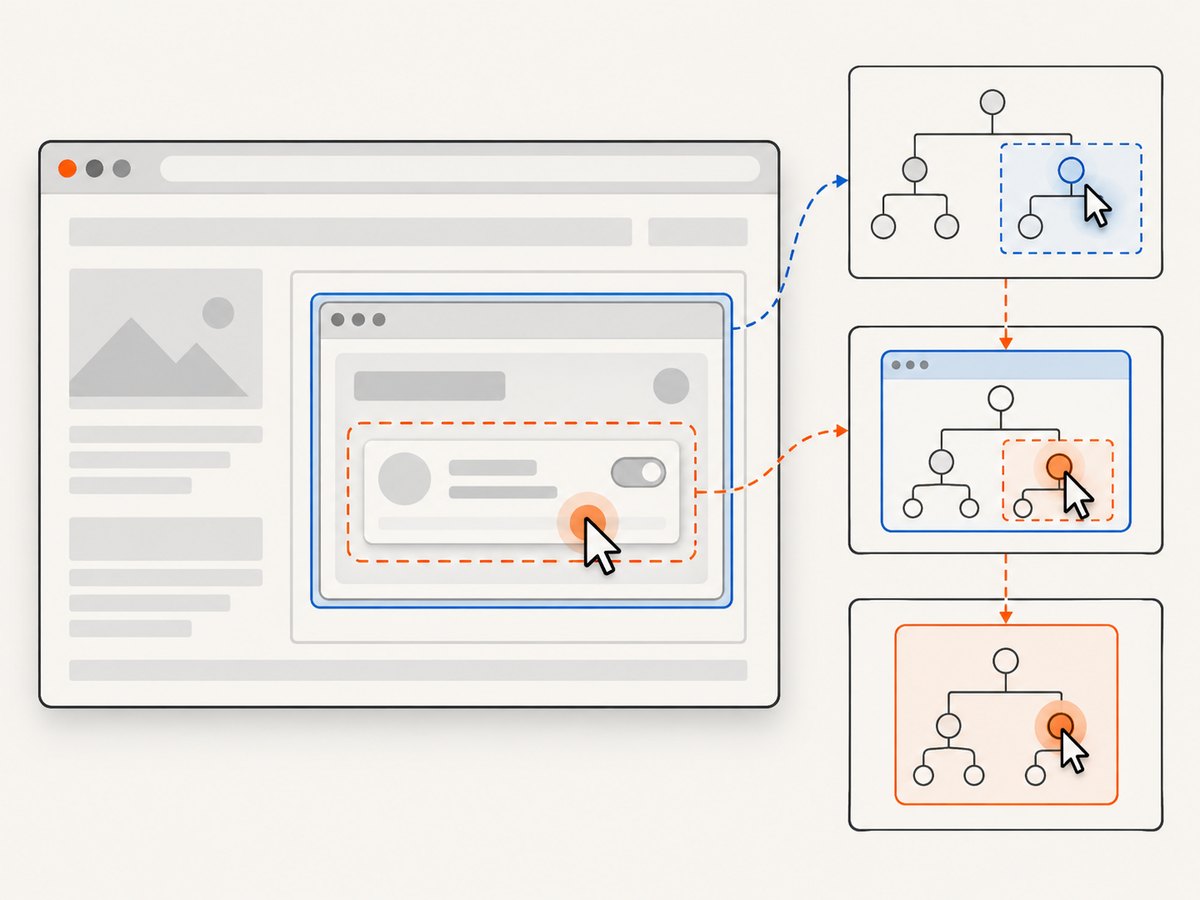
Iframe example
from selenium.webdriver.common.by import By
from selenium.webdriver.support import expected_conditions as EC
from selenium.webdriver.support.ui import WebDriverWait

wait = WebDriverWait(driver, 10)
frame = wait.until(
    EC.presence_of_element_located((By.CSS_SELECTOR, "iframe.payment"))
)
driver.switch_to.frame(frame)
try:
    fields = wait.until(
        EC.presence_of_all_elements_located((By.CSS_SELECTOR, "input"))
    )
    print(f"Found {len(fields)} fields in the frame")
finally:
    driver.switch_to.default_content()
Use a reliable locator for the frame, wait for it if it is added dynamically, and switch back when the frame work is done. Nested frames require switching into each parent frame in sequence.
Shadow DOM example
from selenium.webdriver.common.by import By

host = driver.find_element(By.CSS_SELECTOR, "my-widget")
shadow_root = host.shadow_root
items = shadow_root.find_elements(By.CSS_SELECTOR, ".result")
print(f"Found {len(items)} shadow-root results")
First locate the host in the current document, then query its shadow root. For nested shadow roots, repeat that host-to-root step at each level. The Selenium finder documentation describes searching from elements and shadow roots.
5. Know what an empty list means
These outcomes are different and need different fixes:
| Outcome | What it means | Next check |
|---|---|---|
[] from find_elements |
No elements matched in this context at lookup time. | Check selector, state, timing, and context. |
NoSuchElementException from find_element |
The singular lookup found no match at that time. | Apply the same checks; add a wait if the element is expected later. |
| Invalid selector exception | The query syntax or locator strategy is invalid. | Validate selector syntax and strategy in developer tools. |
| Wait timeout | The expected condition did not become true before the deadline. | Inspect the condition, selector, page state, and context. |
Use find_elements when zero matches are a valid possibility and you want to inspect a collection. Use find_element when one element is required and the absence should be an error, optionally after an explicit wait.
6. Troubleshooting common failures
| Symptom | Likely cause | Fix |
|---|---|---|
| Legacy method is missing or raises an attribute error | Code uses a removed legacy find_elements_by_* method. |
Import By and use find_elements(By.CSS_SELECTOR, value) or the matching strategy. |
| Empty list immediately after navigation | JavaScript has not inserted the target yet, or the page is not the expected one. | Check URL and page state, then wait for a locator-based condition. |
| Wait times out | The selector never matches, the action did not succeed, the condition is too strict, or the target is in another context. | Inspect the rendered DOM and action result; verify context and choose presence versus visibility correctly. |
| Invalid selector error | Malformed CSS/XPath or a selector passed with the wrong strategy. | Test the expression in browser developer tools and use the corresponding By constant. |
| Top-level lookup is empty but the element appears in the page | The element is inside an iframe or shadow root. | Switch into the frame, or locate the shadow host and search its root. |
| Works in one browser but not another | Browser or driver behavior differs, or timing is exposed differently. | Compare the rendered DOM and driver versions across browsers; isolate the smallest failing case. |
| Sleep fixes it sometimes | Rendering time varies between runs. | Replace the pause with an explicit wait for the actual condition. |
7. Performance, reliability, and cost
Repeated immediate searches can make a script fast when the page is ready, but they can also make the result flaky if the application is still rendering. A condition-based explicit wait spends time only until the condition is met or the timeout expires. Choose a timeout based on the expected behavior of your application and keep it long enough for ordinary variation; an excessively short timeout creates intermittent failures, while an unnecessarily long one makes real failures slow to surface.
Use the narrowest stable locator that expresses the target, and wait for a meaningful state rather than an arbitrary duration. If an action is supposed to reveal results, wait for those results or another clear completion condition. Keep diagnostics useful: log the URL, selector, wait condition, and whether execution is in a frame or shadow root. Avoid printing secrets from page data or request headers.
Selenium itself is browser automation, so a run needs a browser and its driver. The time and compute cost depend on the site and your execution environment; no universal runtime or cost figure applies. For screenshot-only workflows, running a browser locally may be more setup than needed. ScreenshotNeo is a website screenshot API and MCP server from ScreenshotNeo; a single GET request can return an image or PDF. It is not a replacement for DOM inspection or interactive Selenium tests, but it can provide a rendered screenshot without maintaining browser setup.
Or skip the browser setup
If you only need a screenshot, call ScreenshotNeo’s API. See the ScreenshotNeo API documentation for request options.
curl -G "https://api.screenshotneo.com/v1/shot" -d access_key=YOUR_API_KEY --data-urlencode url=https://stripe.com -o shot.webpimport requests
r = requests.get(
"https://api.screenshotneo.com/v1/shot",
params={"access_key": "YOUR_API_KEY", "url": "https://stripe.com"},
timeout=90,
)
r.raise_for_status()
open("shot.webp", "wb").write(r.content)const q = new URLSearchParams({ access_key: 'YOUR_API_KEY', url: 'https://stripe.com' });
const res = await fetch(`https://api.screenshotneo.com/v1/shot?${q}`);
if (!res.ok) throw new Error(`Screenshot request failed: ${res.status}`);
await Bun.write('shot.webp', res);
ScreenshotNeo accepts cookie or consent banners as a visitor and removes more than 60 known consent platforms, newsletter popups, and chat widgets before capture; each step can be turned off. Bot checks, blank pages, failed loads, timeouts, and cache hits are not billed, and the response identifies the page verdict and billing status in headers. Its MCP server offers take_screenshot, get_page_info, and capture_pdf for Claude, Cursor, or another MCP client. The free plan includes 1,000 screenshots per month with no card; paid plans start at $5 for 3,000. Sign up for 1,000 free screenshots a month, no card required.
FAQ
Does an empty list mean Selenium is broken?
No. It means no match was found in the current context at that moment. Check the locator, page state, timing, and frame or shadow-root context.
Should I replace find_elements with find_element?
Only when one element is required and a missing element should fail the step. The singular method raises NoSuchElementException when there is no match; it does not fix a bad selector or early lookup.
Can I use implicit and explicit waits together?
Avoid mixing them. Selenium warns that the combined timing can be unpredictable; use explicit waits for the conditions relevant to the workflow.
What if the element appears in the inspector but Selenium cannot find it?
Check whether the inspector is showing the live DOM after the necessary action, then check if the element belongs to an iframe or shadow root. Search in that context.
Does ScreenshotNeo tell me whether a page loaded cleanly?
Its response includes page-verdict and billed-status headers. It is designed for screenshots and page information, while Selenium remains the tool for browser interaction and DOM assertions.


