How to Fix a Python Selenium Firefox Script That Hangs on Ubuntu Server
Diagnose Firefox startup hangs on Ubuntu by checking geckodriver logs, Snap packaging, profile access, and headless settings—with runnable Python fixes.
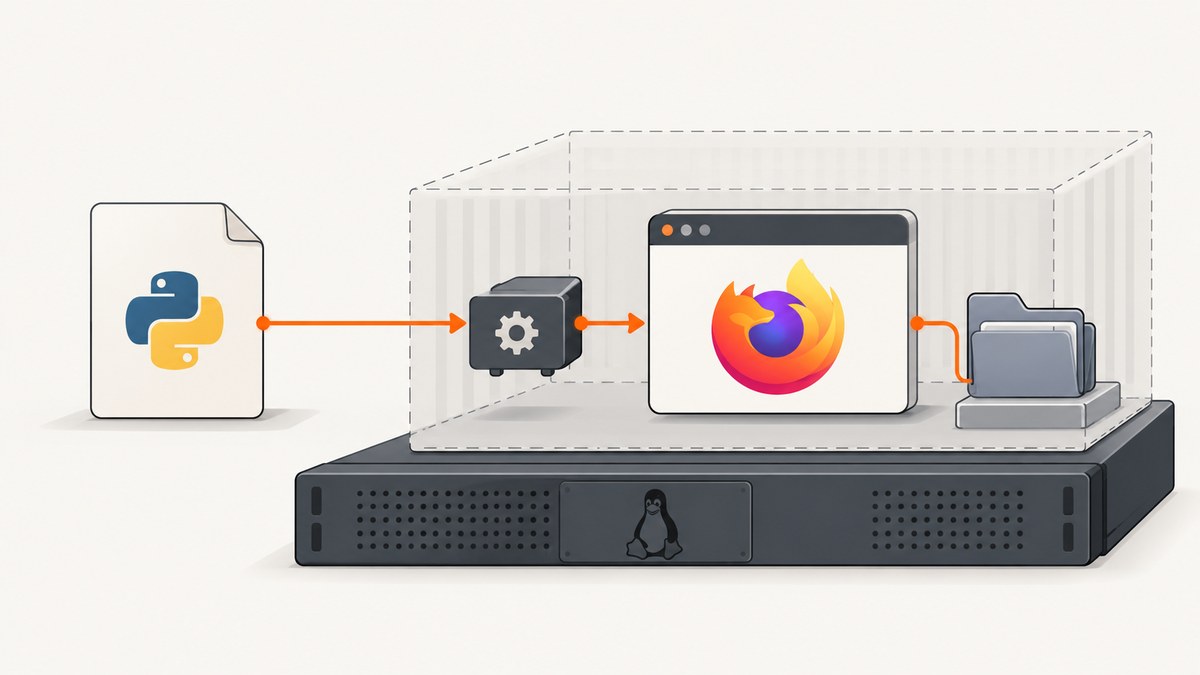
A Python Selenium script that appears to hang while launching Firefox on Ubuntu may be stuck because Firefox and geckodriver cannot see the same temporary profile directory. This is a documented issue with Ubuntu’s Snap-packaged Firefox, including the default Firefox on Ubuntu 22.04 and later. First find the exact launch stage in geckodriver’s trace log; if Firefox is the Snap package, try the matching driver at /snap/bin/geckodriver. Headless mode helps when the server has no display, but it does not fix profile isolation.
This guide walks through diagnosis before changing packages or upgrading versions. A “hang” during navigation, shutdown, or a network request can have a different cause, so the Snap/profile explanation is a strong lead rather than a universal diagnosis. The upstream documentation is the authority for current compatibility details: Mozilla geckodriver usage and Selenium’s Firefox guide.
1. Identify where startup stops
Record the Ubuntu release, Python and Selenium versions, Firefox package and version, geckodriver path and version, and the Unix account running the script. Service jobs often run as a different user than an interactive shell; that account’s permissions and environment determine whether it can access a profile.
lsb_release -a
python3 --version
python3 -m pip show selenium
which firefox || true
which geckodriver || true
firefox --version 2>&1 || true
geckodriver --version 2>&1 || true
readlink -f "$(command -v firefox)" 2>/dev/null || true
For Snap installations, inspect the package list too:
snap list firefox 2>/dev/null || true
Do not assume that a command named firefox is the browser executable. In a Snap setup, /snap/bin/firefox is a launcher. Mozilla documents that forcing it as the binary can produce “binary is not a Firefox executable.”
2. Turn on geckodriver trace logs
Normal logs may not show whether the stall happens before Firefox starts, while a profile is created, or during the Marionette handoff. Trace logging records much more detail. Mozilla calls trace output vital for understanding geckodriver and Firefox issues; Selenium’s Firefox documentation also describes setting the log output and level.
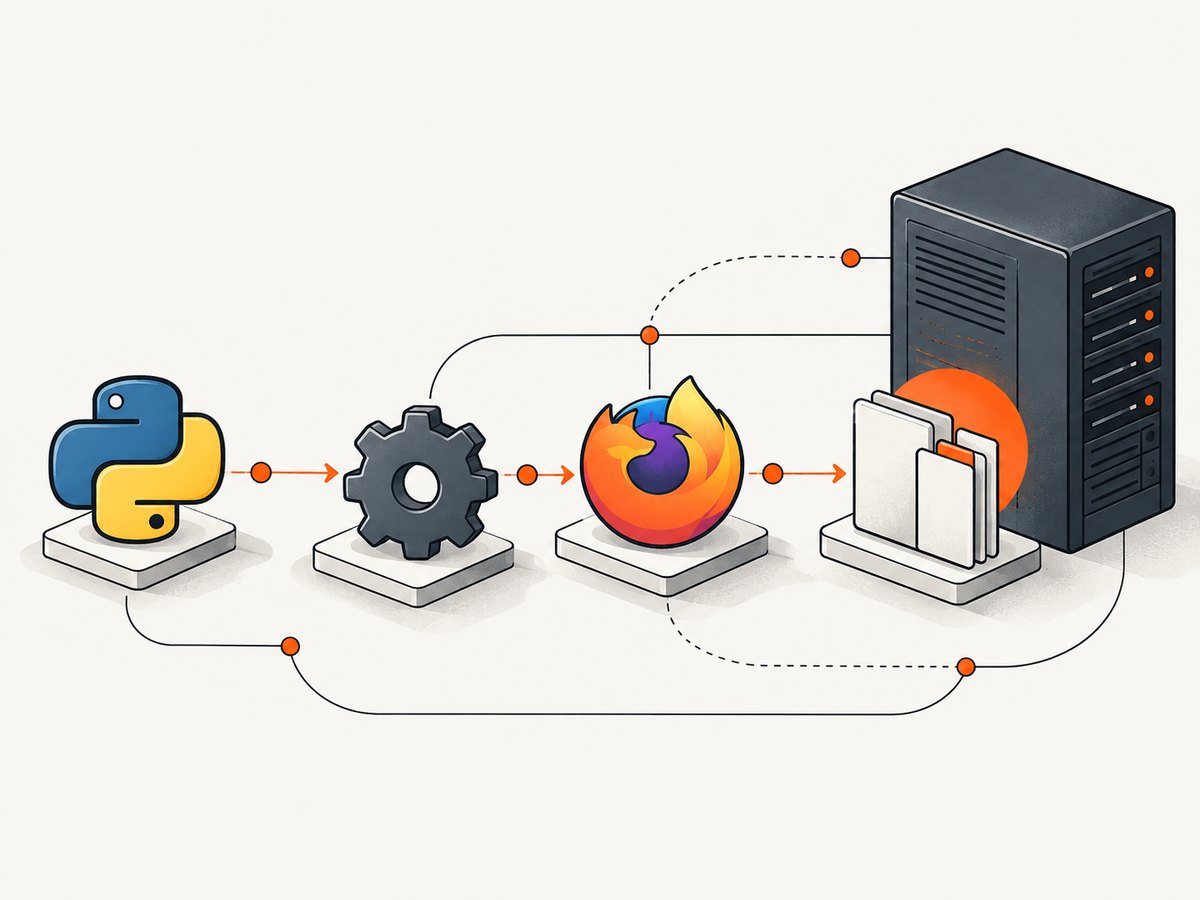
Here is a runnable Python diagnostic script for Selenium 4. It writes geckodriver output to a file and gives the startup call a finite timeout so a stuck launch does not wait indefinitely. Install the binding with python3 -m pip install selenium if needed.
from selenium import webdriver
from selenium.webdriver.firefox.options import Options
from selenium.webdriver.firefox.service import Service

options = Options()
options.add_argument("-headless")  # Remove if you have a display and want a visible browser.

service = Service(
    executable_path="/snap/bin/geckodriver",  # Adjust after checking your installation.
    log_output="geckodriver.log",
    service_args=["--log", "trace"],
)

driver = None
try:
    driver = webdriver.Firefox(service=service, options=options)
    driver.set_page_load_timeout(30)
    driver.get("https://example.com")
    print("Title:", driver.title)
finally:
    if driver is not None:
        driver.quit()
The startup timeout behavior depends on your installed Selenium binding and driver version; if your binding supports a service startup timeout, configure it there as well. Regardless, preserve the full geckodriver log. Look for the generated profile path, Firefox process launch, and whether the session reaches Marionette. A profile permission or inaccessible path points toward the Snap filesystem issue. A named missing shared library points to a system dependency instead.
3. Fix the common Ubuntu Snap profile problem
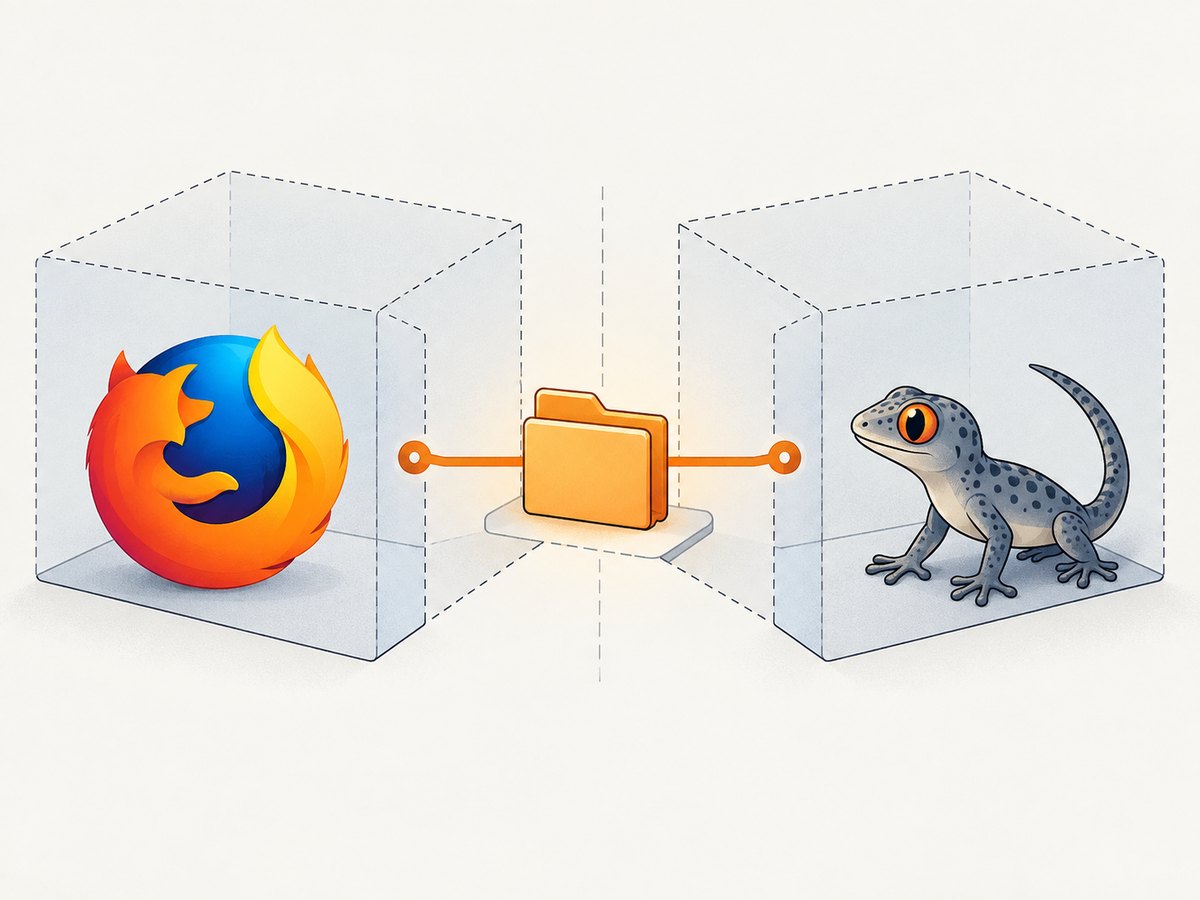
When Firefox is Snap-packaged, the browser and a driver launched outside the matching Snap environment may see different filesystem views. Geckodriver creates a temporary profile by default. If Firefox cannot access it as expected, startup can stall or fail. Mozilla’s documented first remedy is to use the geckodriver supplied under /snap/bin, so it runs in the compatible environment.
Check whether that driver exists and run it explicitly:
ls -l /snap/bin/geckodriver
/snap/bin/geckodriver --version
Then use executable_path="/snap/bin/geckodriver" in the Python example above. Ensure the actual service account can execute it. If you configure Firefox’s binary manually, use the executable within the Snap package as Mozilla documents; do not set the binary to the /snap/bin/firefox launcher.
If the trace log indicates that the profile path is the problem, another approach is to select a profile root that both processes can read and write. Mozilla suggests a non-hidden directory under the user’s home directory. Create it for the account that runs the job and verify permissions as that account:
mkdir -p "$HOME/selenium-tmp"
chmod 700 "$HOME/selenium-tmp"
TMPDIR="$HOME/selenium-tmp" python3 your_script.py
Geckodriver uses /tmp by default on Unix for its temporary profile, and TMPDIR can override that location. With a container boundary, simply changing a path is not enough: verify that Firefox inside the Snap can access the selected root. If the service runs under a dedicated account, set the directory and permissions for that account rather than your login user.
A third option is a non-container Firefox and geckodriver pairing, which avoids this Snap filesystem boundary. It requires maintaining the browser and driver releases together. Choose one package strategy deliberately, then confirm the executable paths in the service environment instead of relying on whichever PATH happens to be active.
4. Use headless mode correctly
Ubuntu servers commonly have no graphical display. Firefox’s -headless argument is appropriate for that environment, and the Python code above shows how to pass it. Headless mode addresses display requirements; it does not solve an inaccessible profile, an incompatible Snap driver context, or a missing shared library.
If you run a visible browser under a virtual display, confirm that the display is actually available to the service. If the job works interactively but hangs under systemd or a scheduler, compare the user, PATH, TMPDIR, environment variables, and permissions between both contexts.
5. Check profile, version, and driver configuration
Use a clean temporary profile while diagnosing. Reusing a persistent Firefox profile can introduce locks, stale state, or ownership issues. If your application requires a persistent profile, make sure no other Firefox process uses it at the same time and that the service account owns or can write its files.
Selenium Manager, included with Selenium 4.6 and newer, can locate or manage a missing driver when one is not supplied. It is useful for driver discovery, but it does not remove the Snap filesystem boundary. If a trace shows that the wrong geckodriver is being selected, compare explicit paths before and after using Selenium Manager.
Selenium’s Firefox guide states that Selenium 4 requires Firefox 78 or greater and recommends the latest geckodriver. These are general compatibility notes, not a guarantee that every combination works. Check current upstream guidance before changing a production server. Upgrade one component at a time and retain the old version or package information so you can reverse a change.
| Remedy | Use it when | Check |
|---|---|---|
/snap/bin/geckodriver |
You keep Ubuntu’s Snap Firefox | The script actually launches this path. |
| Shared profile root | Logs point to profile access | Both processes and the service user can access it. |
| Non-container browser and driver | You want to avoid the Snap boundary | Browser and driver versions remain compatible. |
-headless |
The server has no graphical display | Profile and driver problems are diagnosed separately. |
6. Troubleshooting common errors
| Symptom | Likely cause | Next step |
|---|---|---|
| Startup hangs after Firefox is launched | Profile path is inaccessible across the Snap filesystem view, or the Marionette handoff stalls. | Read the trace log; try /snap/bin/geckodriver and check profile visibility. |
binary is not a Firefox executable |
The Snap launcher was set as the browser binary. | Remove that override and follow Mozilla’s guidance for the executable inside the Snap package. |
geckodriver not found or driver discovery fails |
The service account has a different PATH, or no driver path was supplied. |
Use the verified absolute path, or Selenium Manager for driver discovery; then investigate any separate Snap issue. |
| Firefox reports a missing shared library | A Linux runtime dependency is unavailable. | Use the exact library name in the log to identify the dependency. Selenium Manager documentation notes this can prevent Firefox from running. |
| Firefox complains about a display | The process is not running headlessly and has no display. | Pass -headless, or configure a valid display environment. |
| Navigation times out after session creation | The browser launched; the page may be slow, unreachable, or waiting on network resources. | Separate launch from navigation, set a page-load timeout, and inspect connectivity and the target site. |
| Works as your user but fails in a scheduled job | The job uses another account or a reduced environment. | Log the effective user, executable paths, TMPDIR, and directory permissions from the job itself. |
Hang happens at quit() |
Shutdown is the failing stage rather than startup. | Keep the trace log and isolate session creation, navigation, and shutdown as separate steps. |
7. Reliability, runtime, and cost considerations
Set timeouts for page loads and script operations so one slow site cannot hold a worker forever. Treat driver startup, navigation, and shutdown as separate stages in logs; that makes retries safer because you can tell whether a browser session was created. A retry should use a fresh profile and should be bounded. Repeatedly launching browsers against the same locked profile can make the original problem harder to diagnose.
For a stable server job, pin or record the browser and driver package versions, use explicit executable paths, and run under the same account and environment as production. Preserve geckodriver logs when a failure occurs, but avoid logging secrets supplied through cookies, headers, or page scripts. Browser startup consumes more resources than a direct HTTP request, and concurrent Firefox processes need sufficient memory and CPU. Limit concurrency to what the server can support.
There is no single cost estimate for this setup: compute use depends on page weight, browser concurrency, capture frequency, and server pricing. Selenium is useful when the task needs browser interaction or custom automation; if the goal is just a screenshot, managing Firefox, geckodriver, profiles, and server resources may be unnecessary overhead.
Or skip the browser setup
ScreenshotNeo is a website screenshot API and MCP server. One GET request returns a PNG, JPEG, WebP, or PDF. For a screenshot of a page, use this runnable cURL request; see the ScreenshotNeo documentation for the API options.
curl -G "https://api.screenshotneo.com/v1/shot" \
  -d access_key=YOUR_API_KEY \
  --data-urlencode url=https://example.com \
  -o shot.webp
The equivalent Python call is:
import requests

r = requests.get(
    "https://api.screenshotneo.com/v1/shot",
    params={"access_key": "YOUR_API_KEY", "url": "https://example.com"},
    timeout=90,
)
r.raise_for_status()
open("shot.webp", "wb").write(r.content)
And in Node.js:
const q = new URLSearchParams({
  access_key: 'YOUR_API_KEY',
  url: 'https://example.com'
});
const res = await fetch(`https://api.screenshotneo.com/v1/shot?${q}`);
if (!res.ok) throw new Error(`Screenshot request failed: ${res.status}`);
await Bun.write('shot.webp', res); // In Node.js, replace with a file-writing approach such as writeFile from node:fs/promises.
In Node.js, use the built-in file API to save the response body:
import { writeFile } from 'node:fs/promises';

const q = new URLSearchParams({ access_key: 'YOUR_API_KEY', url: 'https://example.com' });
const res = await fetch(`https://api.screenshotneo.com/v1/shot?${q}`);
if (!res.ok) throw new Error(`Screenshot request failed: ${res.status}`);
await writeFile('shot.webp', Buffer.from(await res.arrayBuffer()));
ScreenshotNeo removes cookie banners, newsletter popups, and chat widgets before the shot. Bot checks, blank pages, and failed loads are never billed. An MCP server lets AI agents take screenshots. The free plan includes 1,000 screenshots a month with no card; paid plans start at $5 for 3,000. Create a free ScreenshotNeo account.
FAQ
Does this affect every Ubuntu server?
No. Mozilla documents this filesystem issue for the default Snap Firefox setup on Ubuntu 22.04 and later. Confirm the package type and log evidence before treating it as the cause.
Will Selenium Manager fix the Snap hang?
Not by itself. It helps manage driver discovery in Selenium 4.6 and newer; profile visibility and the driver’s execution context are separate concerns.
Should I always use headless Firefox?
Use it when the server has no graphical display. If startup still hangs, continue investigating the trace log and profile path.
What information should I include when asking for help?
Provide the Ubuntu release, package source, Selenium/Firefox/geckodriver versions and paths, the running account, and the relevant geckodriver trace output. Remove credentials and other sensitive values first.


