How to Fix Selenium Grid 2 Error Forwarding a New Session
Diagnose Selenium Grid 2’s “Error forwarding the new session” by matching capabilities, node capacity, and hub-to-node connectivity.
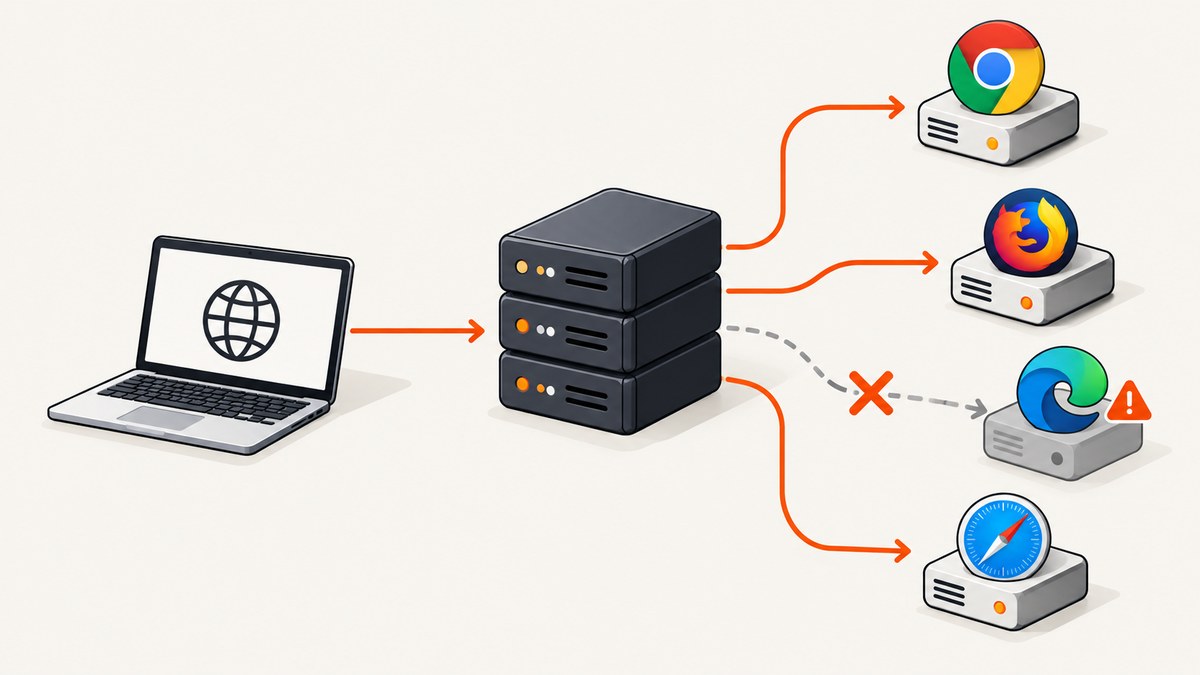
Short answer: “Error forwarding the new session” is a shared Selenium Grid 2 prefix, not one diagnosis. Read the complete exception and the matching hub log. If the suffix says cannot find : Capabilities, compare the client’s requested browser, version, platform, and other constraints with the capabilities advertised by registered nodes. If it says a request timed out waiting for a node, investigate matching slot capacity and registration. If it reports a read timeout, failed connection, or HTTP timeout, inspect the hub-to-node path and the node process.
The exact wording matters more than the prefix. Historical reports include “Error forwarding the new session cannot find,” “Request timed out waiting for a node to become available,” and “Error forwarding the request Read timed out.” Treat those as different branches and avoid changing several unrelated settings at once.
1. Preserve the full error before changing configuration
Copy the complete client exception, the hub log lines around the request, and the node log from the same timestamp. Record:
- Selenium Server and client versions (the cited SeleniumHQ case used Server 2.53.1).
- Browser and browser-driver versions on each node.
- Operating system and architecture.
- The exact requested capabilities.
- Which node registrations were present when the request failed.
A screenshot or one-line message is not enough. The text after “Error forwarding” identifies whether the hub rejected matching, waited for capacity, or failed while forwarding to a selected node.
2. Diagnose a capability mismatch
Start here when the log contains cannot find : Capabilities [...]. In the SeleniumHQ report, the hub showed concrete Chrome and Internet Explorer slots, while the incoming request used browserName=*webdriver. The hub therefore had registered slots but none matching that request. That report demonstrates a request-to-slot mismatch; it does not mean every Grid 2 forwarding error has the same cause.
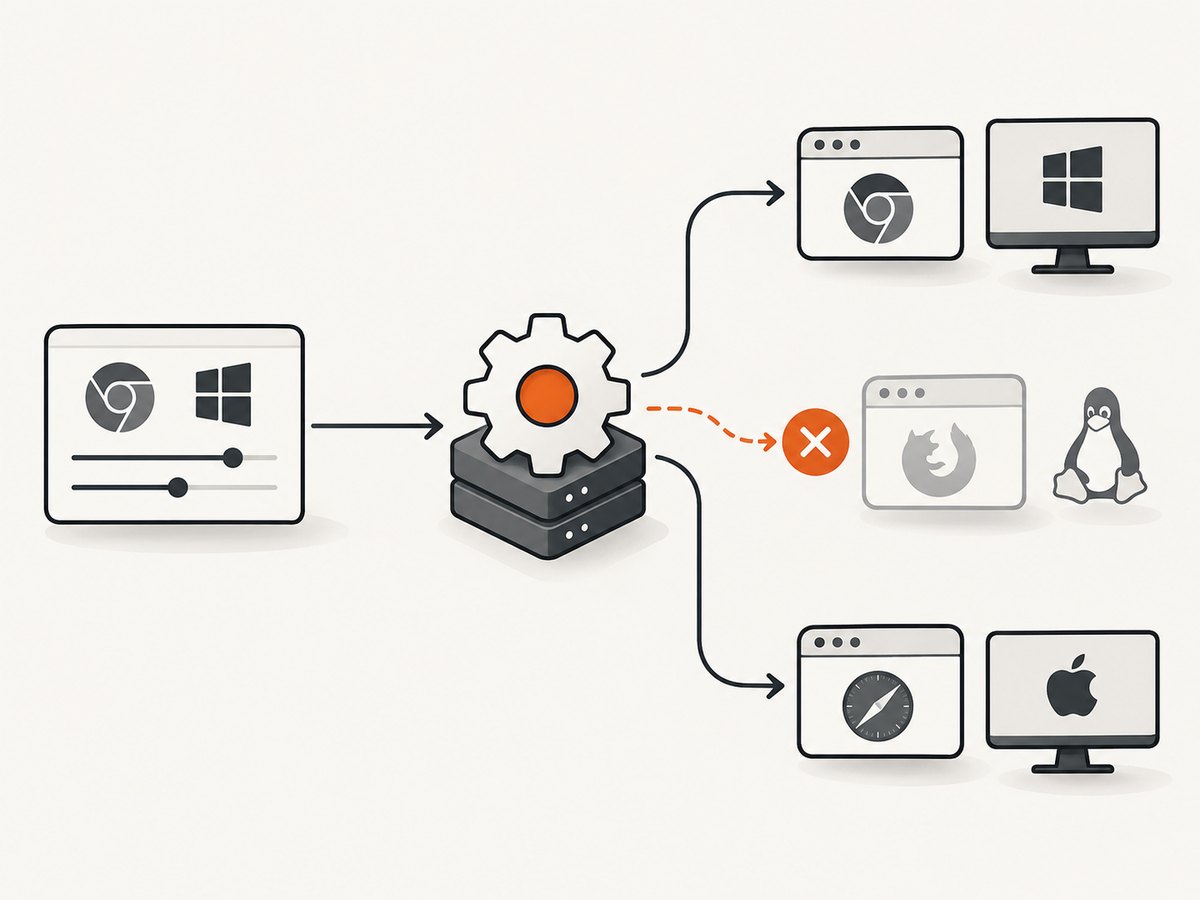
Compare the request with every registered slot
| Request field | What to compare | Typical mistake |
|---|---|---|
browserName |
Exact browser name exposed by the node | Using a generic value such as *webdriver when nodes advertise concrete browsers |
version |
Version declared by the node and understood by the matcher | Requesting Firefox 32.0.3 while the node does not advertise that version |
platform |
Node platform value and Grid 2 matcher behavior | Requesting LINUX when the node reports another value |
| Other constraints | Anything added by the client or framework | Unexpected vendor or automation capability narrowing the match |
Remove optional constraints temporarily and send a minimal request for a browser that is visibly registered. If that works, add the version, platform, and other requirements one at a time. This isolates the field that prevents a match.
Minimal Java request
import java.net.URL;
import org.openqa.selenium.WebDriver;
import org.openqa.selenium.remote.DesiredCapabilities;
import org.openqa.selenium.remote.RemoteWebDriver;

public class GridProbe {
  public static void main(String[] args) throws Exception {
    DesiredCapabilities capabilities = new DesiredCapabilities();
    capabilities.setBrowserName("chrome");
    // Add these only when the node advertises matching values:
    // capabilities.setVersion("...");
    // capabilities.setPlatform(org.openqa.selenium.Platform.LINUX);

    WebDriver driver = new RemoteWebDriver(
        new URL("http://HUB_HOST:4444/wd/hub"), capabilities);
    try {
      driver.get("https://example.com");
      System.out.println(driver.getTitle());
    } finally {
      driver.quit();
    }
  }
}
Use the legacy API that matches your installed Selenium 2 client. Do not copy a modern W3C capability example into an old Grid 2 deployment without checking how that client serializes capabilities.
Node configuration checks
Open the node’s actual launch configuration and compare its advertised browser name, version, platform, and slot count with the client request. The historical Grid 2 discussion specifically points to defining the browser version in node configuration when a request includes a version. Configuration syntax differs by Selenium Server release, browser driver, and operating system, so use the format shipped with your deployed version. A command copied from another Grid installation can register a slot with different values or fail to register at all.
3. Diagnose “waiting for a node to become available”
A timeout while waiting for a node is a capacity or availability branch, not proof of a capability mismatch. First determine whether any registered node advertises a slot matching the request. Then check whether those slots are occupied, whether the node is still registered, and whether another job has left a session open.
- Inspect the hub’s registered-node view or startup log.
- Count free slots for the requested browser, version, and platform.
- Check running sessions and close abandoned sessions.
- Confirm that the node process has not exited or lost its registration.
- Retry with one minimal capability set to separate capacity from matching.
A WorkFusion guide describes a similar wait timeout in its RPA setup and recommends comparing running tasks with available RPA nodes. That is product-specific guidance, so apply the underlying capacity check to your environment rather than assuming its commands or limits are universal Selenium behavior.
4. Diagnose forwarding, read, and HTTP timeouts
If the suffix says Read timed out, failed connection, or HTTP timeout, the hub selected or attempted to contact a node but did not complete the interaction in the reported time. Check both processes and the network path:
- Confirm the node Java process and browser-driver process are alive.
- Read node logs for a crash, stuck browser launch, or driver startup failure.
- Verify the hub can resolve and reach the node hostname and port.
- Check host firewalls, container networks, proxies, and security groups.
- Confirm the node’s registration endpoint and hub URL are correct.
- Correlate hub and node timestamps; a hub timeout without a node log usually points to reachability or a process that never received the request.
A Selenium Users report records a read timeout, while a TeamCity support report records failed connections and HTTP timeouts in a Grid deployment. Those examples show why the complete suffix and both sides’ logs are required; they do not establish one guaranteed fix.
5. A repeatable repair procedure
- Freeze the evidence. Save the full exception, hub log, node log, and capability payload.
- Classify the suffix. Choose capability mismatch, capacity wait, or forwarding/connectivity failure.
- Verify registration. Ensure the intended node is registered and its advertised slots are the ones you expect.
- Simplify the request. Request one concrete browser with no optional version or platform constraint.
- Change one value. Add version, platform, or vendor fields individually and retry.
- Test node reachability. From the hub host, connect to the node’s configured address and port using the tools approved for your environment.
- Retest a single session. Only after that succeeds should you restore parallel workload and extra capabilities.
Example capability payload for inspection
{
  "desiredCapabilities": {
    "browserName": "chrome",
    "version": "",
    "platform": "ANY"
  }
}
The field values above are an inspection example, not a universal Grid 2 configuration. Replace them with values that your node actually advertises. An empty version or broad platform can help isolate matching, but some deployments require explicit values.
6. Common errors and fixes
| Log clue | Likely branch | First fix |
|---|---|---|
cannot find : Capabilities |
No registered slot satisfies the request | Compare browser, version, platform, and extra constraints with node advertisements |
browserName=*webdriver beside concrete browser slots |
Request-to-slot mismatch | Request the concrete browser name used by the node |
| Request timed out waiting for a node | No free matching slot or unavailable registration | Check capacity, active sessions, and node liveness |
Read timed out |
Hub-to-node interaction did not finish | Correlate hub/node logs and check process and network reachability |
| Connection or HTTP timeout | Hub could not complete node communication | Verify hostname, port, firewall, proxy, and registration URL |
| Works with one request but fails under load | Capacity exhaustion or leaked sessions | Track slot occupancy and always call quit() |
7. Edge cases that make Grid 2 matching confusing
Version strings are not interchangeable
A browser may report a full semantic version while a node configuration contains a shorter or differently formatted value. Treat the value as a matcher input, not a comment. Confirm what the Grid 2 server receives and advertises.
Platform aliases differ
Legacy Grid 2 platform matching can distinguish values such as LINUX, WINDOWS, or ANY. A request copied from another operating system may exclude every node even when the browser itself is installed.
Automation wrappers can add capabilities
Selenium IDE playback, test frameworks, and internal helpers may add a browser name or vendor-specific field you did not write directly. Log the serialized request at the client boundary.
Stale registrations
A hub may retain a registration briefly after a node process dies, or a node can register with an address that is reachable only from itself. Restart or re-register only after confirming the cause in logs.
8. Performance and reliability practices
- Keep hub and nodes on a low-latency, reliable network when possible.
- Use one diagnostic session before enabling parallel workers.
- Set client timeouts high enough for browser startup, but investigate repeated delays instead of masking them.
- Always close sessions in a
finallyblock so failed tests do not consume slots. - Keep browser, driver, and Selenium Server versions documented per node.
- Alert on registration loss and repeated forwarding timeouts.
- Capture request capabilities and node identity in CI logs for post-failure comparison.
Grid 2 error reports do not provide a universal latency, capacity, or timeout value. Measure your own browser startup and network behavior before selecting operational thresholds.
9. Cost and operational trade-offs
Running Grid 2 requires maintaining hub and node processes, browser installations, drivers, capacity, and network access. The failure modes above can consume CI time even when no test assertion runs. A minimal probe and clear capability inventory reduce that waste. If screenshots are the only artifact you need, a remote screenshot service can remove browser-grid setup from that part of the pipeline.
10. Or skip the browser setup
For a screenshot rather than an interactive WebDriver session, ScreenshotNeo provides a single GET request. Its capture flow accepts cookie and consent banners before the shot, then removes more than 60 known consent platforms, newsletter popups, and chat widgets. Each cleanup step can be turned off. Bot checks or CAPTCHAs, blank pages, timeouts, failed loads, and cache hits are not billed, and response headers identify the page verdict and whether the request was billed.
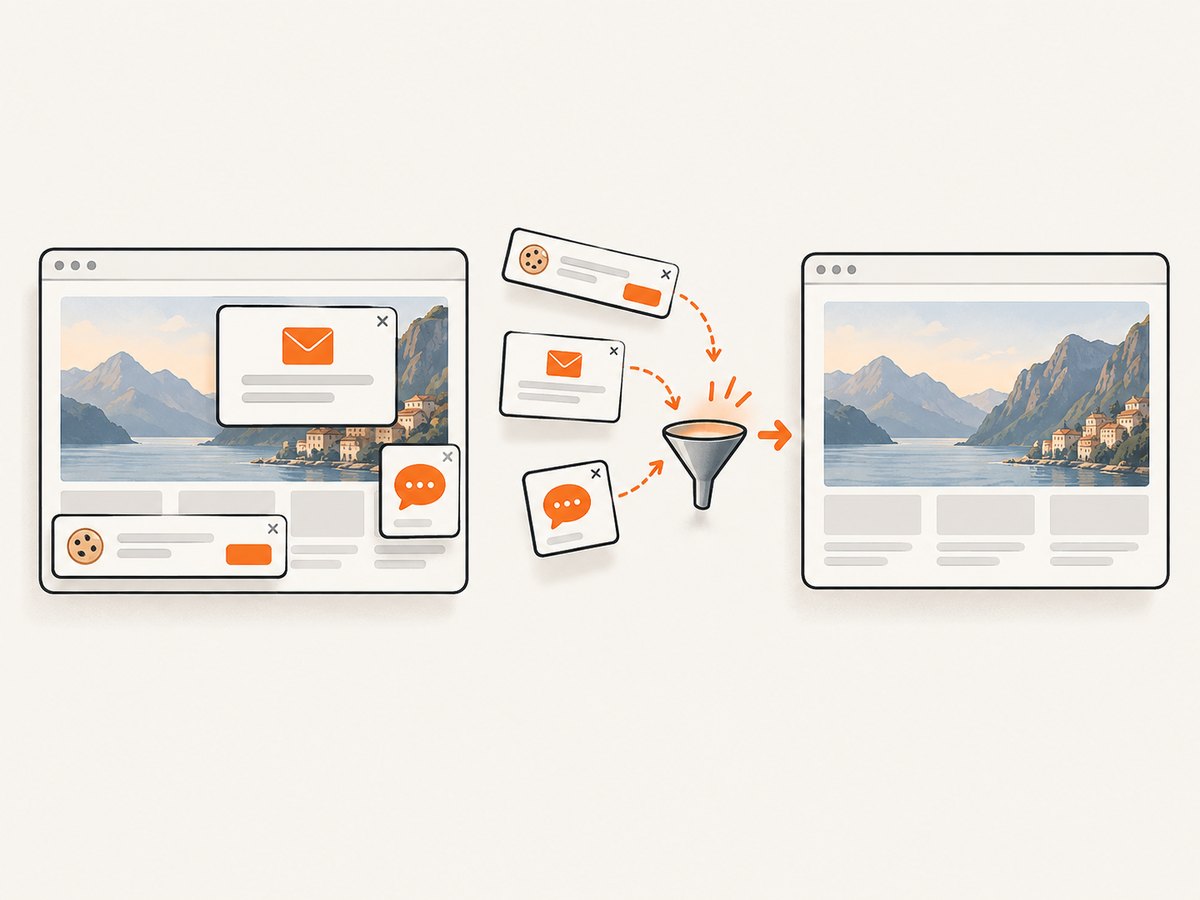
ScreenshotNeo also includes an MCP server with take_screenshot, get_page_info, and capture_pdf tools for Claude, Cursor, and other MCP clients. The Free plan includes 1,000 screenshots per month with no card; paid plans start at $5 for 3,000 shots. See the ScreenshotNeo API documentation for the complete option list.
curl -G "https://api.screenshotneo.com/v1/shot" -d access_key=YOUR_API_KEY --data-urlencode url=https://stripe.com -o shot.webpimport requests
r = requests.get("https://api.screenshotneo.com/v1/shot", params={"access_key": "YOUR_API_KEY", "url": "https://stripe.com"}, timeout=90)
open("shot.webp", "wb").write(r.content)const q = new URLSearchParams({ access_key: 'YOUR_API_KEY', url: 'https://stripe.com' });
const res = await fetch(`https://api.screenshotneo.com/v1/shot?${q}`);Options cover full-page capture with lazy images loaded, CSS element selection, dark mode, device presets, custom viewports, retina scale, PDF paper and page settings, HTML/CSS rendering, custom CSS and JavaScript, clicks, waits, blocked requests, headers, cookies, user agents, authorization, timezone, geolocation, transparent backgrounds, resizing, caching, signed image links, asynchronous webhooks, bulk capture, and usage reporting. That is useful when the deliverable is a clean image or PDF rather than a browser session you need to drive.
Create a free ScreenshotNeo account to get 1,000 screenshots each month with no card.
11. FAQ
Does every “Error forwarding the new session” mean the node is down?
No. The same prefix can precede a capability mismatch, a wait for capacity, or a forwarding connection timeout.
Should I set every capability explicitly?
No. Begin with the smallest request that should match a registered slot, then add constraints one at a time.
Is *webdriver a valid browser request for all Grid 2 nodes?
No. The cited SeleniumHQ case shows it failing alongside concrete Chrome and Internet Explorer slots.
Can increasing the timeout fix a capability mismatch?
No. A longer timeout cannot create a matching slot. It may only delay the same failure.
What should I check first after a Grid restart?
Confirm node registration and advertised capabilities before sending parallel test traffic.
When is ScreenshotNeo a better fit?
Use it when you need a screenshot or PDF and do not need to interact with a live WebDriver session, especially when consent banners, popups, chat widgets, or failed page loads are operational concerns.


