How to Fix Selenium Headless Chrome After a Chrome Update
Fix Selenium headless Chrome after an update: match versions, remove stale drivers, diagnose crashes, and stabilize CI with practical Python examples.
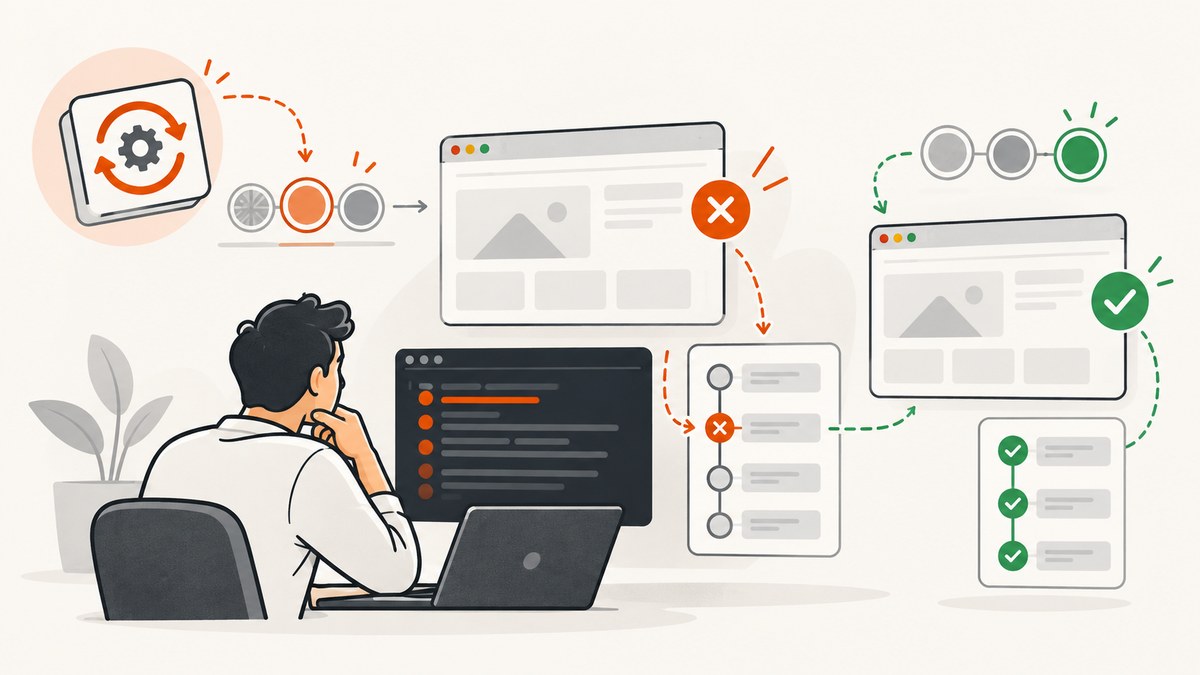
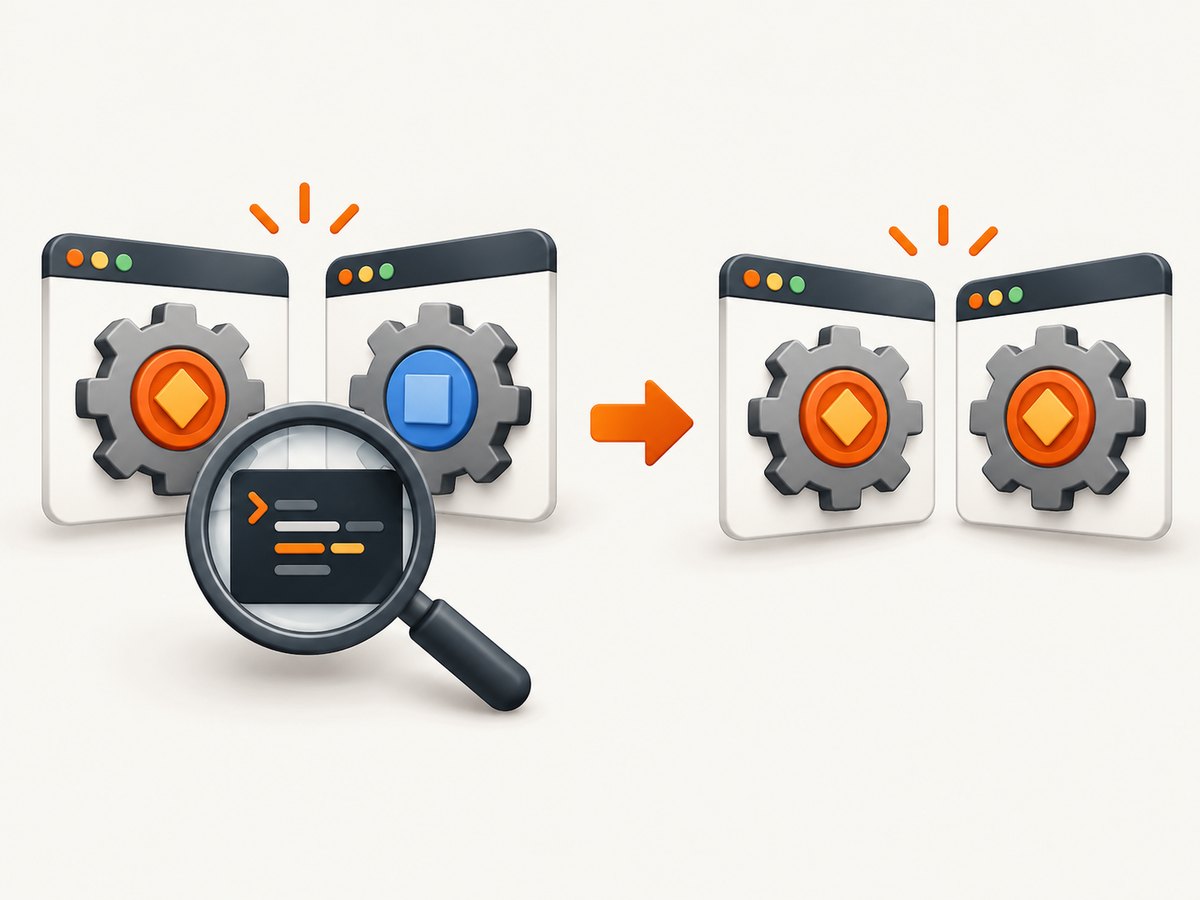
Selenium headless Chrome usually stops working after a Chrome update for one of four reasons: the selected ChromeDriver is older than the browser, Selenium is launching a different Chrome binary than expected, the headless flag no longer matches the installed Chrome generation, or the runtime cannot start Chrome because of permissions, missing libraries, or network restrictions. Start with the complete exception and compare the major versions of the browser and the driver Selenium actually selects. If they differ, remove the stale driver override and let Selenium Manager resolve a matching driver, or pin a browser and driver pair together in CI.
Selenium documents the typical failure as session not created: This version of ChromeDriver only supports Chrome version 113. Its Chrome documentation says the browser and ChromeDriver should match at the major-version level. The official references are Selenium Chrome WebDriver documentation and Selenium Manager documentation.
1. Route the error to the right fix
| Symptom | First check | Likely fix |
|---|---|---|
only supports Chrome version ... or session not created |
Compare browser and selected driver major versions | Remove a stale explicit driver, update it, or pin a matched pair |
| Driver versions match, but Chrome never starts | Check the Chrome binary path and launch it outside WebDriver | Repair the installation, account permissions, service setup, or dependencies |
| Selenium Manager reports DNS, TLS, proxy, or download errors | Inspect Selenium Manager logs and network policy | Allow vendor endpoints or configure an approved proxy |
| The failure began after changing headless flags | Inspect --headless and --headless=new |
Use the flag supported by the installed Chrome generation |
2. Check the browser, driver, and executable Selenium uses
Do not assume that the driver you downloaded is the driver Selenium launches. A driver on PATH, a hard-coded executable path, a third-party manager, or a container image can take precedence over the version you just installed.
- Read the full exception, including the supported Chrome version.
- Find the installed Chrome version.
- Find the ChromeDriver version and executable path.
- Confirm the Chrome binary path in
chromedriver.logor Selenium Manager debug output. - Compare major versions, then retry before changing unrelated browser flags.
Find versions from a shell
# Linux examples; use the equivalent executable paths on macOS or Windows
which google-chrome || which chromium || which chromium-browser
google-chrome --version || chromium --version
which chromedriver
chromedriver --version
On Windows, inspect the installed Chrome executable and run chromedriver.exe --version from the same environment as the test. On macOS, check the Chrome application bundle and the driver available to the Python or Node process.
Print Selenium capabilities and driver logs
from selenium import webdriver
from selenium.webdriver.chrome.options import Options

options = Options()
options.add_argument('--headless')
options.add_argument('--window-size=1280,1000')

# Let Selenium Manager select the driver when no Service path is supplied.
driver = webdriver.Chrome(options=options)
try:
    print(driver.capabilities)
    print(driver.current_url)
finally:
    driver.quit()
Run with Selenium Manager debugging enabled when you need to see detected browser versions and resolved paths:
SE_MANAGER_PATH=/path/to/selenium-manager \
SE_MANAGER_LOG_LEVEL=debug \
python smoke_test.py
The exact environment-variable support can vary with Selenium releases and bindings. If that variable is unavailable in your binding, use the binding’s logging configuration and inspect the ChromeDriver log. The key evidence is the executable path, not merely the version printed by a package manager.
3. Use Selenium Manager or pin a matched pair
Selenium Manager ships with Selenium starting at version 4.6 and acts as a fallback when you have not supplied a driver. It detects the browser, resolves compatible driver metadata, downloads the driver, and caches it locally. A manually supplied Service path or a stale driver on PATH prevents that fallback from helping.
Local development: remove the stale override
from selenium import webdriver
from selenium.webdriver.chrome.options import Options

options = Options()
options.add_argument('--headless')
options.add_argument('--disable-gpu')
driver = webdriver.Chrome(options=options)
try:
    driver.get('https://example.com')
    print(driver.title)
finally:
    driver.quit()
Update Selenium in the same virtual environment that runs the test, remove an old webdriver.Chrome(service=...) argument, and delete a stale driver only after confirming no other project depends on it. Selenium Manager metadata has a default one-hour cache lifetime. Clear its cache only when logs indicate stale metadata or a corrupted download; cache deletion is not the first response to every mismatch.
CI: control the browser and driver together
For reproducible builds, choose one policy:
- Install a pinned Chrome for Testing release and its matching driver in the image.
- Allow Selenium Manager to manage both the browser and driver, then record the resolved versions in job logs.
- Use the system Chrome and let Selenium Manager resolve only the driver, provided the job has network access.
Selenium Manager can manage Chrome for Testing browser releases from Selenium 4.11.0 onward, and its browserVersion option can select an available version. Keep the browser and driver selection in one configuration file so an image update cannot silently change only one side.
from selenium import webdriver
from selenium.webdriver.chrome.options import Options

options = Options()
options.add_argument('--headless')
# Use only when your Selenium version supports browser management.
options.browser_version = 'stable'
driver = webdriver.Chrome(options=options)
try:
    driver.get('https://example.com')
finally:
    driver.quit()
4. Choose the headless mode for your Chrome generation
Version compatibility and headless mode are separate checks. Chrome’s current documentation uses --headless. Selenium’s headless guidance also documents --headless=new for the newer implementation. Google’s current documentation says Chrome now has unified headless and headful modes; since Chrome 132.0.6793.0, the old implementation is available only as a separate chrome-headless-shell binary. See Chrome Headless mode and Selenium’s headless migration article.
Do not change several flags at once. First prove that the browser and driver match. Then test the headless flag by itself:
from selenium import webdriver
from selenium.webdriver.chrome.options import Options

for flag in ('--headless', '--headless=new'):
    options = Options()
    options.add_argument(flag)
    options.add_argument('--window-size=1280,1000')
    try:
        driver = webdriver.Chrome(options=options)
        driver.get('https://example.com')
        print(flag, driver.title)
        driver.quit()
    except Exception as error:
        print(flag, repr(error))
Use the flag that your installed Chrome and Selenium binding support. Remove obsolete switches copied from old tutorials before adding workarounds.
5. Diagnose Chrome launch and crash failures
ChromeDriver’s startup guidance recommends running the same Chrome binary from a normal user command prompt with the same special arguments. This separates a Chrome installation problem from a WebDriver problem.
- Locate the binary shown in
chromedriver.log. - Run that binary directly from the test account.
- Use the same profile, arguments, and environment where possible.
- If Chrome itself fails, repair or reinstall that installation before changing Selenium code.
On Linux, running Chrome as root is a common startup-crash cause. Run the job as a regular user. ChromeDriver documents --no-sandbox as an unsupported and highly discouraged workaround; do not make it the routine fix. If a background service alone fails, check whether the service account can see the installation. ChromeDriver notes that an all-users installation can resolve this visibility problem.
Linux dependencies
Chrome for Testing can fail when required shared libraries are missing. Selenium’s documentation gives libatk-1.0.so.0 as an example and names libatk-bridge2.0-0 for its documented apt-based system. Package names differ by distribution. Read the exact missing-library message and install the equivalent package from your distribution’s documentation rather than copying an unrelated apt command.
6. Network, proxy, and cache failures
Selenium Manager contacts vendor endpoints to discover and download drivers and managed browsers. A corporate firewall, DNS policy, TLS inspection, or proxy can interrupt that process. If logs show a connection failure, fix the network path first.
# Example of passing an approved proxy to Selenium Manager
export SE_PROXY=http://proxy.example.internal:8080
python smoke_test.py
Use your organization’s permitted proxy format and credentials policy. If outbound downloads are prohibited, preinstall a matched browser and driver in the image and disable reliance on runtime downloads. Keep the cache between CI steps only when its ownership and contents are controlled.
7. A complete Python smoke test
This script captures the evidence needed to classify most failures: Selenium version, browser startup, page navigation, title, and a screenshot.
import platform
import sys

import selenium
from selenium import webdriver
from selenium.webdriver.chrome.options import Options

print('Python:', sys.version)
print('Platform:', platform.platform())
print('Selenium:', selenium.__version__)

options = Options()
options.add_argument('--headless')
options.add_argument('--window-size=1440,1000')
options.add_argument('--disable-dev-shm-usage')

# Do not add --no-sandbox as a default. Run Chrome as a regular user.
driver = None
try:
    driver = webdriver.Chrome(options=options)
    print('Capabilities:', driver.capabilities)
    driver.get('https://example.com')
    print('Title:', driver.title)
    driver.save_screenshot('smoke.png')
finally:
    if driver is not None:
        driver.quit()
--disable-dev-shm-usage can help in containers with a small shared-memory mount, but it does not fix a version mismatch. Add one environmental change at a time and keep the successful configuration in source control.
8. Or skip the browser setup
If your goal is a reliable website image rather than browser automation, ScreenshotNeo provides a GET endpoint that returns PNG, JPEG, WebP, or PDF. The API handles the browser environment for you, and the ScreenshotNeo documentation lists all options.
cURL
curl -G 'https://api.screenshotneo.com/v1/shot' -d access_key=YOUR_API_KEY --data-urlencode url=https://stripe.com -o shot.webpPython
import requests
r = requests.get('https://api.screenshotneo.com/v1/shot', params={'access_key': 'YOUR_API_KEY', 'url': 'https://stripe.com'}, timeout=90)
open('shot.webp', 'wb').write(r.content)
Node.js
const q = new URLSearchParams({ access_key: 'YOUR_API_KEY', url: 'https://stripe.com' });
const res = await fetch(`https://api.screenshotneo.com/v1/shot?${q}`);
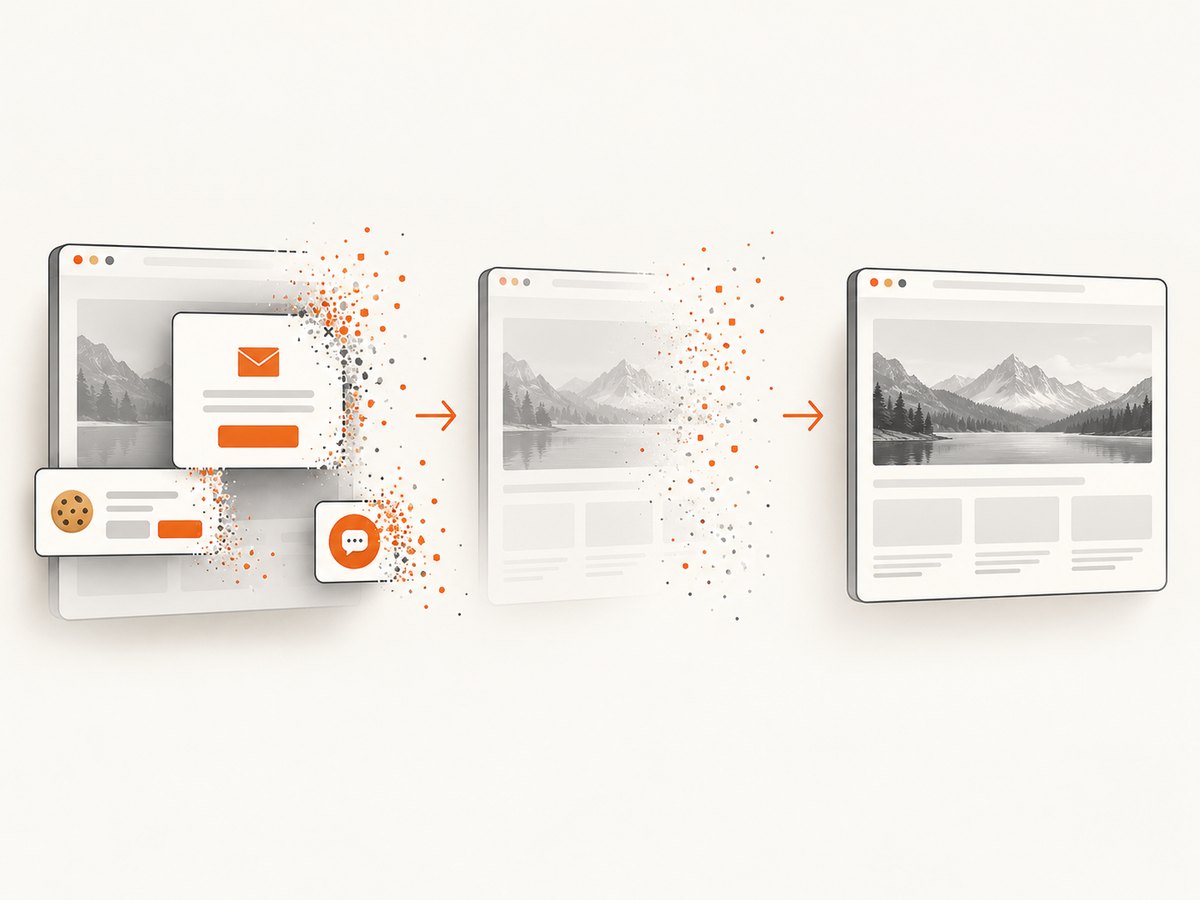
ScreenshotNeo removes cookie and consent banners, newsletter popups, and chat widgets before capture. Bot checks, blank pages, timeouts, failed loads, and cache hits are not billed; response headers identify the page verdict and whether the shot was billed. Its MCP server provides take_screenshot, get_page_info, and capture_pdf tools for Claude, Cursor, and other MCP clients. Free accounts include 1,000 screenshots each month with no card, and paid plans start at $5 for 3,000 shots. Create a free ScreenshotNeo account.
9. Performance, reliability, and cost notes
- Startup time: Reusing a driver for a test batch is faster than starting Chrome for every URL. Always quit it in a
finallyblock. - CI repeatability: Pin browser and driver versions together when reproducibility matters. Selenium Manager is convenient when controlled network access and automatic updates are acceptable.
- Container stability: Check shared memory, regular-user permissions, and native libraries before adding flags.
- Network dependence: Runtime driver downloads require DNS, TLS, and proxy access. Preinstall matched binaries when the build environment is offline.
- Screenshot cost: Selenium itself has no per-shot API charge, but browser machines consume CI or hosting resources. ScreenshotNeo bills only clean shots and provides cache controls and usage information for API-based workflows.
10. Troubleshooting checklist
- Copy the complete exception, including supported and detected versions.
- Print the browser version, driver version, and executable paths.
- Remove explicit stale driver paths and retry with Selenium Manager.
- If versions match, test
--headlessand--headless=newseparately. - Run the exact Chrome binary outside WebDriver as the same user.
- Check root execution, service-account visibility, and missing Linux libraries.
- Inspect proxy, DNS, TLS, and download errors in Selenium Manager logs.
- Clear Selenium Manager metadata only when cache staleness or corruption is indicated.
- Record the versions that passed so the next Chrome update is diagnosable.
FAQ
Should I always download ChromeDriver manually?
No. Selenium Manager is the official fallback when you do not provide a driver. Manual pinning remains useful for controlled, offline, or highly reproducible CI.
Does a matching ChromeDriver guarantee headless will work?
No. Permissions, the selected Chrome binary, missing libraries, network configuration, and headless flags can still prevent startup.
When should I use Chrome for Testing?
Use it when CI needs a reproducible browser release that can be installed and selected together with its driver.
Is --no-sandbox the standard container fix?
No. ChromeDriver describes it as unsupported and highly discouraged. Fix the user and container setup first.
Can I avoid ChromeDriver entirely for screenshots?
Yes. For image or PDF capture, ScreenshotNeo’s API and MCP server remove the local browser and driver maintenance from the workflow.


